Week 12 - Project-1
Follow the Quality Criteria and mesh the following component and assign thickness:
Target Element Length = 4mm
|
S.N |
Quality Criteria |
Value |
|
1 |
Aspect Ratio |
5 |
|
2 |
Skewness |
45 |
|
3 |
Warping |
15 |
|
4 |
Taper |
0.5 |
|
5 |
Min. Length |
2mm |
|
6 |
Max. Length |
6mm |
|
7 |
Min angle Quad |
45 |
|
8 |
Max angle Quad |
135 |
|
9 |
Min angle Tria |
20 |
|
10 |
Max angle Tria |
120 |
|
10 |
Tria % |
10 |
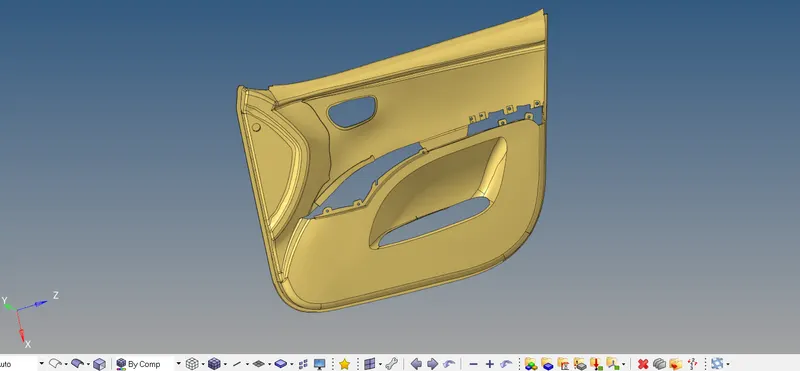
Importing the model.
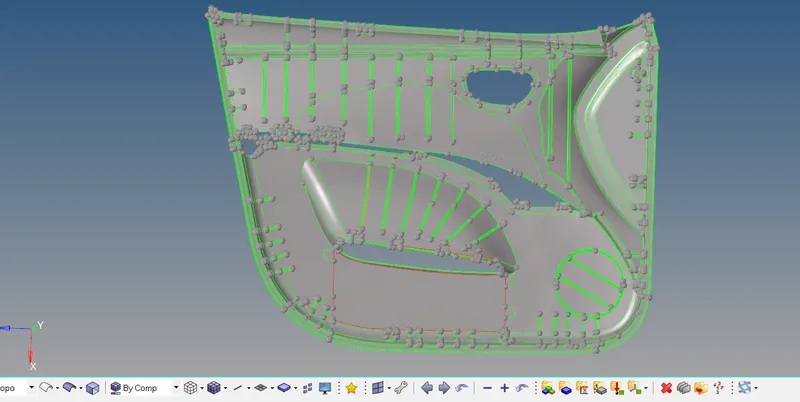
Creation of Missing Surfaces:
Geom -- > Surfaces -- > Splines/Fillers
Creation of node:
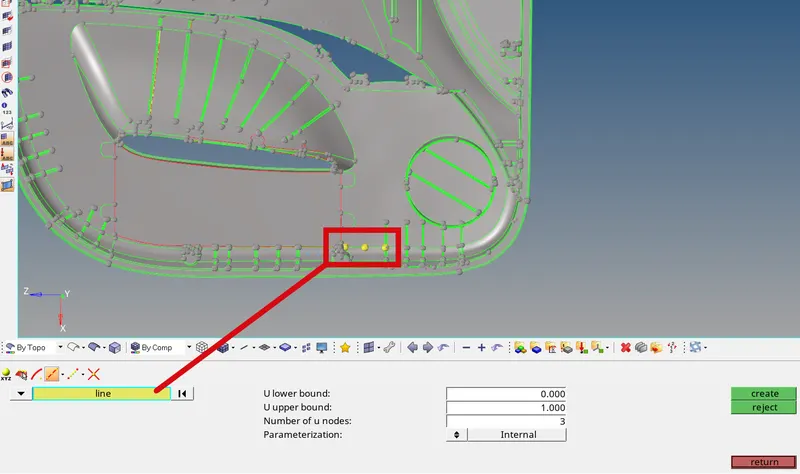
- Geom -- > nodes . Section of line and create the required nodes.
The split surface along node:
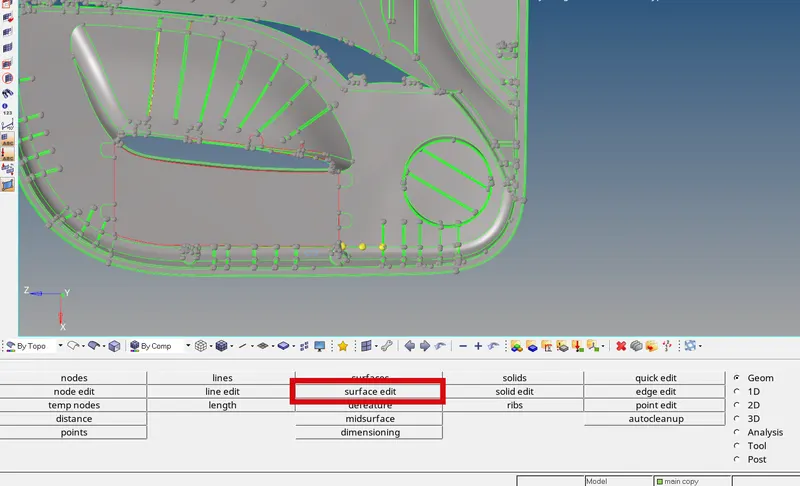
- Geom -- > surface edit -- > trim with surfs/plane
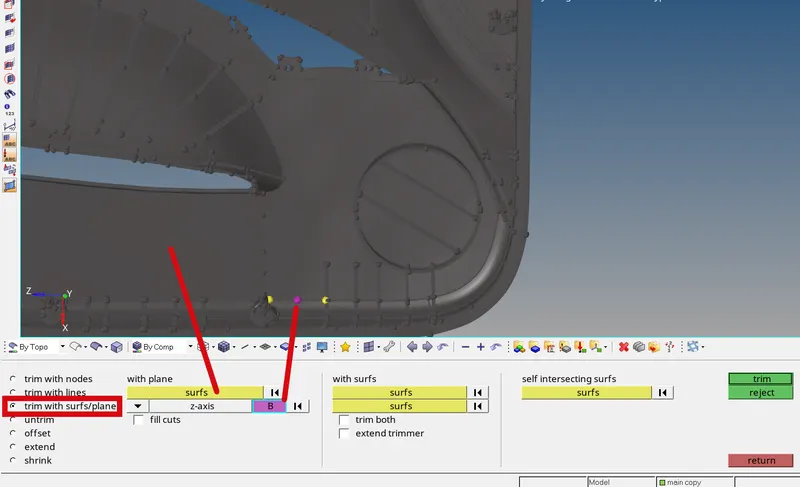
- Select the surfaces to trim and the node and direction along which it is to be trimed is set.
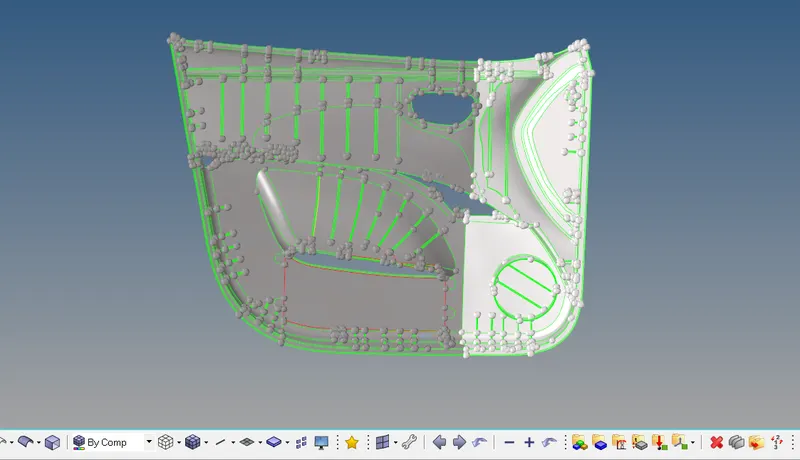
- The surface is split along the node and direction given.
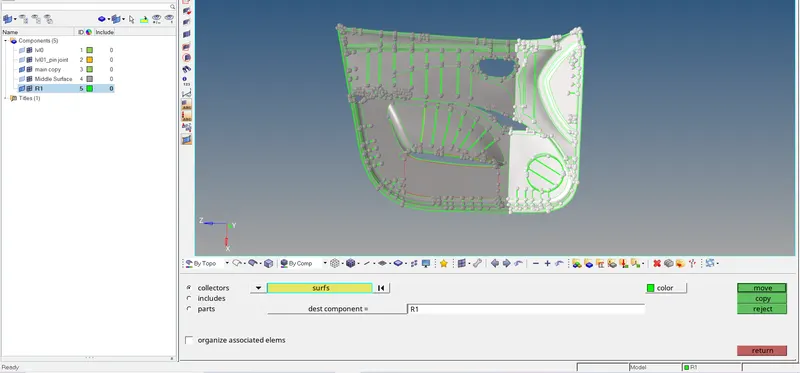
- For the ease of creation of manual mid surface the different half’s of the surfaces are kept in different components.
- Tool -- > collectors. The surfaces to move are selected and the component destination is set and click move and the selected surfaces are moved.
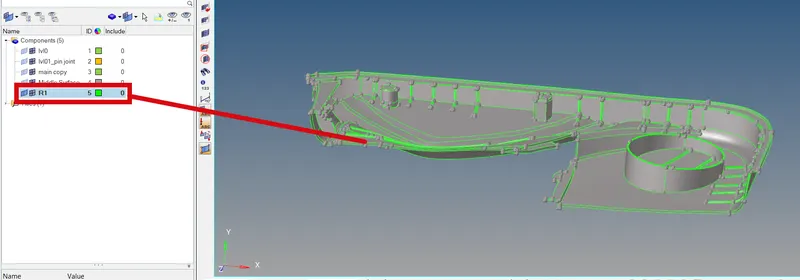
- The selected surfaces are moved.
Defeature:
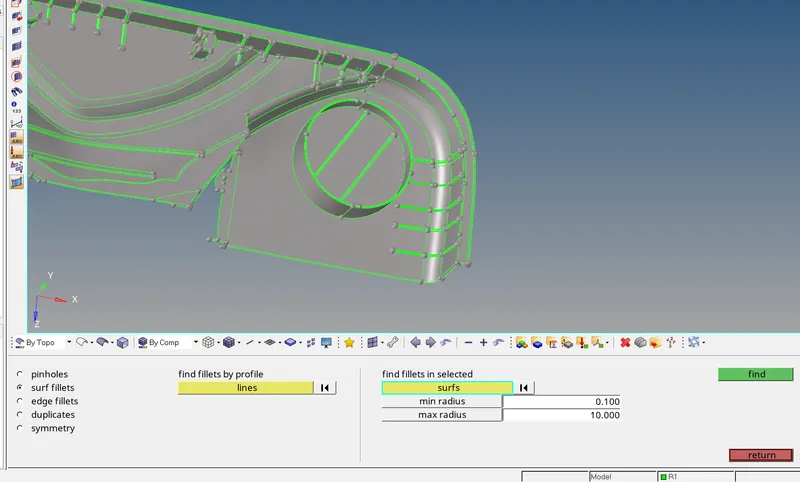
- The surface fillets that are less than the required radius are found and removed.
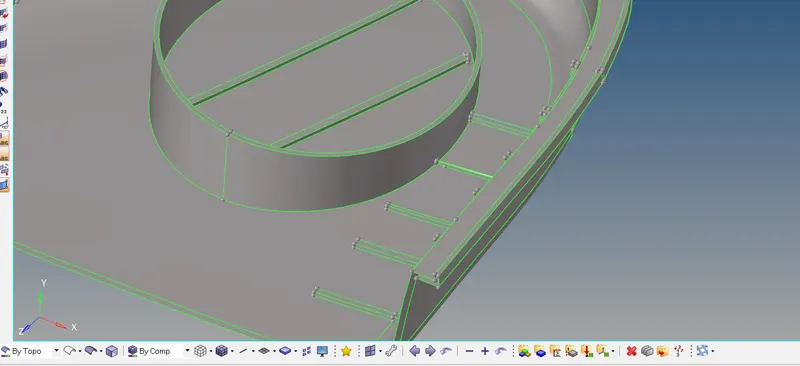
- The fillets are removed.
Manual Midsurface:
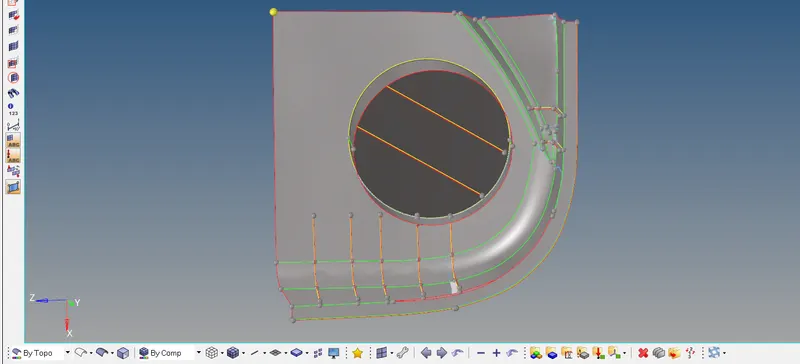
- The manual mid-surface is created.
Creation of Mesh: 2D -- > automesh
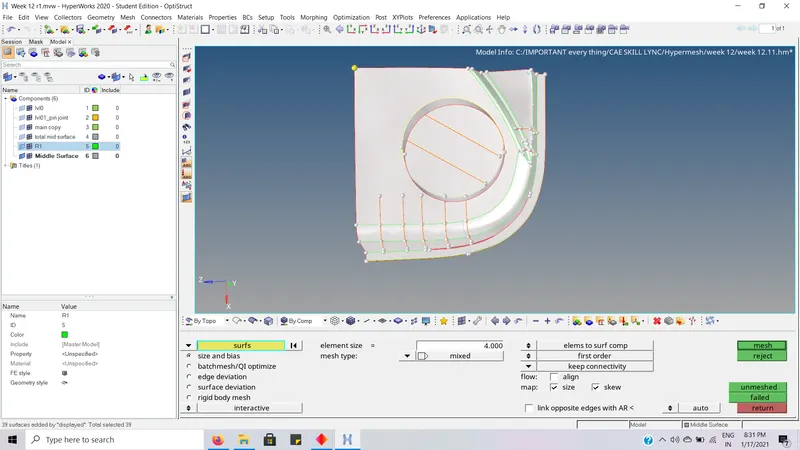
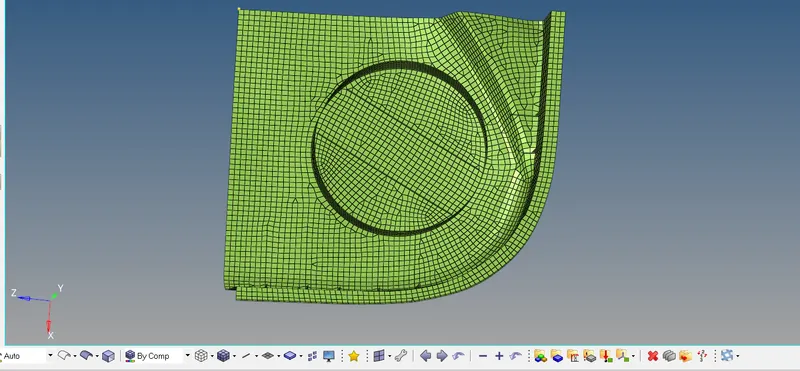
- 2D mesh is created.
Similarly:
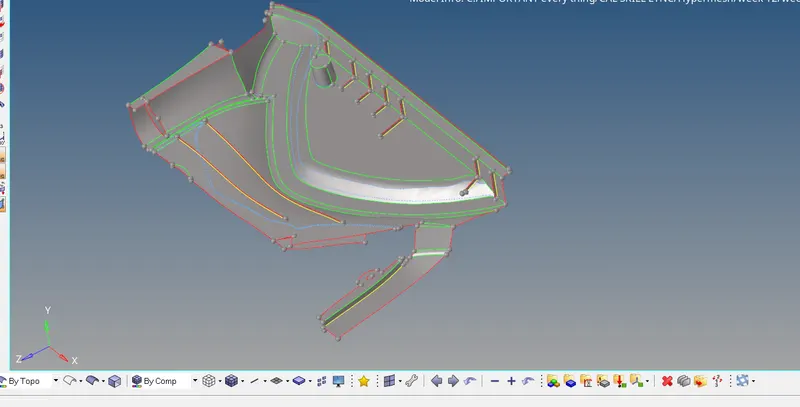
- The manual mid-surface is created.
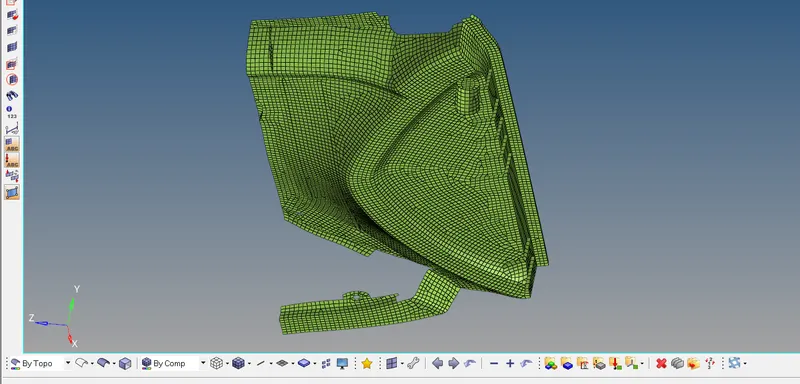
- 2D mesh is created.
Edge detection :
Tools -- > edge
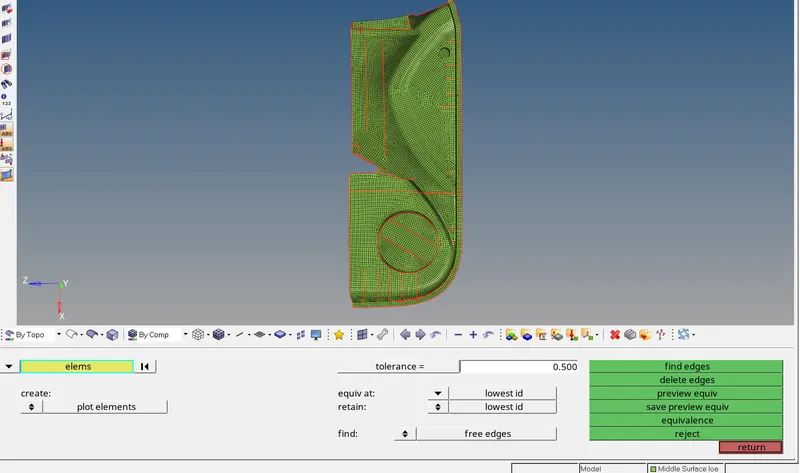
- Equivalence is used to join the elements on the edges.
Similarly:
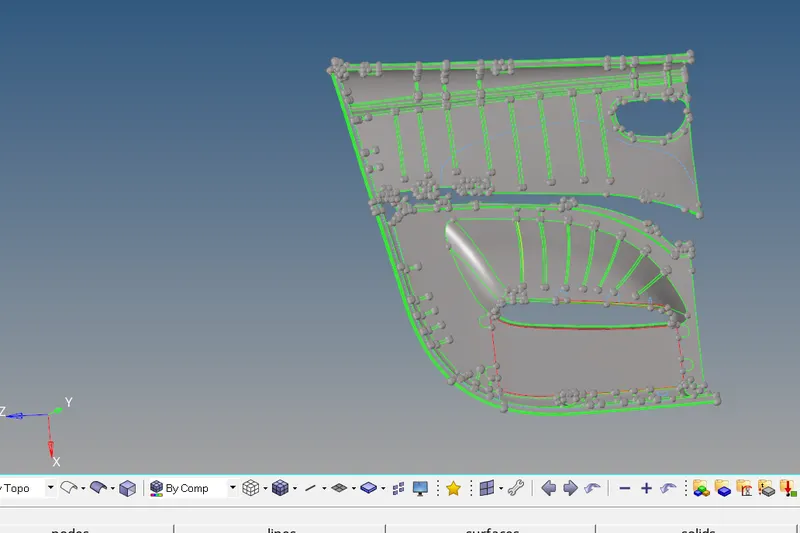
- For the other surfaces, the manual mid surface is created.
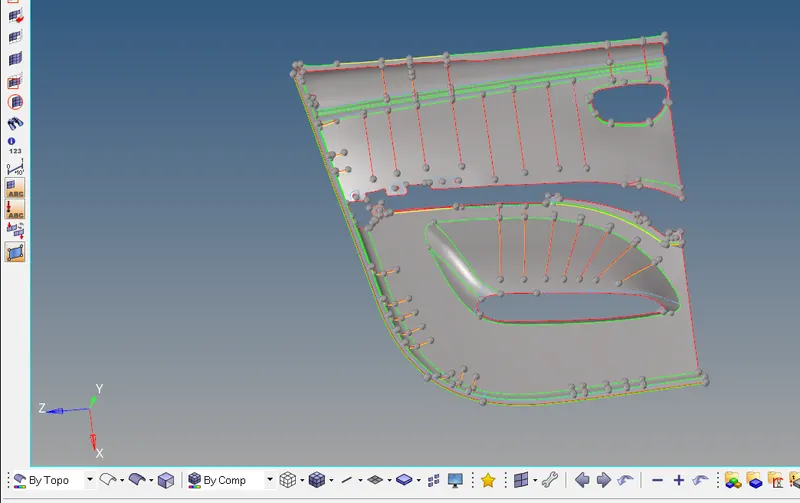
- The manual mid-surface is created.
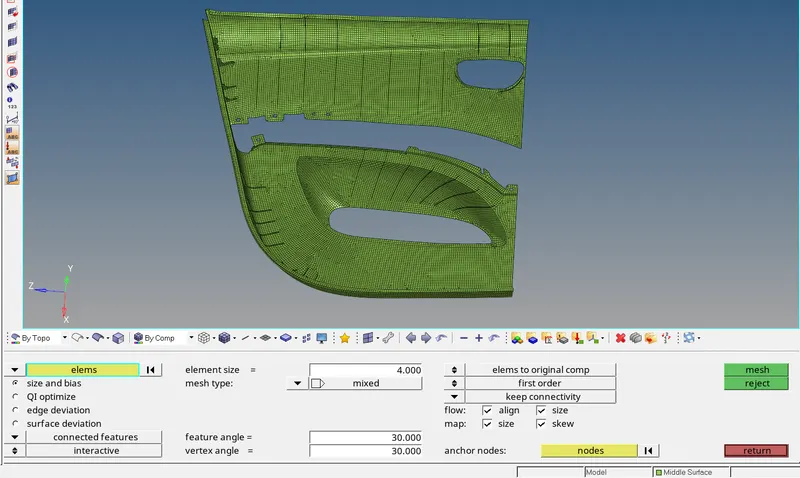
- 2D Mesh with target element size is created.
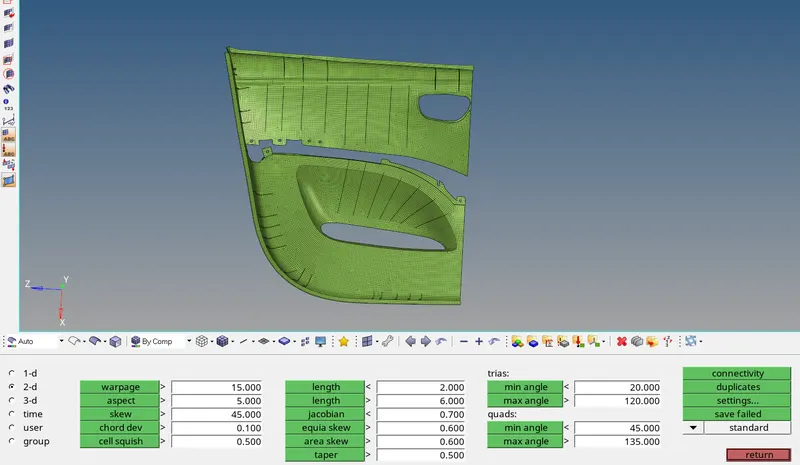
- Check elements are used and all the elements are to check the quality criteria and set them all.
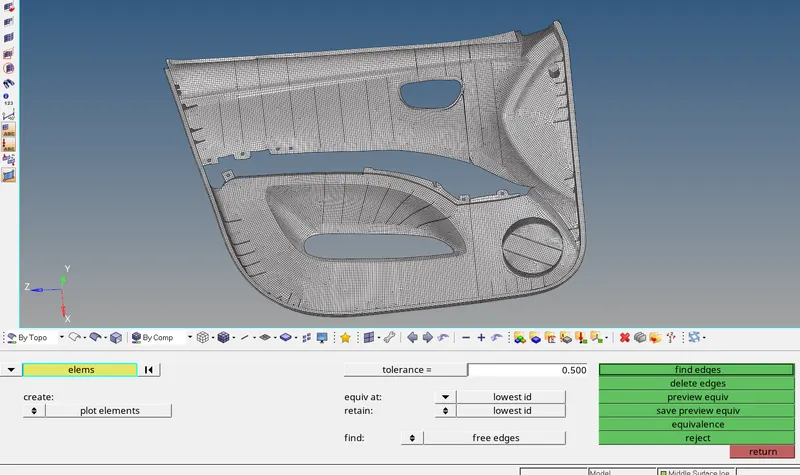
- Find the edge and equivalence the edge elements.
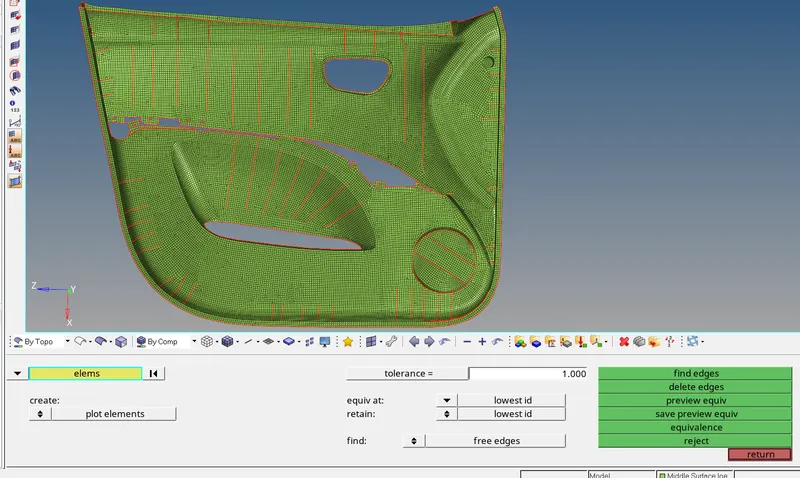
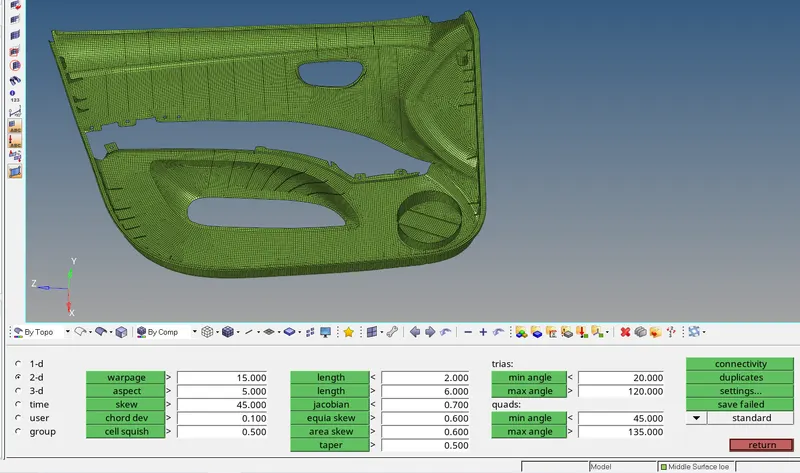
- Check elements are used and all the elements are to check the quality criteria and set them all.
Conversion of 2D elements to 3D:
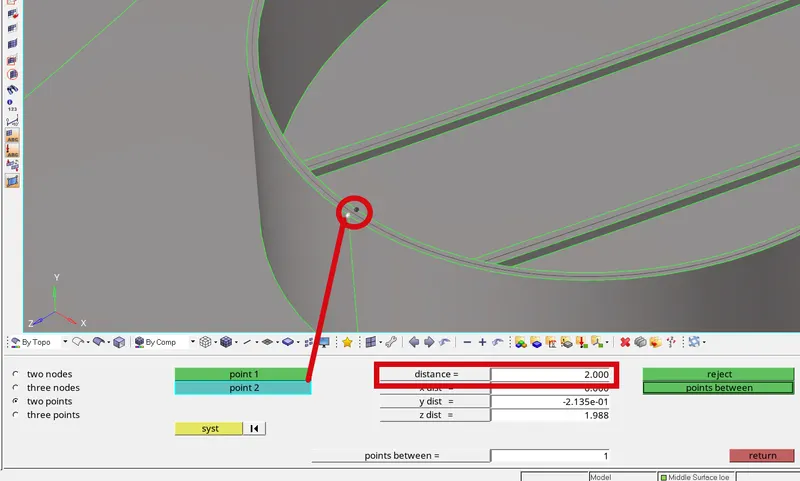
- Geom -- > distance. Distance between two is found to find the thickness.
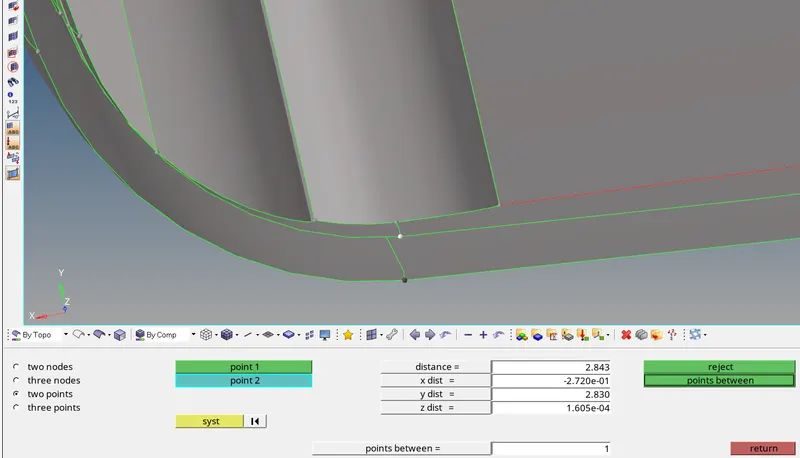
- Different surfaces have different thicknesses.
- So elements with same thickness are kept in one component for the ease of assigning the thickness.
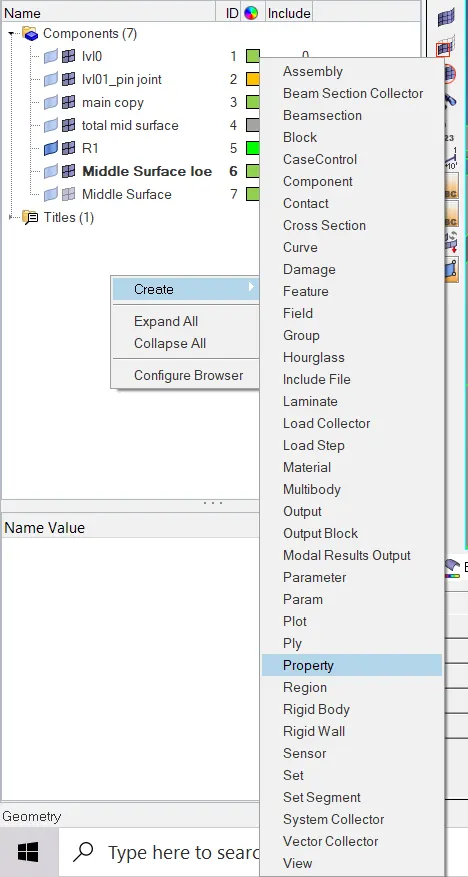
- Property is created.
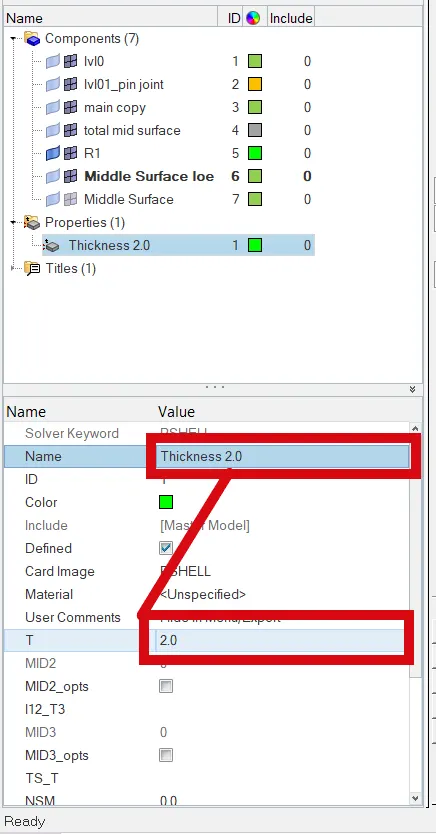
- The property is named the same as thickness for the ease of assigning.
- The required thickness is entered.
Similarly :
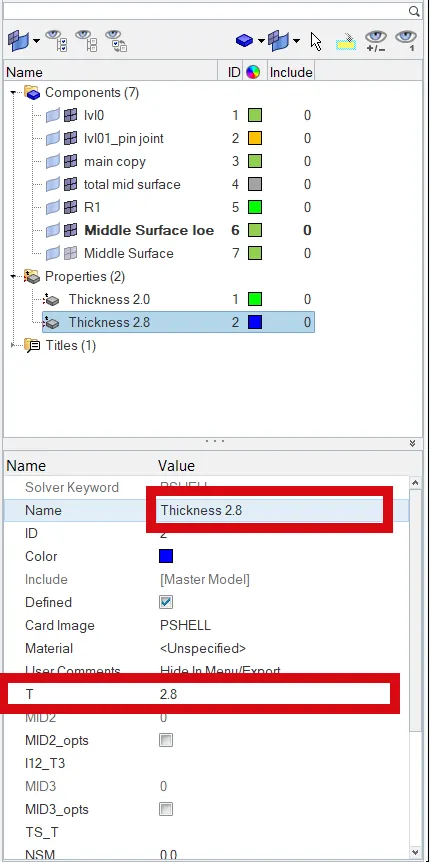
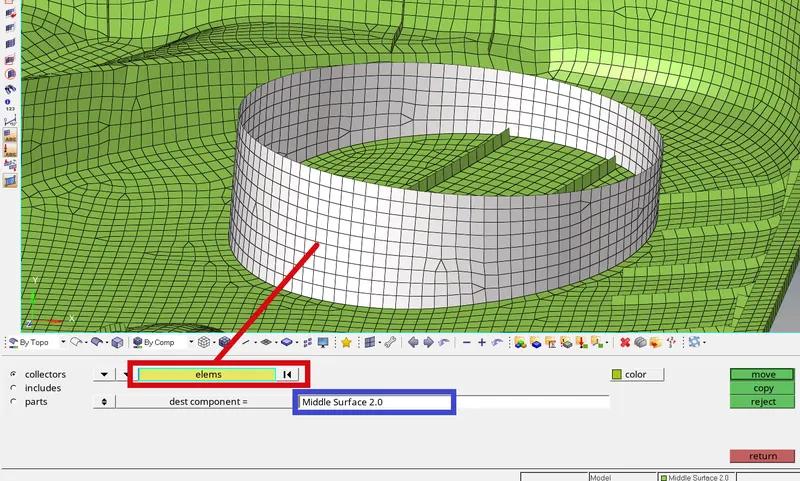
- All the elements of 2mm thickness are moved to one component “Middle surface 2.0”.
Assigning Thickness:
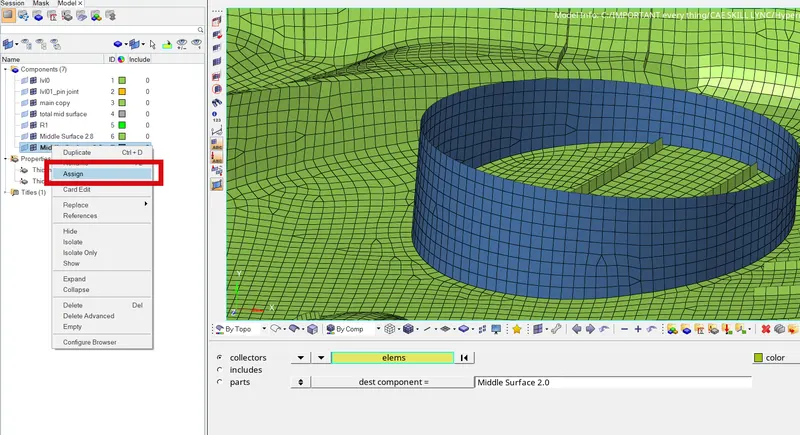
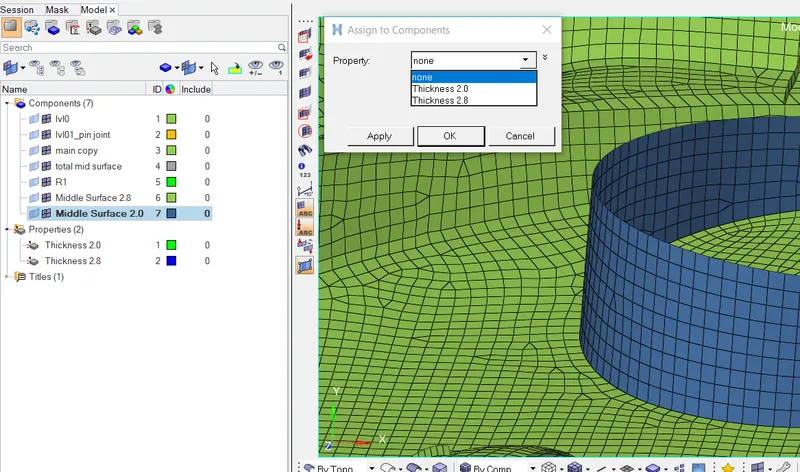
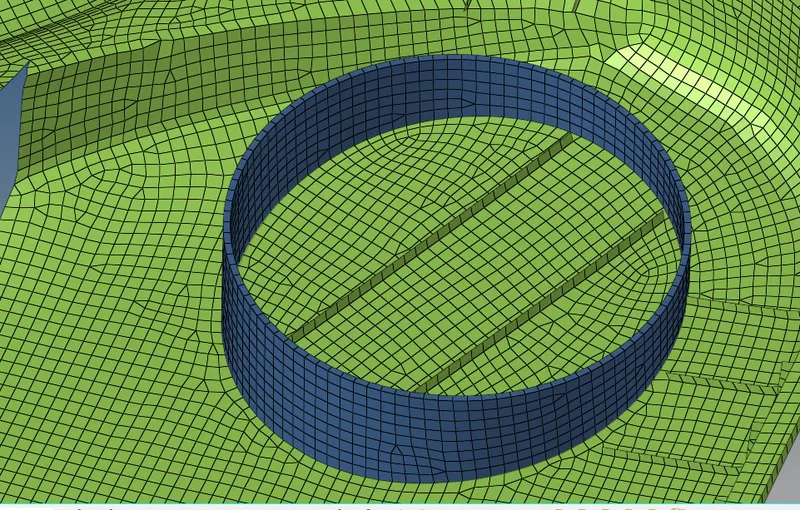
- Thickness is assigned to the component.
Similarly, all the elements with the same thickness are moved to one component are thicknesses are assigned respectively.
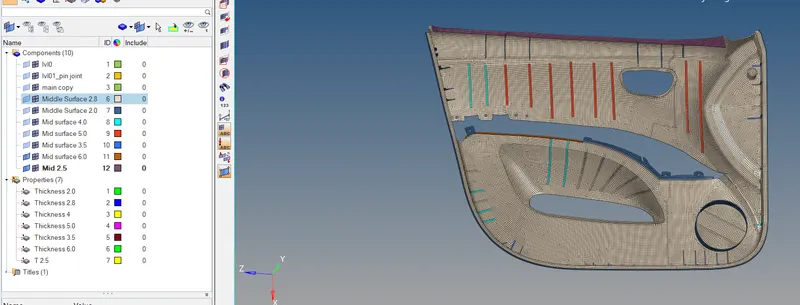
- The final image of a fully completed model.