Week 12 Challenge
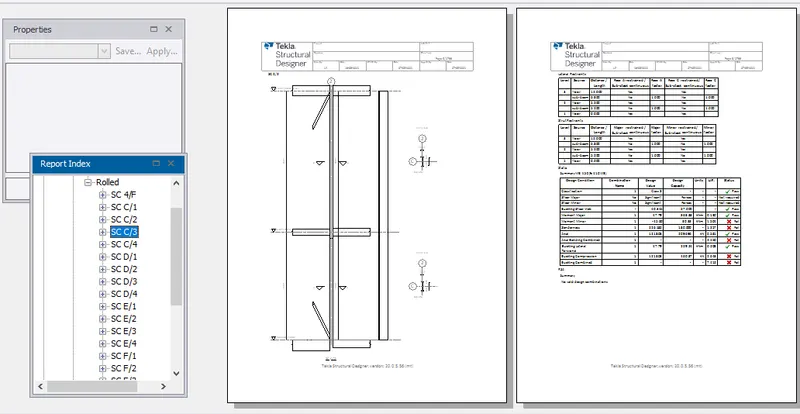
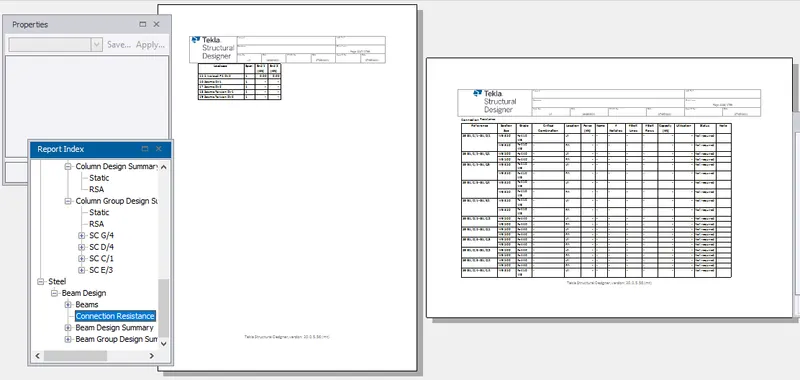
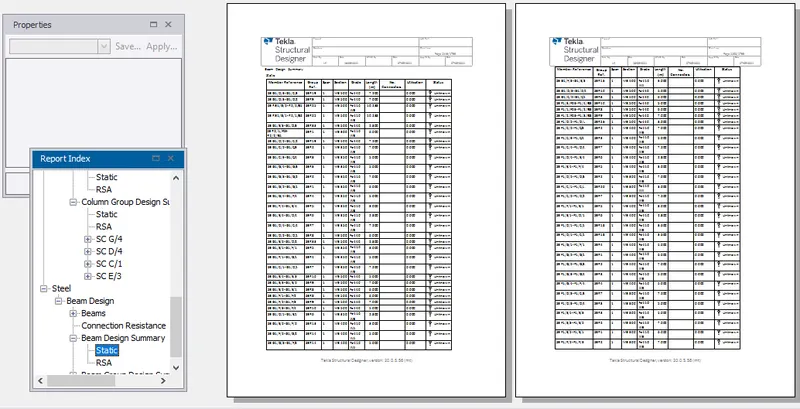
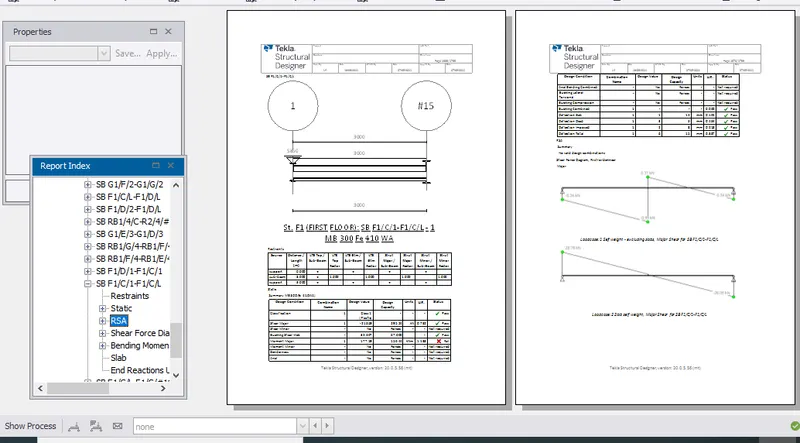
1.Generate report for the steel building design from challenges 1 – 6 along with the loading summary
A) AIM: To Generate report for the steel building design from challenges 1 – 6 along with the loading summary
TOOLS REQUIRED:
file open
model report
show report
report
PROCEDURE:
1.Open the saved steel building file in tekla software using open icon present in file tab.
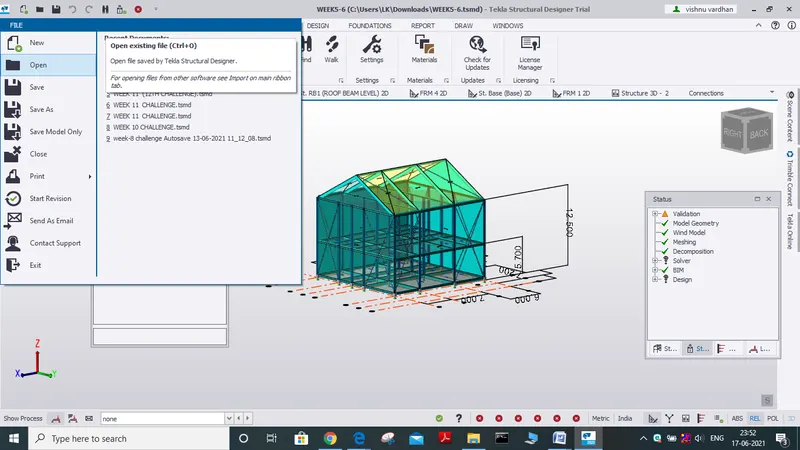
2. Now click on the report toolbar and select the icon model

3.after select the model report icon a new window appears
4. from the window we can select the features that we wanted to show in our report and click ok.
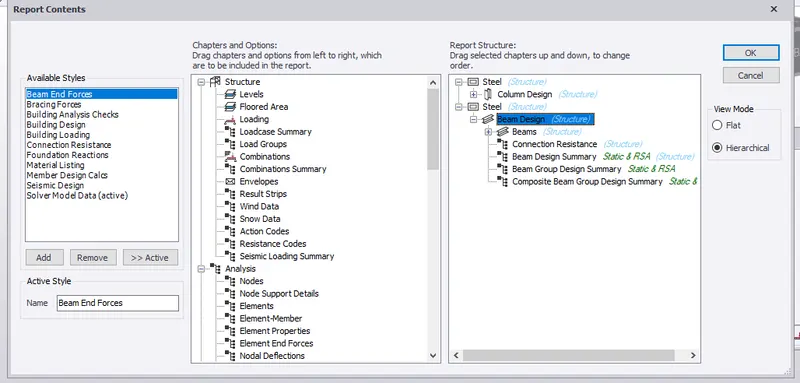
5. now click on the show report icon, the report is displayed with selected parameters and on the right side of report we can see index icon which can help us in navigating to the selected parameter
6. for our model let us select parameters as load summary, analysis, etc
RESULT:
WE HAVE SUCCESSFULLY GENERATED report for the steel building design from challenges 1 – 6 along with the loading summary
based on our requirements we can add and delete different elements, properties for our report.
2. Generate report for RC structure along with the loading summary
A) AIM: To Generate report for RC structure along with the loading summary
TOOLS REQUIRED:
file
open
model report
show report
report
PROCEDURE:
1.Open the saved steel building file in tekla software using open icon present in file tab.
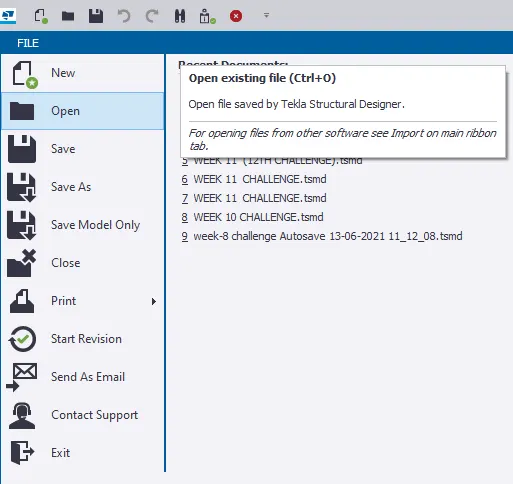
2. Now click on the report toolbar and select the icon model
3.after selecting model report icon a new window appears.
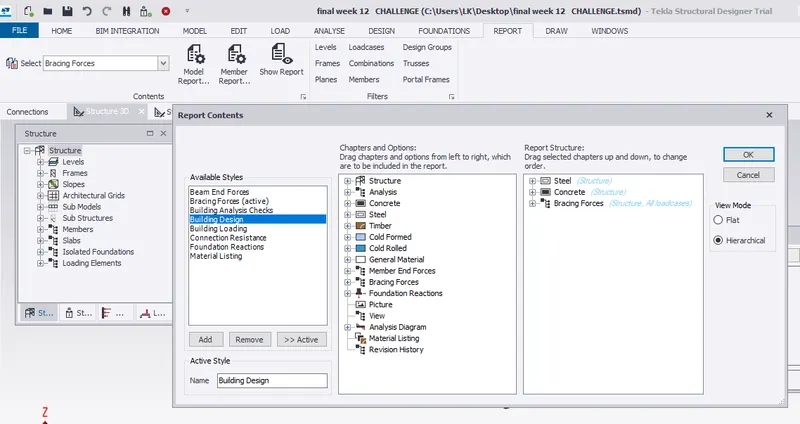
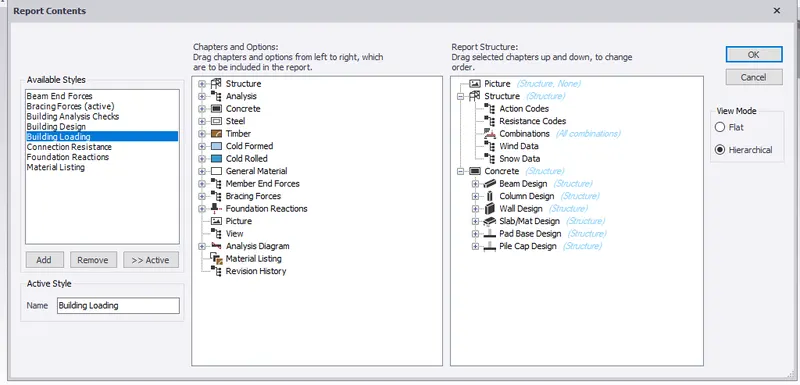
4. from the window we can select the features that we wanted to show
in our report for our model let us select parameters as load summary,design etc
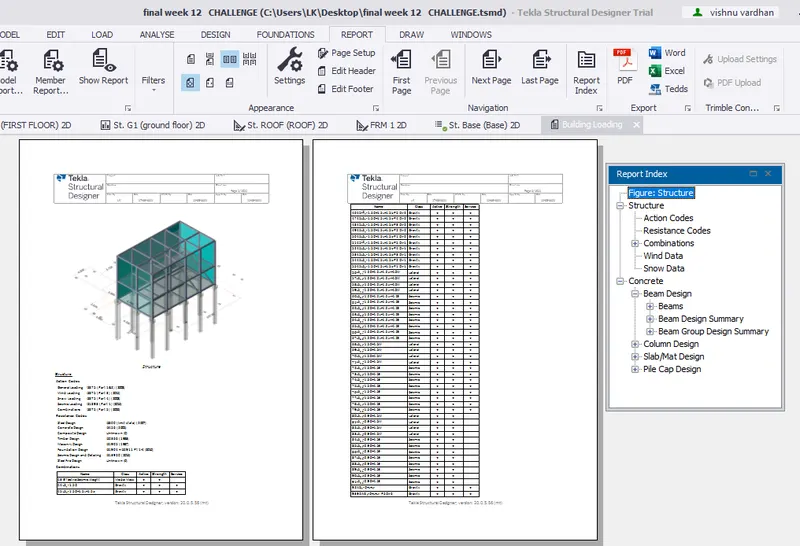
5. now click on the show report icon from the report toolbar.
6.the report is displayed with selected parameters
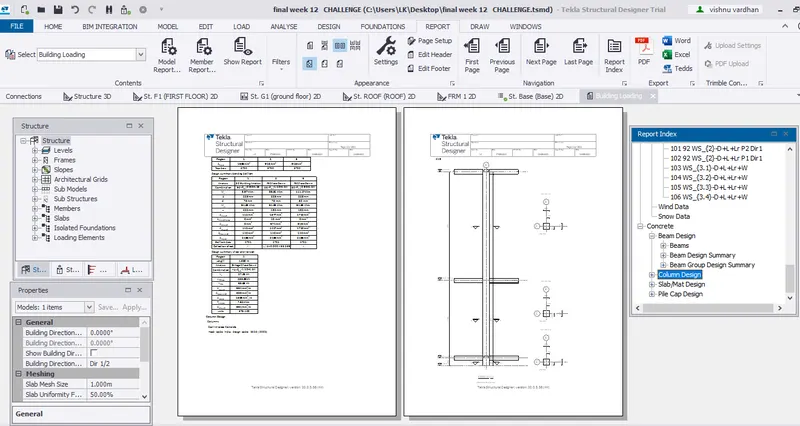
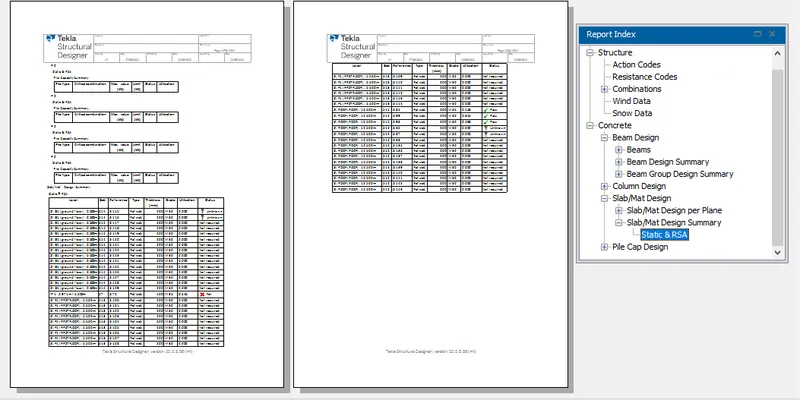
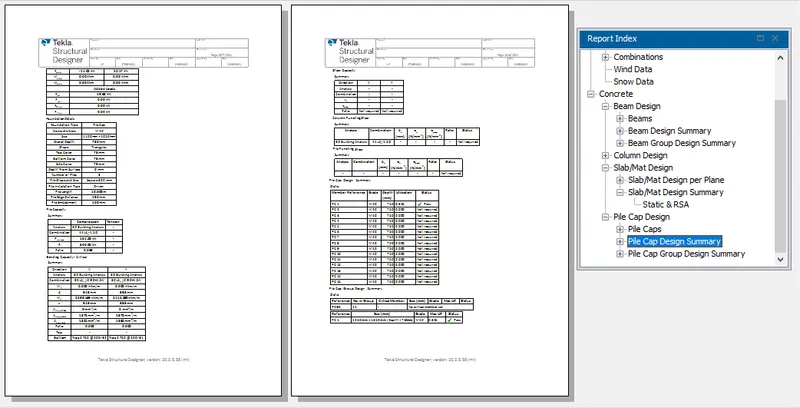
7. On the right side of the report we can see the index icon which can help us in navigating to the selected parameter, there are some functions that helps us in acessing the report
RESULT:
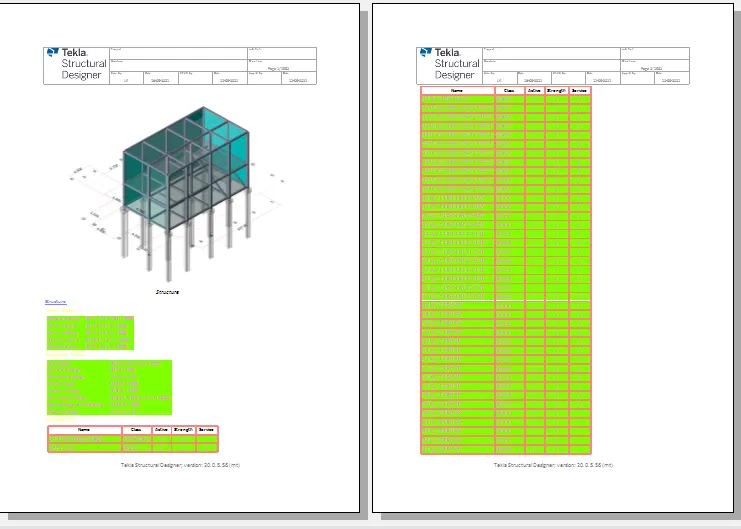
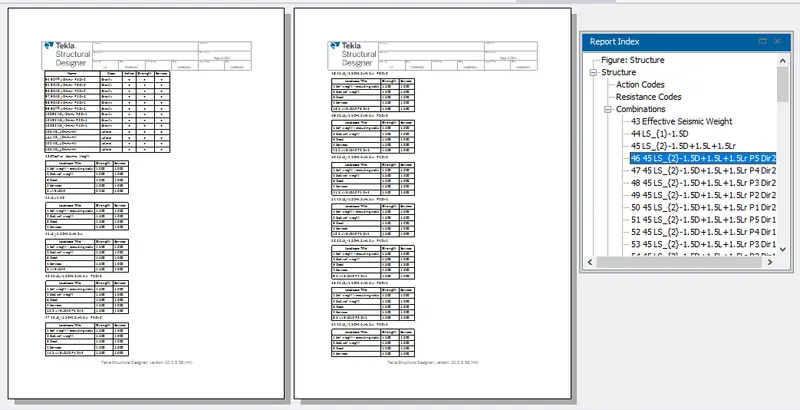
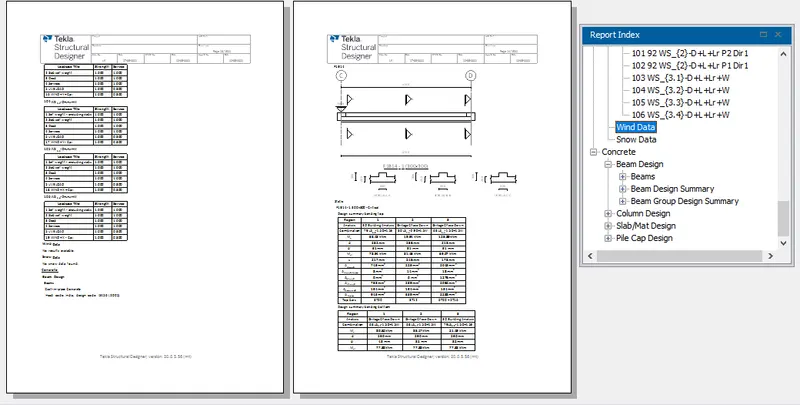
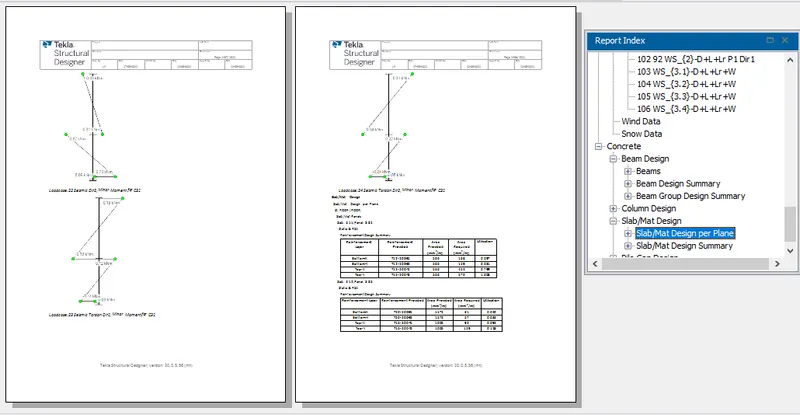
We have successfully Generate report for the RC structure along with the loading summary and final output is as follows.
3.To Update the layers settings in the model and generate plan drawings and details from the model
A) AIM: To Generate report for RC structure along with the loading summary
TOOLS REQUIRED:
file open
model report
show report
report
settings
draw
layer style
layer configuration
PROCEDURE:
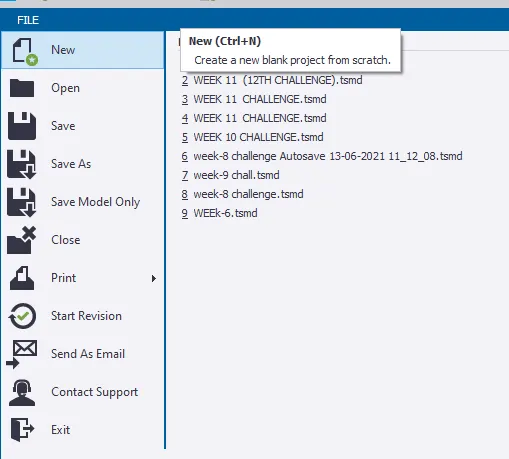
1.Open the saved steel building file in Tekla software using open icon present in file tab.
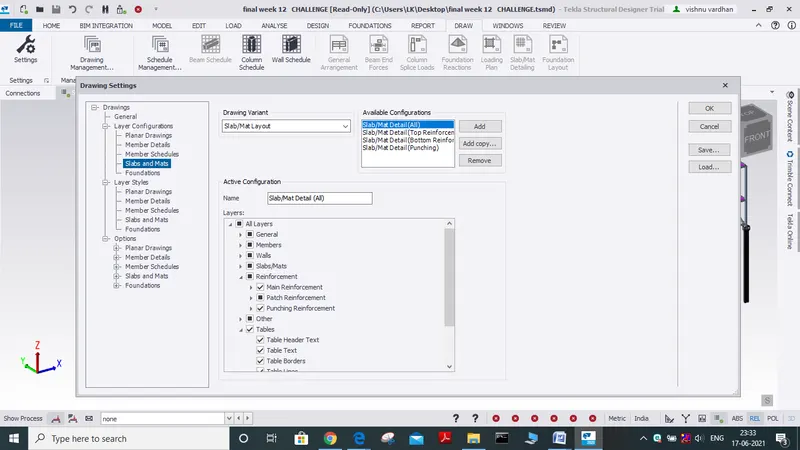
2.now select the settings icon present in the draw toolbar.
3.After selecting the settings icon a new dialog box appears.
4. from layer configuration icon we can select the required parameters.
5. now select the layer styles icon here we can change the colors, grid type, font for different elements.
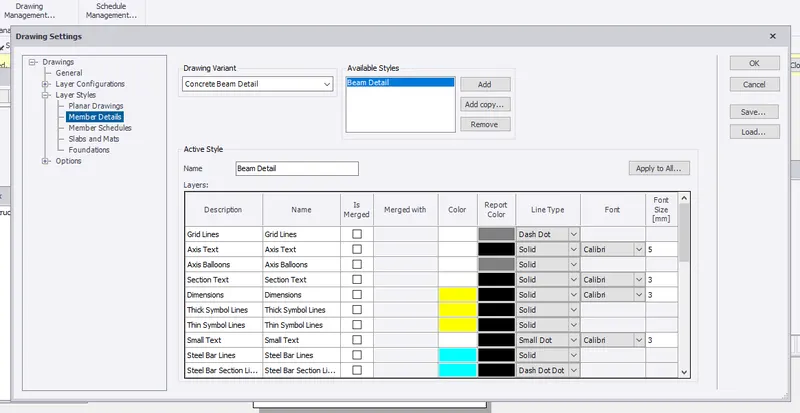
6 we can use different colours for resembling different elements
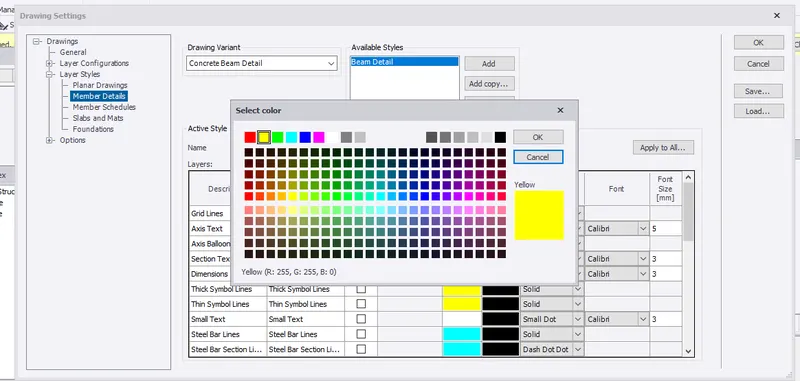 .
.
in the same way, we can change font size, line type etc in our drawing and after that we can save it using the save icon and click ok.
7. now let us select the settings icon from the report toolbar
8. after clicking on the settings icon a new window open where we can edit the style, table format, calculation heading etc
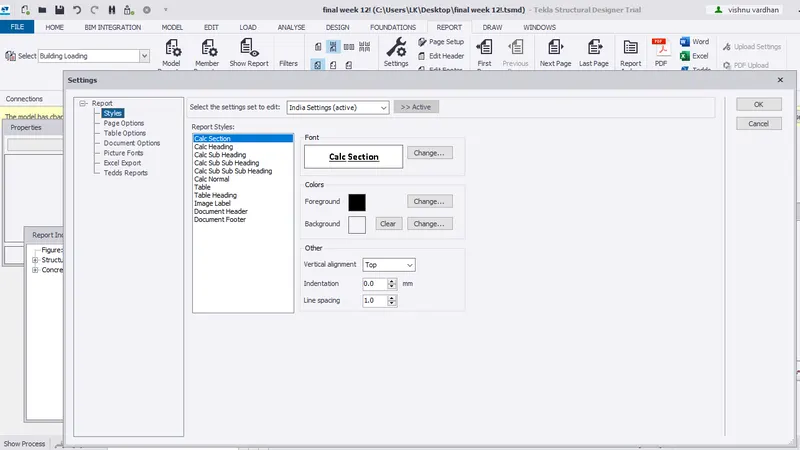
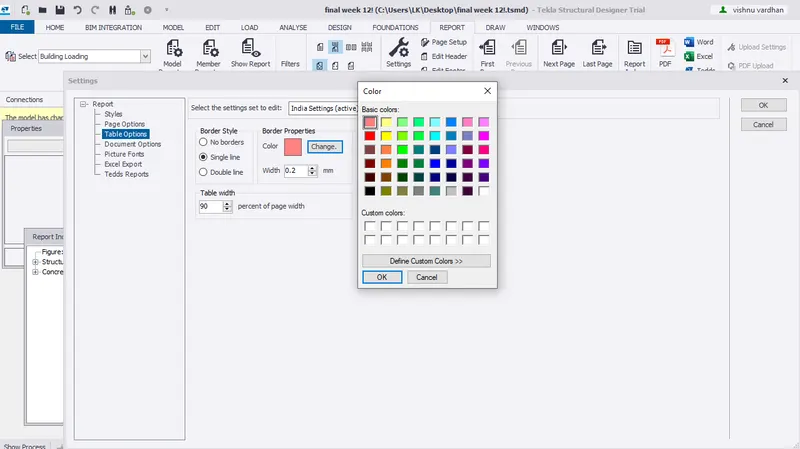
and click ok
RESULTS:
We have successfully Updated the layers settings in the model and generate plan drawings and details from the model
in this way we change our report settings by the above steps.