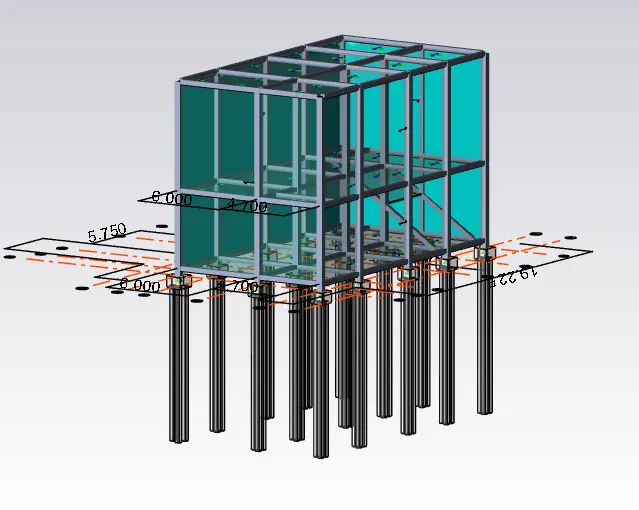
Week 11 Challenge
- Design the slab and foundation of the model. Outline the thought process for designing of the elements (column, beam, slab and foundations)
AIM: To Design the slab and foundation of the model and Outline the thought process for designing of the elements (column, beam, slab, and foundations)
TOOLS REQUIRED:
FILE
OPEN
SLAB
CHECK PANEL
PROPERTY WINDOW
PROJECT BROWSER
ANALYSIS
1ST ORDER LINEAR ANALYSIS
LOAD COMBINATIONS
ANALYSIS ALL
REVIEW VIEW
SEEN CONTENT
FOUNDATION
CATALOG
PILE BASE COLUMN
CHECK MEMBER
SAVE AS
PROCEDURE:
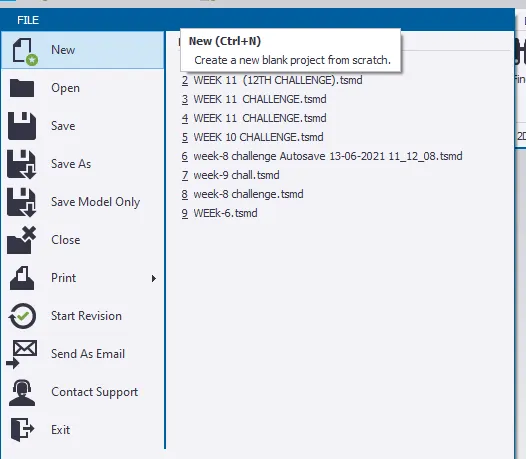
1. Open the saved file in Tekla software using open icon present in the file toolbar.
DESIGN OF SLAB
2. Click on any of the slab item and right-click on it, once you right-click on the slab item a large no of options that appear
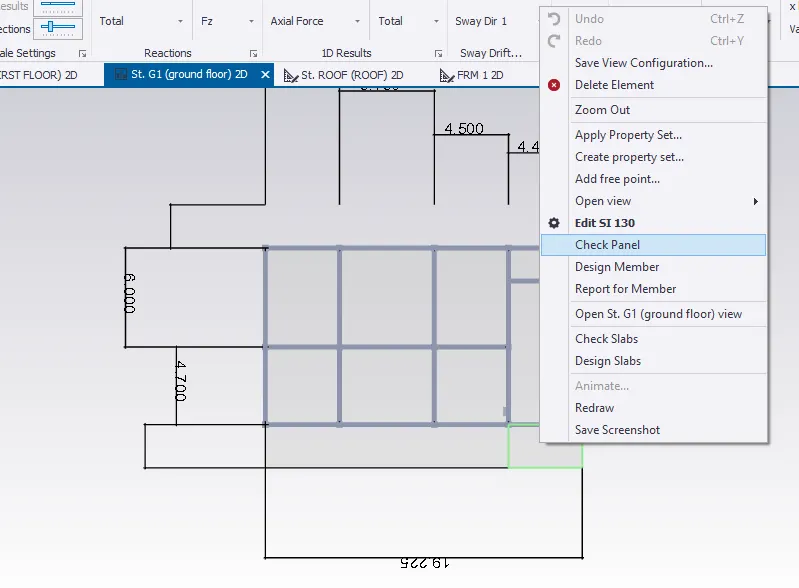
3. select the check panel icon a new dialog box appears
4. When you click on the check panel option here it displays no-load combinations exist. if it displays no-load combination after selecting check panel option we have to load new load combination once again.
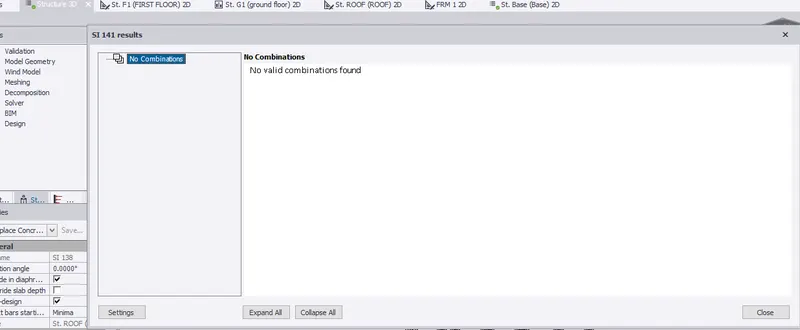
5. now for loading load combinations we have to select the load combinations icon present in load toolbar.
6. after selecting load combination a dialog box appears, select the generate icon then a new dialog box appears select the option delete all previous load combinations.
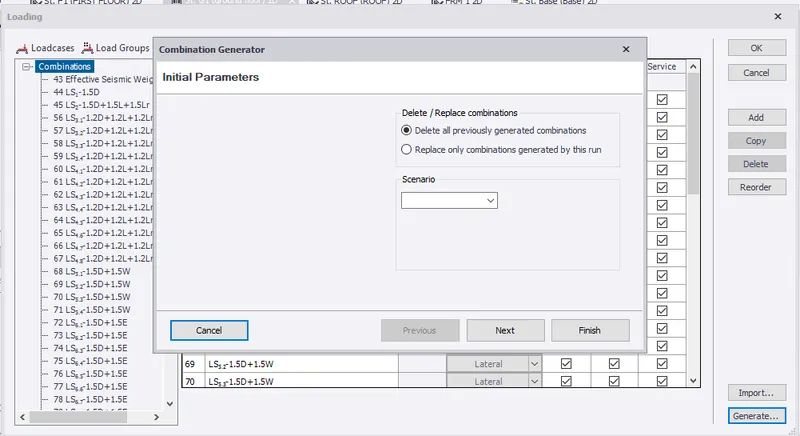
7. then select the load combinations that are to be considered for the analysis and design
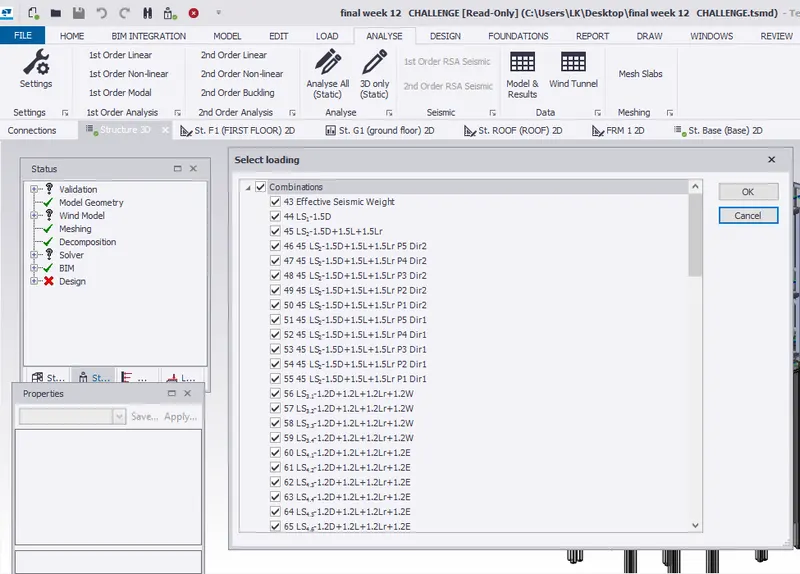
8.now let us perform analysis for that let us select 1st order linear analysis, after selecting a dialog box appears which displays load combinations,load cases select the required load combinations and cases and click ok.now check for errors and correct them by varying properties of members.
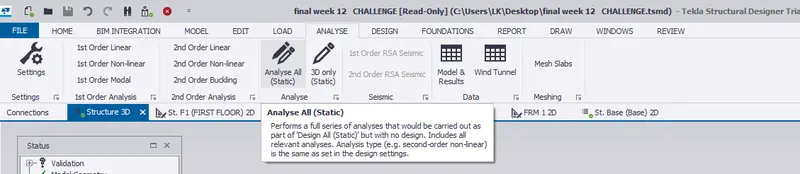
9.now select analyse all static icon present in analyse tab now we can design the slab
10. now let us right-click on slab member and select check panel
11. Now we can see the status of our member whether our slab member clears the tests/requirements
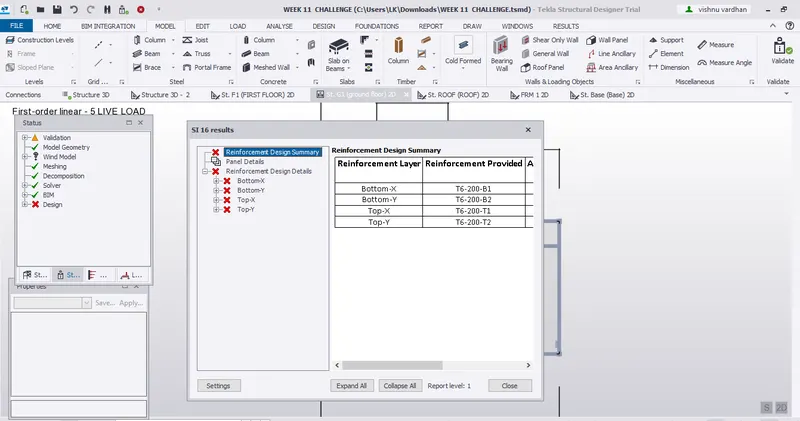
12. here we can see that our member fails in some tests for that we have to change the properties (reinforcement properties, slab properties, grade of concrete)of the model using property window
13. from the check panel option we can see that in which tests it fails and calculations are shown, we can make use of these calculations to change the values of reinforcement.
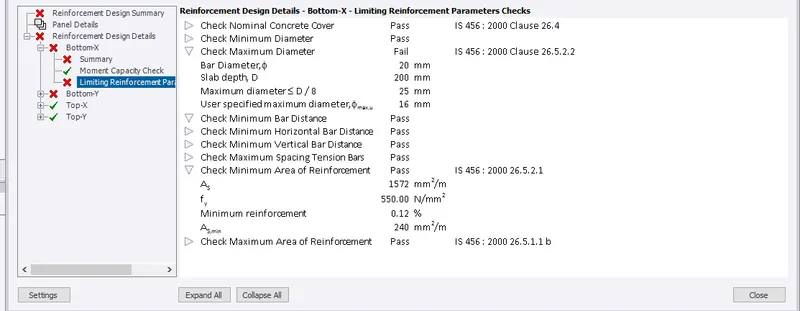
14. now we can apply similar properties of slab for similar slabs for this we can make use of copy property icon present in review view.
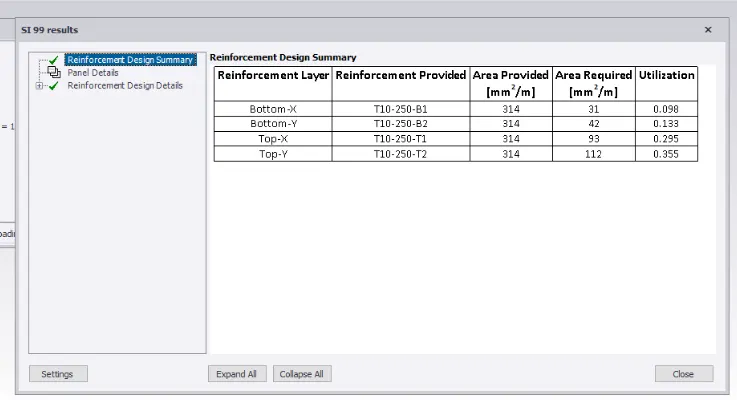
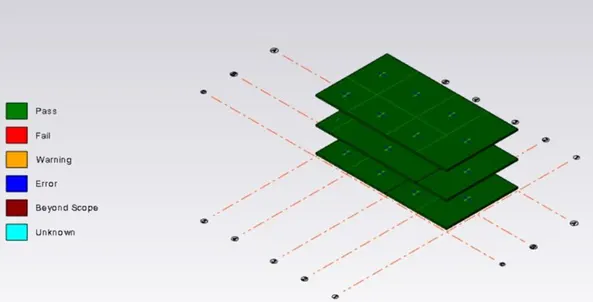
BY THE HELP OF SEEN CONTENT WE CAN VIEW THE REQUIRED ELEMENTS.
15. In a similar way we have to design for other slabs by selecting the check panel option and changing the properties of concrete.
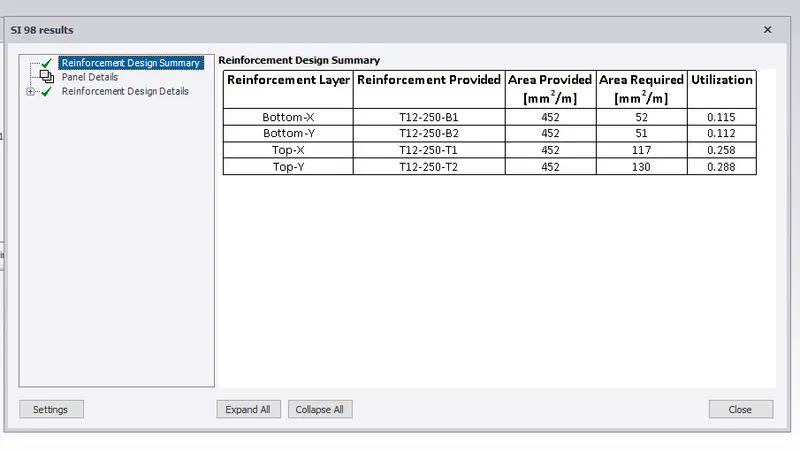
DESIGN OF FOUNDATION
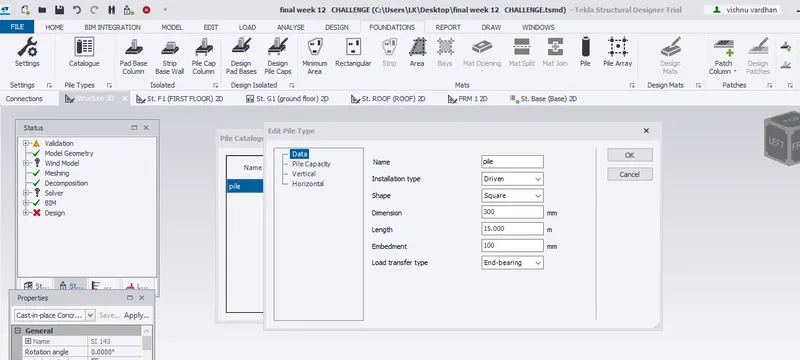
16. go to the foundation toolbar and click on catalog icon
17. a dialog box appears and assign the values as below and click ok
18.now let us go to base level using the project browser and select the pile cap column icon.
19. now let us model the foundation just by select a point near the column and dragging it and foundation is modeled.
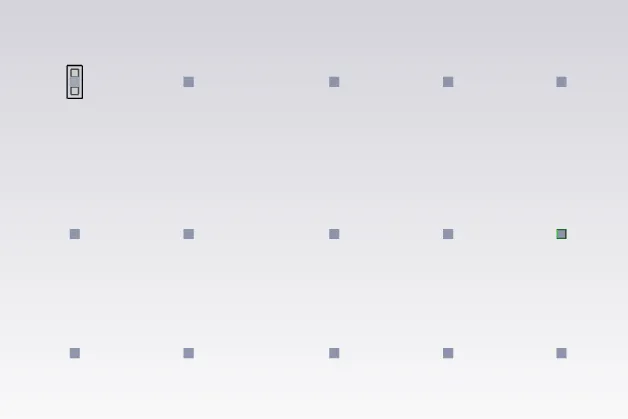
20. Now right click on the column member and select the option check member
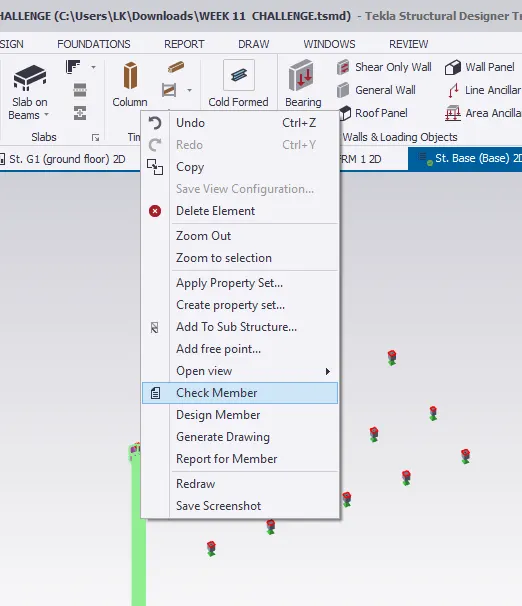
21. after selecting check member icon a new window appears which shows whether our member clears all the tests/requirements
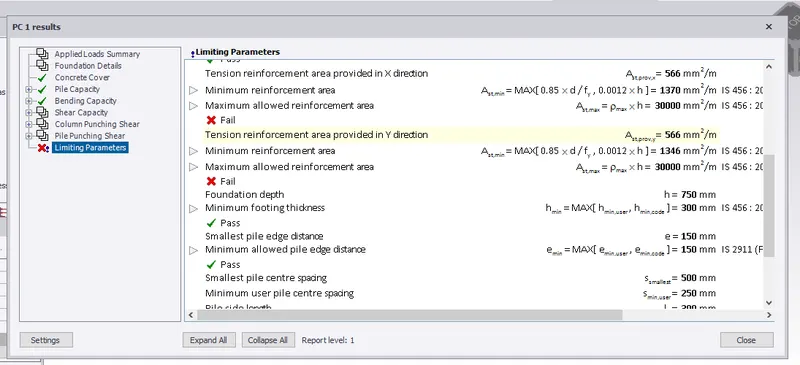
22. if the members fail in any tests we have to modify its properties using property window such that the foundation member clears all the tests.
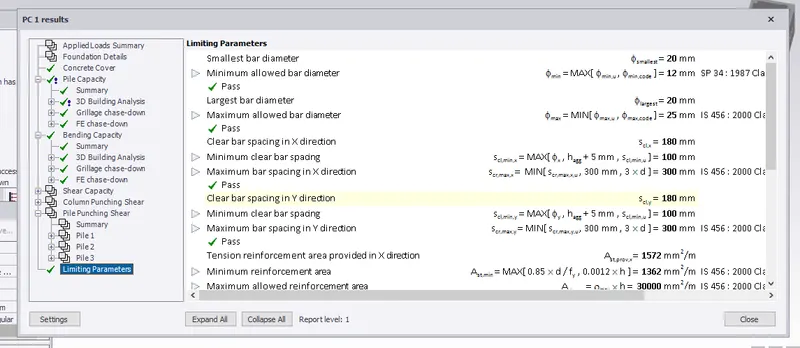
23. now in the similar way, we can model the foundation to remaining column members and check the foundation member using check panel icon.
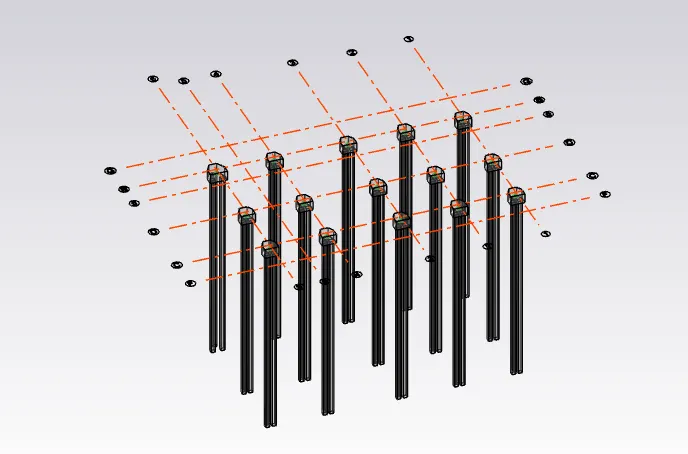
AND IN 3D
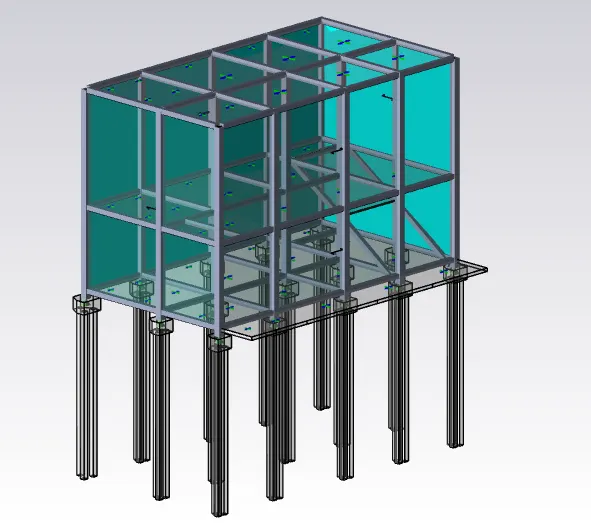
24. finally, save the project using save as icon present in file tab.
RESULT: We have successfully Designed the slab and foundation of the model.
THE FINAL OUTPUT AFTER DESIGNING SLABS AND FOUNDATION TO OUR MODEL