Week 11-3D Tetra Meshing Challenge
1. AIM: Mesh the model with 3D tetra elements using Hypermesh.
2. OBJECTIVES OF THE PROJECT:
Mesh the model with given quality criteria as per below.
MODEL 1, Create a Teramesh for Housing component with the following quality criteria.
TetraMesh Generation Method: 2D to 3D Conversion
Elements sizes: Min- 2 Units, Target- 5 Units, Max- 7 Units
Tet collapse: 0.15
MODEL 2, Create a 3D Tetramesh with the following quality criteria.
TetraMesh Generation Method: Quick Tetra Mesh/ Volume Tetra Mesh
Target Element size: 3 Units.
Tet Collapse: 0.15
Assembly MODEL 3, Create a 3D Tetramesh with the following quality criteria.
TetraMesh Generation Method: Quick Tetra Mesh/ Volume Tetra Mesh
Target Element size: 4 Units.
Tet Collapse: 0.15
3. BODY OF THE CONTENT:
MODEL_1:
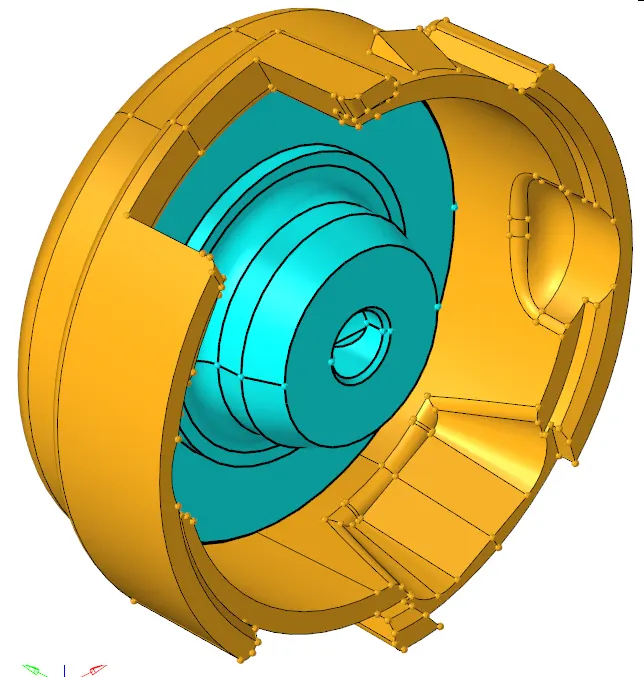
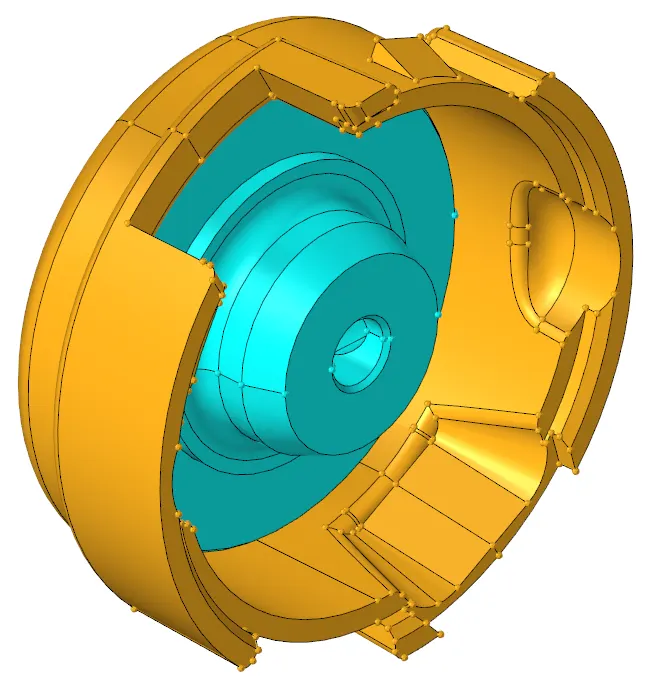
Here for mode_1 we have to generate a tetra mesh using a '2D to 3D Conversion'. So, the initial step is to import the model in hypermesh(see below image). As you can see It has two components. As for this model we have required only surfaces so, the solid body should be deleted. So, In the above image the bold edge of components represent the solid-body of the model. So deleting it(Tool > Delete > Solid > all > delete entity). can see before and after(see below image).
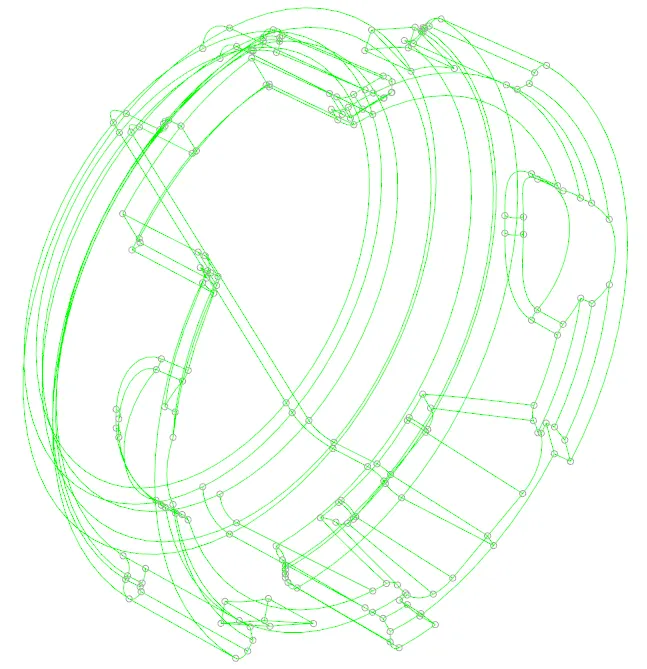
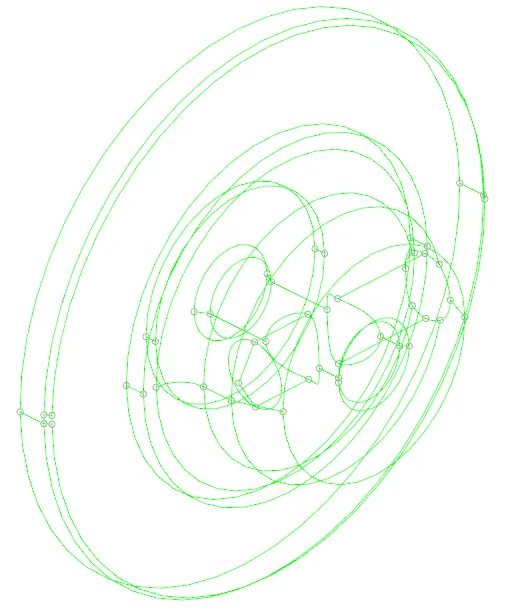
Before generating a mesh on surfaces we have to ensure the close boundary of the model. Otherwise it will interrupt the process of the tetra mesh generation. To visualize the single cons we will see it in By topo model with wireframe geometry,(as per image) it looks like there are no single cons.
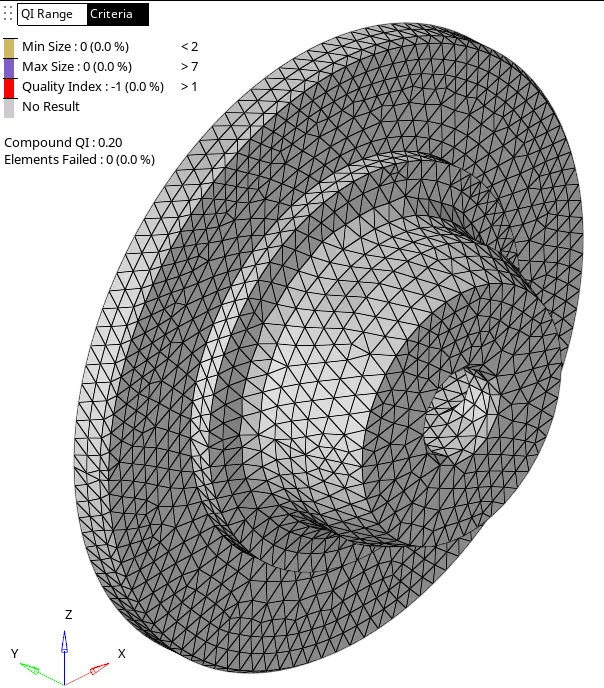
So, we are good to go, let's update the quality criteria as per given and generate a mesh on surfaces with tria elements only(2D > automesh > mesh type:tria). Can see below image with 0% elements failing.
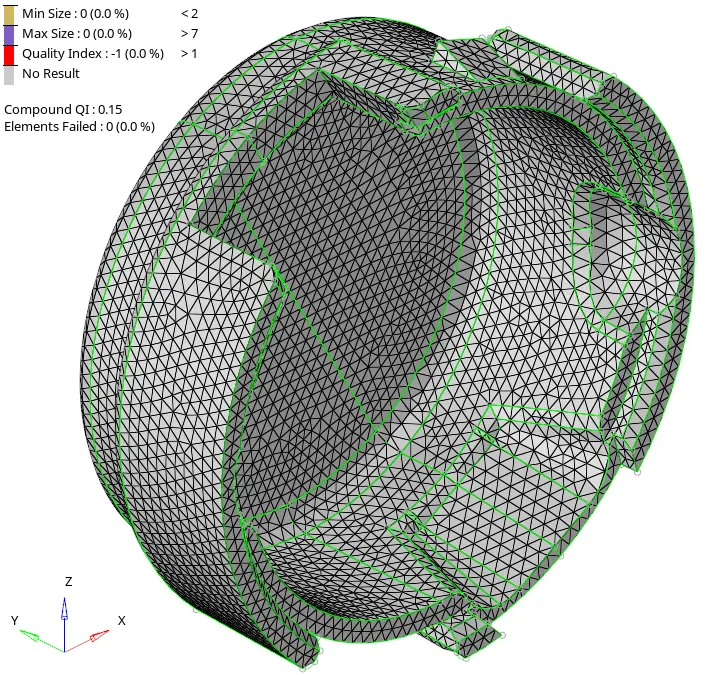
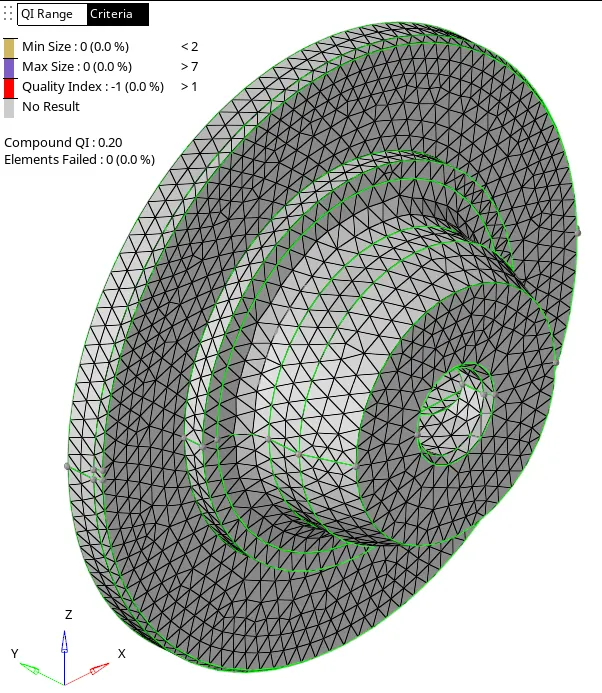
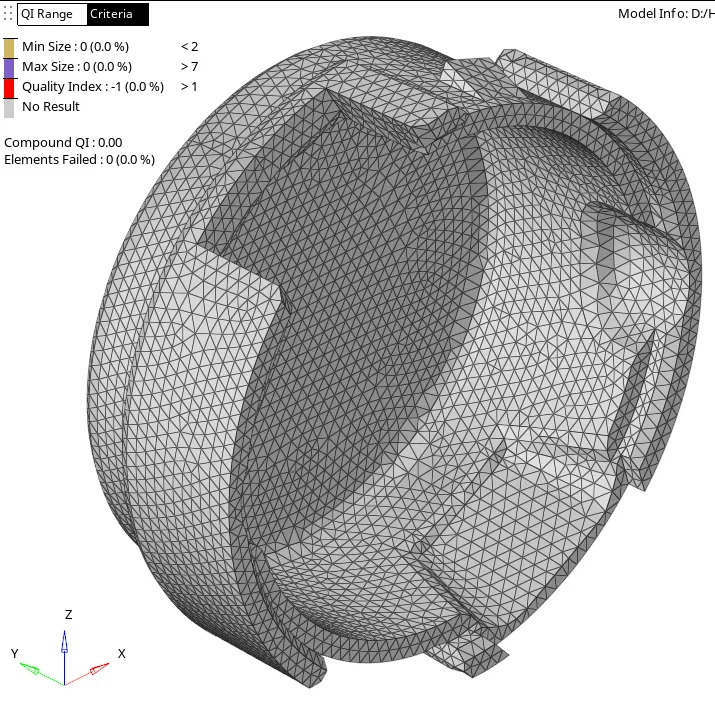
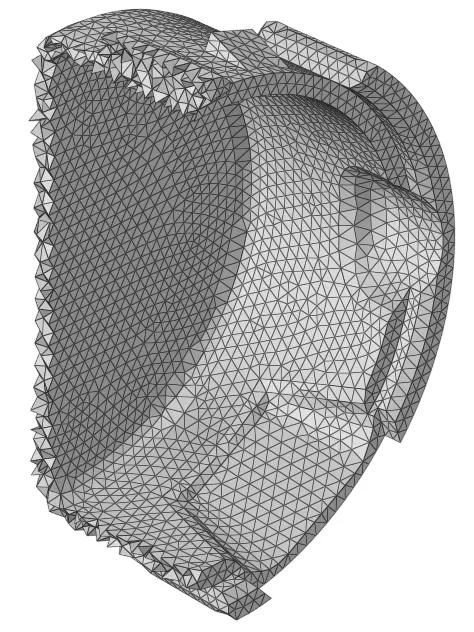
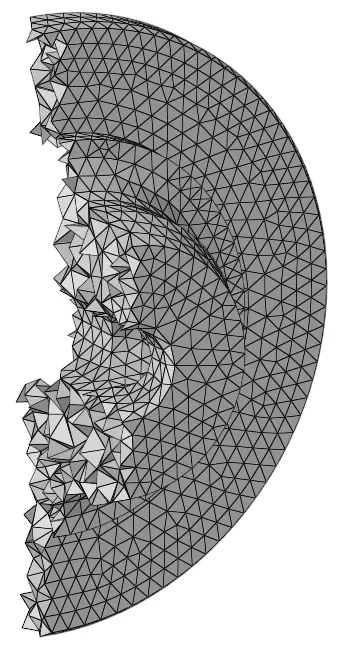
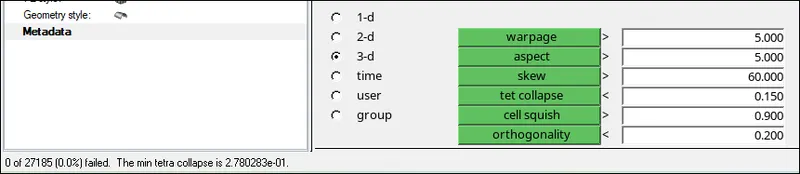
Now the next step is to use these elements to generate a tetra element. So, using (3D > tetra mesh > tetramesh parameters > under element quality target : 15 and unchecked as not required options like max. tetra size and min tetra size and generated mesh using 3D > tetra mesh > Tetra mesh > under Fixed trias/quads to tetra mesh and selecting 2D elements. Can see the below images and Also checked a failed tetra element (Tool > Check elements > tet collapse < 0.15). Here we can verify the elements are filled in the model by hiding some of them.
MODEL_2:
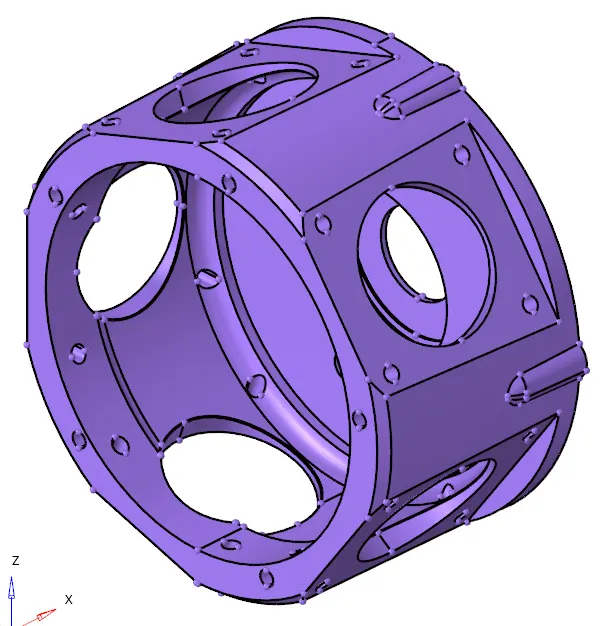
For this model we have to use a Quick Tetra Mesh/ Volume Tetra Mesh method to generate tetra elements. As we can see, it's a solid component. Here are two methods to generate the mesh using a solid body. One by Utility method & other by a 3D > volume tetra. So, using a View > Browsers > Hypermesh > Enable utility selected.
Now in the utility window we have to select components, such as mesh size keeping 3 units, mesh type > trias only, mesh density > uniform, tet from > fixed, and keeping all other values as default.
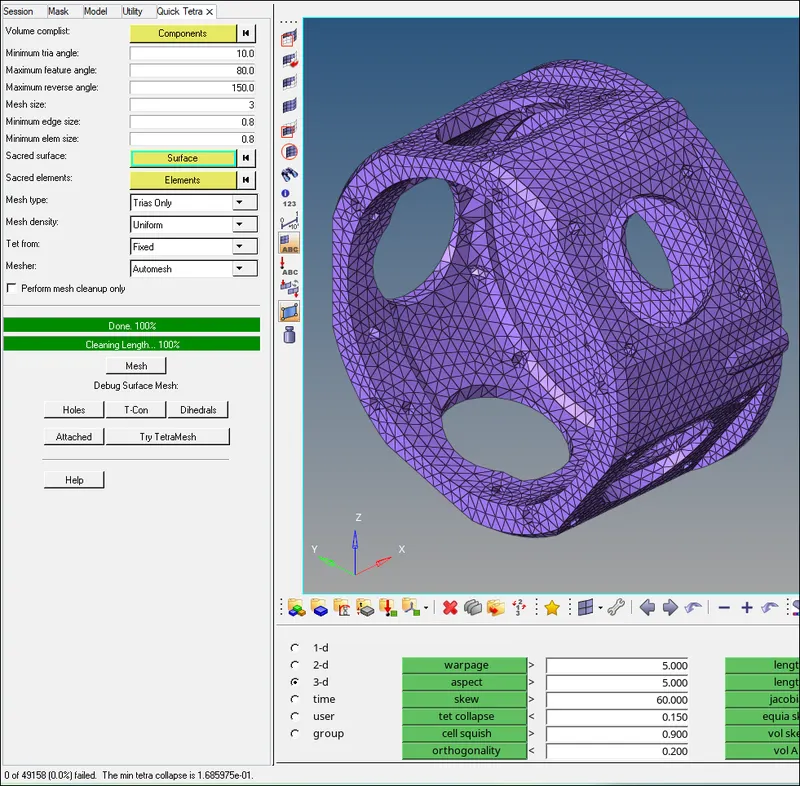
After meshing we have to check for tetra failed elements. Tools > check elements > tet collapse and it shows a 0% of failed elements (see image).
MODEL_3:
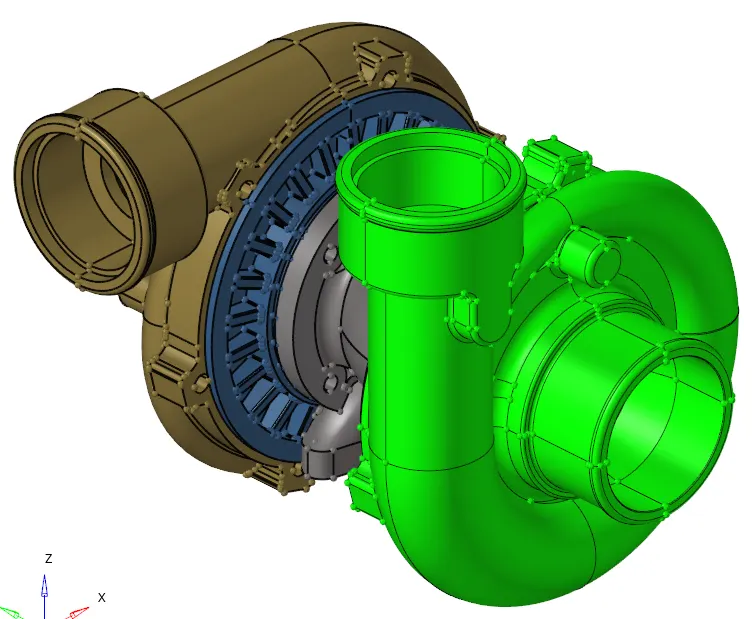
So, using a 3D > tetra mesh > volume tetra > under enclosed volume > selecting solid & surface according to model. Where element size takes 4 units as given, 2D type: trias, 3D type: tetras, element order: first, Cleanup elements selected and Use curvature & Use proximity not selected(as in student version there are limitations of no. element generation). respective mesh are generated in their respective new IDs (can see in image).
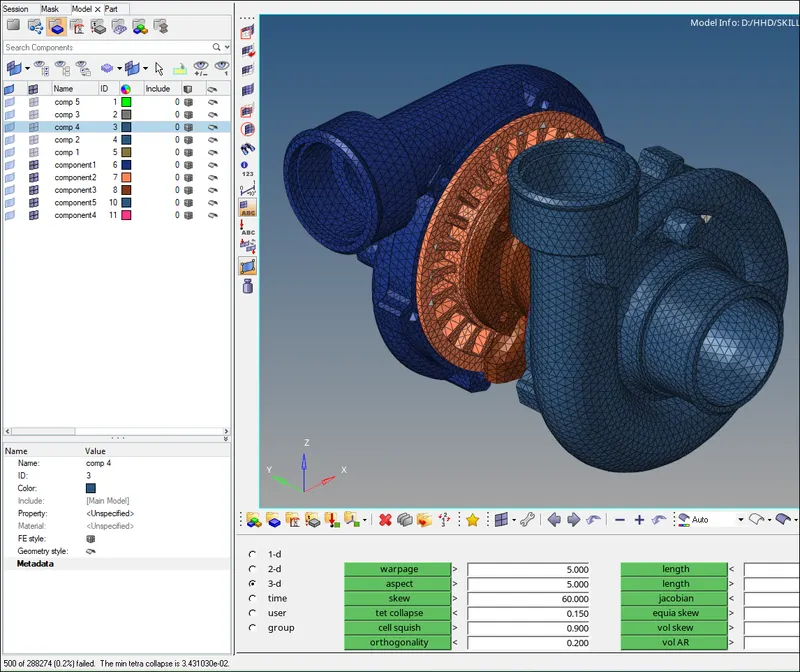
After generating a mesh it shows a failed element at 0.15units. where the 500 of 288274 (0.2%)elements failed. So, by using a 3D > tetra re-mesh & other by increasing the height of the node manually. Here I tried both and achieved the %0.0.
- CONCLUSION:
The Challenge is completed for a given model And As per me to mesh the tetra elements is very easy but sometimes will consume the time to solve the failed elements. So overall it covers the three methods to generate a tetra mesh in hypermesh.
End of Challenge