Week 1- Mixing Tee
AIM
To perform steady-state simulations to compare the mixing effectiveness of Tee joint of different lengths using Ansys Fluent.
OBJECTIVE
To study about the various mixing properties of fluid in a basic tee mixing to annalyse the temperature and velocity variation in the fluid matter flowing through it.This has a great application in industries like hvac systems ,cooling units in hospitals and many more .They also show their role in boilers and in heat exchangers .
PROCEDURE
CASE 1-short mixing tree of momentum ratio 2
- first open the design in space claim and load the design
- then annalyse the design in space claim as we are concerned only with the volume which is involved with the fluid we will remove all other body parts
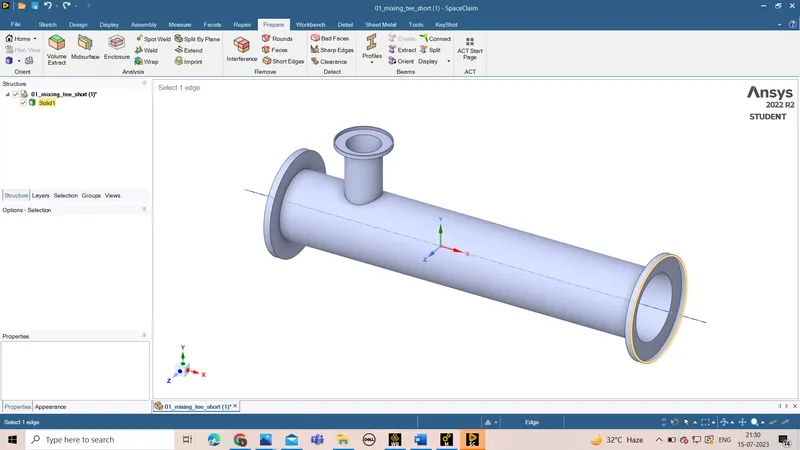
- for this we have to create the volume
- we can create volume by going to prepare and selecting the volume extract
- we will then slect the edges and click and complete
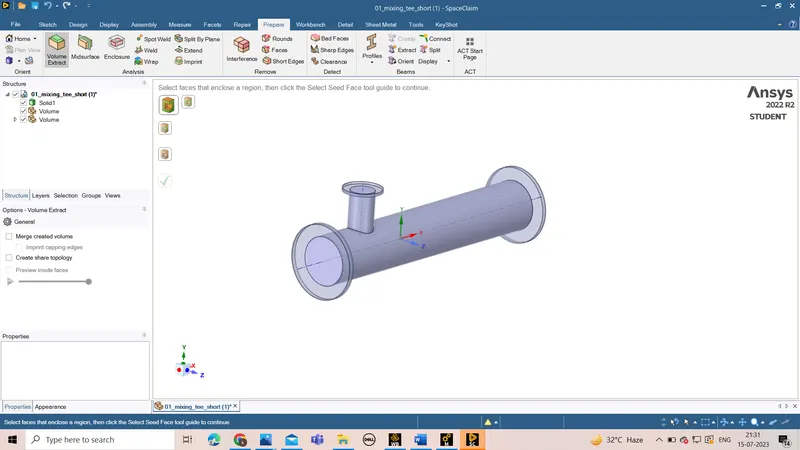
- we will be able to hide the body under structures and veiw only the volume
- we will save ethe model and open workbench
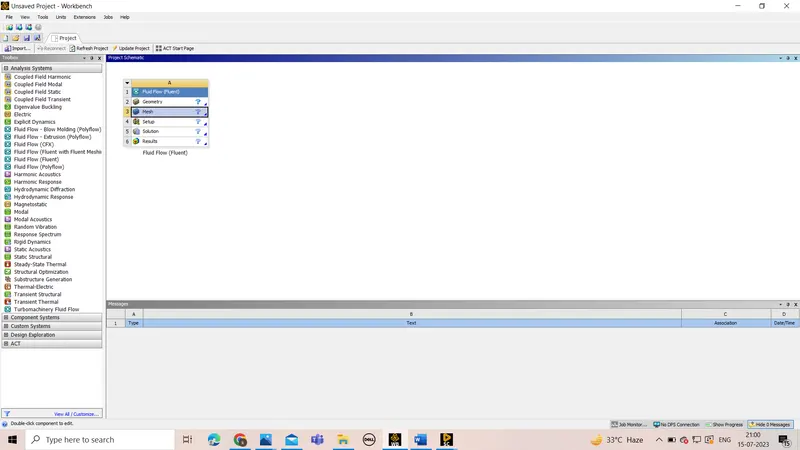
- We will select the fluid flow(fluent) and drag it to design schematic
- we willl the select the mesh
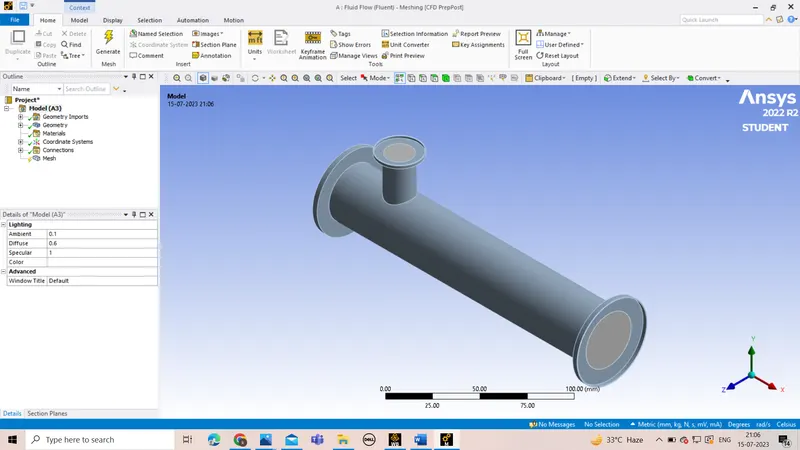
- when the mesh opens we will import the design which was saved before in the space claim
- After this we will hide the body under the geometrics and we will only veiw the volume
- we will assign different sections name by slecting the faces and typing N in keyborad
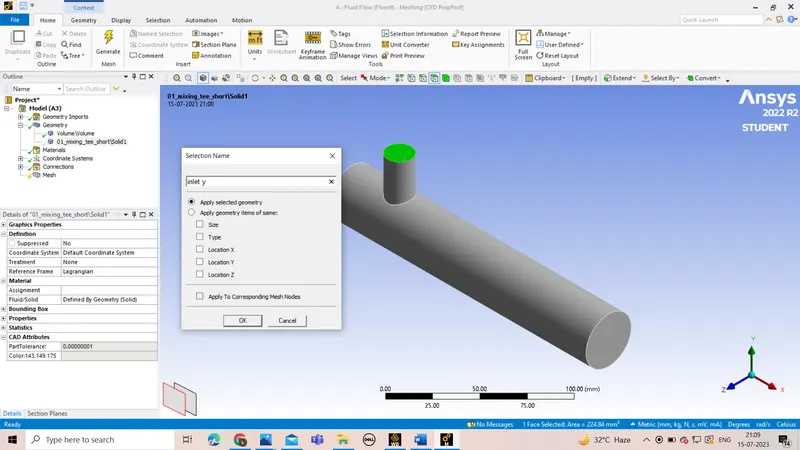
- we will assign names like input y,input x,output x,body
- After asssigning the sections we will click the mesh and give the mesh element size as 4mm for a good meshing and then right click mesh and then generate the mesh
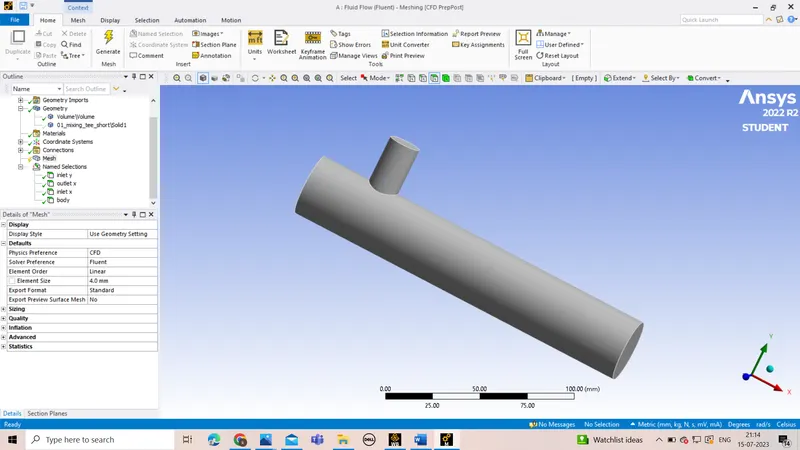
- after generating the mesh we will see the mesh quality under which wwe will select the mesh metrics and see the mesh quality
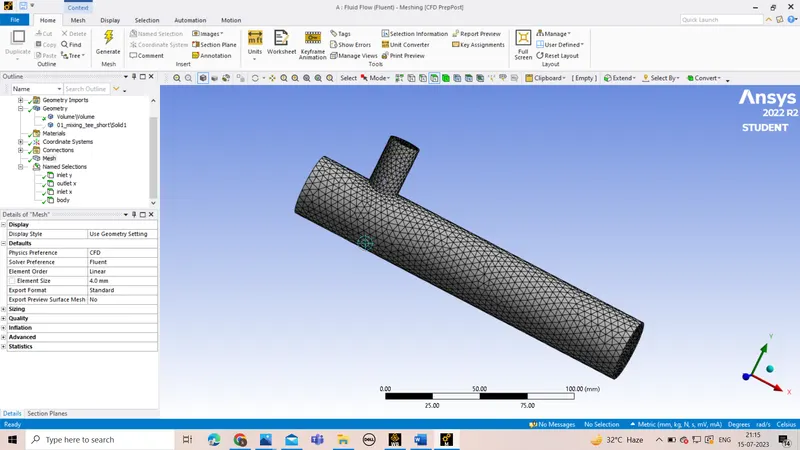
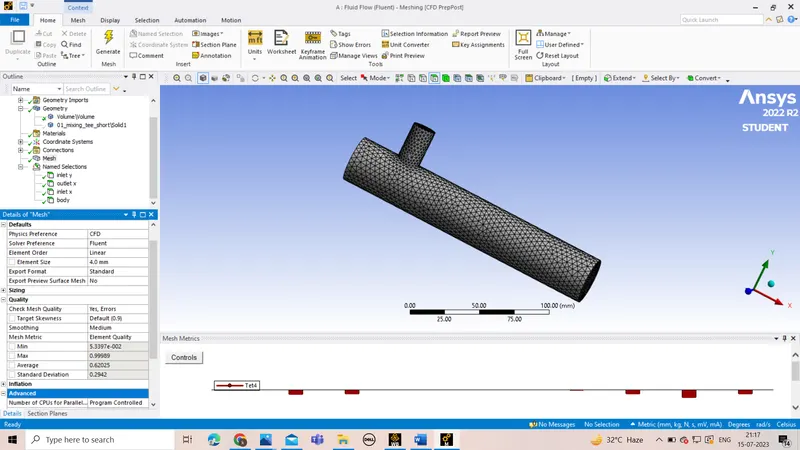
- after that we will close the mesh and go back to workbench and slect the setup
- we will slect double precision and use four processor and start fluent
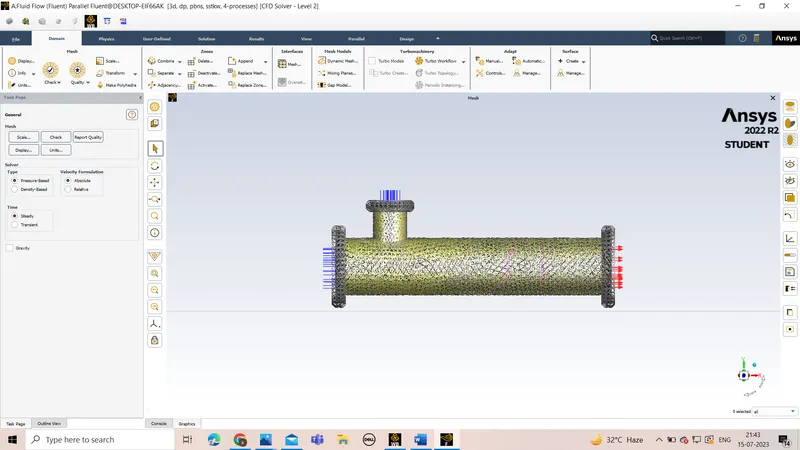
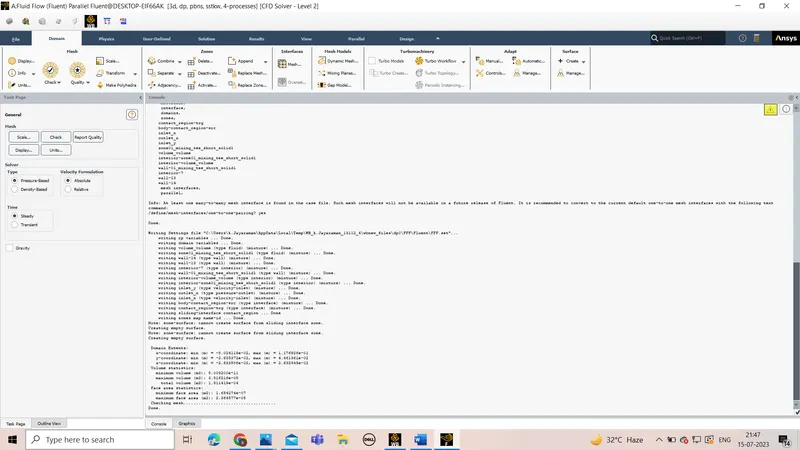
- after starting the fluent we will first check the meshing by clicking perform the mesh checks
- After the mesh selection we will go to physics
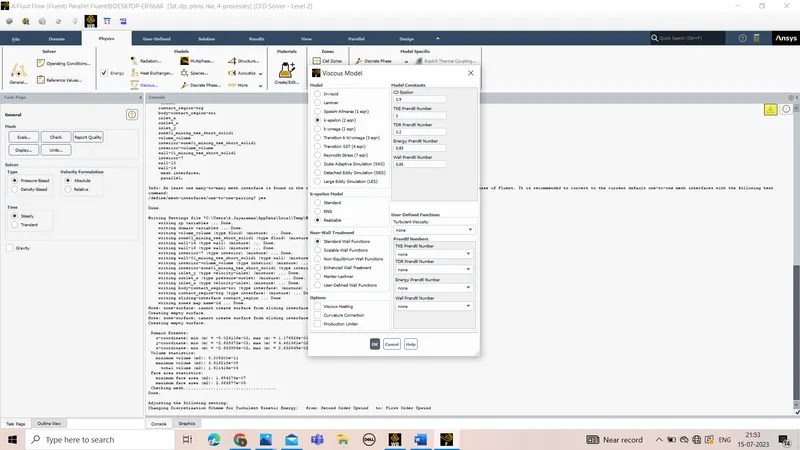
- under this we will select pressure,absolute,steady system and select viscous as K epsilon
- after that we will create edit material to creat and edit the fluid for the study
- after selecting the terms we will go to assigning conditions to cell zones
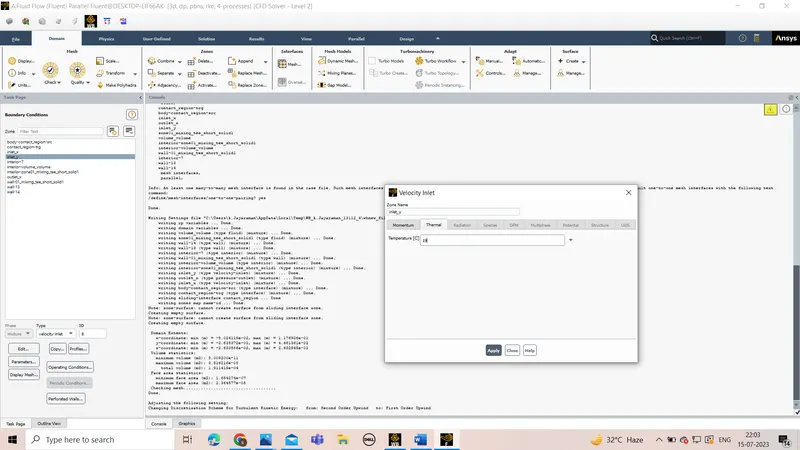
- here we select the volume and edit its properties for air as fluid
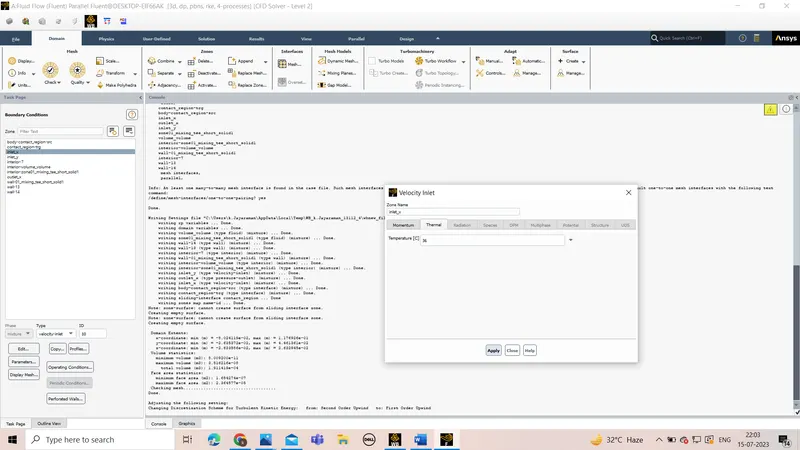
- after this we will assign conditions to diffrent boundaries based on the user input
- we will give input parameter for inlet x as velocity 3m/s and temperature as 36 degree celecius
- we will give input parameters for inlet y as 6m/s as we hvae momentum ratio as 2 and the temperature as 19 degree celsius.
- we will keep outlet at zero gauge pressure condition
- we will then go the selection where we will select the definitions or reults which are all required for the solutions
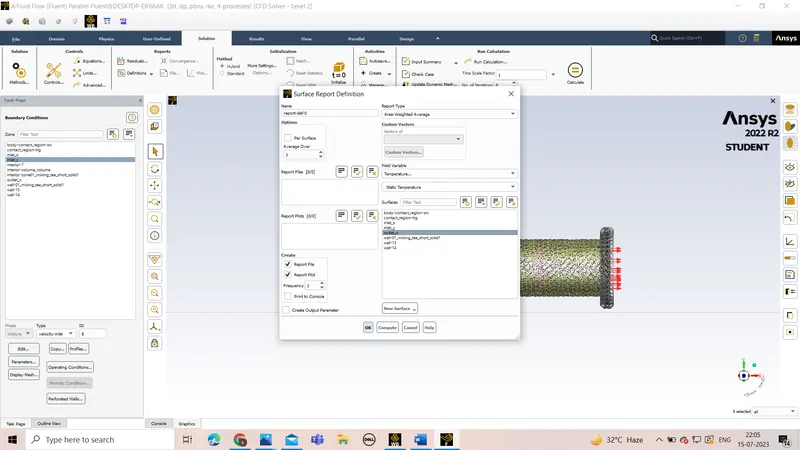
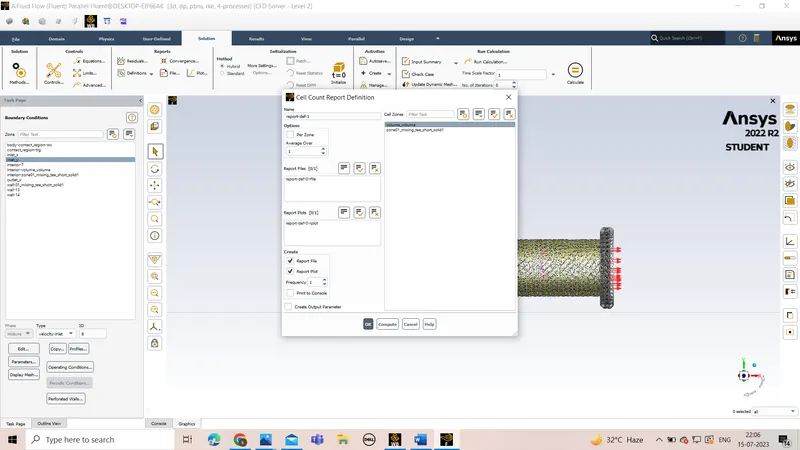
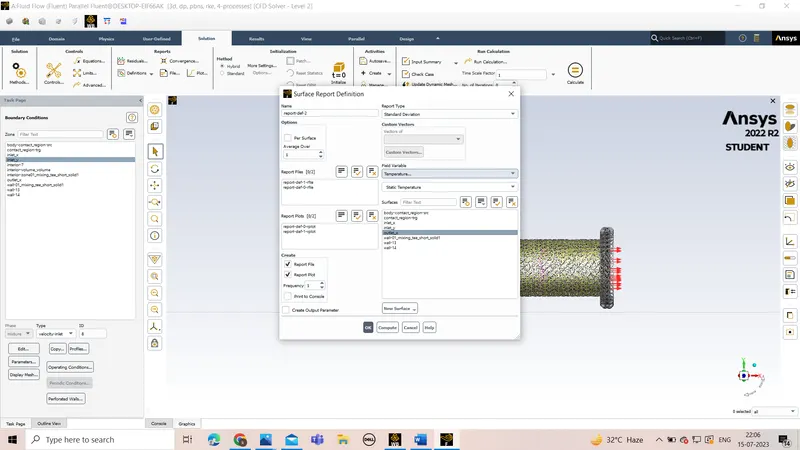
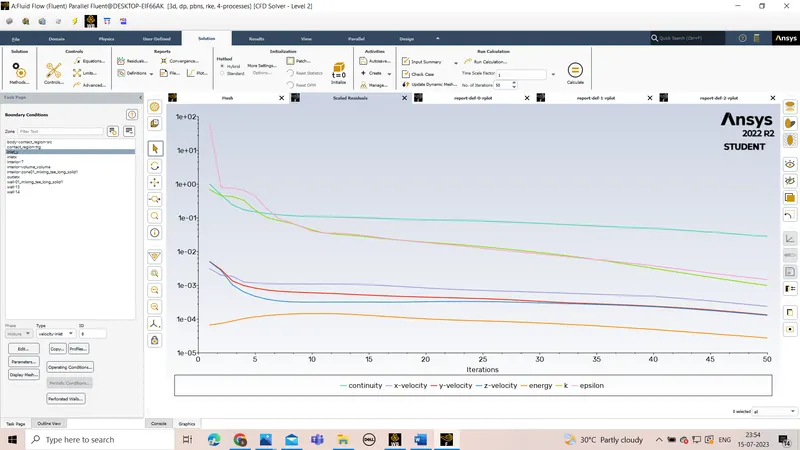
- after selecting we will click initialize and give the no of iterations as 50
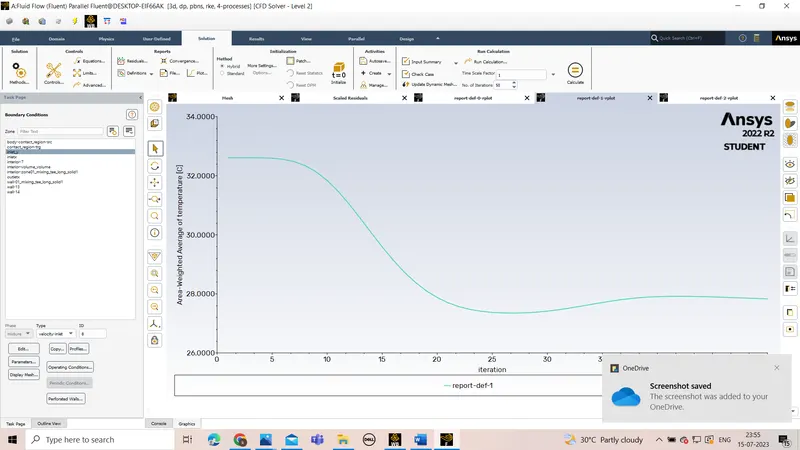
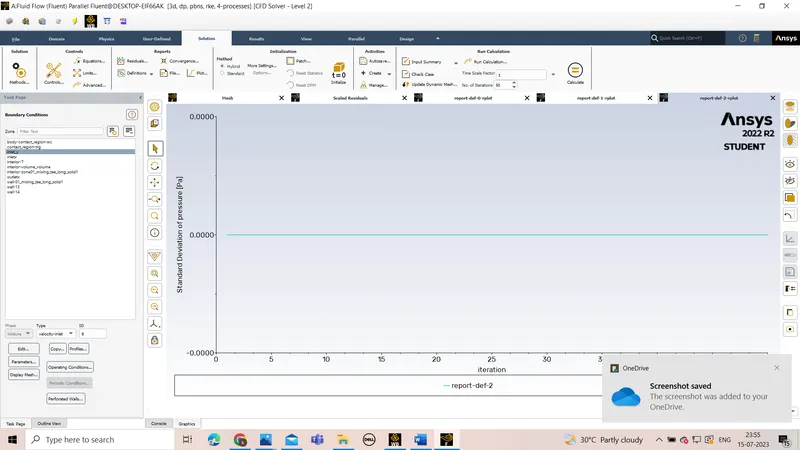
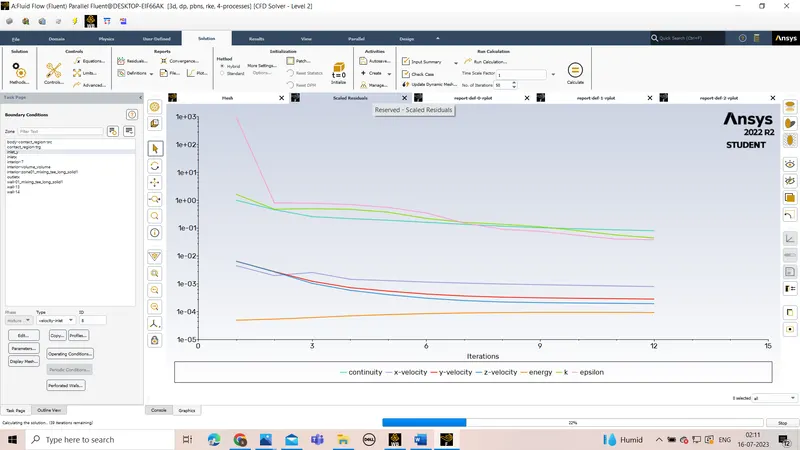
- we will annalyse the reports by generating the graphs
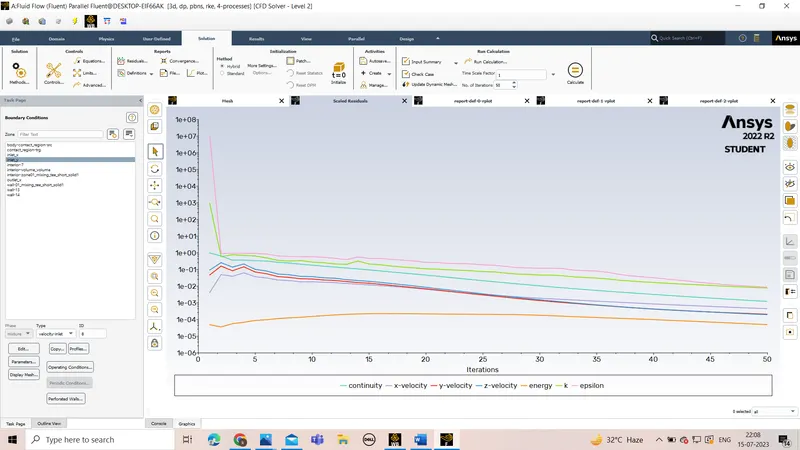
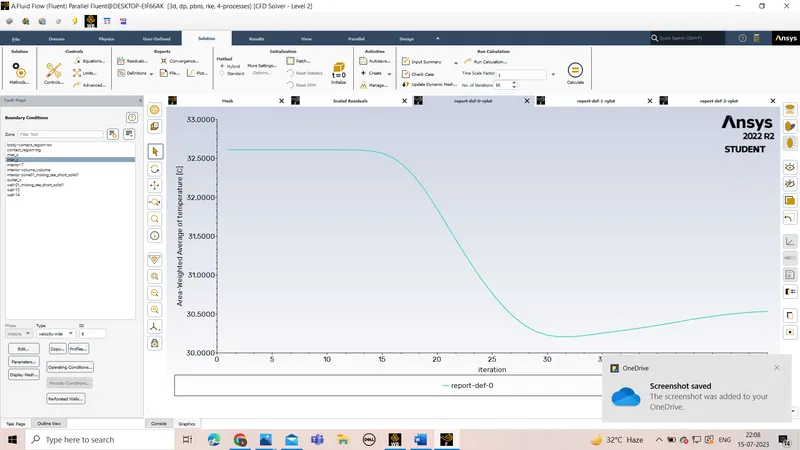
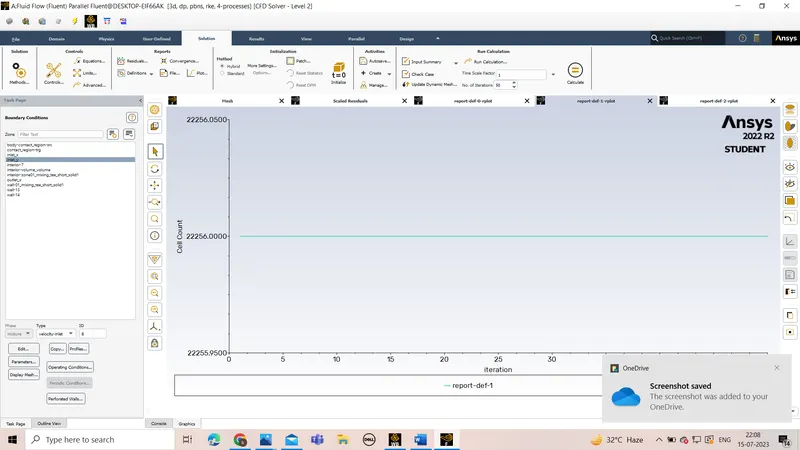
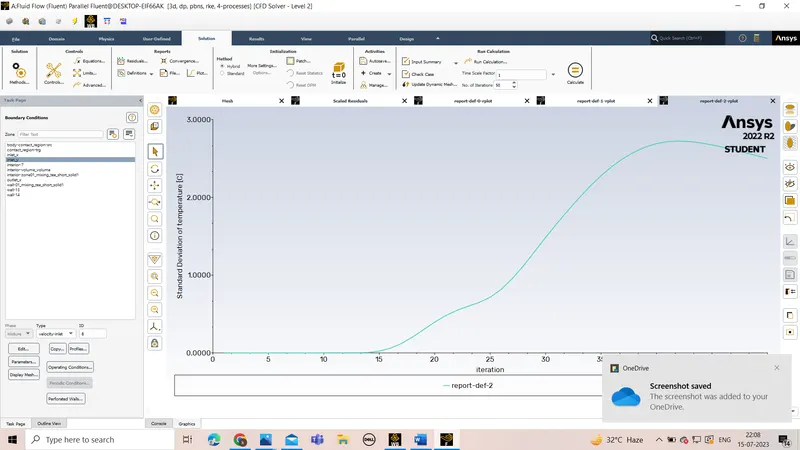
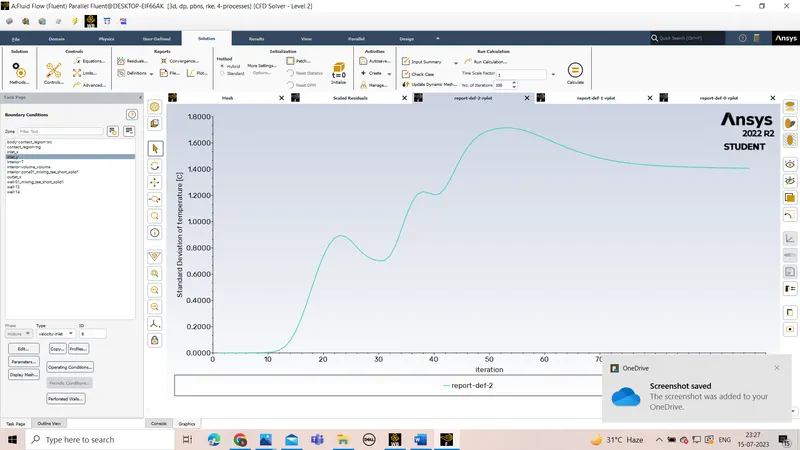
- From above graph we can see that std dev temp plot starts converge from 70th iteration and std.dev temp=1.575 c.
- After this we will close fluent and go back to workbench
- we will select results
- we will click the sections we want to visualize from the cases and wew ill click contact region
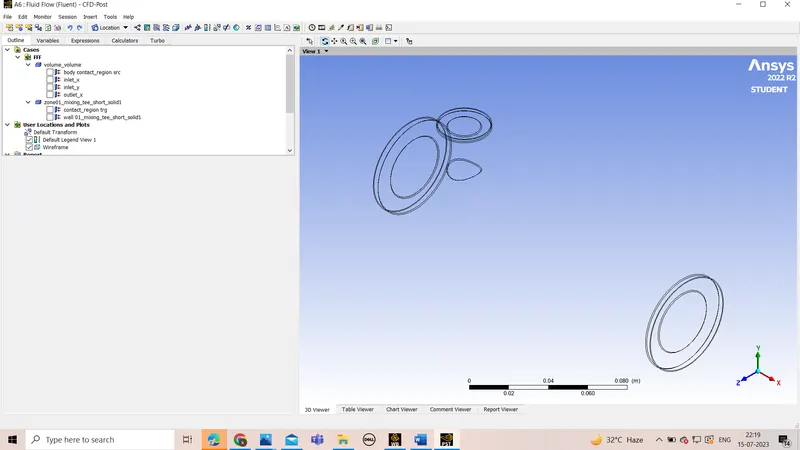
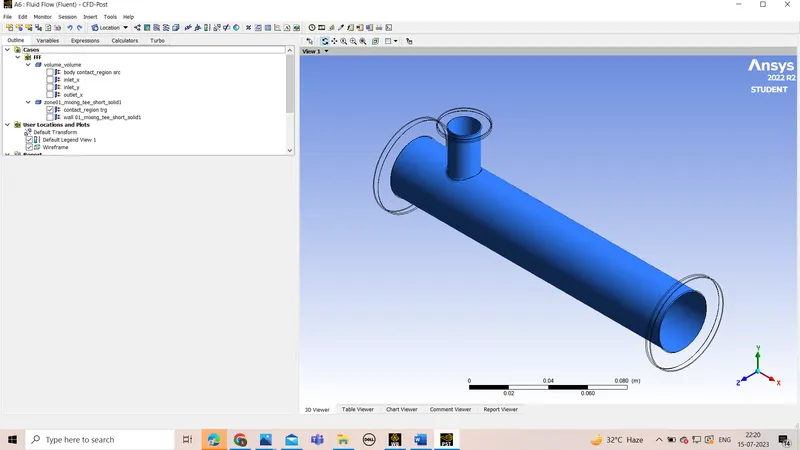
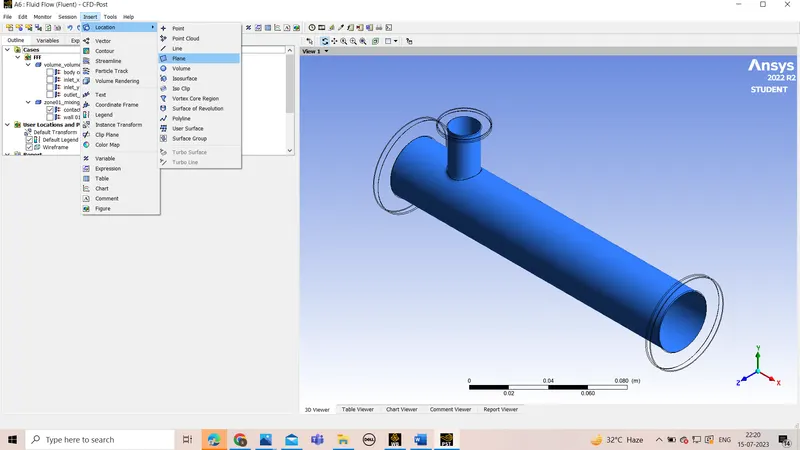
- Then we will click insert
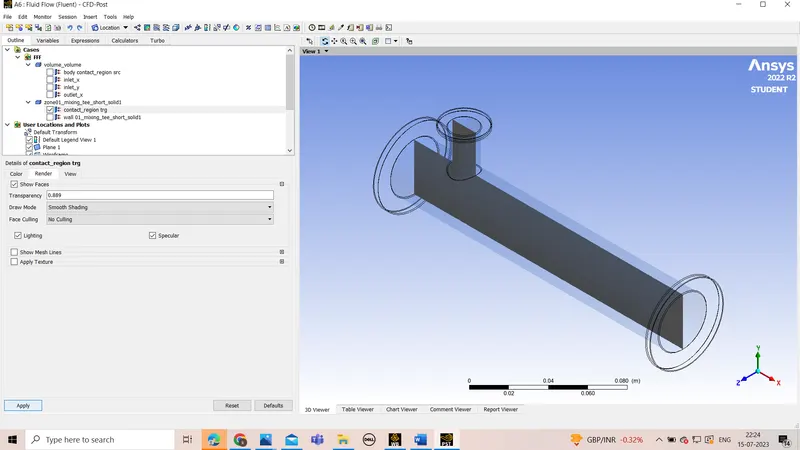
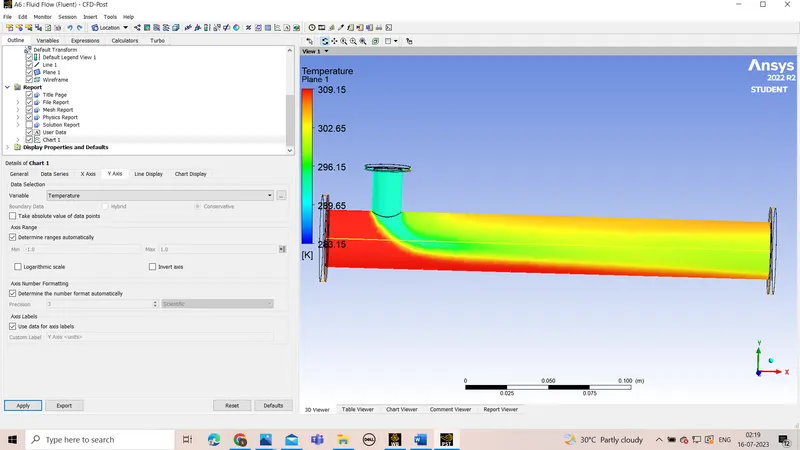
- we will add a plane in xy plane
- After generating the plane we will go to the contact region and under render we will increase the transparancy and change its colour
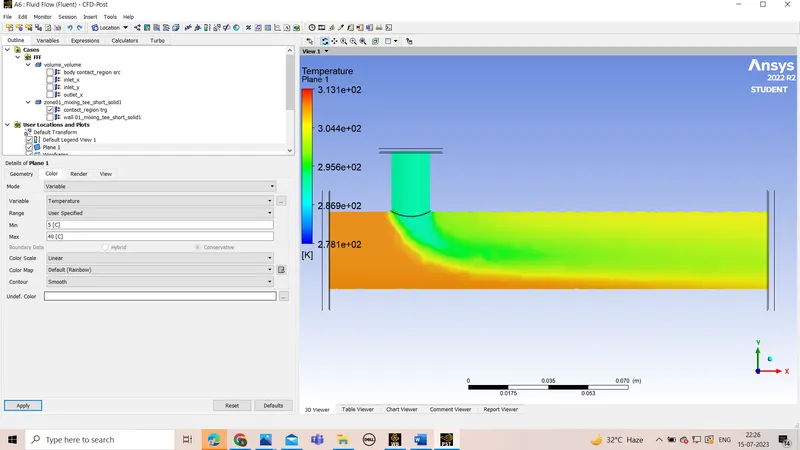
- Then in plane we will slect the temperature under variable and click apply
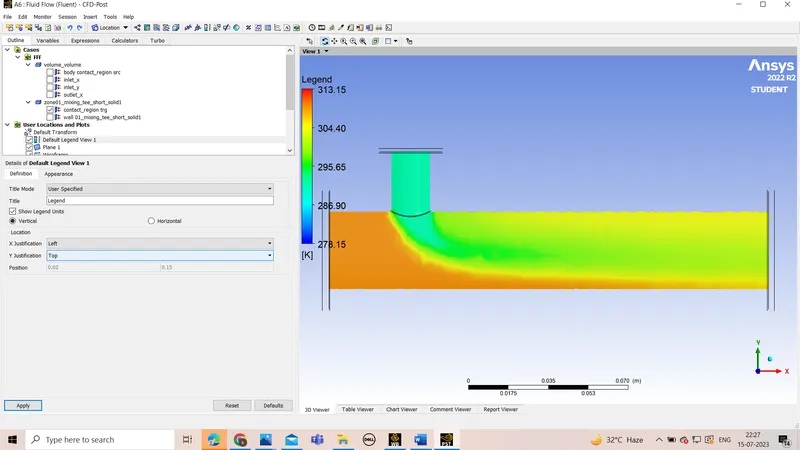
- under the default legend window we can change the units of the legend
- we then creat a line which will be of closed in nature
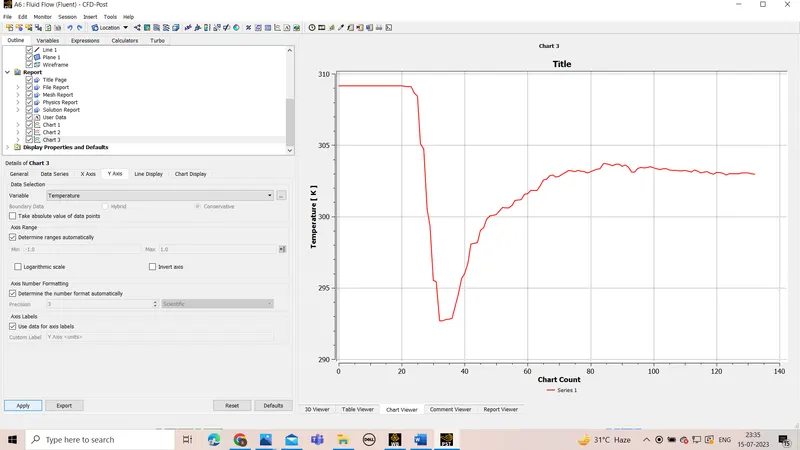
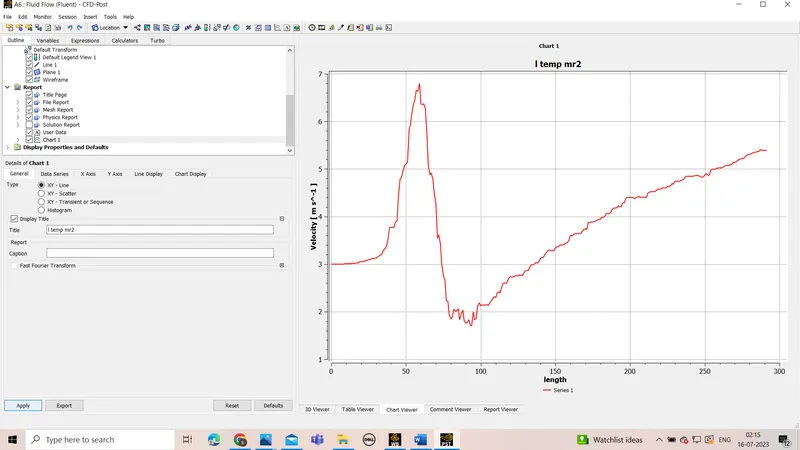
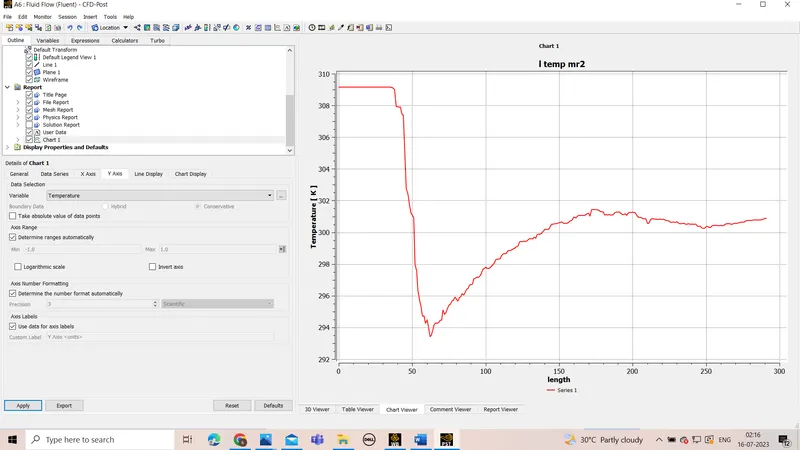
- we will generate the chart using chart create,
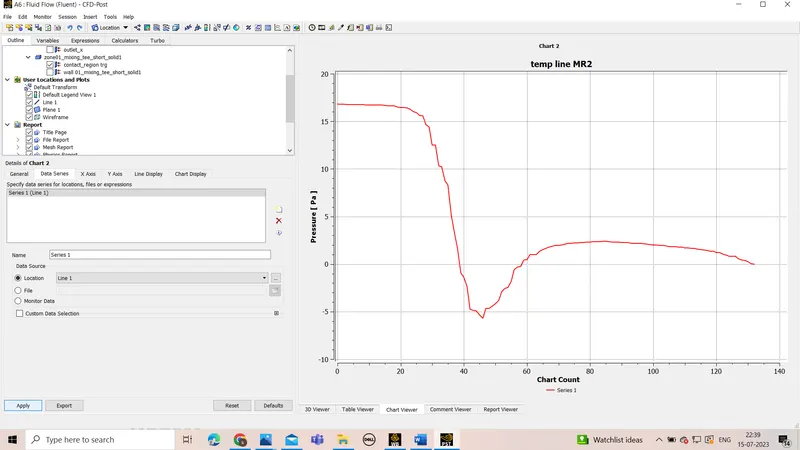
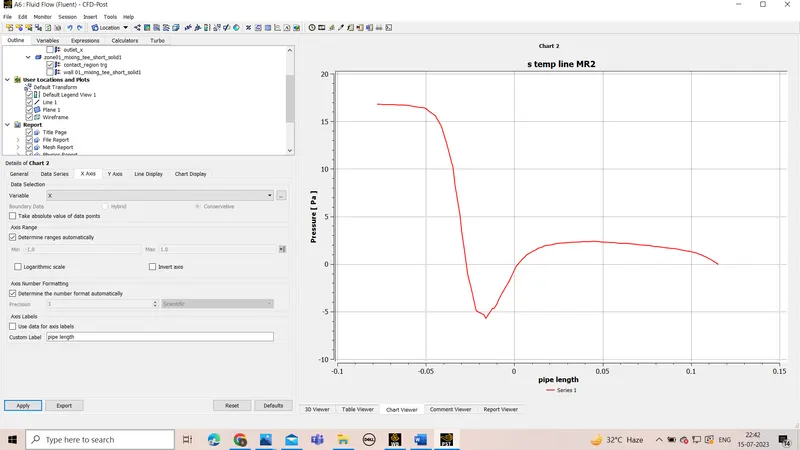
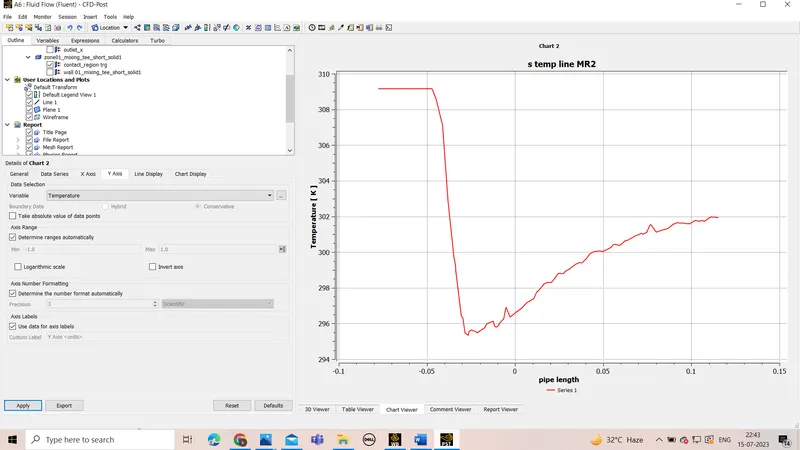
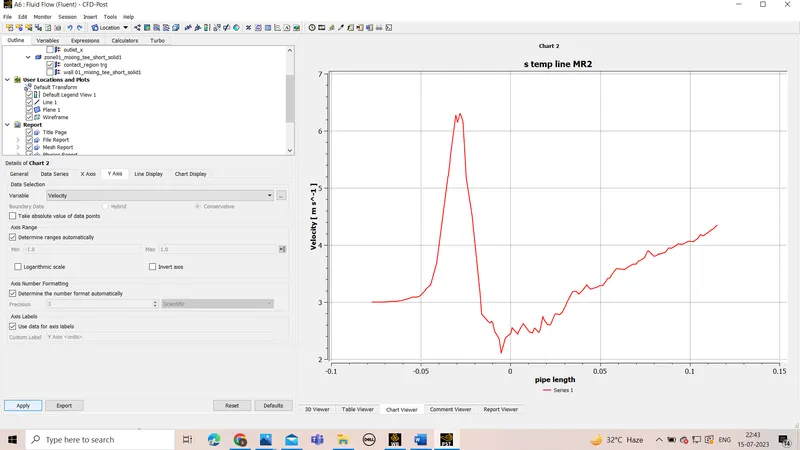
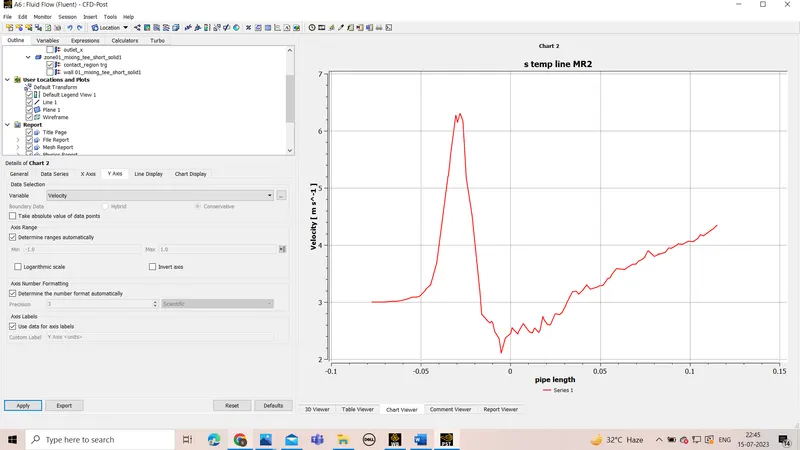
- we will generate task by changing the variables in different x and y coordinates and we can find the graph
We will then generate the calculations for the given formulae and find temperature
CASE 2-with Mr=4
- we will start from setup as the previous processors are same
- after starting the fluent we will first check the meshing by clicking perform the mesh checks
- After the mesh selection we will go to physics
- under this we will select pressure,absolute,steady system and select viscous as K epsilon
- after that we will create edit material to creat and edit the fluid for the study
- after slecting the terms we will go to assigning conditions to cell zones
- here we select the volume and edit its properties for air as fluid
- after this we will assign conditions to diffrent boundaries based on the user input
- we will give input parameter for inlet x as velocity 3m/s and temperature as 36 degree celecius
- we will give input parameters for inlet y as 12m/s as we have momentum ratio as 4 and the temperature as 19 degree celsius.
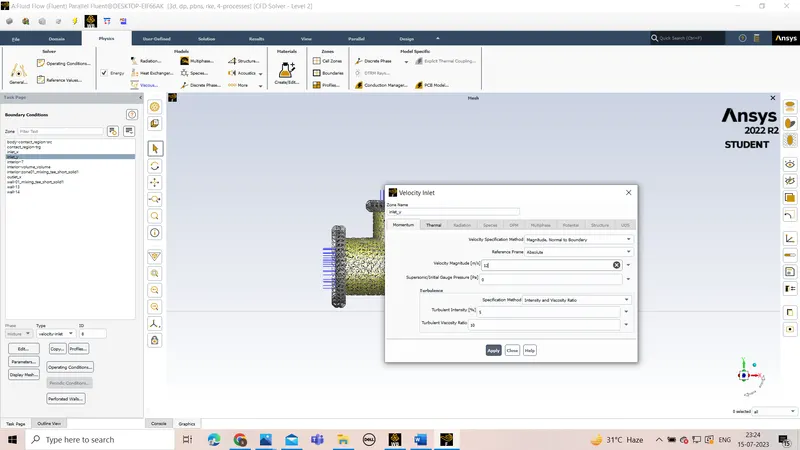
- we will keep outlet at zero gauge pressure condition
- we will then go the selection where we will select the definitions or reults which are all required for the solutions
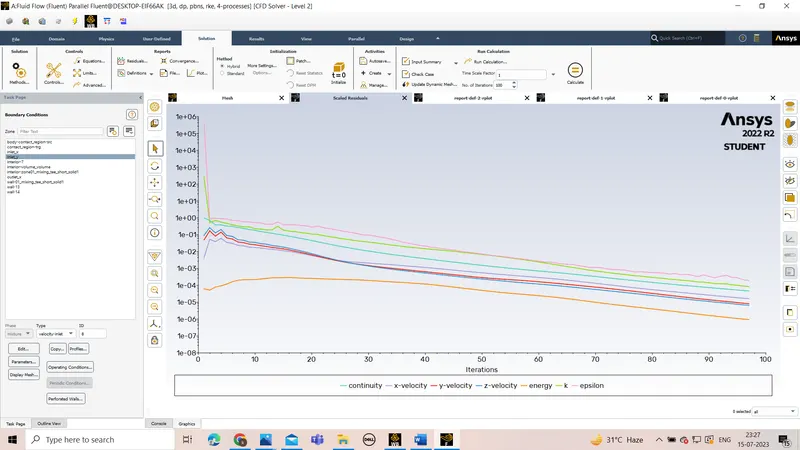
- after selecting we will click initialize and give the no of iterations as 100
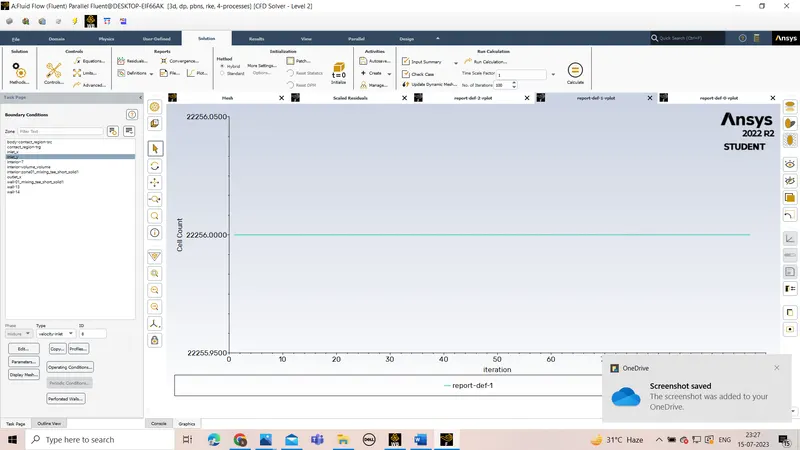
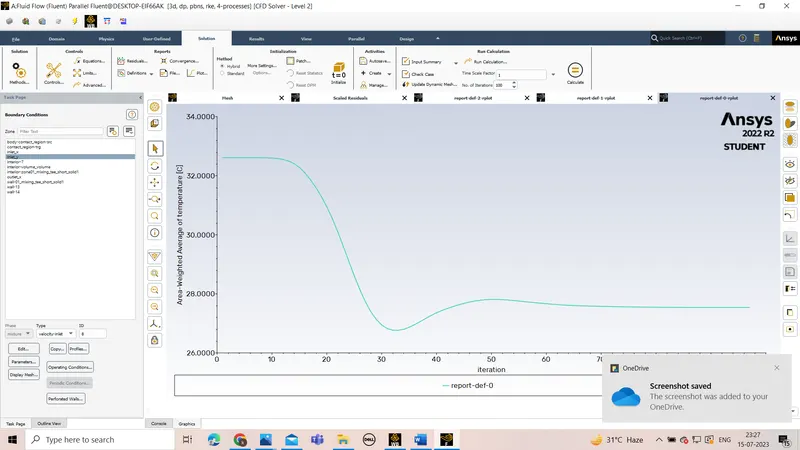
- we will annalyse the reports by generating the graphs
- we will close it and go to results
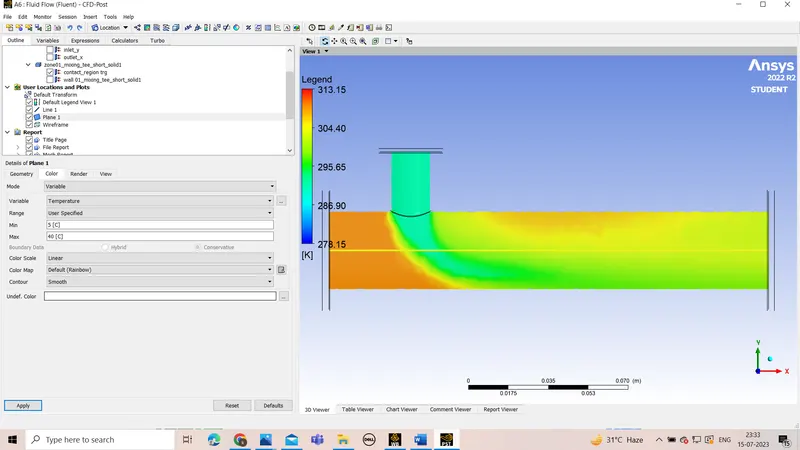
- we will now annalyse the chart
we will move to next case
CASE3-Long mixing tree of Mr=4
- we will start from setup as the previous processors are same as that for short mixing tree .
- after starting the fluent we will first check the meshing by clicking perform the mesh checks
- After the mesh selection we will go to physics
- under this we will select pressure,absolute,steady system and select viscous as K epsilon
- after that we will create edit material to creat and edit the fluid for the study
- after slecting the terms we will go to assigning conditions to cell zones
- here we select the volume and edit its properties for air as fluid
- after this we will assign conditions to diffrent boundaries based on the user input
- we will give input parameter for inlet x as velocity 3m/s and temperature as 36 degree celecius
- we will give input parameters for inlet y as 12m/s as we have momentum ratio as 4 and the temperature as 19 degree
- we will create the results and then the chart and find the relations
CASE 4-Long mixing tree of Mr=2
- after starting the fluent we will first check the meshing by clicking perform the mesh checks
- After the mesh selection we will go to physics
- under this we will select pressure,absolute,steady system and select viscous as K epsilon
- after that we will create edit material to creat and edit the fluid for the study
- after slecting the terms we will go to assigning conditions to cell zones
- here we select the volume and edit its properties for air as fluid
- after this we will assign conditions to diffrent boundaries based on the user input
- we will give input parameter for inlet x as velocity 3m/s and temperature as 36 degree celecius
- we will give input parameters for inlet y as 6m/s as we have momentum ratio as 4 and the temperature as 19 degree
- we will create the results and then the chart and find the relations
Conclusion-
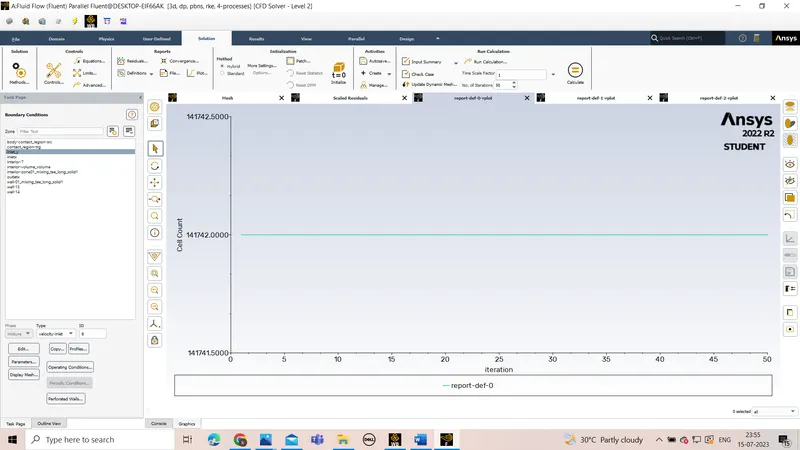
- As the cell size decreases, cell count increases which increases the mesh accuracy
- Also, with increase in cell count, simulation time get increased quadratically.
- It is observed that as the cell count increases, solver needs more number for iterations to converge a particular value, while for lower cell count, solver converges fast.
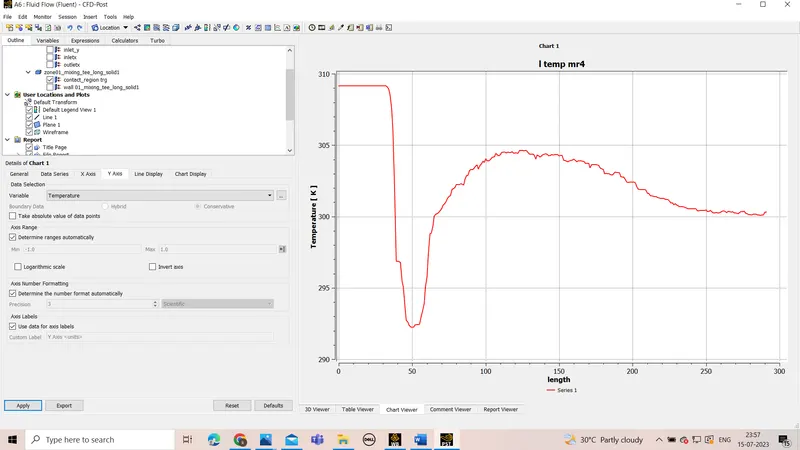
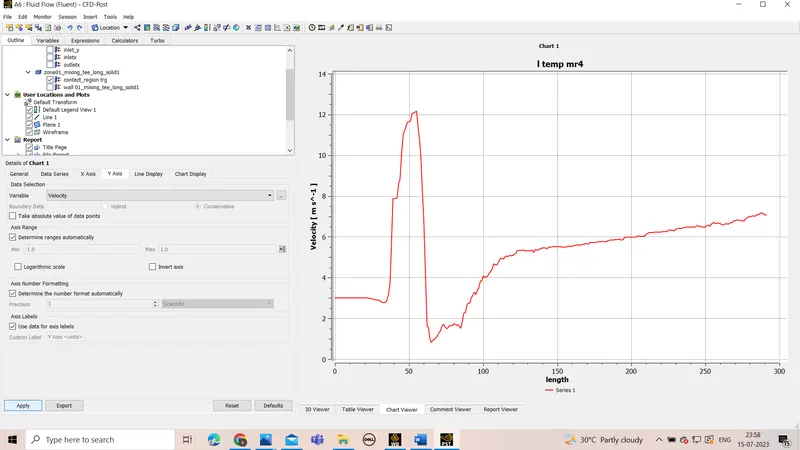
- the curves shows a inverse relations of velocity and temperature with length at the the interface where hot and cold liquid mix
- the smaller the mesh element size the more the iteration converge to the actual value