Usage of Navigation tool , Timeliner and Clash Detection test using Naviswork
1
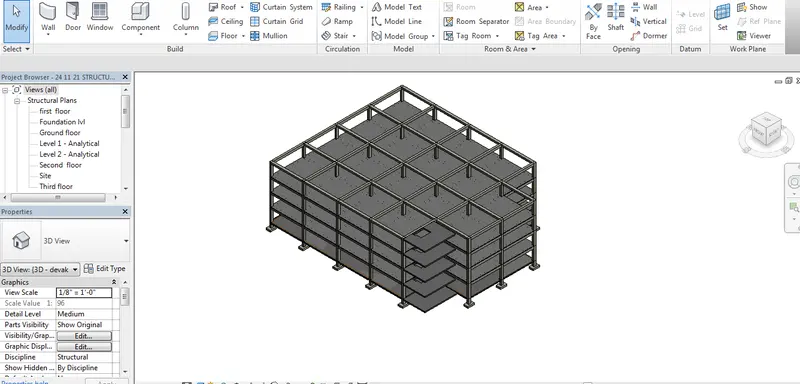
AIM: Using the Architecture/ Structure Project file developed by you in Week 6 to 8. Export the Revit architecture and structure model to Navisworks Cache file following the export settings discussed in class
Apparatus : Revit software , Naivis work (NWC) , Naviswork expoter .
Procedure :
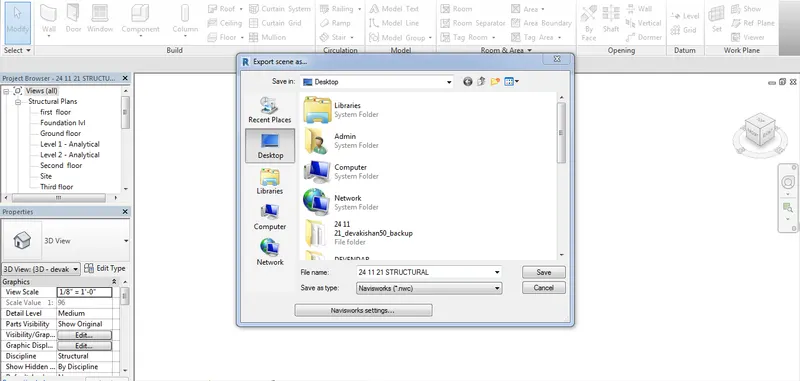
- Open the revit file ,open structure element of building in revit and click on file menu and click on export option
- Before exporting revit file into naviswork you need to install the software of navis3d exporter in the sytstem this is used to convert Revit .(rfa) file into the naviswork file (.Nwc)
- The revit will create nwc file and you before that you need to install naviswork manage file
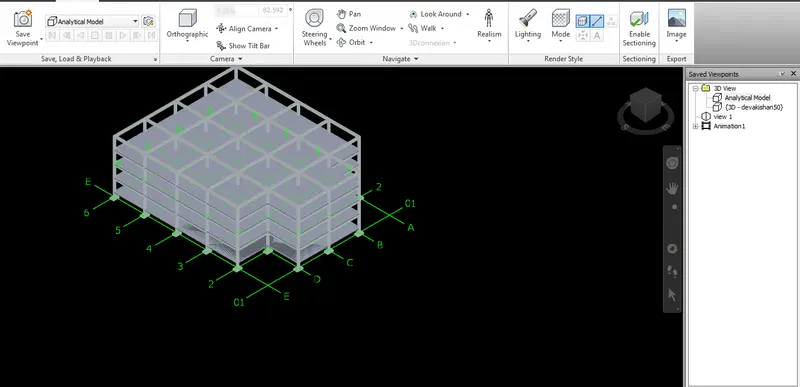
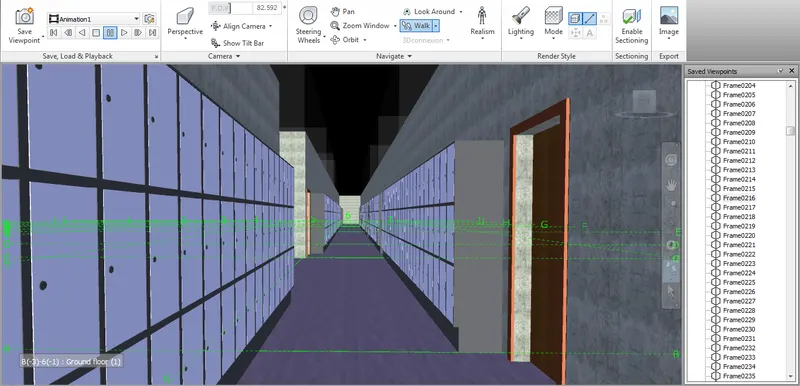
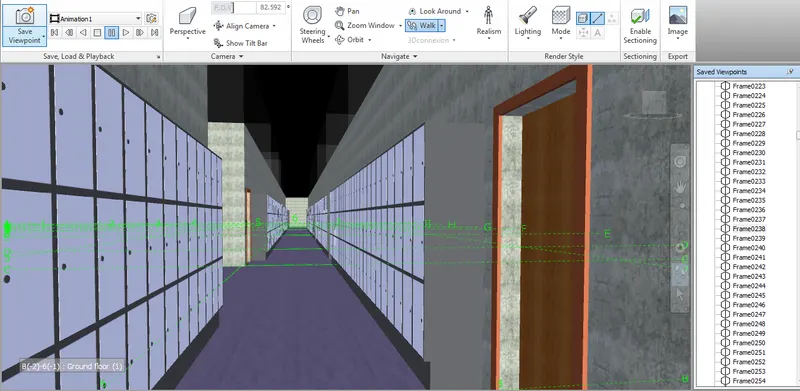
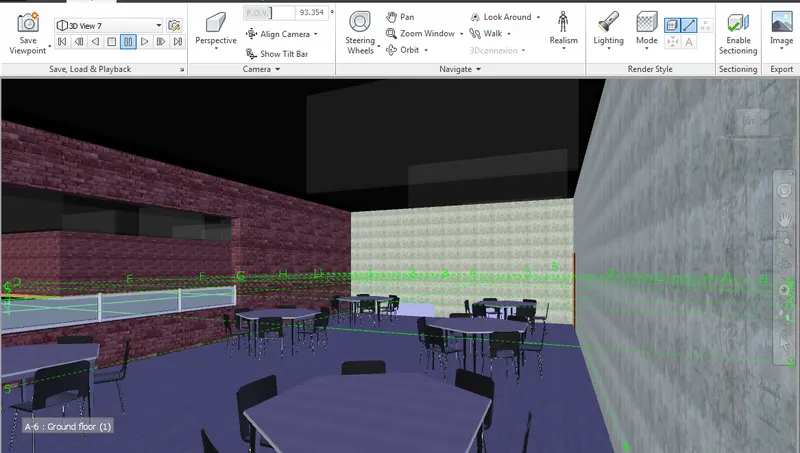
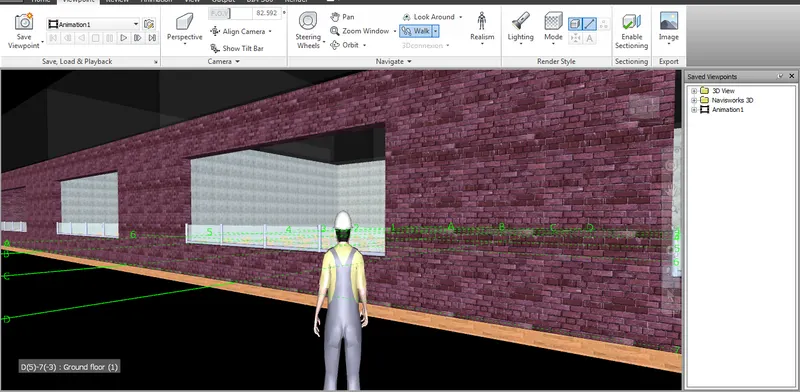
AIM : Use Navigate Tool to walk around the model and walk through the rooms created and record your moving as animation in your Navisworks file
Apparatus : Revit software , Naivis work (NWC) , Naviswork expoter , Revit file , export, walkway ,animation .
Procedure :
- Open the Naviswork manage software open the file that saved from the revit software
- Open the software in Naviswork click on walk in the view point
- select the view that you want to walk through the view
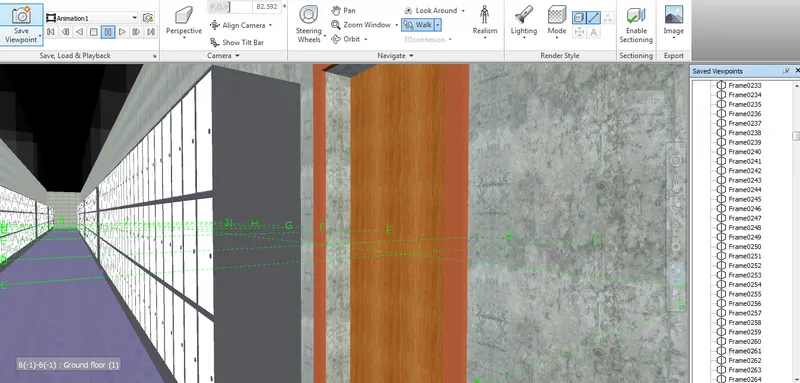
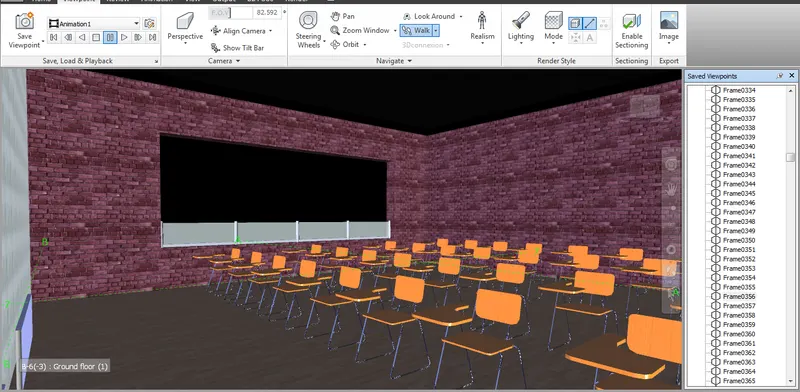
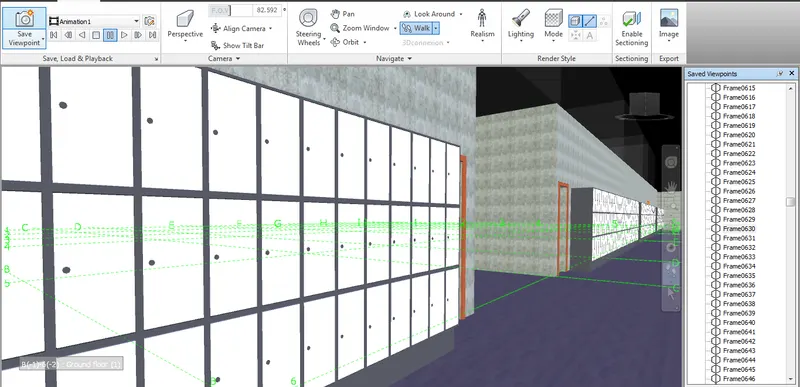
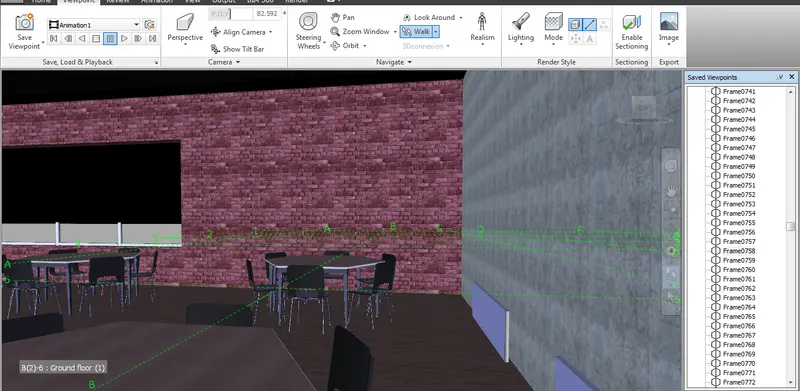
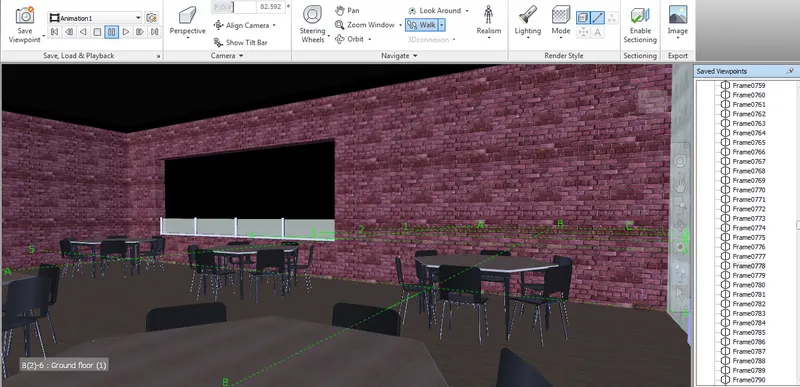
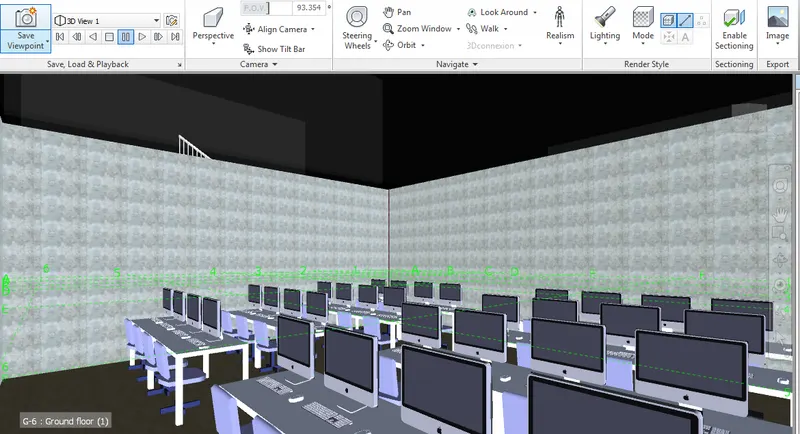
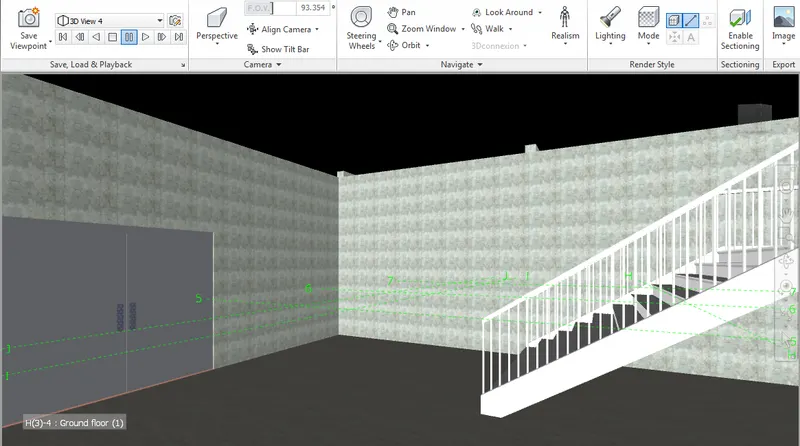
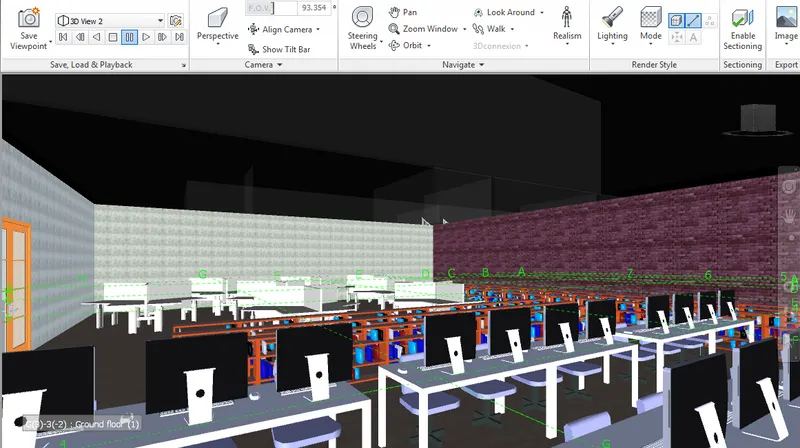
3
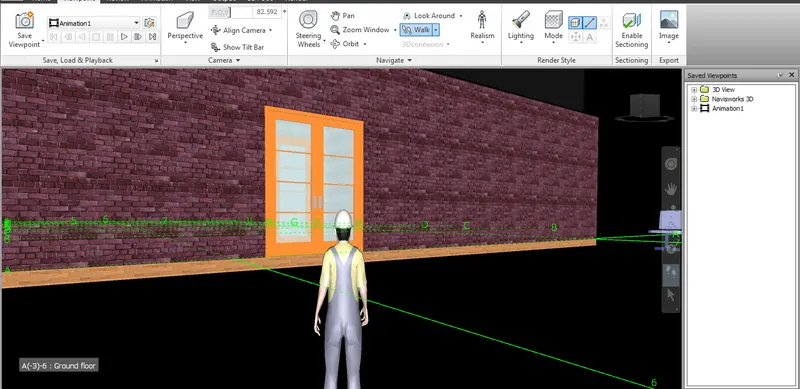
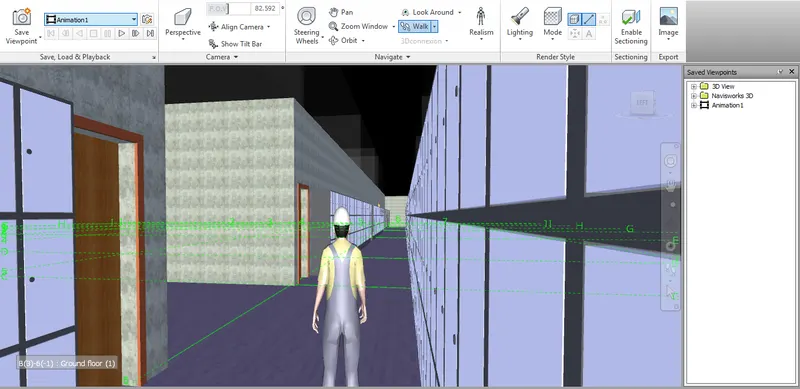
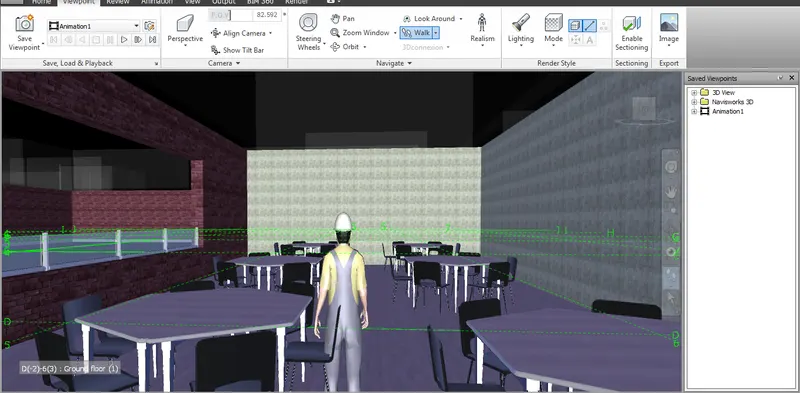
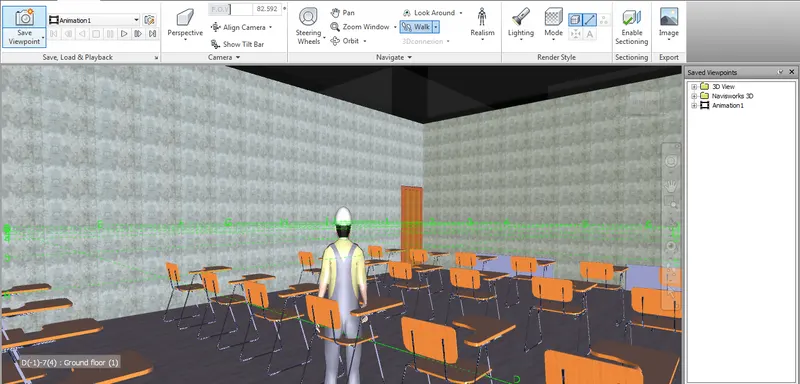
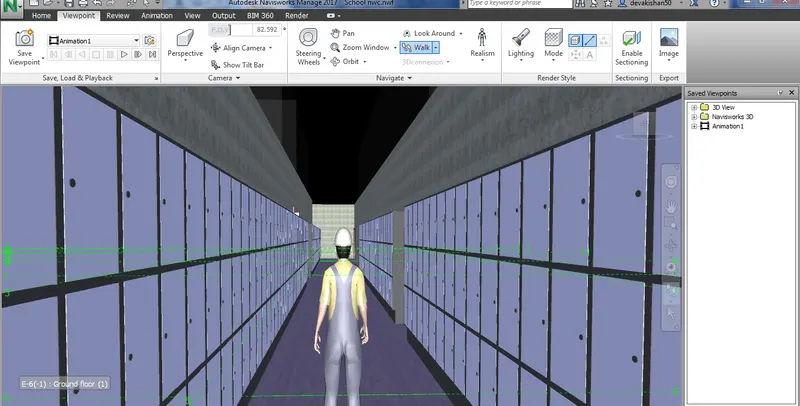
AIM : Using Navigate tool to use Realism feature to walk through the model and record your moving as animation in Navisworks file
Apparatus : Revit software , Naivis work (NWC) , Naviswork expoter , Revit file , export, walkway ,animation , saved viewpoint .
Procedure :
- Open the Naviswork manage software open the file that saved from the revit software
- Open the software in Naviswork click on Realisam in the view point
- select the view that you want to walk through the view like relastic
4
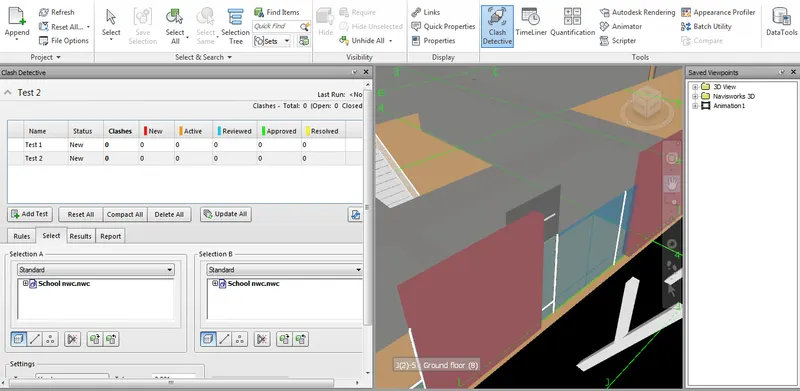
AIM: Embed both architecture and structure *.nwc file to your Navisworks file. Create a clash detection test between the two models
a. Run the Clash Detection Test
b. Study the clashes between the two models
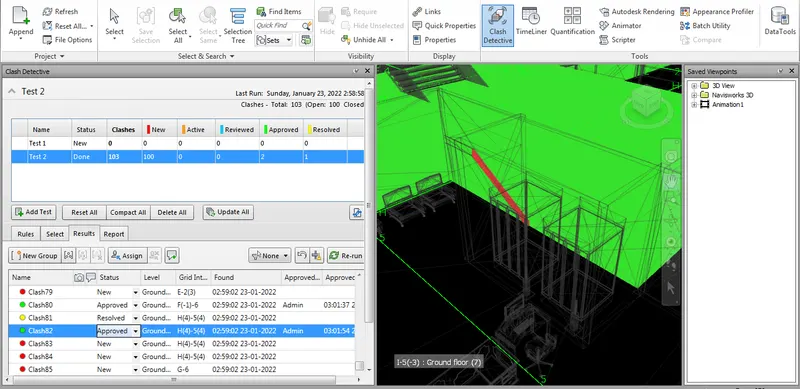
c. List which of the clashes could be approved
d. List which of the clashes could be neglected ( will be taken care later)
e. List which of the clashes can be resolved
f. Save the results after color coding the clashes to the Navisworks file
g. In case of resolution annotate the clash and save the view to defined views in Navisworks
Apparatus : Revit software , Naivis work (NWC) , Naviswork expoter , Revit file , export, walkway ,animation , saved viewpoint , clash point, add task , run test .
Procedure :
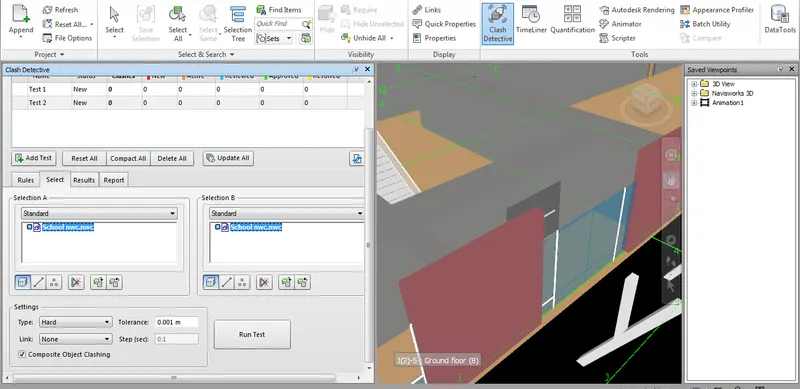
- Open the file in naviswork click on clash Dectective in view
- Select the standerd A , Standerd B
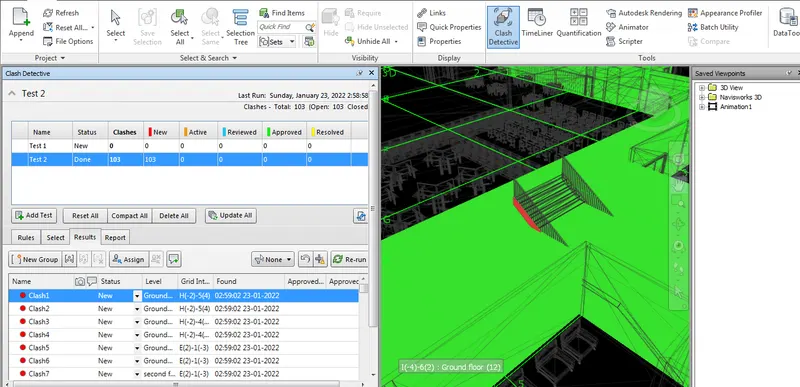
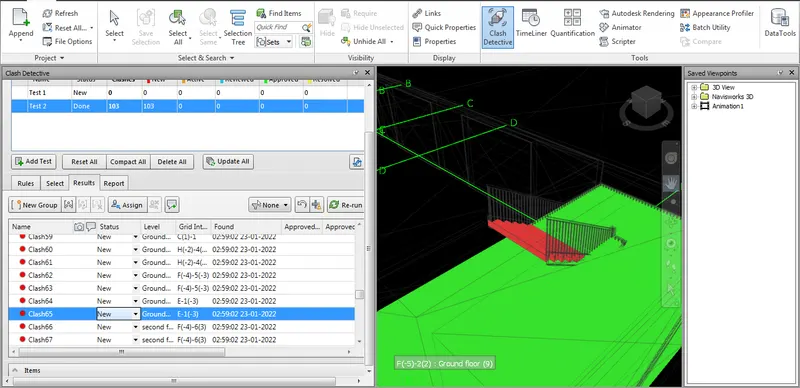
- Run the test for the clash
- can change status of the clash that you can change to approved or active
5
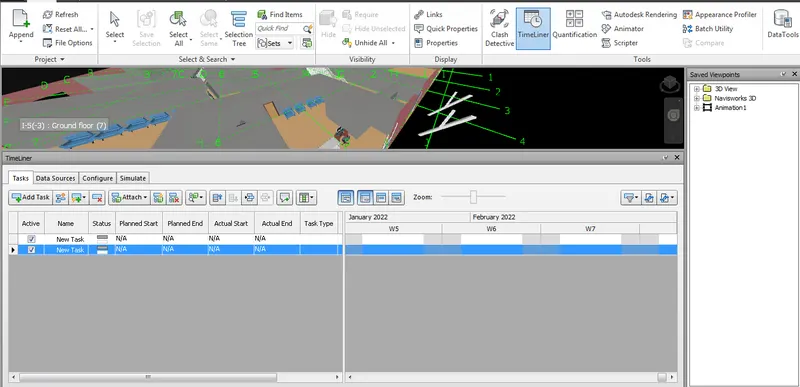
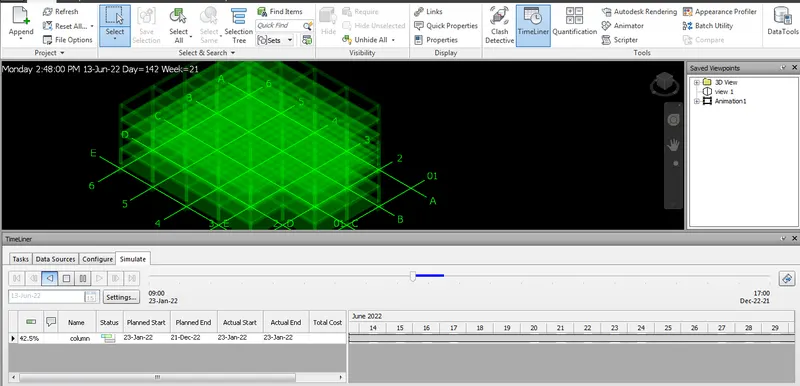
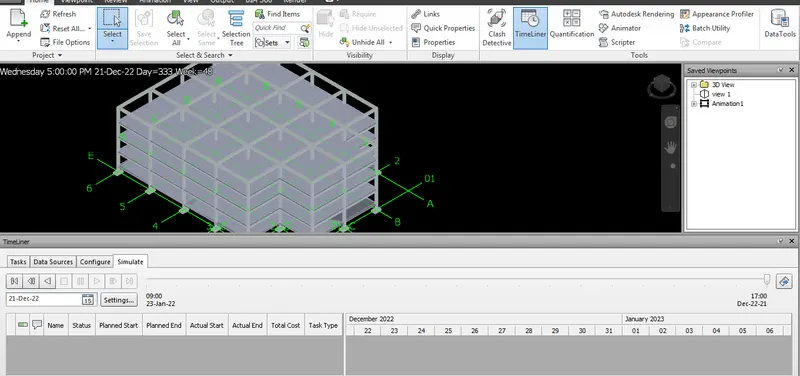
AIM : Using the Timeliner feature in Navisworks prepare a schedule for the project developed in week 6 to 8 by adding reasonable assumptions for task start date and end date and simulate the task completion as a visual simulation. Record it and save the timeline simulation to Navisworks file
Apparatus : Revit software , Naivis work (NWC) , Naviswork expoter , Revit file , export, walkway ,animation , saved viewpoint , clash point, add task , run test, timeliner .
Procedure :
- Open the file in naviswork click on Timeliner in view
- Select the building that you want to run time by select all
- Set the date start date and end date including all the holydays
- Click the simulate and can view the time required for the constuction