Usage of Navigation tool , Timeliner and Clash Detection test using Naviswork
Solution.1)
Aim: Use the Architecture/ Structure Project file developed by you in Week 6 to 8. Export the Revit architecture and structure model to Navisworks Cache file following the export settings discussed in class.
Procedure:
- If using Naviswork for the first time, one need to download Naviswork 3D Viewer from the Autodesk Website and install it in your local PC/Laptop.
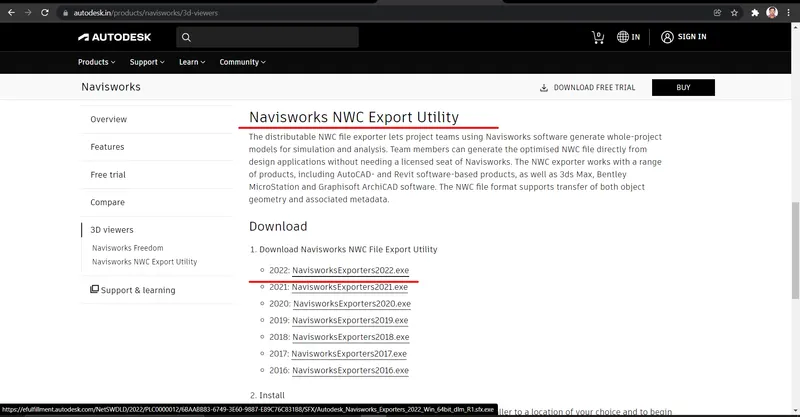
- Open the Architectural/Structural File, that we want to export to Naviswork Cache file.
- Go to File Tab, and click on export option.
- Select the NWC file format.
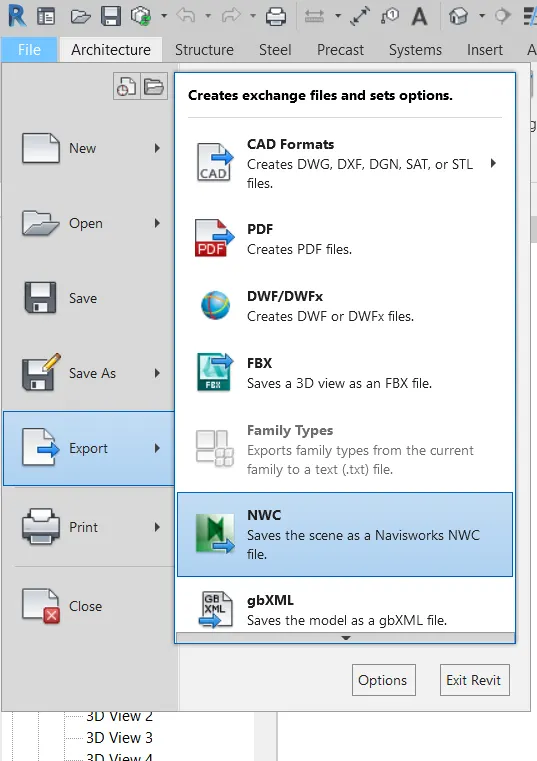
- A dialogue box will appear asking for loation where the exported file has to be save.
- Also, there will be option to change the Naviswork Settings to make changes as per the requirement.
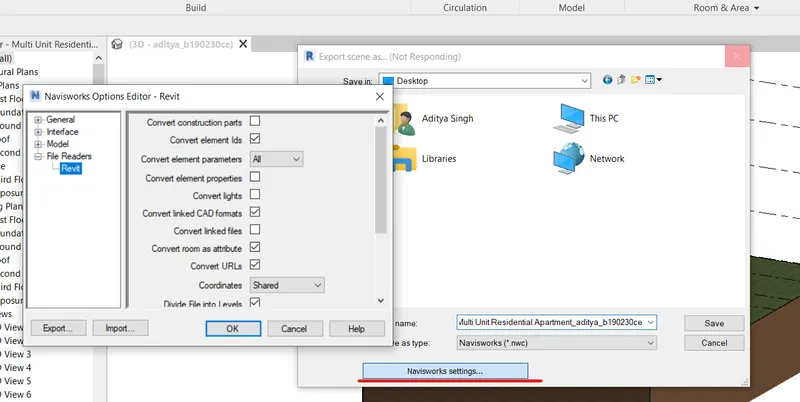
- After making the suitable selections as per your need, click on Ok button and then click on SAVE button.
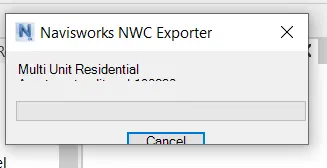
- The Revit Architectural/ Structural file has been exported as Naviswork File.
Result: The Architectural/Structural File has been exported as Naviswork Cache file.
Solution.2)
Aim: Use Navigate Tool to walk around the model and walk through the rooms created and record your moving as animation in your Navisworks file
Procedure:
- Open the NWC saved file for architecture.
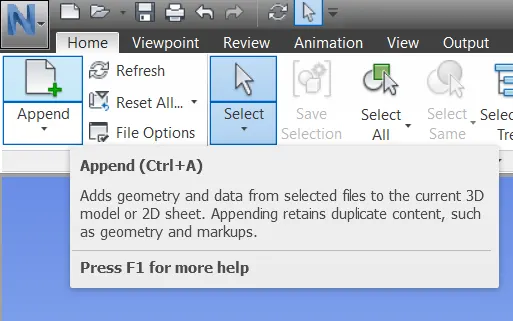
- Now, on the left top corner there is option to append. Click on Append and add Structural NWC file that we have exported form Revit.
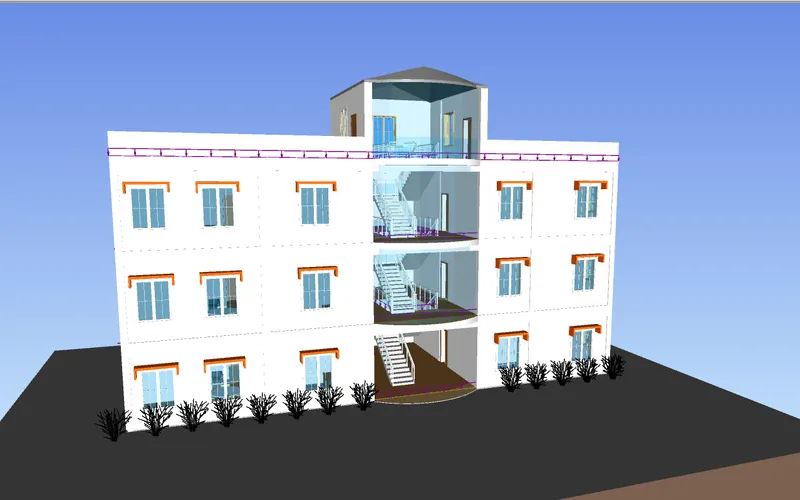
- Now, both the Architectural and Strucutral File has been opened in Naviswork Manage workspace.
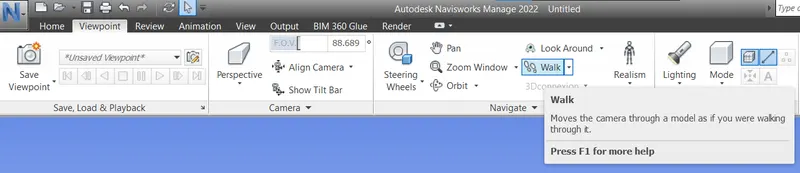
- Now, go to Viewpoint Tab, and select Walk option to Walk around the model.
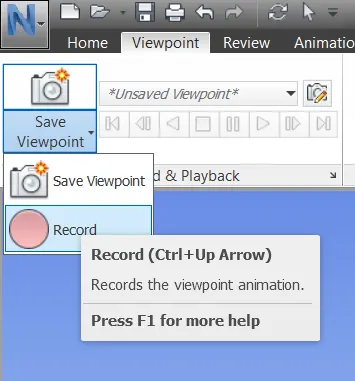
- After that, in the Viewpoint Tab itself there is Save Viewpoint option, click on the down arrow and there will option for Recorrding the walk.
- Now walk around the model, inside the room and outside to look from outside the building.
- One can use the realism option to show a man walking around the model.
- Few scenes of the walk inside and outside the buidling is shown in below figure.
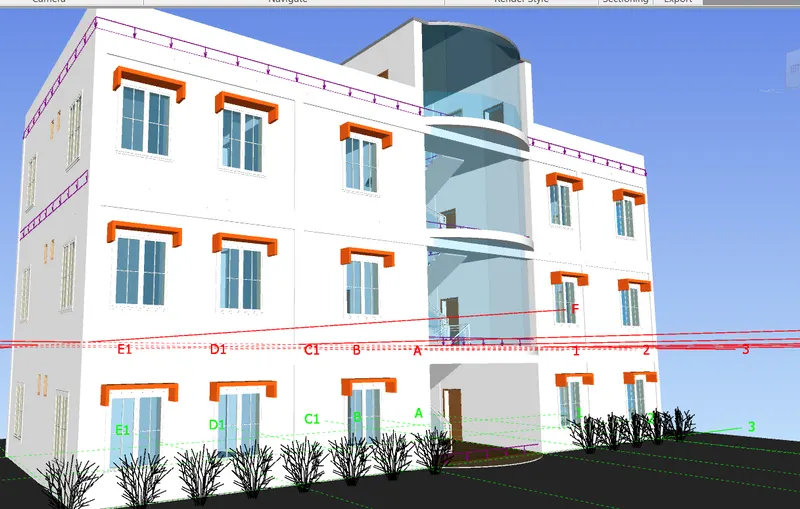
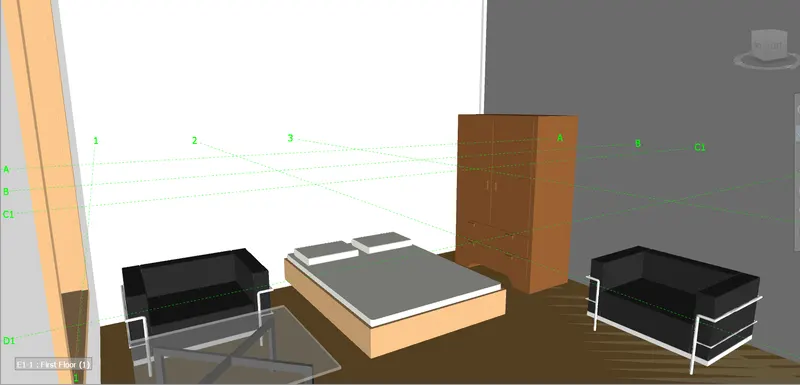
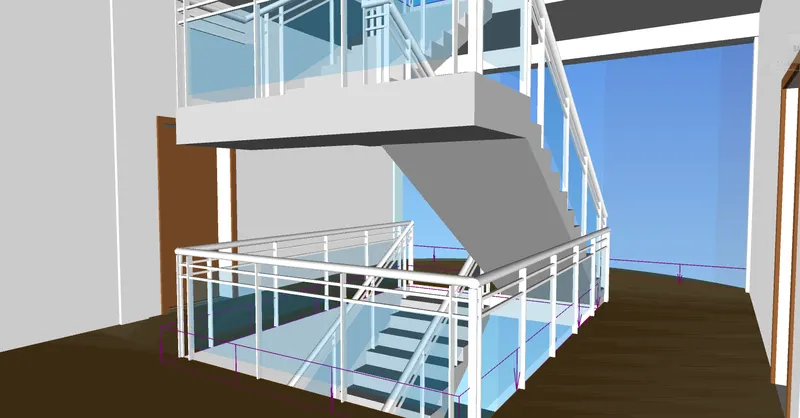
Result: We have successfully walked around the building and inside of the room.
Solution.3)
Aim: Use Navigate tool to use Realism feature to walk through the model and record your moving as animation in Navisworks file.
Procedure:
- Go to ViewPoint Tab, click on Walk and Select Realism option placed near to it.
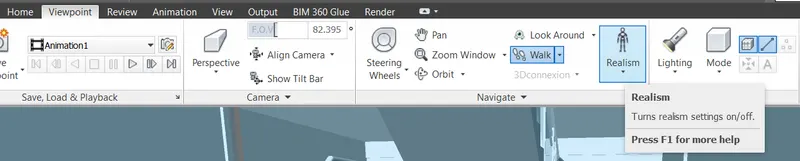
- Walk throughout the model, inside or outside to have a look out at the modelled building.
- We have placed the image of few of the location where we walked around using Naviswork, Realism Feature.
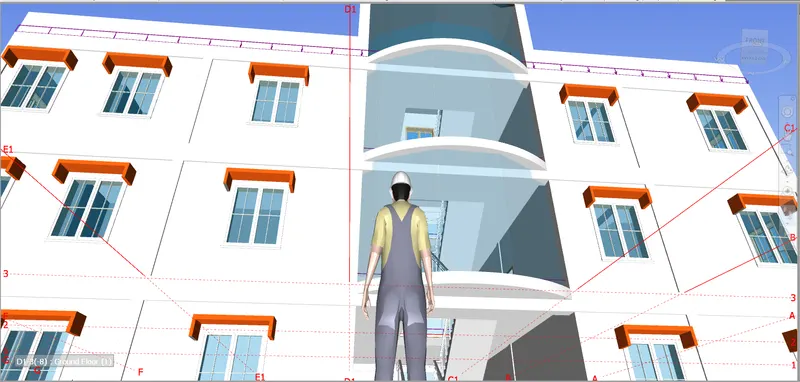
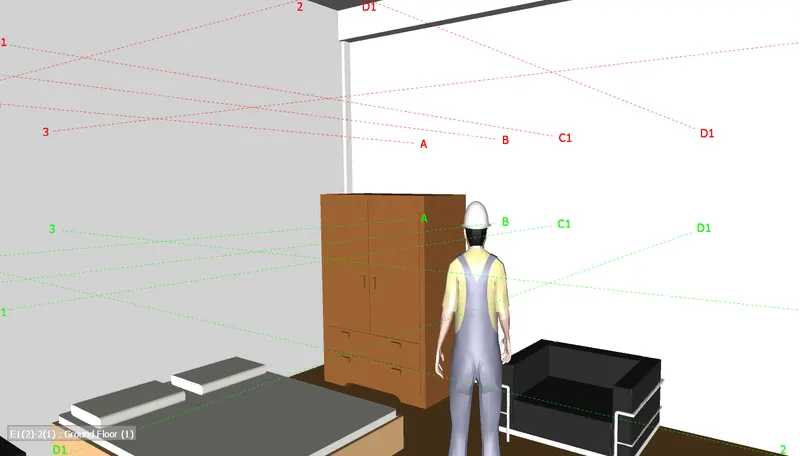
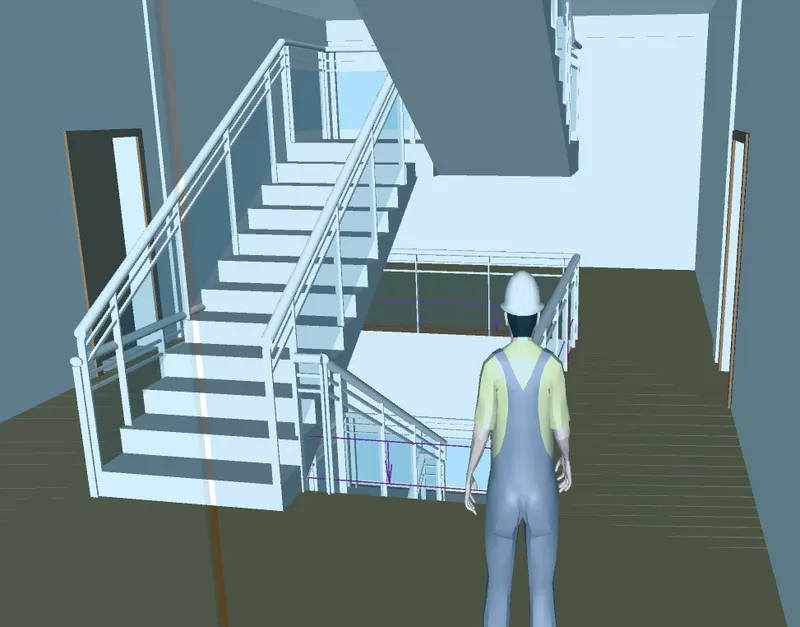
Result: We have successfully walked around the building and inside of the room using Realism feature of Naviswork.
Solution.4)
Aim: Embed both architecture and structure *.nwc file to your Navisworks file. Create a clash detection test between the two models
a. Run the Clash Detection Test
b. Study the clashes between the two models
c. List which of the clashes could be approved
d. List which of the clashes could be neglected ( will be taken care later)
e. List which of the clashes can be resolved
f. Save the results after color coding the clashes to the Navisworks file
g. In case of resolution annotate the clash and save the view to defined views in Navisworks
Procedure:
- Open the Architectural Model in Naviswork workspace and append Structural File into it as discussed above.
- Now, under Home Tab, there is option for Clash Detection.

- Click on Clash Detection.
- A window on the left side will appear, click on Add test.
- Name the Test as Architectural vs Structural.
- Select the Architectural file and Strucutral File to find the clash and click on Run Test.
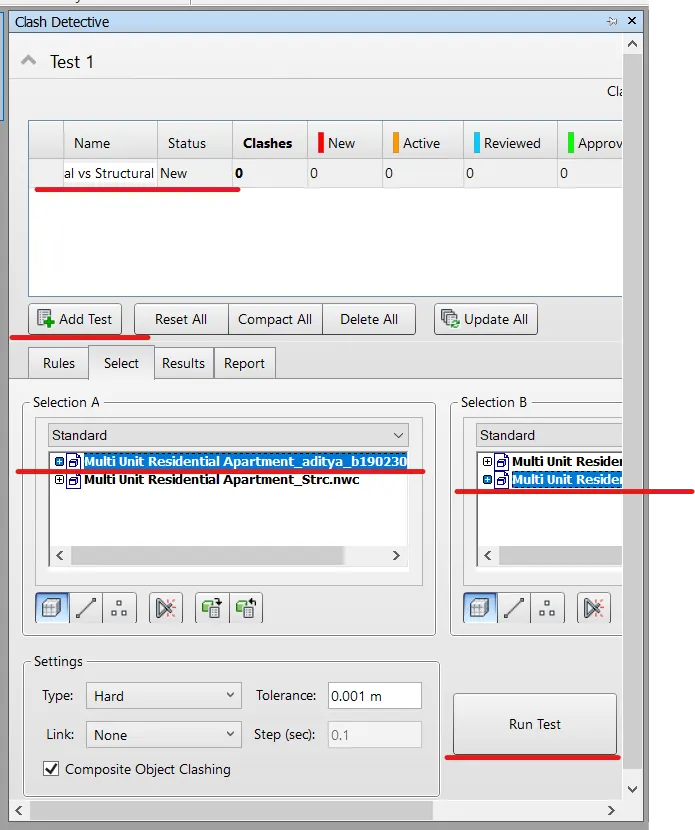
- After running the test, number of clashes will be shown aand also to add the remark whether its approved,active, reviewed or resolved as shown in below figure.
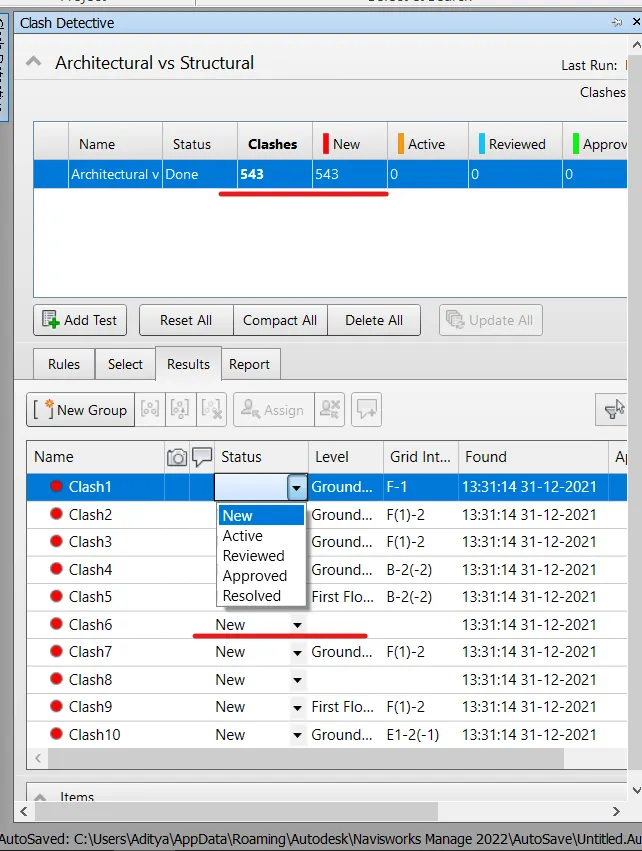
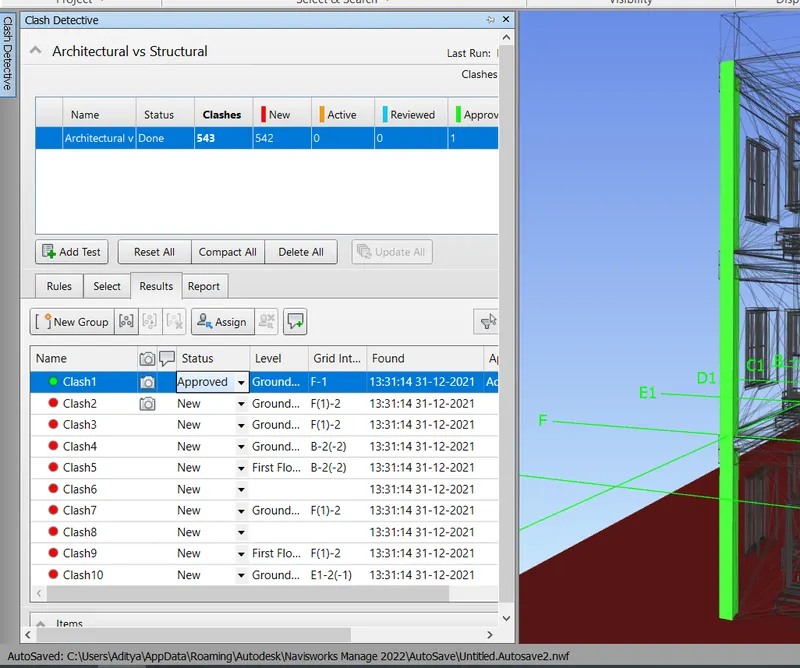
- Clash 1 can be ignored as it is showing because we have modelled the column at once from foundation to third level.Similarly, it will show the clash for all the ccolumn, that needs to be individually identified and get approved.
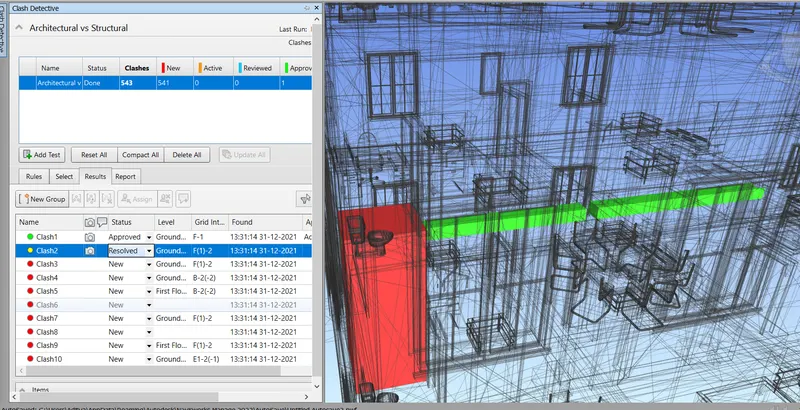
- Clash 2 can be sent to Revit file for remodelling the Beam position in as it is coinciding with wall in absurd way. After resolving this issue it can come under Resolved Category.
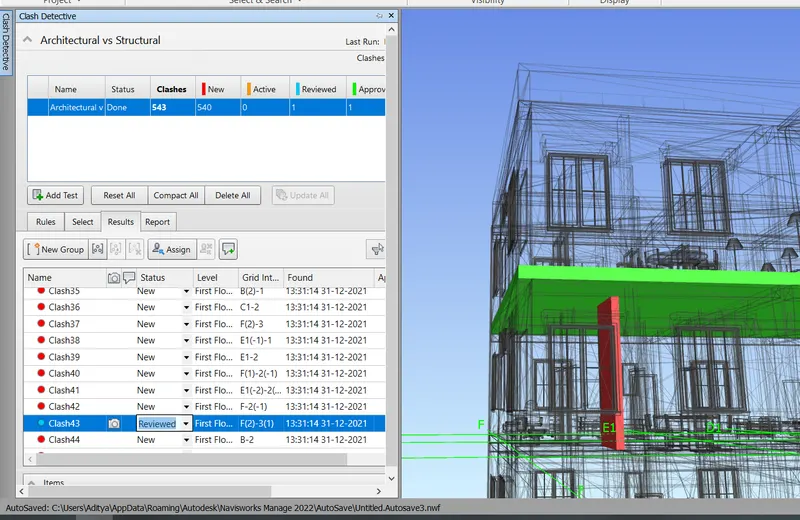
- Clash 43 can be neglected as it will be taken care at the time of construcution. Clash is due to penetration of wall into top floor.
- On the right of the clash, there is option to import/export clash test. This will export the clash results.
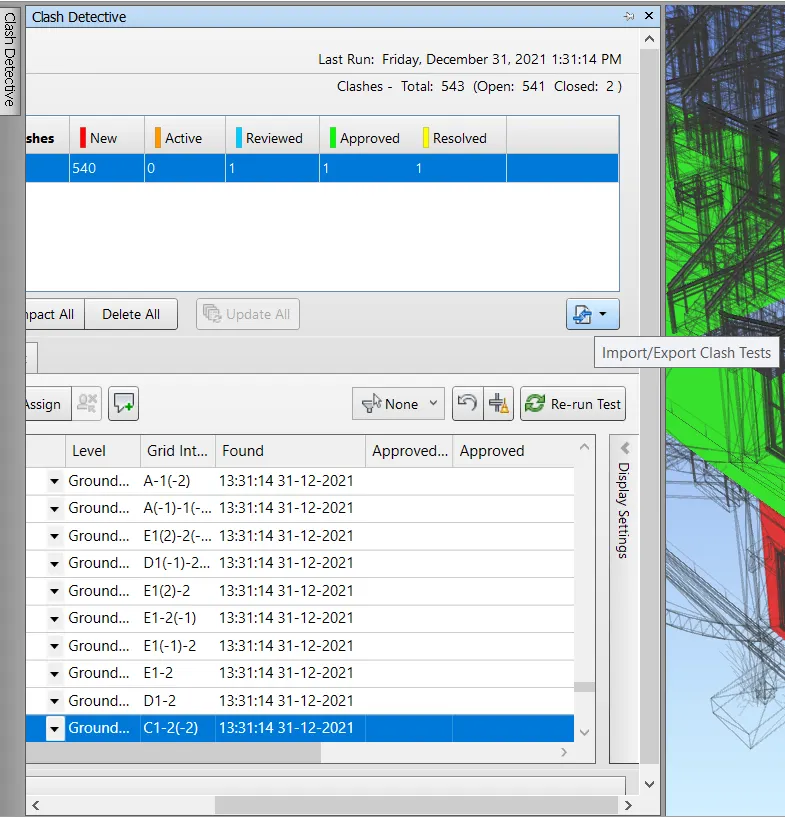
Result: Clash Detection has been performed, various test has been viewed, resolved, neglected if necessary.
Solution.5)
Aim: Using the Timeliner feature in Navisworks prepare a schedule for the project developed in week 6 to 8 by adding reasonable assumptions for task start date and end date and simulate the task completion as a visual simulation. Record it and save the timeline simulation to Navisworks file.
Procedure:
- Open the Architectural file in Naviswork workspace, append the Structural File in Naviswork.
- In the Home Tab, there is option of Timeliner, select the Timeliner option.

- A timeliner workspace will be open on the bottom as shown in below figure.
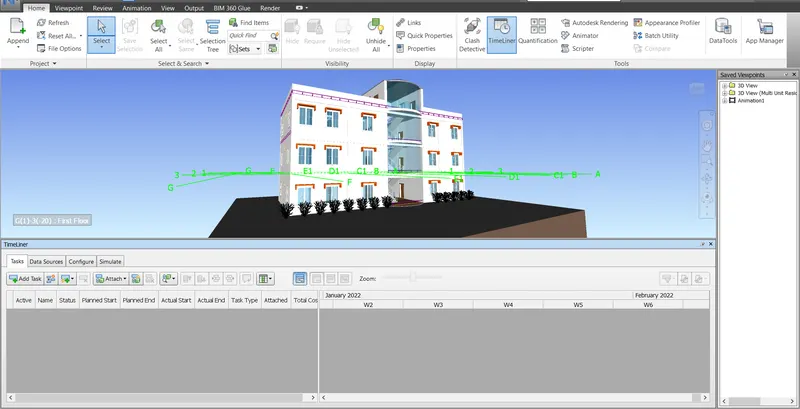
- Now, Click on Add task to add different task as a step towards construction of building.
- Add Planned start time and end time, add actual start date and actual end date.
- Add Task Type for example construction in this case.
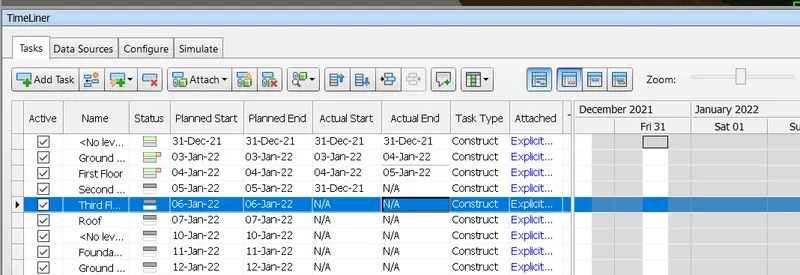
- Now, click on Simulate to see the timeline of completion of project.
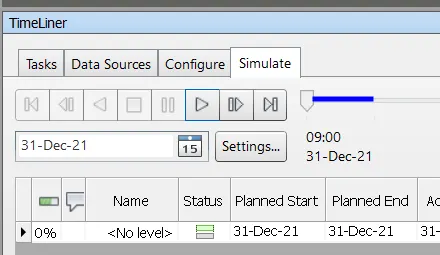
- Process of construction is shown as animation with step.
- Now save the timeline that we added as per plan to naviswork file.
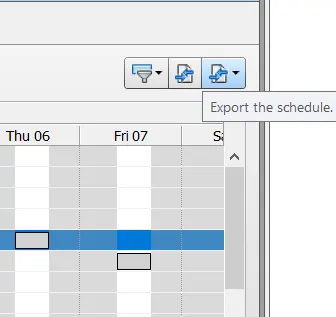
- Also, on the right side of the timeline workspace there is option to export the schedule.
Result: Schedule for the project has been made using timeliner feature of Naviswork.