Usage of Navigation tool , Timeliner and Clash Detection test using Naviswork
PROJECT:4
Usage of Navigation tool, Timeliner, and Clash Detection test using Naviswork
AIM:
To Usage of Navigation tool, Timeliner, and Clash Detection test using Naviswork
INTRODUCTION:
Revit software is developed by the Auto desk in the year 2002. It is most useful for Architectures, Civil engineers, and MEP engineers by Drafting and Design. The Revit platform for building information modeling is a design and documentation system that supports the design, drawings, and schedules required for a building project.
Building information modeling (BIM) delivers information about project design, scope, quantities, and phases when you need it. In the Revit model, every drawing sheet, 2D and 3D view, and schedule is a presentation of information from the same underlying building model database. As you work in drawing and scheduling views, Revit collects information about the building project and coordinates this information across all other representations of the project.
The Revit parametric change engine automatically coordinates changes made anywhere—in model views, drawing sheets, schedules, sections, and plans.
Dynamo is a graphical programming interface that lets you customize your building information workflow. Dynamo is an open-source visual programming platform for designers. It is installed as part of Revit along with Revit-specific programming nodes.
Navisworks allows users to open and combine 3D models, navigate around them in real-time and review the model using a set of tools including comments, redlining, viewpoint, and measurements. A selection of plug-ins enhances the package by adding interference detection, 4D time simulation, photorealistic rendering, and PDF-like publishing.
QUESTION NUMBER 1:
Use the Architecture/ Structure Project file developed by you in weeks 6 to 8. Export the Revit architecture and structure model to the Navisworks Cache file following the export settings discussed in class
AIM:
To Use the Architecture/ Structure Project file developed by you in weeks 6 to 8. Export the Revit architecture and structure model to the Navisworks Cache file following the export settings discussed in class
INTRODUCTION:
The software was originally created by sheffled UK-based developer Navis works(a subsidiary of Light work design). NavisWorks was purchased by Autodesk for $25 million on June 1, 2007. Navisworks allows users to open and combine 3D models, navigate around them in real-time and review the model using a set of tools including comments, redlining, viewpoint, and measurements. A selection of plug-ins enhances the package by adding interference detection, 4D time simulation, photorealistic rendering, and PDF-like publishing.
PROCEDURE:
1. Open 20223 Revit software.
2. Now open the Existing Revit Architectural and structural plans.
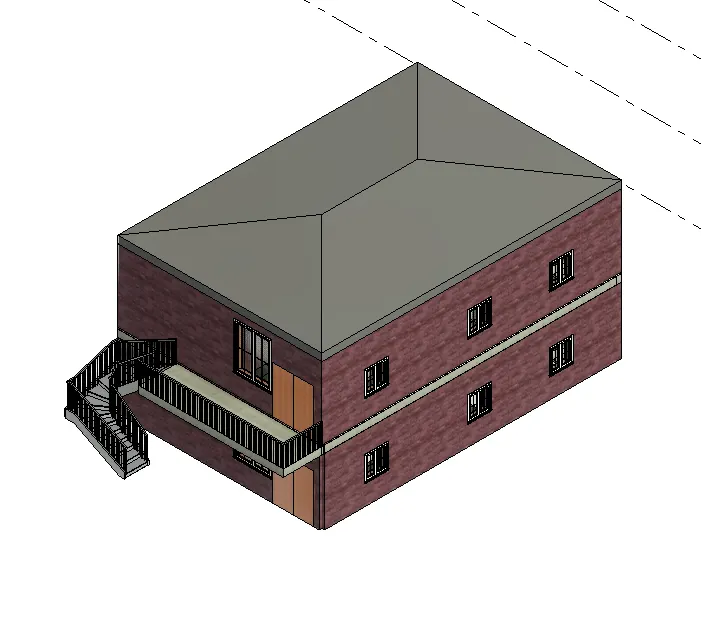
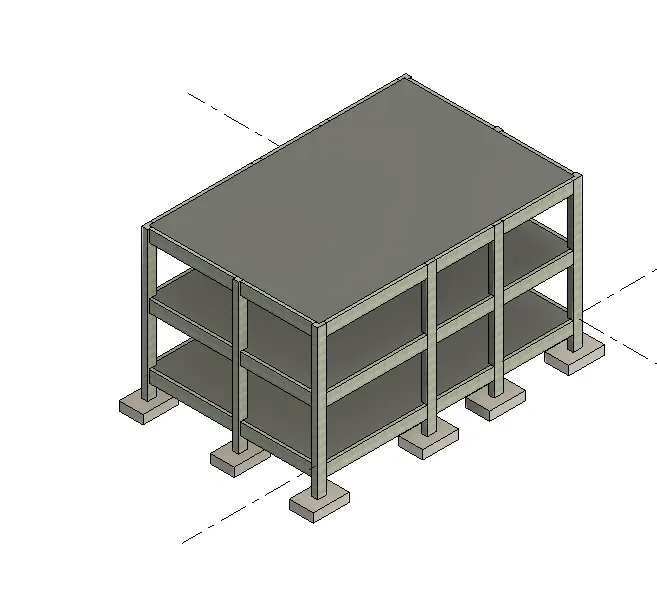
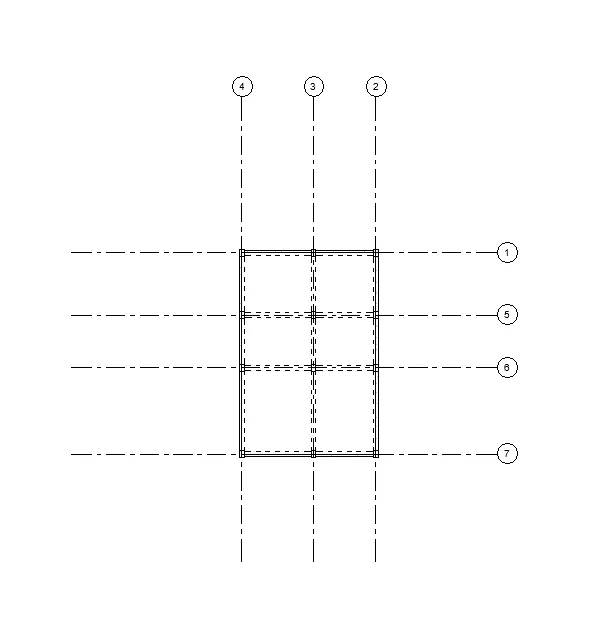
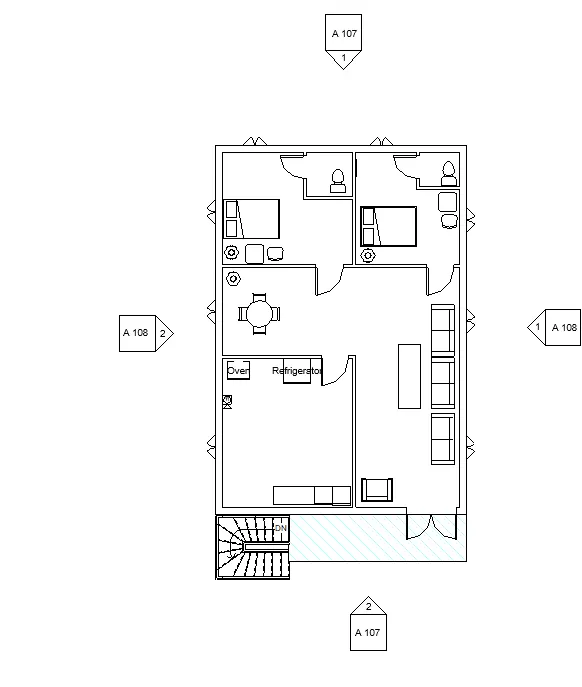
3. Now we need to export the present Revit files both Architectural and structural to the NWC file. Go to the file and click the export option and again click the NWC option. Now Architecture and structural file export the NWC file. Finally, save the file on my local computer.
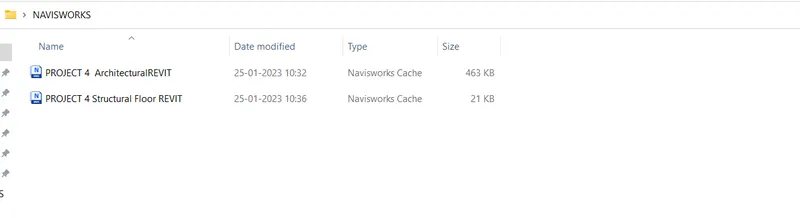
RESULTS:
QUESTION NUMBER 2:
Use Navigate Tool to walk around the model and walk through the rooms created and record your moving as animation in your Navisworks file
AIM:
To Use Navigate Tool to walk around the model and walk through the rooms created and record your moving as animation in your Navisworks file
INTRODUCTION:
The software was originally created by sheffled UK-based developer Navis works(a subsidiary of Light work design). NavisWorks was purchased by Autodesk for $25 million on June 1, 2007. Navisworks allows users to open and combine 3D models, navigate around them in real-time and review the model using a set of tools including comments, redlining, viewpoint, and measurements. A selection of plug-ins enhances the package by adding interference detection, 4D time simulation, photorealistic rendering, and PDF-like publishing.
PROCEDURE:
1. Open the Navisworks file.
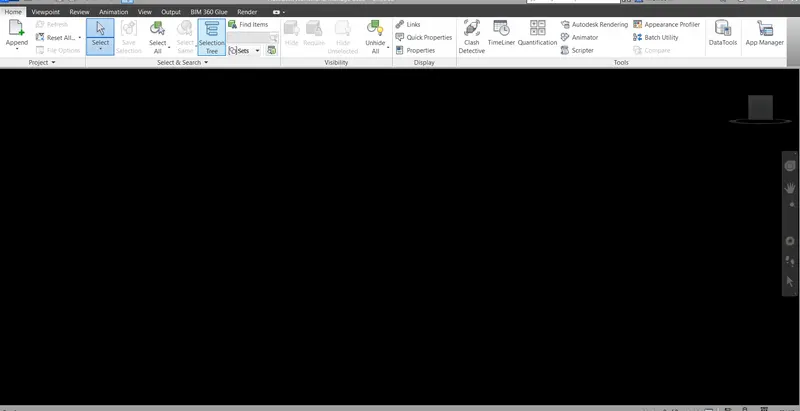
2. Now Import the navisworks files into the navisworks manage 2023 software tool. Go to the file option then click the open option and open the navisworks file which is already saved in the local computer.
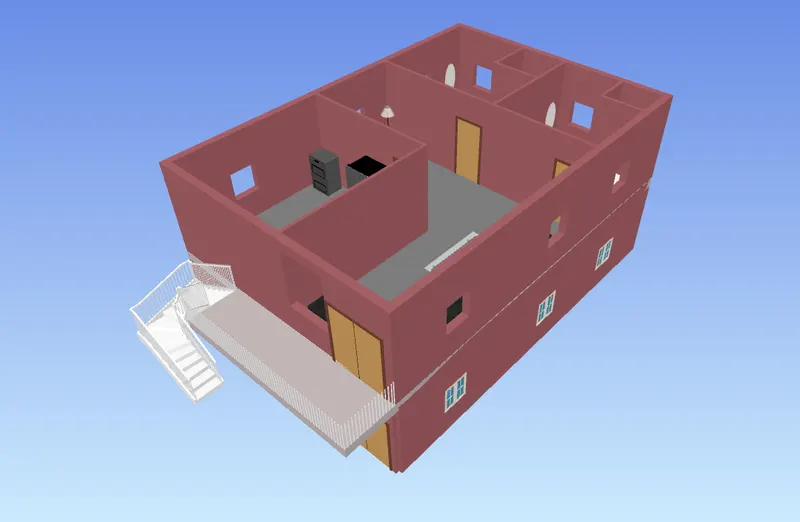
3. Now I need to make a walk of this model and record the walk-through for that click-to-walk tool option. Go to Viewpoint then we have an option called for a walk. I need to save the record for a walk just go to the save viewpoint option and the animation video has named it then start the record. Some viewpoints and records are listed below.
4. Recorded Videos saved as a Local file.
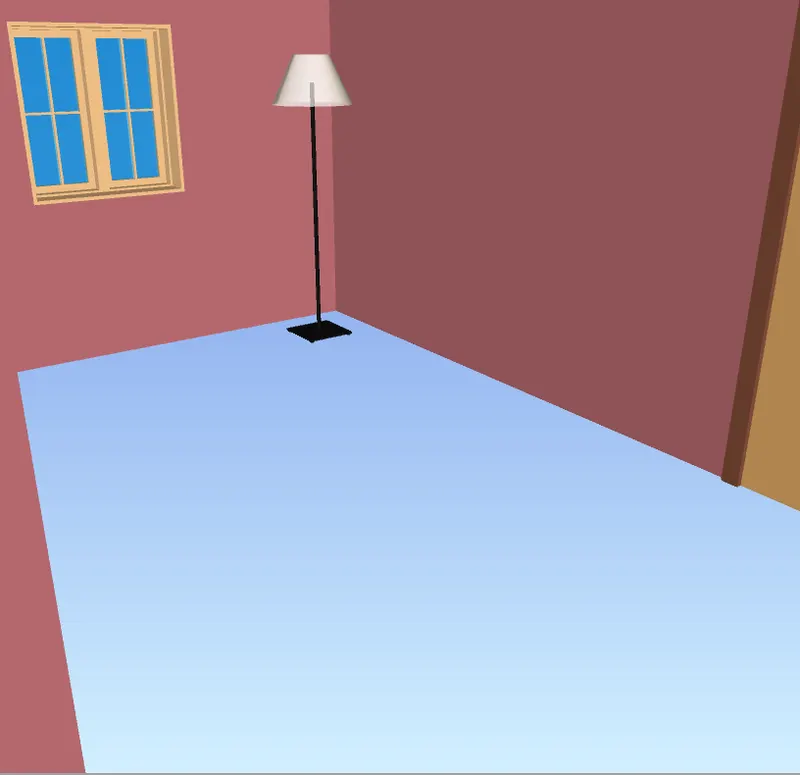
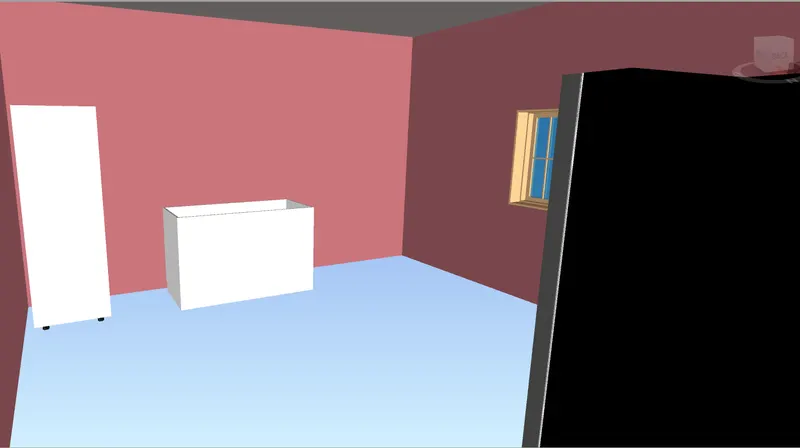
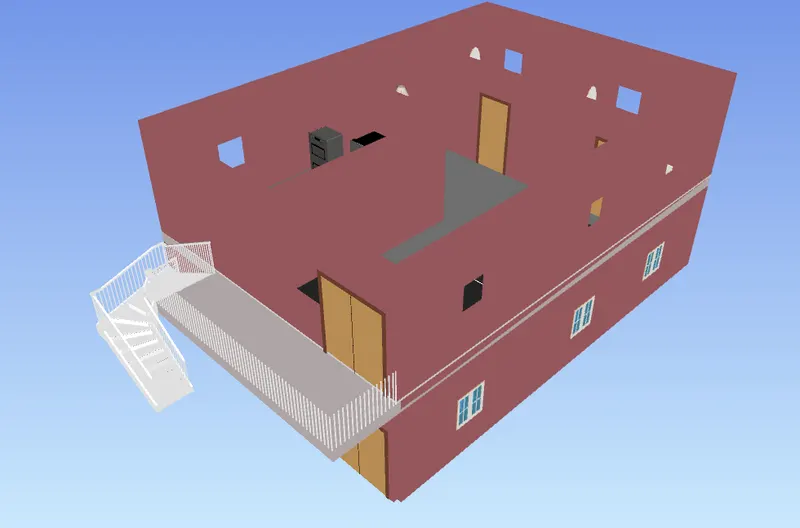
RESULTS:
QUESTION NUMBER 3:
Use Navigate tool to use the Realism feature to walk through the model and record your moving as animation in the Navisworks file.
AIM:
To Use Navigate tool to use the Realism feature to walk through the model and record your moving as animation in the Navisworks file.
INTRODUCTION:
The software was originally created by sheffled UK-based developer Navis works(a subsidiary of Light work design). NavisWorks was purchased by Autodesk for $25 million on June 1, 2007. Navisworks allows users to open and combine 3D models, navigate around them in real-time and review the model using a set of tools including comments, redlining, viewpoint, and measurements. A selection of plug-ins enhances the package by adding interference detection, 4D time simulation, photorealistic rendering, and PDF-like publishing. Easy to Use Navigate tool to use the Realism feature to walk through the model and record your moving as animation in the Navisworks file.
PROCEDURE:
1. Open the Navis works software tool.
2. Now open the already existing navis works file.
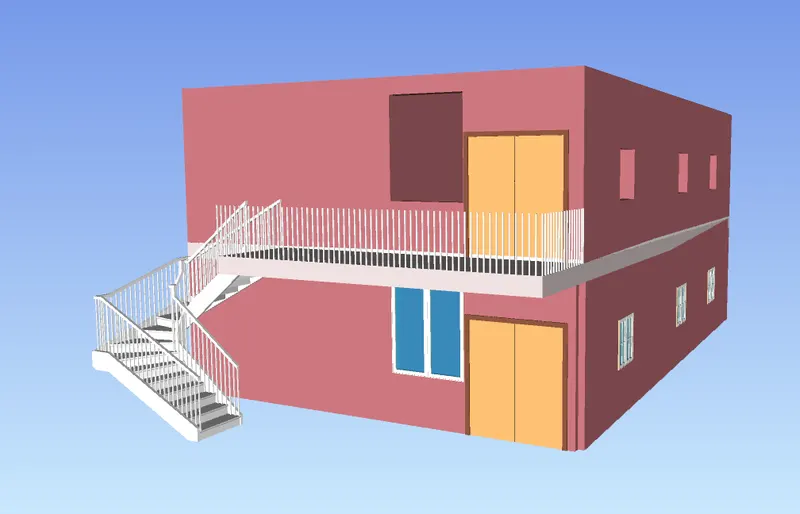
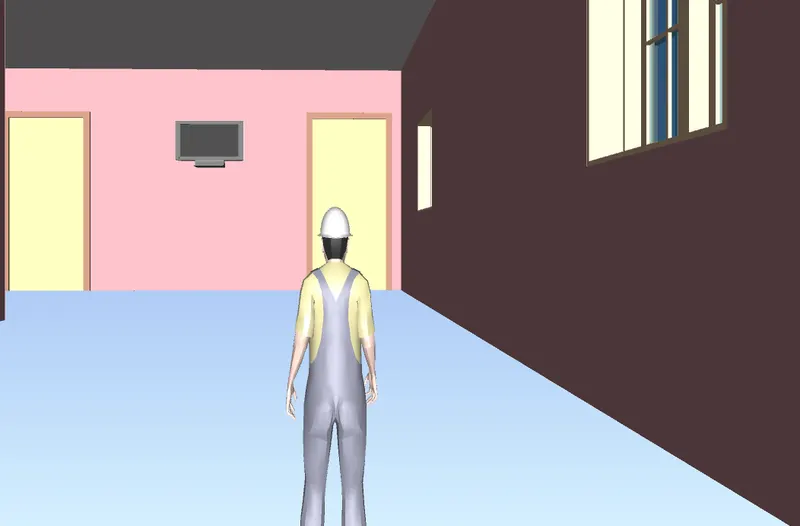
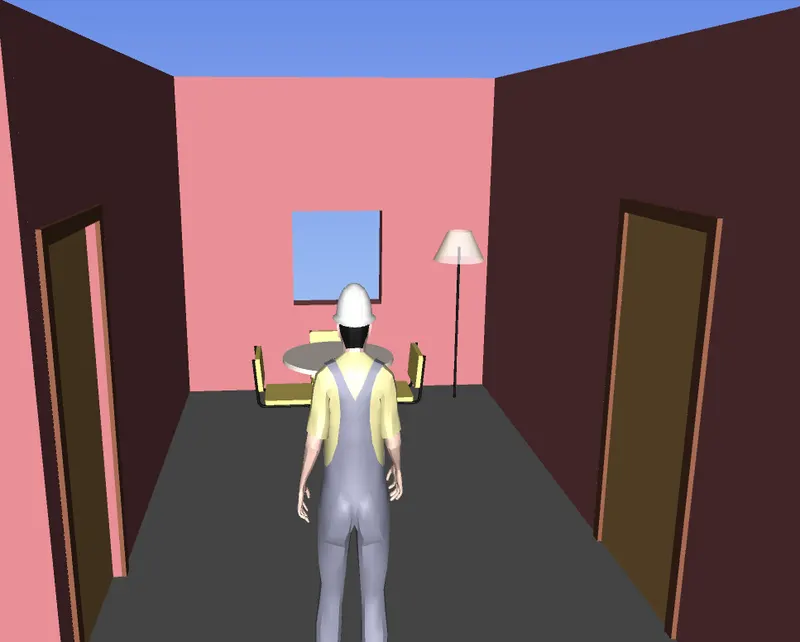
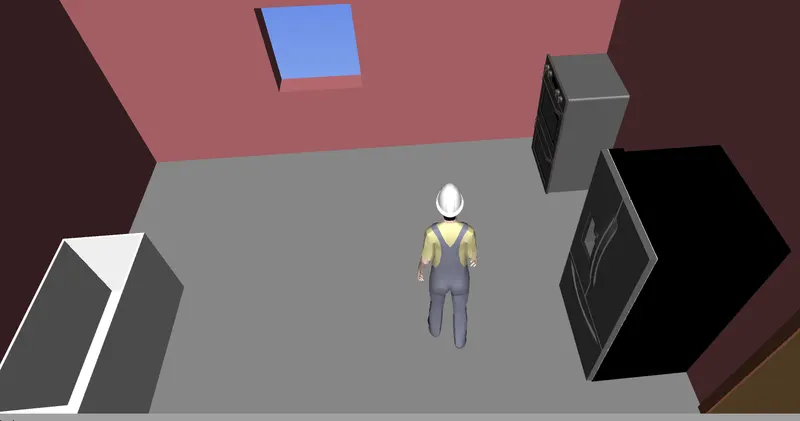
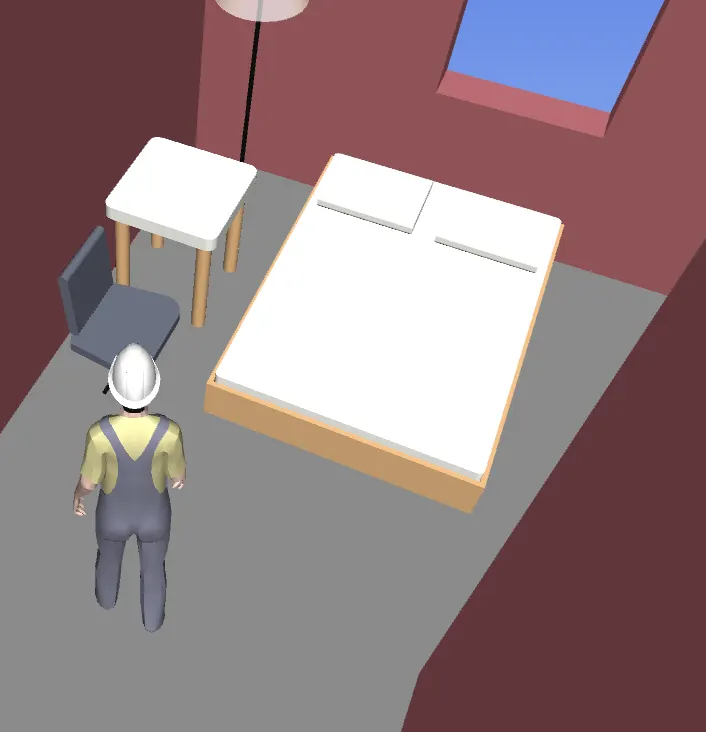
3. To enable the realism feature, Go to the viewpoint then we have a realism option drag it Third person option.Now click the walk option and click save point and record the videos.
RESULTS:
QUESTION NUMBER 4:
Embed both architecture and structure *.nwc file to your Navisworks file. Create a clash detection test between the two models
a. Run the Clash Detection Test
b. Study the clashes between the two models
c. List which of the clashes could be approved
d. List which of the clashes could be neglected ( will be taken care of later)
e. List which of the clashes can be resolved
f. Save the results after color coding the clashes to the Navisworks file
g. In case of resolution annotate the clash and save the view to defined views in Navisworks
AIM:
To Embed both architecture and structure *.nwc file to your Navisworks file. Create a clash detection test between the two models
a. Run the Clash Detection Test
b. Study the clashes between the two models
c. List which of the clashes could be approved
d. List which of the clashes could be neglected ( will be taken care later)
e. List which of the clashes can be resolved
f. Save the results after color coding the clashes to the Navisworks file
g. In case of resolution annotate the clash and save the view to defined views in Navisworks
INTRODUCTION:
The software was originally created by sheffled UK-based developer Navis works(a subsidiary of Light work design). NavisWorks was purchased by Autodesk for $25 million on June 1, 2007. Navisworks allows users to open and combine 3D models, navigate around them in real-time and review the model using a set of tools including comments, redlining, viewpoint, and measurements. A selection of plug-ins enhances the package by adding interference detection, 4D time simulation, photorealistic rendering, and PDF-like publishing. Easy to Use Navigate tool to use the Realism feature to walk through the model and record your moving as animation in the Navisworks file.
PROCEDURE:
1. Open the Imported Navis works files both Architectural and structural.
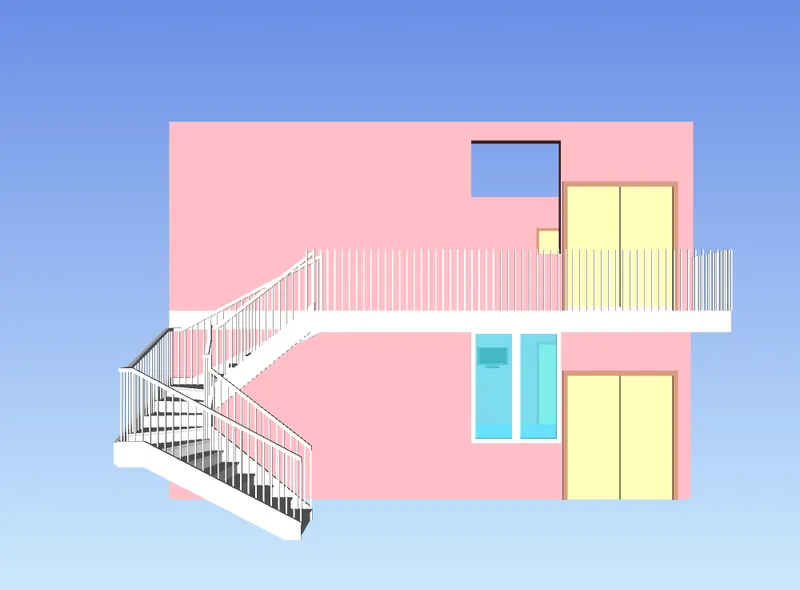
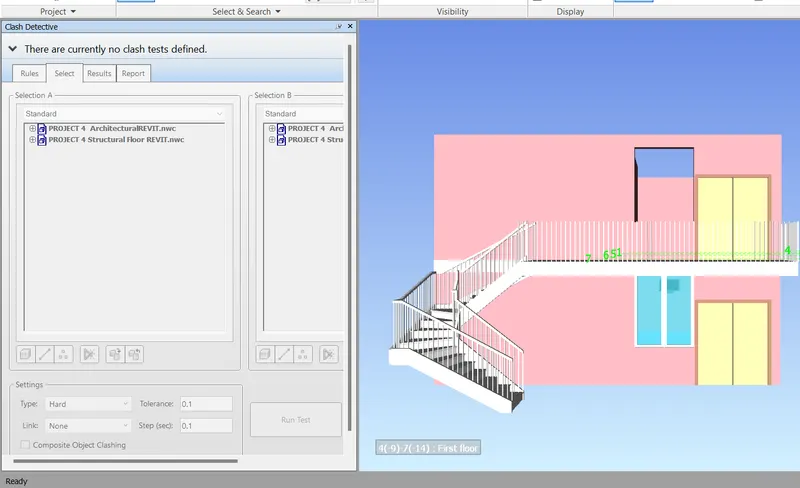
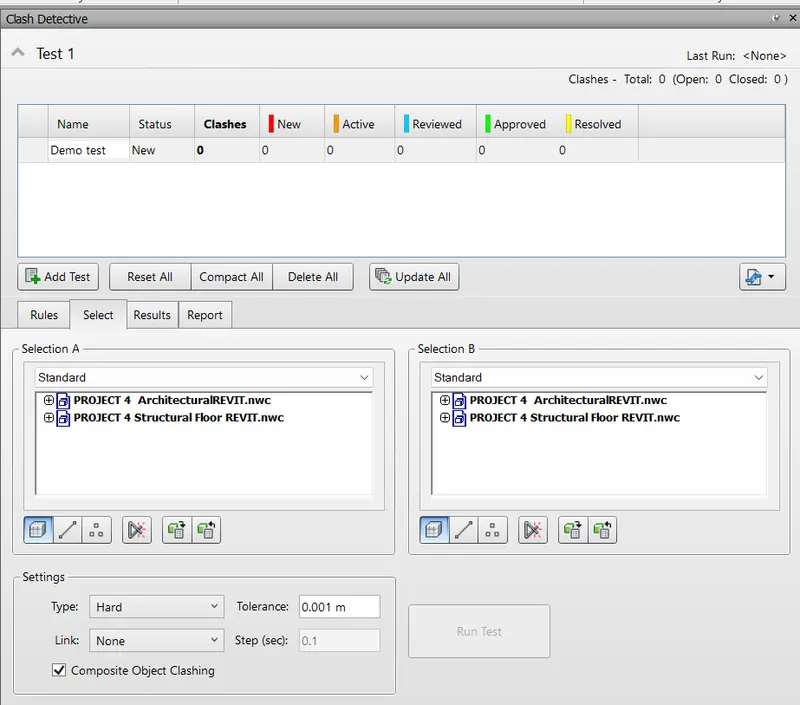
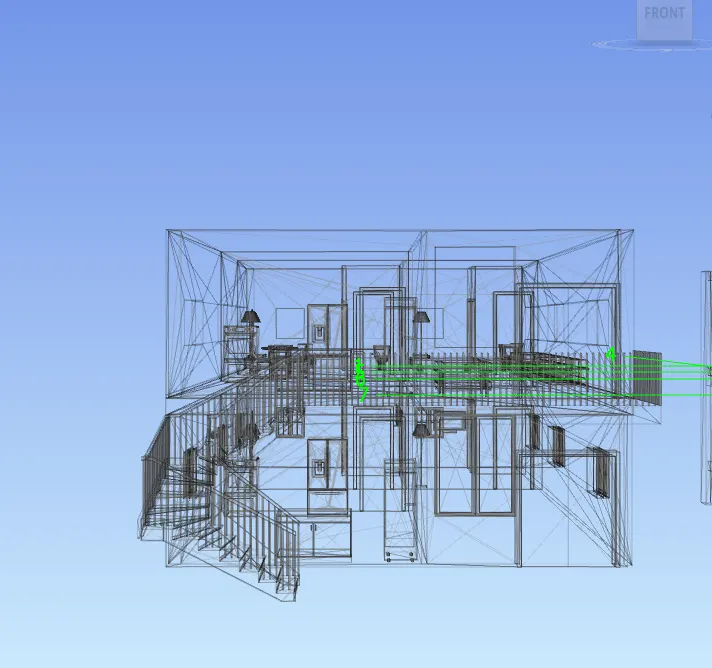
2. Now doing the clash test, then go to the Home tab and select clash detective then click add test, then we need to select the test and renamed its Architectural click surface, and run the test.
RESULTS:
QUESTION NUMBER 5:
Using the Timeline feature in Navisworks prepare a schedule for the project developed in week 6 to 8 by adding reasonable assumptions for the task start date and end date and simulate the task completion as a visual simulation. Record it and save the timeline simulation to the Navisworks file
AIM:
To Using the Timeliner feature in Navisworks prepare a schedule for the project developed in weeks 6 to 8 by adding reasonable assumptions for task start date and end date and simulate the task completion as a visual simulation. Record it and save the timeline simulation to the Navisworks file
INTRODUCTION:
The software was originally created by sheffled UK-based developer Navis works(a subsidiary of Light work design). NavisWorks was purchased by Autodesk for $25 million on June 1, 2007. Navisworks allows users to open and combine 3D models, navigate around them in real-time and review the model using a set of tools including comments, redlining, viewpoint, and measurements. A selection of plug-ins enhances the package by adding interference detection, 4D time simulation, photorealistic rendering, and PDF-like publishing. Easy to Use Navigate tool to use the Realism feature to walk through the model and record your moving as animation in the Navisworks file.
PROCEDURE:
1. Open the Existing Navis works file.I have already imported the Architectural file into the Navis works.
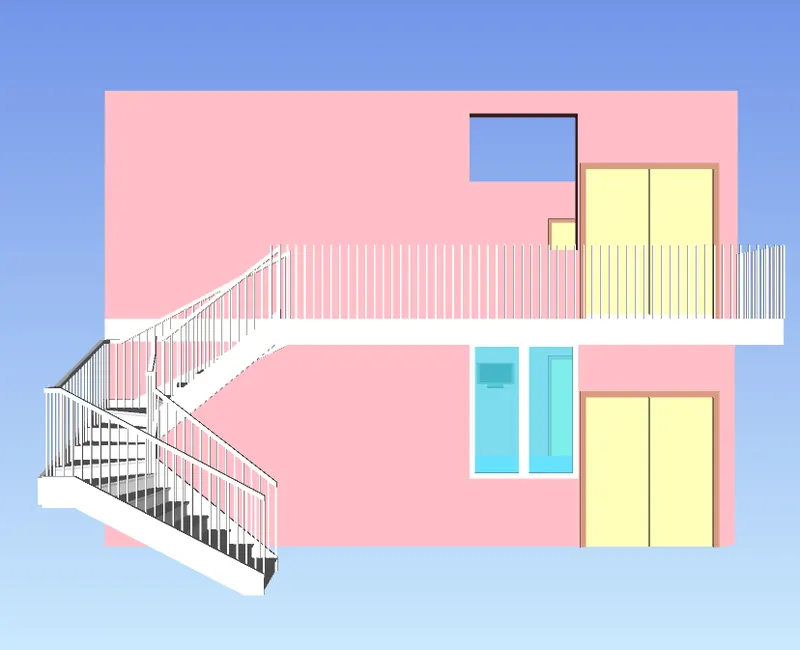
2. Now I need to make the schedule option, Just go to the home tab then we have an option for the Timeliner tool, and click it.
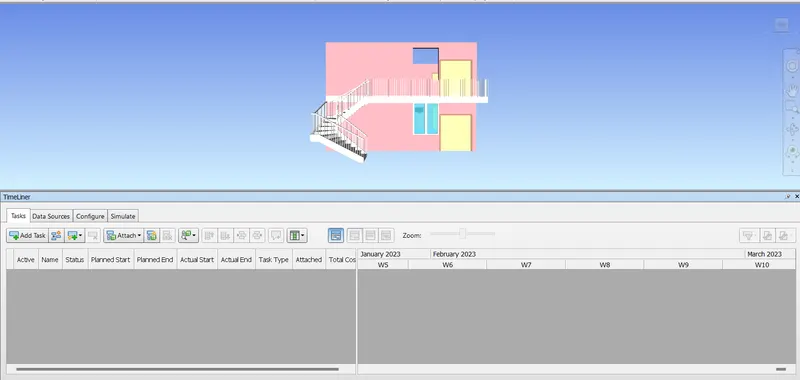
3. Now we need to enable the selection tree option in the home tab.
4. After that, Go to Add task option then rename the task is a ground floor, the planned status as 25/01/23, the planned end is 31/01/23, the Actual start is 23/01/2023, and the Actual end date is 30/01/2023, the task type is a construct and similarly as added tasks and renamed it.
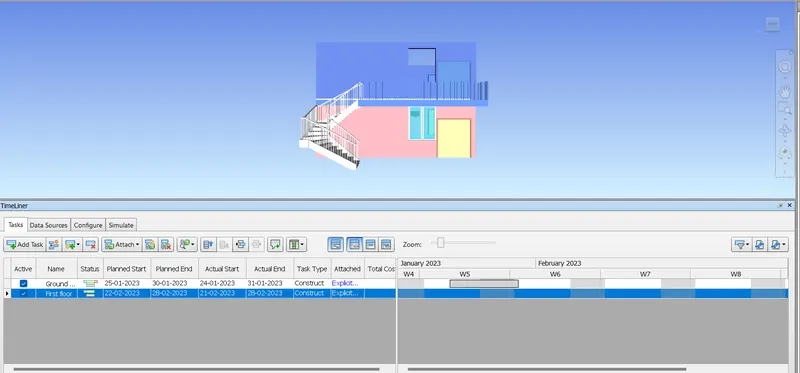
5. So many number of tasks to add the Architectural components with proper start and time.
6. Now attaches values, and we get the animated video as per schedule just select the simulate button we get the animated video, and play it.
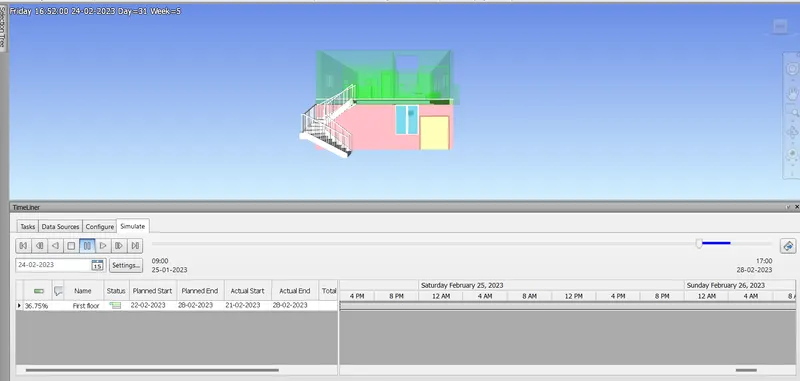
7. Now save the video and we have to export the option and select the time liner simulation.
RESULTS:
.....................................................................END.......................................................................................