Usage of Navigation tool , Timeliner and Clash Detection test using Naviswork
AIM : Usage of Navigation tool , Timeliner and Clash Detection test using Naviswork
Introduction:
Revit is a one of Building Information Modelling software for architects, landscape architects, structural engineeers, mechanical, electrical and plummbing(MEP) engineers, designers and contractors. Revit supports a multidiscipline design process for collaborative design. it used to make a coceptual design & visualization of the building or a project. Its powerful tools lets us to use the intelligent model-based process to plan, design, construct and manage buildings and infrastructure.
The software was developed by Charles River Software, founded in 1997, renamed Revit technology corporation in 2000, and acquired by Autodesk in 2002. The software allows todesign a building and structure and its components in 3D, aannotate the model ith 2D drafting elements, and access building inforation from the building model's database.
Revit is 4D building infortion modelling capable with tools to plan and track variousstages in the building's lifecycle, from concept to construction and later maintenance and / or demolition.
Use Navisworks® review and co-ordination software to improve BIM (Building Information Modelling) project delivery.
-
Visualise and unify design and construction data within a single federated model.
-
Identify and resolve clash and interference problems before construction begins, saving time onsite and in rework.
-
Keep project teams collaborating and connected with Navisworks issues integration in the Autodesk Construction Cloud.
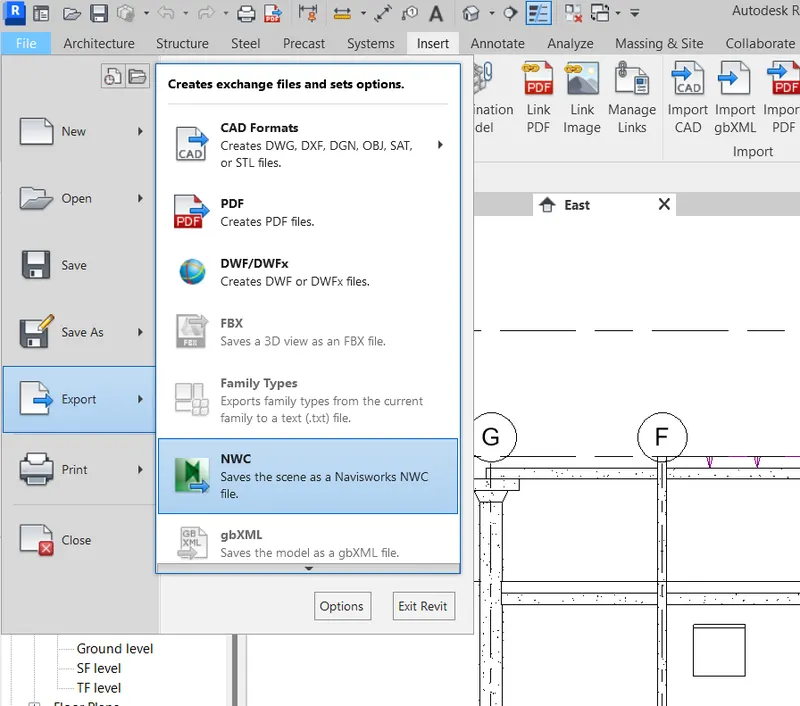
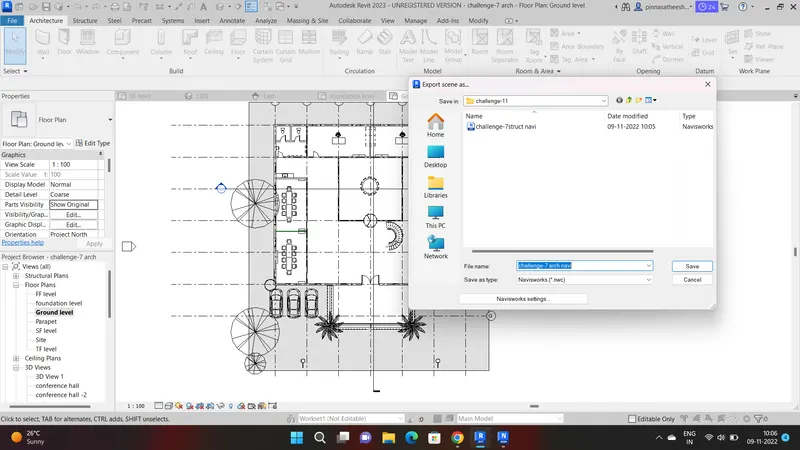
Question 1) Use the Architecture/ Structure Project file developed by you in Week 6 to 8. Export the Revit architecture and structure model to Navisworks Cache file following the export settings discussed in class
Ans :
- first we have to dowload and install the navisworls export file .
- then go to revit architectural and structural file export them to NWC and save it.
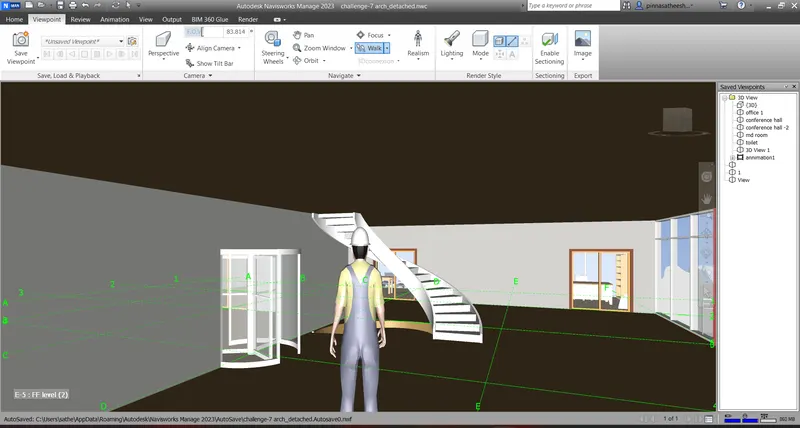
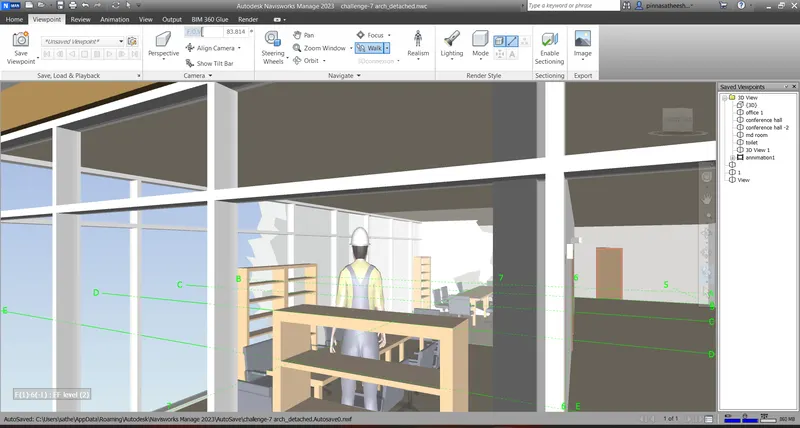
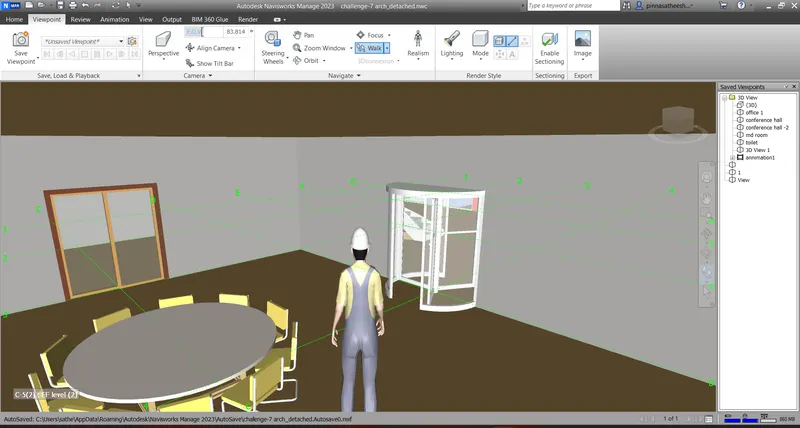
Question 2) Use Navigate Tool to walk around the model and walk through the rooms created and record your moving as animation in your Navisworks file
Ans :
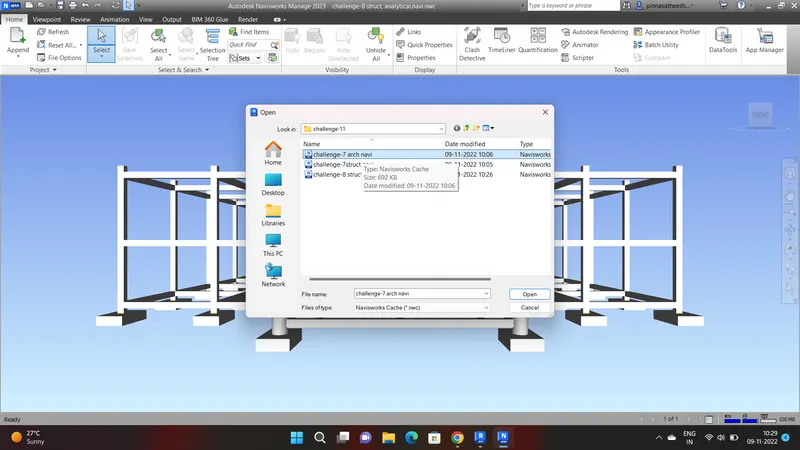
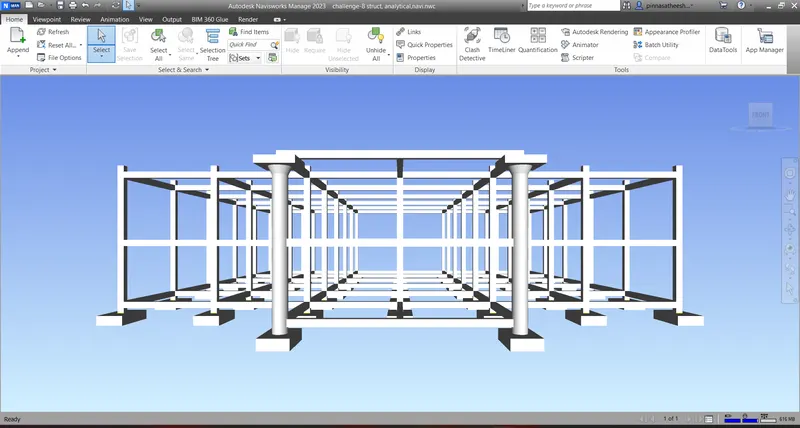
- open the saved NWC file of arcitectural
- and navigate through the walk option.
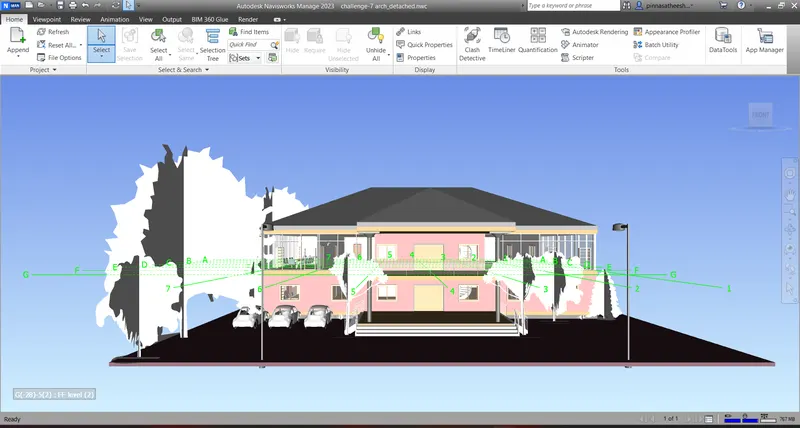
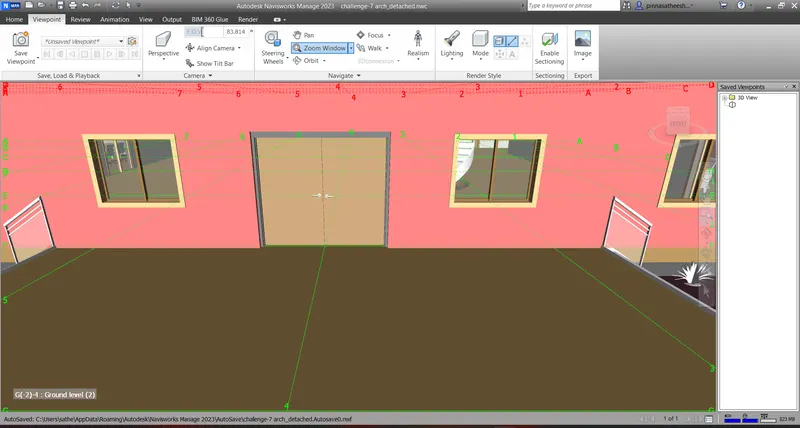
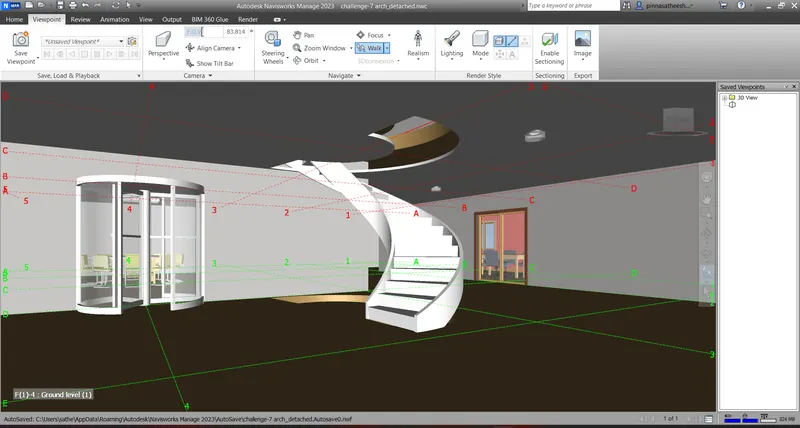
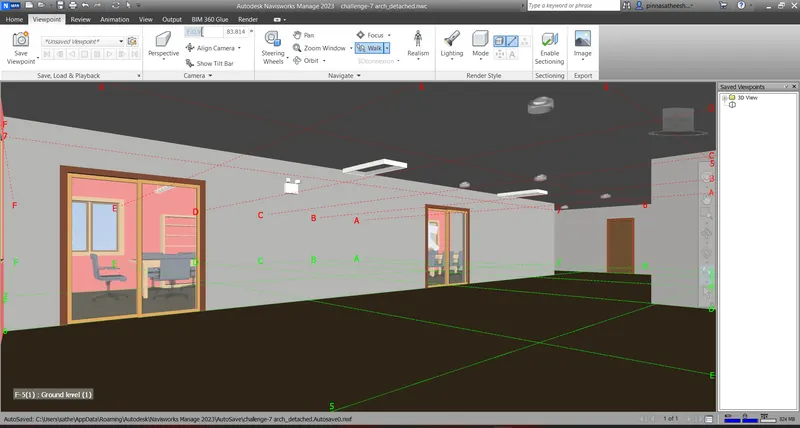
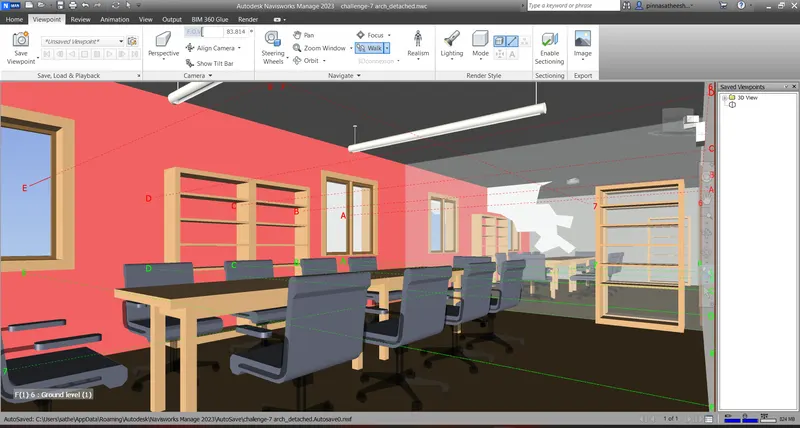
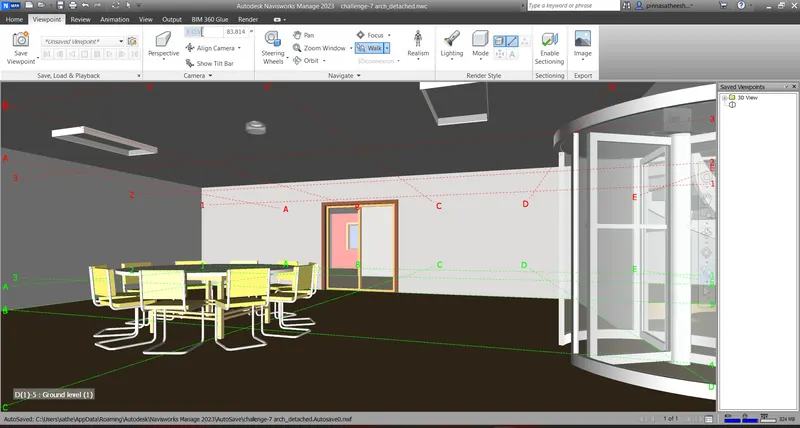
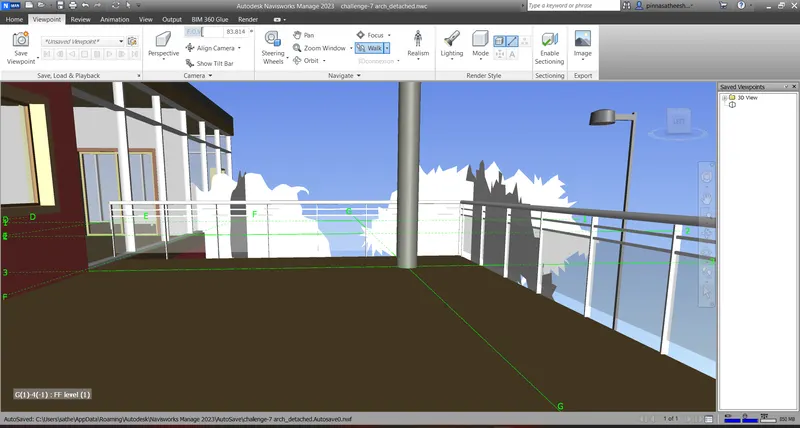
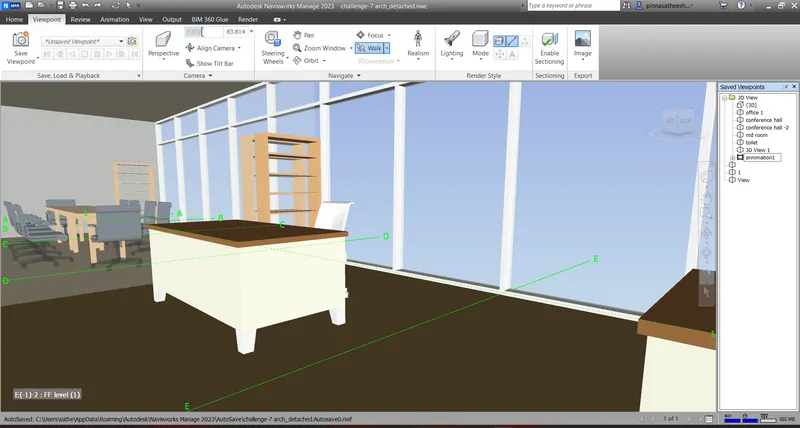
Question 3) Use Navigate tool to use Realism feature to walk through the model and record your moving as animation in Navisworks file
Ans :
- goto viewport tab and choose realism option to view the walk view.
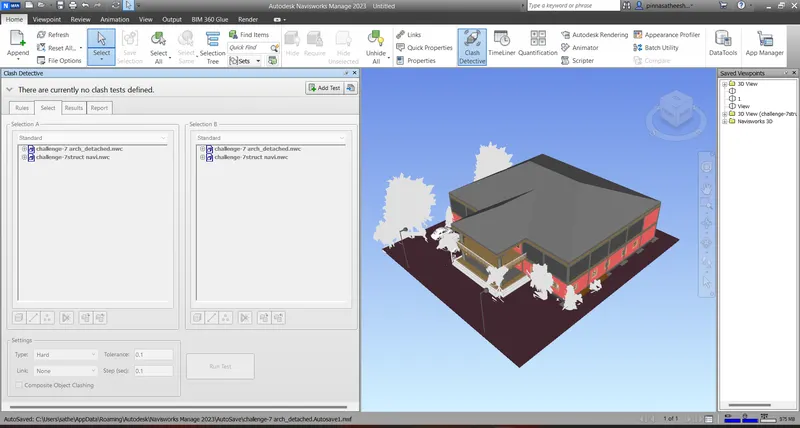
Question 4) Embed both architecture and structure *.nwc file to your Navisworks file. Create a clash detection test between the two models
a. Run the Clash Detection Test
b. Study the clashes between the two models
c. List which of the clashes could be approved
d. List which of the clashes could be neglected ( will be taken care later)
e. List which of the clashes can be resolved
f. Save the results after color coding the clashes to the Navisworks file
g. In case of resolution annotate the clash and save the view to defined views in Navisworks
Ans :
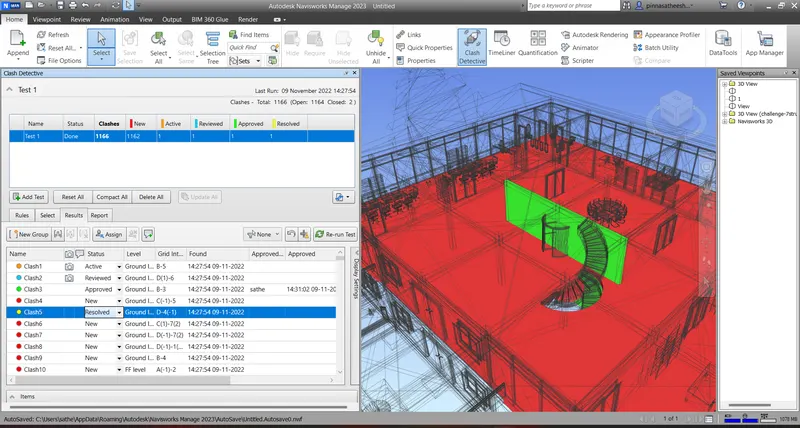
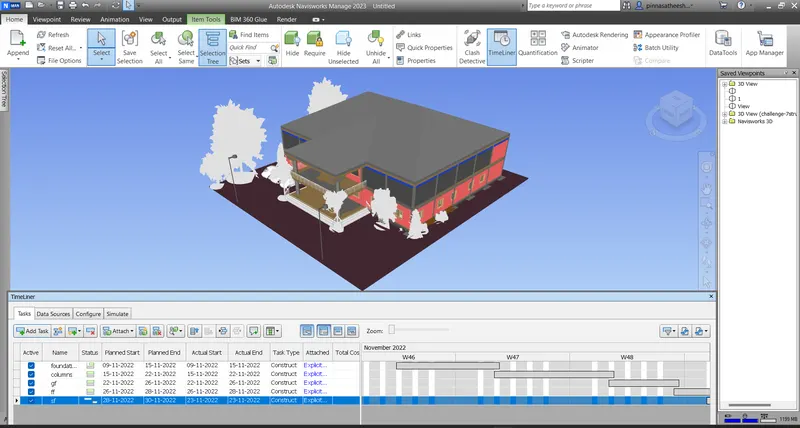
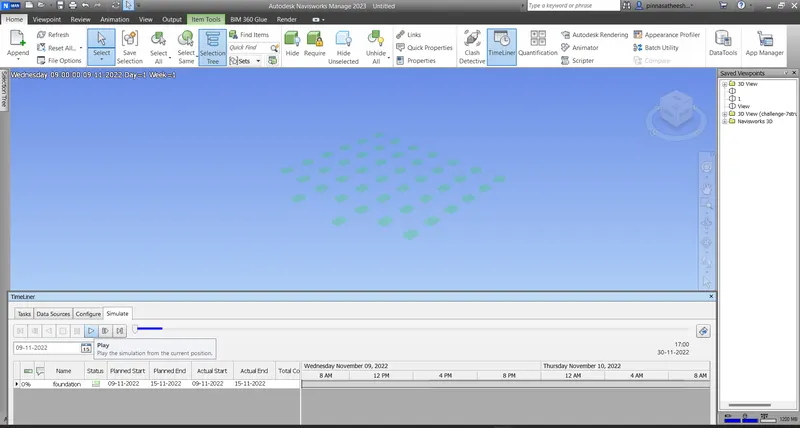
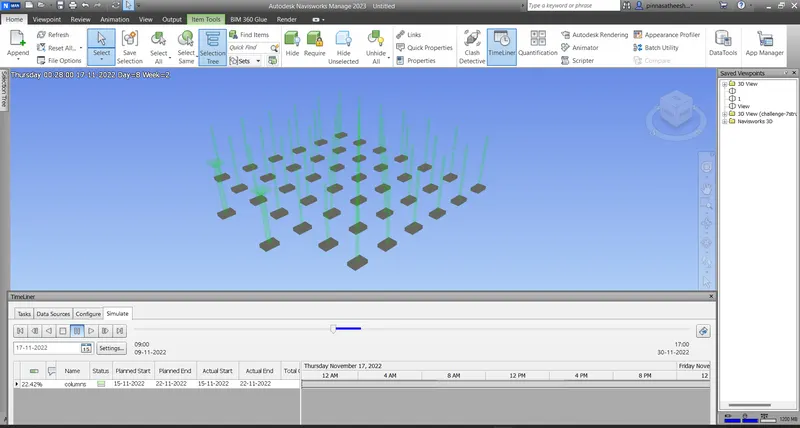
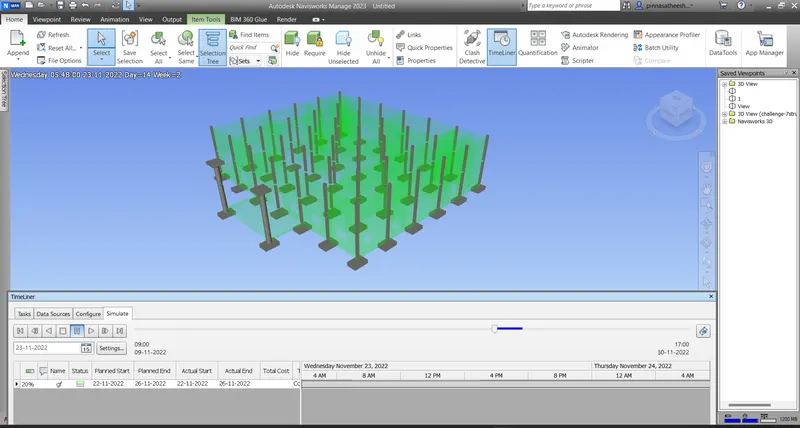
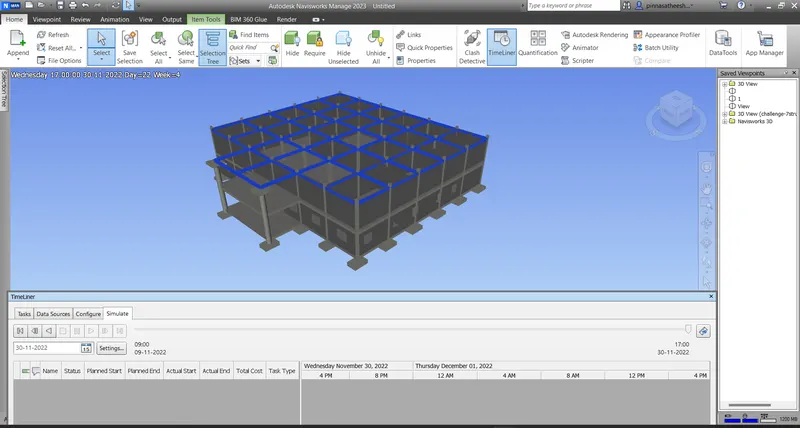
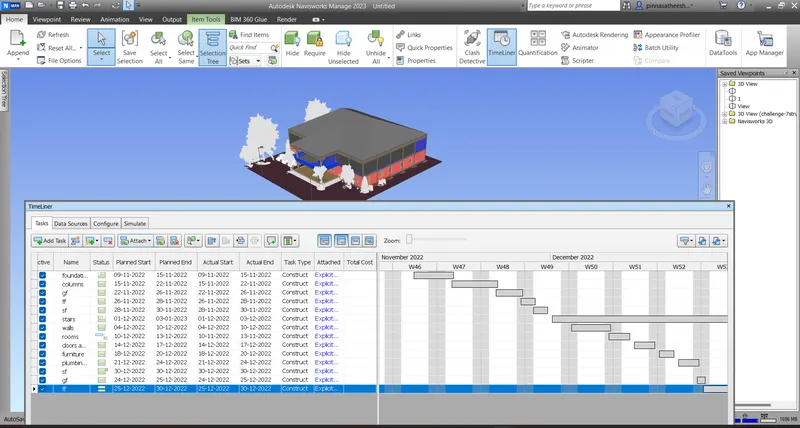
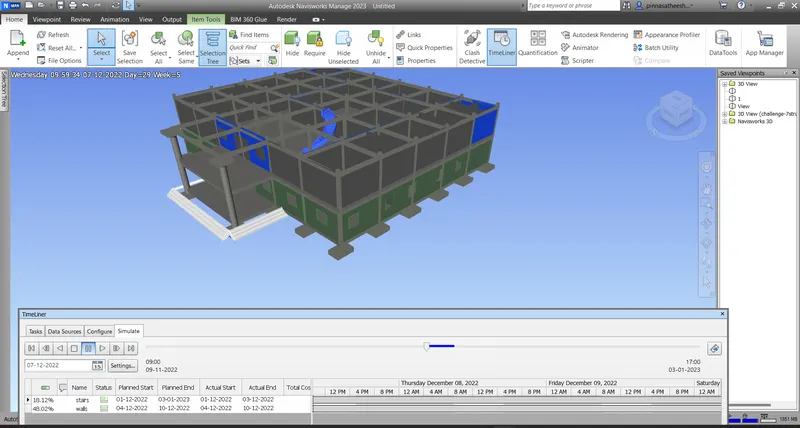
Question 5) Using the Timeliner feature in Navisworks prepare a schedule for the project developed in week 6 to 8 by adding reasonable assumptions for task start date and end date and simulate the task completion as a visual simulation. Record it and save the timeline simulation to Navisworks file
Ans :
- open navis work and add architectural and structural templates
- select the time line option in the home tab
- choose the structural tree for select the elements
- then create the task with flow of time line and plan start and plan end .
- then attach the selected elements to the task
- finally simulate the time line.
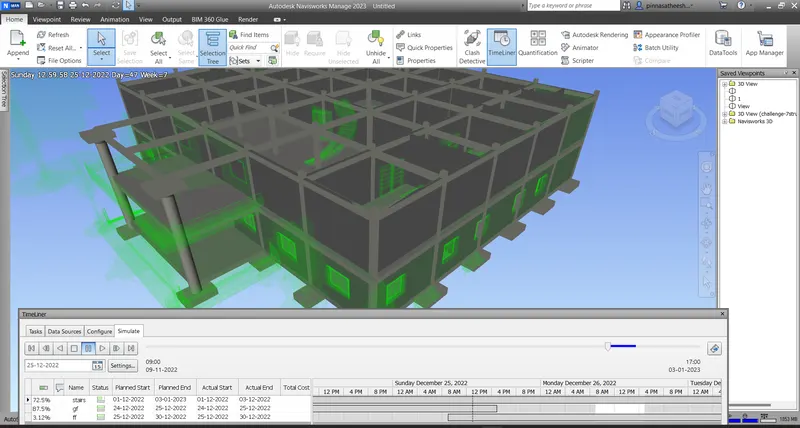
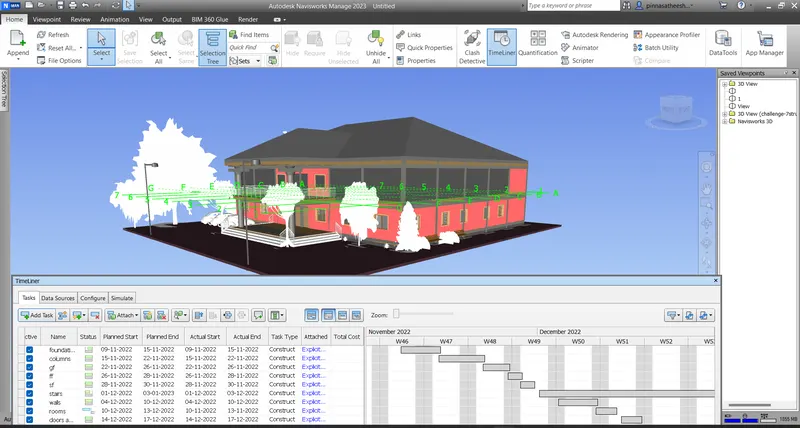
Result :
- The above given questions are solved and the answers are uploaded above with the specified i,related images. and understood the concept of Usage of Navigation tool , Timeliner and Clash Detection test using Naviswork.