Usage of Navigation tool , Timeliner and Clash Detection test using Naviswork
1. Use the Architecture/ Structure Project file developed by you in Week 6 to 8. Export the Revit architecture and structure model to Navisworks Cache file following the export settings discussed in class
AIM: Use the architectural / structur project file develop by you in 6-8 week. export the revit architecture revit structure model tool navis works catch file following exports. settings discussed in classes.
procedure: open architectural /Architecture/ Structure Project file developed by you in Week 6 to 8. Export the Revit architecture and structure model to Navisworks.
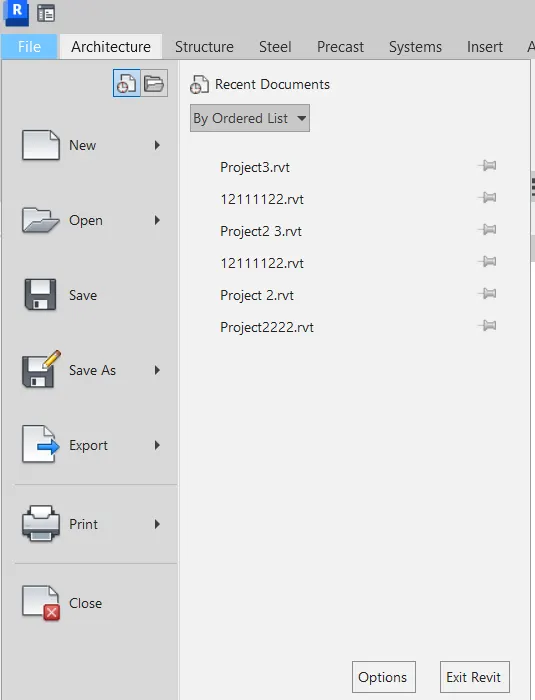
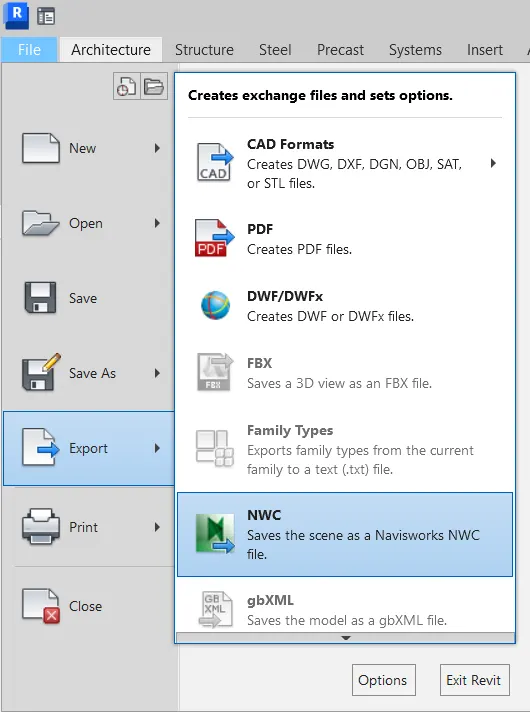
File>export>cadformat>Dwf.
dxf eport dialogue box open and click next to create the dwf file.
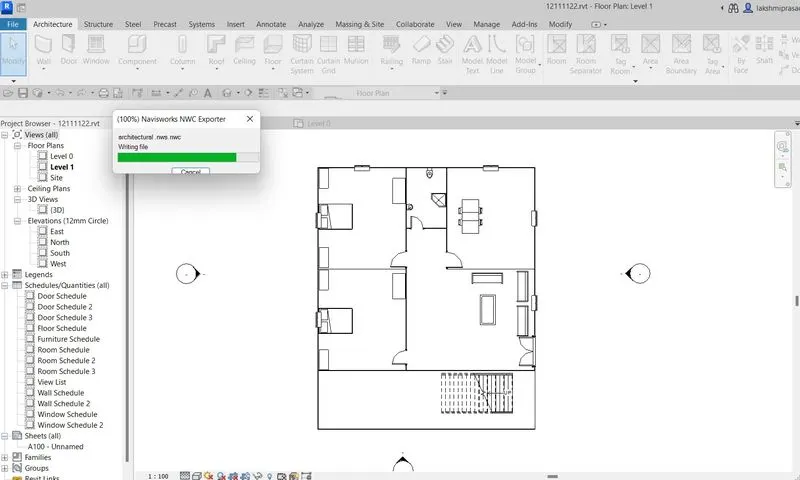
extraction dialogue box open and close after the creation.
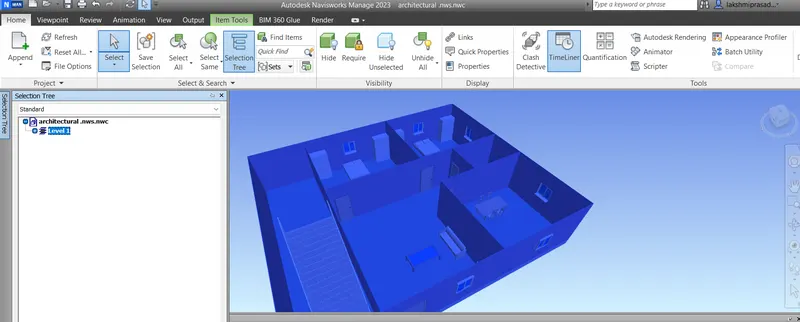
navis work manage.
while the file is created opne the file in the navis work manage 2023.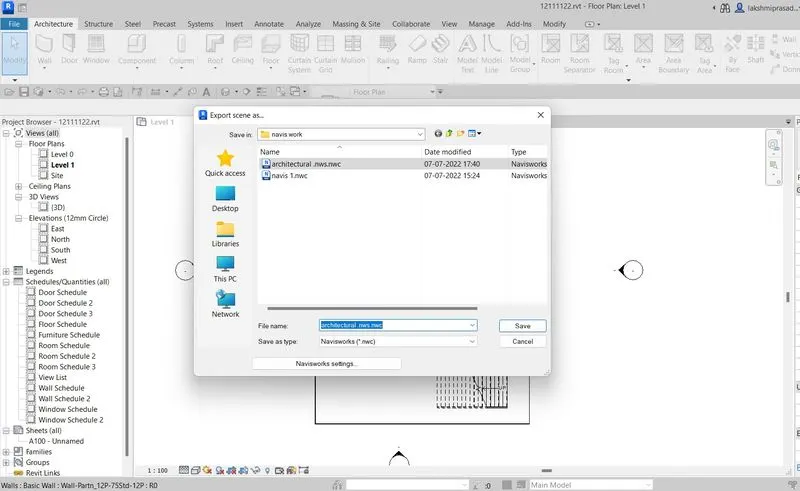
2.)Use Navigate Tool to walk around the model and walk through the rooms created and record your moving as animation in your Navisworks file
AIM:Use navigate tool to walk around model and walk throught hte rooms created and recorded your moving as animation in your navis work file.
Procedure:
navigation tool to look around the model.
for navigation, tool i was look around option is used.
in helps to look up and down.
move left and right.
we can save the snap of the view.
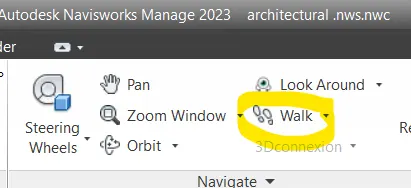
naviagation tool walkthrought hte rooms created.
we can use record ur moving as animation.
walkthrough view help as to find the movement of the rooms.
record your moving as animation in your navis work.
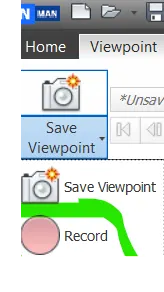
animation>record option help to record the movement of the walk through view.
and we can find the frame by frame process in the navis work.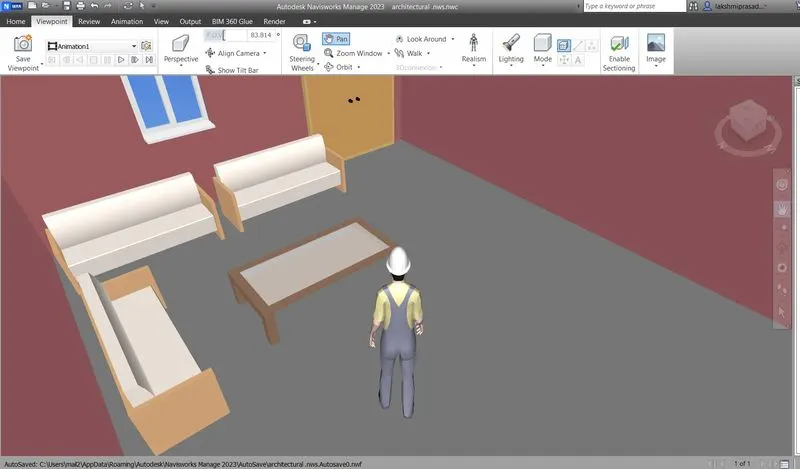

3) Use Navigate tool to use Realism feature to walk through the model and record your moving as animation in Navisworks file
AIM: Navigate tool to use Realism.
For navigation, tool one was the look around option is used. it helps to look up and down.
Move left and right .
we can save the snap of the view.
The 3d miniature will go in all directions.
Record your moving as animation in your navis works.
animation>record option helps to record the movement of the walk through view.
and we can find the frame by frame process in the navis work.
4.)Embed both architecture and structure *.nwc file to your Navisworks file. Create a clash detection test between the two models
a. Run the Clash Detection Test
b. Study the clashes between the two models
c. List which of the clashes could be approved
d. List which of the clashes could be neglected ( will be taken care later)
e. List which of the clashes can be resolved
f. Save the results after color coding the clashes to the Navisworks file
g. In case of resolution annotate the clash and save the view to defined views in Navisworks
ANS: A- Run the clash detection test
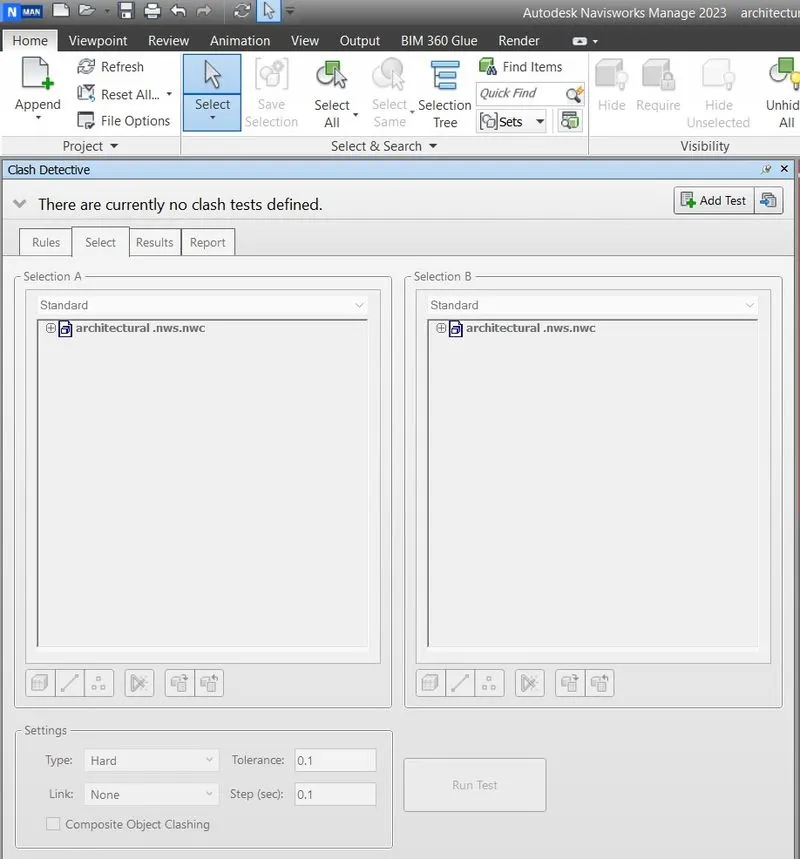
embeded both architecture and structure * .nwc.
first,open structure file in the navis work.
secondly, open architecture file in the navis work.
use the append option to add both the files.
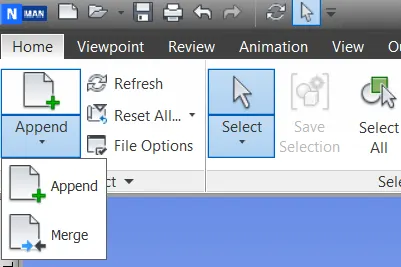
B. STUDY THE CLASHES BETWEEN THE TWO MODELS.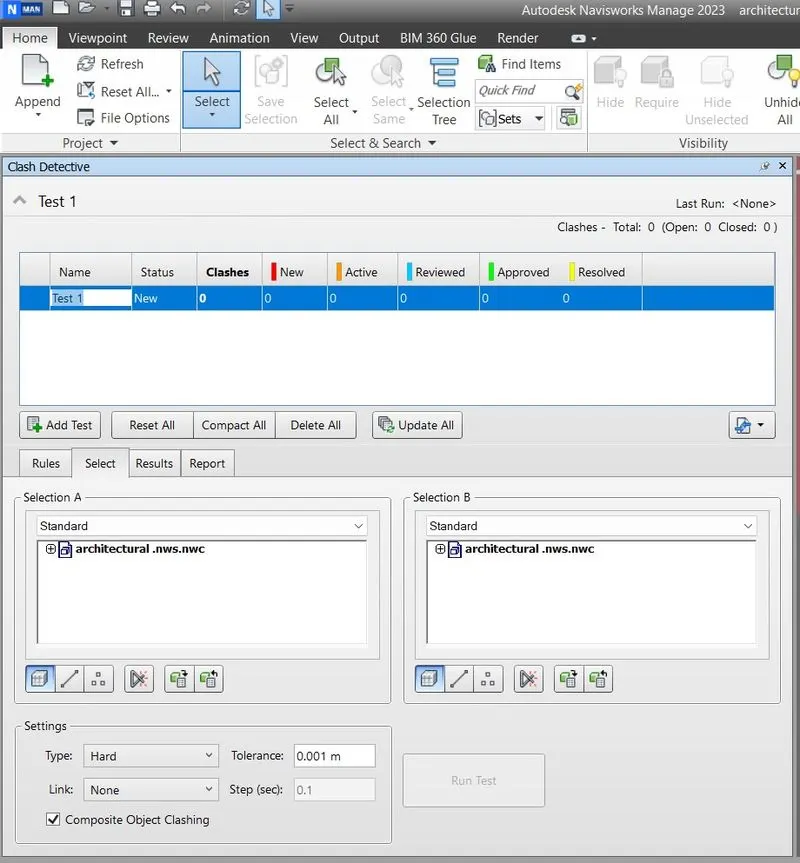
After inserting the two file sin the navis work manage.
run the clash detection test.
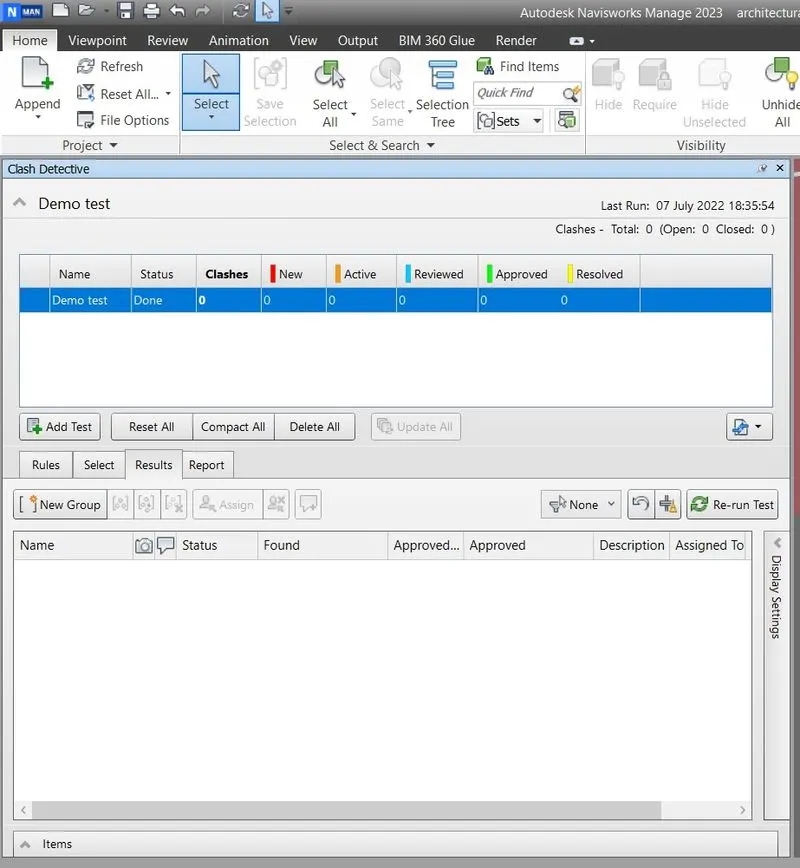
the results are obtained in the result column
we will become the 3 option s in the list, approved, resoved, review.
C. List which of the clashes occured the approve.

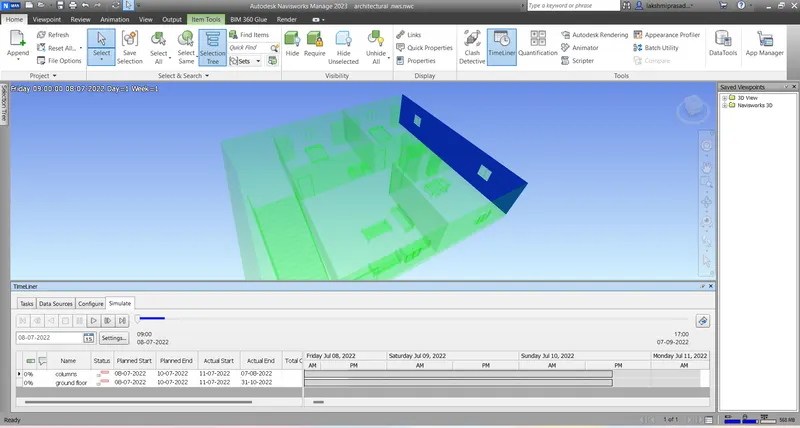
5) Using the Timeliner feature in Navisworks prepare a schedule for the project developed in week 6 to 8 by adding reasonable assumptions for task start date and end date and simulate the task completion as a visual simulation. Record it and save the timeline simulation to Navisworks file
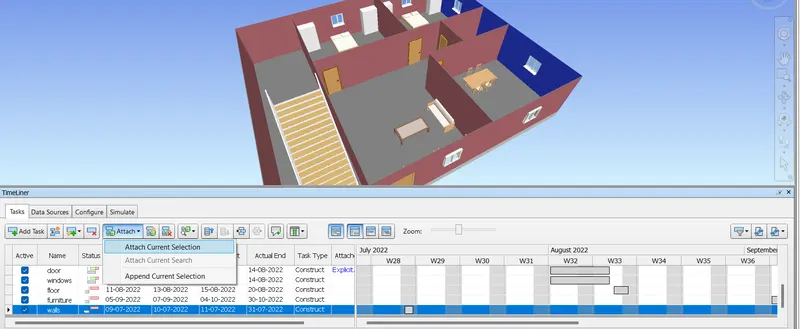
Procedure: using time liner.
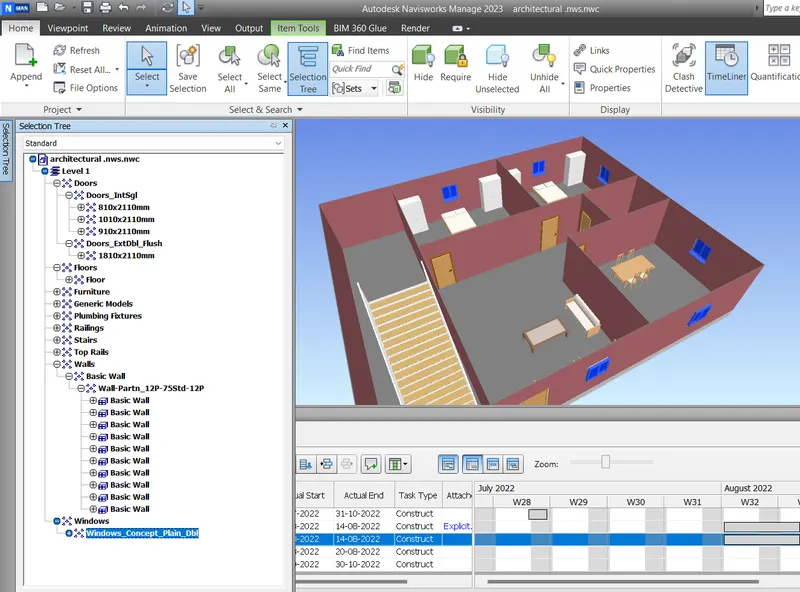
As we have used the structural file into navis work manage 2023.items in the file.
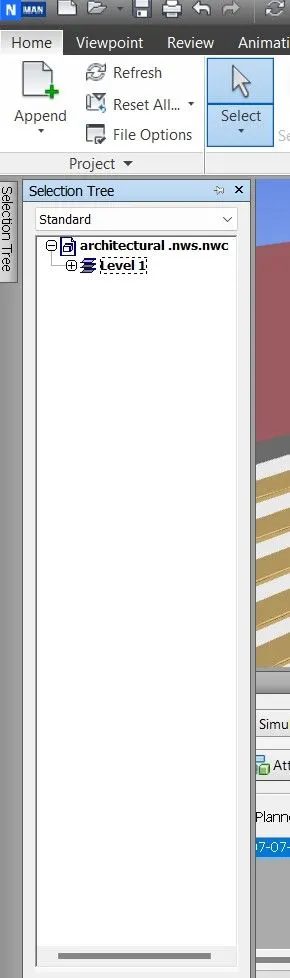
step by step process will be noted in timeliner method.
start date.
end date.
actual start date.
actual end date.
task type.