To calculate wind load for industrial steel structures and to apply it by using TSD
2)
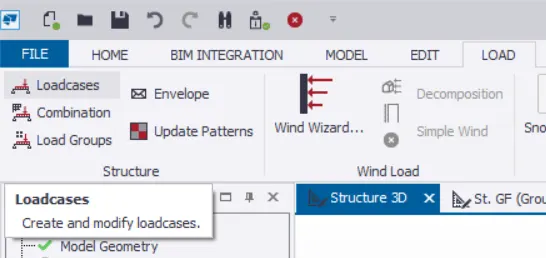
Initially,to apply all the calculated loads,we have to create the various load cases.To do that,we go to LOAD Tab>Loadcases.
And we add the required load cases by using the option of Add.
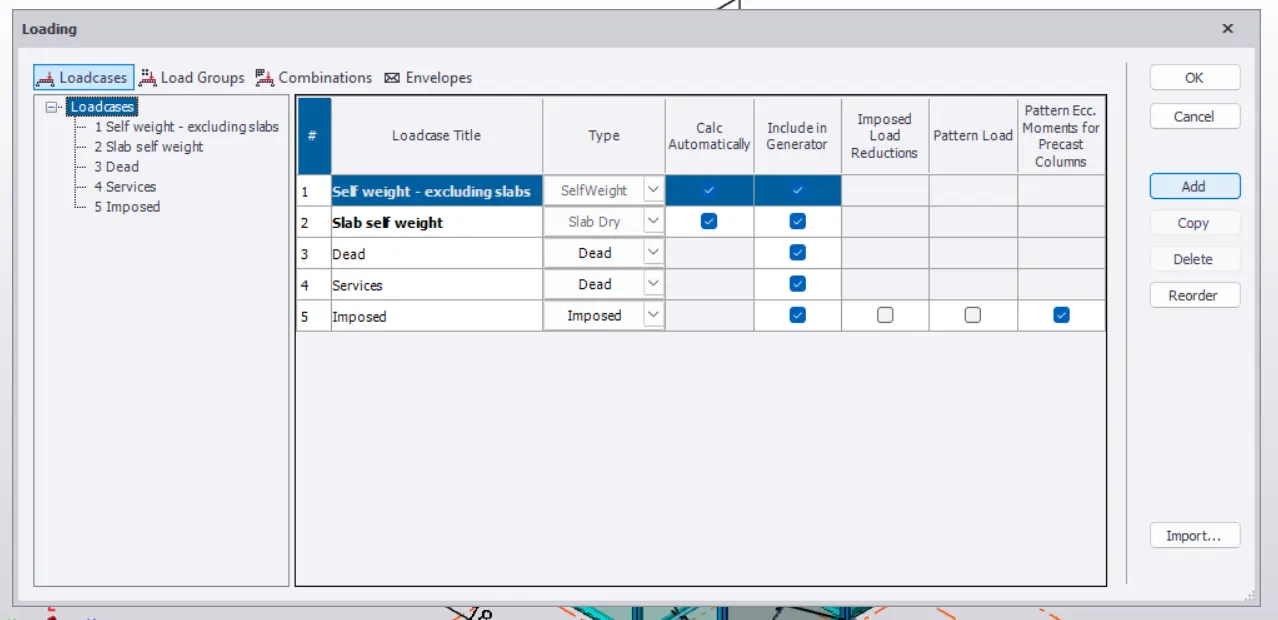
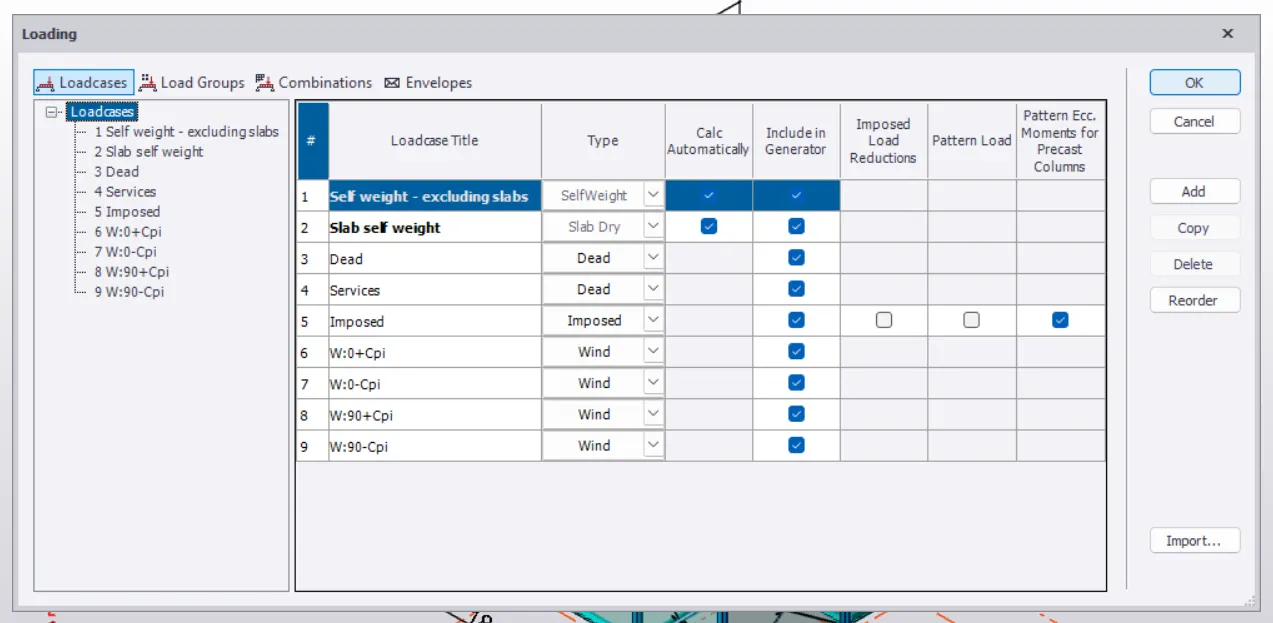
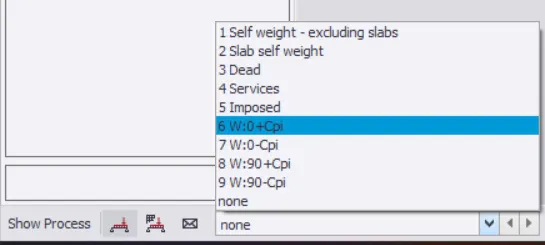
After the successfull addition of the required load cases into the model.We move on to the work space,where we then select the required load case from the drop down available at bottom left of the screen,before the load application in that case.
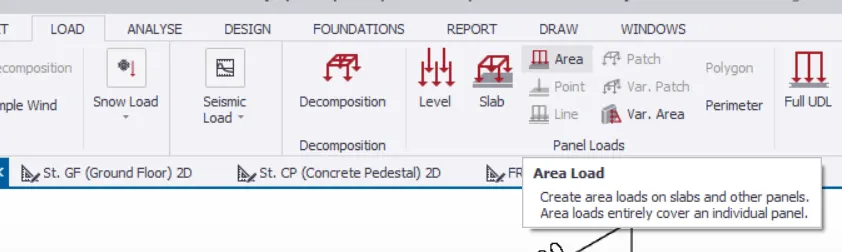
And then we select the suitable tool to apply the loads.For the application of the wind loads on to the cladding members,Area will be the most suitable.
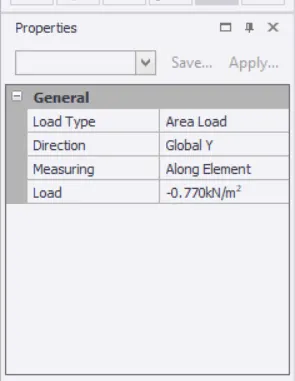
Where after the selection of Area tool,we enter the required value along with the required direction basing upon the calculations done before in the Properties Tab available at the bottom left of the screen.
In this manner,we apply all the loads calculated under different load cases.
3)
To use the option of Wind Wizard,we have to create a separate model as the load cases for the wind must not be usen in the same model.So,we use this option in a new model.In the new model,we go to LOAD Tab>Wind Wizard...
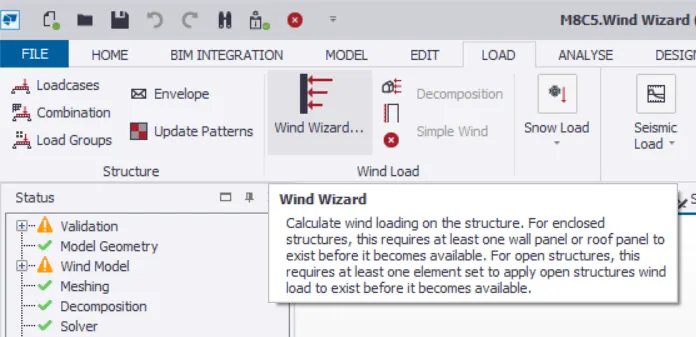
It is the option where every thing goes automated by the software rather than the traditional method of the wind load application on each cladding member.After the selection of the option,we select the required options as shown.
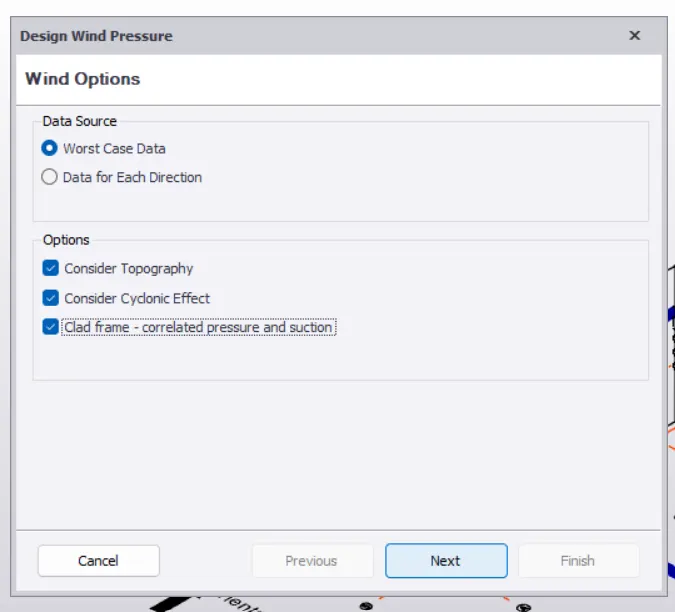
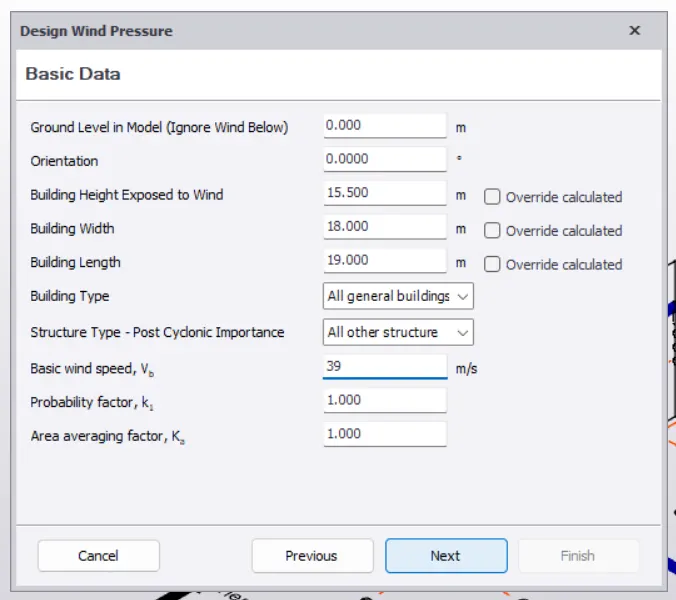
Where we give the further details.
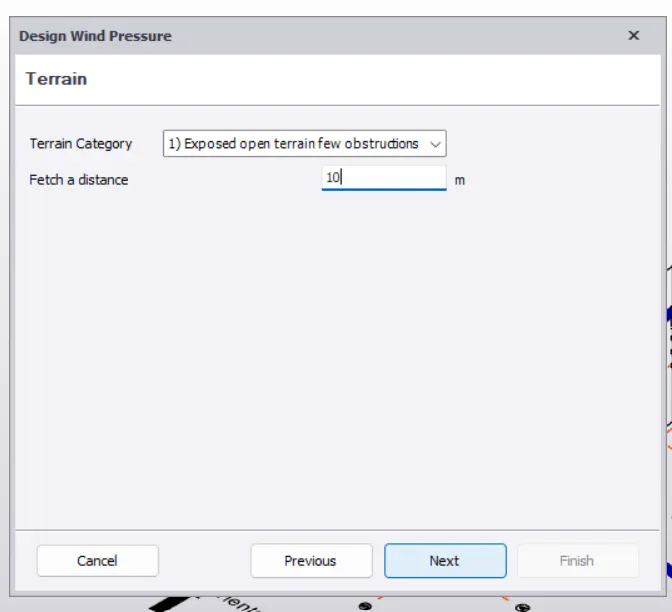
And then select the suitable Terrain Category along with the provision of the Fetch a Distance.
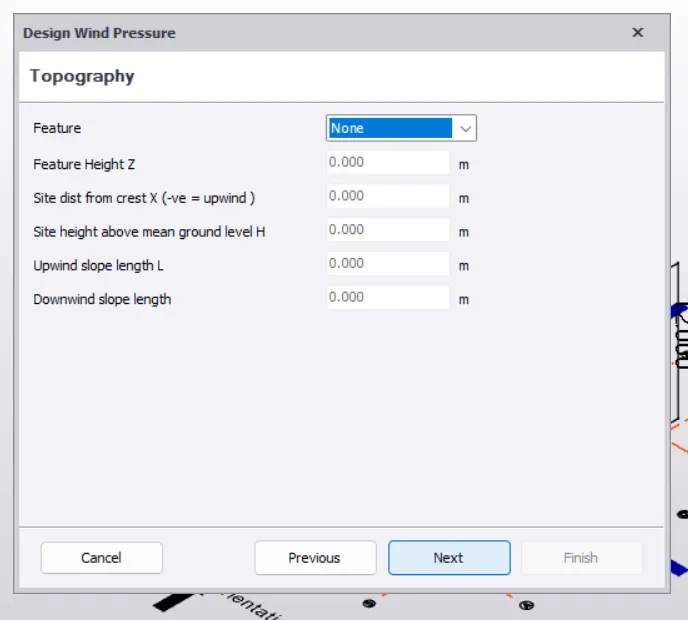
And then we select the Feature as None.
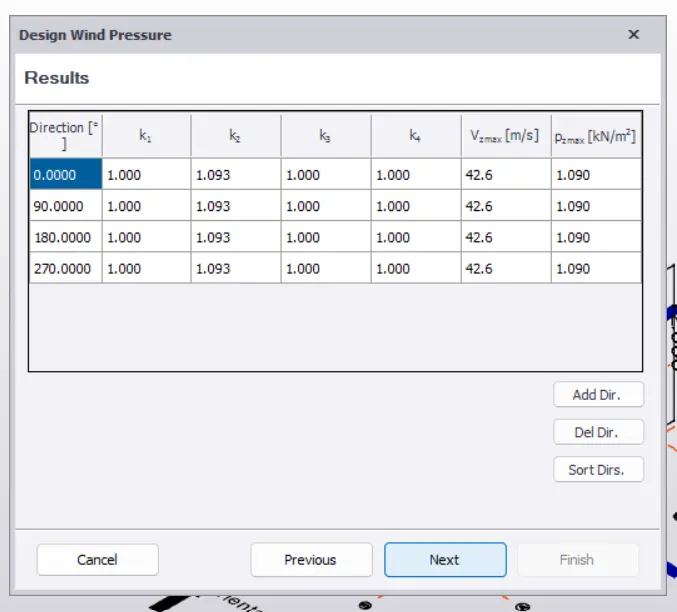
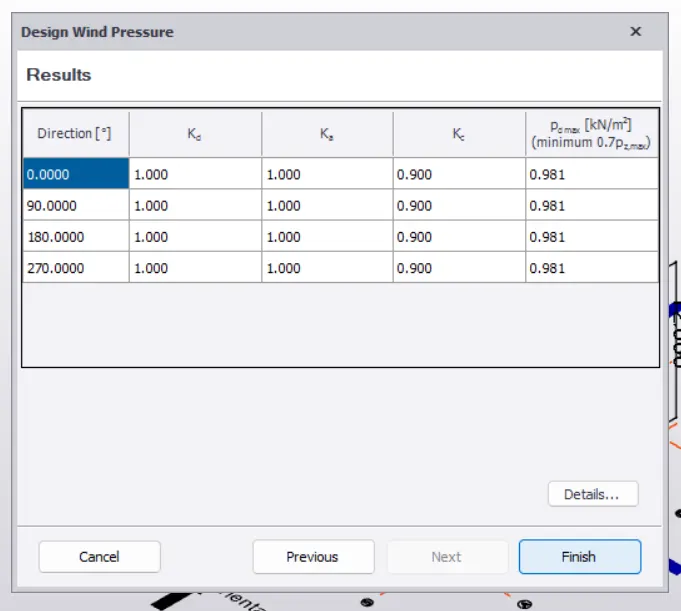
And then the results are automatically formulated by the software for different directions.