To calculate wind load for industrial steel structures and to apply it by using TSD
1.
AIM:Generate manual wind loading in the design report based IS code as per the following input
- Basic wind speed = 39m/s
- Terrain category 2
PROCEDURE:
- First we Calculate the load cominh on the structure and make the report
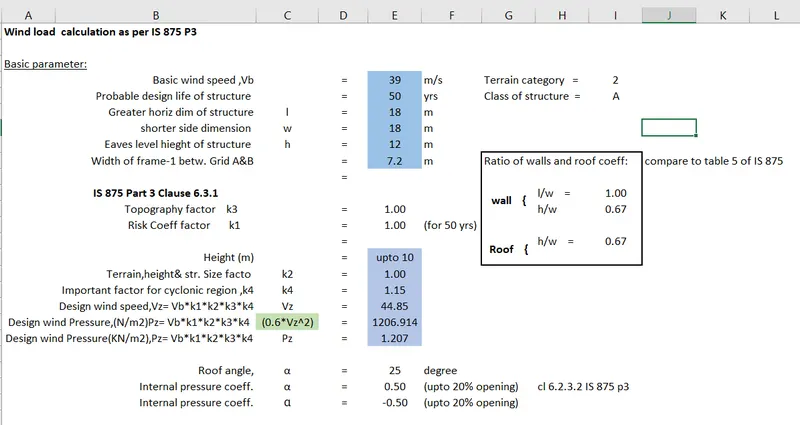
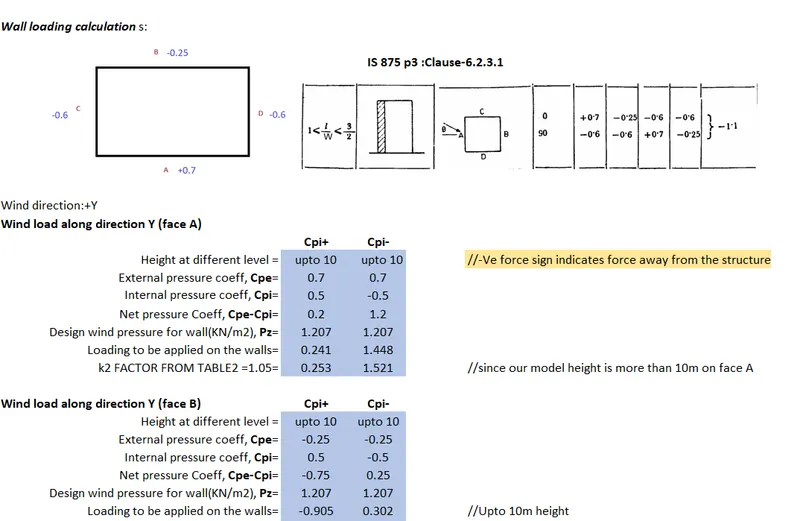
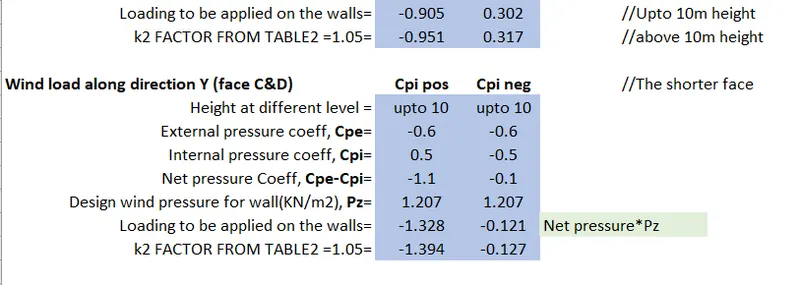
- RESULT: All the calculation part done for the wall panels of the structure
2.
AIM: Based on the above calculation apply the loadings on the model
PROCEDURE:
- Open the Tekla structural software
- Open the week 4 file we were working on
- Go to load panel->Loadcases->Add new wind load cases
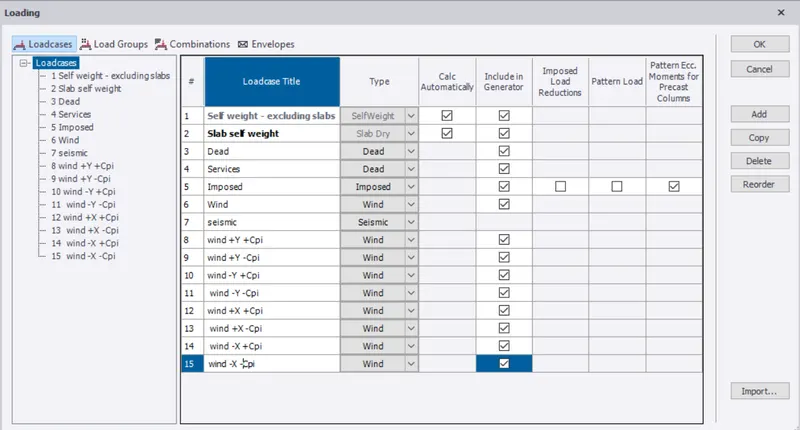
- Now for the wind cases, apply the load as per calculated in the Excel sheets above starting from the wind+Y+Cpi condition.
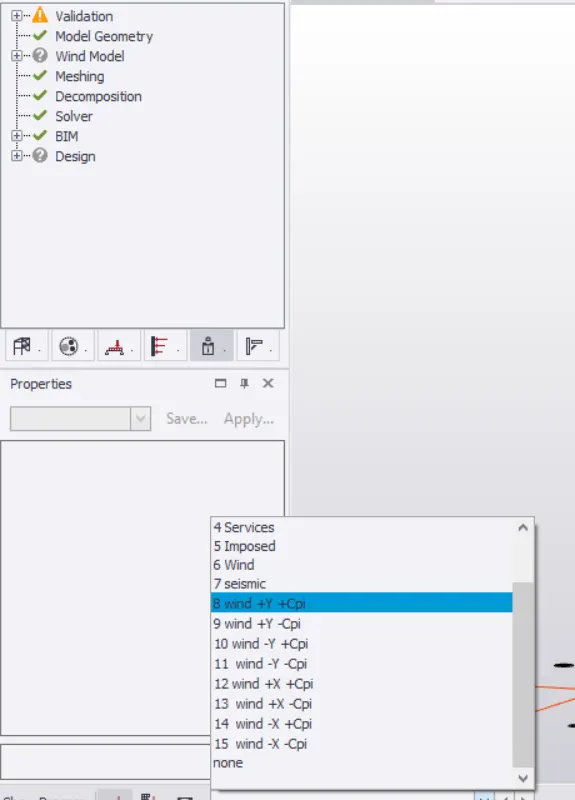
- Now as per the values in the sheet,apply the laod .
- 0.253KN/m2 acting on
- Frame 7 Wind+y+Cpi
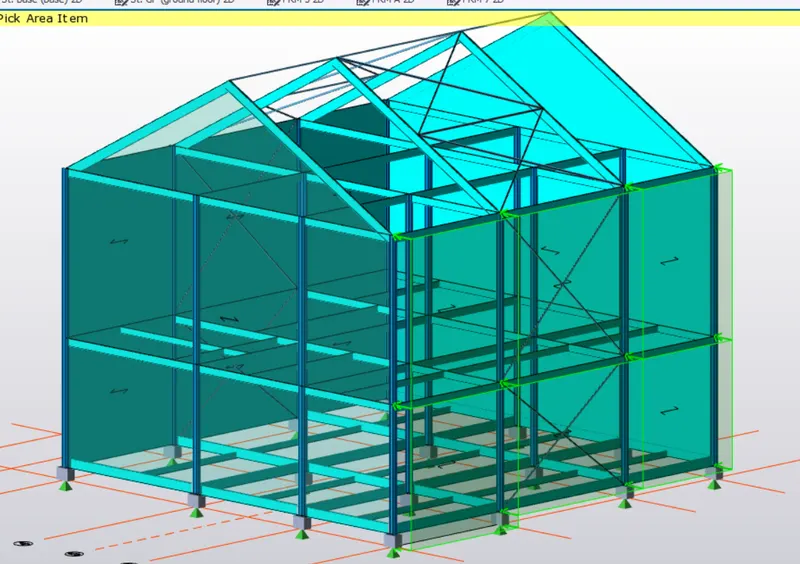
- -0.951KN/m2 acting on
- Frame 3 Wind+y+CPi
- Here -Ve value means the wind is acting away from the wind panel.
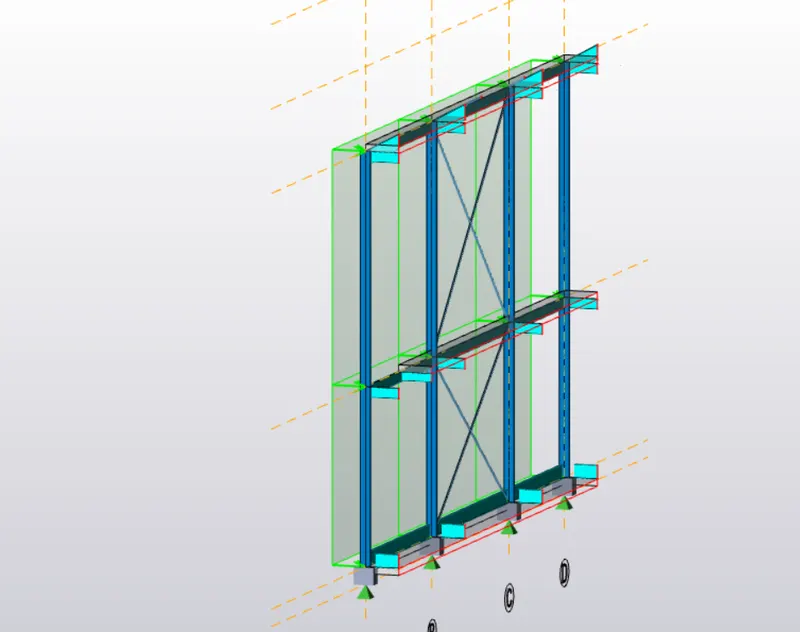
- Next load is 1.521KN/m2 acting on
- face7 as Wind+Y-Cpi
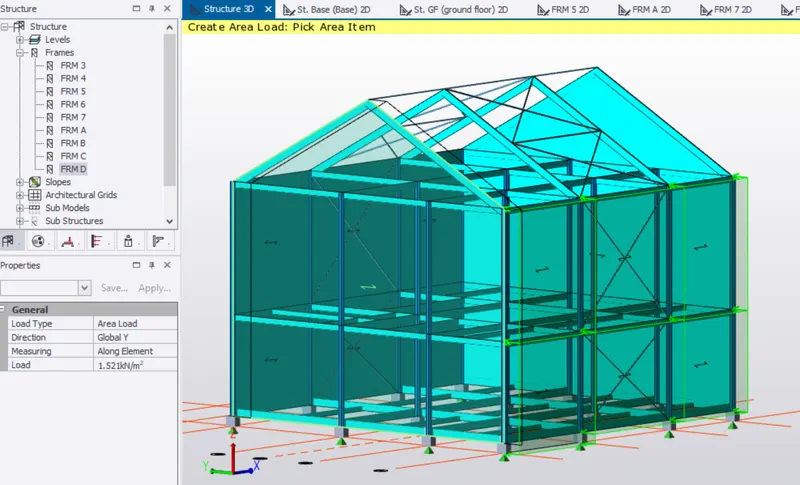
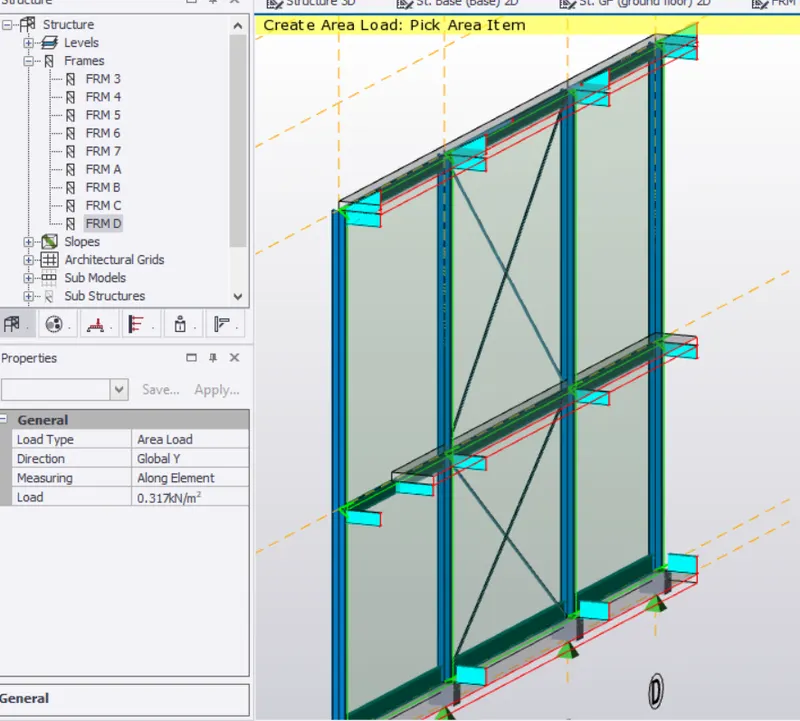
- Now the next load is 0.317KN/m2 on
- face3 as Wind+Y-Cpi
- Now we will apply wind loads on the Face A&D grids (i.e. face C &D )
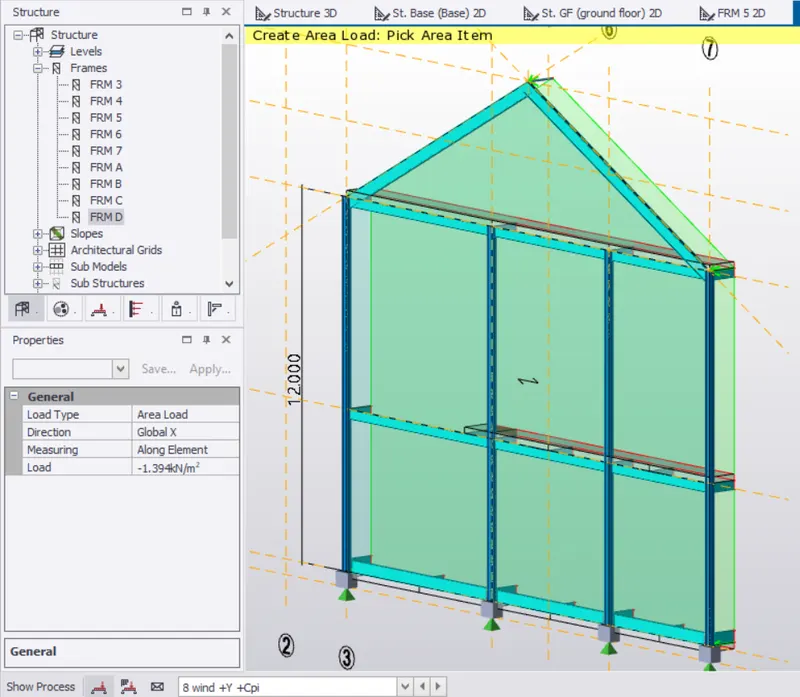
- Go to the load section in the bottom left and select wind+y+Cpi
- Select the area load
- Select global axis as X
- and enter the value -1.394KN/m2 for Face C
- Similarly go to Face D(i.e grid D)
- Enter the value of load -0.127KN/m2
- select globals axis X and load pattern wind+Y-Cpi
- Now we will apply the load of -Y
- All loading will be similar just the direction of wind is changed
- The load which was acting on the face 7 will act on Face 3 now with opposite sign.
- The face A will be considered as Face B and B will be as Face A
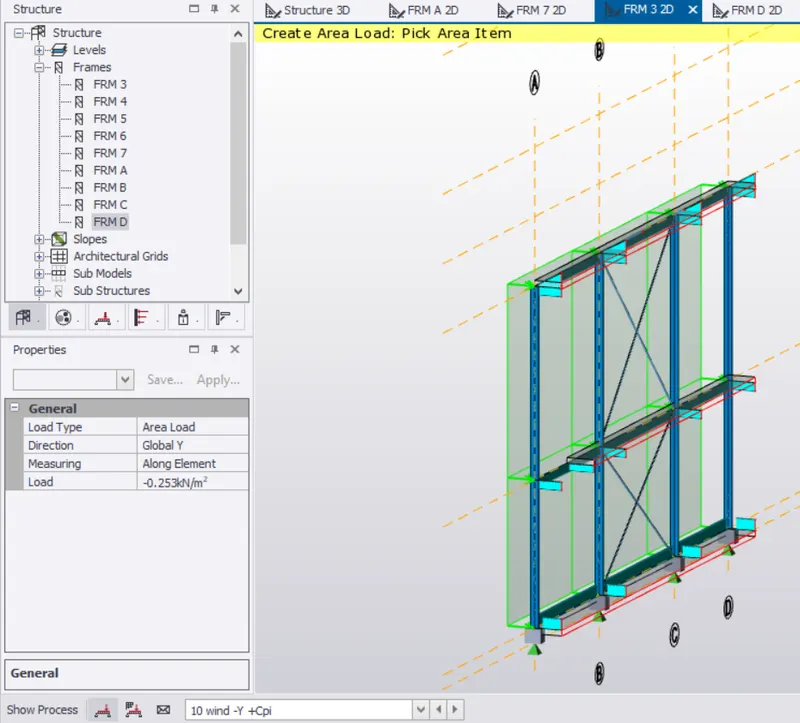
- Frame 3 wind -Y+Cpi
- -0.253KN/m2
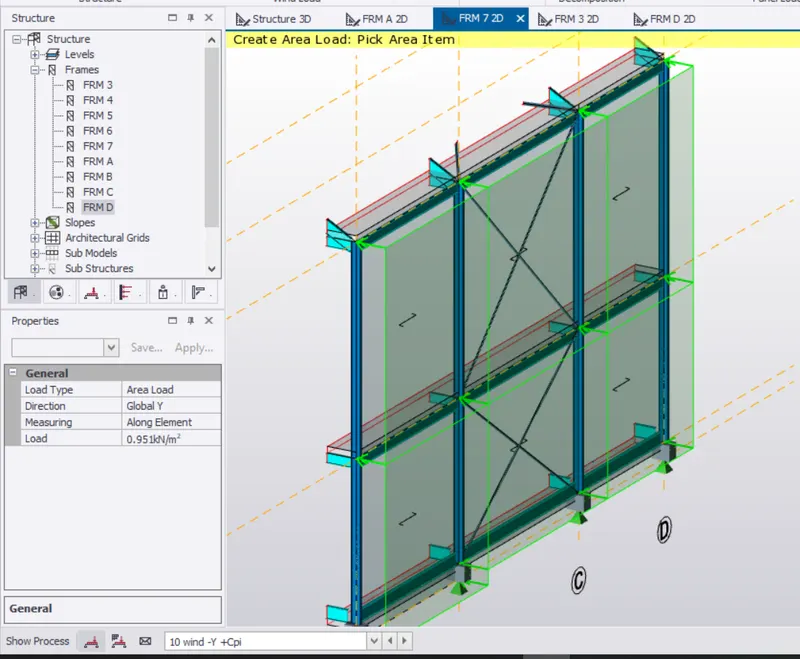
- Frame 7 wind -Y+Cpi
- 0.951KN/m2
- Frame 3 wind -Y-Cpi
- -1.521KN/m2
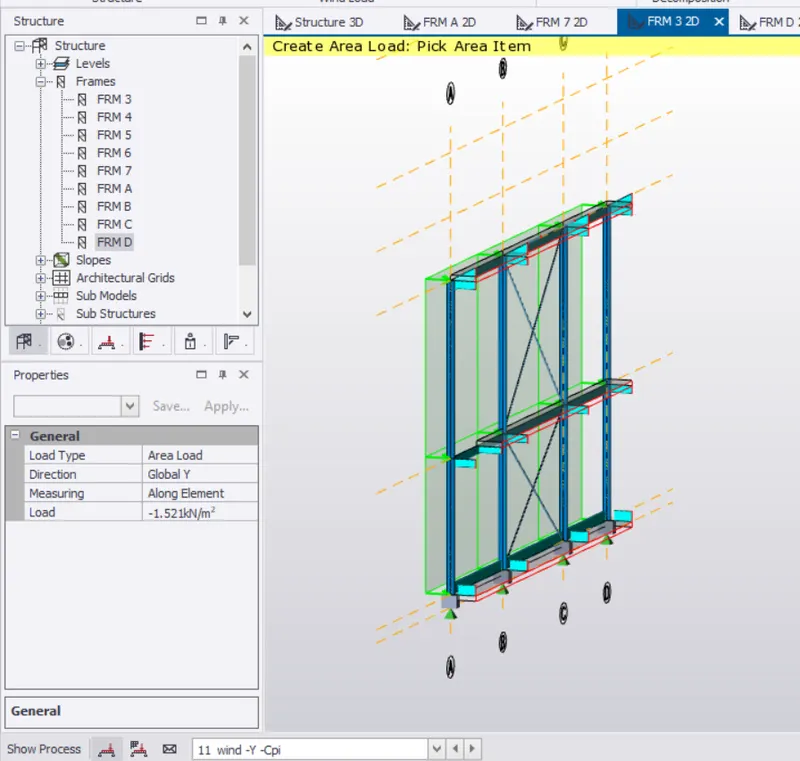
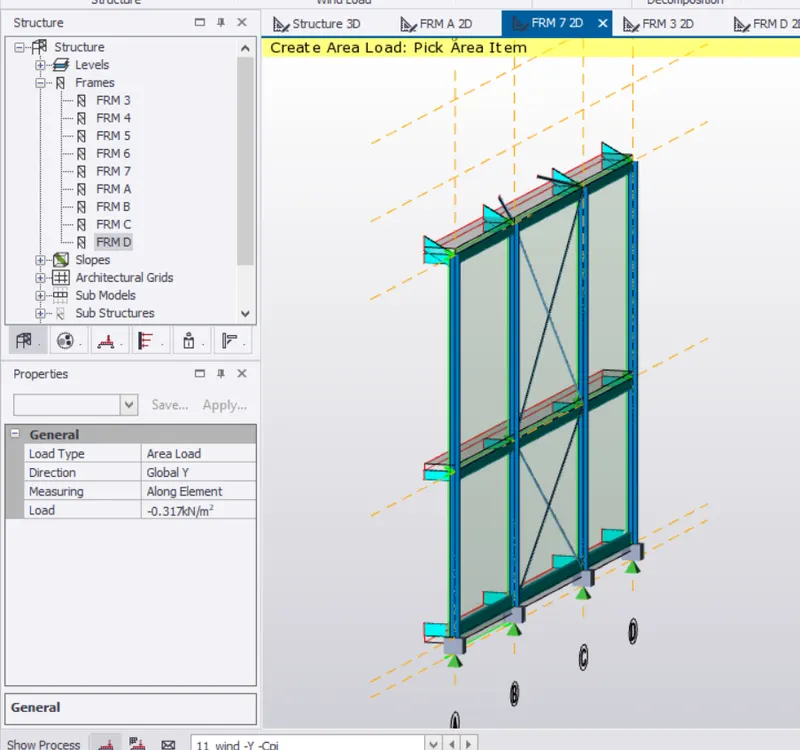
- Frame 7 wind -Y-Cpi
- -0.317KN/m2
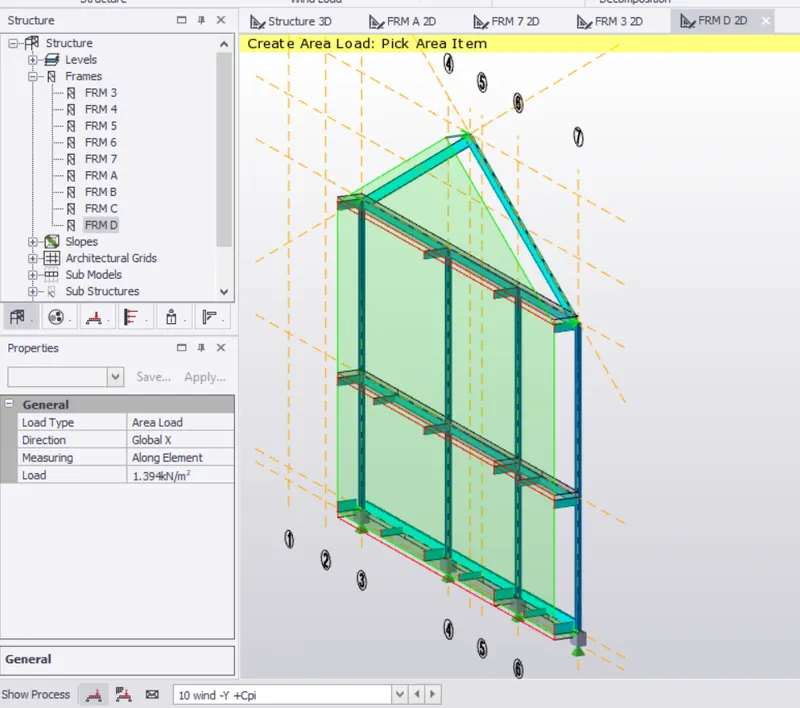
- Now we apply load on Frame D as Wind-Y+Cpi
- with global axis X 1.394KN/m2
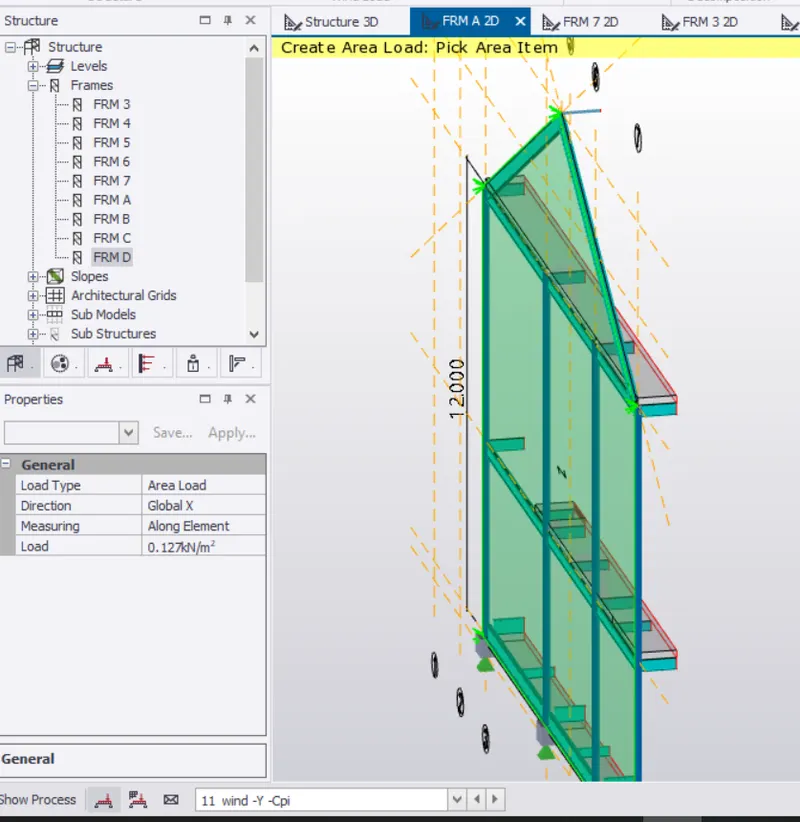
- Now we apply load on Frame A as Wind-Y-Cpi
- with global axis X 0.127KN/m2
//Similarly we apply the Wind X values as above after calculating the wind load in X direction
//For the X direction we use the value of 90degree and put in the values we find according to that
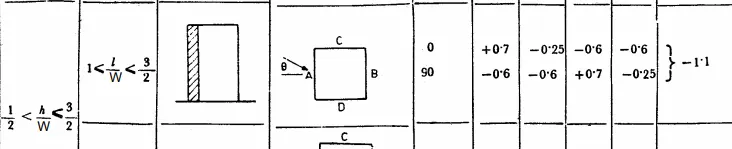
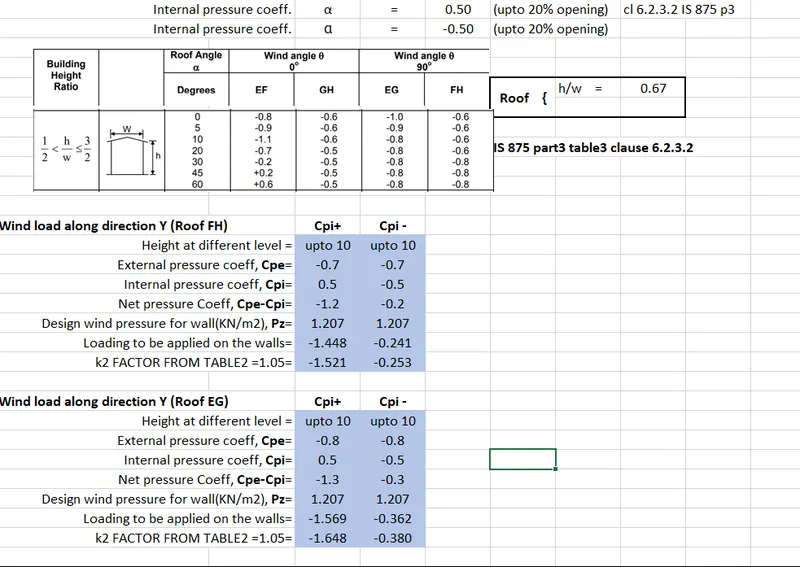
- Now we apply wind load on the roofs
- We find the angle of the roof which is 25degree
- according to that we find the external coefficient acting on the roof
- from IS 875 part 3 table 3 Clause 6.2.3.2
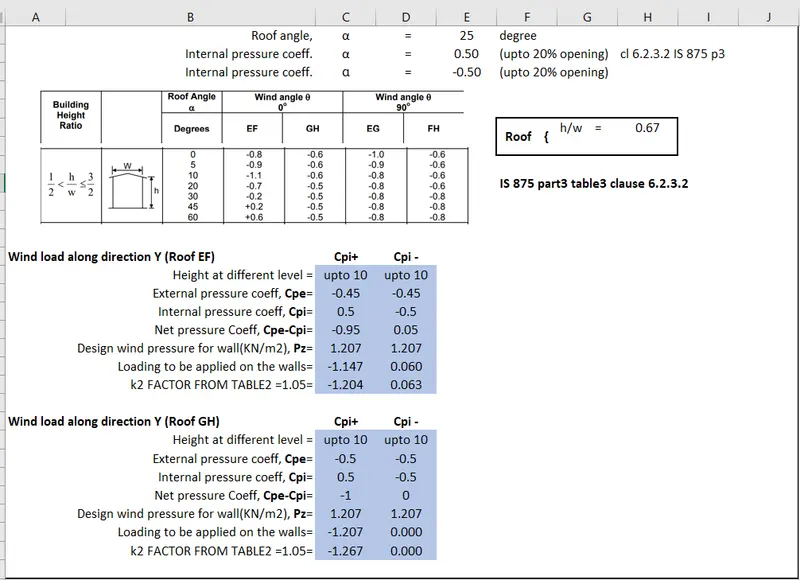
- Now we apply load on Roof EF
- Frame 2 slope wind+Y+CPi
- -1.204KN/m2
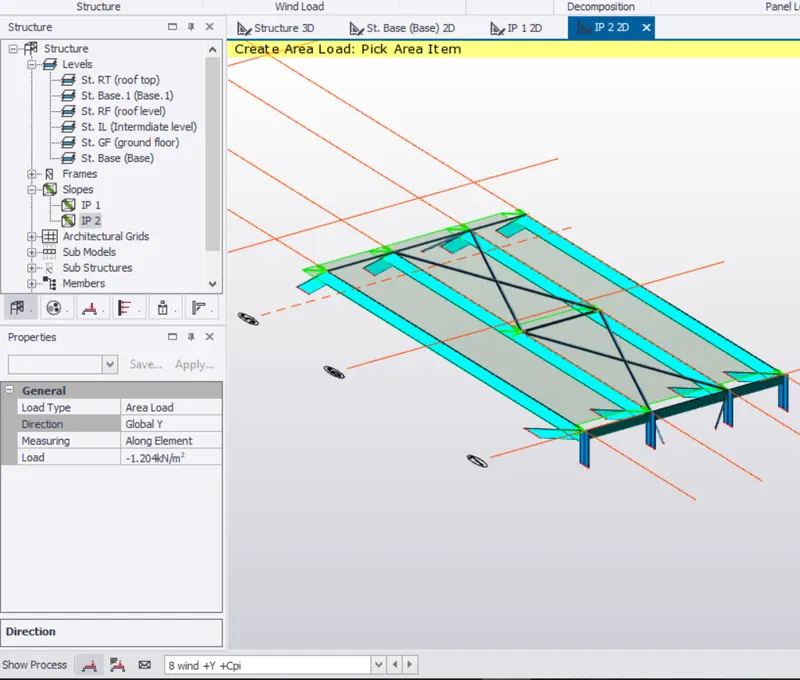
- Frame 2 slope wind+Y-CPi
- 0.063KN/m2
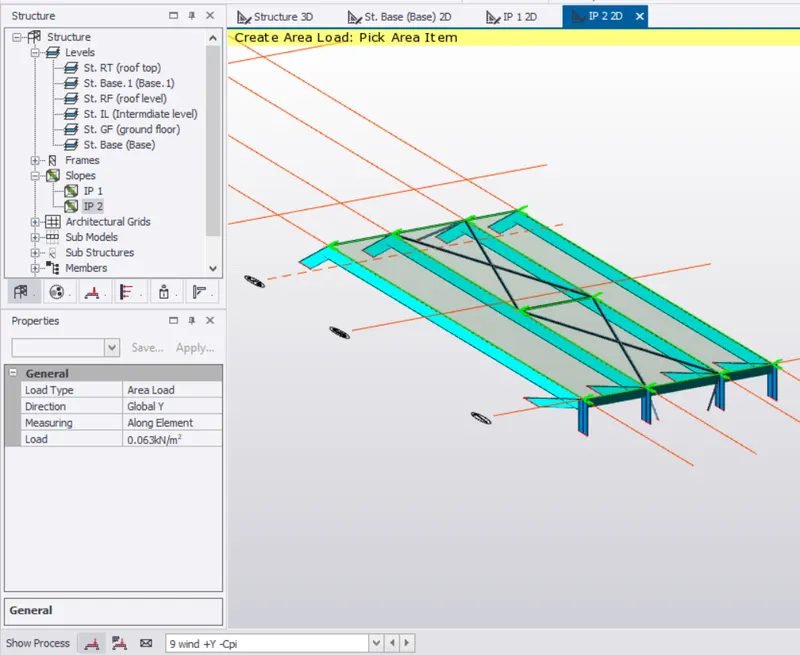
- Roof GH
- Frame 1 slope wind+Y+Cpi
- -1.267KN/m2
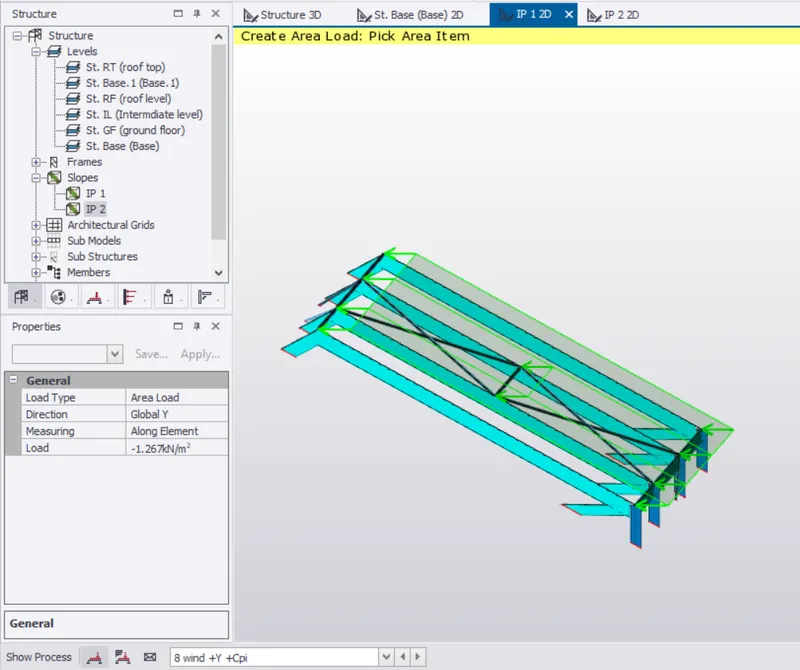
- Roof GH
- Frame 1 slope wind+Y-Cpi
- 0KN/m2
- Now we apply -Y loading on roof
- The EF will become roof GH and will have -Ve values of EF we applied before
- Roof EF
- Frame 1 slope wind-Y+Cpi
- 1.204KN/m2
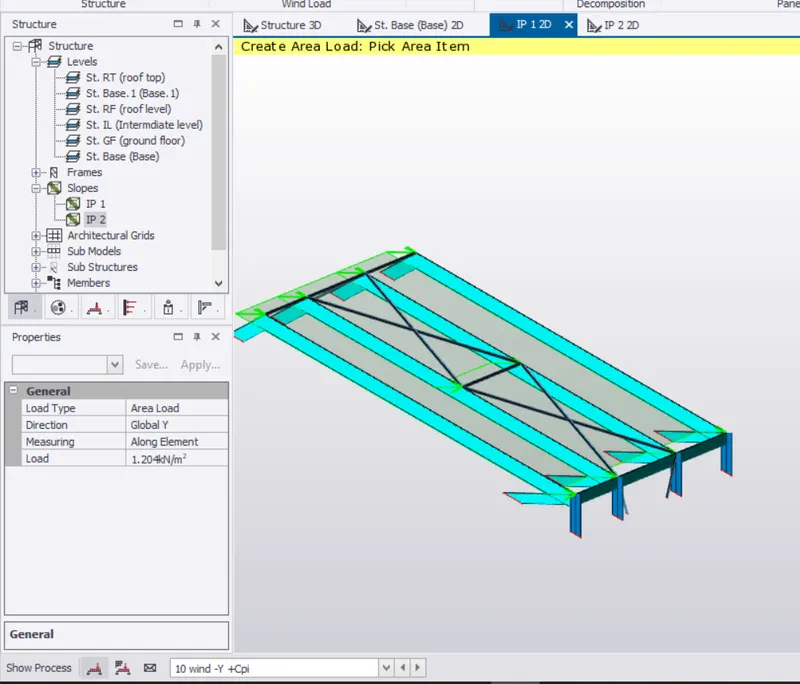
- Roof EF
- Frame 1 slope wind-Y-Cpi
- -0.063KN/m2
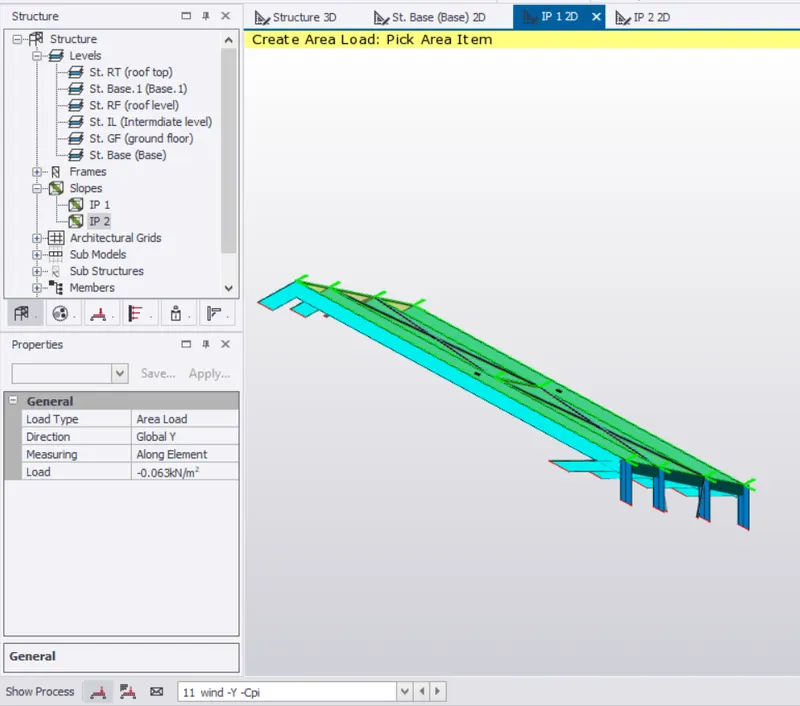
- Roof GH
- Frame 2 slope wind-Y+Cpi
- 1.267KN/m2
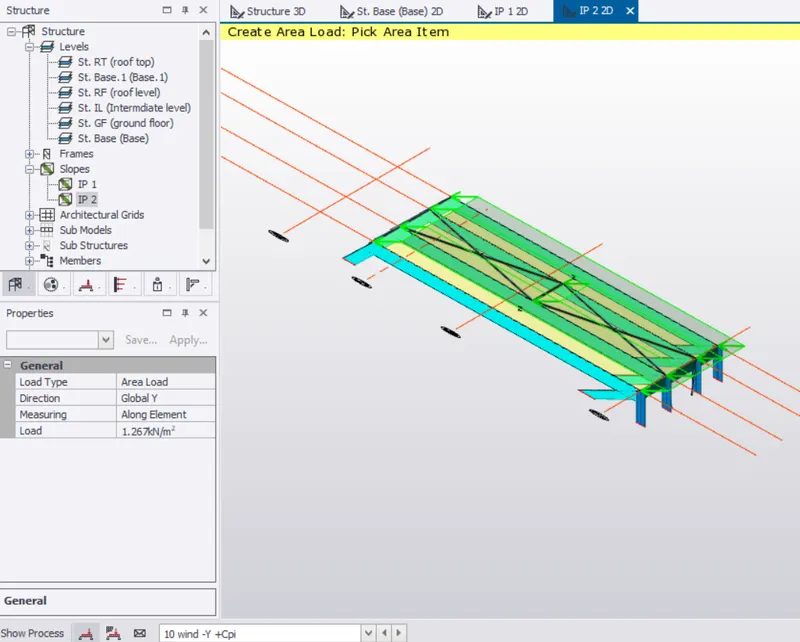
- Roof GH
- Frame 2 slope wind-Y-Cpi
- 0KN/m2
//Similarly we apply load on X direction for roof as we applied in Y
given below is the data required to fill the load for X direction
3.
AIM: On a separate model generate wind loading using wind wizard
PROCEDURE:
- Make a copy o the above tekla file
- Open the file
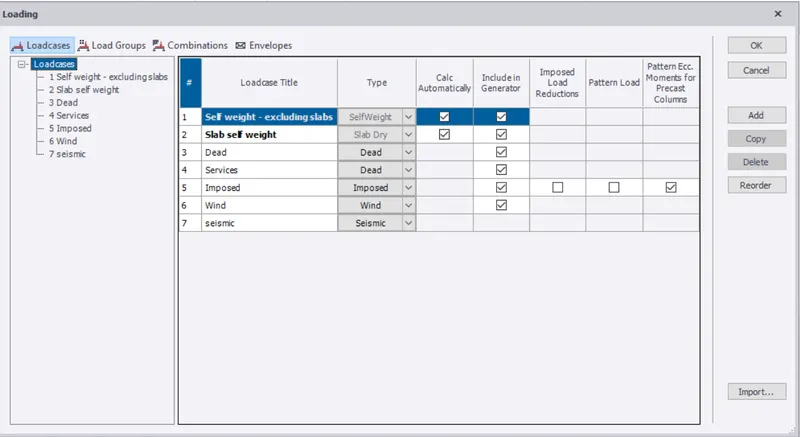
- Go to load panel->Loadcases
- Select the wind load cases you gave in the previous question and delete all.
- Only the default load cases will be left.
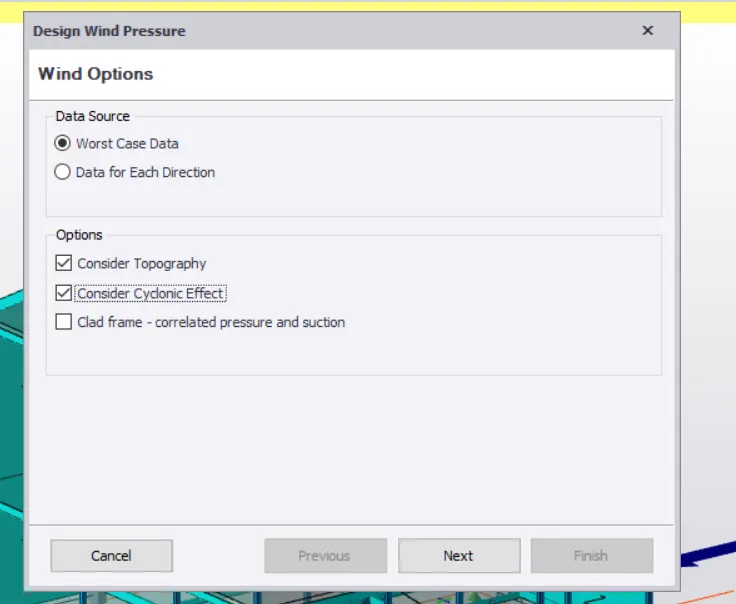
- On load panel->click on a Wind wizard ->Worst case data
- Tick the cyclonnic effect
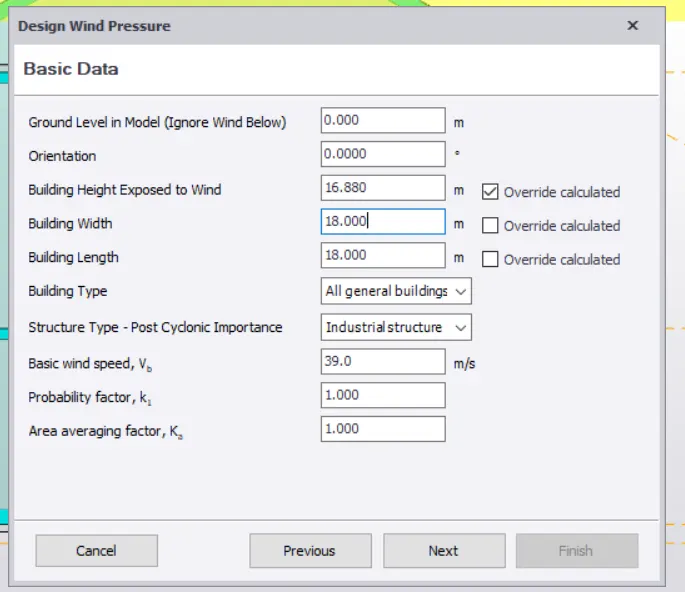
- Now check all the basic details of the buildings like basic wind speed,height of bulding affected by wind
- k1,K2 factors,structure types
- Check the terrain category->In this case it is category 2
- Fetch distance is the clear distance between other buildings from your building.
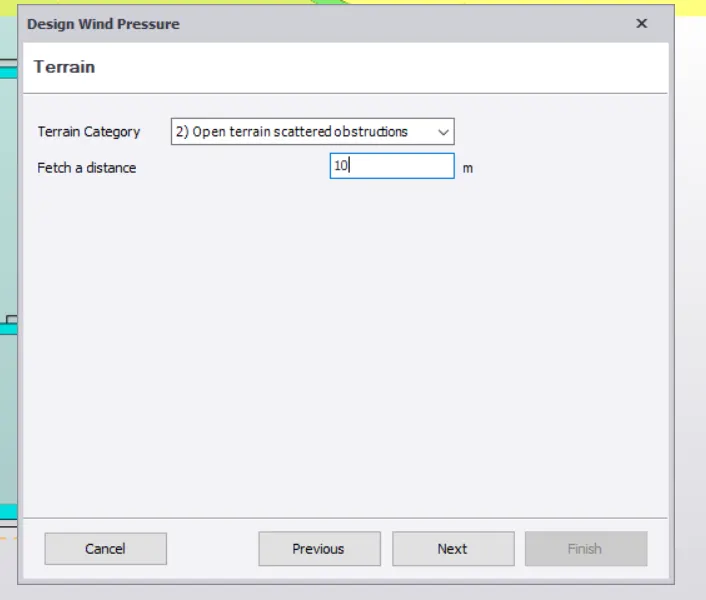
- Click Next->then comes topography(if you want any,then select )or click NExt
- Now the resultant wind pressure is shown which are acting on the structure.
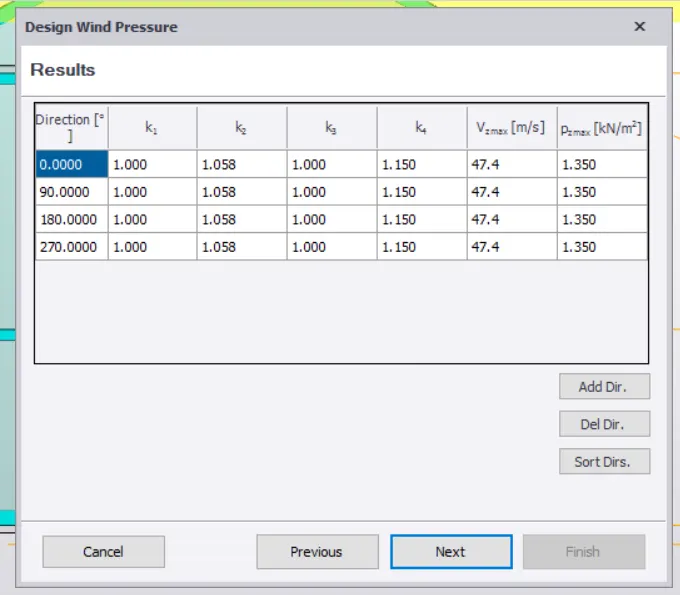
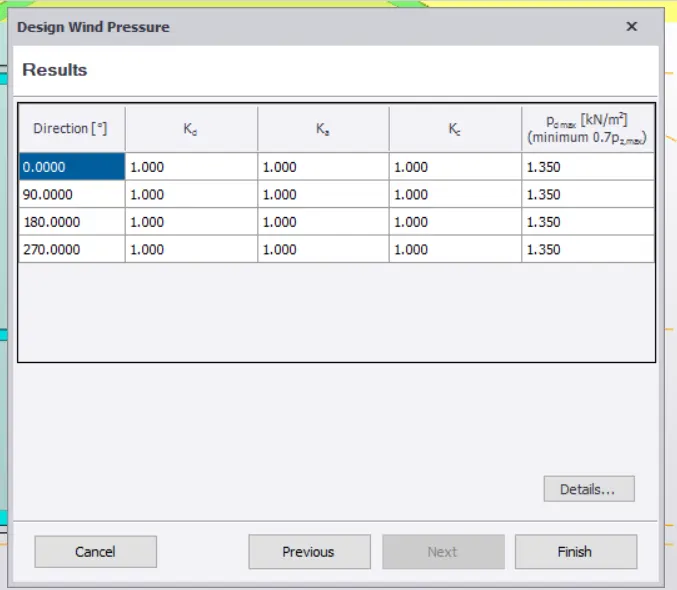
- Now click on finish.
- Now on wind load tab->Click on wind loadcases
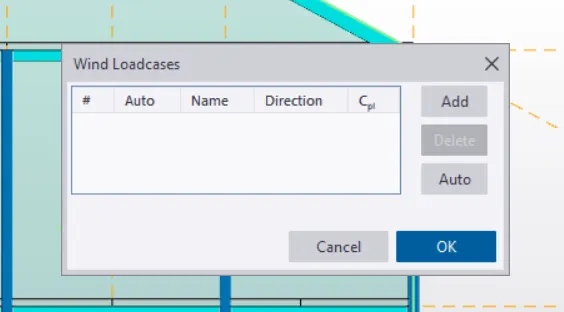
- enter the loadcases you want manually
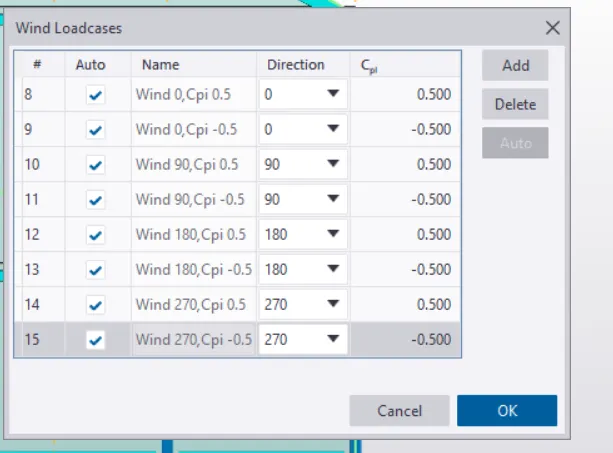
- Now the loads were applied on the structure in all the direction as per the values entered
- Click on validation to check for any errors->No errors are shown