Simulating Forward Kinematics of a 2R Robotic Arm using MATLAB
AIM: Write a program in MATLAB to simulate the forward kinematics of a 2R Robotic Arm
OBJECTIVE: To create a movie visualizing the movements of a 2R robotic arm in 2D graph
INTRODUCTION:
Robotic Arms are machines which look like and moves very similar to a human arm, but these robotic arms can move in all directions unlike the human arm which has limited degree of freedoms. Robotic arms are programmed to execute one or more specific tasks quickly, and accurately.
A 2R robotic arm has two links attached to each other at one of their ends, one end of a link is fixed to a base, and the remaining free end of the other link is called the manipulator.
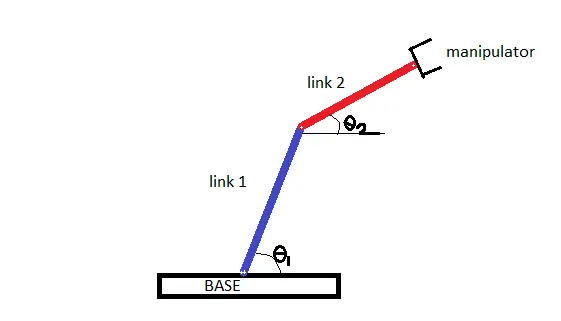
With forward kinematics, we determine the position of the manipulator if the two angles are given.
In this project we are going to write a code for the simulation of the robotic arm. We will look at various positions of manipulator with varying angles of link 1 and link 2.
Positions of links: lets say that the end of link 1 at the base is at (x0, y0).
Other end of link 1 and one end of link 2 are at a common point (x1, y1).
And the coordinates of manipulator are (x2, y2).
We measure the angles along the x-axis.
CODE:
% Animation for Forward Kinematics of 2R

close all
clear all
clc

l1 = 1.5;
l2 = 2;

theta1 = linspace(0,90,15);
theta2 = linspace(0,90,15);

c = 1;

for i = 1:length(theta1)
    THETA1 = theta1(i);
    for j = 1:length(theta2)
        THETA2 = theta2(j);
        x0 = 0;
        y0 = 0;

        x1 = l1*cosd(THETA1);
        y1 = l1*sind(THETA1);

        x2 = x1 + l2*cosd(THETA2);
        y2 = y1 + l2*sind(THETA2);


        plot([x0, x1], [y0, y1],[x1, x2], [y1, y2], 'linewidth', 4);
        axis([-0.5 4 0 4])
        pause(0.1)
        M(c) = getframe(gcf);
        c = c+1;

    end
end

movie(M)
videofile = VideoWriter('forward_kinematics_2R.avi', 'uncompressed AVI');
open(videofile)
writeVideo(videofile, M)
close(videofile)
EXPLANATION:
- Frist of all we define the lengths of the two links. Say l1 = 1.5 & l2 = 2.
- We set a range for angles at which we consider that the arms would be when they move in space. We use ‘linspace’ command to define the values of both the angles.
- We are going to plot lines between the coordinates of the end points of the links.
Following will be the coordinates geometrically:
x0 = 0, y0 = 0.
x1 = l1*cos(θ1), y1 = l1*sin(θ1)
x2 = x1 + l2*cos(θ2), y2 = x2 + l2*sin(θ2)
- Now to plot all the graphs for corresponding values of θ1 and θ2, we go through each value of θ2 for each value of θ We achieve this by using for loop.
- We use two for loops, one for iterating with θ1 values and another for loop inside the previous one for iterating with θ2 values.
- Beginning with first loop which will repeat from 1 to total no. of values in ‘theta1’ array. ‘THETA1’ is now the value of angle made by link 1. Whereas ‘theta1’ is an array of different values ie the range.
- Now for every value of ‘THETA1’ we calculate position of the links with every value of ‘THETA2’ using another for inside the ongoing loop.
- Here we define the coordinates which will be varying as we run the code because of the for loop changing values of the angles after every iteration.
- Using ‘plot’ command plot the lines between the coordinates, give the thickness to the line using ‘linewidth’. Now when we run the code the figure will show the plot for most recent values of the coordinates, hence to visualise all the positions we use ‘pause’ command which pauses the flow and we can see every graph.
- We treat the lines as the links of the robotic arm. According the pause time, we can see all the graphs one by one changing which looks like an animation.
- Now we want to create a movie of this visualization. For this store the current frame in a variable ‘M’ using ‘getframe’ command. We use a counter and keep it incrementing after every iteration. We do this to store different frames in the same variable ‘M’.
- ‘movie(M)’ will create a movie of all the frames and will be played when we execute the code. To create a video file of this movie use ‘VideoWriter’ command, give appropriate name to the file. This is to be assigned to a variable, say ‘videofile’.
- After saving the code at the required location, the video file of the movie will also be saved in the same location.
- Run the code to see the animation and the movie of the animation.
Erros while writing the code:
1. Forgot to declare the counter variable 'c'

This error was overcome by declaring the variable 'c' before the for loop, and initialising its value.
CONCLUSION: The forward kinematics of a 2R robotic arm were simulated successfully and a movie was created showing the movements of the links of the arm.
The video file for the movie can be accessed from the following link:
https://drive.google.com/drive/folders/1ajMBoBAdsa0J7qXXbz3a2AvGAOABmmtI?usp=sharing