Project 2 - V&V SW Analysis II
LIVE BATCH STUDENT
- Perform Static Code Review Analysis for “C:\**\LDRA_workarea\Examples\C_Testbed_examples\Testrain\Testrain.c” Generate Code review report and upload them.
- Open LDRA tool. Click Source -> Single file.
- Select the testrain.c file from Documents-> LDRAEE -> LDRA_Workarea-> Examples-> C_Testbed_examples -> Testrain-> Testrain.c and click Select
- Click Sequence -> New.
- Enter a sequence name as “dhur” and check code coverage and click continue.
- Select Source -> Run static analysis.
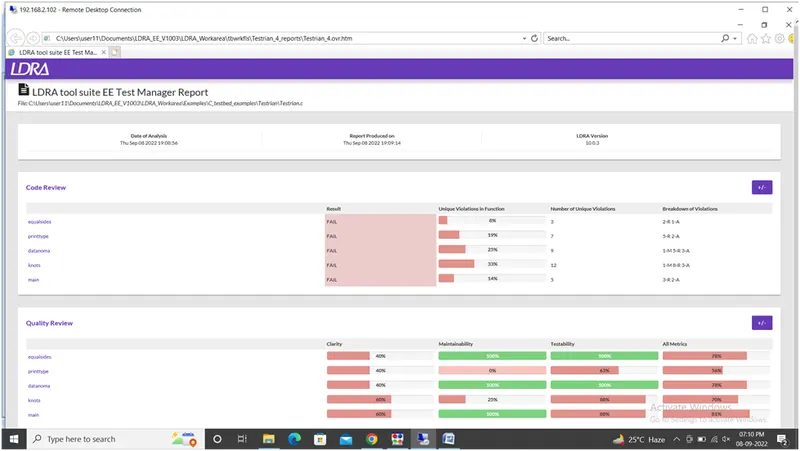
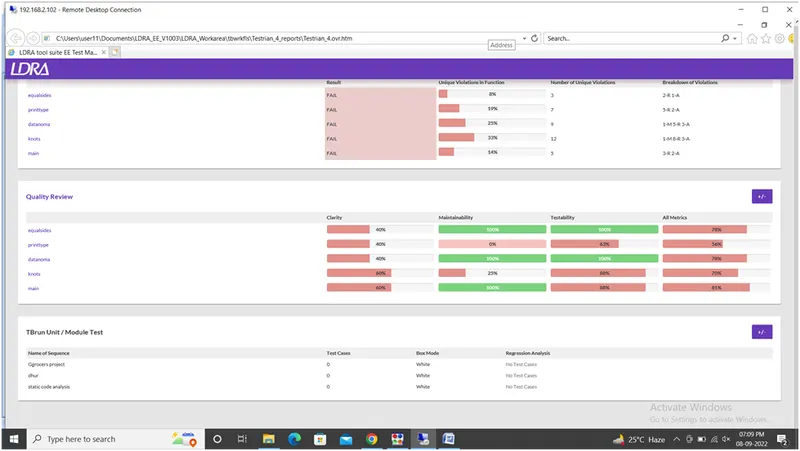
- Once the analysis completed, click Result -> Test manager report.
- Static code review analysis report screenshot is attached below for your reference.
- Perform Integration testing by including all the .C files available in the folder location C:\**\LDRA_workarea\Examples\Toolsuite\Cashregister_6.0\ **
A)Create the test cases manually as well as automatically using TBExtreme and upload the reports.
- Open LDRA tool. Click Source -> Single file.
- Select the testrain.c file from Documents-> LDRAEE -> LDRA_Workarea-> Examples-> C_Testbed_examples -> Testrain-> Testrain.c and click Select
- Click Sequence -> New.
- Enter a sequence name as “ccc” and check code coverage and click continue.
- Select Source -> Run static analysis.
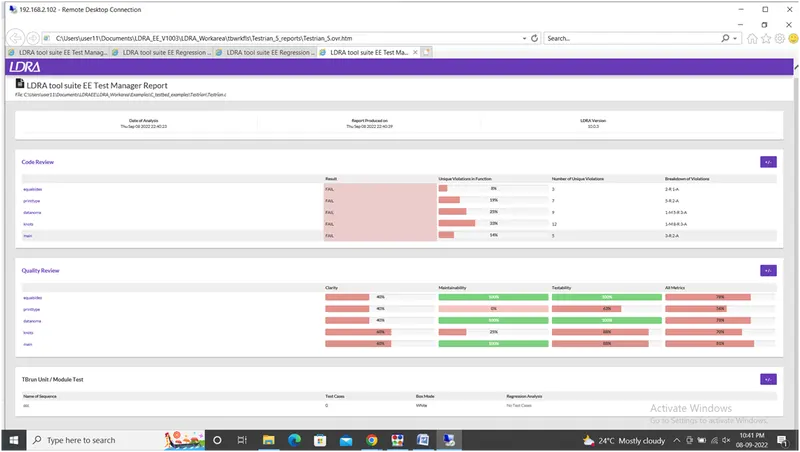
- Once the analysis completed, click Result -> Test manager report.
- Static code review analysis report screenshot is attached below for your reference.
MANUAL TEST CASE:
- Click Test case -> Create new test case
- Select “printtype” function to create test case
- In test case generation, select “Repetitions” and click continue
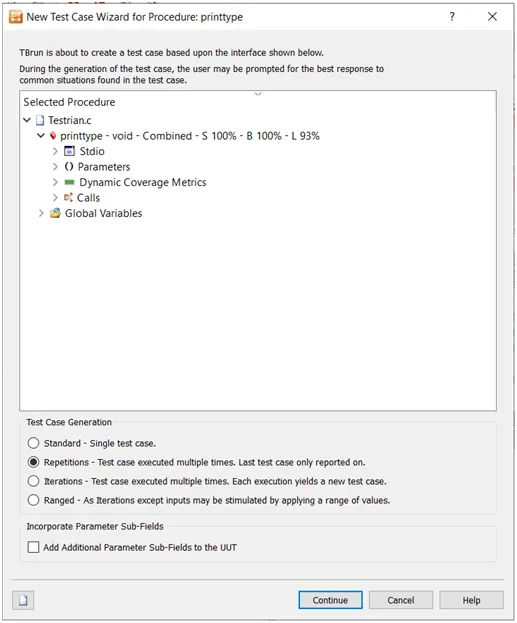
- Click continue
- In File view window, right click on the “printtype” and click procedure code
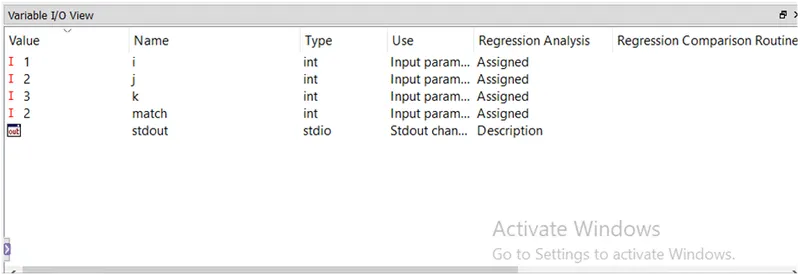
- In variable I/O view window, enter the inputs and expected outputs of the test case function “printtype”
- Select Run driver -> Run driver
- Find below the results of the test case
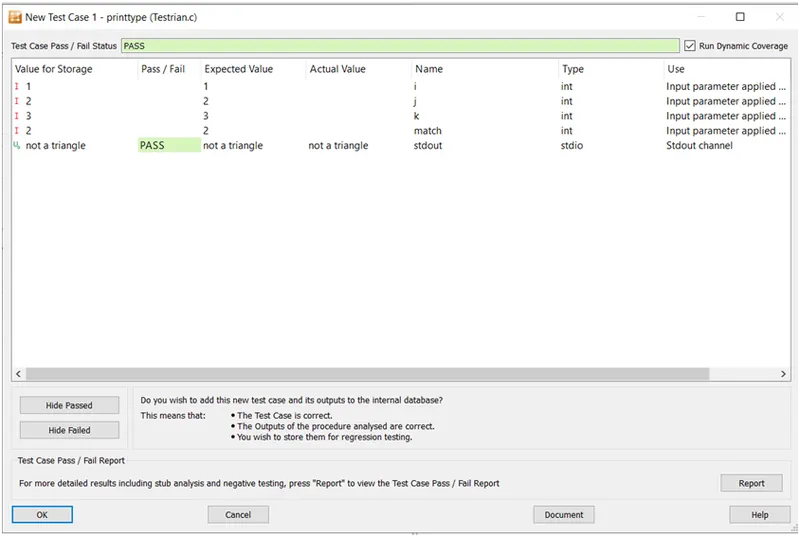
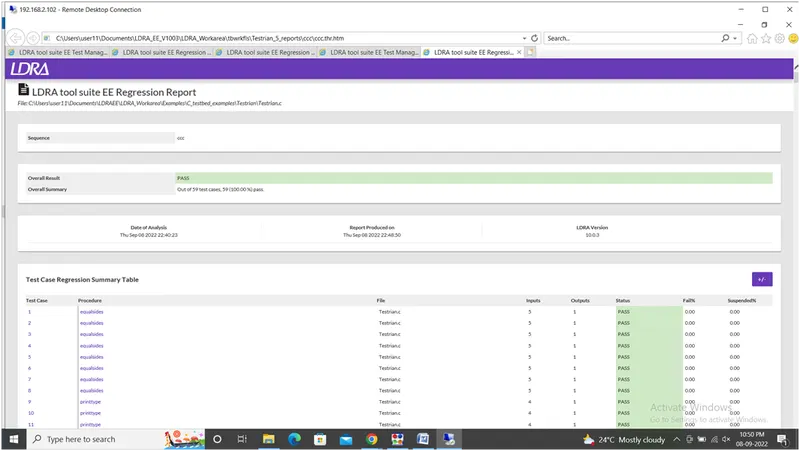
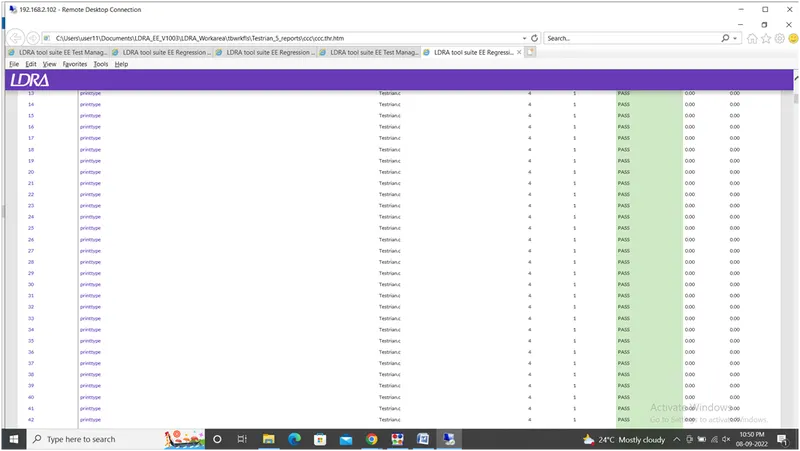
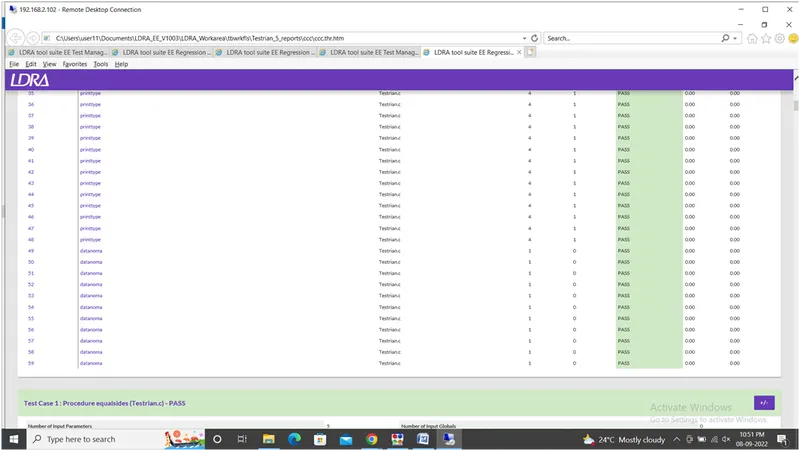
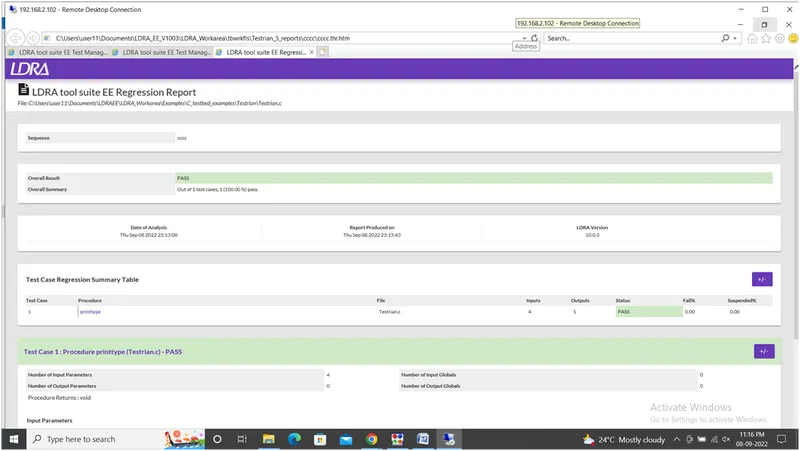
- Click Result -> Regression report
- Regression Report screenshot is attached below for your reference.
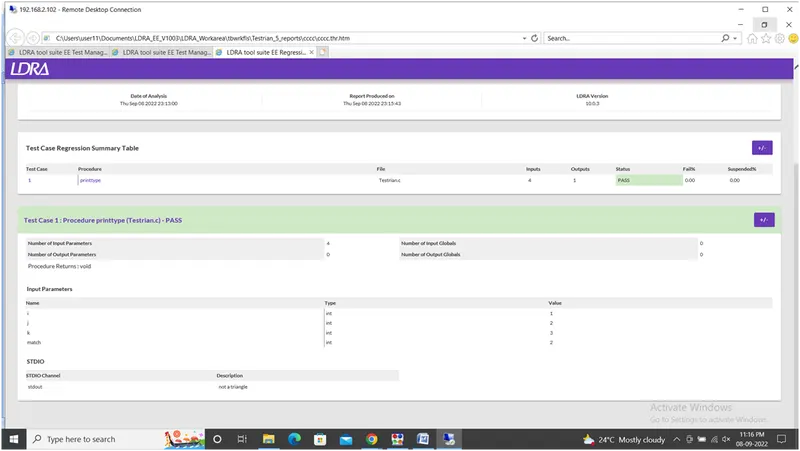
AUTOMATIC TEST CASE (TBExtreme):
- In test case window, right click on the test case created manually and click delete.
- Select Extreme test -> Run tabular extreme test
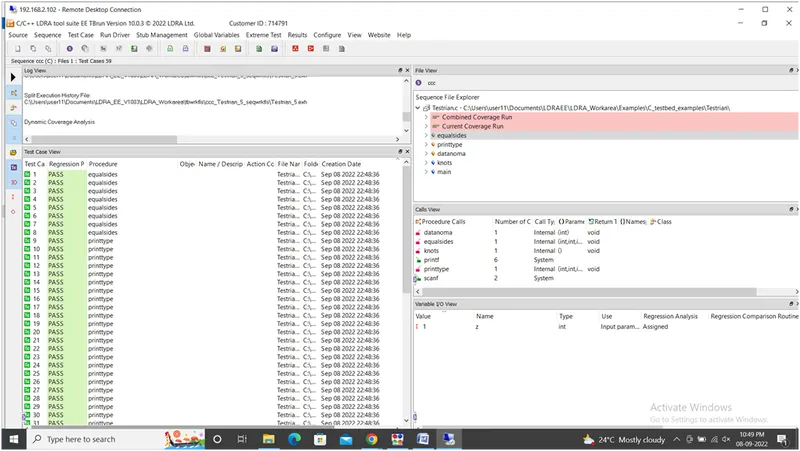
- Click Result -> Regression report
- Regression Report-Automatic test cases - screenshot is attached below for your reference.