Project - 2 - Meshing on the suspension Assembly
PROCEDURE:
Import the model to ANSA
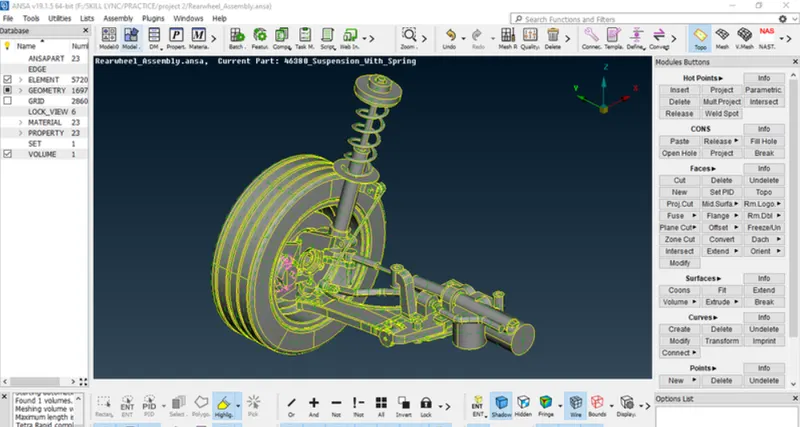
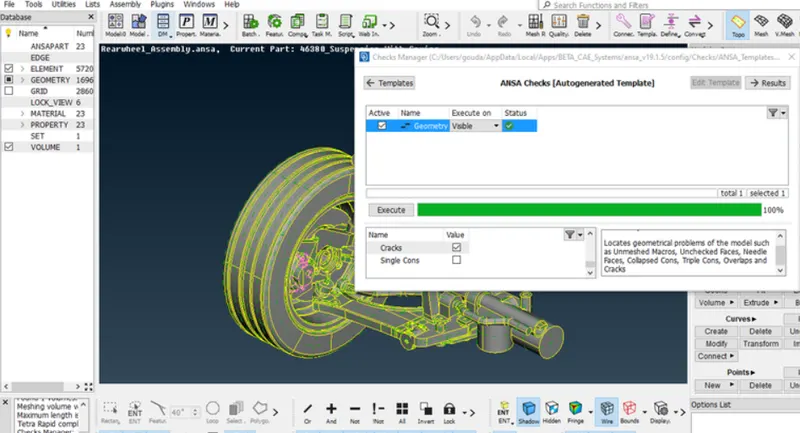
Then check the geometry and fix the geometrical errors if there are any
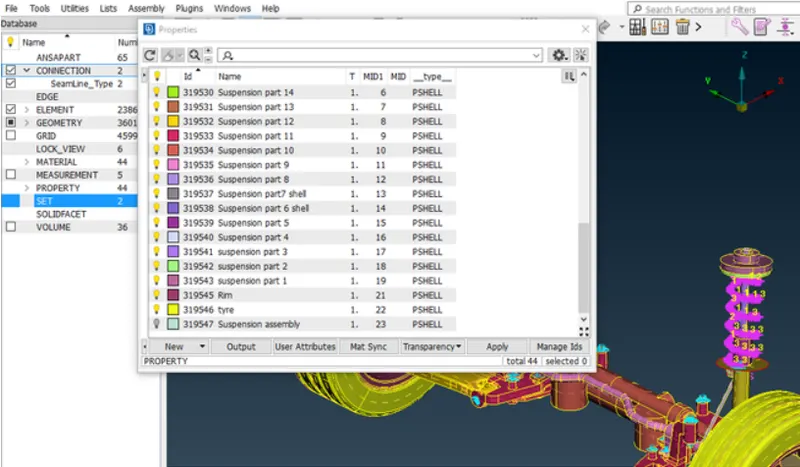
The we are setting new PIDs for the model
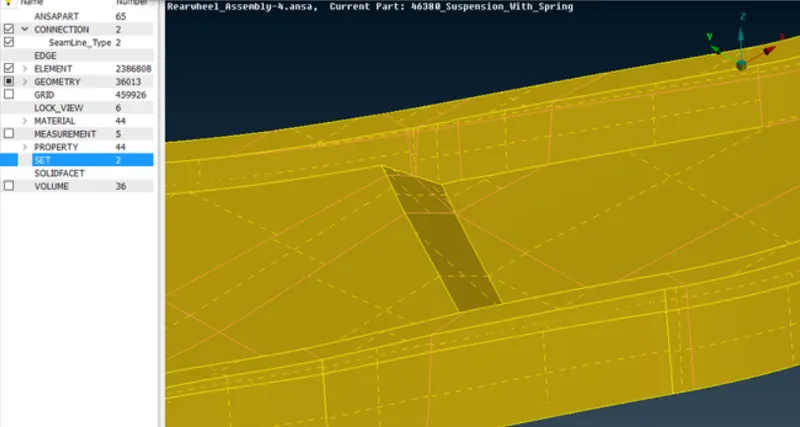
Then we are doing topological clean up using CUT option and creating new faces by suding NEW option in FACE command in TOPO module on the model
Then we are creating the MID surface using OFFSET option in FACES which is in TOPO module
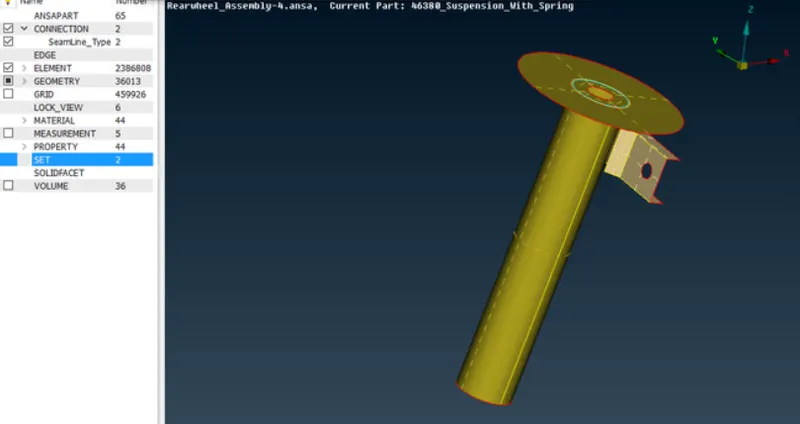
Then we need to set the Quality criteria Mesh parameters for 3 different parts .After setting those parameters and mid surfacing we need to apply the quality given to the tyre and rim then by using spot mesh the tyre and rim. select the mesh type as TRIA.
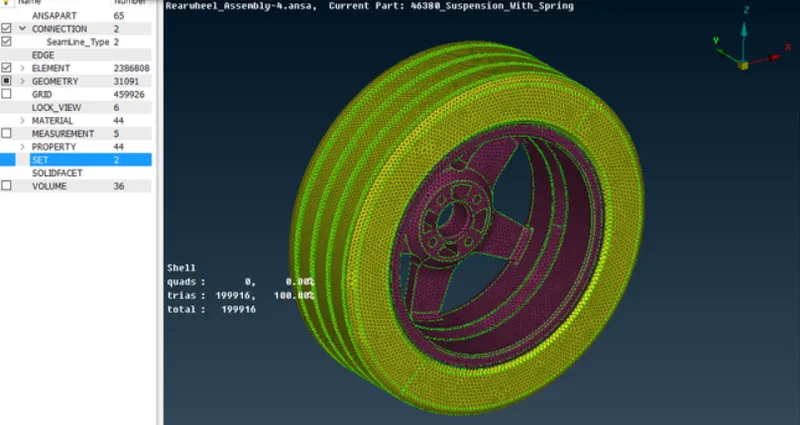
We use RECONSTRUCT option in SHELL MESHING which in MESH MODULE to improve the mesh quality and get rid of OFF ELEMENTS.
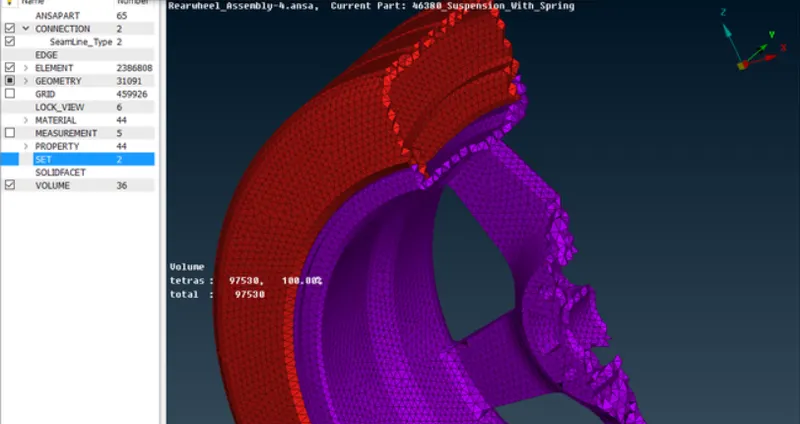
Afteer completenig the meshing we need to go to VOLUME MESH module.Then we need to define the volume by using DEFINE option. after this we need to use TETRA ELEMENTS in UNSTRUCTURED MESH which is in volume mesh module mesh the define parts.
Then we are repeating the same process for the Non uniform thickness components other than tyre and rim by applying the given quality
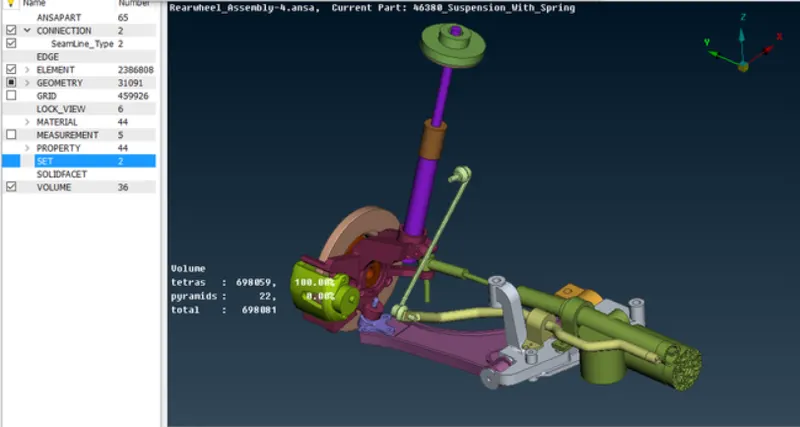
For uniform thickness part which has thickness less than 5mm we have to first obtain the mid , then set the parameters and then set element type to mixed in mesh paramerters .Then spot mesh the part and imporove by reconstruct
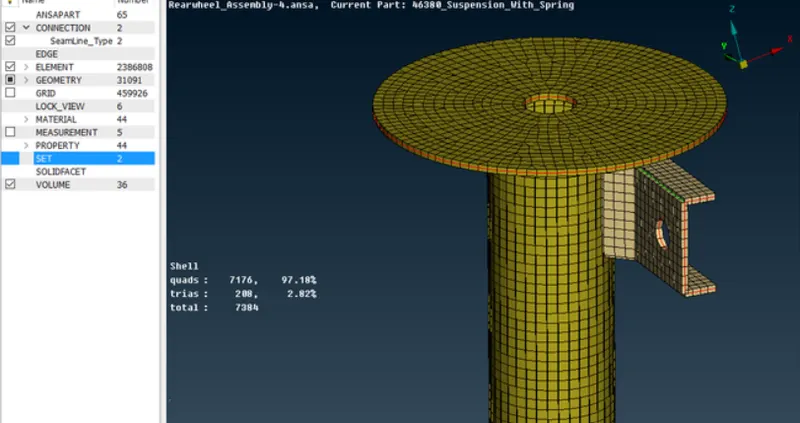
After meshing we are connecting the parts by using CONNECTIONS by NASTRAN in DECK MODULE.
most of connection are RBE2 connections .For making the connection we need to select the nodes and those nodes can be selected by using NODES or ENT option in FEATURE SELECTION option
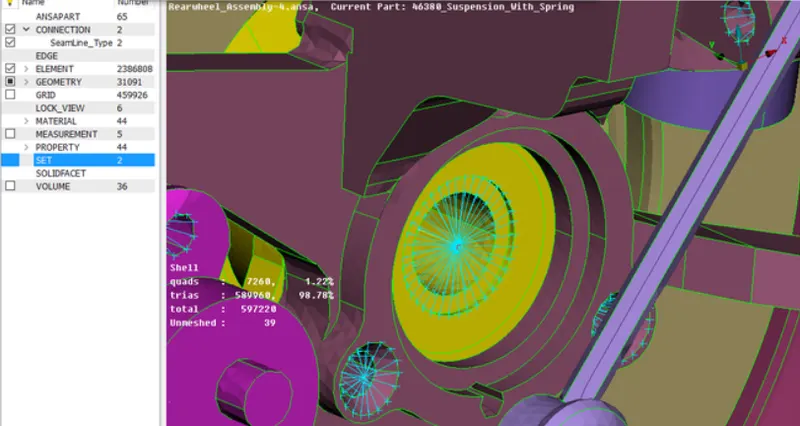
Then we are performing the seam weld connections we have to first create a CURVE using CONS by the help of CONStoCURVE option in CURVES which is in TOPO module.
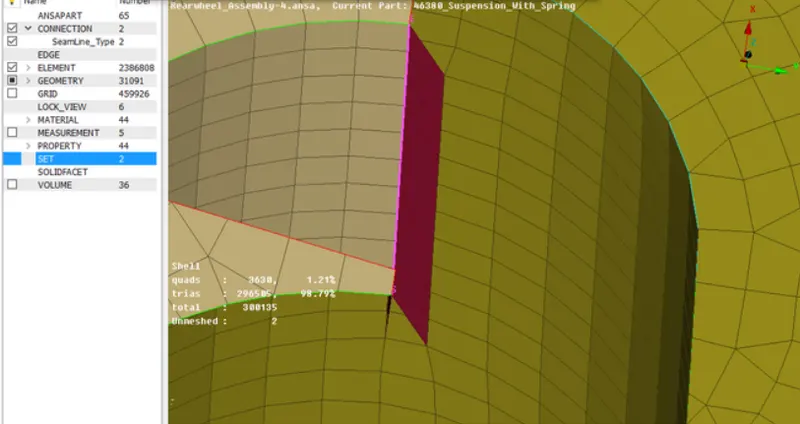
Then the curve need to be SEAM LINE .After SEAM LINE is created we have to go to ASSEMBLY > CONNECTIONS
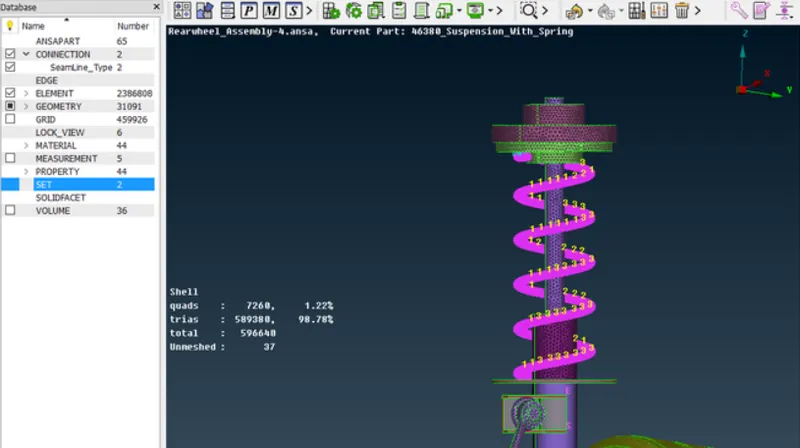
Then in spring PBAR connection need to be created .for that we first we create a curve by CURVE MIDDLE option and it by using CONNECT option. After the curve is created we have to create CBAR CONNECTION by using CBAR option in ELEMENTS
Then we need to perform the SYMMETRY for that we need to go to UTILITIES>TRANSFORM>COPY>SYMMETRY and then press finished to get the reflection of the reflection of the model other side.
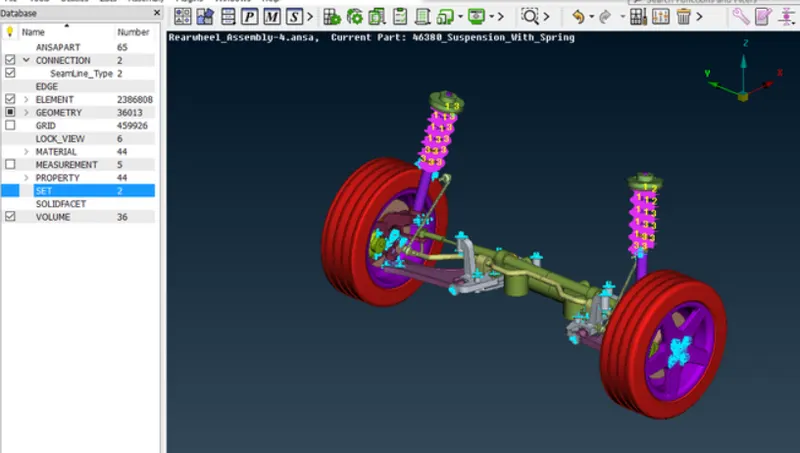
THE LINK FOR THE MODEL IS:
https://drive.google.com/file/d/11csSlBGejz42_dZ460LQsLe97BcV7L30/view?usp=sharing