Project 2
1.& 3
Develop the project schedule as per the criteria above
A 100 m WBM road needs to be constructed inside the Skill Lync Education center premises to allow access to the centre for students and faculties.
Create the following Project (under same EPS/OBS as project-1) and Resource :
Project Name - Education Centre Road
Assume - Calendar as 6 x 24 and start date on 22nd feb 2021
Step 1: Creating the project
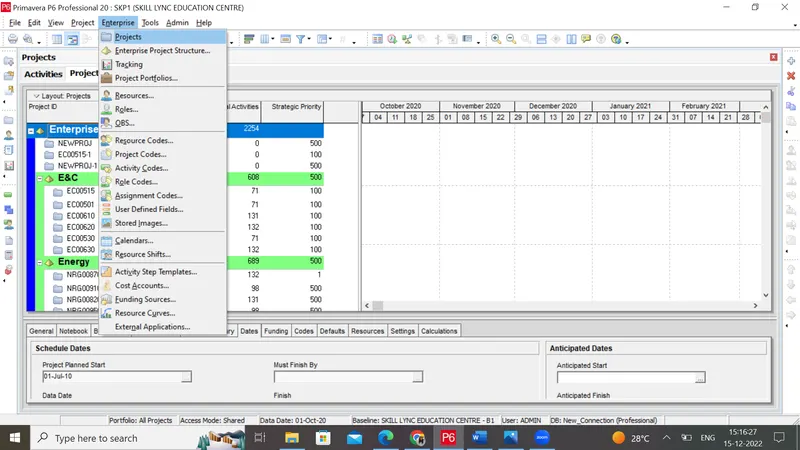
1)Go to the Enterprise menu and click on projects
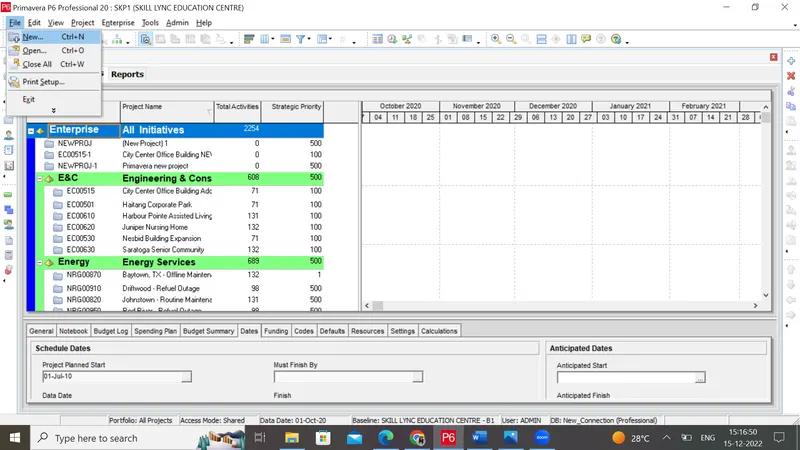
2)Go to the file menu and click on new
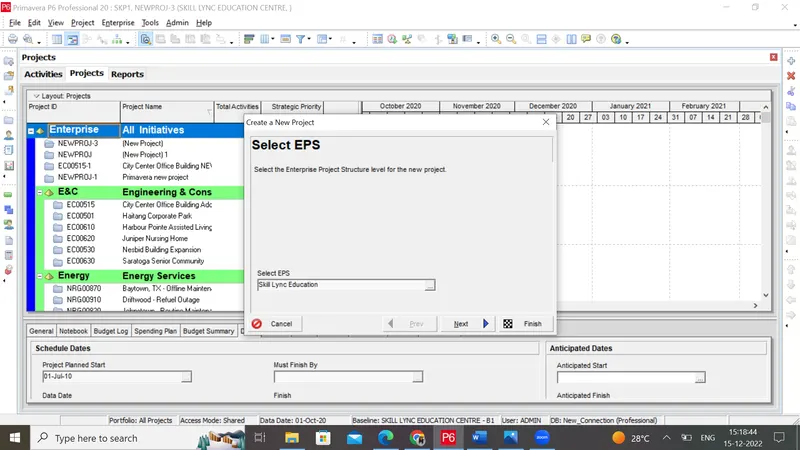
3)Choose the EPS node under which you need to create the project.(Same as that of project 1)
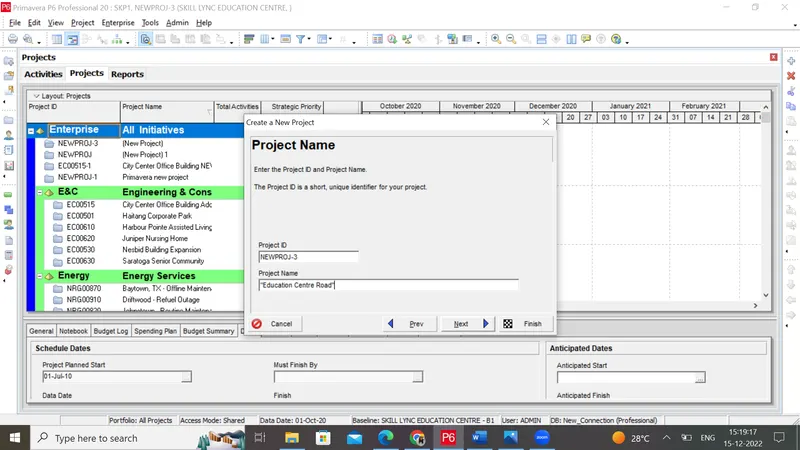
4) Give the project name as "Education Centre Road"
5)Give the project start date as "22nd feb 2021"
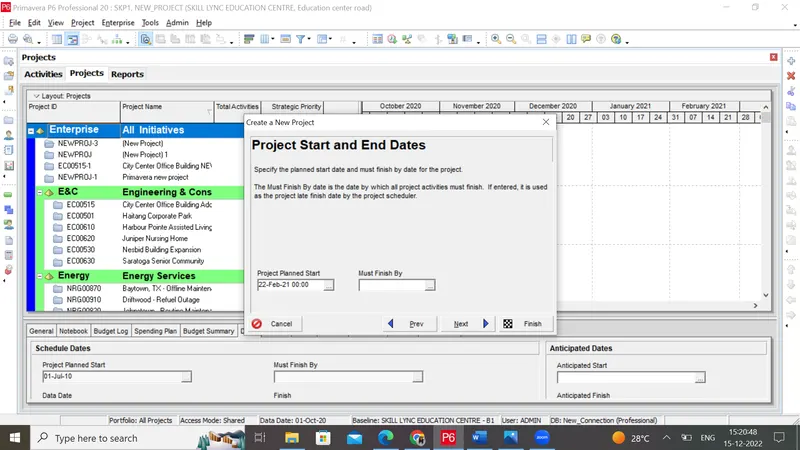
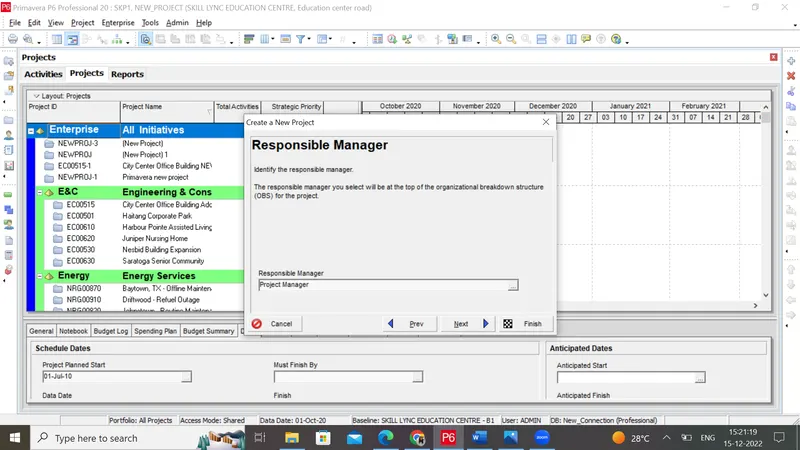
7)Finally the project has been created. (Congratulations note will appear)
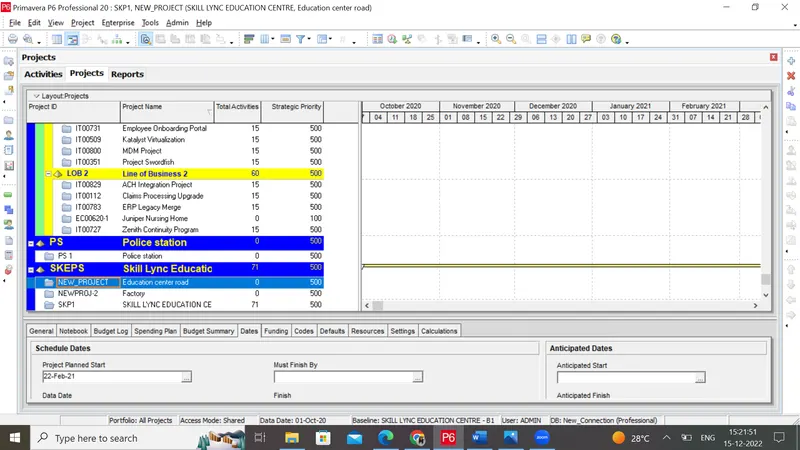
Step 2: Assigning the calendar
1)Go to the Enterprise menu and click on projects
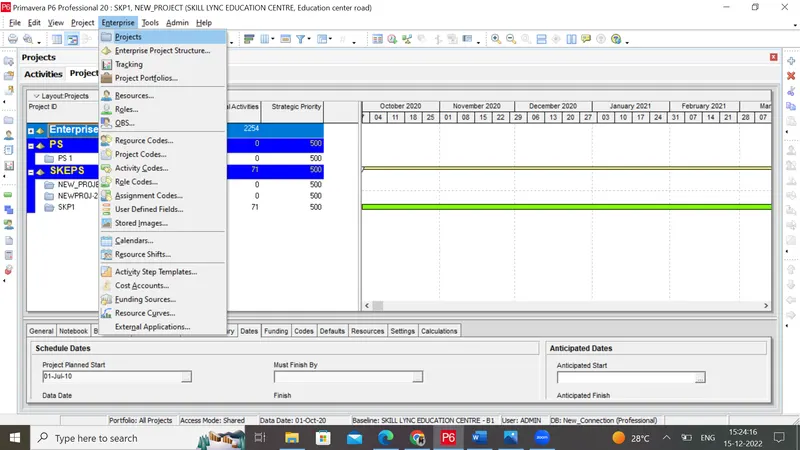
2)Go to the Default tab and select the 6x24 Calendar you have prepared for project 1
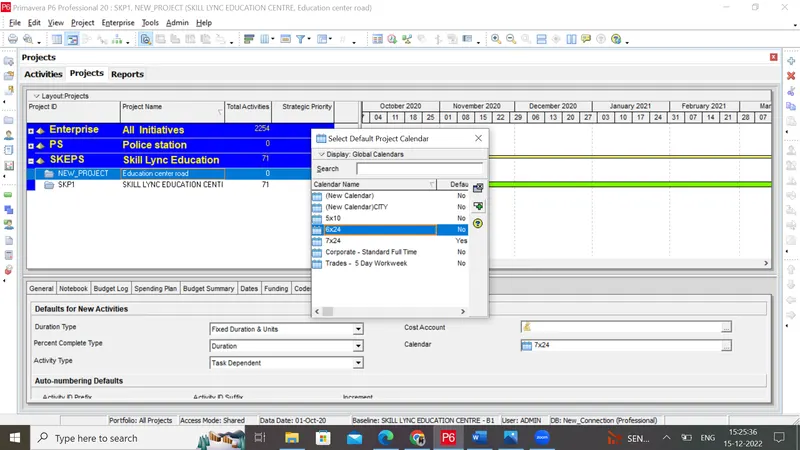
3)Calendar has been assigned successfully.
Step 3: Give the activity, duration, and predecessors as per the question
1) Go to the project table. Open the "Education center Road" project.
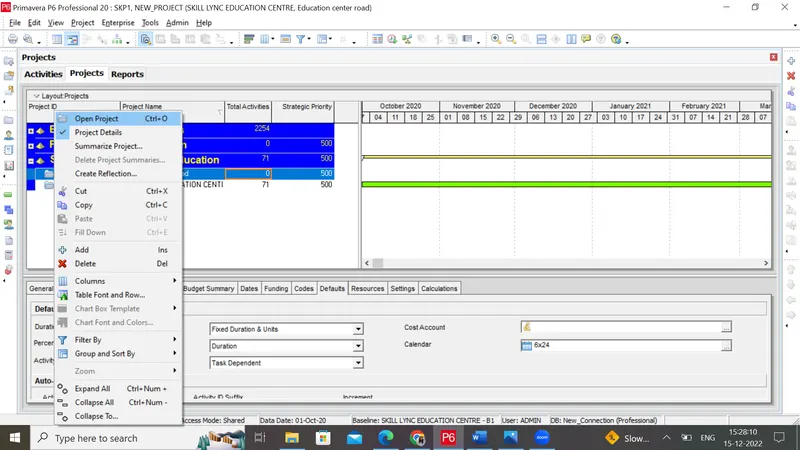
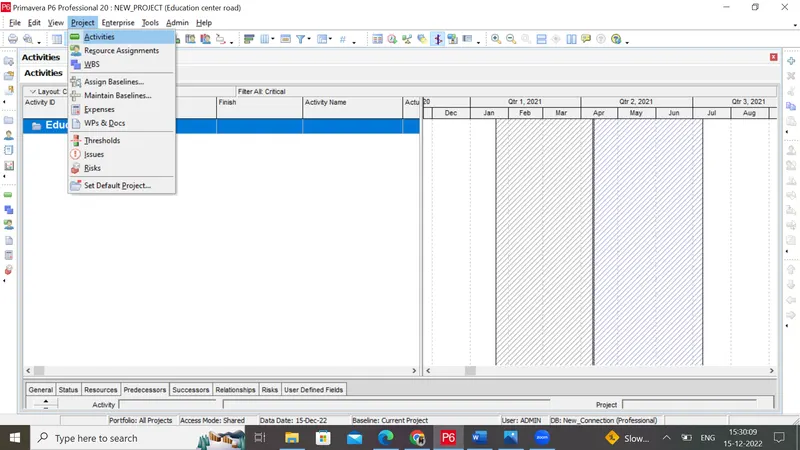
2) Go to Project Menu and select Activities
3) Give the activities as per the question, Duration, and predecessors as per the question
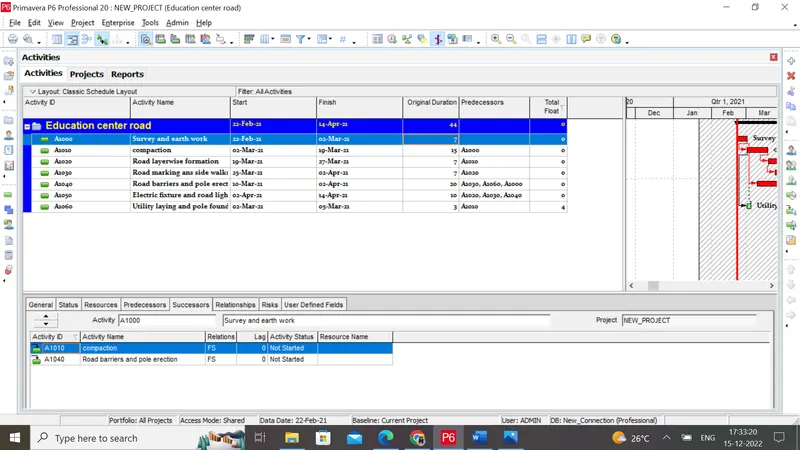
Step 4: Defining the resources
1) Go to the Enterprise menu and select the Resources option.
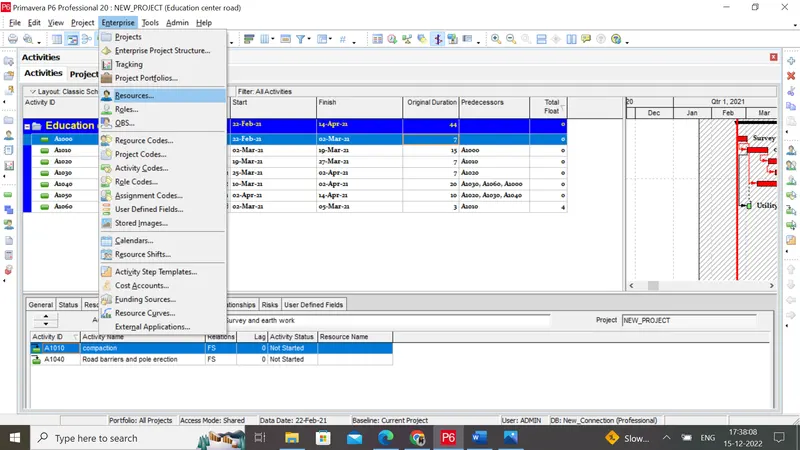
2) Click on add button "+"
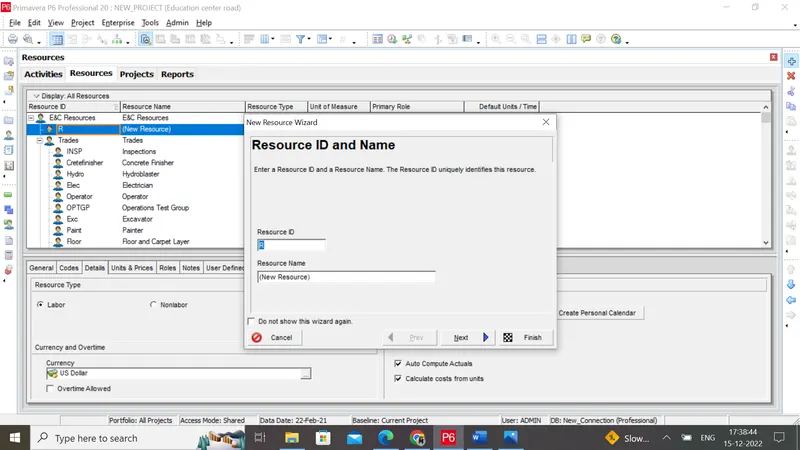
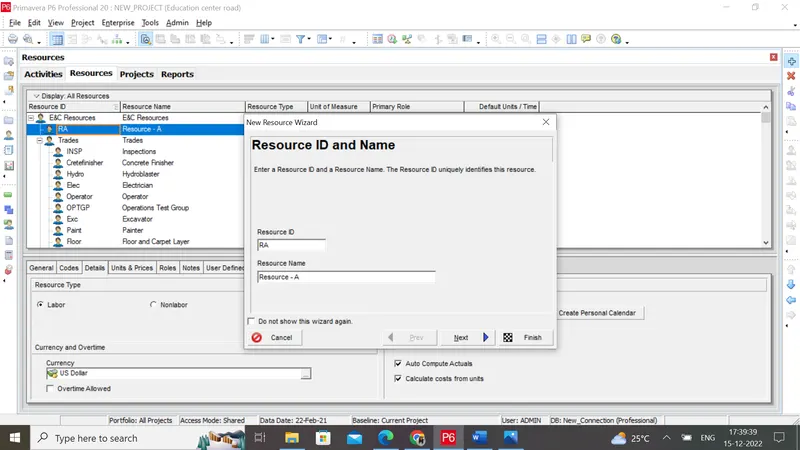
4) Give the resource type as Labour
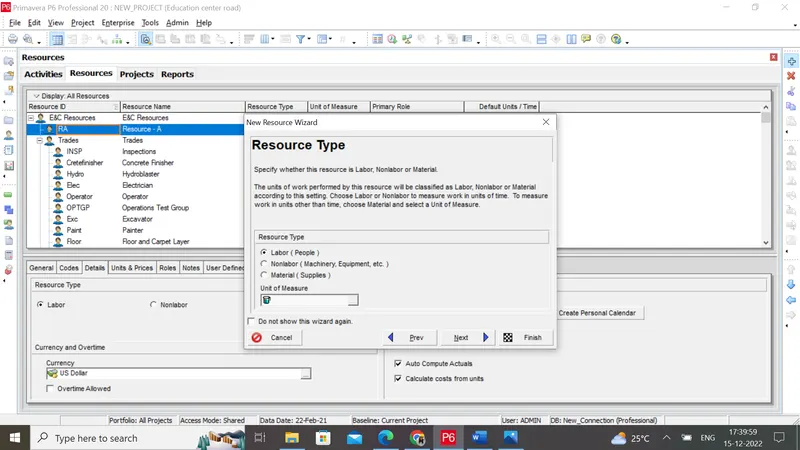
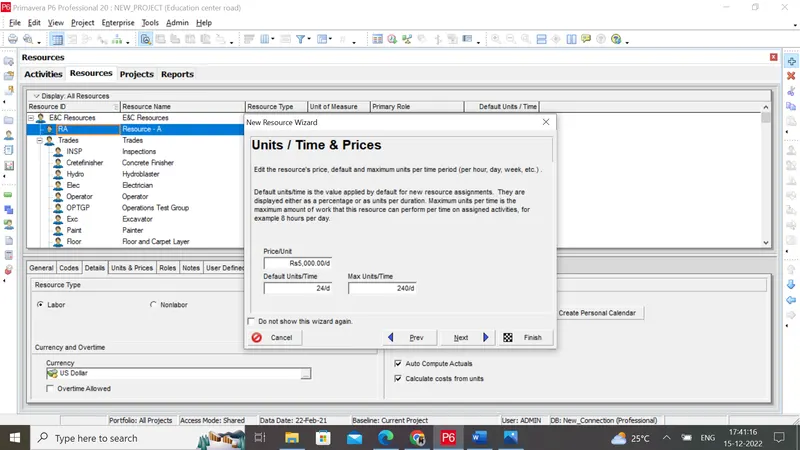
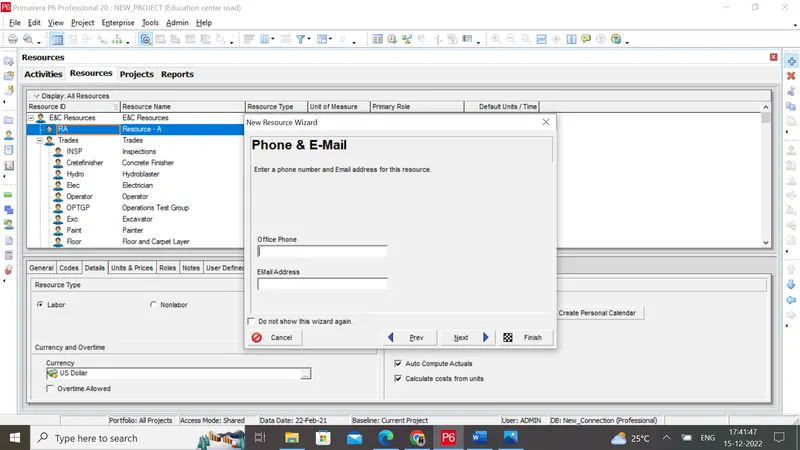
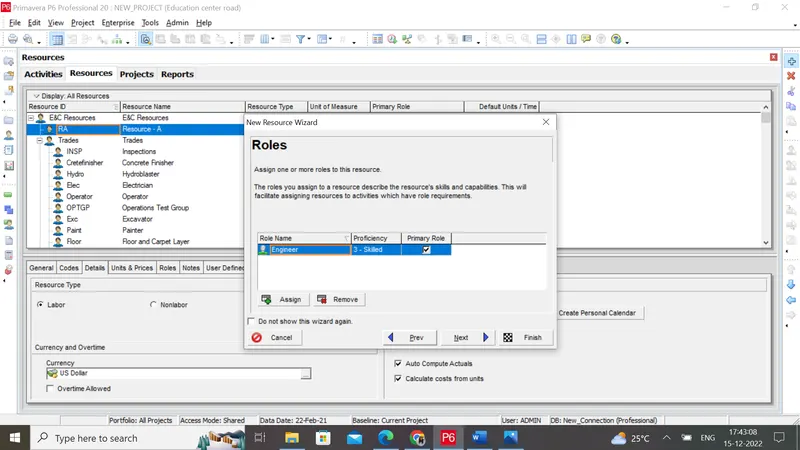
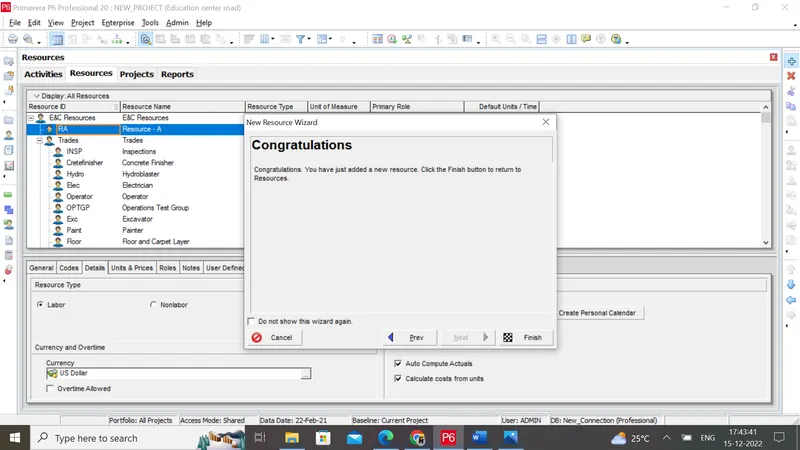
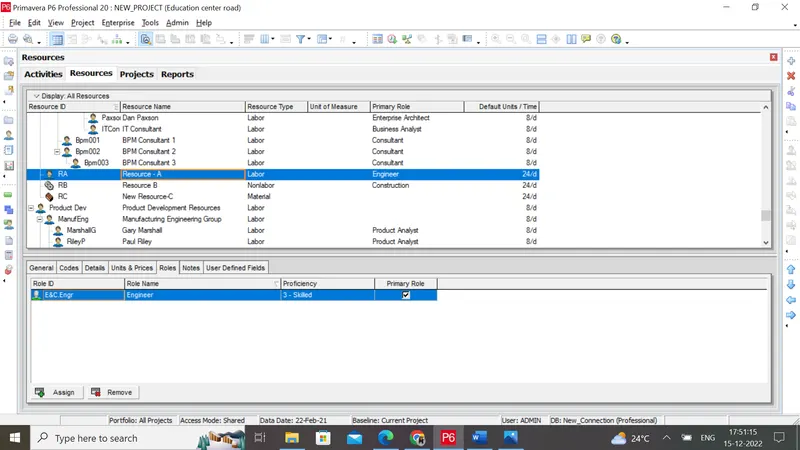
Resources have been defined successfully.
Step 4: Assigning the resources
1)Go to the activity table
2)Select the activity and go to the resources tab -->Add resource
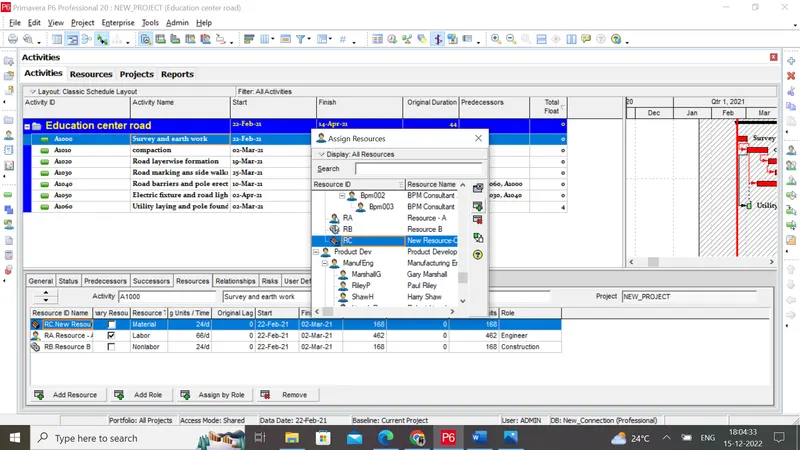
3)Allocate the resource for all activities.
Q2)
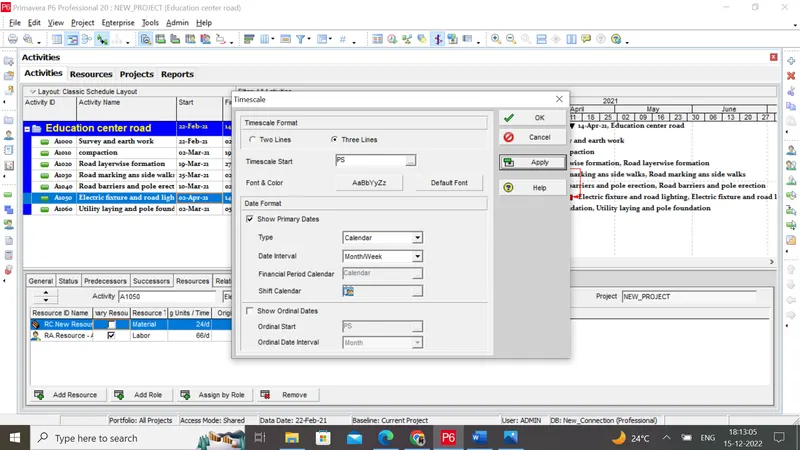
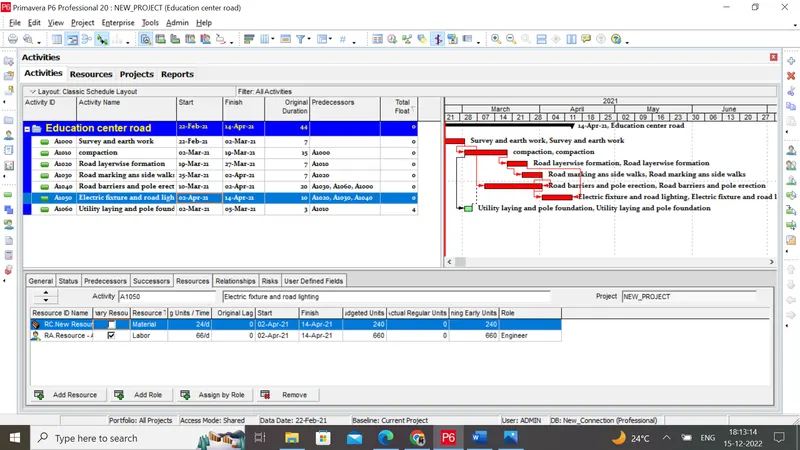
Step 5: 3-Tier timescale with Year / Month / Weeks
1) Right-click the Gantt chart and choose the timescale
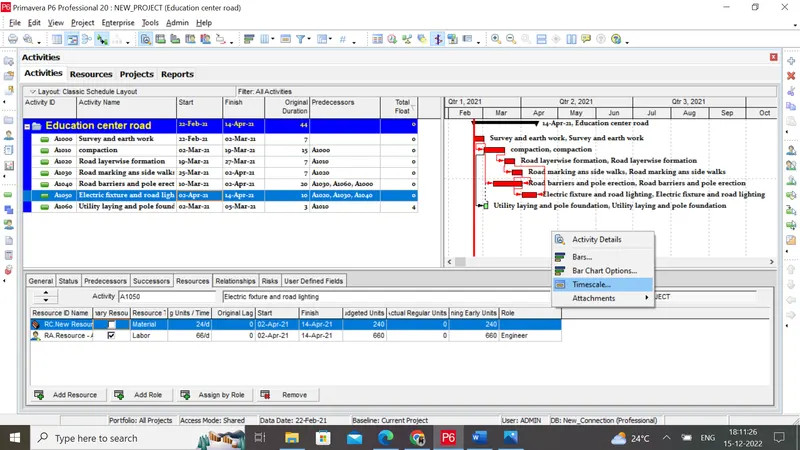
2) Select 3 line option
3) Choose the month/week option
4) Click apply
Q4)
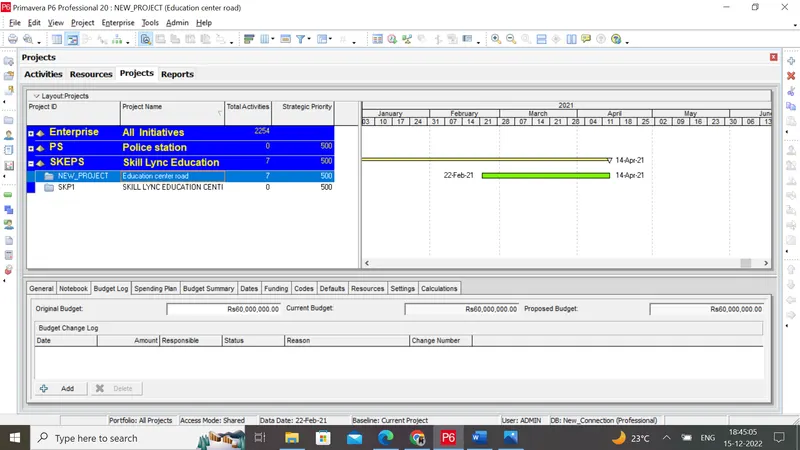
Step 6: Add a budget to your project - INR 6 cr.
1) Open the report page and click the education center road report
2) Go to the budget log on the bottom tool
3) Edit the original budget as 6 Cr.
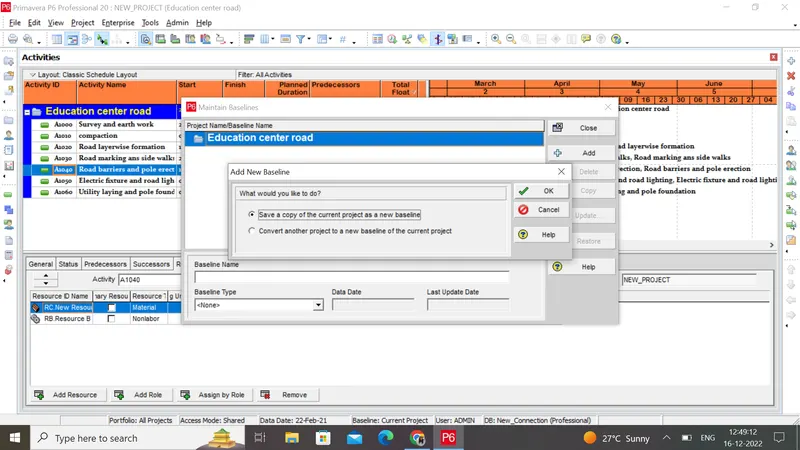
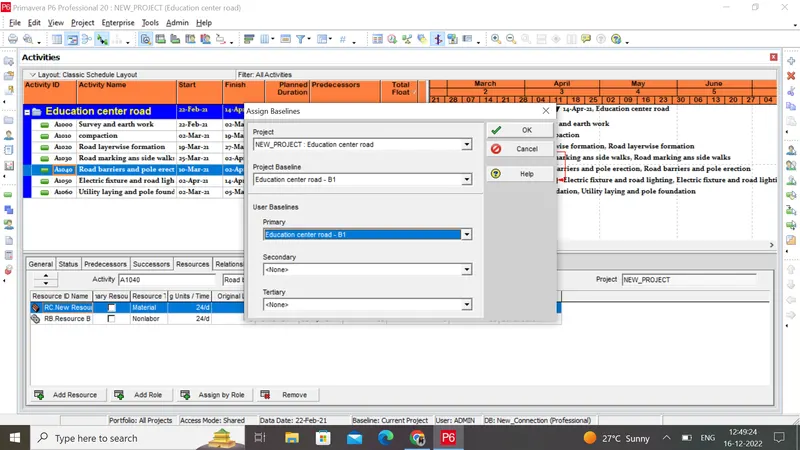
5. Assign a baseline to the project
Go to project-maintain baseline
Again go to project -assign baseline
Q6)
Step 8:
Add the following expense:
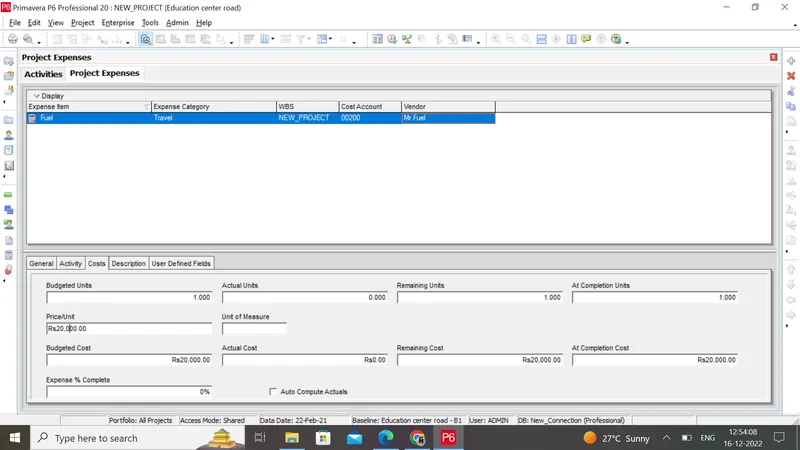
Task - 1 - Rs 20,000/- (Item - Fuel)
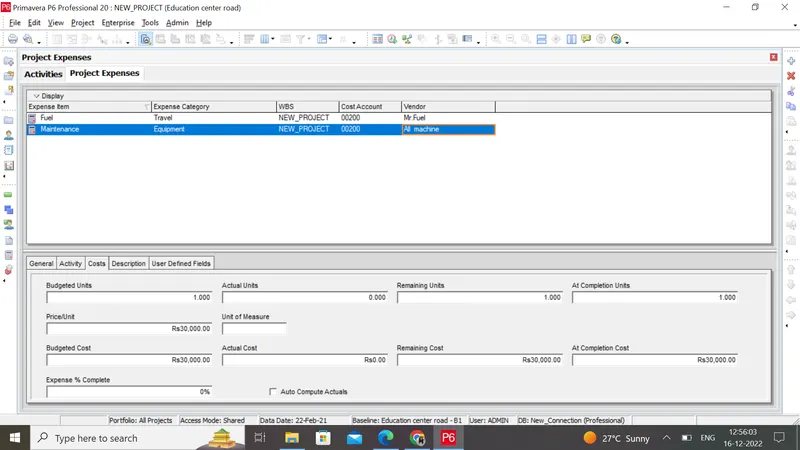
Task - 2 - Rs 30,000 /- (Item - Maintenance)
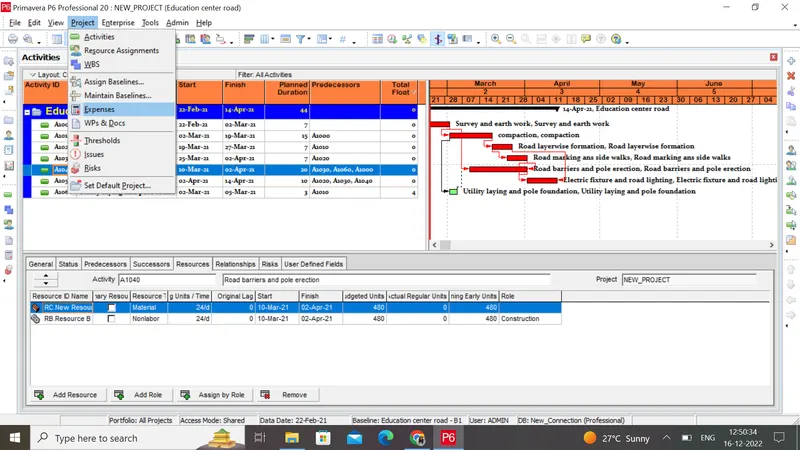
1) Go to the Project tab and choose the expense option
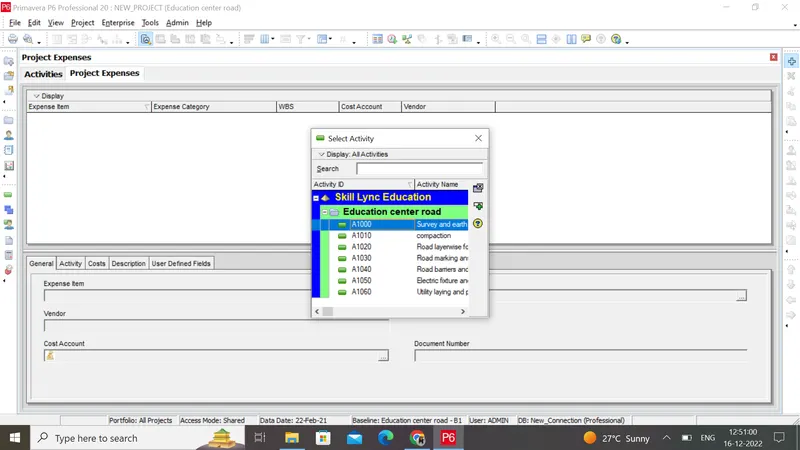
3) choose the activities
4) Edit the expense name, cost and its vendor name
5) Input the expense cost at the bottom of the screen
Q7)
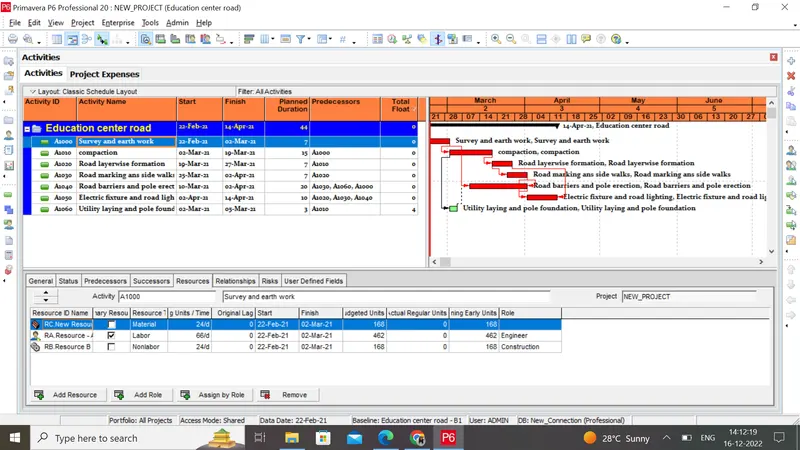
Step 9:Generate material resource costs curve
1) Click the activity which belongs to the material resource
2) Select the resource tab below the control bar
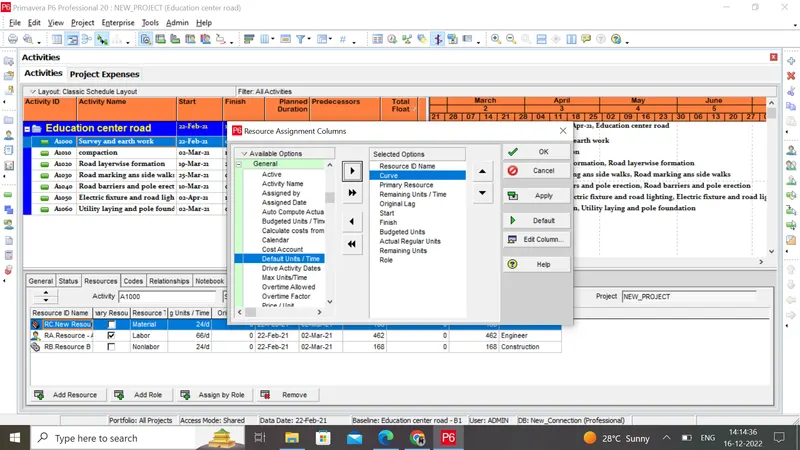
3)Click the resource tab and select customize option
4) Choose the curve from the general option
5)choose the curve option from the curve
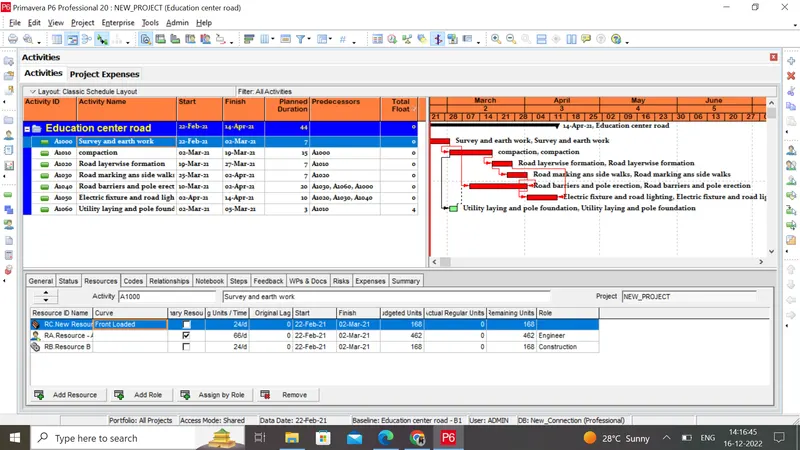
6) Click ok
Q8)
Step 10: Generate an activity-wise cost report
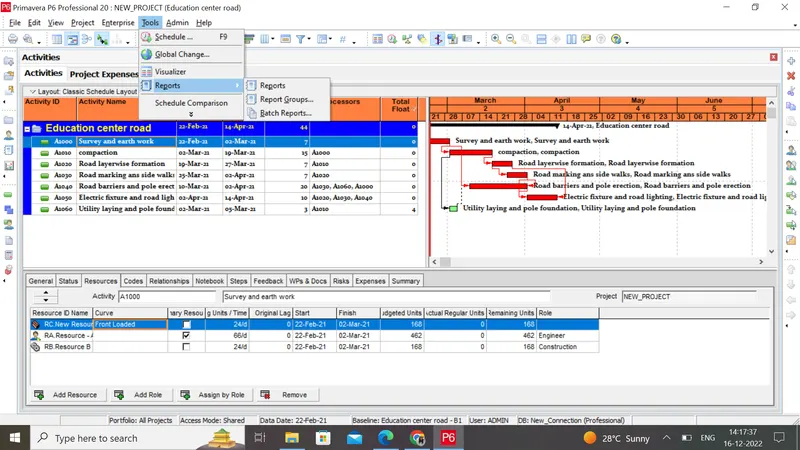
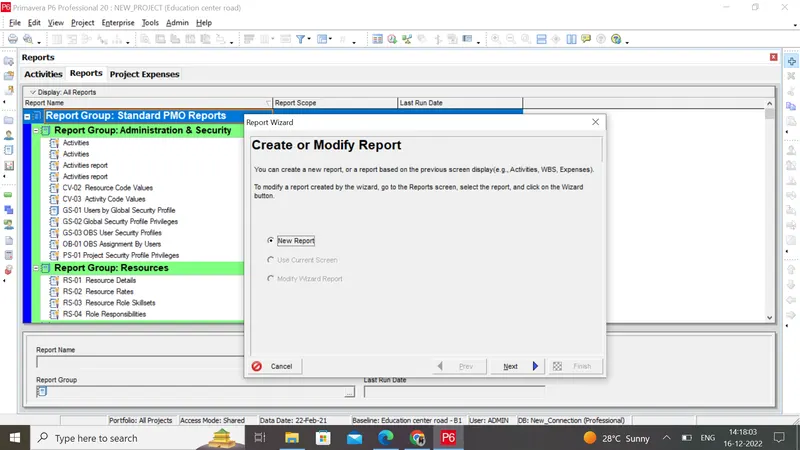
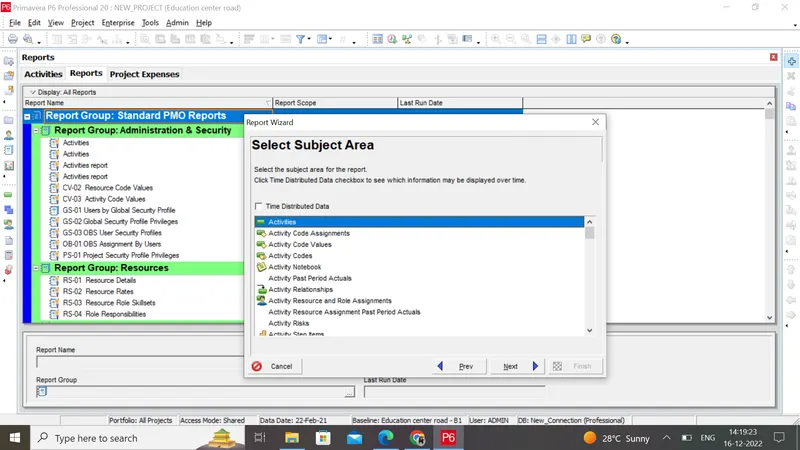
5) Click next
6)click group and sort option , columns
7) Choose the costs and activity-related options
8) Click ok
9)Rename the report title as Activity cost
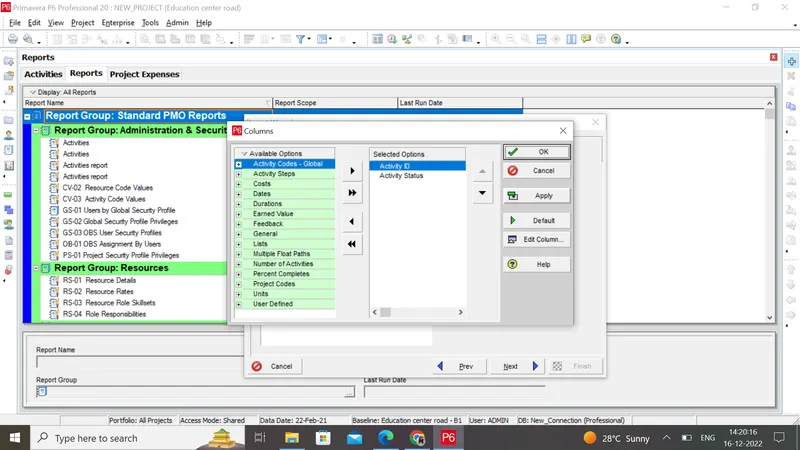
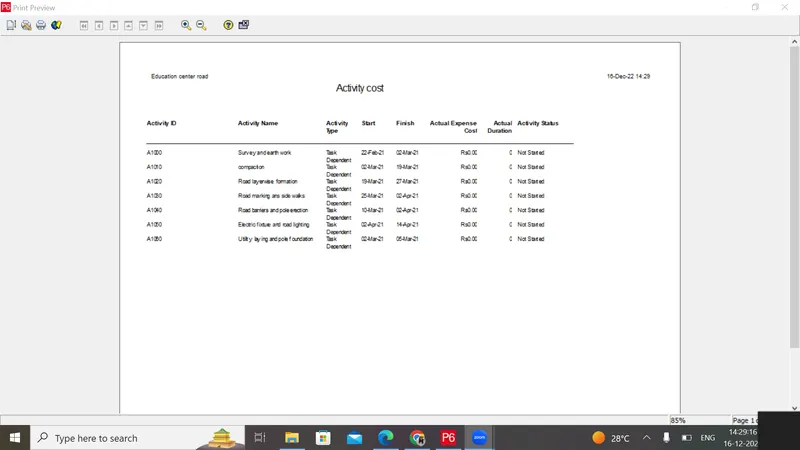
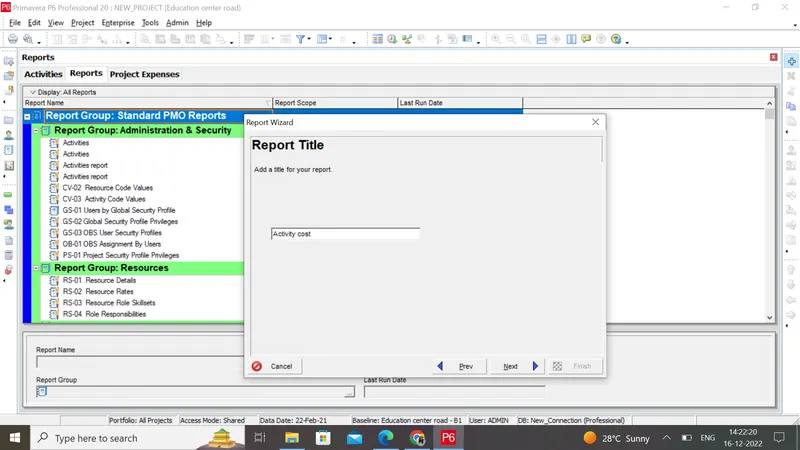
10) Click ok
Therefore activity wise cost report has been generatedÂ
Q9)
Step 11: Create Reflection
1) Click project on left side of the screen
2) Select the project of education centre road
3) Right-click and choose create reflection option
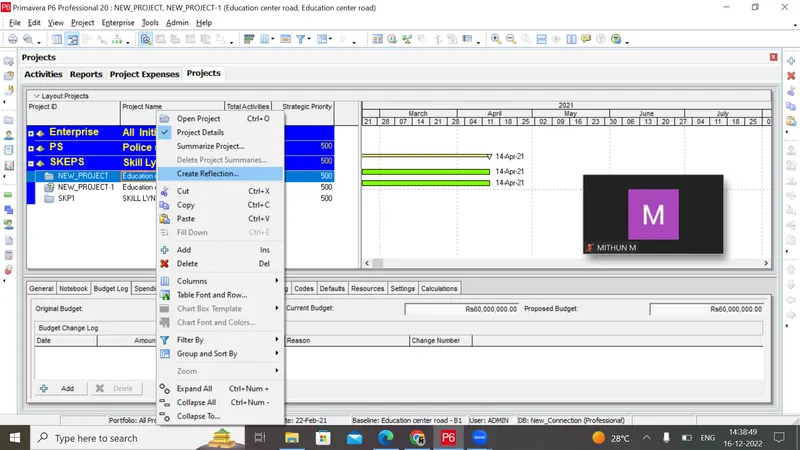
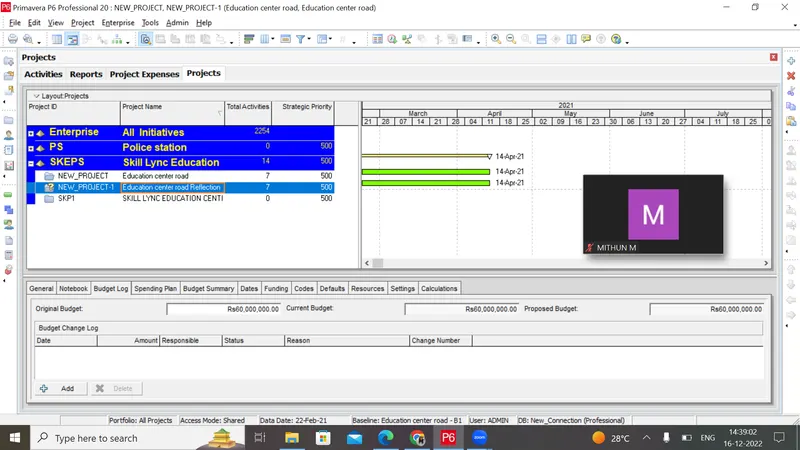
Therefore reflection of the project has been created successfully
 Q10)
Step 12 : In the reflected project, auto-update the project 15 days from the start
1) Right-click the reflected project
2) Choose the open project option
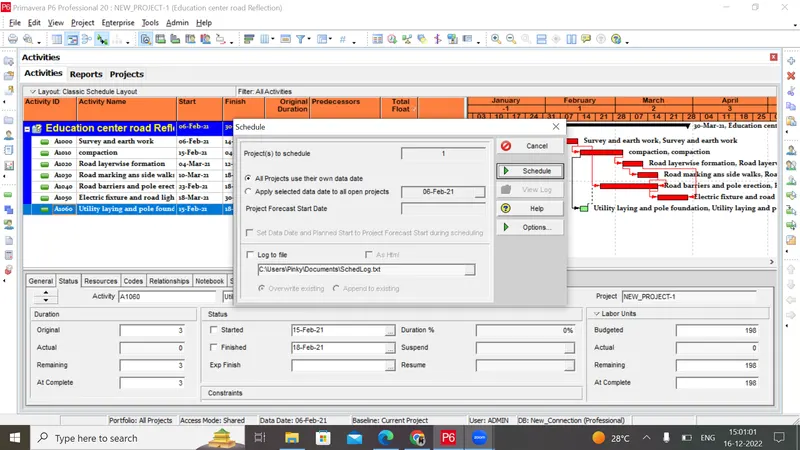
The schedule has been updated 15 days prior.
Q11)
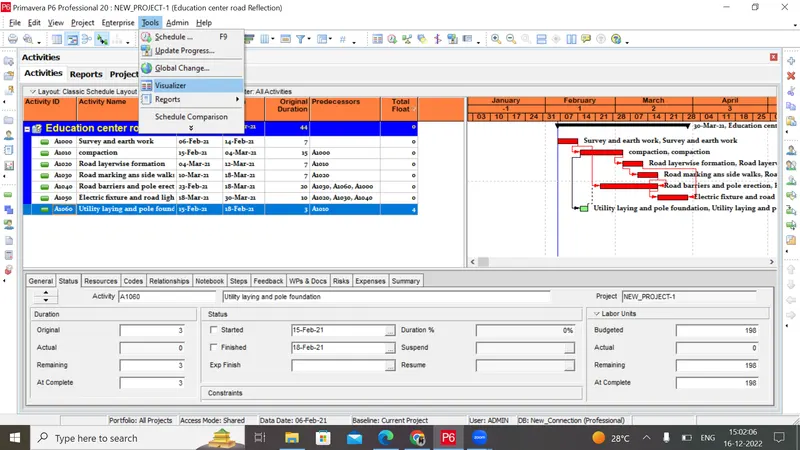
Step 13: Open a TSLD view of the project in Visualizer
1) Go to the tools tab and select the visualizer option
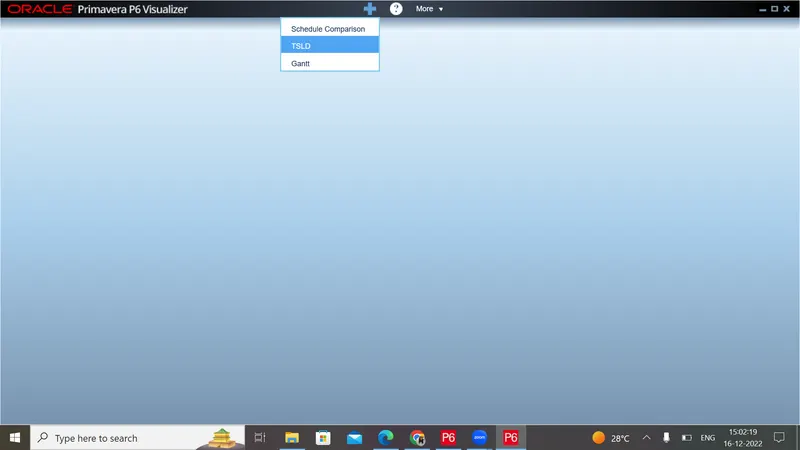
2) Choose TSLD option
3) Choose the education centre road projec
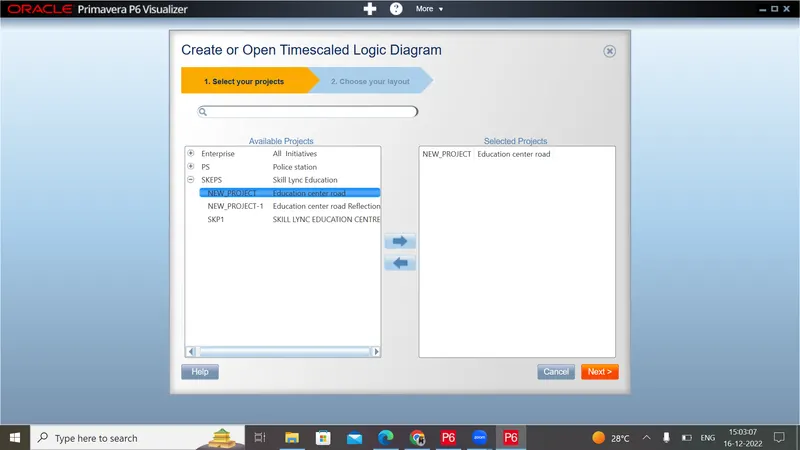
4) Click next
5) Rename the tsld & Choose TSLD type
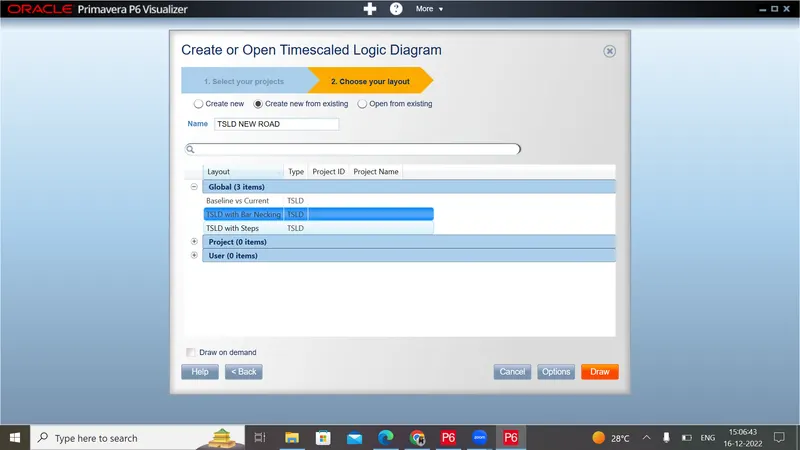
3) Click the draw
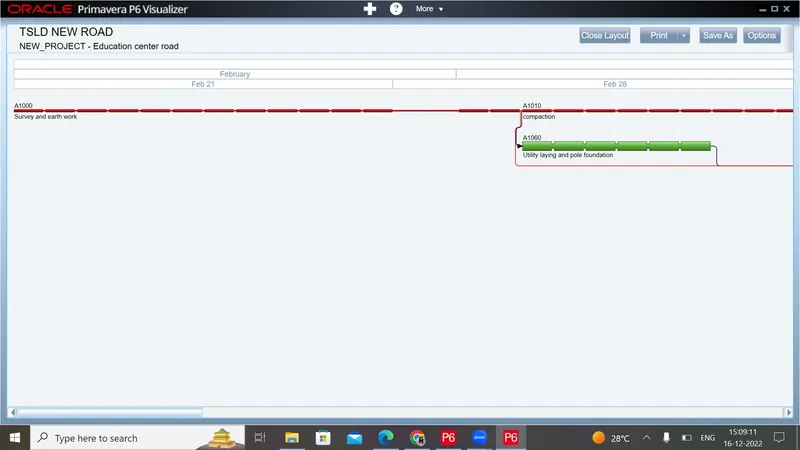
Therefore the project has been created in P6 Visualization(TSLD View)
Q12)
 Step 14:Add curtains up to first 15 days of the project.
1) Go to the View tab and choose attachment option
2) Select curtain and choose add curtain
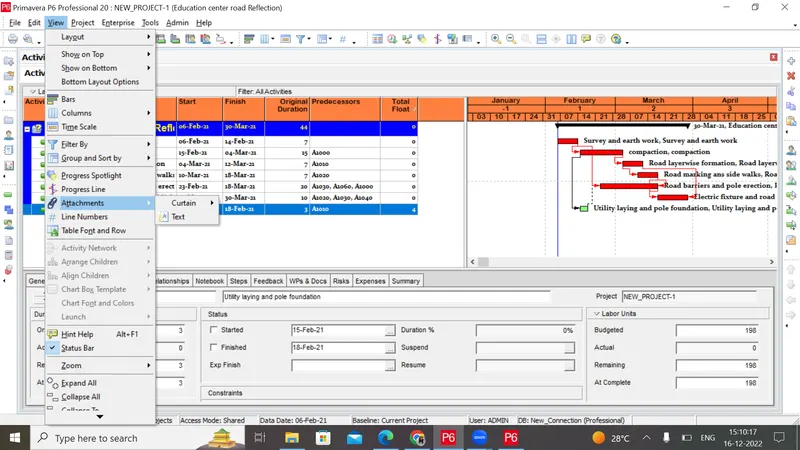
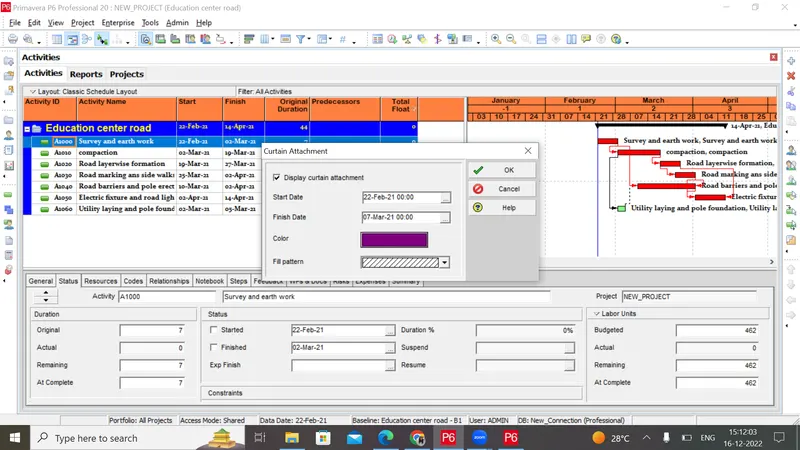
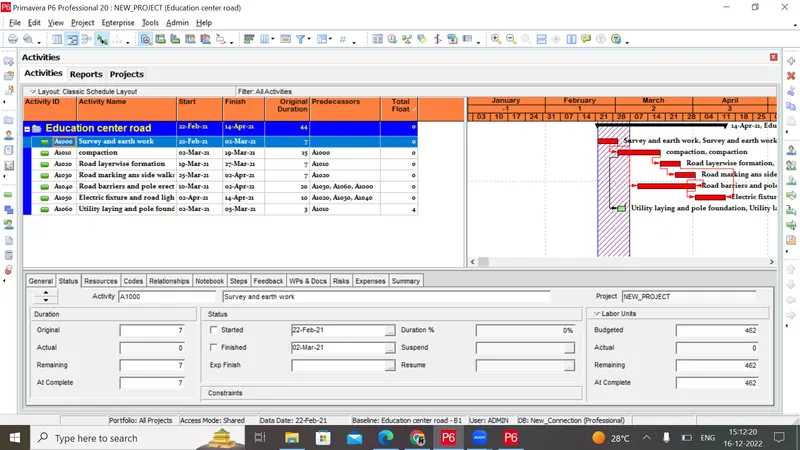
Therefore the curtain has been added successfully
Q13)
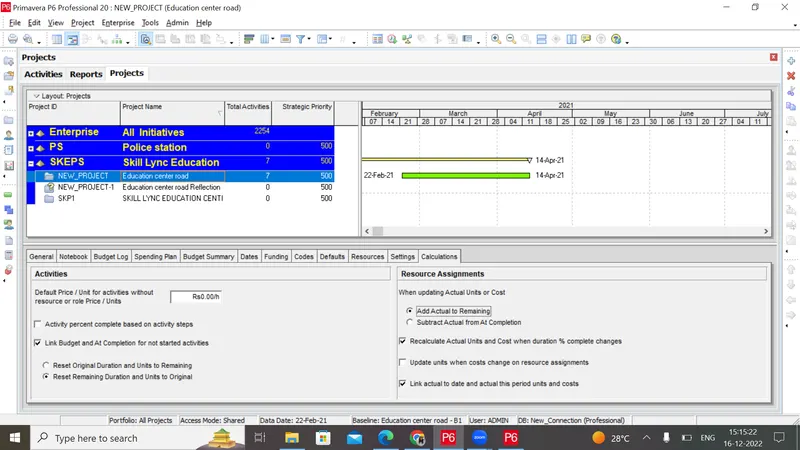
Step 15: Find out the actual cost for labour, non-labour and material cost of the updated schedule
1) Go to the project page and click the calculation tab
2) Select add actual option
3) Click any one of the activities and choose the resource option in detailed tab at bottom of the project
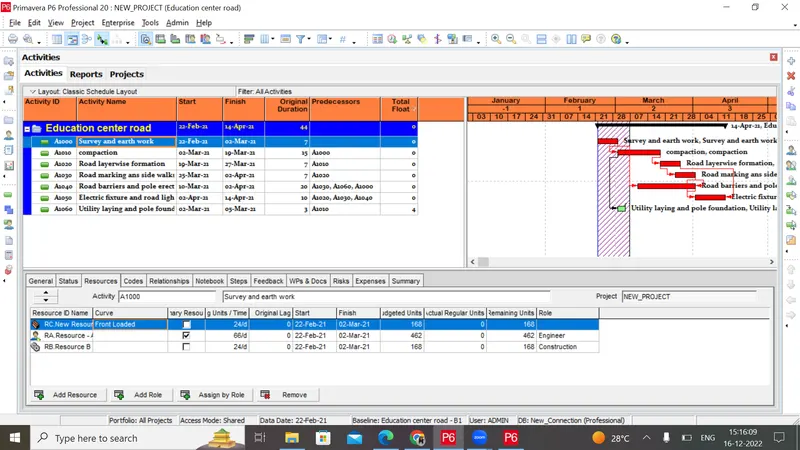
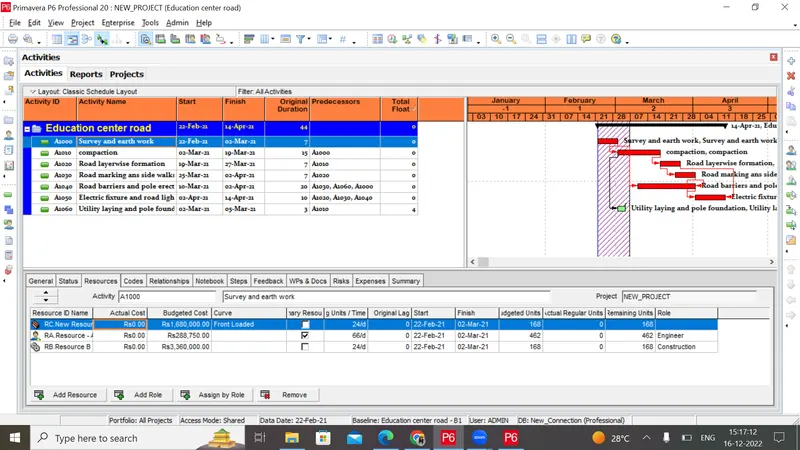
Therefore we can find the actual and budgeted costs for each resource