Project 1 (Mini Project on Vehicle Direction Detection
"Project 1 (Mini Project on Vehicle Direction Detection"
Aim:
To identify the direction of the vehicle in Autonomous driving & Advanced Driver Assistance Features and develop the Simulink Model as per the requirement.
General Overview:
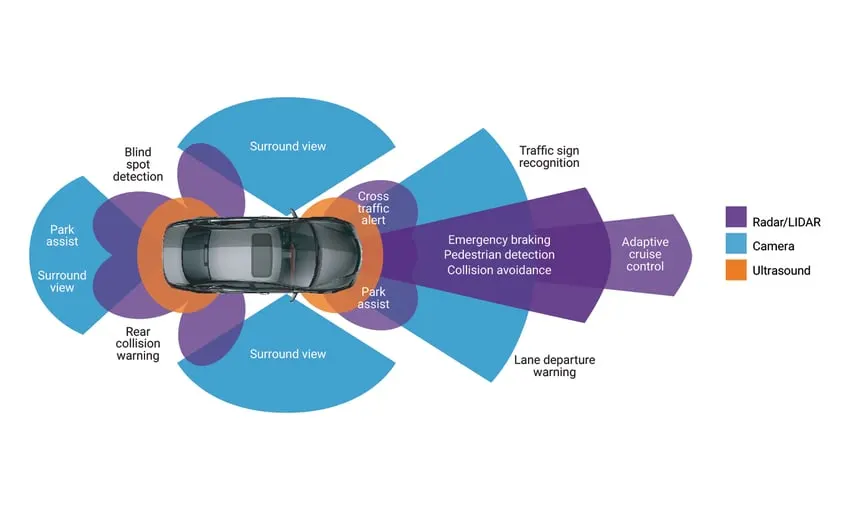
Identifying the direction of the vehicle is one of the important & diverse features in Autonomous driving & Advanced Driver Assistance Features. This particular sub-feature of identifying the direction of vehicle is basically identifying the direction the vehicle is taking based on the camera input.
Camera reads the road signs & stores into its memory with unique values for left turn, right turn & straight drive. Depending on the direction it is taking, final indication is given to the driver – as an indication if he is driving in the recommended direction or not.
Vehicle Direction Determination can also be coupled along - side features like GPS systems to identify whether the vehicle is reaching its destination in an optimized manner. This sub feature can also be used along with Lane Detection, Highway Warning, Ramp Entry / Exit in Wrong Way Detection etc.
Objective:
- Development of MATLAB Simulink model as per requirement.
- Tag the requirements to the simulink model; tagging requirement 1 & requirement 2 to their corresponding subsystems is fine.
- MBD compliant changes, Data Dictionary creation & code generation is added advantage, and that is not scope of this project.
- If choosing code generation, Storage class for Input signals: ImportedExtern; Storage class for Output signal: Export to File; Storage class for local signals: localizable; Storage class for calibration signals: Const.
- Choose sample time for all signals as 0.01s.
Basic Procedure:
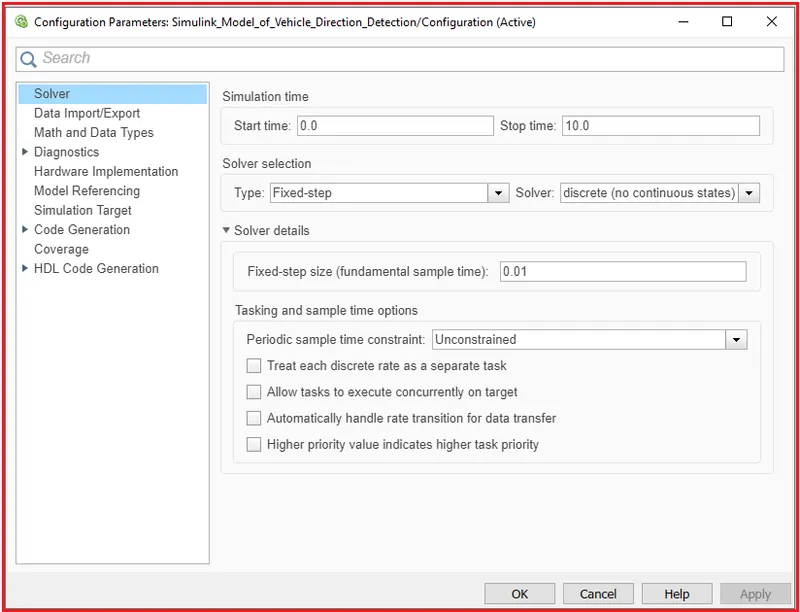
1). First step we have to go to the model setting option and then select the solver option and in that solver selection select the fixed type and solver as discrete and in solver details fixed-step size is set as 0.01.
Then select Apply --> save it.
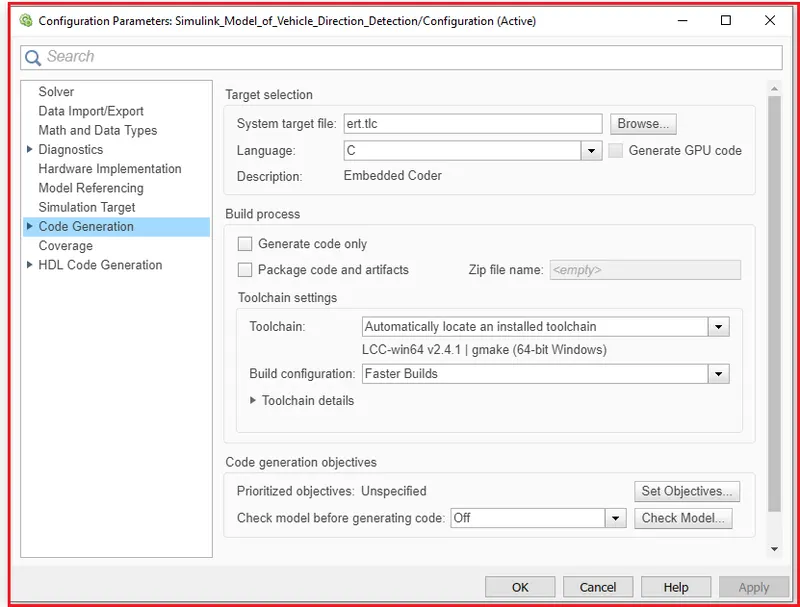
2). Next in the same configuration parameters for the Embedded code generation we have selected the system target file to browse ert.tlc.
Then select Apply --> OK.
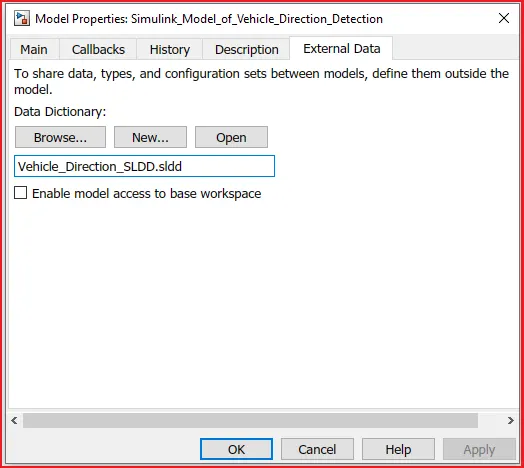
3). A Simulink Data Dictionary (SLDD) file is created that contains input, output signals, and calibration parameters used in the model. SLDD file is created by clicking on Modelling --> Model Properties --> External Data and then specifying a file name for the Data Dictionary.
4). Next, we have to go to the Model Explorer and click Vehicle_Direction_SLDD under that there is an option called Design data. Now we can enter the data into the SLDD file according to our requirements.
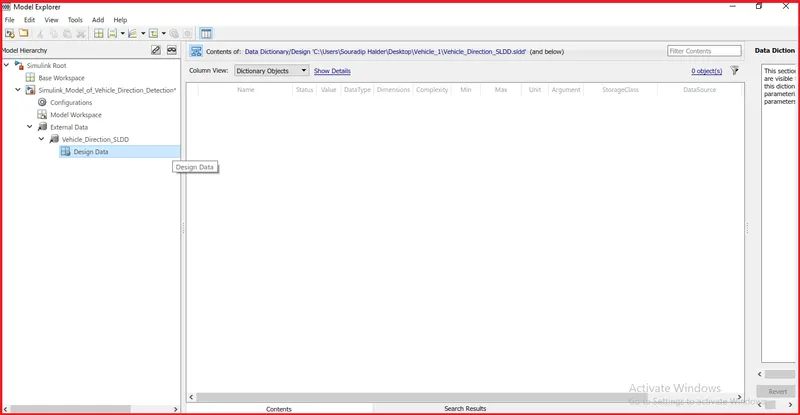
5). There are 2 input signals, 1 local signal, 1 output signal, and 6 calibration signals. There is a total of 10 signals.
For Input signals, we have given the storage class as Imported Extern, for local signals we have given the storage class as Localizable, and for output signals we have chosen the storage class as Export to File.
Signals & Calibration Data List:
|
Signal / Calibration Name |
Signal Type |
Data Type |
Dimension |
Min |
Max |
Initial Value |
Units |
|
SteeringWheel_YawDegreeInput |
Input |
Int16 |
1 |
-180 |
180 |
- |
Deg |
|
CameraInput_RoadSign |
Input |
Boolean |
1 |
0 |
1 |
- |
- |
|
Vehicle_Turn_Status |
Local |
Int16 |
1 |
-180 |
180 |
- |
Deg |
|
Right_Turn_AngularLimit |
Calibration |
Int16 |
[1 1] |
-180 |
180 |
30 |
Deg |
|
Left_Turn_AngularLimit |
Calibration |
Int16 |
[1 1] |
-180 |
180 |
-120 |
Deg |
|
Straight_Drive_Steering_Angle |
Calibration |
Int16 |
[1 1] |
-180 |
180 |
0 |
Deg |
|
RightTurn_RoadSign |
Calibration |
Int16 |
[1 1] |
-180 |
180 |
30 |
|
|
LeftTurn_RoadSign |
Calibration |
Int16 |
[1 1] |
-180 |
180 |
-120 |
|
|
Straight_RoadSign |
Calibration |
Int16 |
[1 1] |
-180 |
180 |
0 |
|
|
Vehicle_Direction_Indicator |
Output |
Boolean |
1 |
0 |
1 |
- |
- |
6). Now, We can add the Simulink signals by selecting the Simulink Signal option.
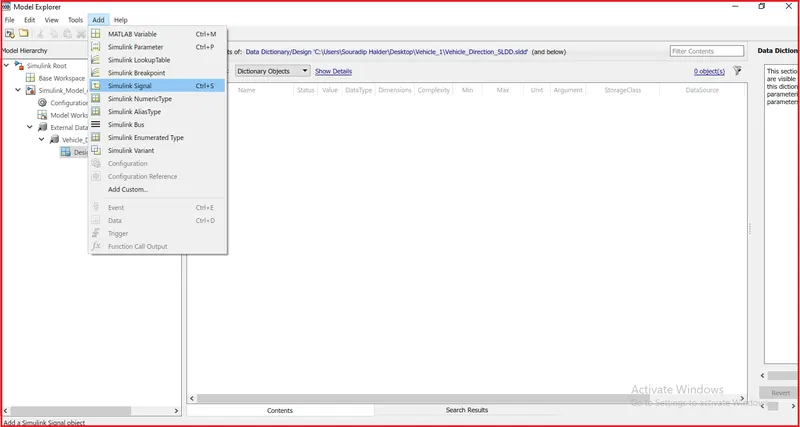
7). Here, we are using three types of signals in the model.
- Input Signal
- Output Signal
- Local Signal
For Input Signal we have set the storage class as an Imported Extern. For Output Signal, we have set the storage class as Export to File, and for local signals, we have given the storage class as Localizable. Local signals are signals that are neither inputs nor output signals.
Calibration Signals are from the constant blocks. For this, we have to select the Simulink Parameter option.
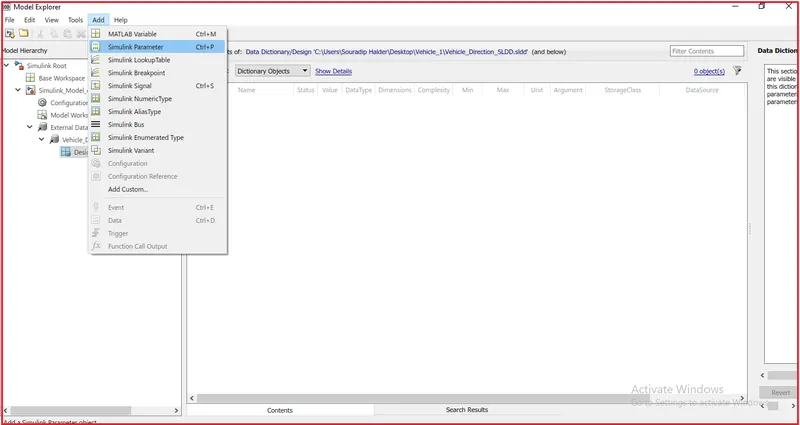
By adding the new signal to the design data, the input parameters look like this,
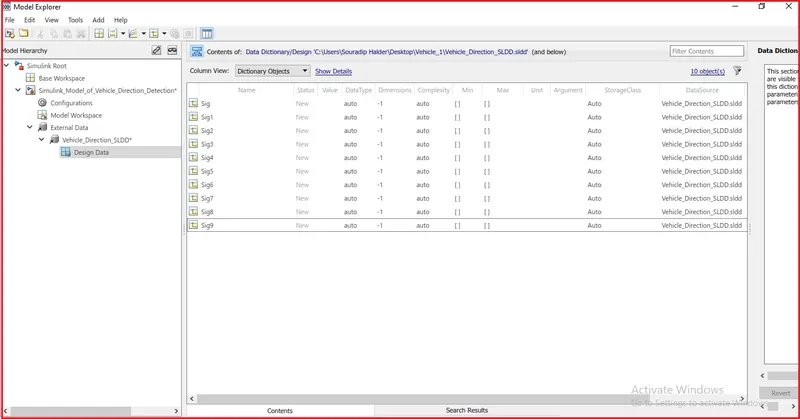
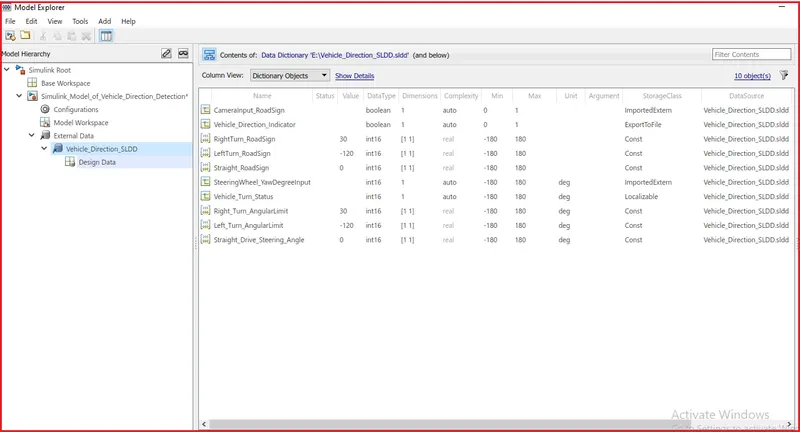
8). The Data Type, Dimension, Complexity, Value, Minimum and Maximum values, Unit, and Storage Cas are defined in the SLDD File. The use of the SLDD file is that when we define the signals in our model the characteristics and properties are assigned to these signals.
After creating the SLDD file the Data Dictionary looks like this,
9). Development of Simulink Model:
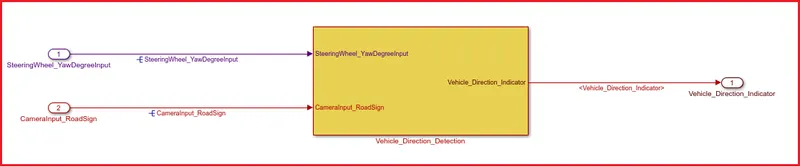
The main subsystem 'Vehicle_Direction_Detection' along with inputs 'SteeringWheel_YawDegreeInput', 'CameraInput_RoadSign', and output signal 'Vehicle_Direction_Indicator' is shown below:
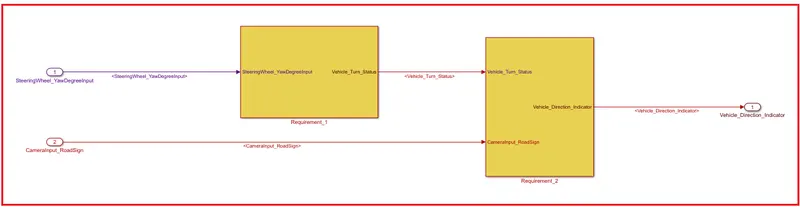
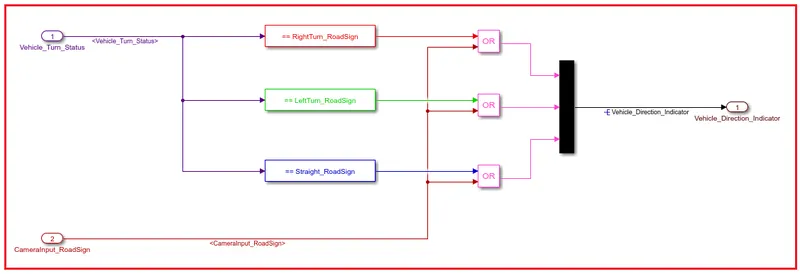
The main subsystem 'Vehicle_Direction_Detection' is further divided into two more subsystems which are 'Requirement_1' and 'Requirement_2' as shown beow:
10)Requirements:
Requirement - 1:
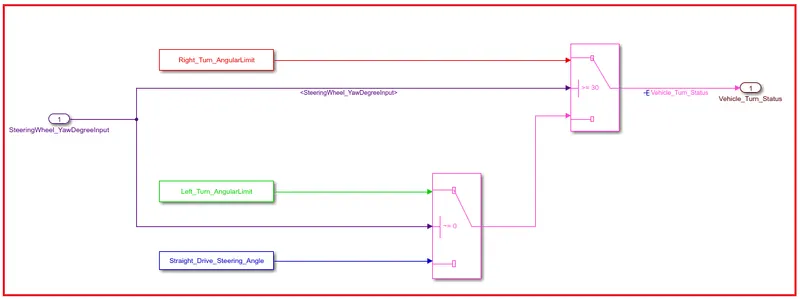
- Steering wheel input as yaw rate (Signal name: SteeringWheel_YawDegreeInput) is the input for this system.
- This is compared against 3 angular values, one each for left turn, right turn & straight drive (Calibration Values: Right_Turn_AngularLimit, Left_Turn_AngularLimit, Straight_Drive_Steering_Angle) to say which specific direction the steering wheel is turning towards.
- Use switch blocks to compare & develop this requirement. Keep this requirement in a subsystem & output of this requirement is a local signal (Signal Name: Vehicle_Turn_Status).
Requirement – 2:
- Keep this requirement as a separate subsystem. Inputs to this requirement are local signal from requirement 1 (Signal Name: Vehicle_Turn_Status) & an input signal from camera (Signal Name: CameraInput_RoadSign), which confirms the occurrence of a road sign.
- Signal Vehicle_Turn_Status is compared against calibration values (Calibration Values: RightTurn_RoadSign, LeftTurn_RoadSign, Straight_RoadSign), if each of them is found equal, then each of the three corresponding output is compared against the camera input signal,
- Using a logical operator block, only one among them is finally given as output signal (Signal Name: Vehicle_Direction_Indicator).
11). Requirement Tagging of Simulink Model:
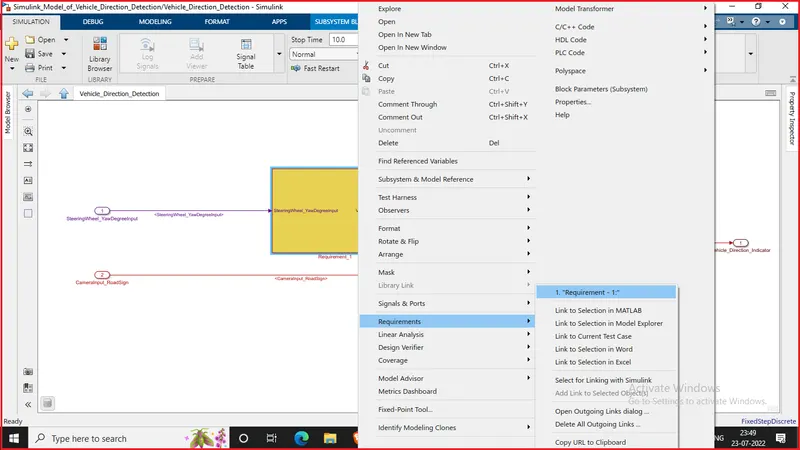
The requirements 'Requirement_1' and 'Requirement_2' as provided in the Requirements Word documents are tagged to their corresponding subsystem in the Simulink Model.
The following steps are followed to do the Tagging of the Requirments:
- At first, we have highlighted the requirements stated in the Word document.
- Then Right-click on the subsystem in the model that has to be tagged.
- Next, we have selected 'Requirements' and then 'Link to Selection in Word'.
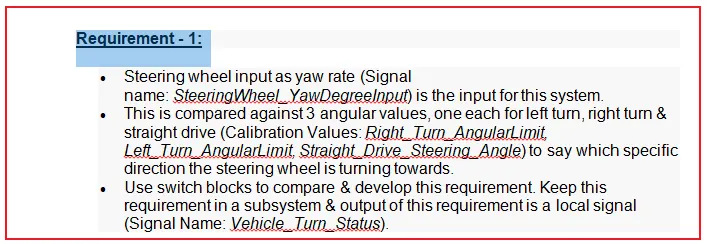
Fig: Highlighting Requirement_1 in the Word document for Tagging
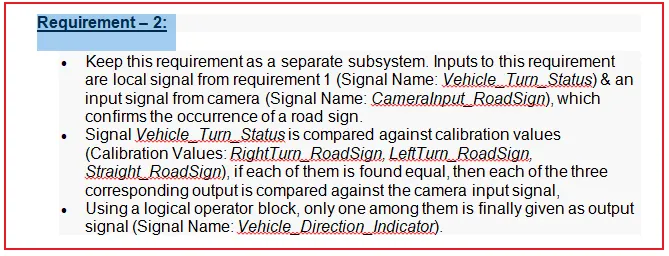
Fig: Highlighting Requirement_2 in the Word document for Tagging
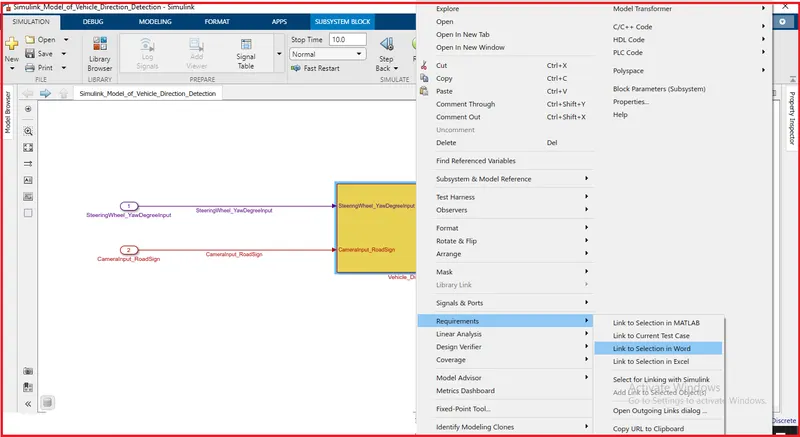
Now we can see that requirement tagging is done.
12). MAB Guidelines Check-in Model Advisor:
The MAB (MathWorks Advisory Board) is a set of modeling guidelines developed by an independent industry working group for the usage of MATLAB, Simulink, Stateflow, and Embedded Coder. The guidelines are the culmination of years of engineering expertise and best practices for developing, maintaining, and documenting control algorithm modes used in the development of production software.
The following procedure is followed to check MAB Guidelines:
- To perform the MAB guidelines test on our Simulink Model, go to the modeling section and select Model Advisor which is at the top left corner of the window.
- We can use the Model Advisor to verify compliance of our model with the Mathworks Advisory Board (MAB) guidelines.
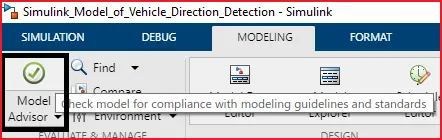
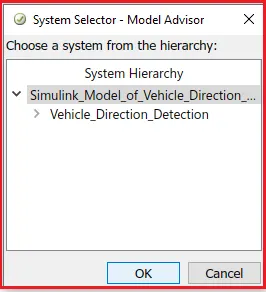
By clicking on the Mode Advisor, a window will ask us for confirmation if we click on OK then it will open a window which is shown in the following figure.
In the Model Advisor, there are many guidelines, among them, we will select only Modeling Standards for MAB.
- If we expand the section will be able to see which are tested under the MAB guidelines. If we again expand there will be many sub-sections in each section.
After selecting MAB guidelines, click on Run selected checks.
- Then it asks again for confirmation, click on continue. Then the testing will begin. It takes time to perform the guidelines test.
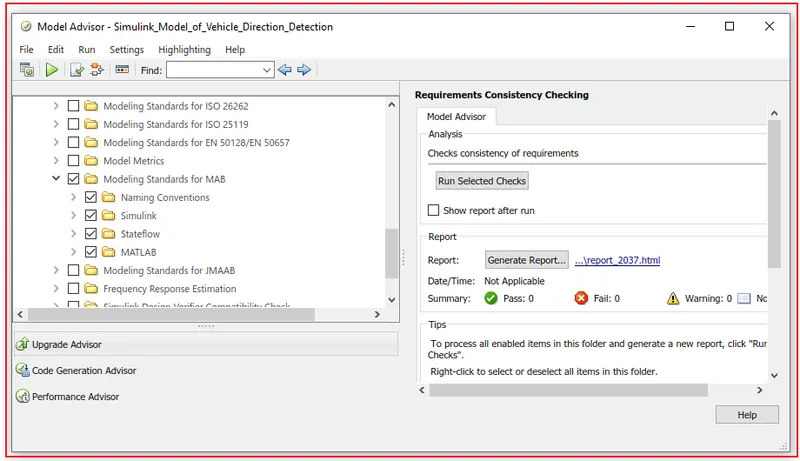
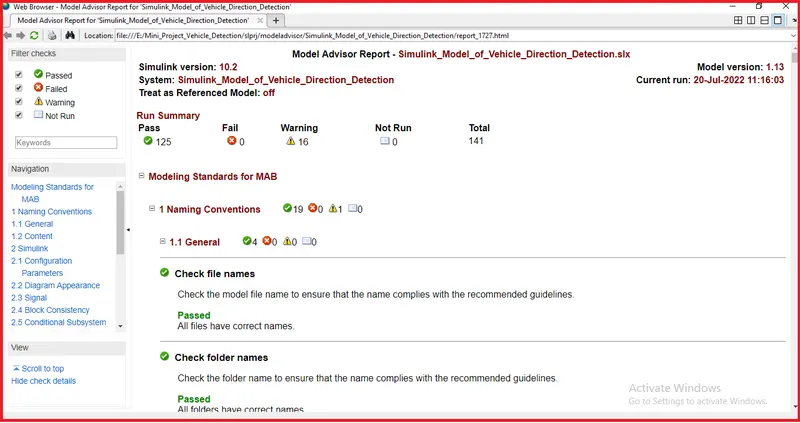
After running the selected checks of the Model Advisor, we generated the report. The generated report is shown below:
13). Code Generation:
As per the requirement, we have created the data dictionary and now we have also generated the code for the Simulink Model.
To generate the code, select Apps --> Embedded Coder
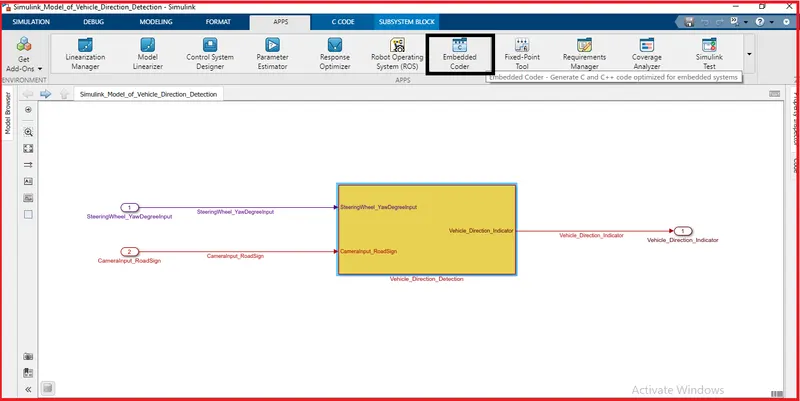
After selecting the embedded coder, the C Code window will open. Then in C Code, we have chosen the Build option.
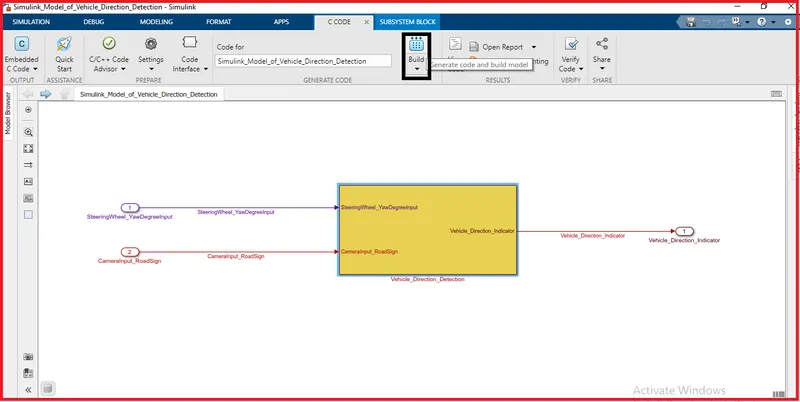
Next, the code will be generated and it is shown below:
Generated C-Code:
/*
 * File: Simulink_Model_of_Vehicle_Direction_Detection.c
 *
 * Code generated for Simulink model 'Simulink_Model_of_Vehicle_Direction_Detection'.
 *
 * Model version                  : 1.13
 * Simulink Coder version         : 9.4 (R2020b) 29-Jul-2020
 * C/C++ source code generated on : Wed Jul 20 11:40:57 2022
 *
 * Target selection: ert.tlc
 * Embedded hardware selection: Intel->x86-64 (Windows64)
 * Code generation objectives: Unspecified
 * Validation result: Not run
 */

#include "Simulink_Model_of_Vehicle_Direction_Detection.h"
#include "Simulink_Model_of_Vehicle_Direction_Detection_private.h"

/* Exported data definition */

/* Const memory section */
/* Definition for custom storage class: Const */
const int16_T LeftTurn_RoadSign = -120;/* Referenced by: '/Constant' */
const int16_T Left_Turn_AngularLimit = -120;/* Referenced by: '/Constant1' */
const int16_T RightTurn_RoadSign = 30; /* Referenced by: '/Constant' */
const int16_T Right_Turn_AngularLimit = 30;/* Referenced by: '/Constant' */
const int16_T Straight_Drive_Steering_Angle = 0;/* Referenced by: '/Constant2' */
const int16_T Straight_RoadSign = 0;   /* Referenced by: '/Constant' */

/* External inputs (root inport signals with default storage) */
ExtU_Simulink_Model_of_Vehicl_T Simulink_Model_of_Vehicle_Dir_U;

/* External outputs (root outports fed by signals with default storage) */
ExtY_Simulink_Model_of_Vehicl_T Simulink_Model_of_Vehicle_Dir_Y;

/* Real-time model */
static RT_MODEL_Simulink_Model_of_Ve_T Simulink_Model_of_Vehicle_Di_M_;
RT_MODEL_Simulink_Model_of_Ve_T *const Simulink_Model_of_Vehicle_Di_M =
  &Simulink_Model_of_Vehicle_Di_M_;

/* Model step function */
void Simulink_Model_of_Vehicle_Direction_Detection_step(void)
{
  int16_T rtb_Vehicle_Turn_Status;

  /* Switch: '/Switch' incorporates:
   *  Constant: '/Constant'
   *  Constant: '/Constant2'
   *  Inport: '/SteeringWheel_YawDegreeInput'
   *  Switch: '/Switch1'
   */
  if (Simulink_Model_of_Vehicle_Dir_U.SteeringWheel_YawDegreeInput >= 30.0) {
    rtb_Vehicle_Turn_Status = Right_Turn_AngularLimit;
  } else if (Simulink_Model_of_Vehicle_Dir_U.SteeringWheel_YawDegreeInput != 0.0)
  {
    /* Switch: '/Switch1' incorporates:
     *  Constant: '/Constant1'
     */
    rtb_Vehicle_Turn_Status = Left_Turn_AngularLimit;
  } else {
    rtb_Vehicle_Turn_Status = Straight_Drive_Steering_Angle;
  }

  /* End of Switch: '/Switch' */

  /* Outport: '/Vehicle_Direction_Indicator' incorporates:
   *  Constant: '/Constant'
   *  Constant: '/Constant'
   *  Constant: '/Constant'
   *  Inport: '/CameraInput_RoadSign'
   *  Logic: '/Logical Operator'
   *  Logic: '/Logical Operator1'
   *  Logic: '/Logical Operator2'
   *  RelationalOperator: '/Compare'
   *  RelationalOperator: '/Compare'
   *  RelationalOperator: '/Compare'
   */
  Simulink_Model_of_Vehicle_Dir_Y.Vehicle_Direction_Indicator[0] =
    ((rtb_Vehicle_Turn_Status == RightTurn_RoadSign) ||
     Simulink_Model_of_Vehicle_Dir_U.CameraInput_RoadSign);
  Simulink_Model_of_Vehicle_Dir_Y.Vehicle_Direction_Indicator[1] =
    ((rtb_Vehicle_Turn_Status == LeftTurn_RoadSign) ||
     Simulink_Model_of_Vehicle_Dir_U.CameraInput_RoadSign);
  Simulink_Model_of_Vehicle_Dir_Y.Vehicle_Direction_Indicator[2] =
    ((rtb_Vehicle_Turn_Status == Straight_RoadSign) ||
     Simulink_Model_of_Vehicle_Dir_U.CameraInput_RoadSign);
}

/* Model initialize function */
void Simulink_Model_of_Vehicle_Direction_Detection_initialize(void)
{
  /* (no initialization code required) */
}

/* Model terminate function */
void Simulink_Model_of_Vehicle_Direction_Detection_terminate(void)
{
  /* (no terminate code required) */
}

/*
 * File trailer for generated code.
 *
 * [EOF]
 */
Conclusion:
- The Simulink Model of Vehicle Direction Detection is modeled as per the given requirement.
- We have done the Tagging of Requirement_1 & Requirement_2 to their corresponding subsystems.
- We have created Data Dictionary & also generated the code.