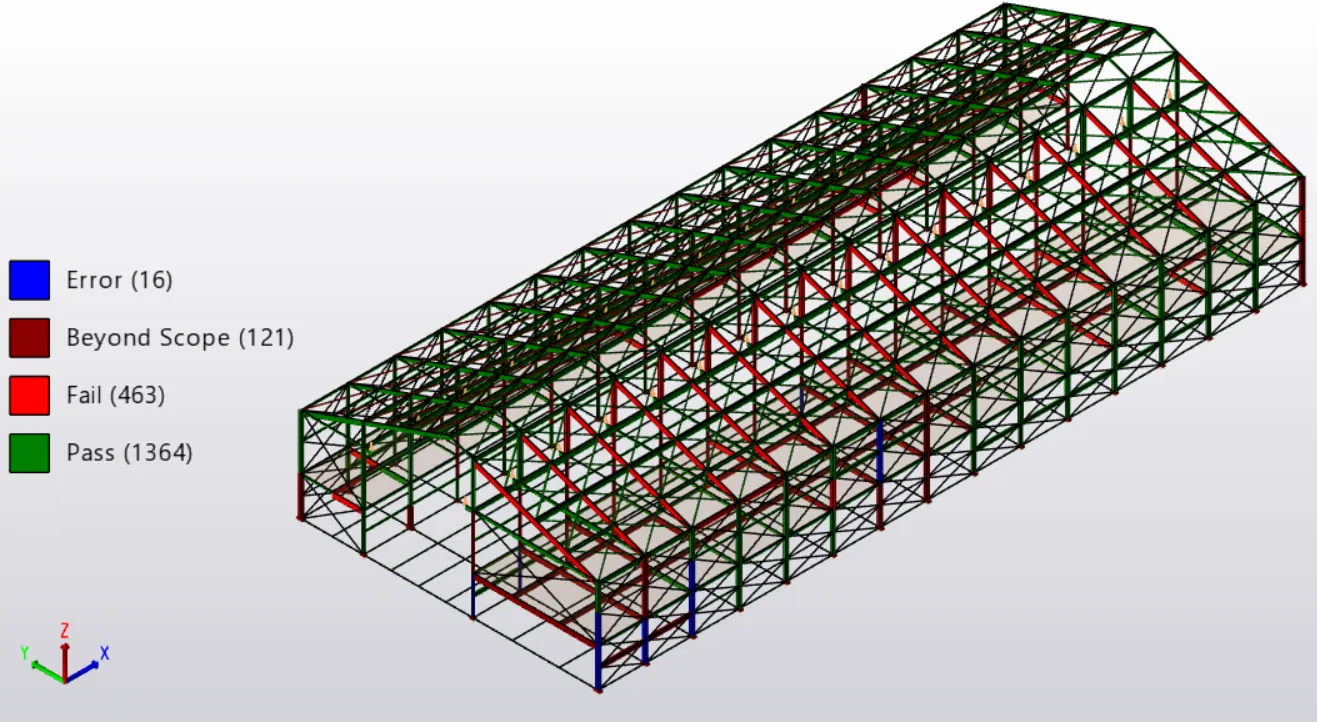
Project 1_Analyze and design a steel building to 10T CRANE as per IS standard code using TEKLA STRUCTURAL DESIGNER.
After the opening the software,we go to HOME Tab>New,to open a new file.
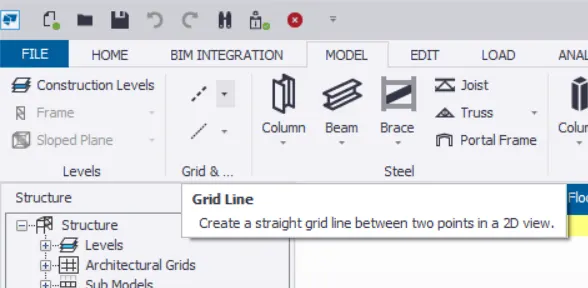
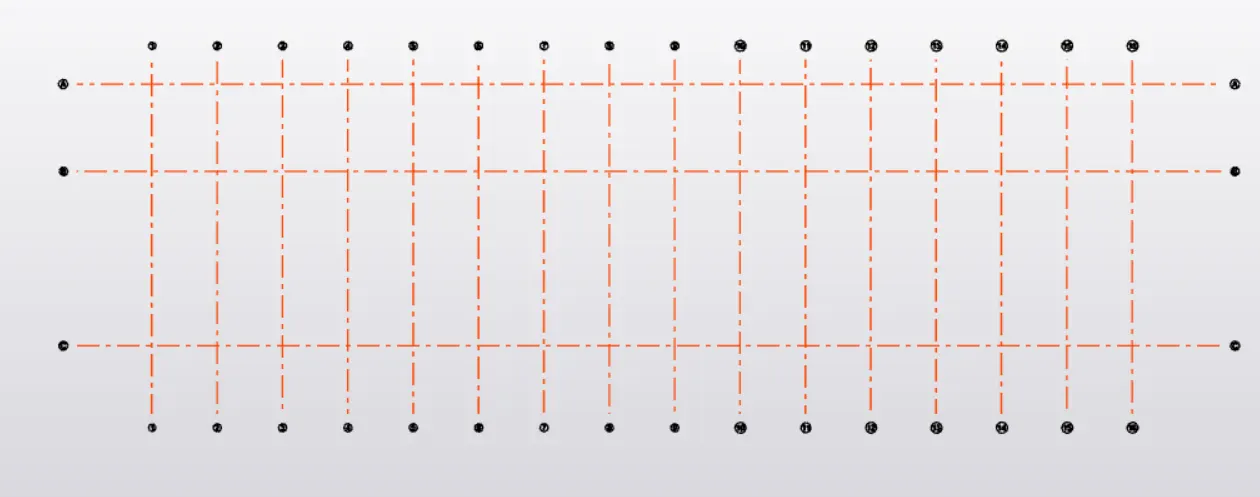
Then,initially we have to form the grid lines,to do that,we go to MODEL Tab>Grid Line.Such that we form the required grid lines.
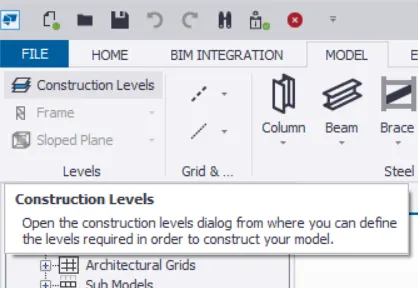
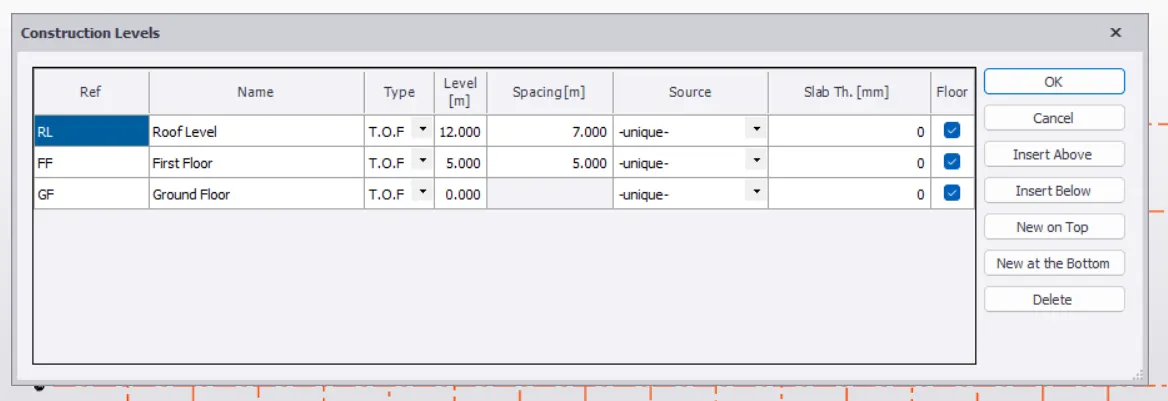
And then we go for the required levels,we go to MODEL Tab>Construction Levels and create the required levels.
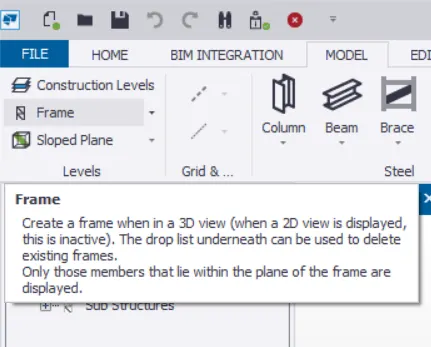
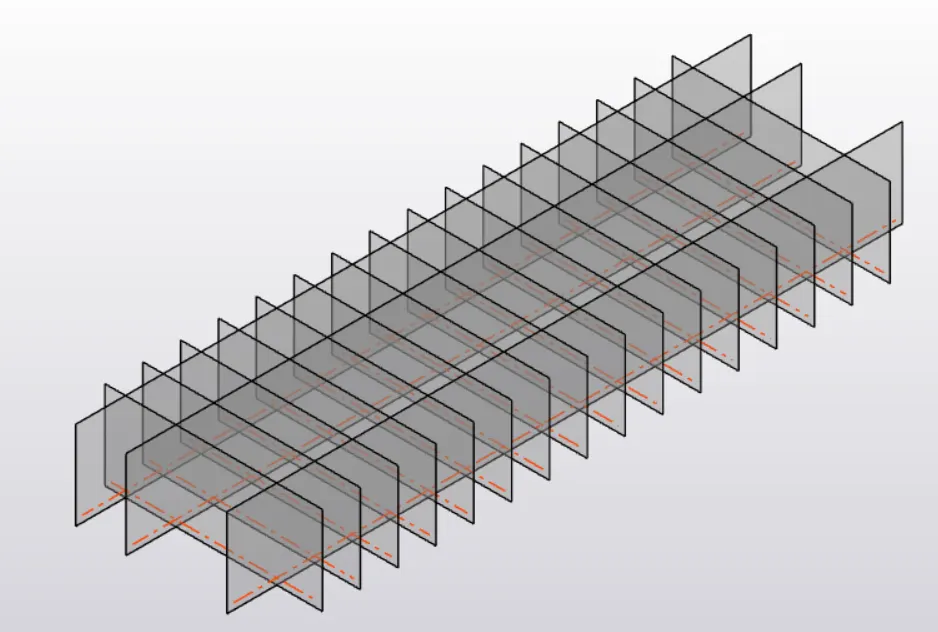
At the same time,we even form the frames such that we can work on elevation/section views easily.
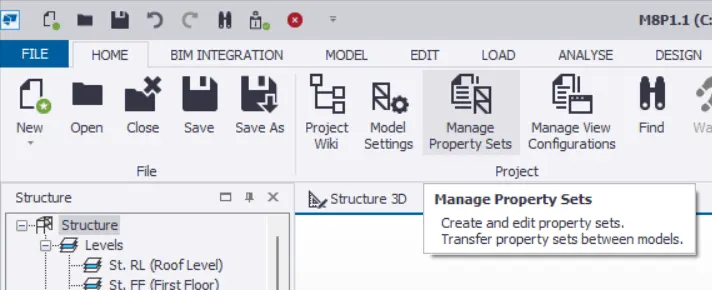
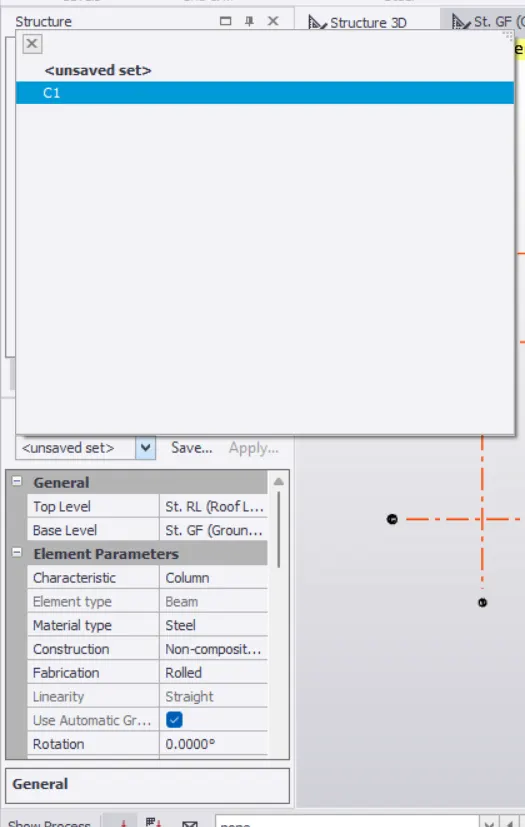
Then in HOME Tab>Manage Property Sets,we form the required sections.
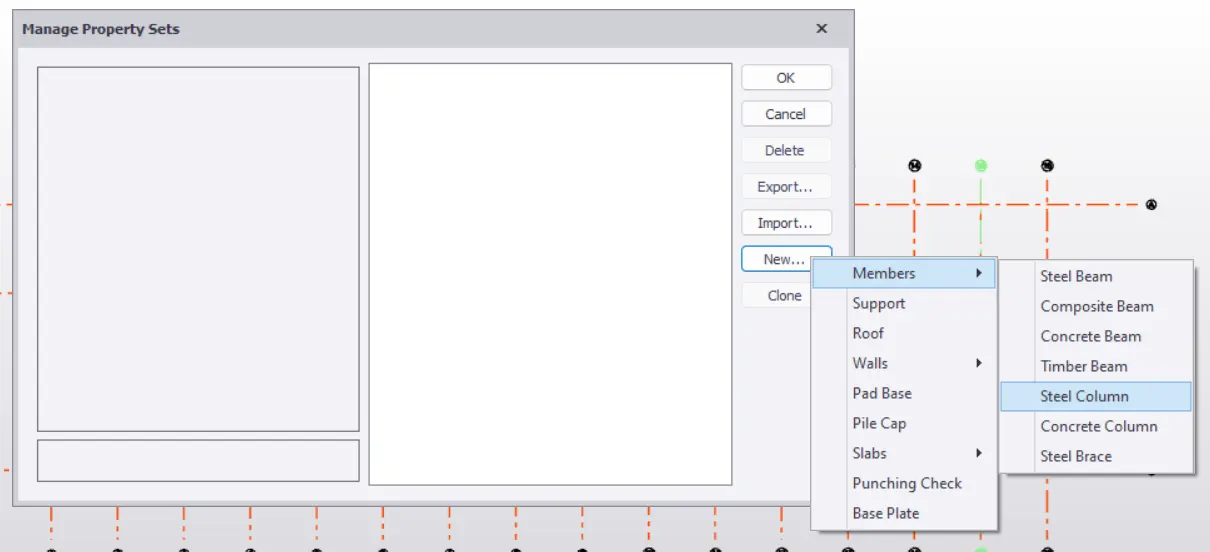
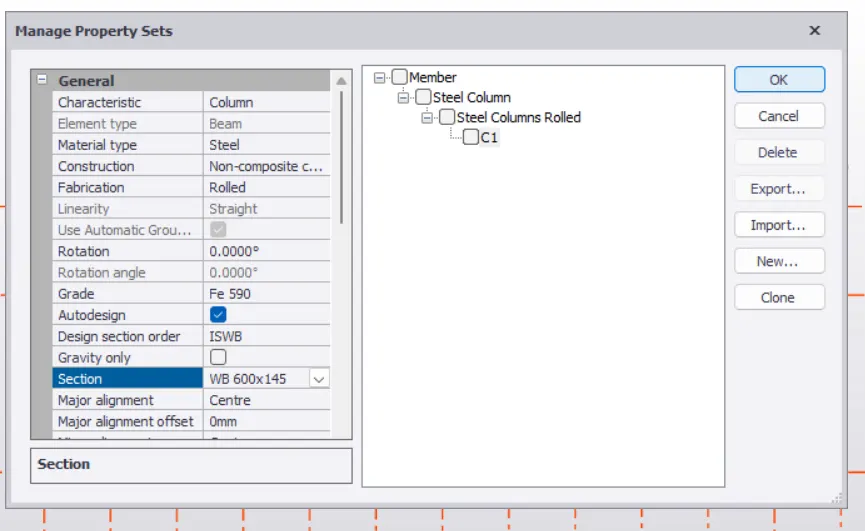
We then place the required members in the workspace.
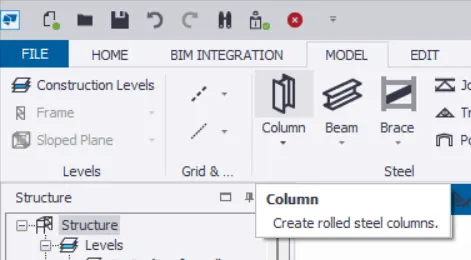
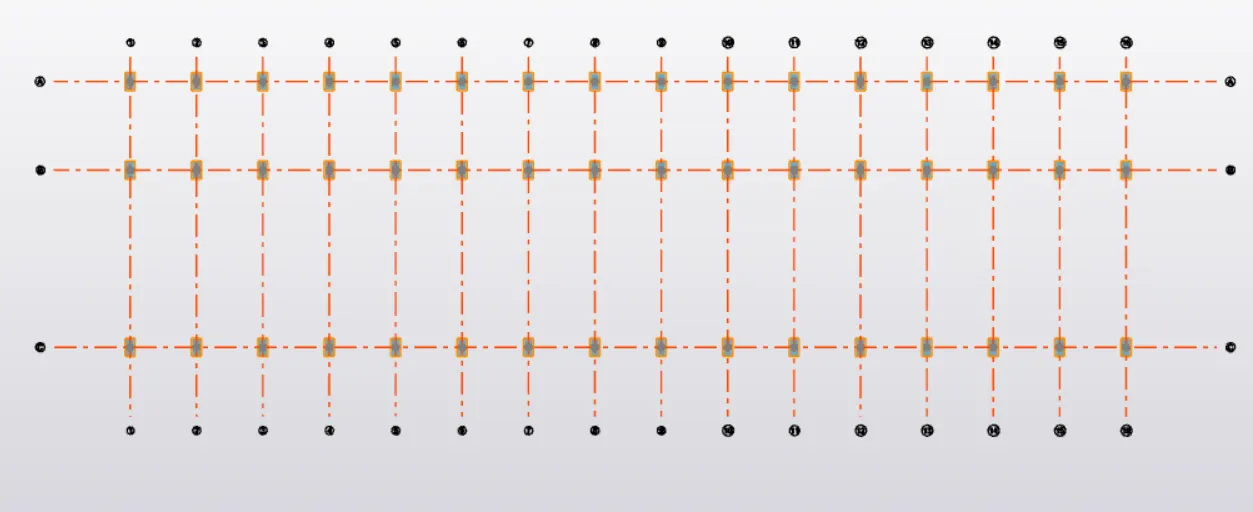
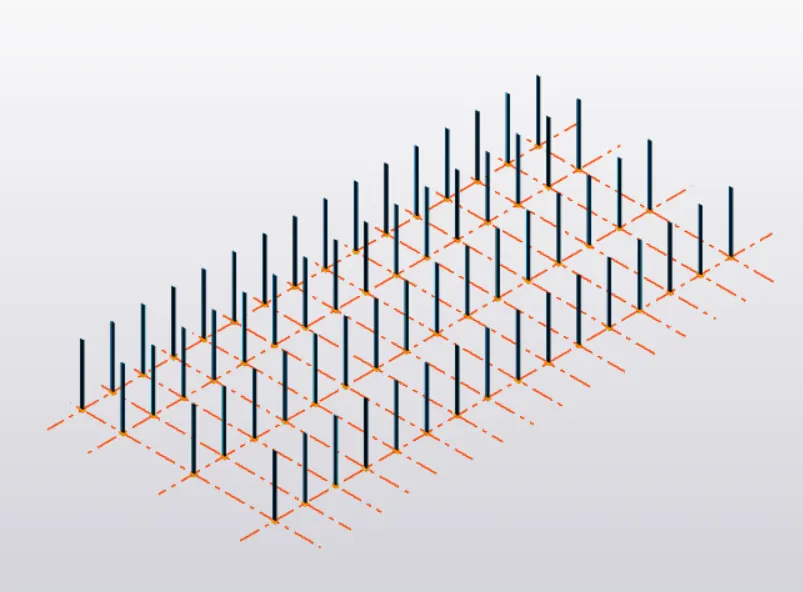
After the placing of the column,we do place the beams aswell.
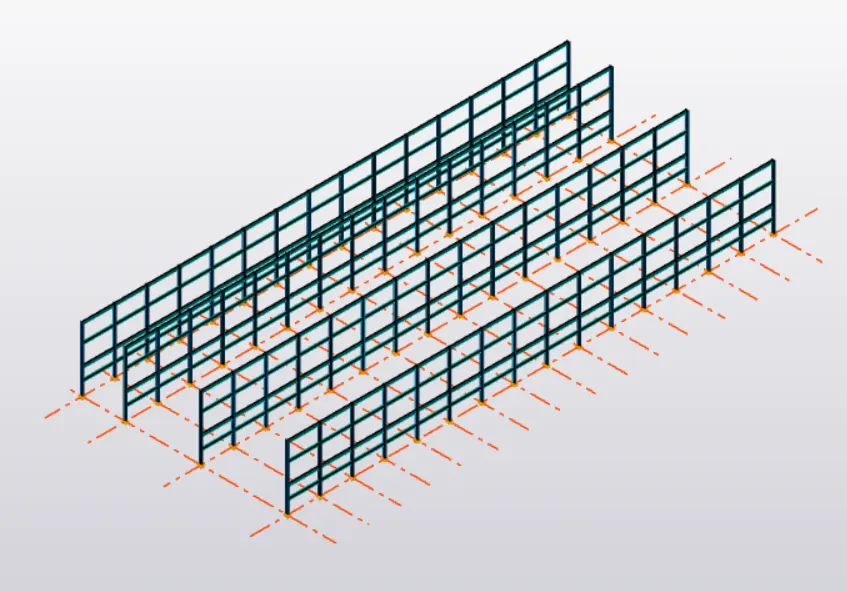
In the similar manner,we place the tie beams too.
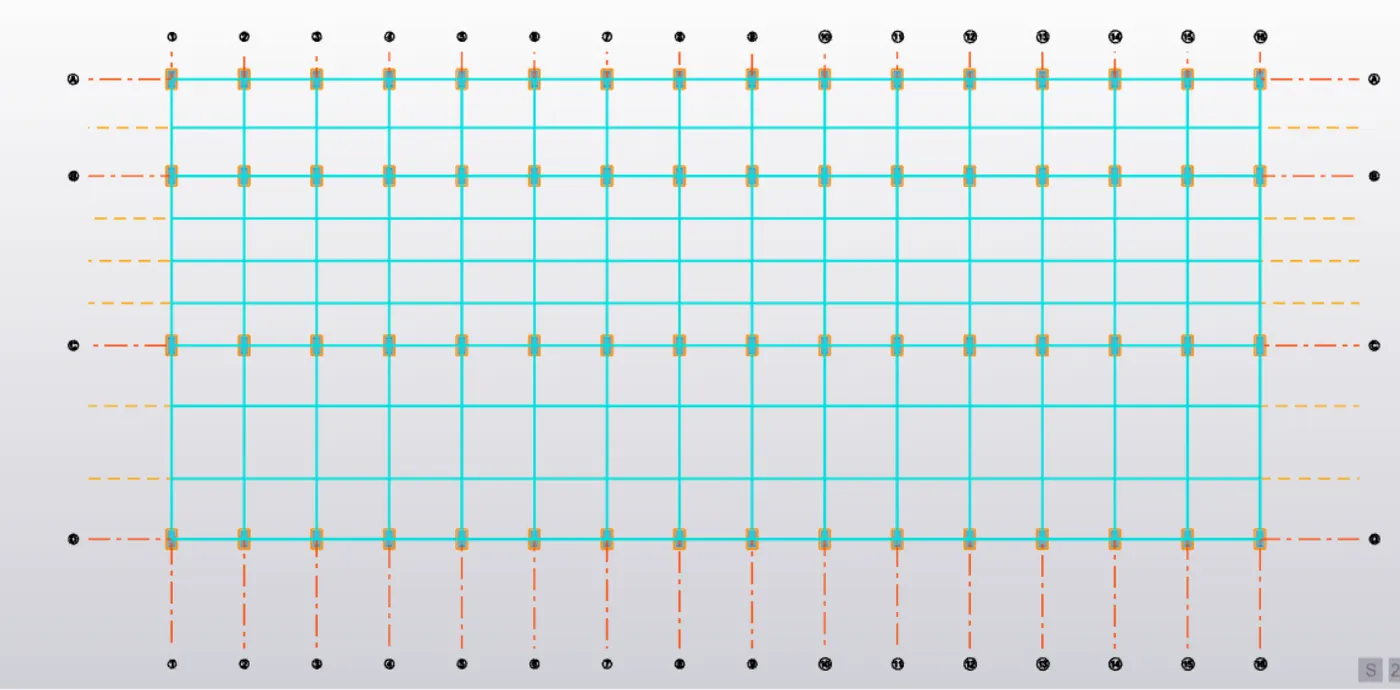
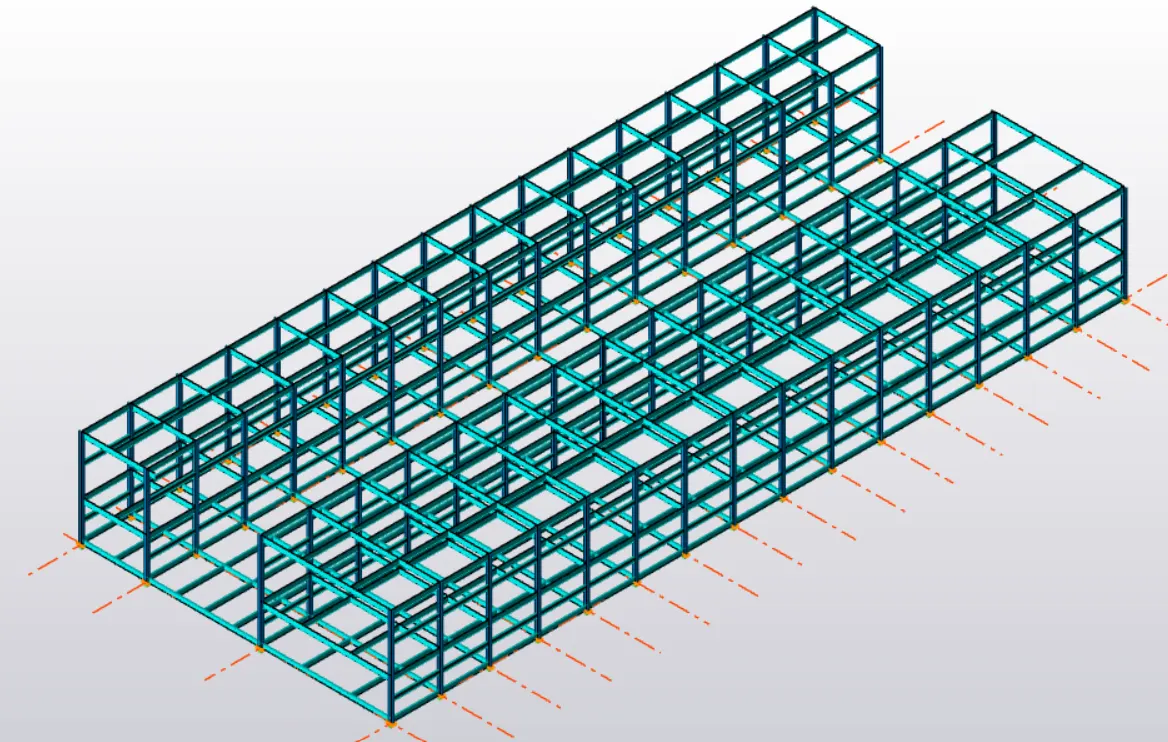
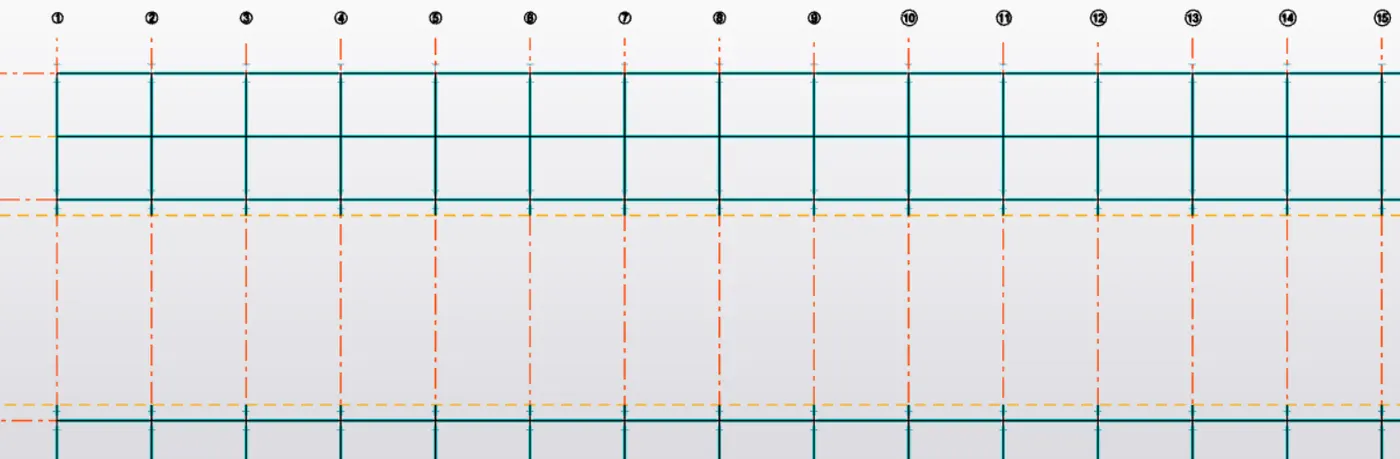
And we even place the cantilever beams for placing the gantry girders.
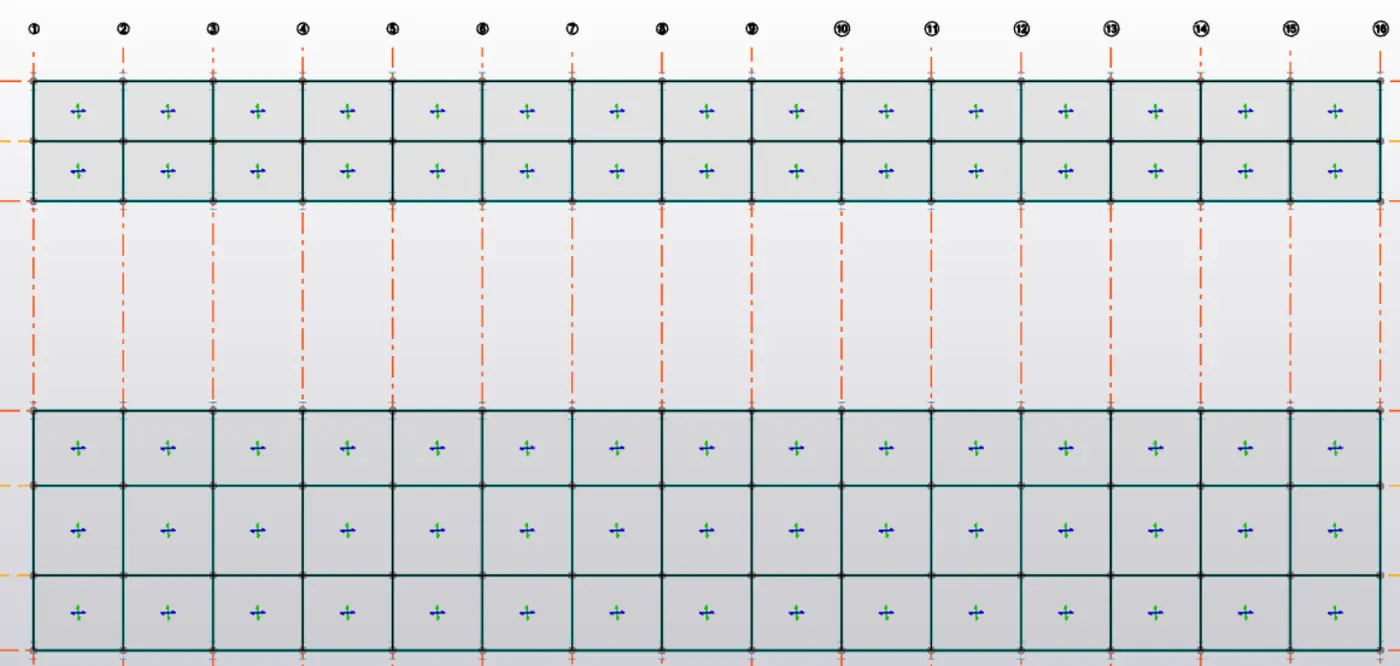
And then,we then place the slabs too.
And then we place the rafters.
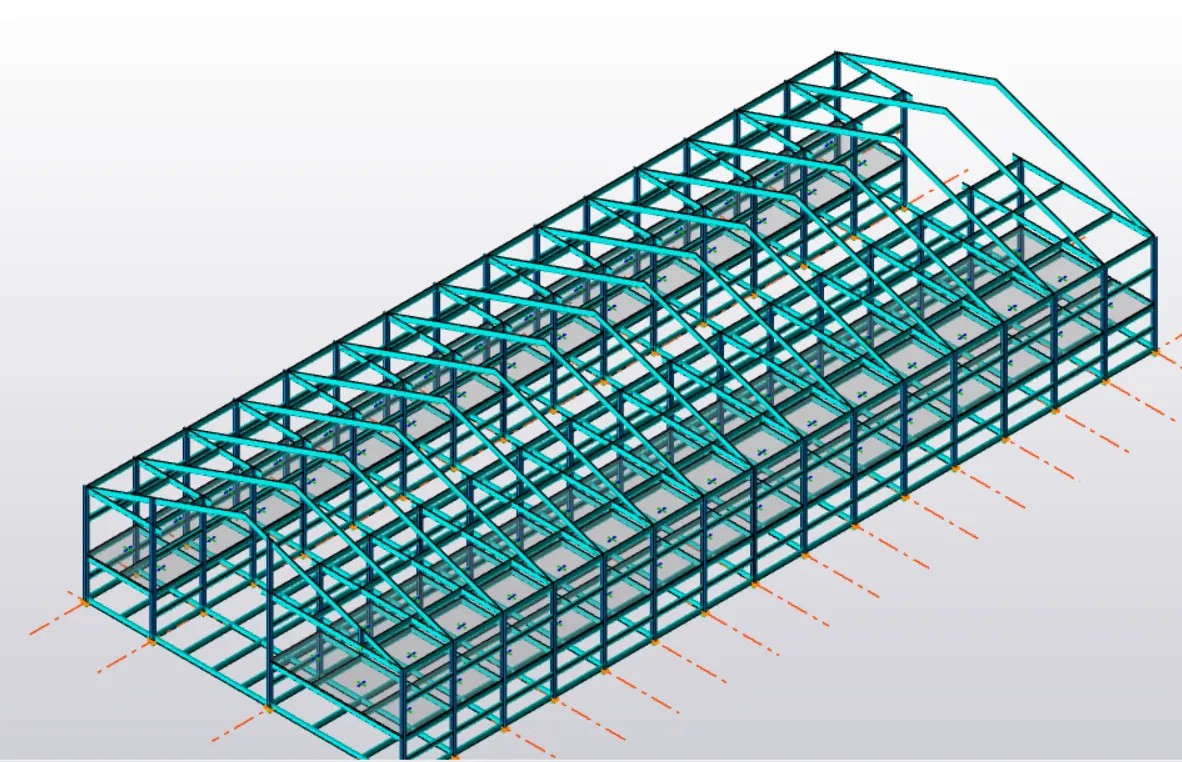
We then place the bracings for the walls.
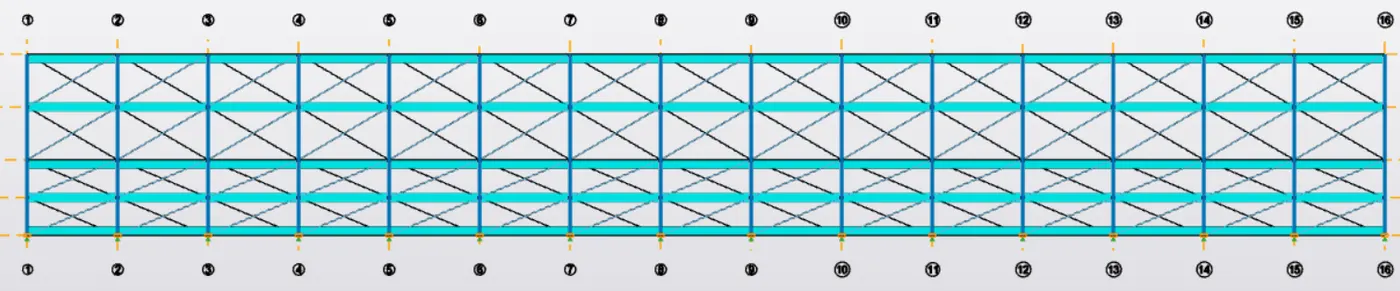
In the similar manner,we do even place the wall cladding members.
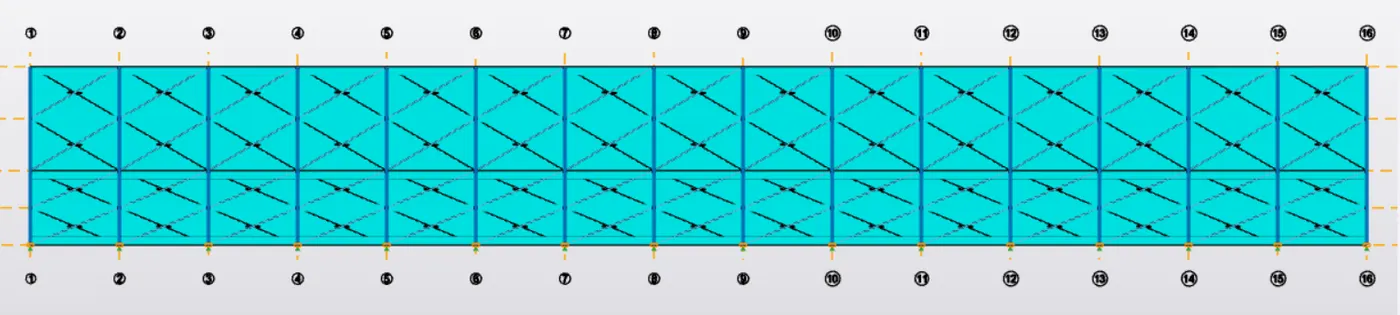
And the same has to be done for the roof.
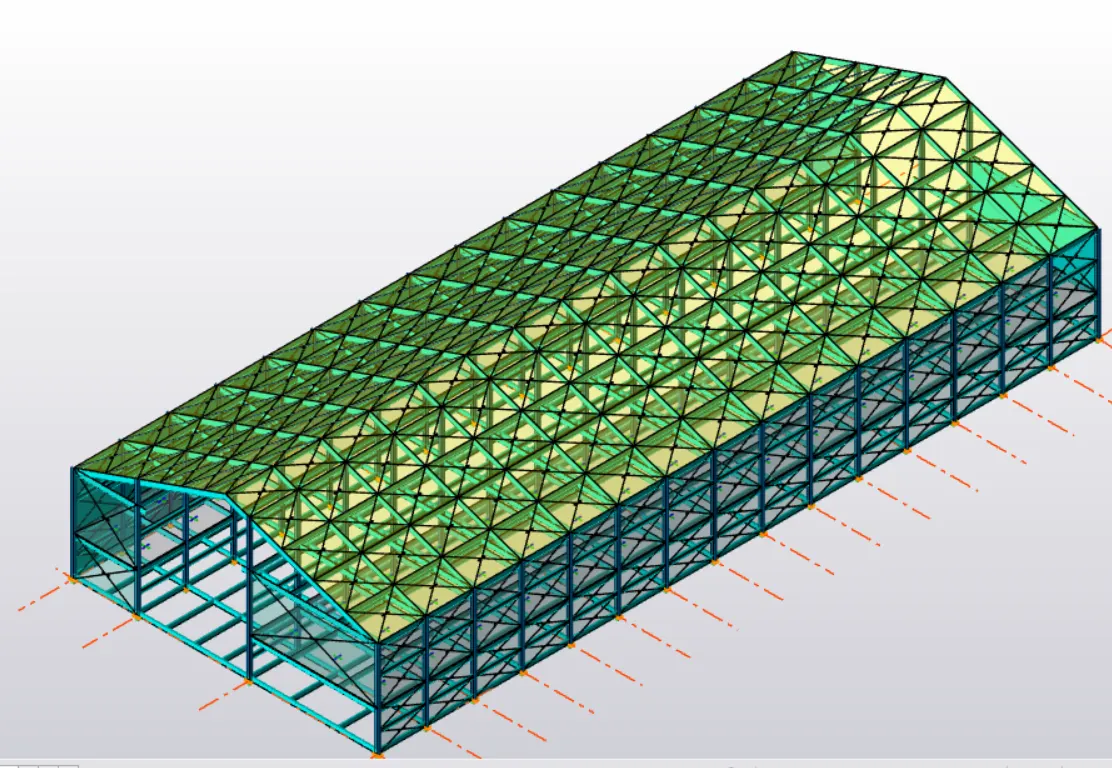
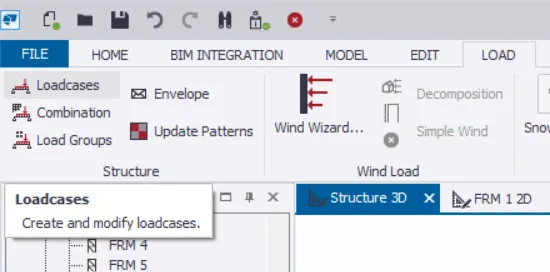
The structure is modelled then.We then create the required load cases.Where we go to LOAD Tab>Loadcases.And add the required cases.
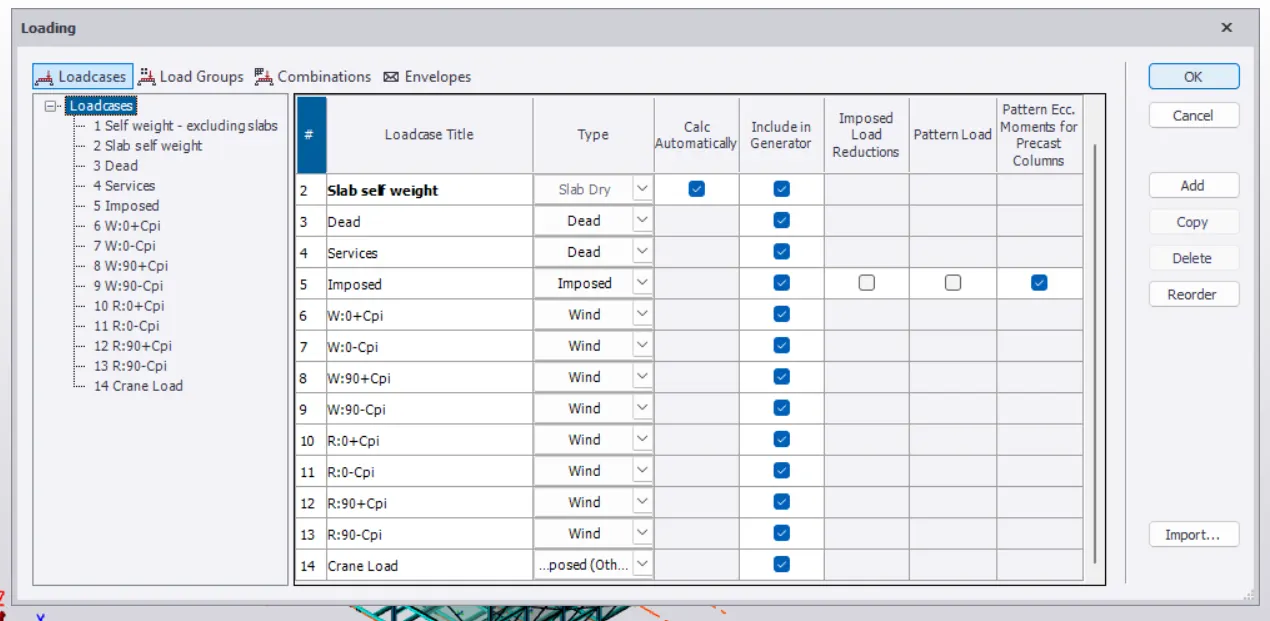
We then create the required load case from the bottom left of the screen.
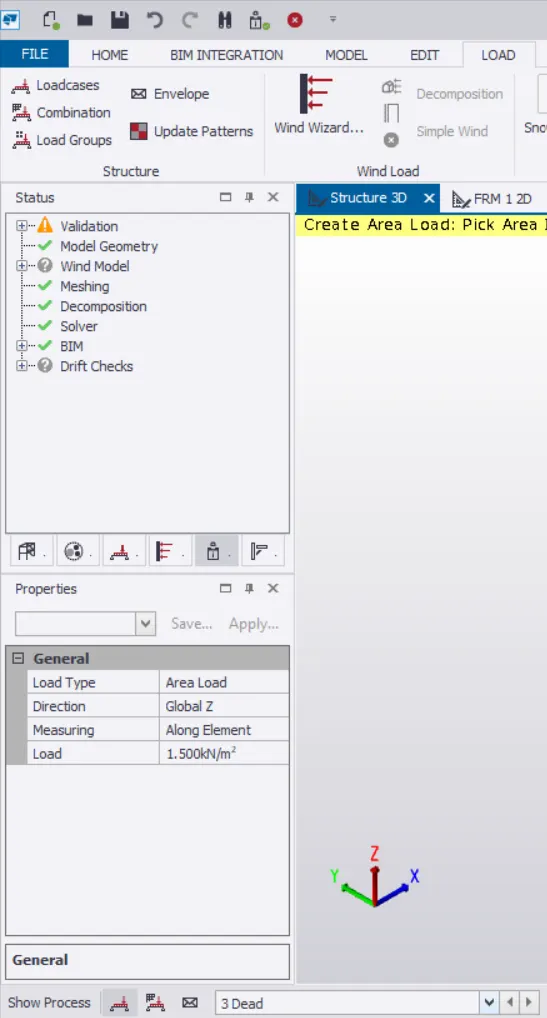
And give the required intensity for that loading and then apply on to the model.
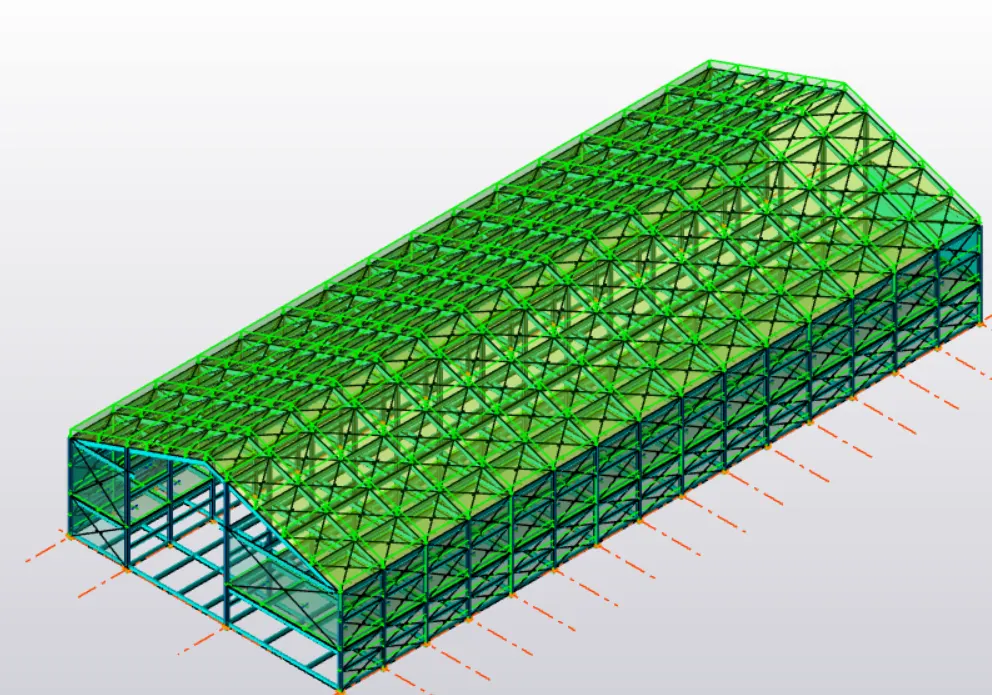
In this manner,we do apply all the required loads.And then we apply the crane loads using the option of Nodal Load,where we directly apply the loading intensity on to the cantilever beams created after the required calculations done.


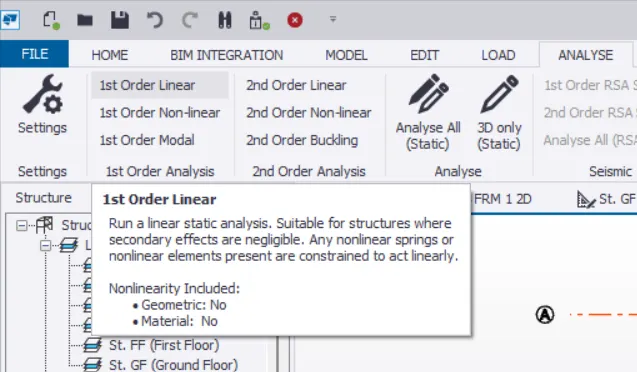
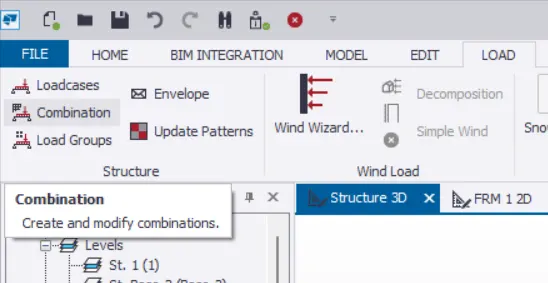
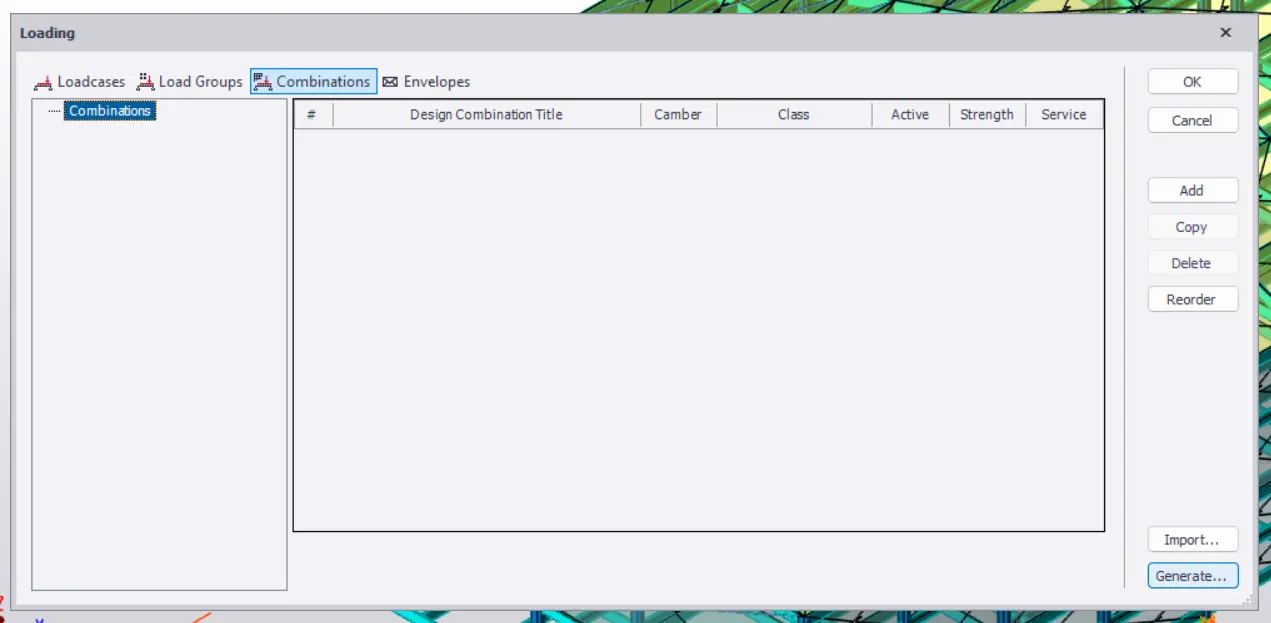
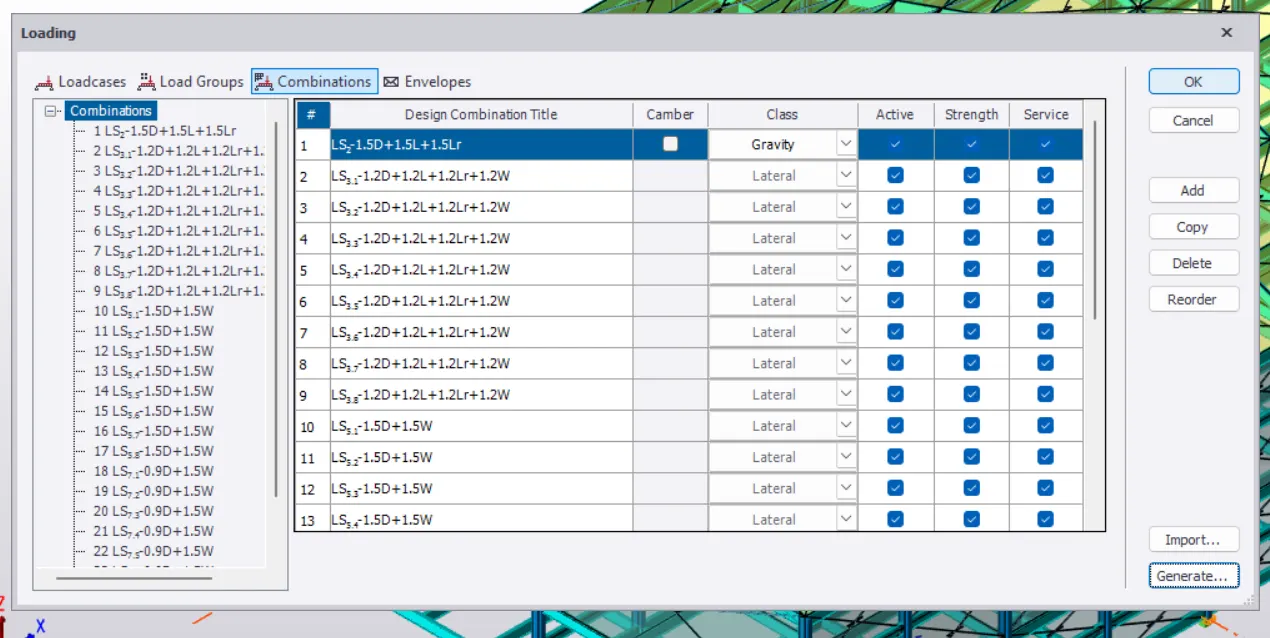
We then create the combinations and then run the 1st Order Linear analysis as the model is a basic structure only though its big.
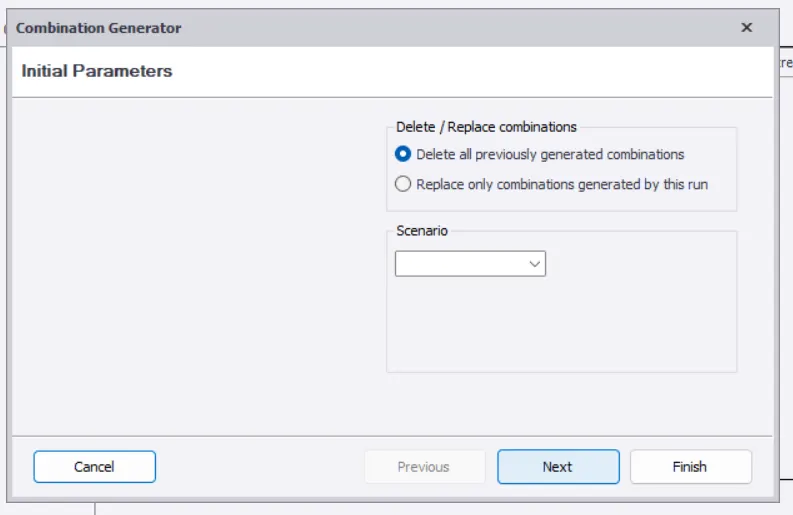
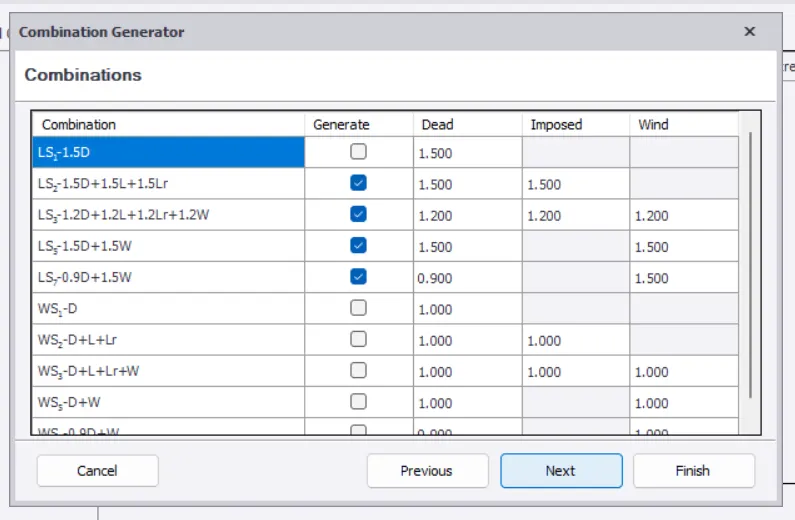
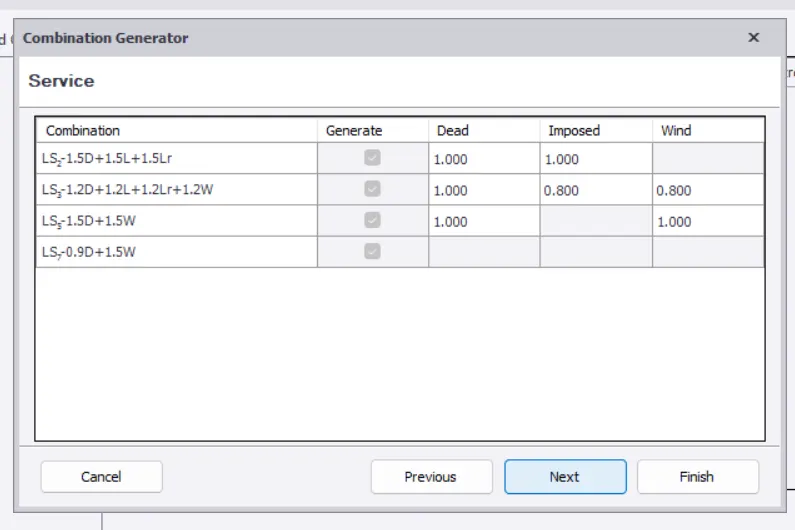
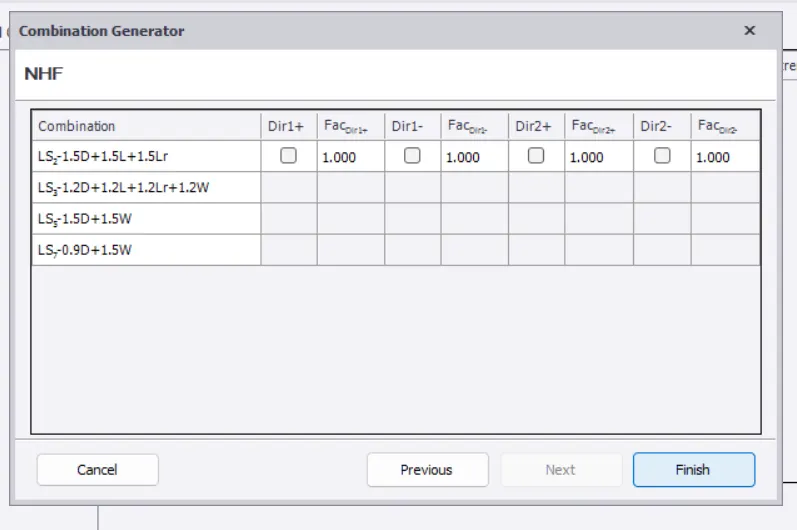
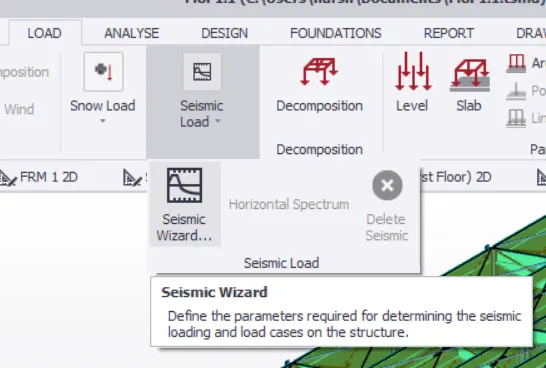
Where before running the analysis,we go to LOAD Tab>Seismic Load>Seismic Wizard and then provide the relevant details.
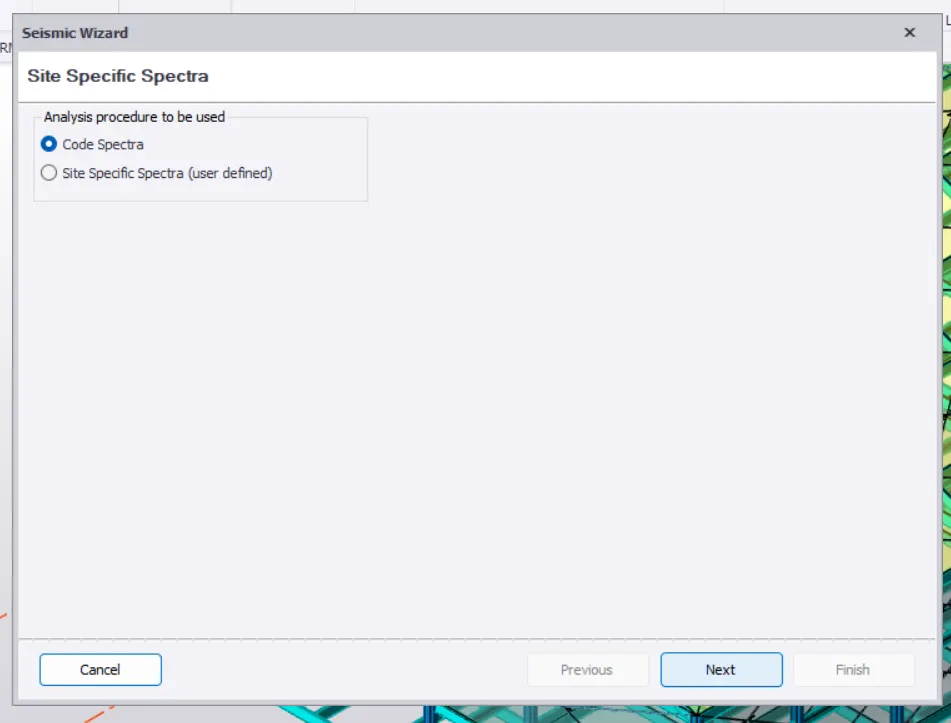
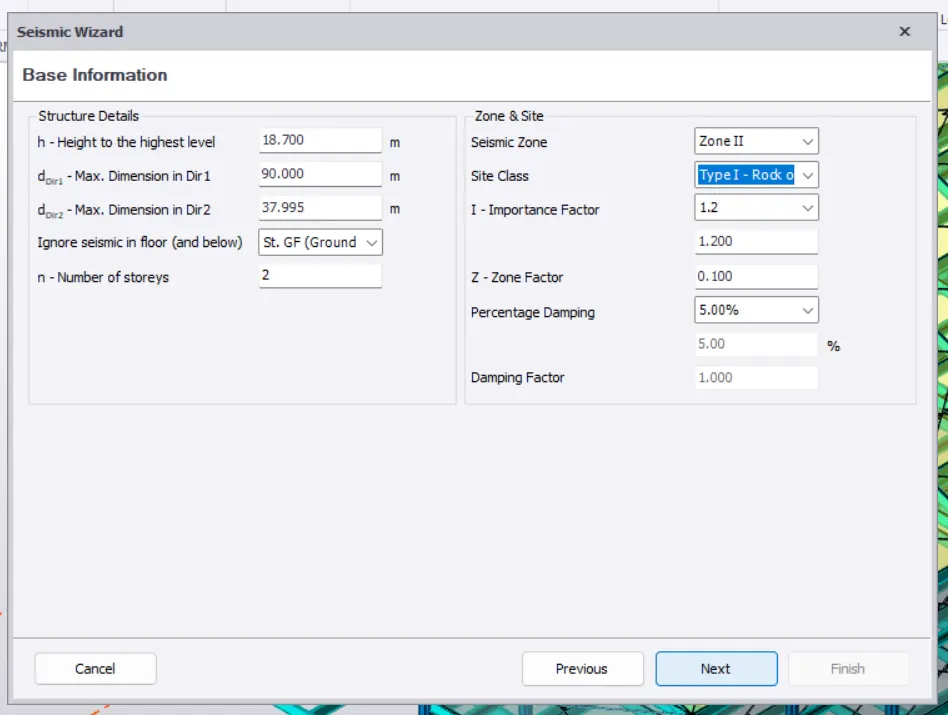
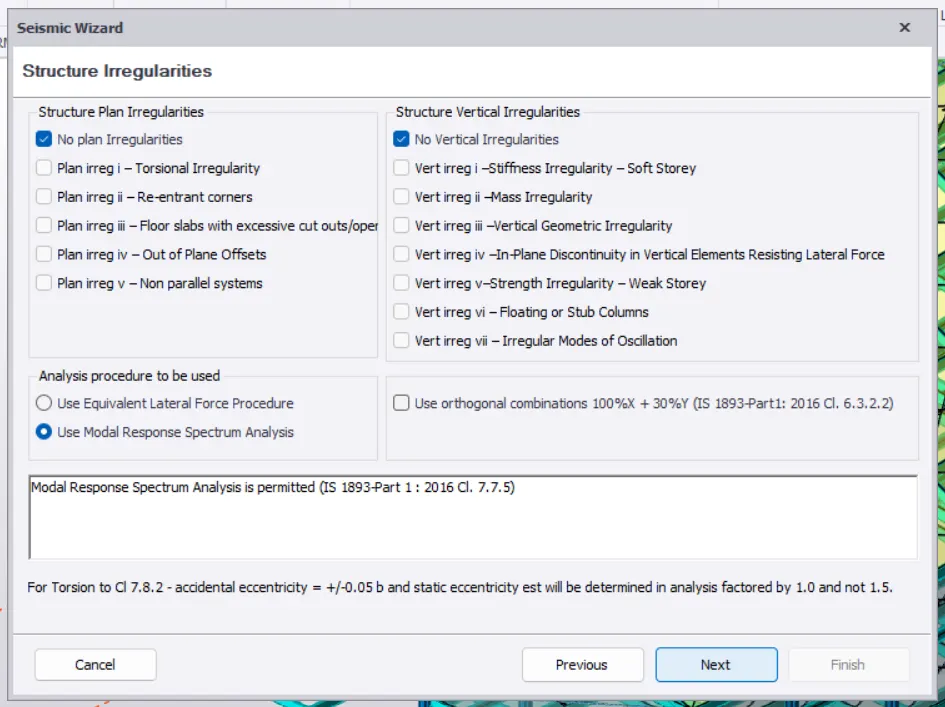
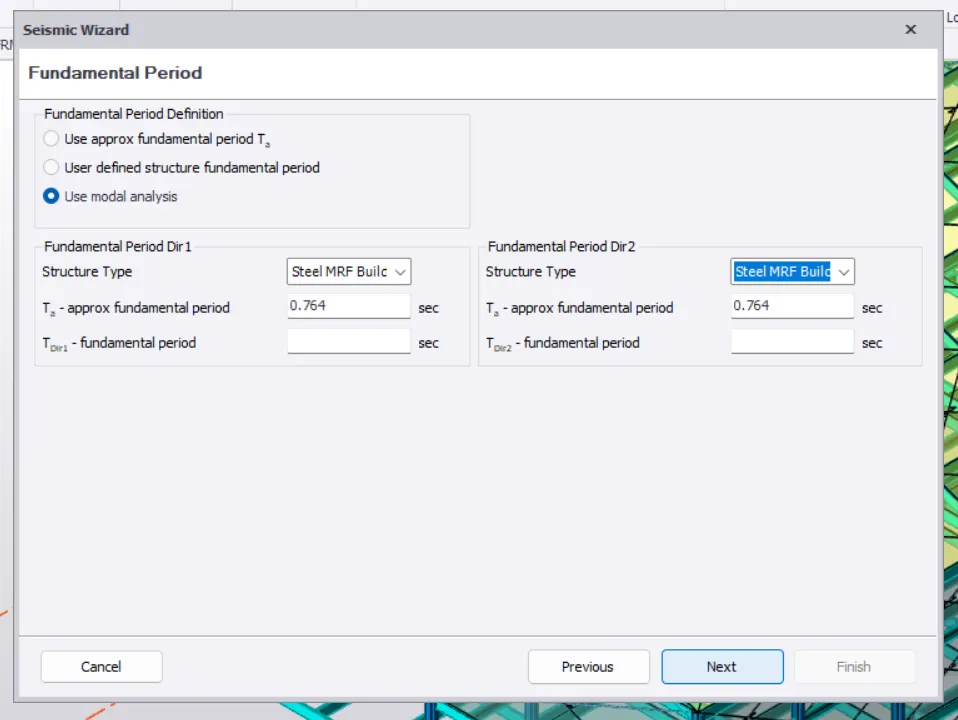
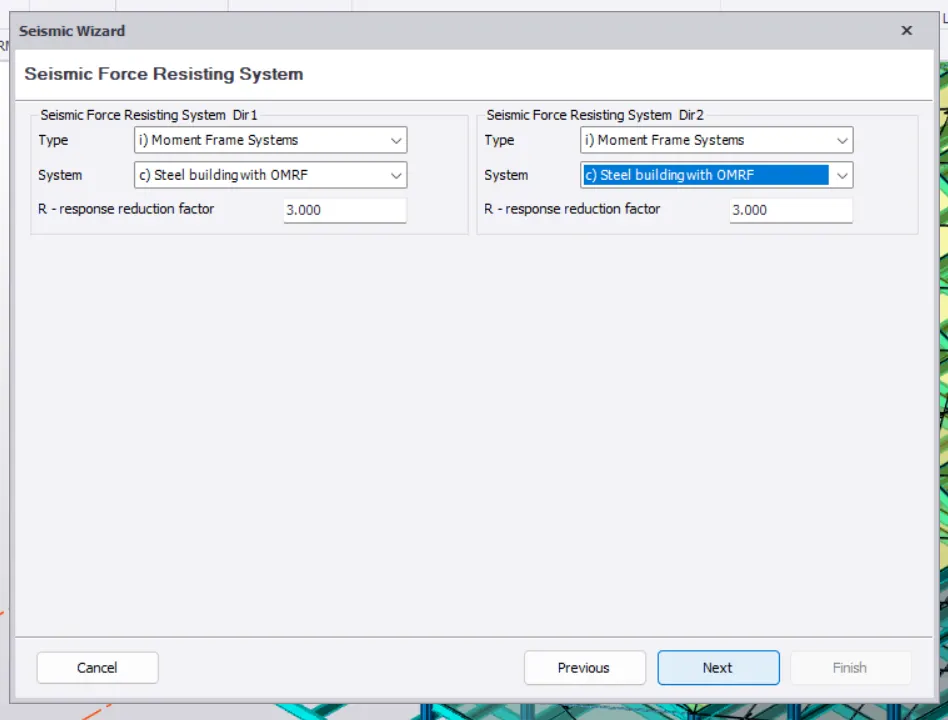
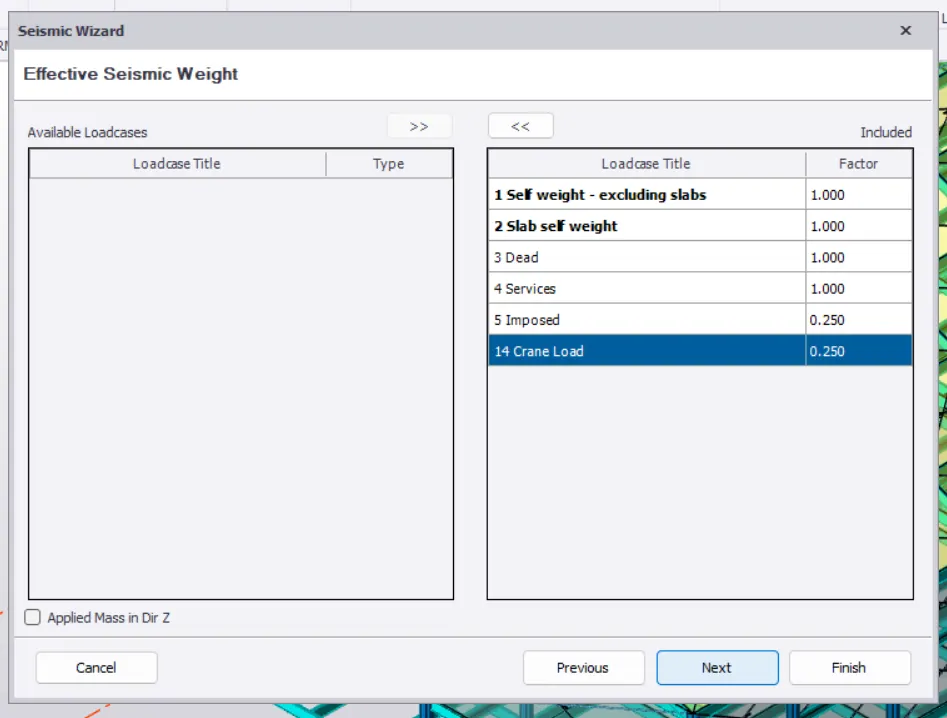
With this step,we had completed the load application on to the model.So,the next step to be implemented is the analysis.So,we go to ANALYSE Tab>1st Order Linear and we use this as the structure is a basic.Where we then select the required loads and the combinations.
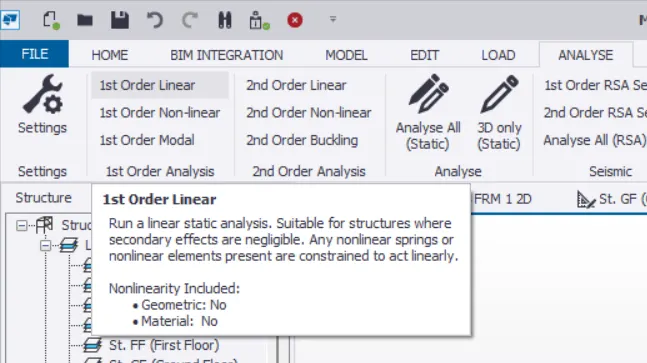
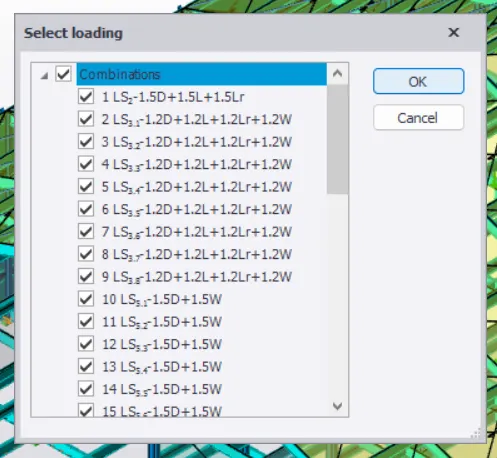
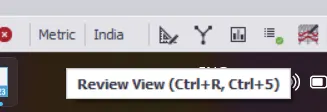
Then,we go to the Review View where the icon directing to it is availble at thr bottom right of the screen.
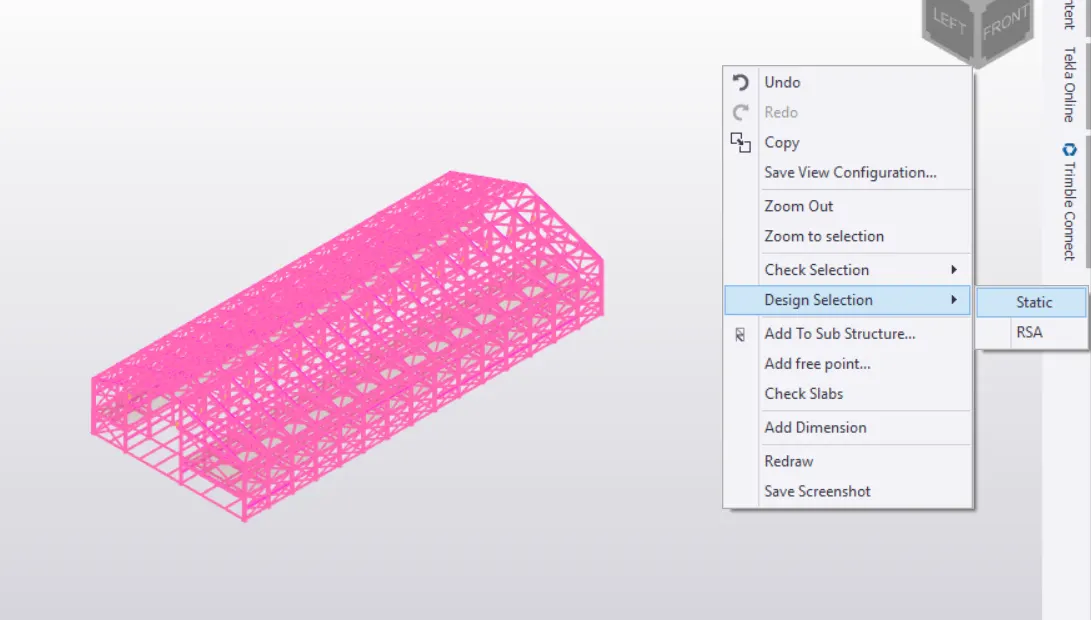
Where we select the required members to be designed and we go to the option of Check Selection>Static.
Where we can find the status of all the members.Now,we have to rectify the members.The members could be failed by any reasons but just by increasing the member size,we can pass the failed mebers.