Project 1 - 2D meshing on the instrumental Panel
OBJECTIVE:
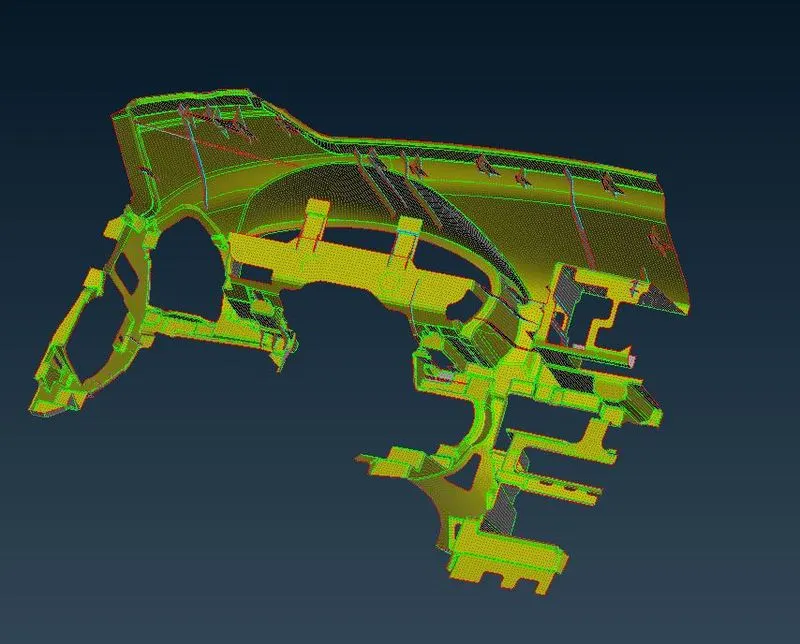
For the given component, check for the geometrical errors and mesh with the given element Quality criteria. After meshing the component the thickness has to be assigned.
Write a detailed report on your meshing process and also mention which method you used to extract the mid-surface along with the reason.
PROCEDURE:
Geomentry Cleanup on the Model:
- Importing the given Model into the GUI.
-
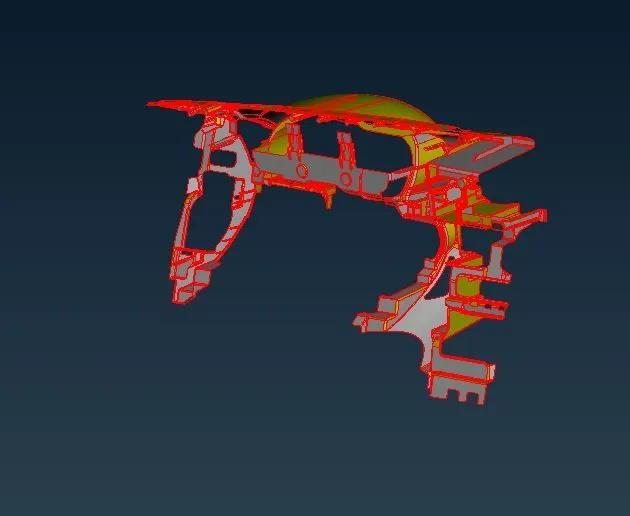
- After importing the given model we should have to do the TOPOLOGY clean up because we can change the free cons into the double cons and we can also paste the near by edges by the topo.TOPOLOGY>FACES>TOPO.select the given component and apply the topo cleanup.
-
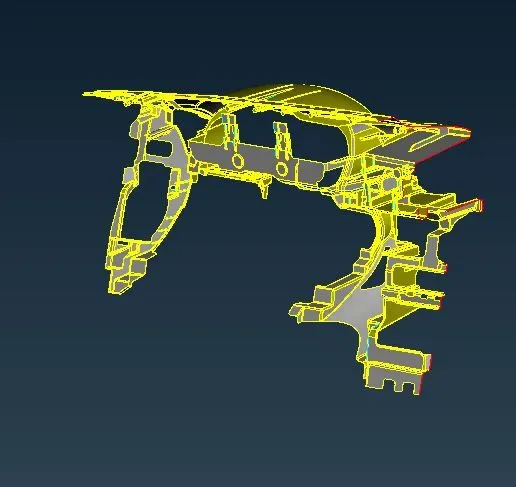
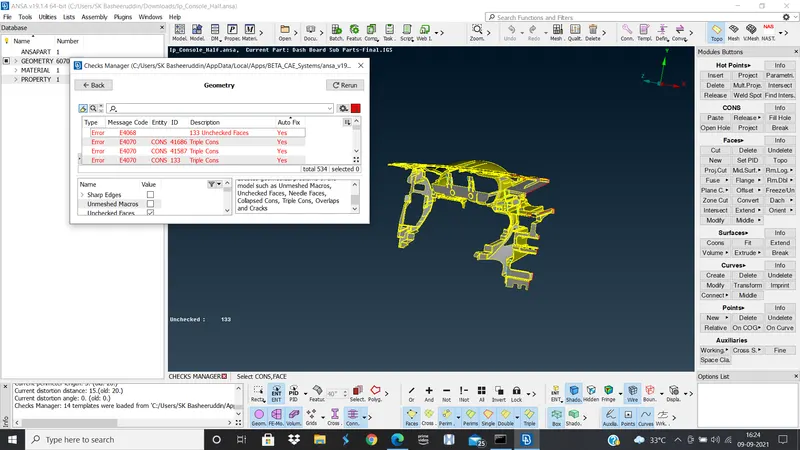
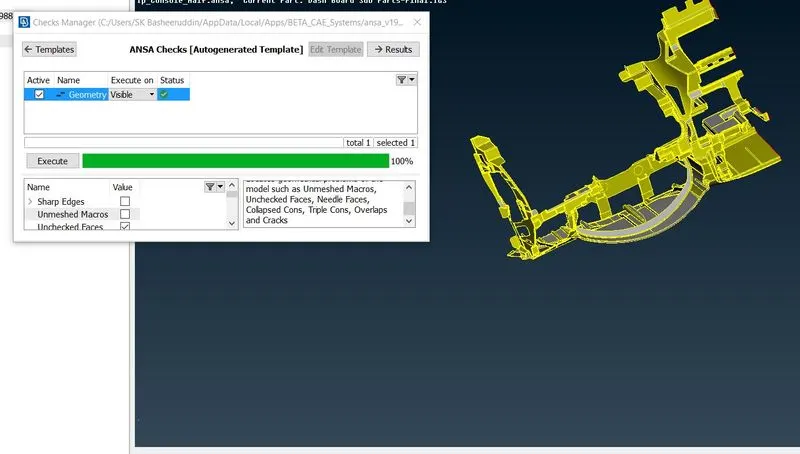
- And we should apply Geomentry clean up for the model.Check>Geomentry>excute>fix the error.
-
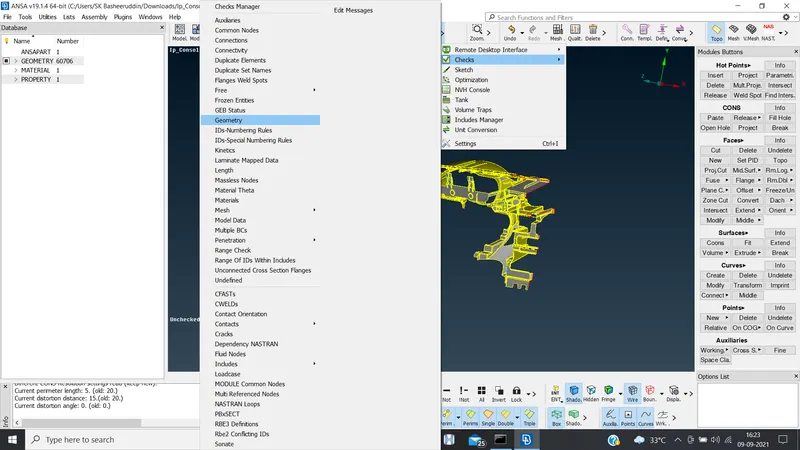
-
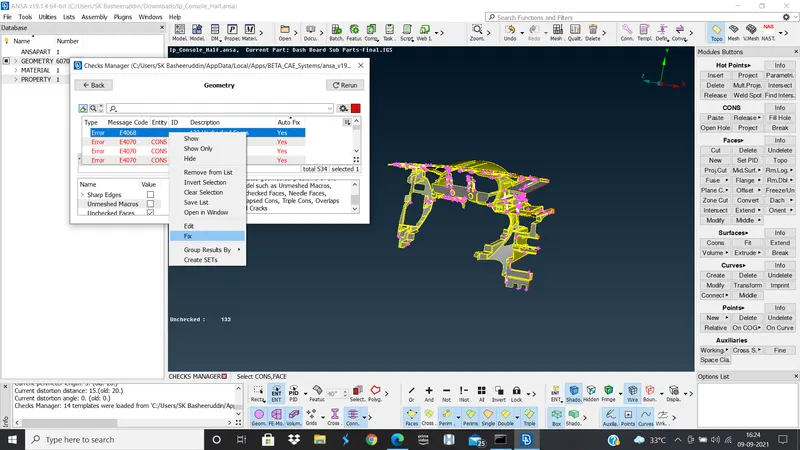
-
-
For set the PID for the component:
- After the Geomentry clean up we should create the PID property for the component.
- For creating the PID we should go to Mesh>Macros>set PID >create a new shell and import the component and double click on it and click on apply so that the property will be assigned.
Midsurafce on the component:
- For Mid surface we can create it by three different ways: Skin,Casting ,Manual Midsurface
- For the sheet metal components we can use casting way beacuse it was having same thickness through out the model.
- For the plastic components we can use manual mid surface by using offset command and give the offset value.
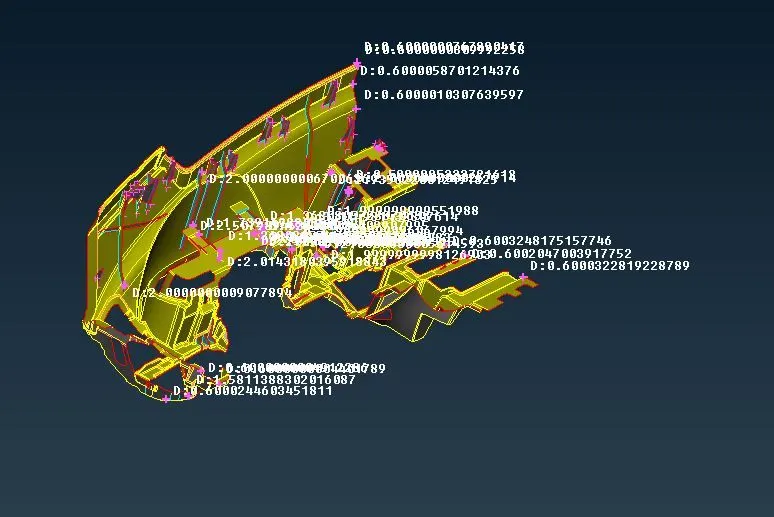
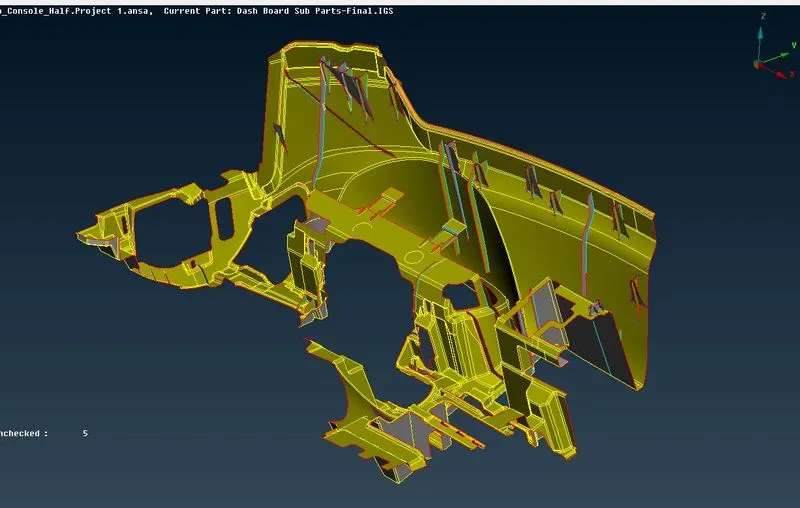
- For this model we are having two different thickness for the model having 0.6 and ribs having 2.50 and we can do it by manual mid surafce by Topo>Faces>manual>offset distance>double click ok.
-
-
Midsurface for the Ribs and Dog houses:
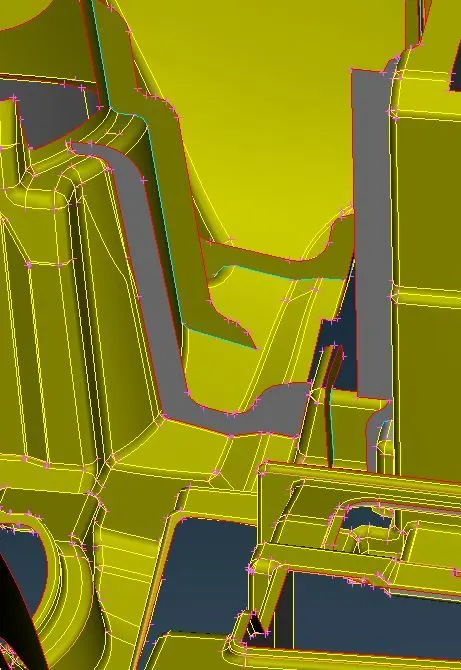
- For creating the Ribs we can use middle or offset command and give the offset distance of given model.
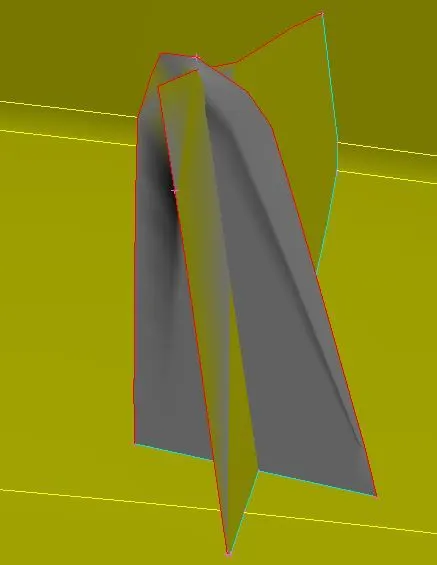
- And for creating the Dog house we should go to Topo>curves>create the curves the curves both sides of the ribs and create a new surface.
- For creating the new surface we can go to Topo>faces>new>cons>select the cons>click on ok.
- After creating the ribs and dog houses we should extend the faces to the model by Topo>Faces>extend>select the cons>select the surface.
- After extend the surface we should intersect command to intersect the given surfaces by>Topo>Intersect>First>second and click the ok we can delte the extract surface if the are formed.
For Mesh generation on the component:
- Before the meshing we should clean the geomentry by using the Topo>faces>cut and we can delete the close and unnecessary surfaces.
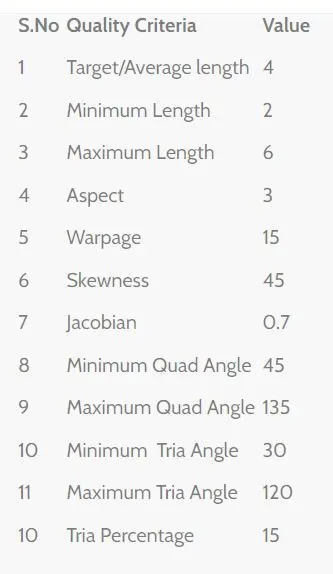
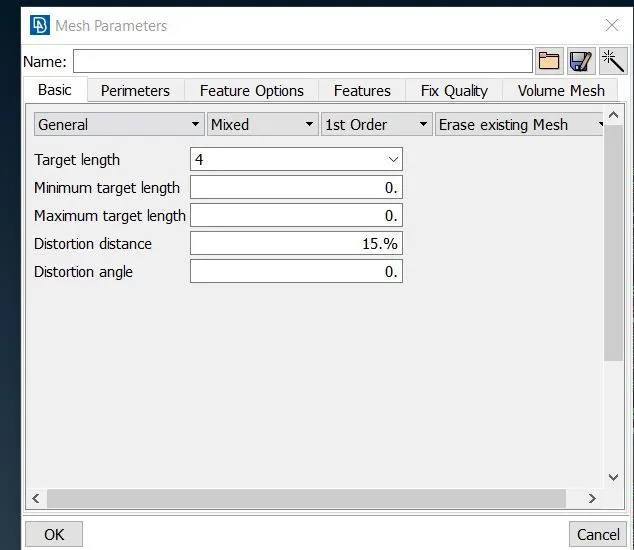
- After that we use the perimter to give the target element length by>Mesh>perimeters>length>macros>perimeter >give the value and click ok.
- After that we use give the quality parameter values by Mesh perimeters and apply and click on ok.
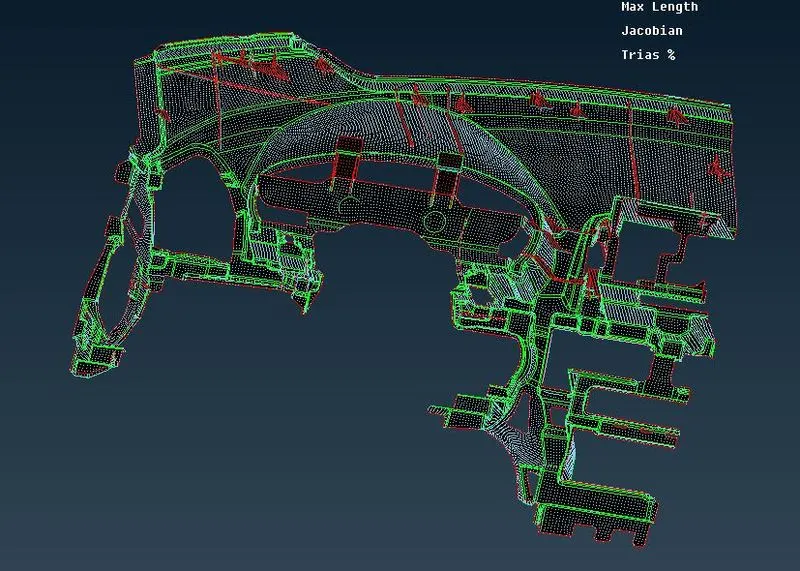
- For the mesh generation we should go to Mesh>Mesh generation>Best>select the component>click on ok.
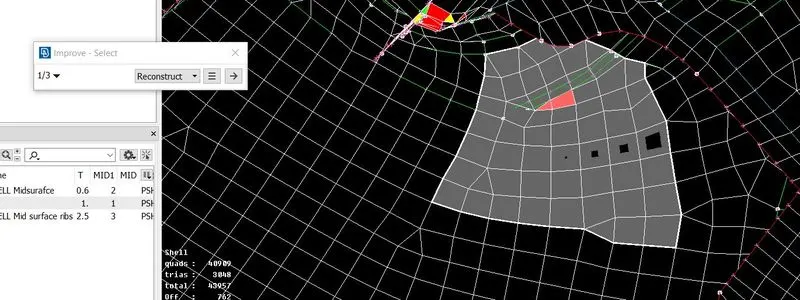
- After the mesh is generated we can improve the mesh so that it can reduce the the quality element failures and they will be a better mesh flow
- For the better mesh flow we can use Mesh>Shell Mesh>Improve>Reconstruct>clcik on ok.
- For the better mesh we can also use the smooth so that it will be a good mesh flow by>Mesh>shell Mesh>Smooth>select the mesh>click on ok.
- We can also use the split and swap,join,paste commands so that we can reduce the elemenatal failure.
-
-
-
For assign the Thickness to the Model:
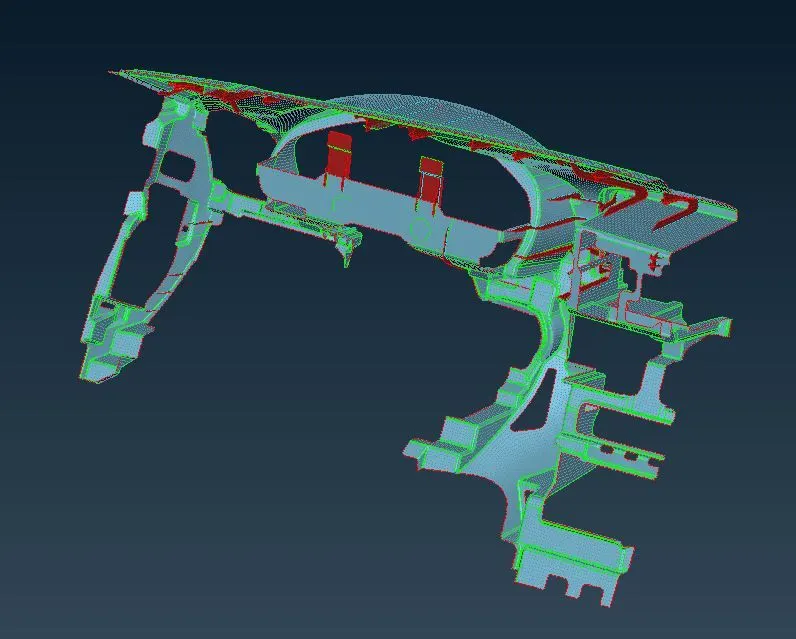
- For assign the thickness we should go to propert select the component and click on edit and assign the thickness values and click in ok.
- we should do the same process for the remaining components in the model also according to thcikness values.
- We should change the ENT mode into the PID mode so that we can see the Model having Thickness.By go to Mesh parmeters and clcik on Draw shell as solid. so that we can see the thickness of the model.
-
Conclusion: After completing the Project we can come across the given:
- We can clean the geomentry model.
- Assign the PID to the model
- Manual mid surface generation
- Good Mesh Flow with reducing elemental failure.
- Assign the Thickness to the model and applying the shell as solid to observe the Thickness.
Google Drive Link of the given model:https://drive.google.com/file/d/1AtdkFfm8lp8ugYkt5Khtkz1peBbnoqy6/view?usp=sharing
https://drive.google.com/file/d/1AtdkFfm8lp8ugYkt5Khtkz1peBbnoqy6/view?usp=sharing