Project 1 - 2D meshing on the instrumental Panel
REPORT
Aim: -
The main aim of this challenge is to perform 2D meshing on an instrumental panel
Procedure: -
- The model was imported/opened in ANSA.
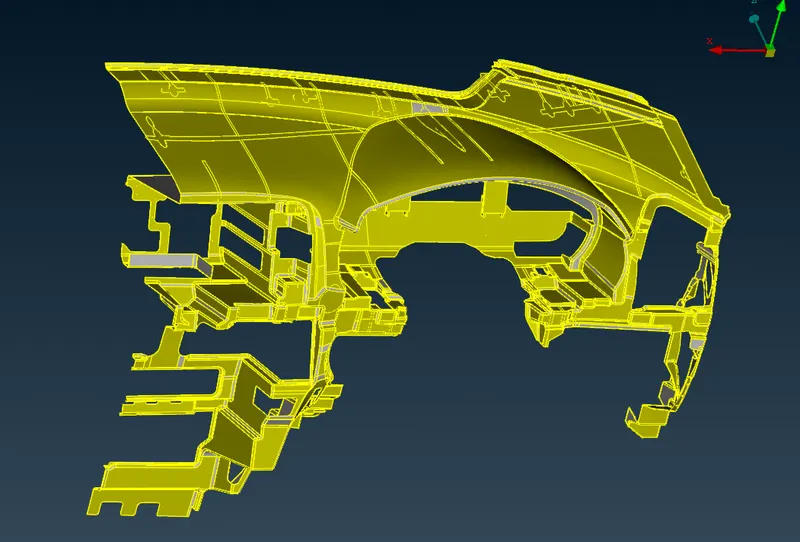
- The first step after importing is to apply cons resolution.
- Then it is followed by the cons check-up
- Then we proceed with the single cons, which is done by hiding the single and double cons.

Single con check-up
- Then we have to check for the orientation.
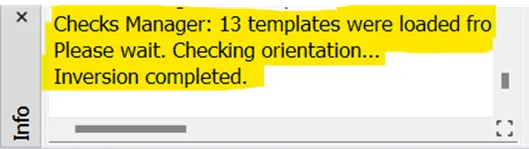
- After that we can proceed to the geometry check-up which is done by check manager >geometry >check single cons and other parameters >execute
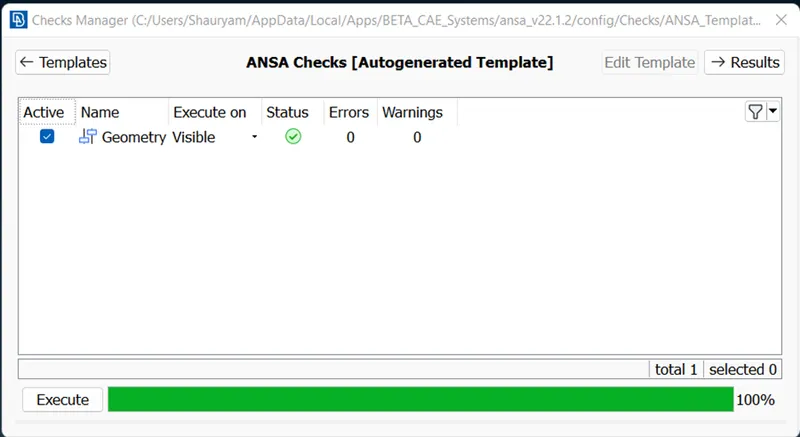 Geometry check-up using checks Manager
- If there are errors, they are rectified there only by right click on the error and fix.
- For the casting, the mid-mesh is generated automatically. We just have to clean the geometry and hit Topology > Middle surface > Casting / Extrusion > select face > Ok.
- Once the casting is done, we get a decent mesh. But at some places, the mesh is not generated properly. To correct it, we use something known as the align manager. What it basically does is, recreates the areas which was otherwise not created initially.
- To operate the align manager, we go to topology > Faces > middle Surface > Align Manager
- This opens up the manager. Over here there are two options, one in the area and the other one in the perimeter.
- If a surface is not aligned properly, we use the area option and click on the mesh area. Then it populates the area, we then different options such as add to, align, edit, new, or whatever the requirement may be to align the mesh.
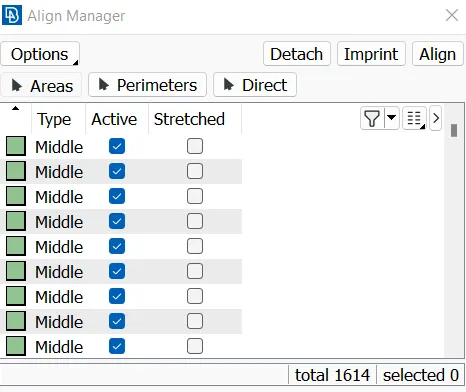
Align Manager - Area
- The perimeter option can also be chosen when we want to align the perimeter. In the perimeter option, there are many options under new, such as points, faces and imprints. The imprint option is used to imprint any important line such as the feature line which has been not captured during the casting process. Point options are used to capture triple cons while faces are used for single cons.
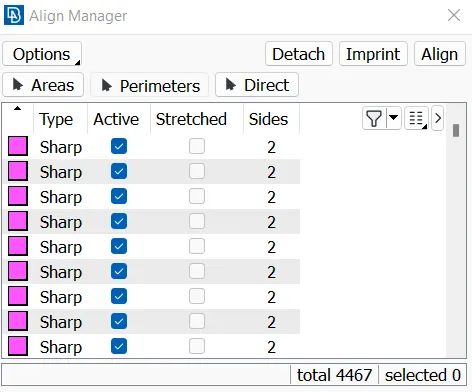
Align Manager - Perimeter
- If the mesh generated is not proper, we reconstruct it using the - shell mesh>reconstruct
- We can also make the necessary changes in elements count and type.
- This is done by – Perimeter >Num+/- >values
- We can also split the elements in order to control the mesh flow
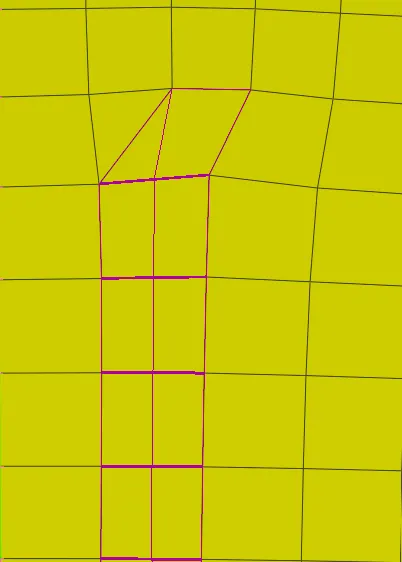
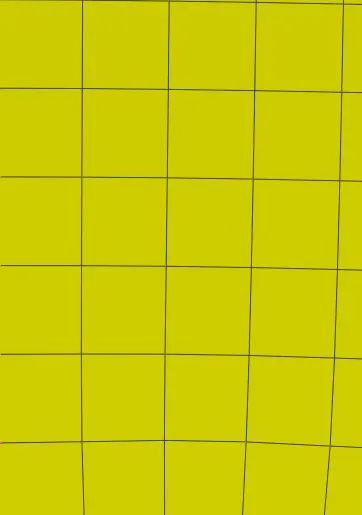
Elements before Splitting Elements after Splitting & Smoothing
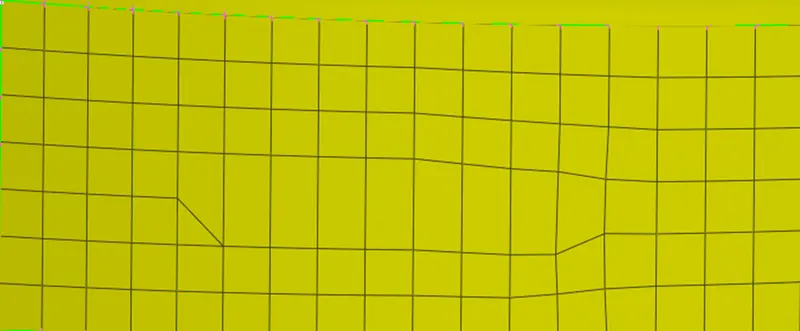
Elements before Smoothing
Smoothing is done after necessary changes in mesh in order to generate good mesh flow by making the elements near ideal. Elements after smoothing
Learning Outcomes: -
- Learnt about topology clean-ups
- Learnt about casting/extrusion meshing
- Learnt about the proper ways of splitting elements in order to get good mesh flow
- Learnt about maintaining the element quality criteria
Conclusion: -
It can be concluded that each and every step is very crucial in order to get a proper mesh flow.
Project link:-
https://drive.google.com/file/d/17QxKxHclMEl3QACzYCuBSgCBIIJ3gZVu/view?usp=sharing