Project 1
1.ans. Aim:- To Schedule the plan Of Design and Construction of a Project in P6.
Tools used:- Primavera P6 software, Enterprise menu, EPS, Projects menu, WBS options etc.
We need to Develop a realistic schedule of construction of a main school building. It will have a parking facility with internal roads and main building complete with architectural, furniture and electrical fittings also including basic electrical and plumbing activities.
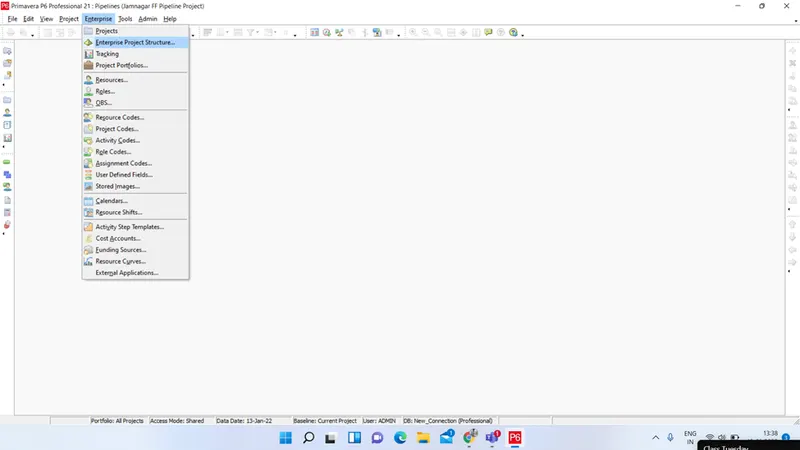
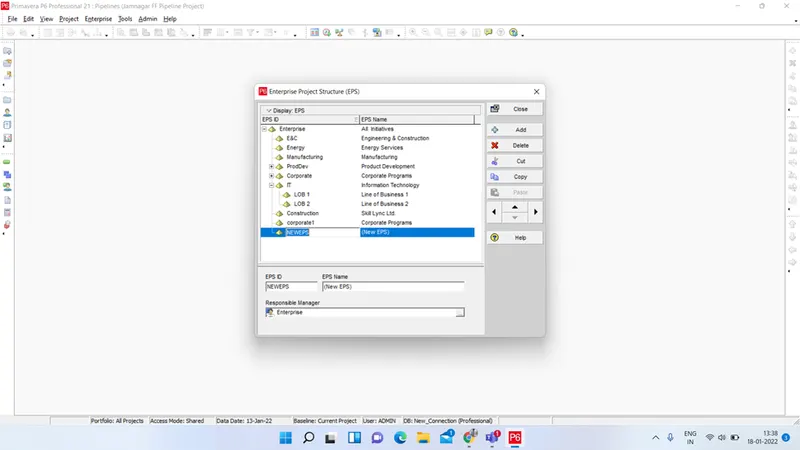
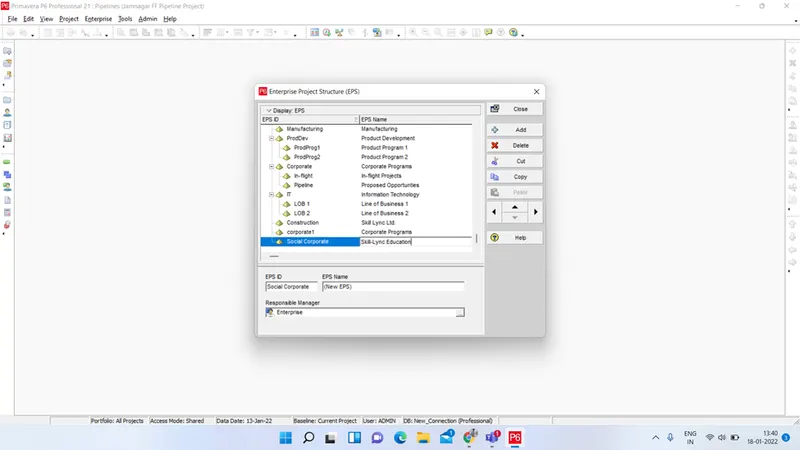
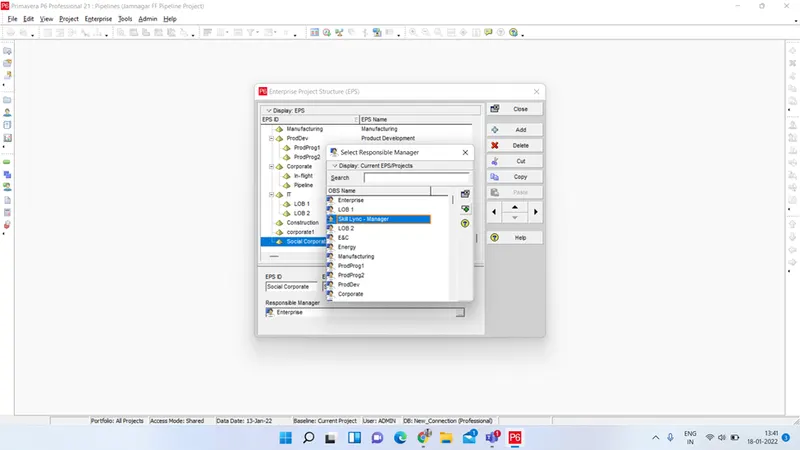
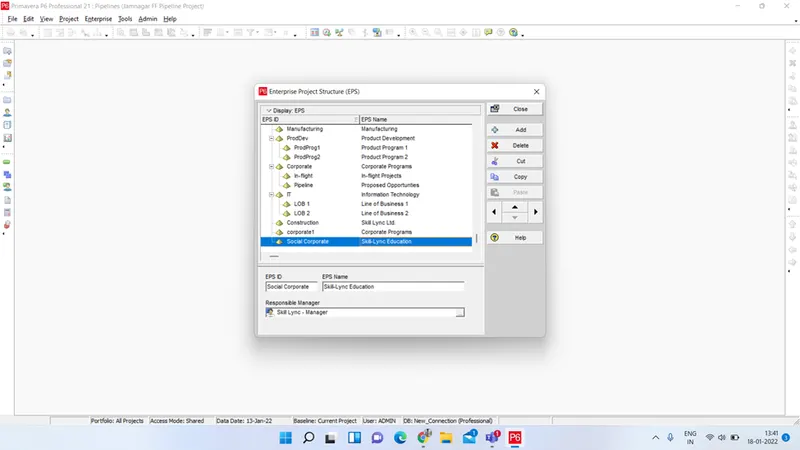
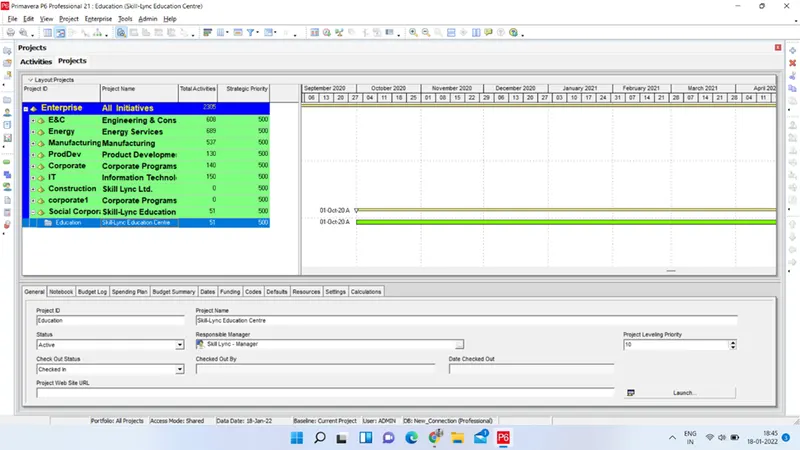
- Open the P6 software and Go to Enterprise -->> EPS. Click on Add button and add a new EPS with Name Skill Lync Education and proper ID. Assign OBS as Skill Lync- Manager. Assigning all fields click OK.
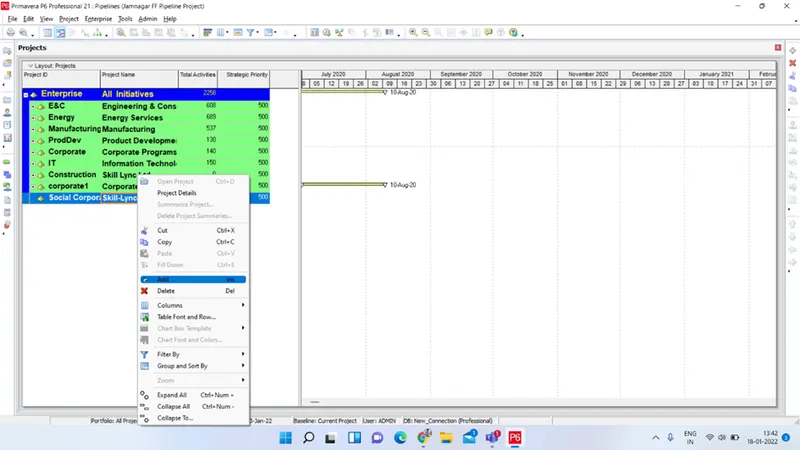
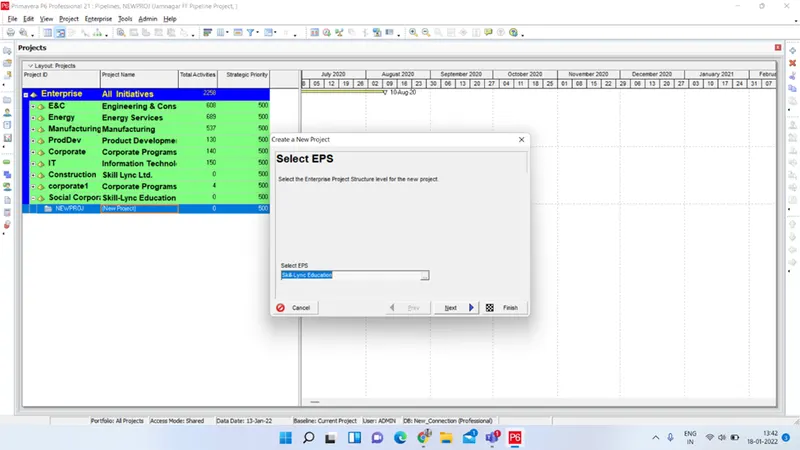
- Now, right click on created EPS and select ADD. Create the New project with desired name and ID, under suitable EPS. Provide planned Start and Finish date. Fix the rate type as Standard Rate and click Finish. Go to defaults tab at bottom screen and assign project Calendar as 6*24.
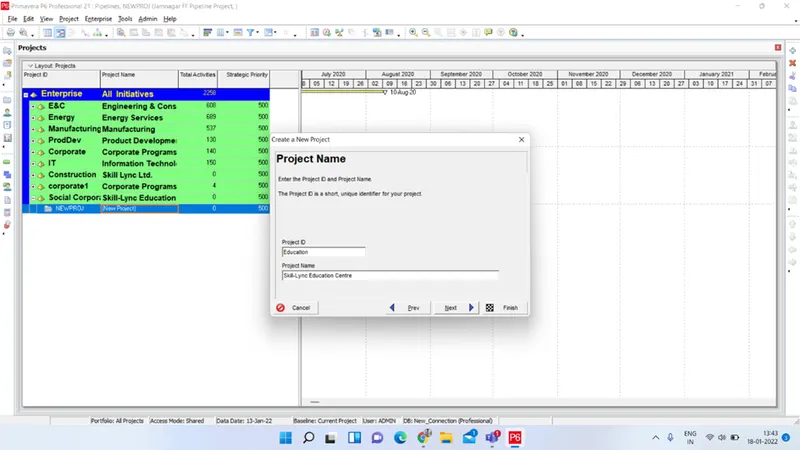
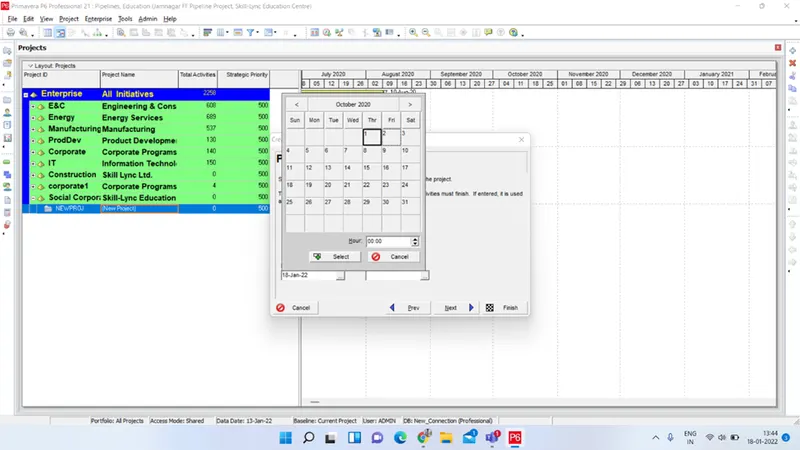
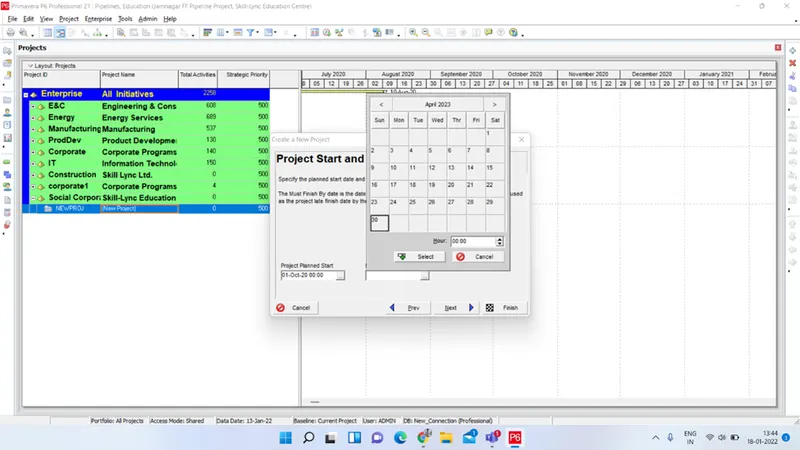
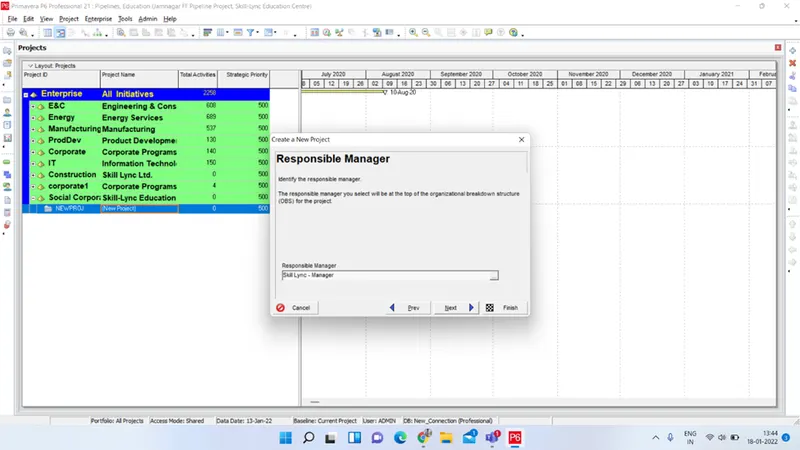
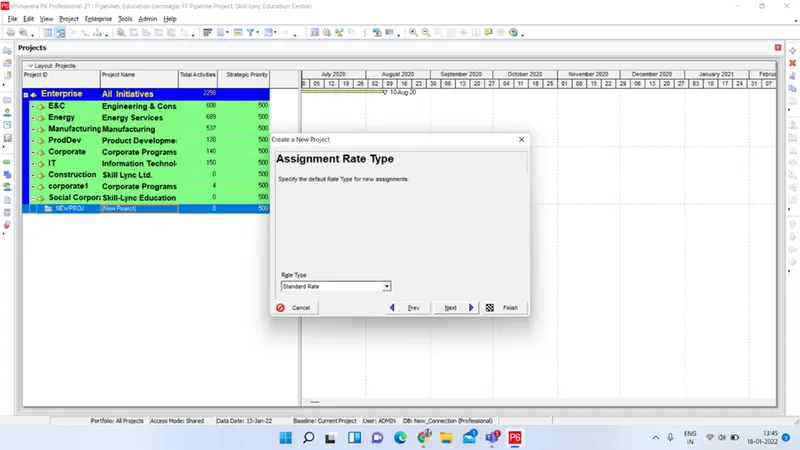
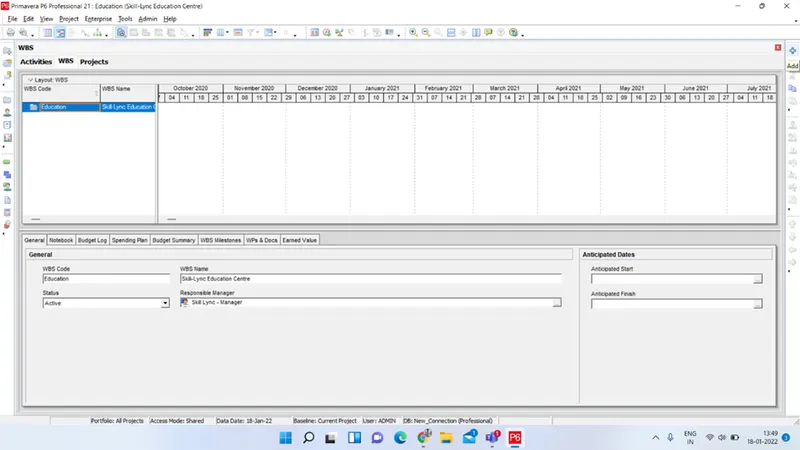
- Now, right click and select open project. Go to WBS and add different WBS suitably as per need.
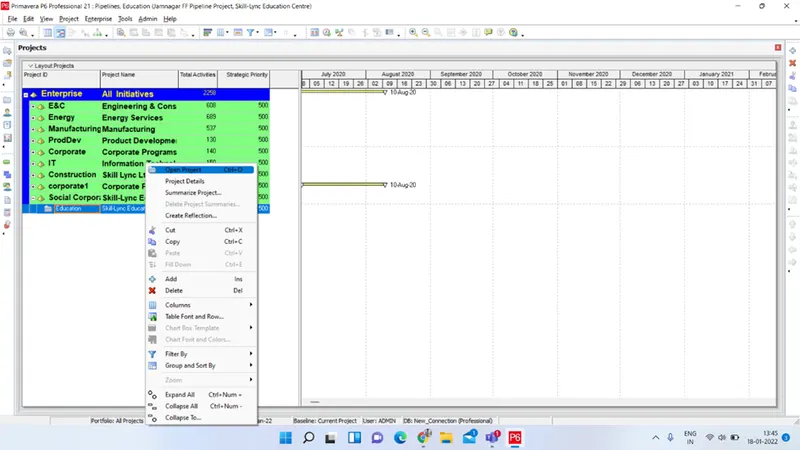
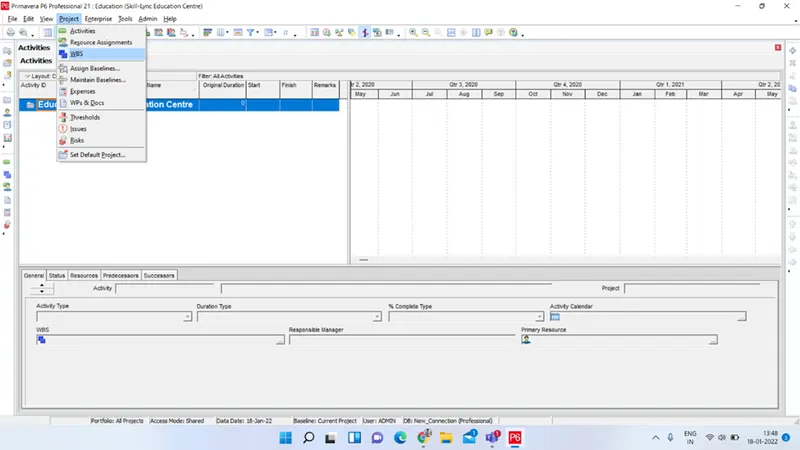
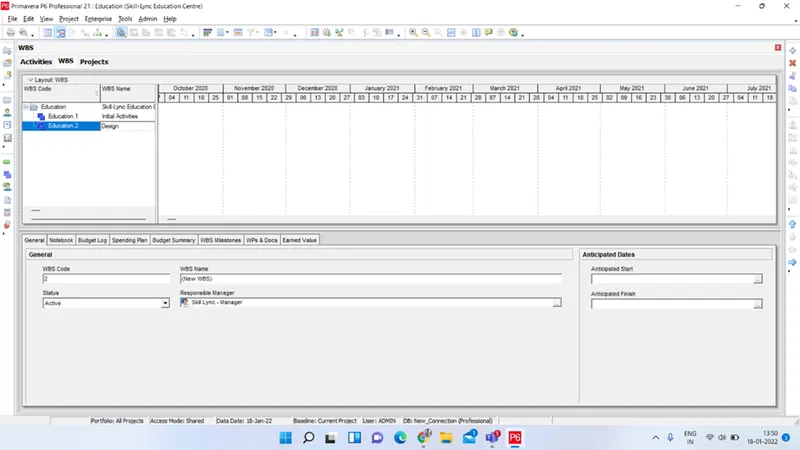
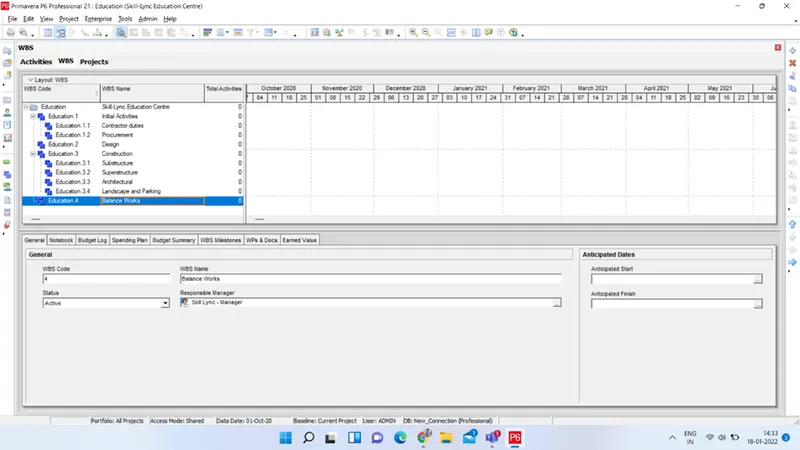
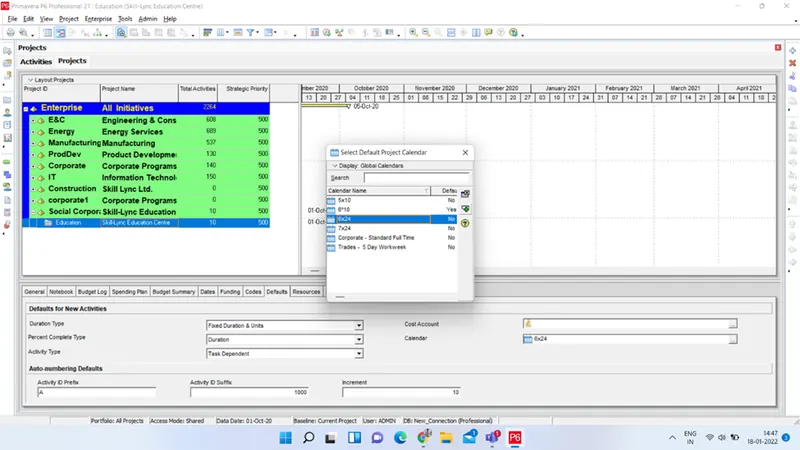
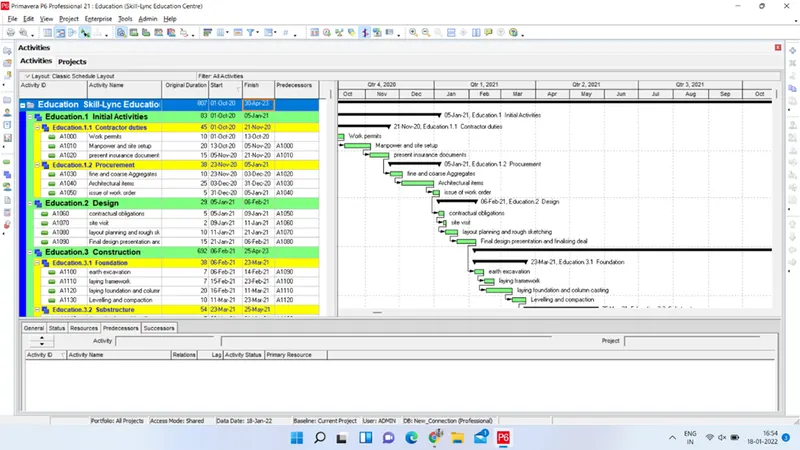
- Now, open the project and right click on activities dialog box. Select Add and start adding Different activities as per requirement. Assign proper activity id with an increment of 10. Last activity completion of project will be set as finish milestone.
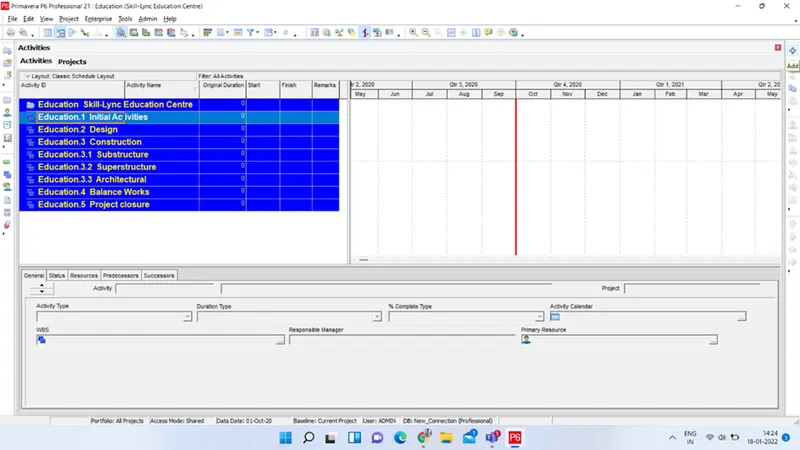
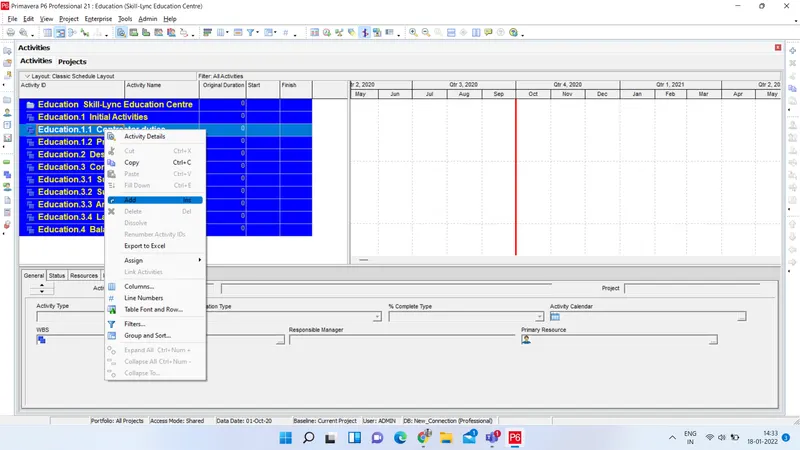
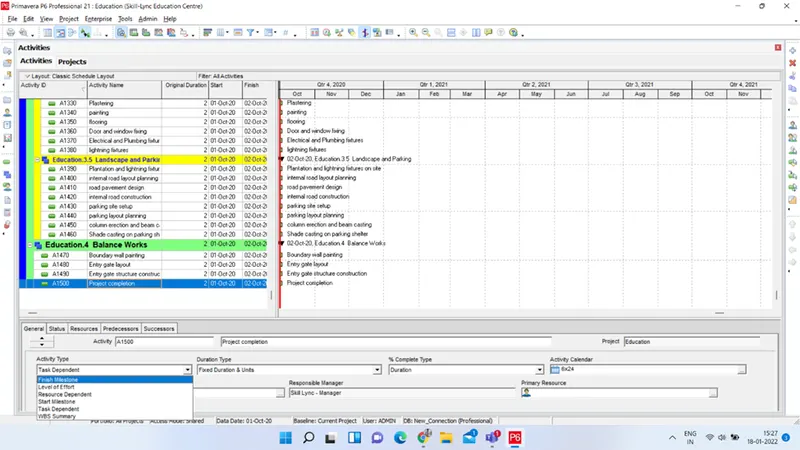
- After adding all activities, enter durations for each activity under Duration column.
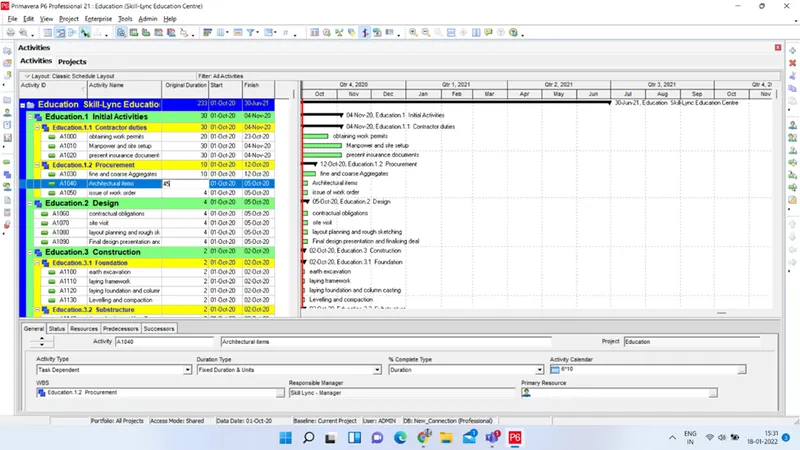
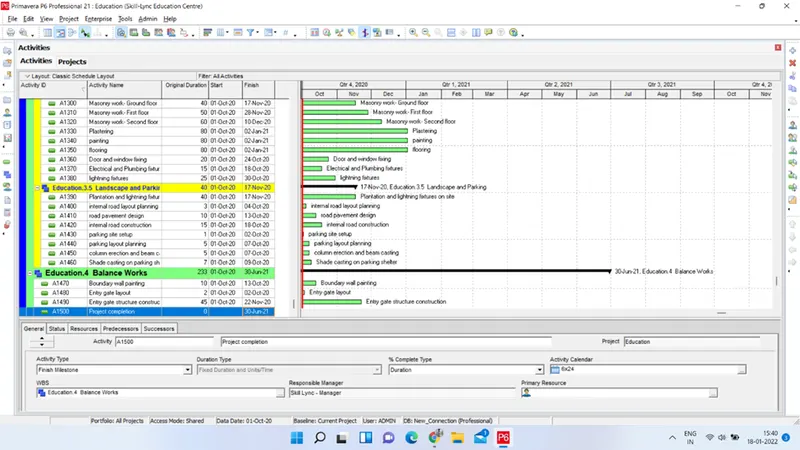
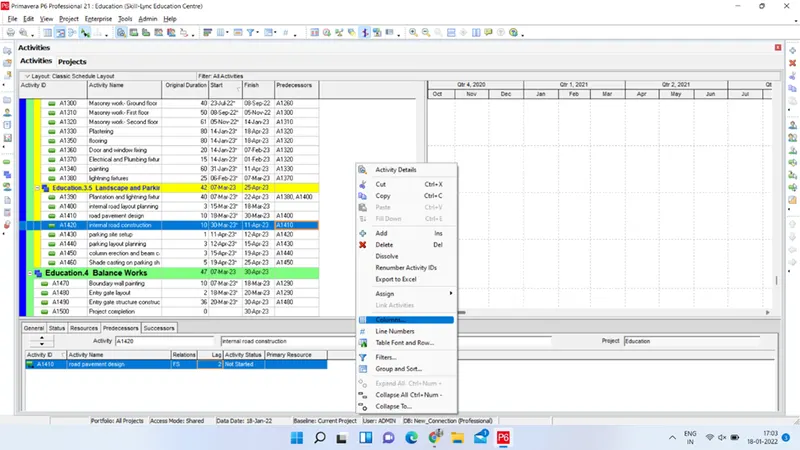
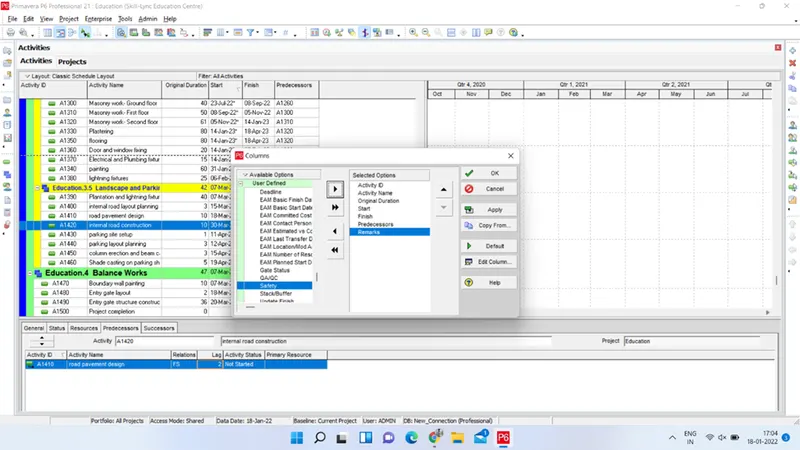
- Right click on Activity window and select Columns. Add Predecessors column and select Apply. Finally click OK.
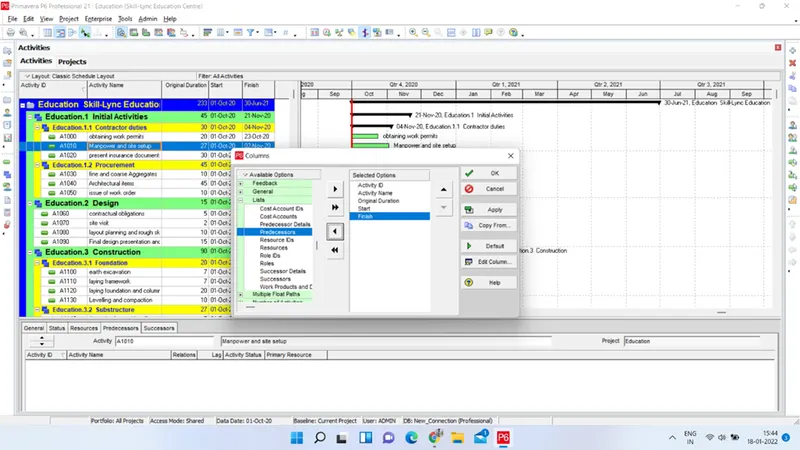
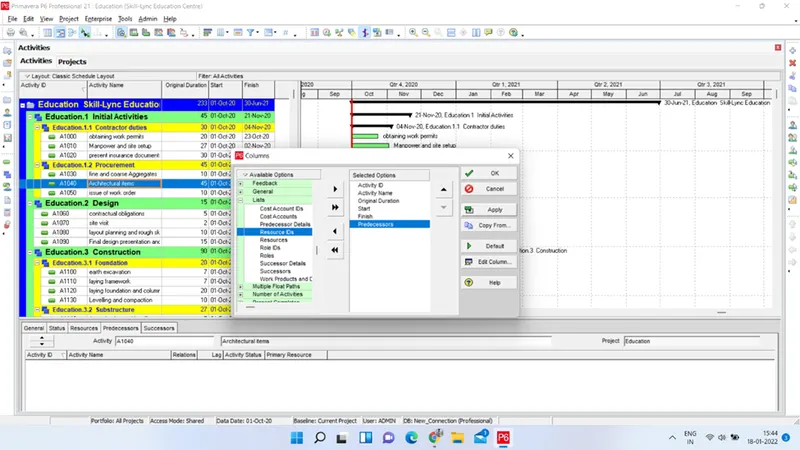
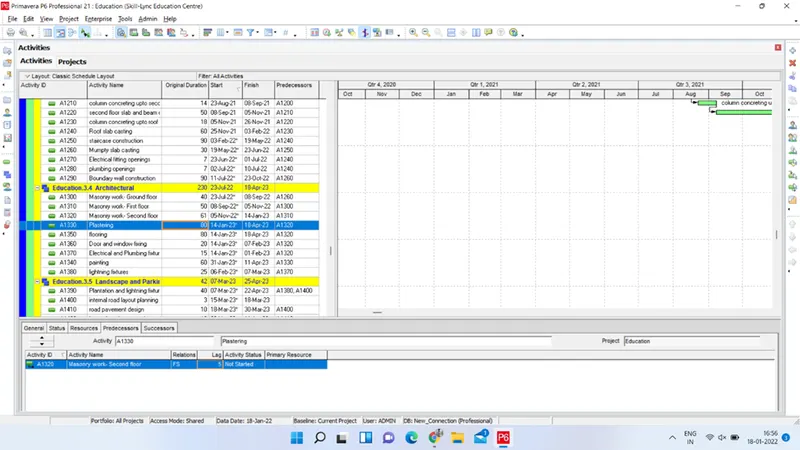
- Assign predecessors to all activities using either columns or by dircetly through Gantt chart using Mouse.
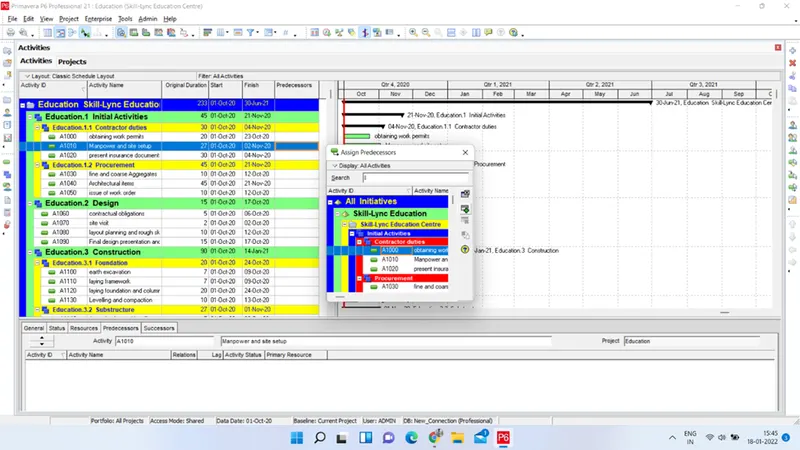
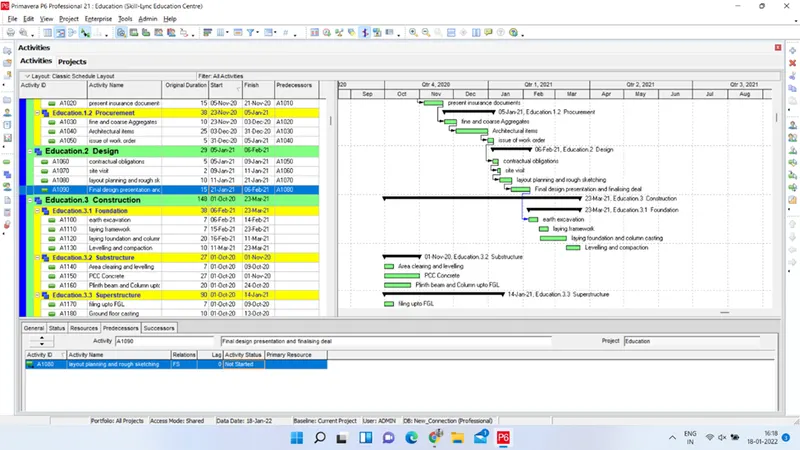
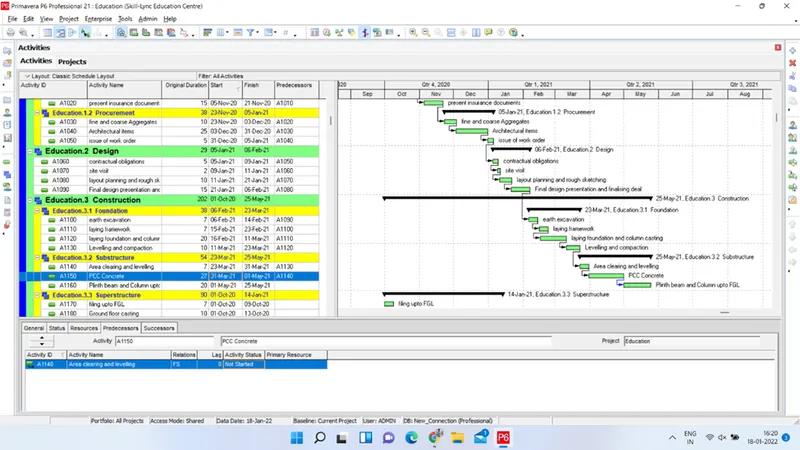
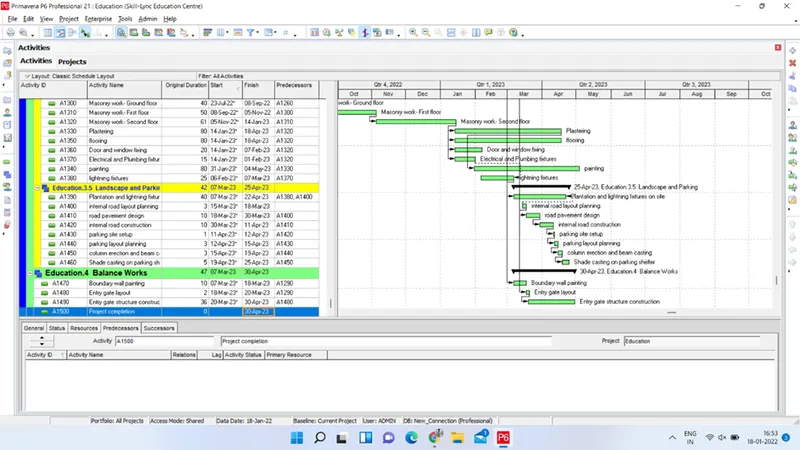
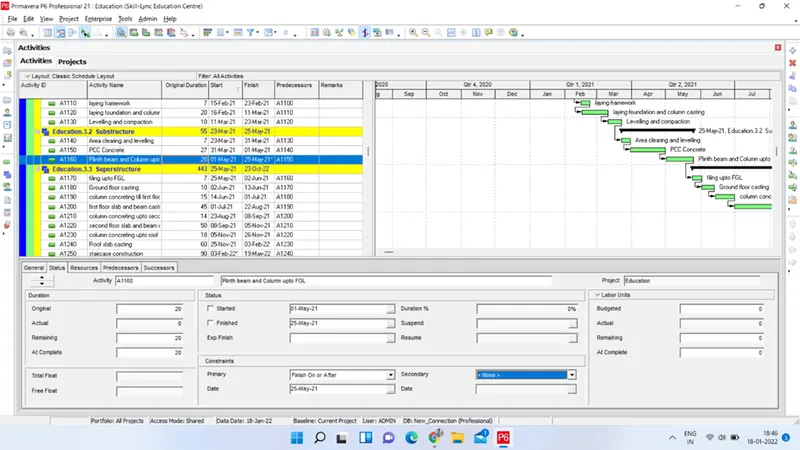
- Assign Suitable realtionships between activities and Lags using Predecessors tab on bottom part of screen. go to status option under bottom part of window and fix the constraints for an Activity as per need.
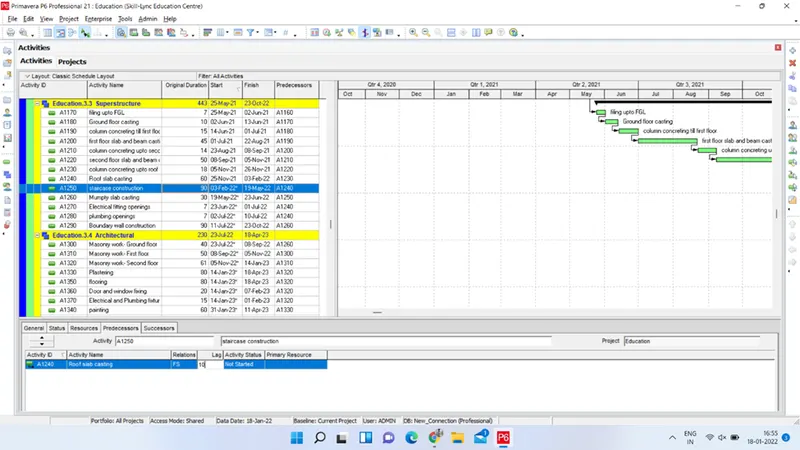
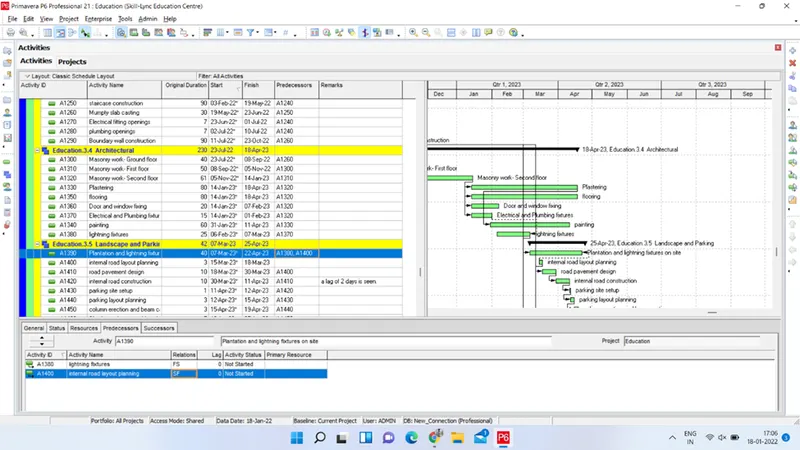
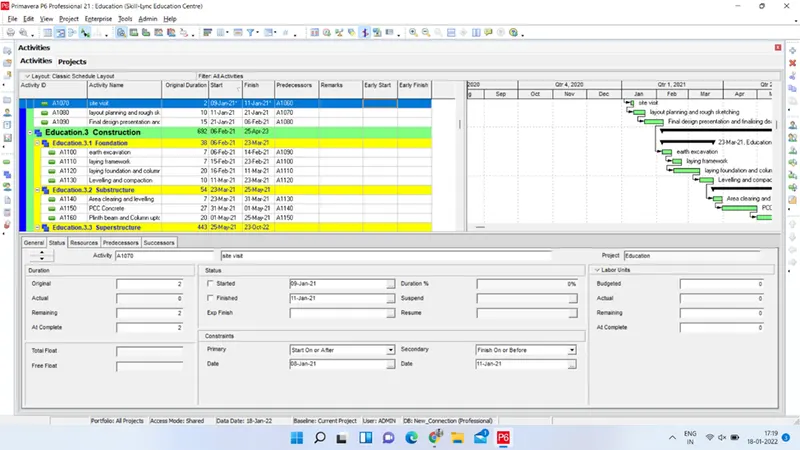
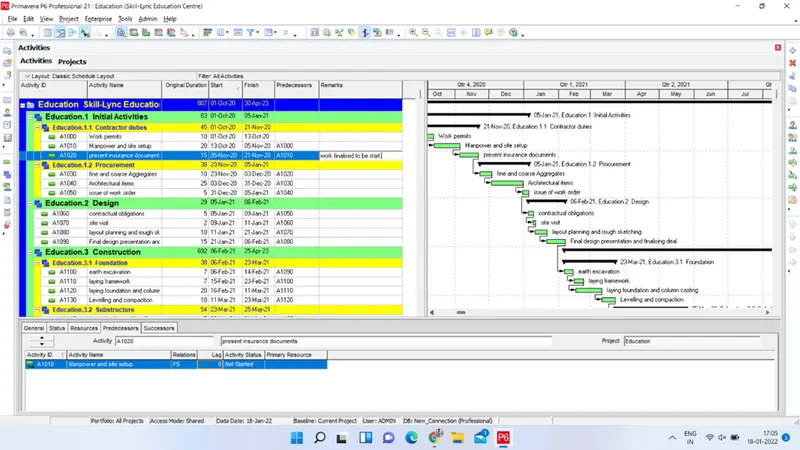
- Right click on the screen and Select Columns. Insert Remarks column from user defined field and Click on Apply. select OK finally.
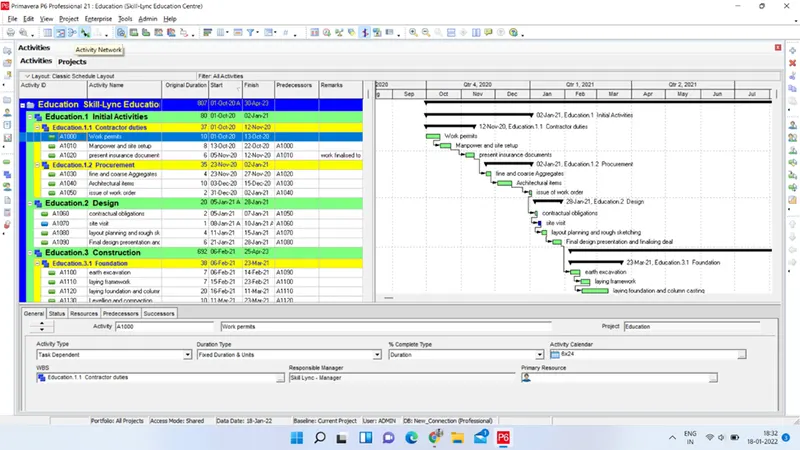
- Go to View menu and select filter by option. From Filters dialog box select Critical and click on apply. Activities will be filtered as per Critical activity.
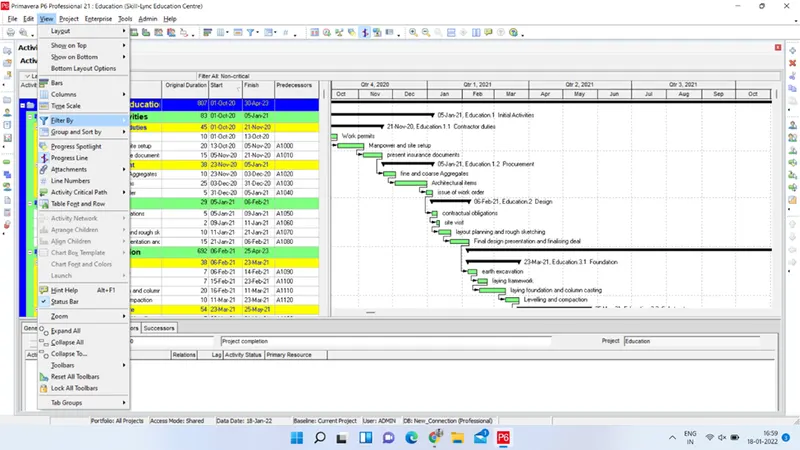
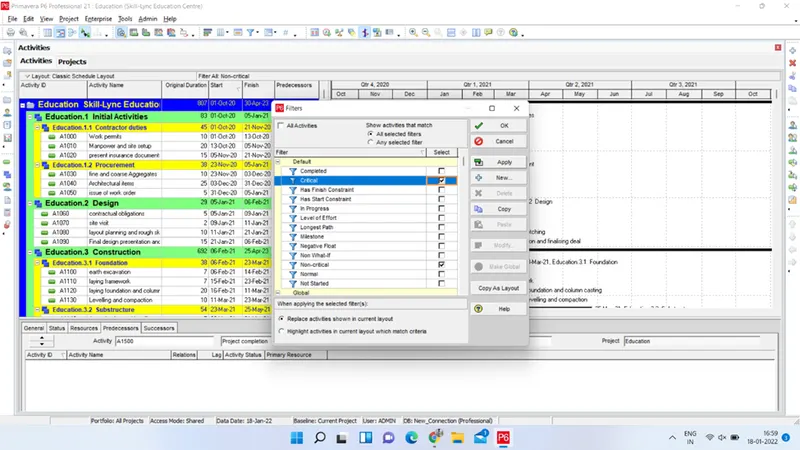
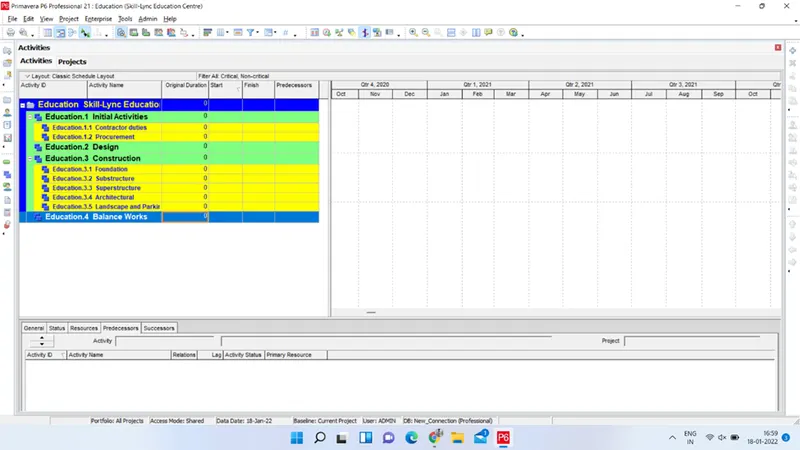
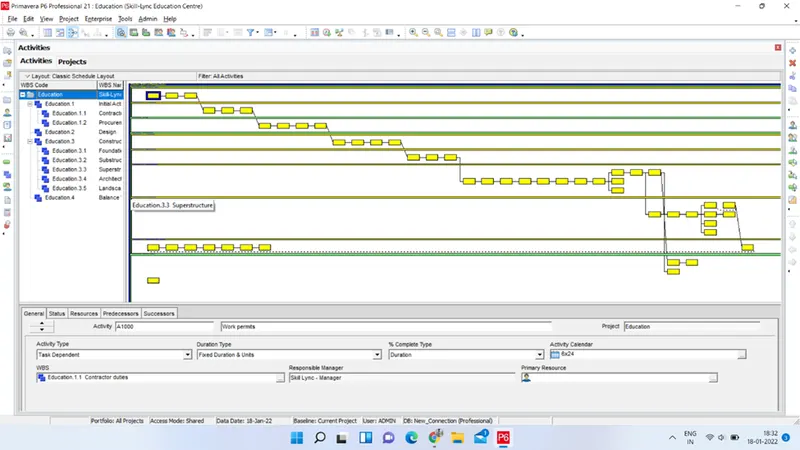
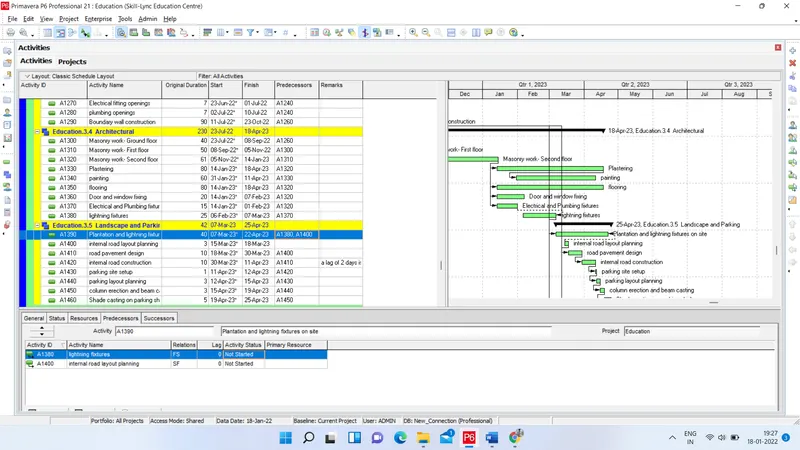
Thus our scheduling is done as per required needs and we can visualise results as shown below.
Project is created with a total 51 activities, organised under various WBS with suitable relationships with each other.
Whole activity network can be visualised as by selecting Activity network option available under menu bar as: