Preparing Schedule & Cost Estimation for a building using REVIT
1 ANSWER:
a)For creating a section box using 3D model ,shortcut Key is BX (SECTION BOX)
b)For creating similar doors and windows in a floor plan layout,shortcut Key is CS (CREATE SIMILAR)
c)For reducing the thickness of lines visible in plan views. Shortcut Key is TL (THIN LINES)
d)For applying override settings to a floor in the model section view,shortcut Key is VG (VISIBILITY GRAPHICS)
e)For increasing the range of visibility in a plan view,shortcut Key is VR (VIEW RANGE)
f)For selecting the previously selected items,shortcut Key is CTRL+<
g)For adding annotations to the model views,short cut Key is DI (DIMENSIONS)
h)For bringing the model elements in line, shortcut Key is AL(ALIGN)
i)For rotating the model elements, shortcut Key is RO(ROTATE)
j)For moving an object to another location,shortcut Key is MV (MOVE)
k)For copying a model element,shortcut Key is CO ( COPY)
l)For mirroring an element about any axis ,shortcut key is MM (MIRROR)
m)For creating an array of model elements,shortcut Key is AR (ARRAY)
2 ANSWER:
AIM:The purpose is to prepare a schedule for walls ,doors ,windows ,materials
PROCEDURE:
- First open the revit file to which the schedule has to be created
- Select any floor plan
- Now click on schedule under view tab and select schedules/quantities
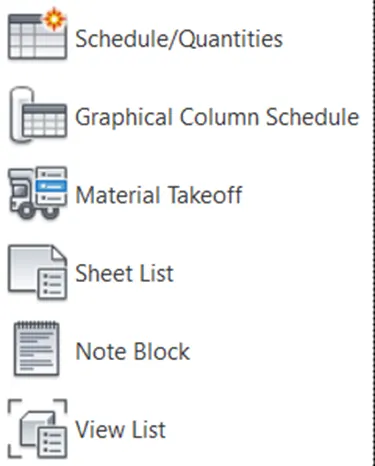
- Then select walls from the list and add the parameters you want for the schedule
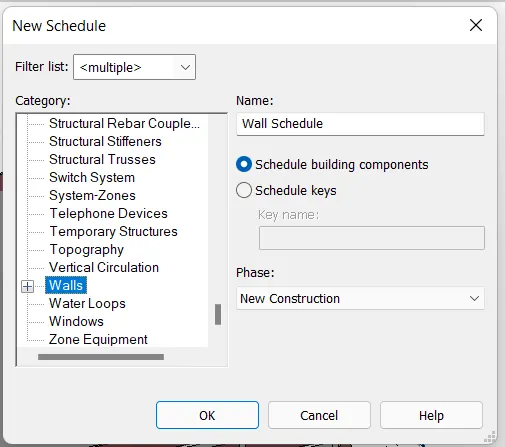
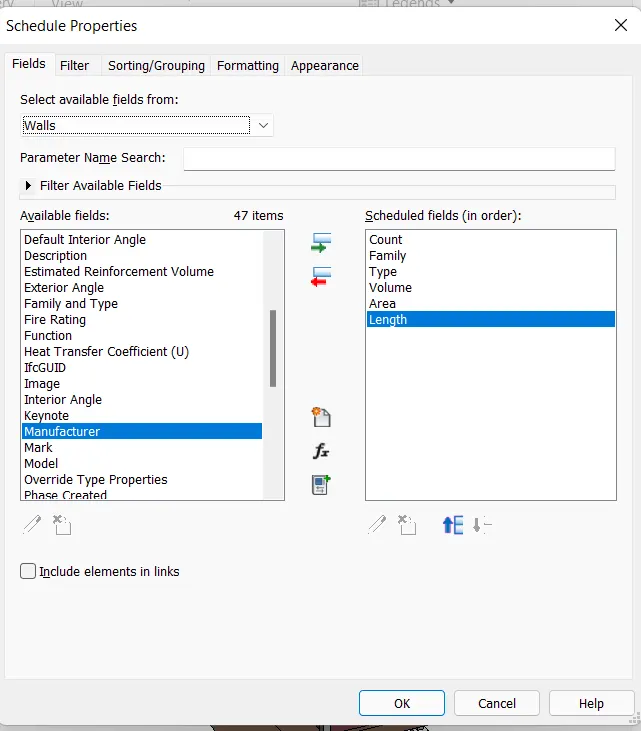
- Then click on OK
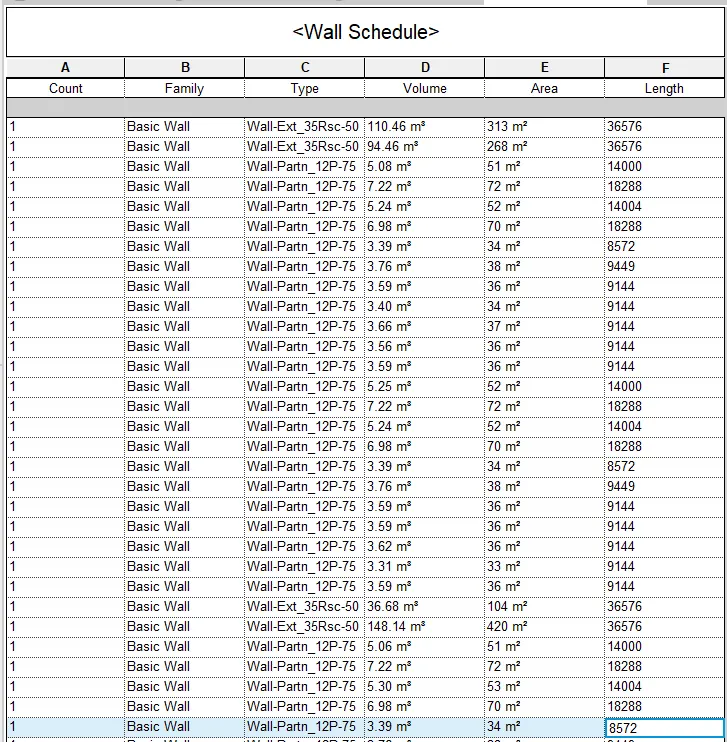
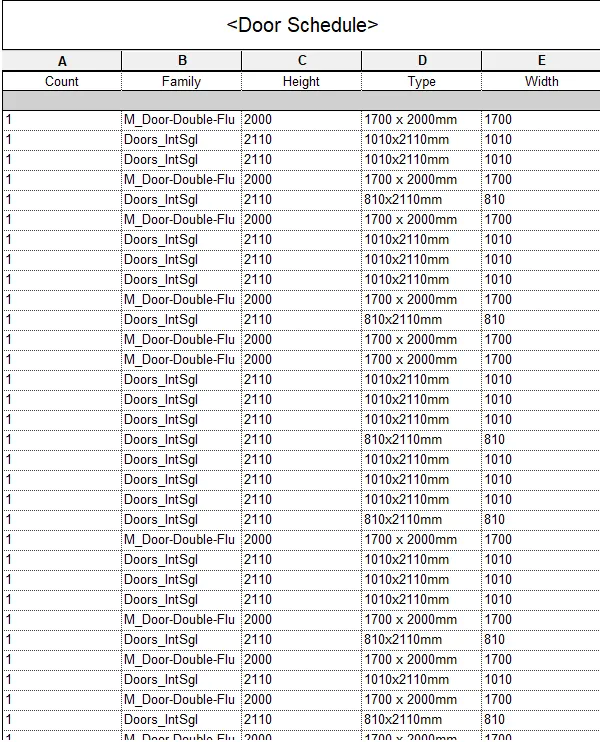
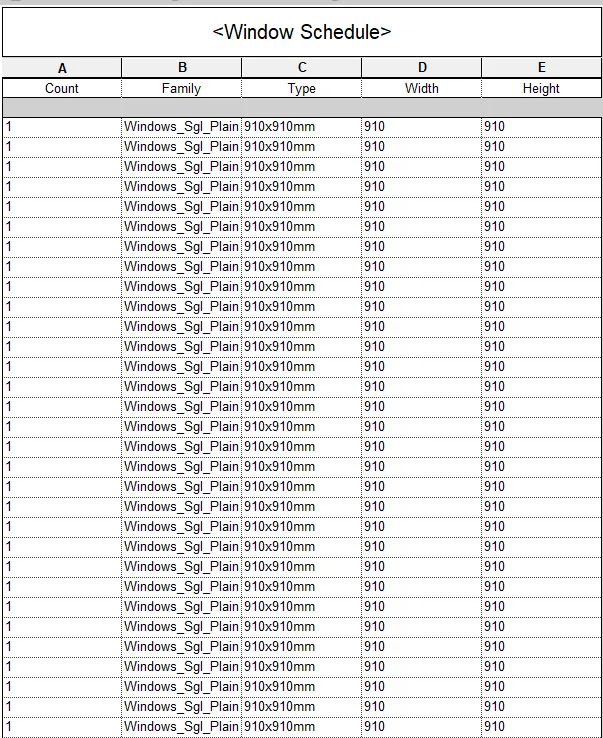
- Repeat the process for creating doors and windows schedules
- Door schedule
- Window Schedule
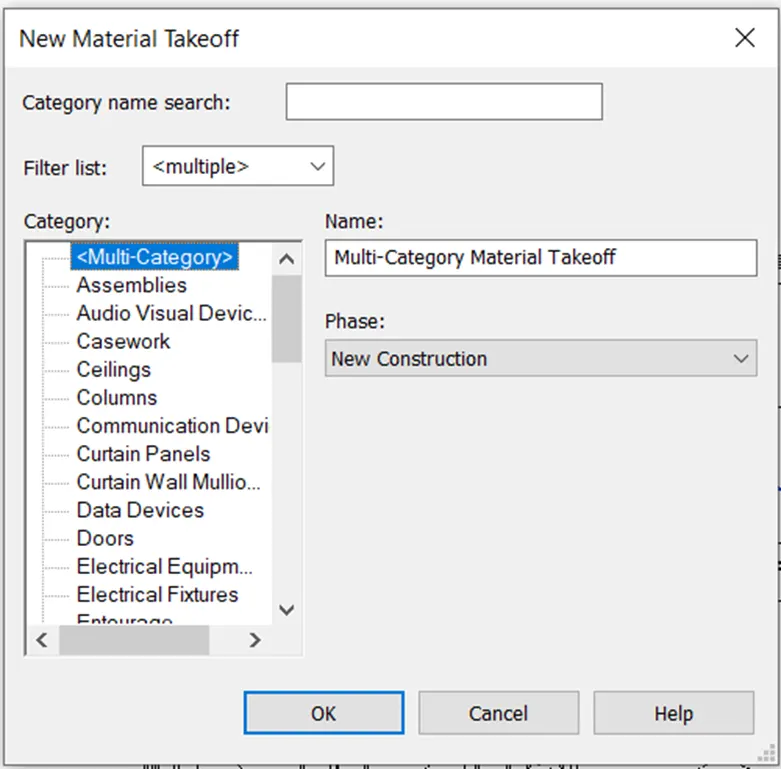
- Then for material schedule click on material take off
- Again select any one of the categoty like floors and select the parameters
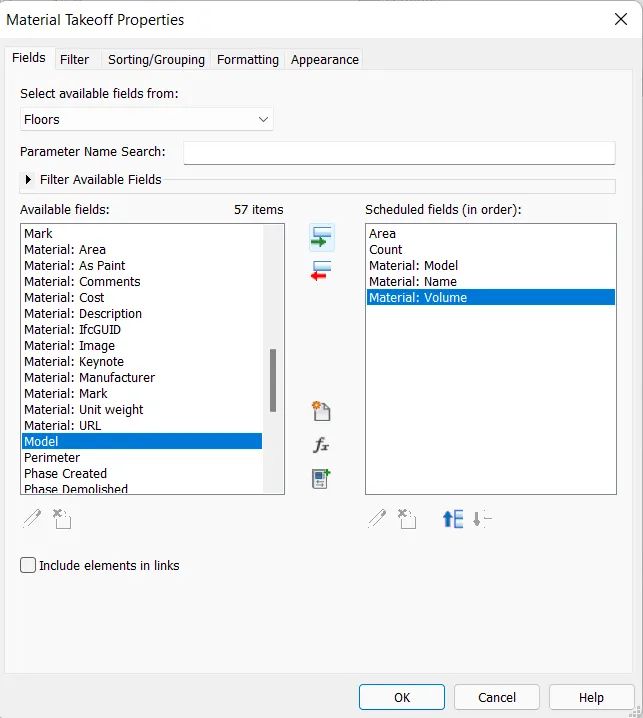
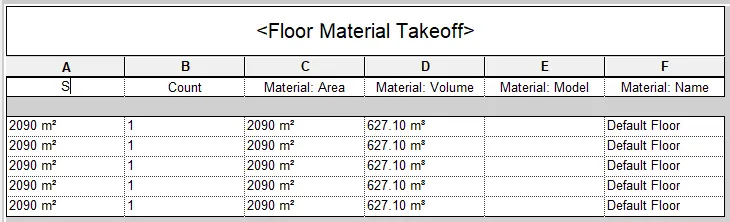
RESULT:Hence,schedules are prepared for the given quantities
3 ANSWER:
AIM:The purpose is to caluculate the area and volume parameters of the rooms
PROCEDURE:
- Select any floor plan
- Now click on schedule under view tab and select schedules/quantities
- Then select rooms from the list
- Then add the parameters like area ,count ,perimeter ,Name of the room,Volume etcc and click on OK
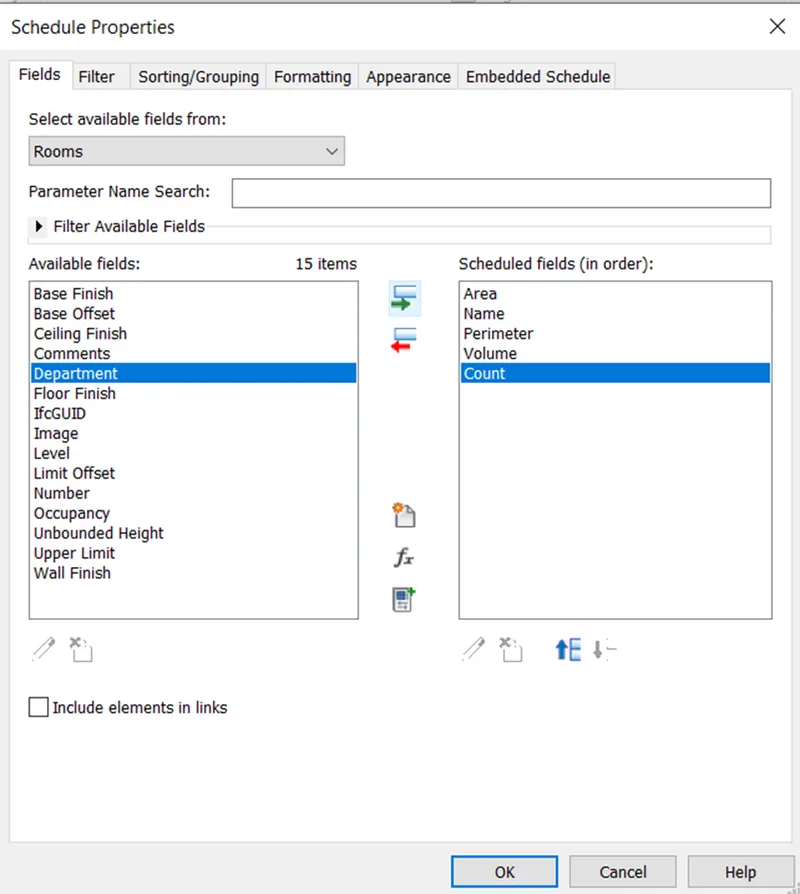
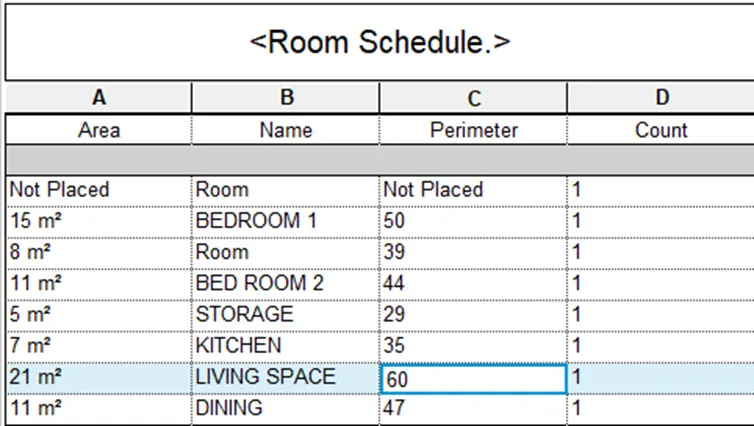
RESULT:Hence,different parameters of catergories of the model are calculated
4 ANSWER:
AIM:The purpose is to prepare cost rate of the materials used
PROCEDURE:
- Select floor plan view
- Select any of the catergory for which the cost has to be found
- Now click on edit type from the properties browser
- Scroll down and set the cost to that material
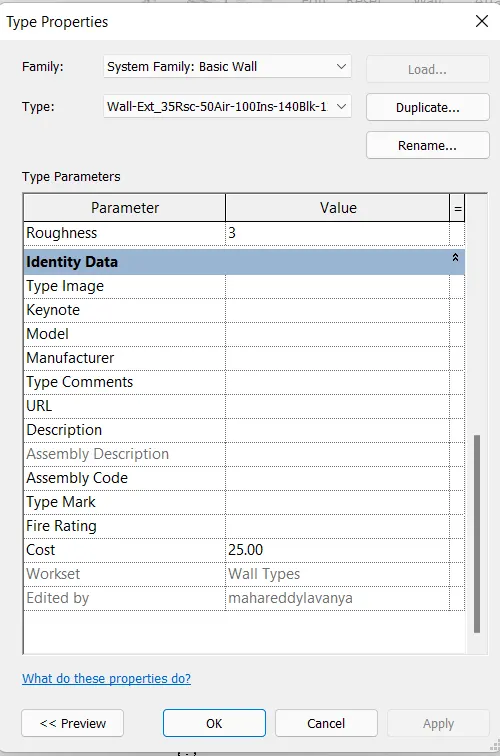
- Then to get the whole cost of material go to view tab and click on schedules
- Click on material take off and select walls
- Now click on cost ,count,material name,material volume and click on ok
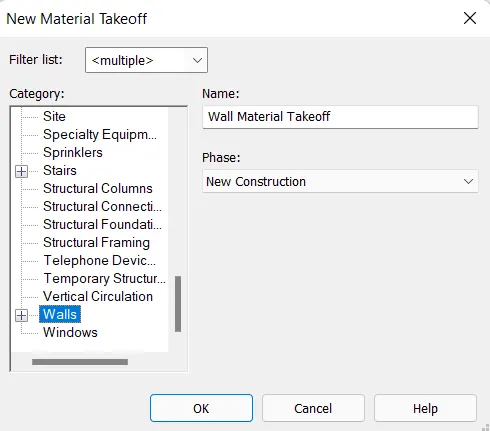
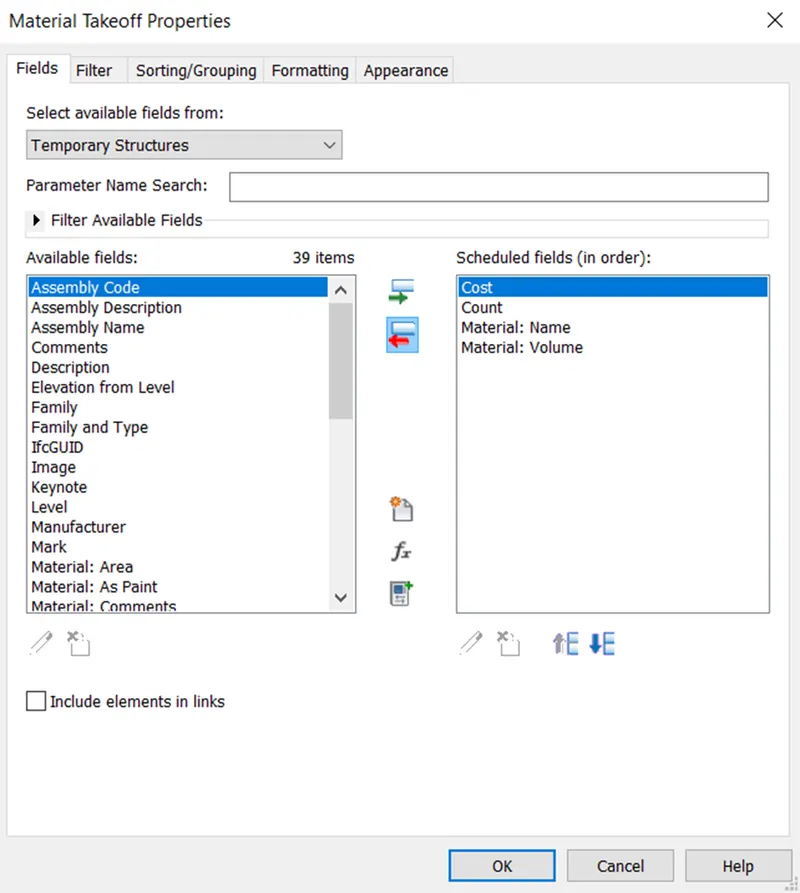
- Now right click on any column click add column and select any parameter
- Now click on caluculated as shown
- Name it as Total cost and set the formula
- then click ok as shown
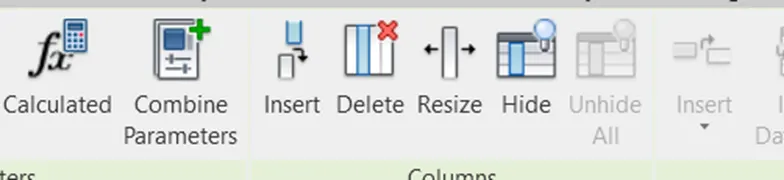
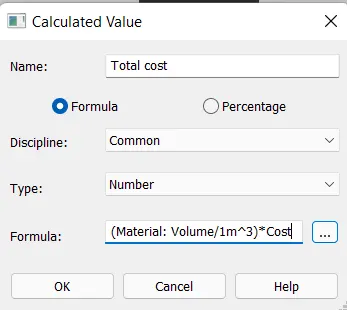
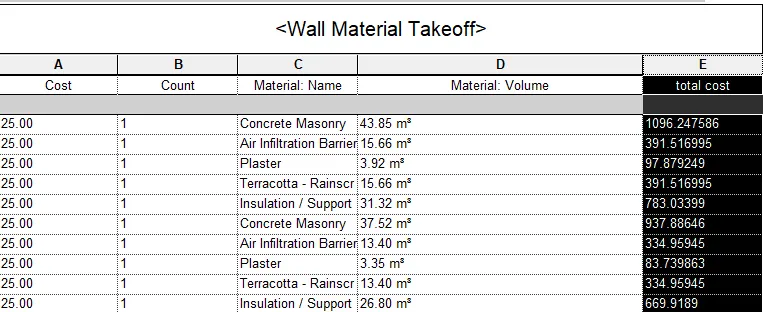
RESULT:Hence total cost of individual materiails is known
5 ANSWER:
a
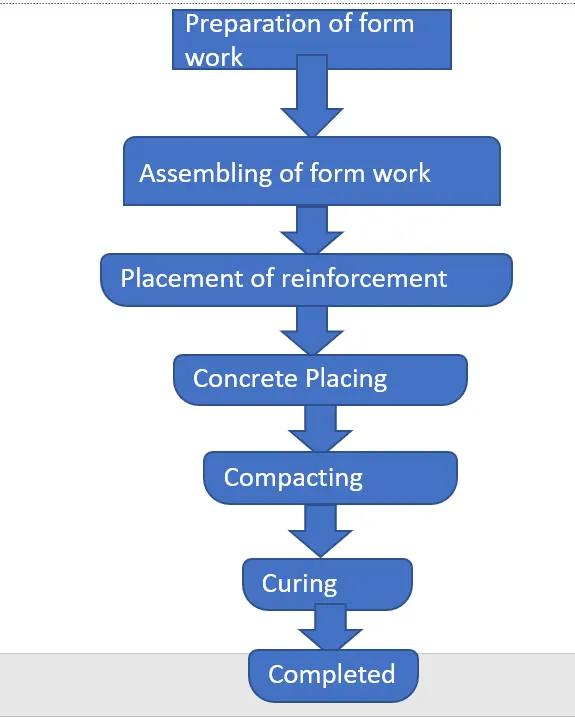
b
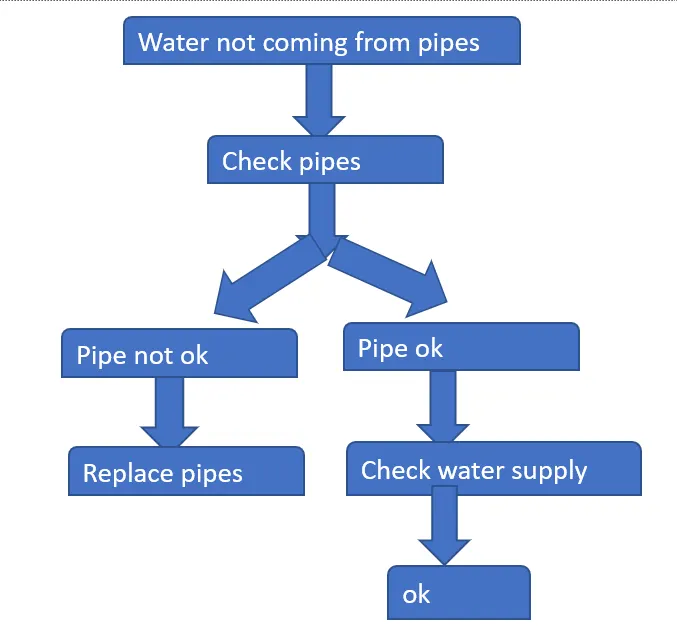
c
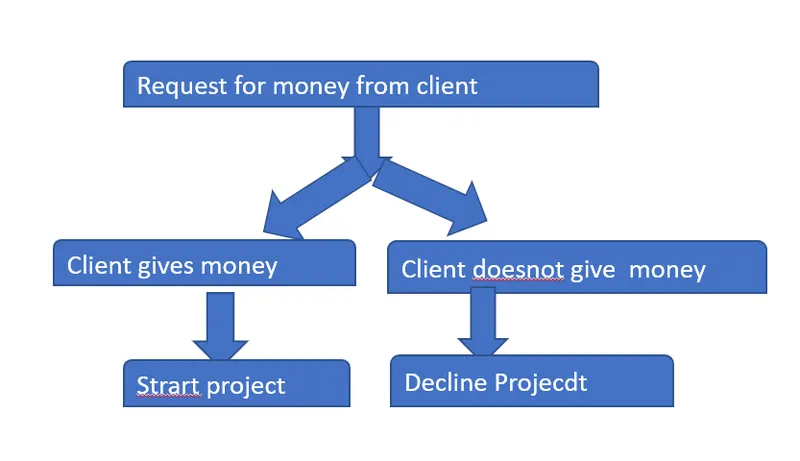
6 ANSWER:
Parameters associated with
a.Wall
Length,Width,height,Material,Thickness,type,Material cost,Volume
b.Floor
Material,Thickness,type,Area,Material cost
c.Door
Type, Height ,width,Material,Material cost,width,family
d.Window
Type, Height ,width,Material,Material cost,family
e.Table
Height,Shape,Purpose of use,Material , Material cost
f.Building
Height, Area, No of floors, Material ,Rooms