Drafting of various geometries using Chamfer, Fillet tool in AutoCad
AIM:
To create the Drafting of Various geomentric using Champer,fillet tool by using autocad.
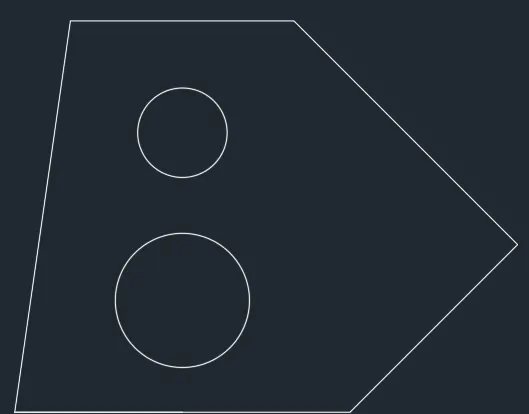
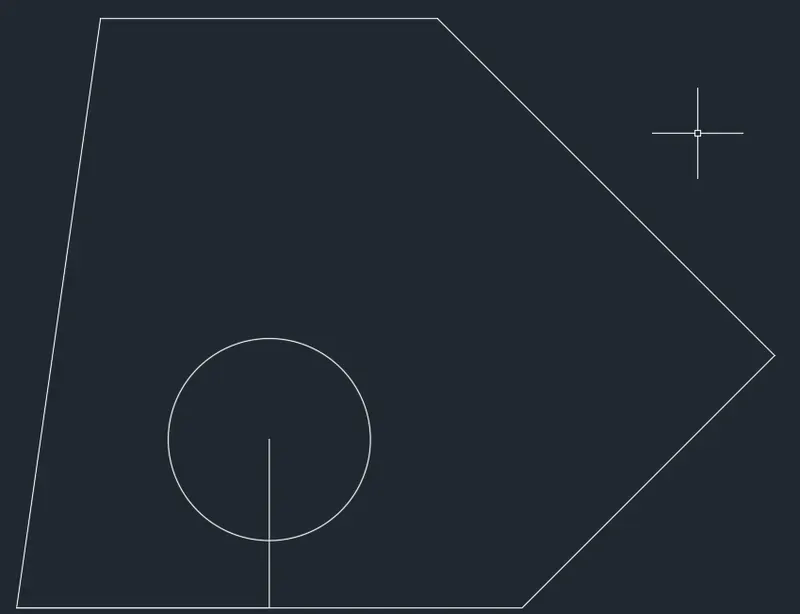
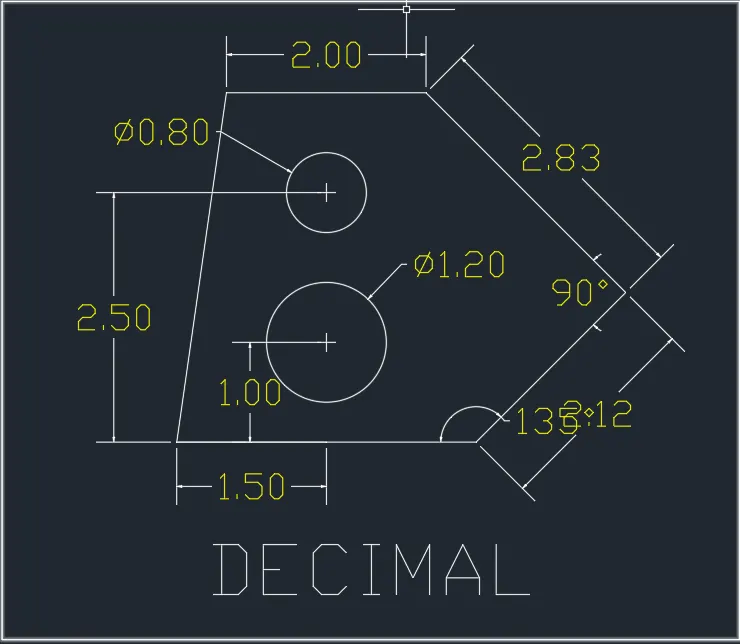
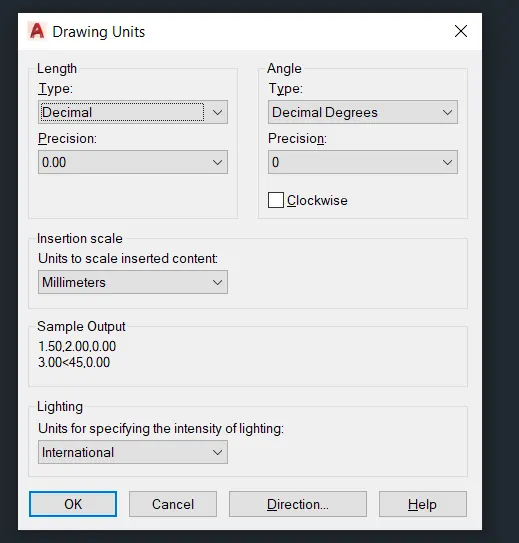
1.The unit used by decimal drawing.
- In this drawing we create a simple drawing.
- Now we can see the command used for this drawing as step by step.
Step:
- First check the dimension as we start before a line.
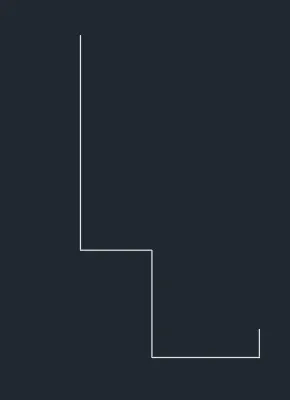
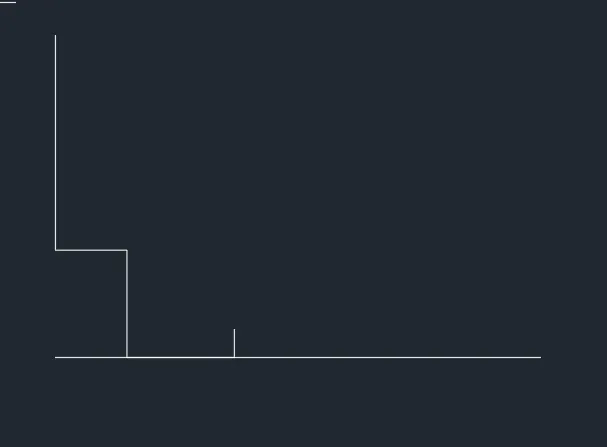
- Next start with a "L"line command.
- Draw a line as per dimension.
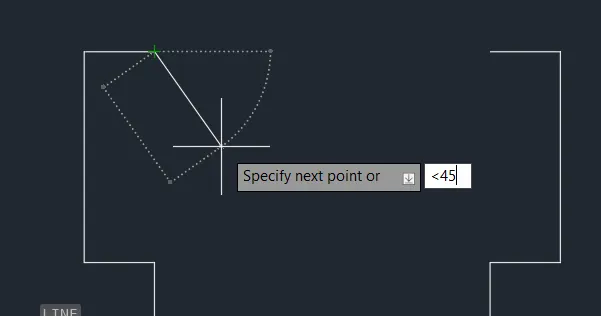
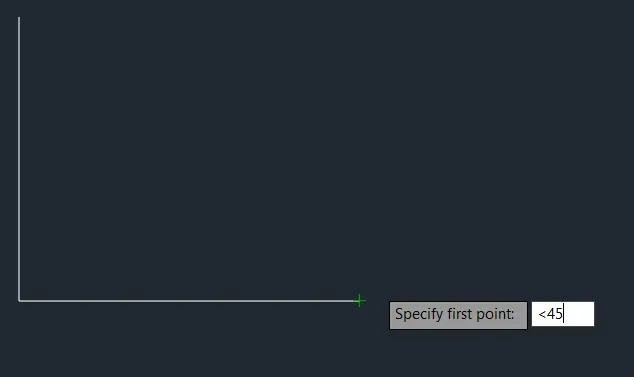
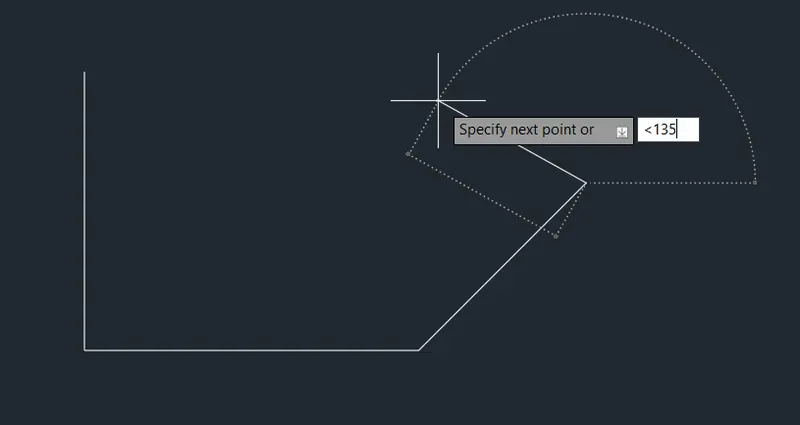
- And for angle line press '<'and type a angle.
- Click 'C' cricle command to draw a cricle.
- And press a 'Diamter or radius' to create a Cricle.
- After complete a drawing we need show dimension of drawing
- Click "DIM"command to create a dimension.
- Click 'DIMANG' command to measure the angle between two lines.
- Click 'DIMDIA' command to measure the diameter of the circle.
- And we use a Snipping Tool to take a screenshot.
- Finally Click Save as to save the picture.

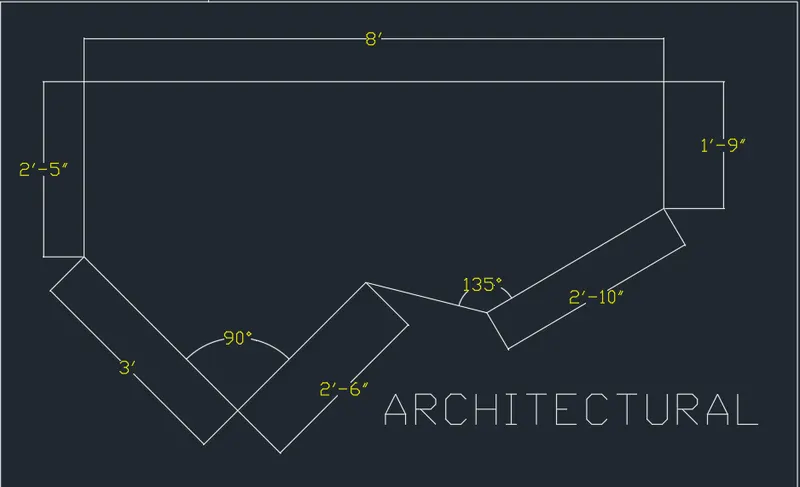
2.The unit used by Architectural drawing.
- In this drawing we create a simple drawing.
- Now we can see the command used for this drawing as step by step.
Step:
- First check the dimension as we start before a line.
- Next start with a "L"line command.
- Draw a line as per dimension.
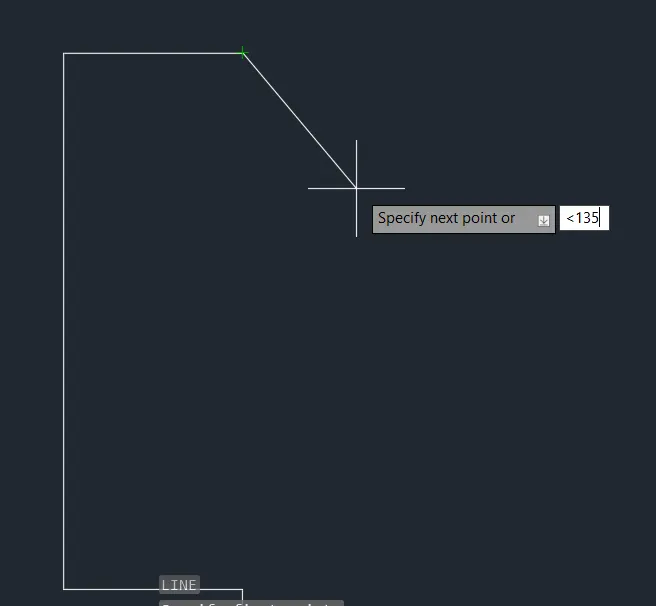
- And for angle line press '<'and type a angle.
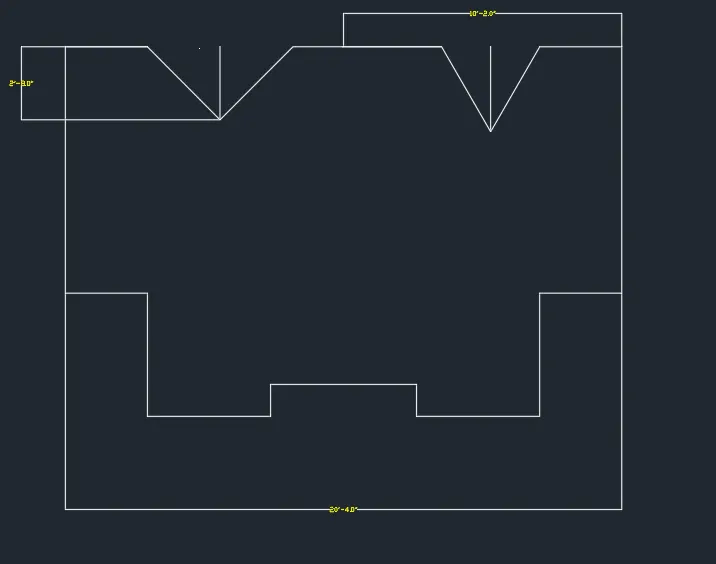
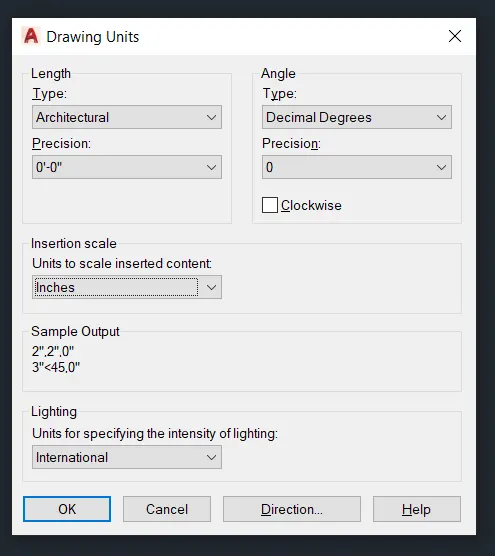
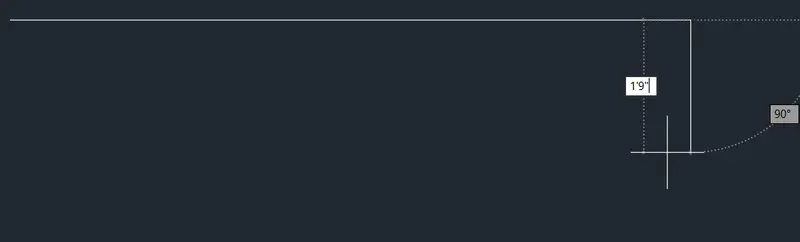
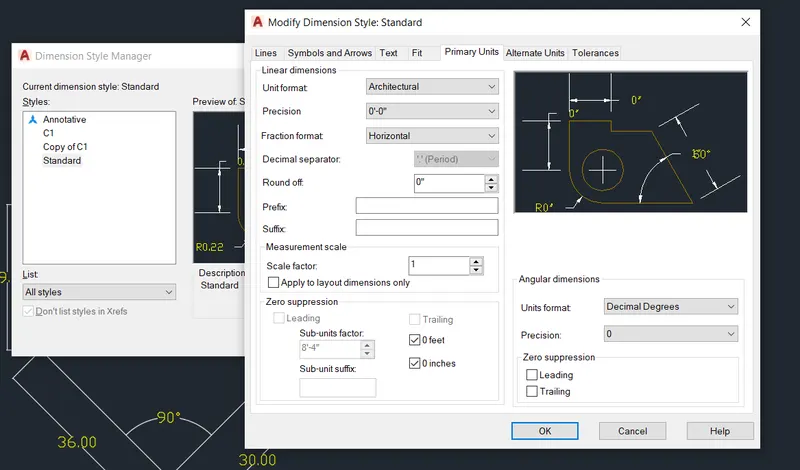
- Click 'units' to change a Architecutral 0'-0".
- After complete a drawing we need show dimension of drawing
- Click 'D'command to change the dimension to Architectural.
- Click "DIM"command to create a dimension.
- Click 'DIMANG' command to measure the angle between two lines.
- And we use a Snipping Tool to take a screenshot.
- Finally Click Save as to save the picture.
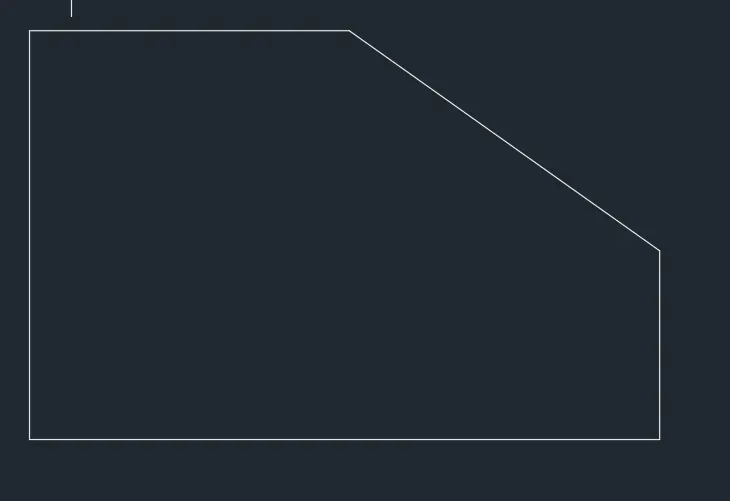
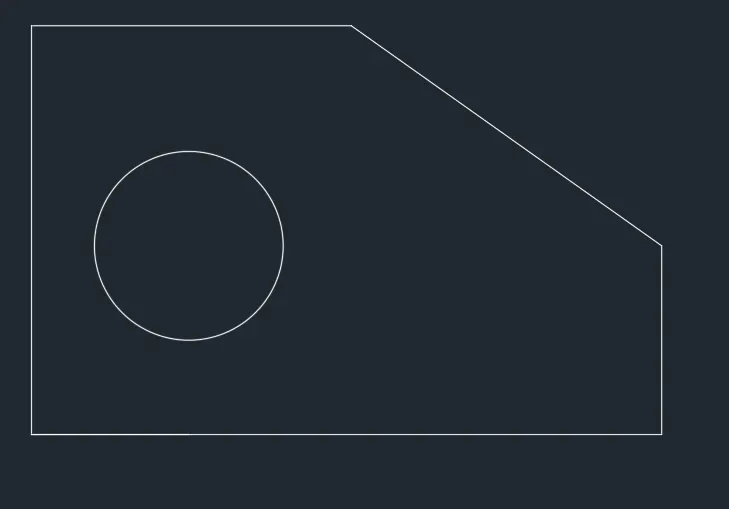
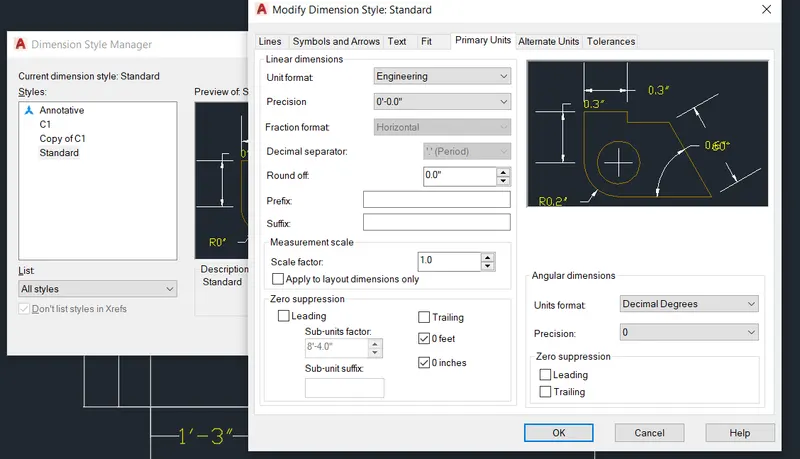
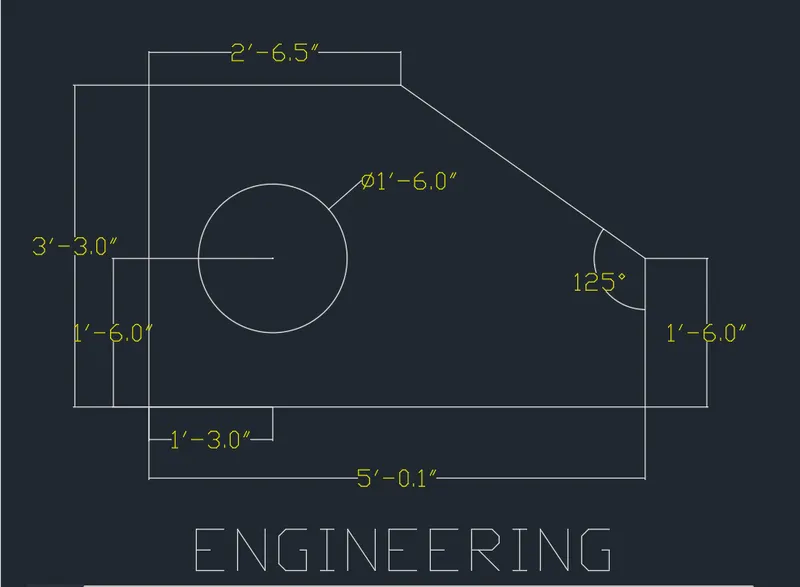
3.The unit used by Engineering drawing.
- In this drawing we create a simple drawing.
- Now we can see the command used for this drawing as step by step.
Step:
- First check the dimension as we start before a line.
- Next start with a "L"line command.
- Draw a line as per dimension.
- And for angle line press '<'and type a angle.
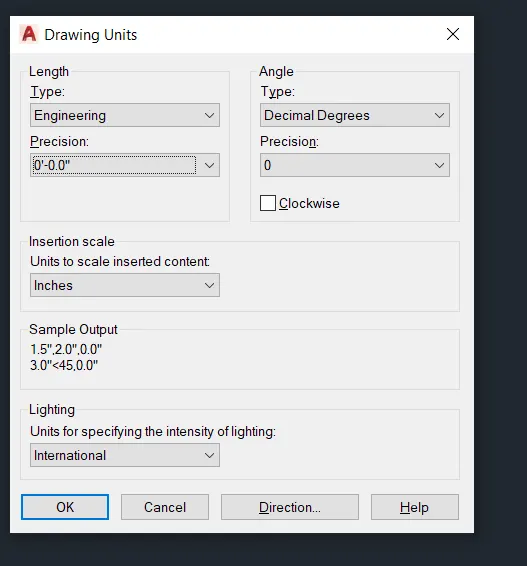
- Click 'units' to change a Engineering 0'-0.0".
- Click 'C' cricle command to draw a cricle.
- And press a 'Diamter or radius' to create a Cricle.
- After complete a drawing we need show dimension of drawing
- Click 'D'command to change the dimension to Architectural.
- Click "DIM"command to create a dimension.
- Click 'DIMANG' command to measure the angle between two lines.
- Click 'DIMDIA' command to measure the diameter of the circle.
- And we use a Snipping Tool to take a screenshot.
- Finally Click Save as to save the picture.

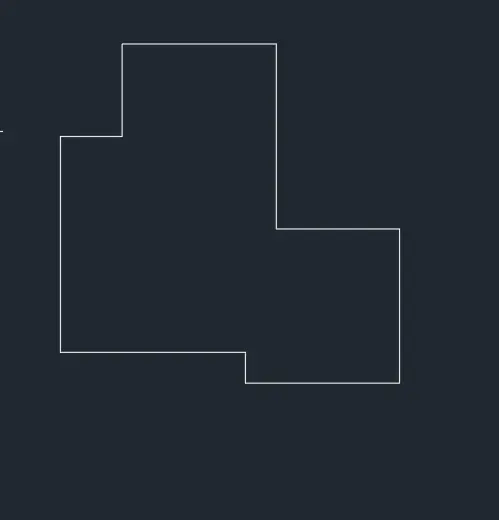
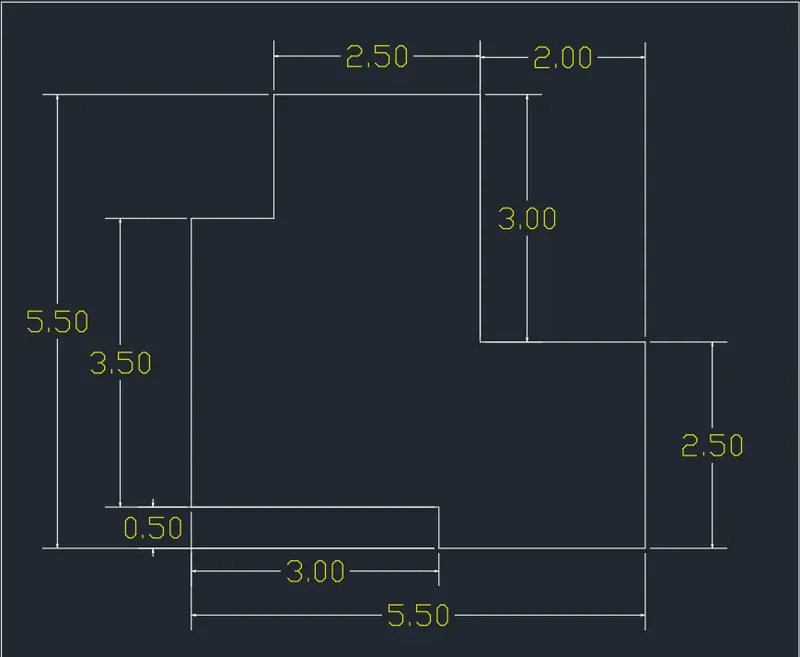
4.The unit used by decimal drawing.
- In this drawing we create a simple drawing.
- Now we can see the command used for this drawing as step by step.
Step:
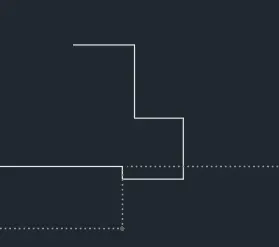
- First check the dimension as we start before a line.
- Next start with a "L"line command.
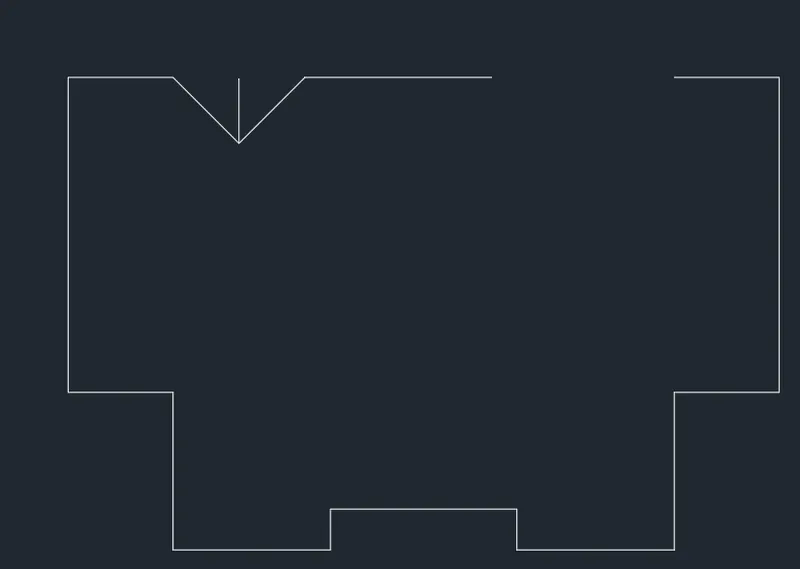
- Draw a line as per dimension.
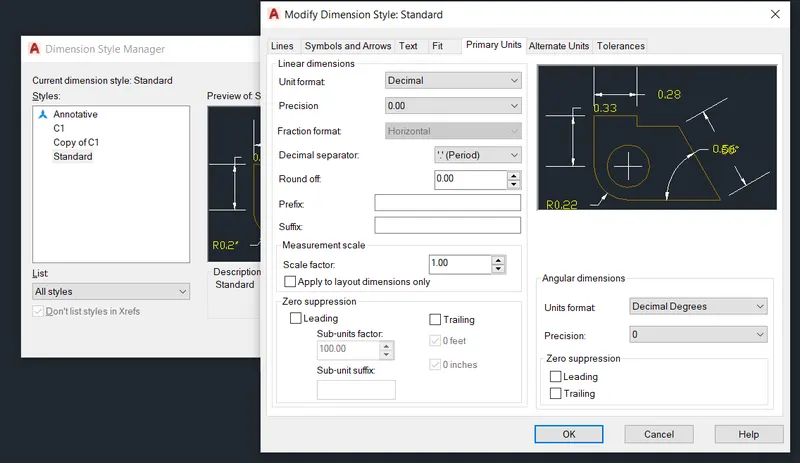
- After complete a drawing we need show dimension of drawing
- Click "DIM"command to create a dimension.
- And we use a Snipping Tool to take a screenshot.
- Finally Click Save as to save the picture.
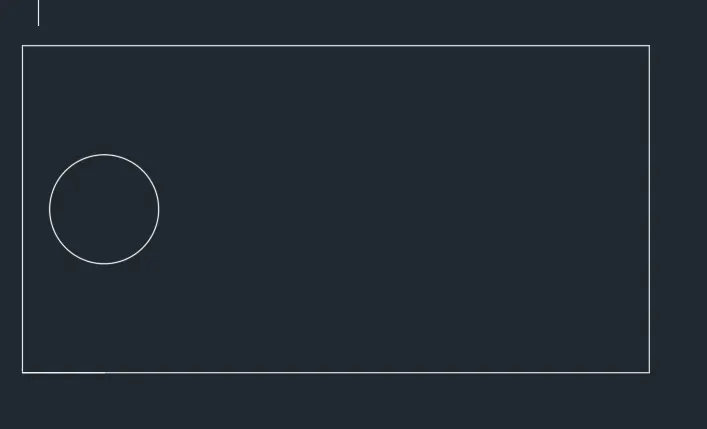
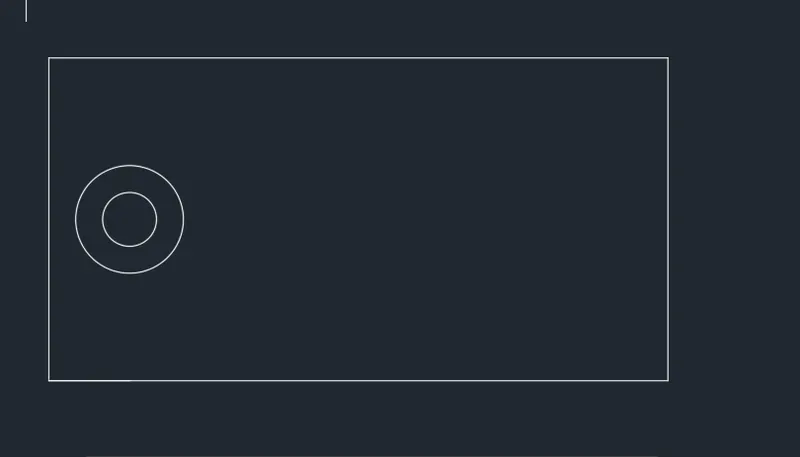
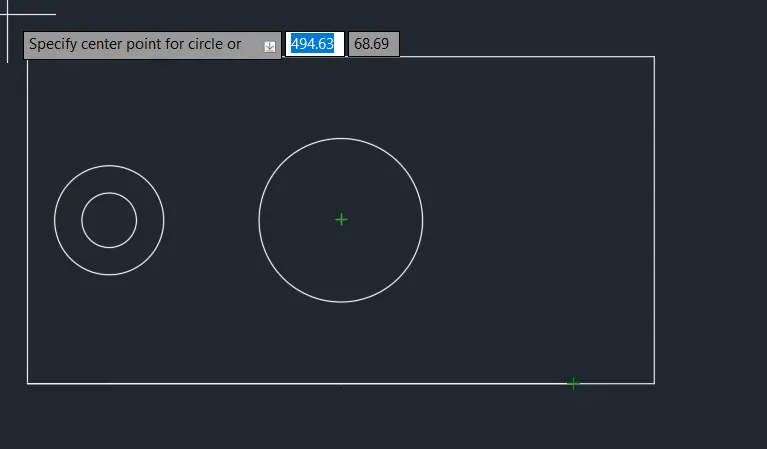
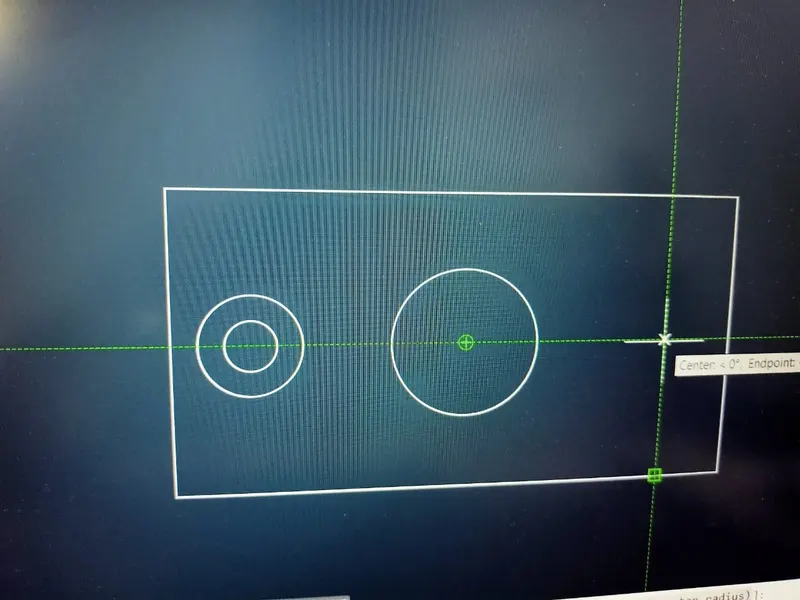
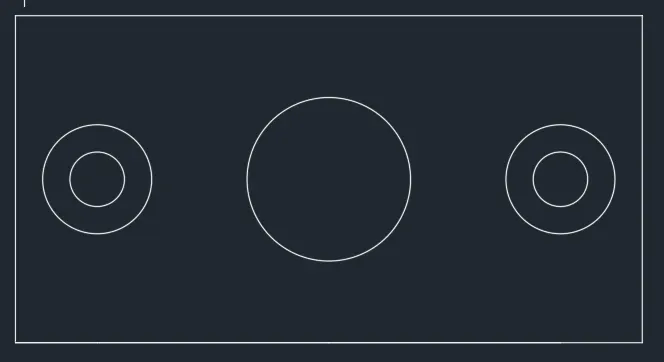
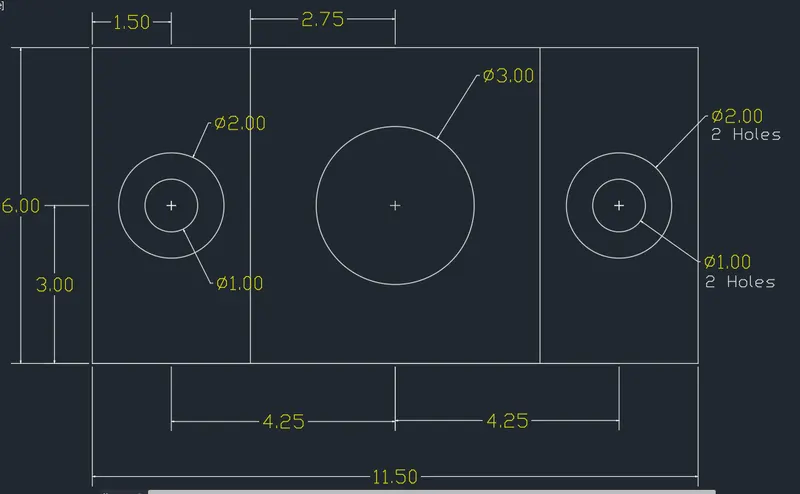
5.The unit used by decimal drawing.
- In this drawing we create a simple drawing.
- Now we can see the command used for this drawing as step by step.
Step:
- First check the dimension as we start before a line.
- Next start with a "REC"rectangle command.
- Draw a line as per dimension.
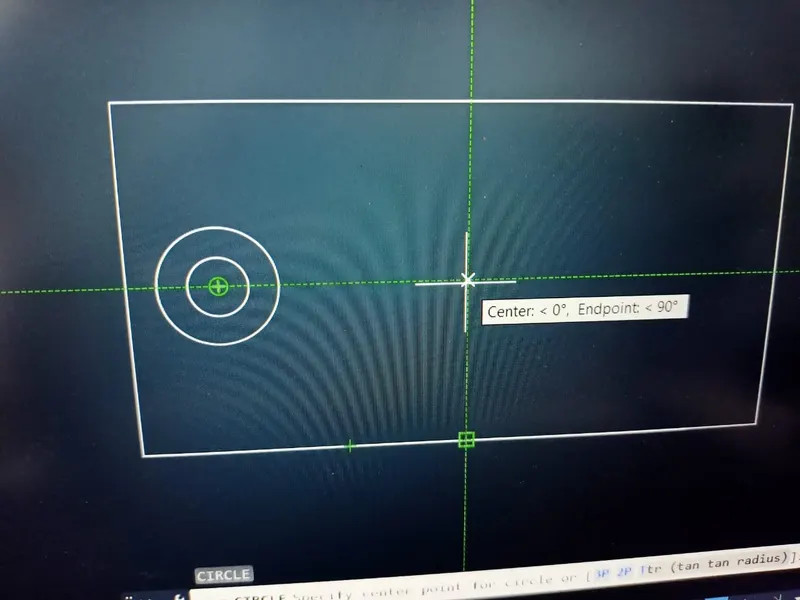
- Select the midpoint to crate a circle.
- Click 'C' cricle command to draw a cricle.
- And press a 'Diamter or radius' to create a Cricle.
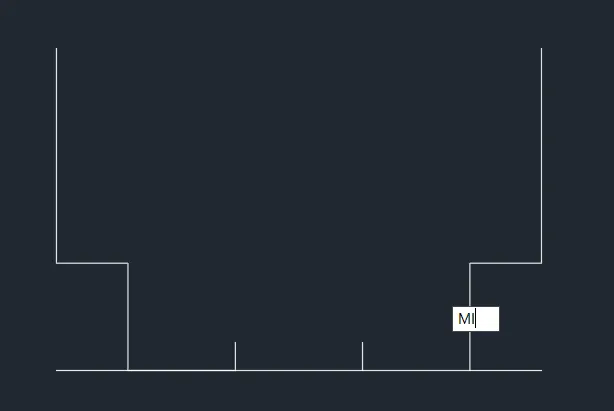
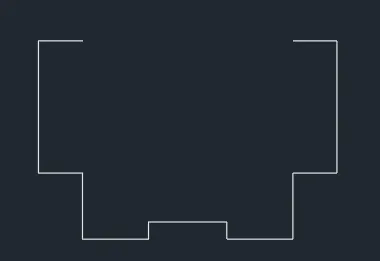
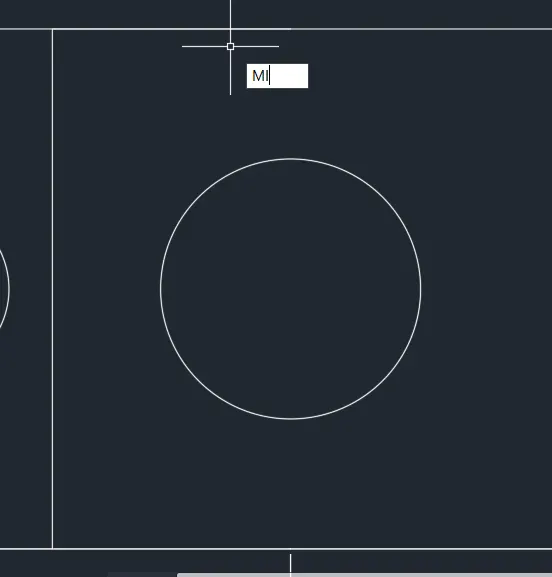
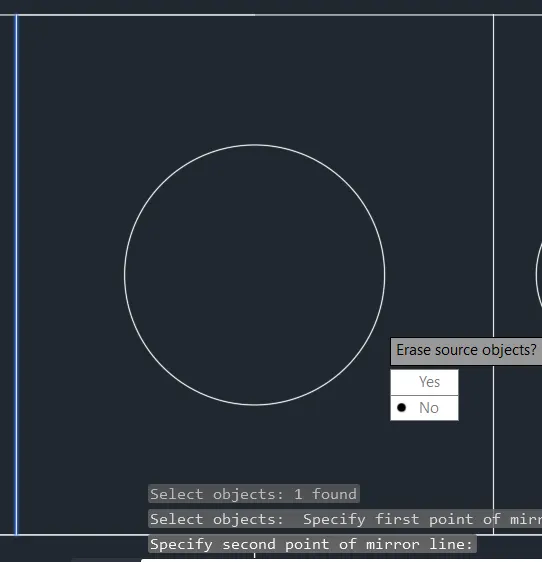
- Click 'MI' command mirror the line pick with centre point.
- After complete a drawing we need show dimension of drawing.
- Click "DIM"command to create a dimension..
- Click 'DIMDIA' command to measure the diameter of the circle.
- And we use a Snipping Tool to take a screenshot.
- Finally Click Save as to save the picture.

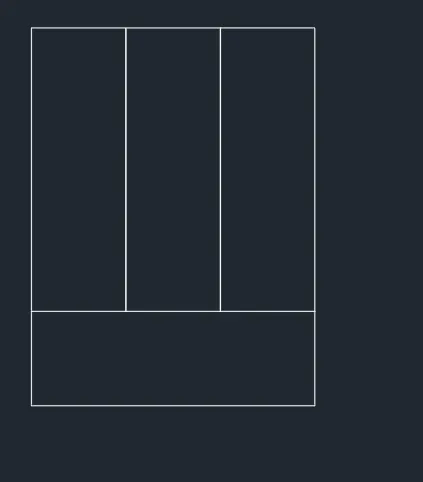
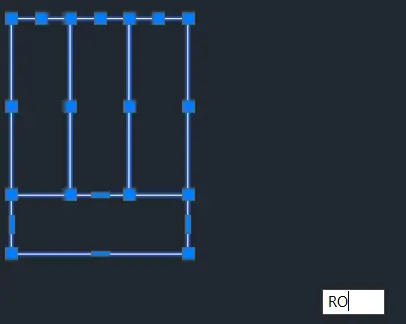
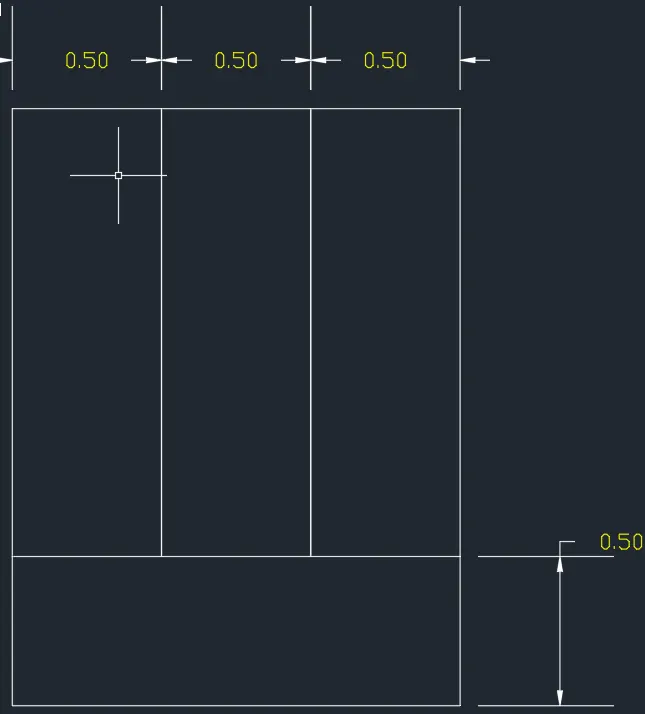
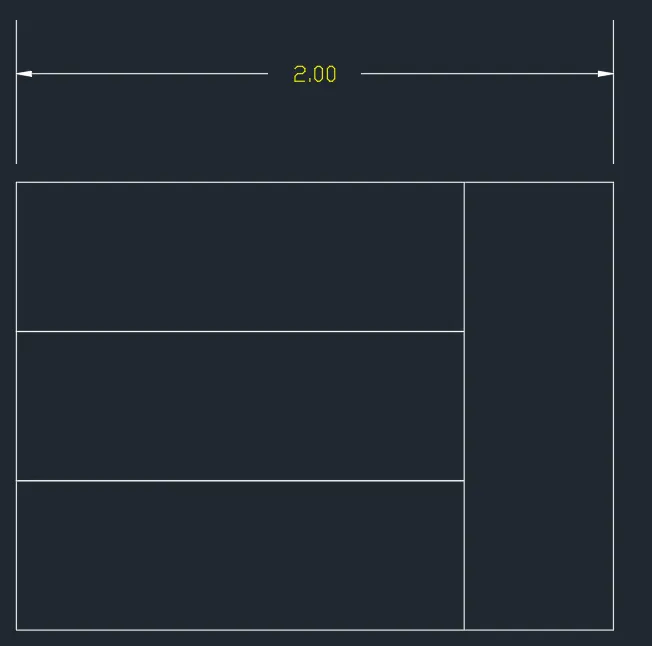
6.The unit used by decimal drawing.
- In this drawing we create a simple drawing.
- Now we can see the command used for this drawing as step by step.
Step:
- First check the dimension as we start before a line.
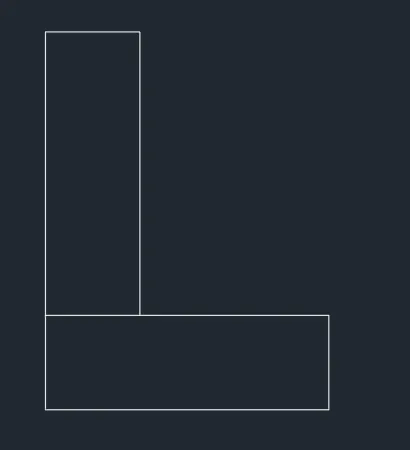
- Next start with a "REC"rectangle command
- Next start with a "L"line command.
- Draw a line as per dimension.
- And for angle line press '<'and type a angle.
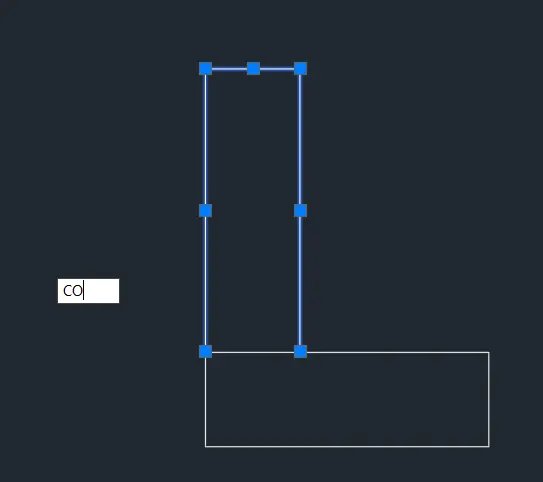
- Click 'MI' command mirror the line pick with centre point.
- And 'RO'Rotate command is used to rotate the object.
- After complete a drawing we need show dimension of drawing.
- Click "DIM"command to create a dimension.
- Click 'DIMANG' command to measure the Incliend line.
- And we use a Snipping Tool to take a screenshot.
- Finally Click Save as to save the picture.

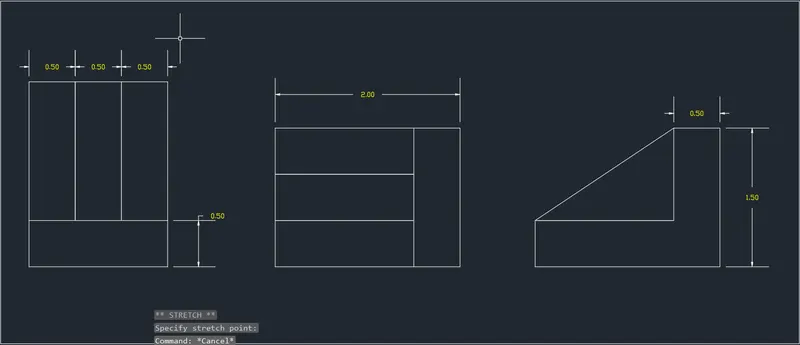
7.The unit used by decimal drawing.
- In this drawing we create a simple drawing.
- Now we can see the command used for this drawing as step by step.
Step:
- First check the dimension as we start before a line.
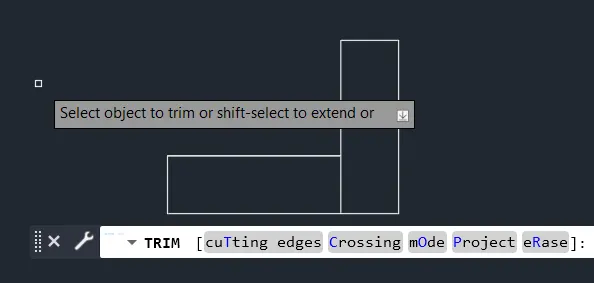
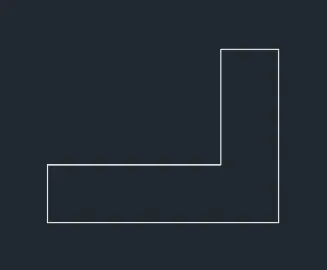
- Next start with a "REC"rectangle command
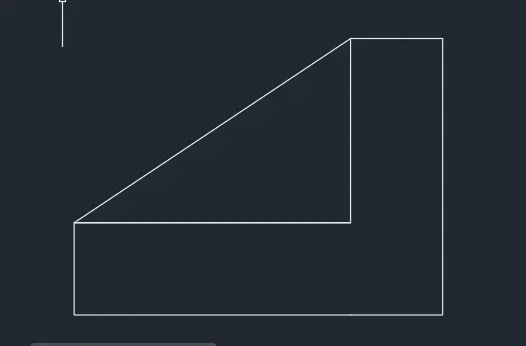
- Next start with a "L"line command.
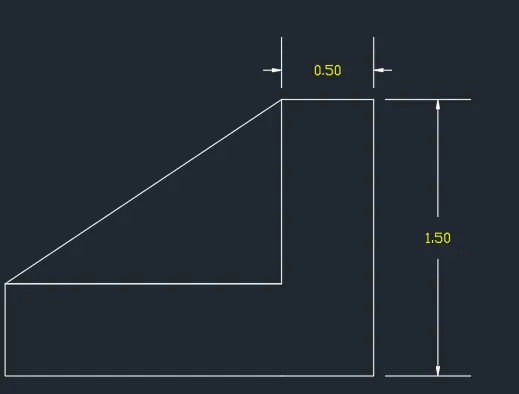
- Draw a line as per dimension.
- And 'FIL'FIllet option is used to create a concre arch.
- Click on Fillet option and press a radius to create a fillet.
- Click 'C' cricle command to draw a cricle.
- And press a 'Diamter or radius' to create a Cricle.
- Click 'ARCH' 3point arch command is slected.
- And press the 3point with radius option to create a arch curve point.
- Click 'MI' command mirror the line pick with centre point.
- After complete a drawing we need show dimension of drawing.
- Click "DIM"command to create a dimension.
- Click 'DIMDIA' command to measure the diameter of the circle.
- And we use a Snipping Tool to take a screenshot.
- Finally Click Save as to save the picture.


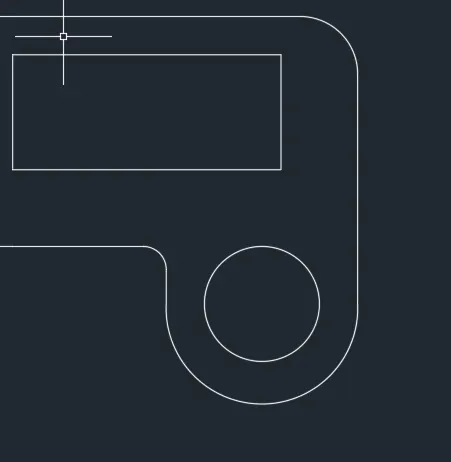
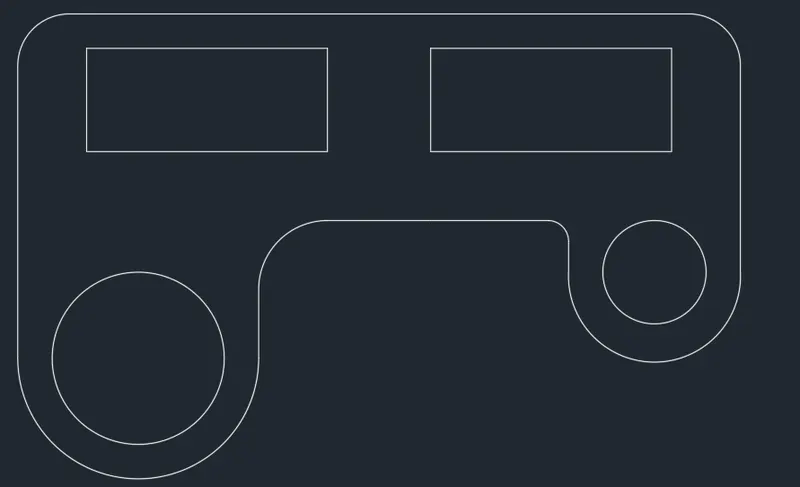
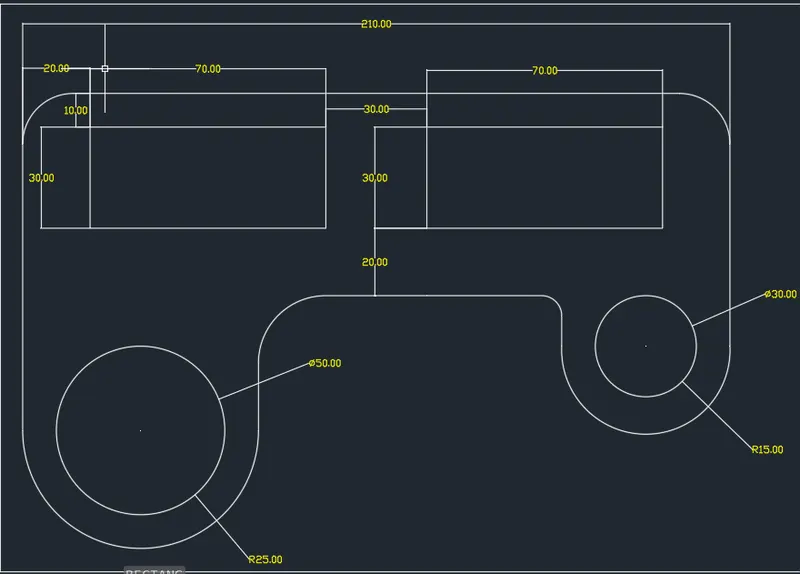
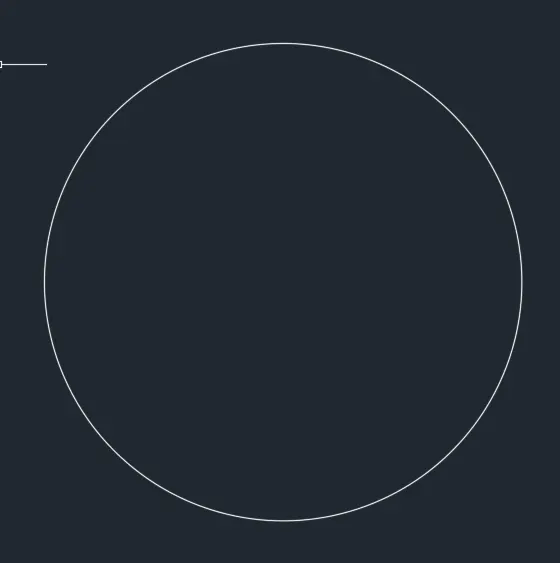
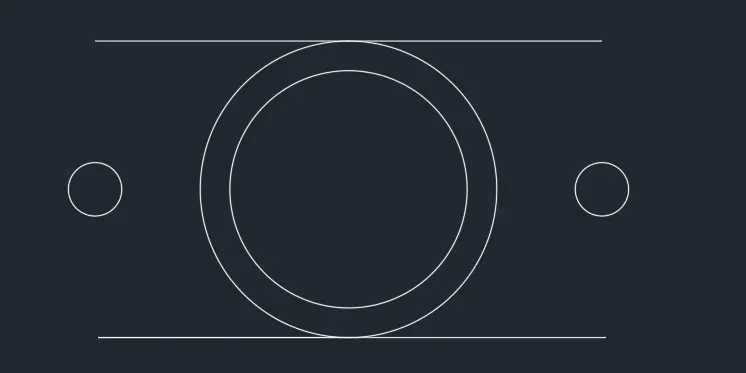
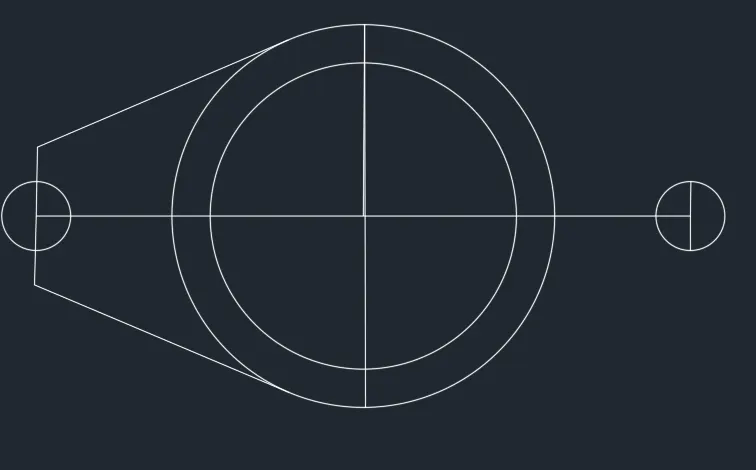
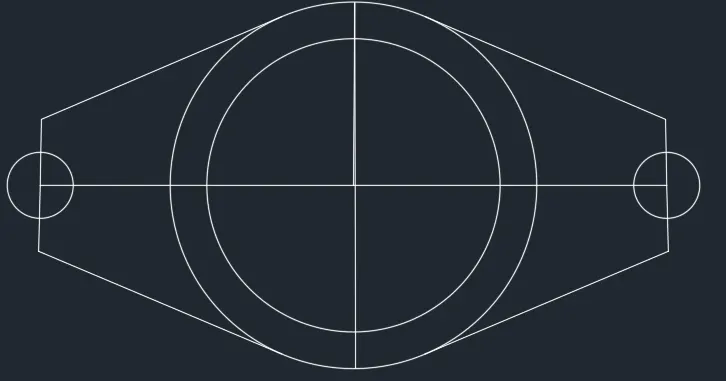
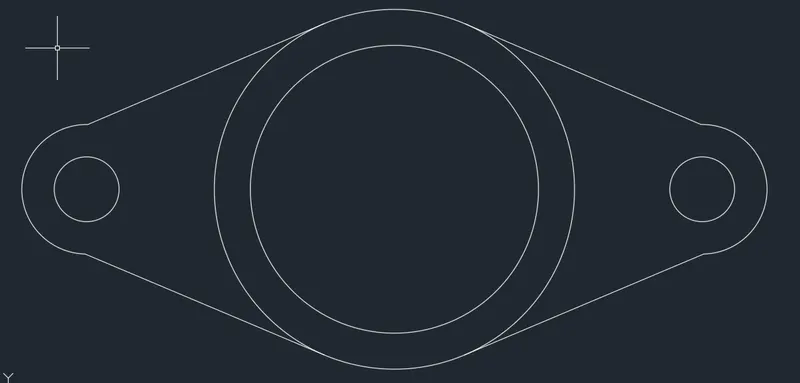
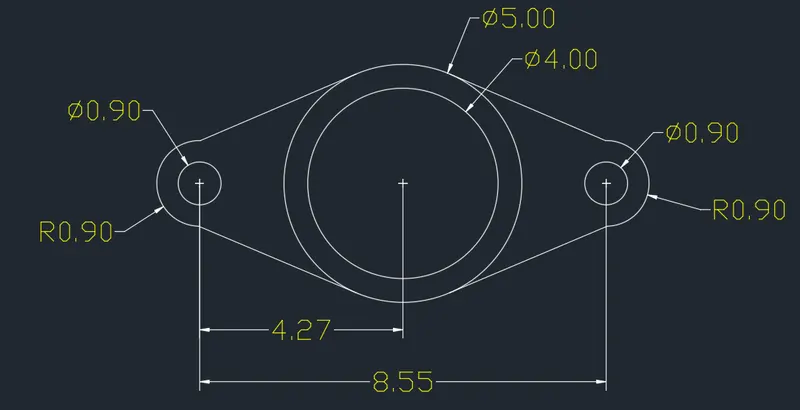
8.The unit used by decimal drawing.
- In this drawing we create a simple drawing.
- Now we can see the command used for this drawing as step by step.
Step:
- First check the dimension as we start before a line.
- Next start with a 'C' cricle' command.
- And click "Tangent" to pick a point and draw.
- Next start with a "L"line command.
- Draw a line as per dimension.
- And press a 'Diamter or radius' to create a Cricle.
- Click 'ARCH' 3point arch command is slected.
- And press the 3point with radius option to create a arch curve point.
- Click 'MI' command mirror the line pick with centre point.
- After complete a drawing we need show dimension of drawing.
- Click "DIM"command to create a dimension.
- Click 'DIMDIA' command to measure the diameter of the circle.
- Click 'DIMRAD' command to measure the radius of the circle.
- And we use a Snipping Tool to take a screenshot.
- Finally Click Save as to save the picture.

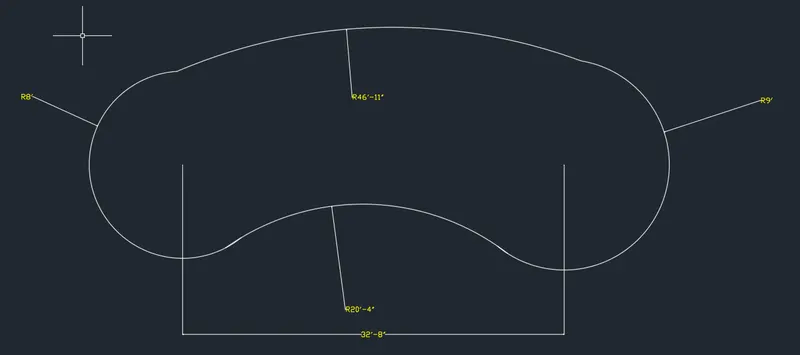
9.The unit used by Architectural drawing.
- In this drawing we create a simple drawing.
- Now we can see the command used for this drawing as step by step.
Step:
- First check the dimension as we start before a line.
- Next start with a 'C' cricle' command.
- And click "Tangent" to pick a point and draw.
- And press a 'Diamter or radius' to create a Cricle.
- And offset the object as per dimension.
- Click 'Trim'command to trim the object.
- Click 'DIMDIA' command to measure the diameter of the circle.
- Click 'DIMRAD' command to measure the radius of the circle.
- And we use a Snipping Tool to take a screenshot.
- Finally Click Save as to save the picture.
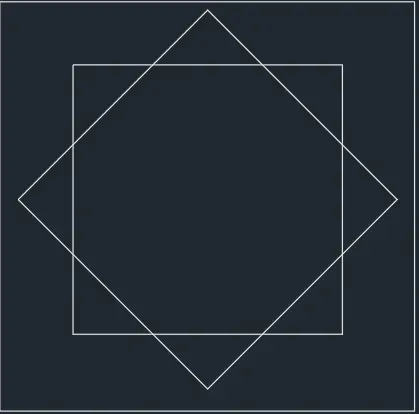
10.The unit used by decimal drawing.
- In this drawing we create a simple drawing.
- Now we can see the command used for this drawing as step by step.
Step:
- First check the dimension as we start before a line.
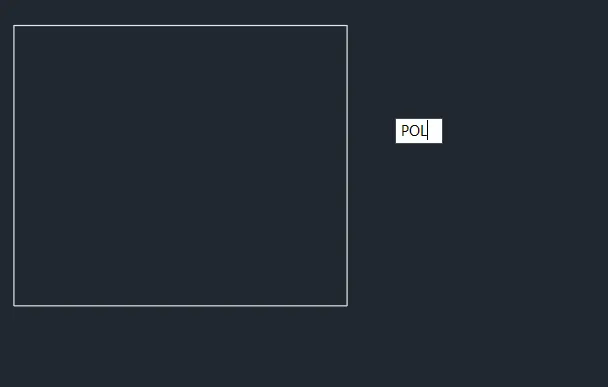
- Next start with a 'REC'rectangle command.
- And click 'pol' polygen to pick a point and draw.
- And create a 4point to outer the reactangle.
- And we use a Snipping Tool to take a screenshot.
- Finally Click Save as to save the picture.

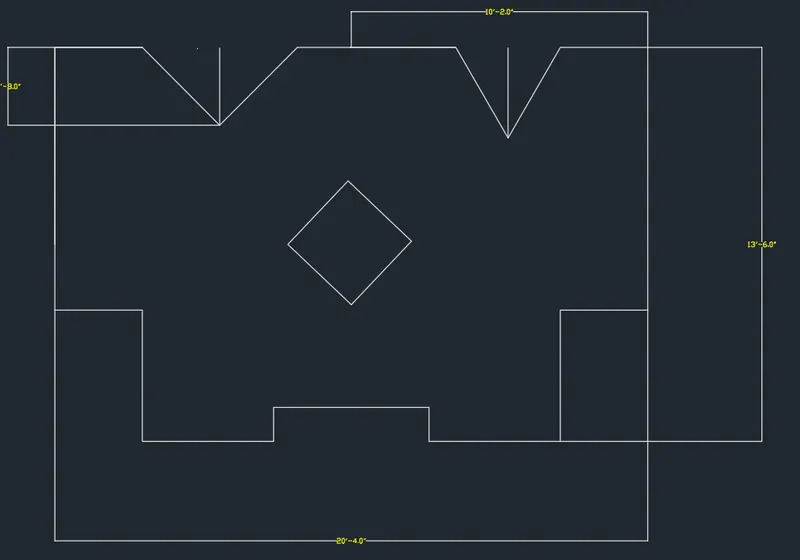
11.
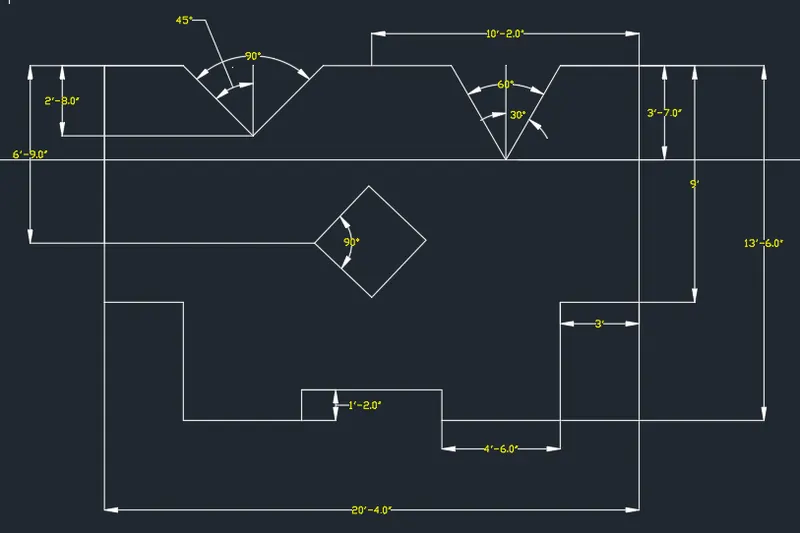
The unit used by Architectural drawing.
- In this drawing we create a simple drawing.
- Now we can see the command used for this drawing as step by step.
Step:
- First check the dimension as we start before a line.
- Click 'units' to change a Architecutral 0'-0".
- Next start with a "L"line command.
- Draw a line as per dimension.
- And for angle line press '<'and type a angle.
- Click 'MI' command mirror the line pick with centre point.
- And click 'pol' polygen to pick a point and draw.
- And create a 4point to outer the reactangle.
- After complete a drawing we need show dimension of drawing
- Click 'D'command to change the dimension to Architectural.
- Click "DIM"command to create a dimension.
- Click 'DIMANG' command to measure the angle between two lines.
- And we use a Snipping Tool to take a screenshot.
- Finally Click Save as to save the picture.