Creating a Residence Layout, Seating plan, Toilet and Utility room plan using AutoCad
1.
AIM:
To create the plan, Residence Layout,Seating Plan,Toilet and Utility room plan by using autocad.
1.Residence Layout plan:
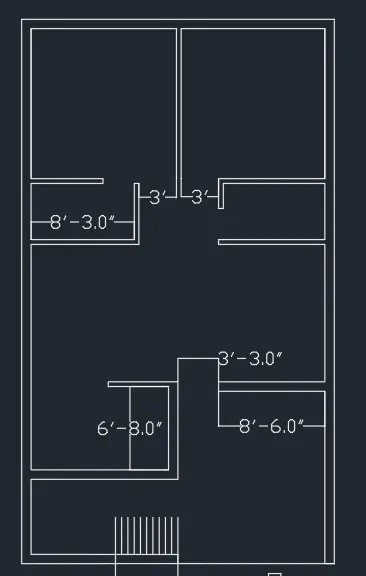
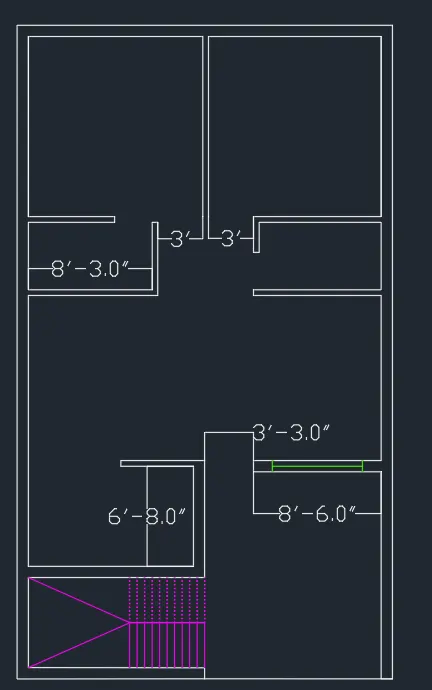
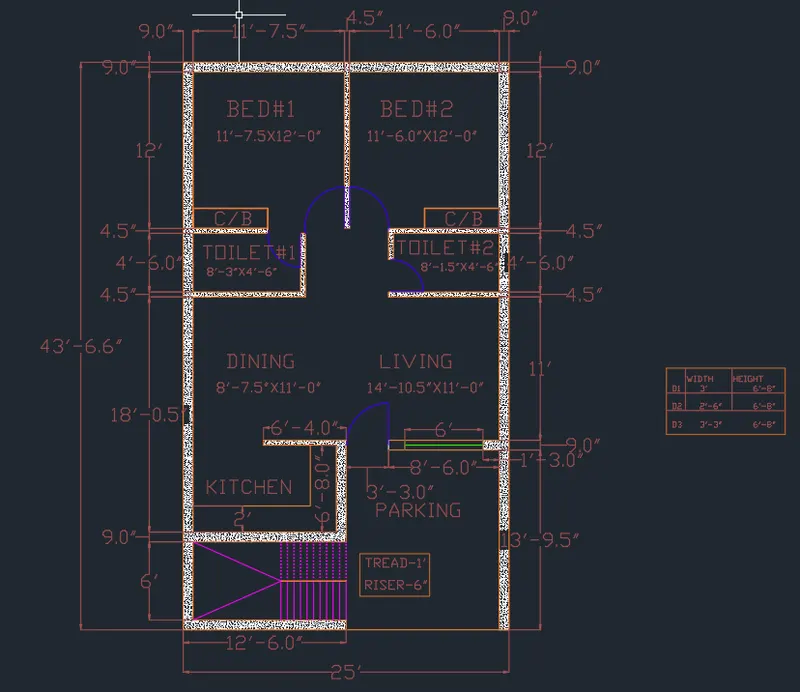
- In this drawing we create a Residence Layout plan.
- Now we can see the command used for this drawing as step by step.
Step:
- First we need to study the plan and get planed to draw.
- First we need start from a left hand side of the plan.
- Click 'XL'-V(Vertical Line) command to start draw.
- And 'Of' offset coomand as per plan dimension.
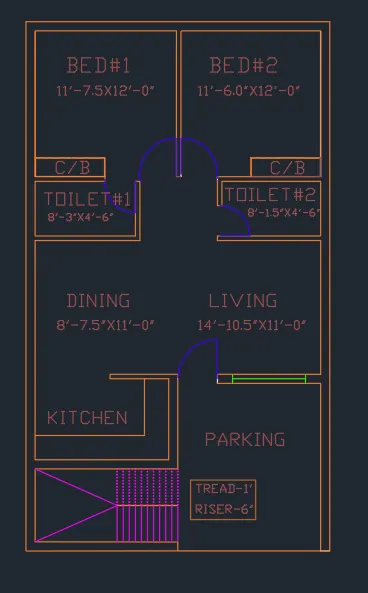
- First we need to create a Outer plan of drawing.
- Then offset the Room size as per Dimension given as per plan.
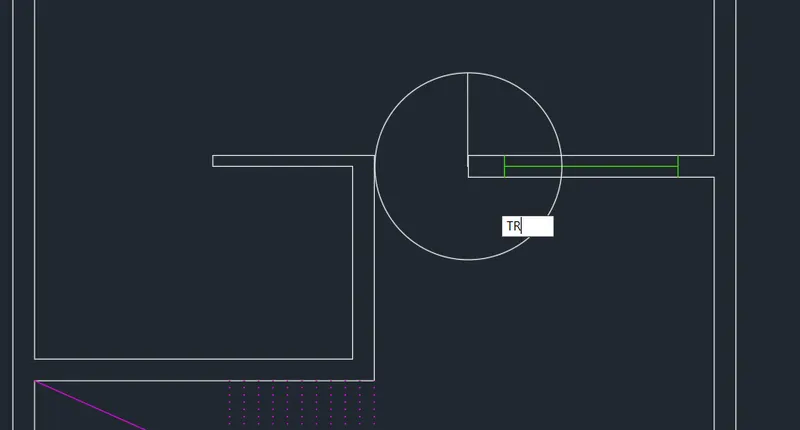
- Click 'TR'Trim command trime the extendend line.
- Then 'Ex'extend command to extentend line with upto second line.
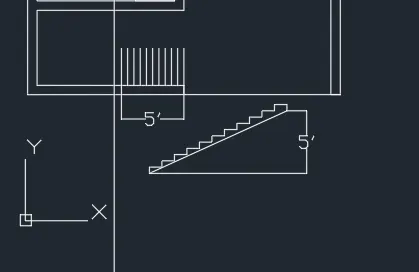
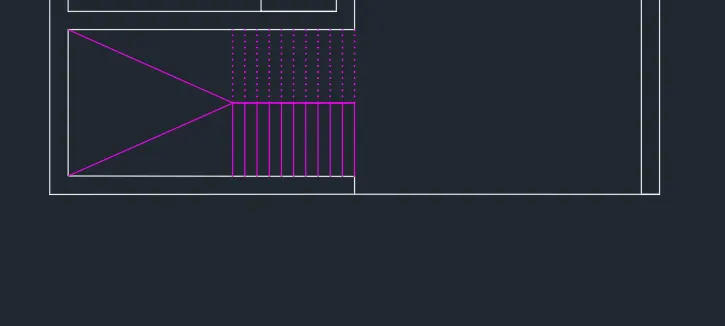
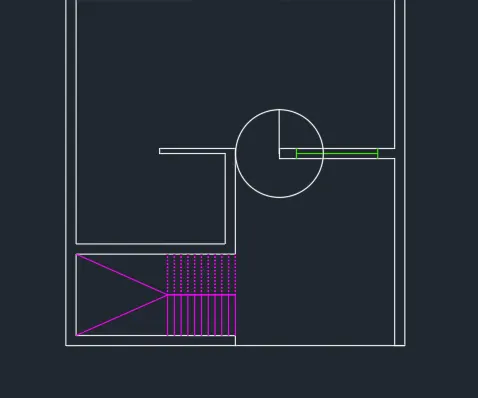
- THen Draw Staircase as per dimension of given plan.
- Click offset the steps by length by plan.
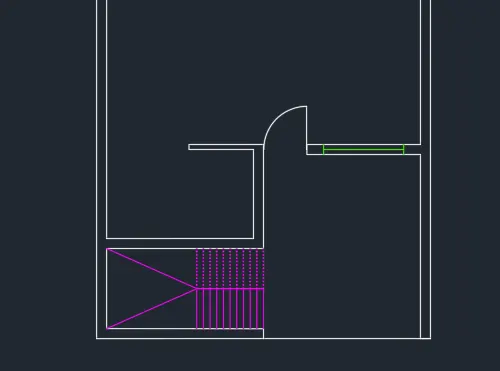
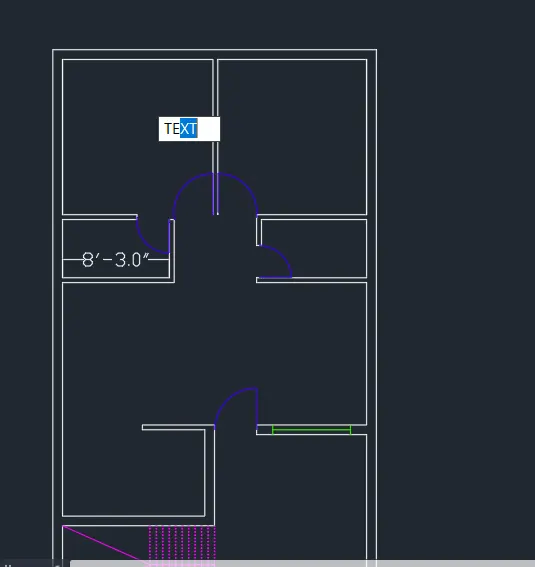
- And Draw the 'DOOR' with the help of 'Circle' command.
- And first to draw hinch .25"inch and draw over a circle.
- And draw staright line to the centre to centre of the line
- Finally trim the cricle and create a door.
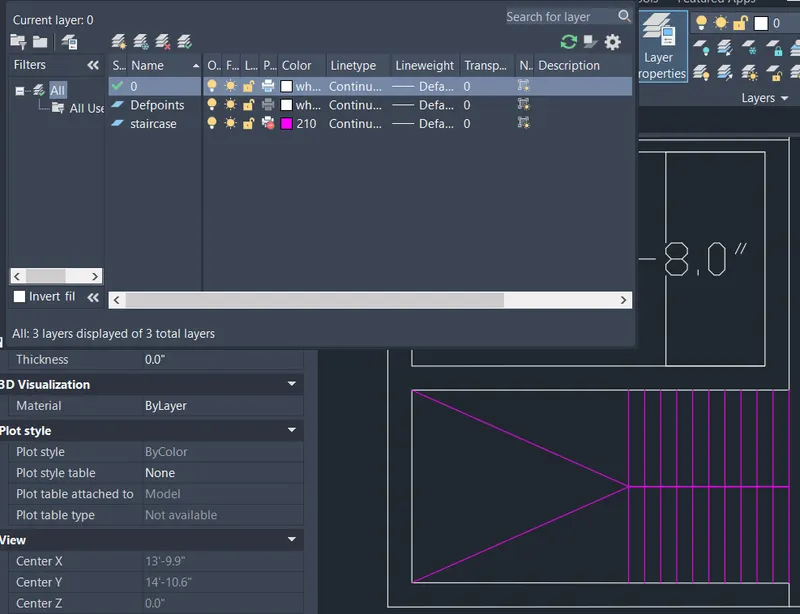
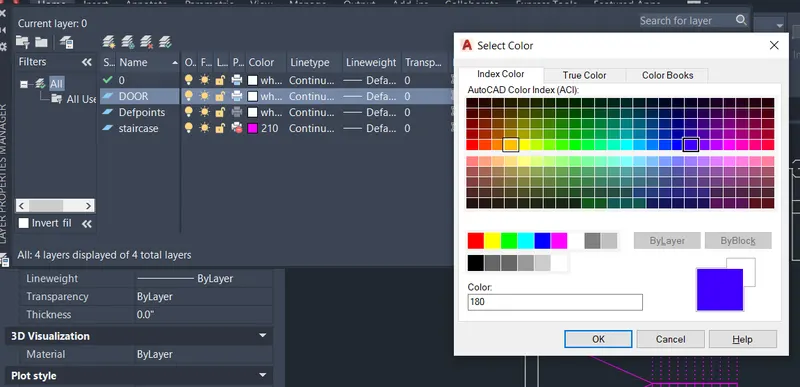
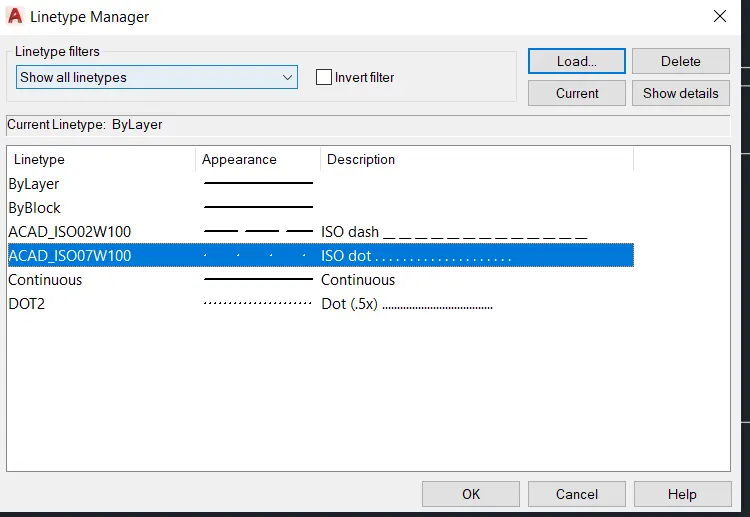
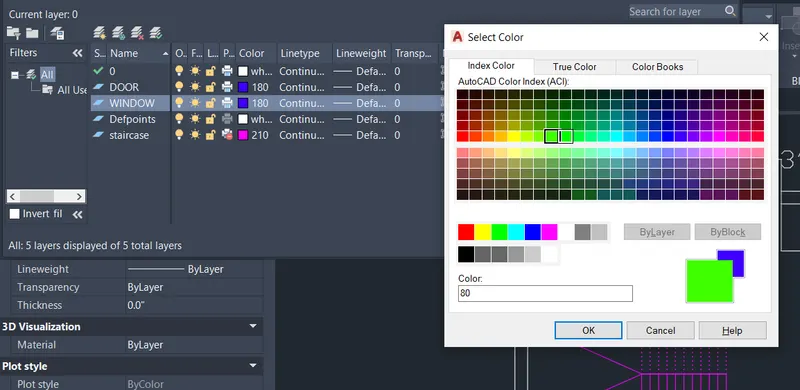
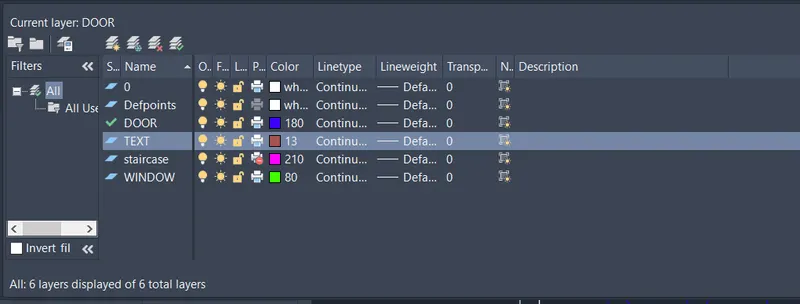
- Then create a Layer properties to create a Layer option
- Create a Layer option to TEXT,STAIRCASE,DOOR seprately.
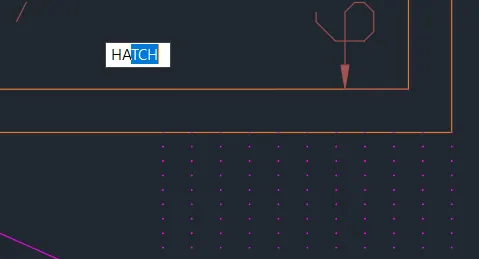
- Then Click "HAT"Hatch option to outer wall.
- Click "TEXT"option to create a room name as a text Layer
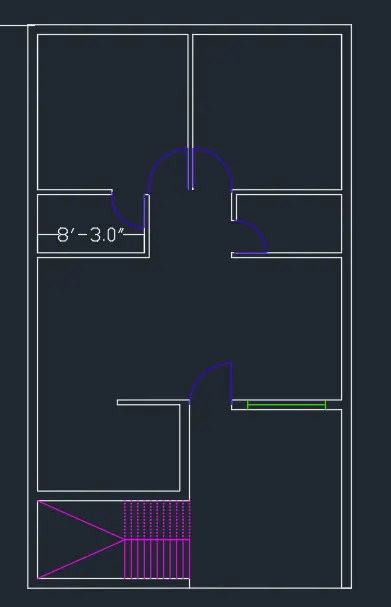
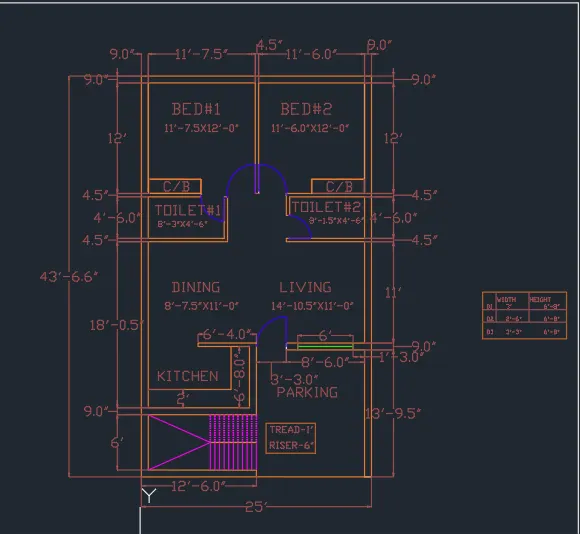
- After complete a drawing we need show dimension of Reesidence Plan.
- Click "DIM"command to create a dimension.
- And we use a Snipping Tool to take a screenshot.
- Finally Click Save as to save the picture.
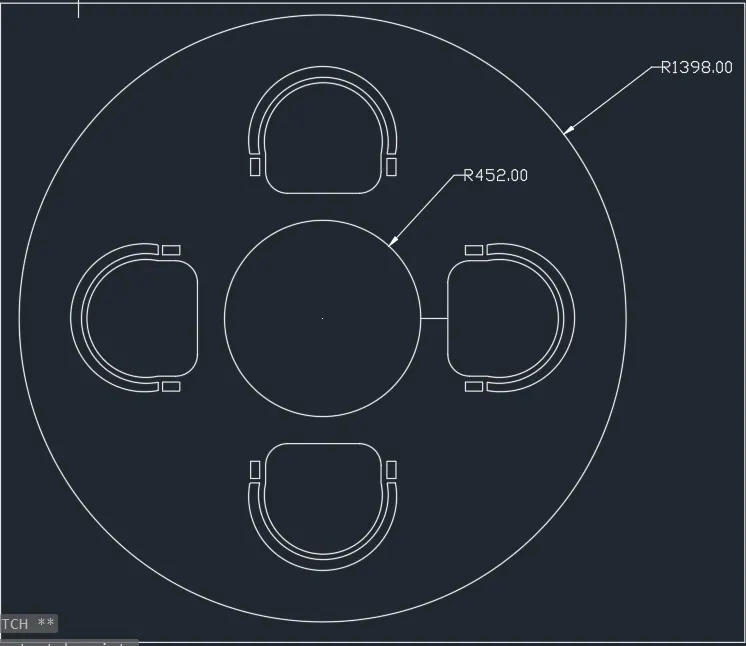
2.Seating plan:
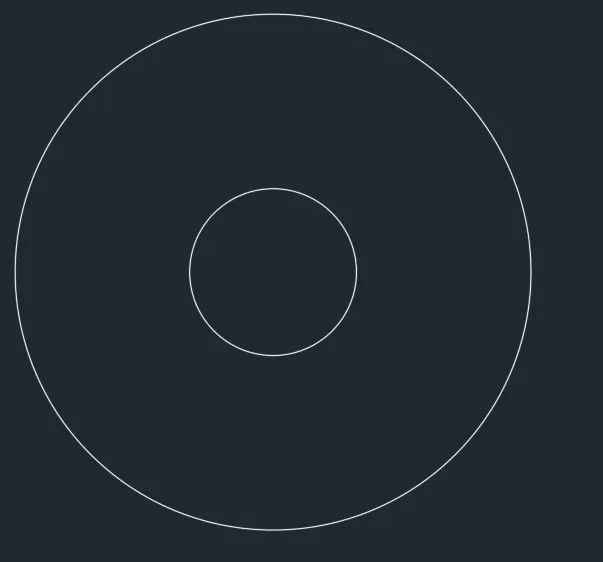
- In this drawing we create a Seating plan.
- Now we can see the command used for this drawing as step by step.
Step:
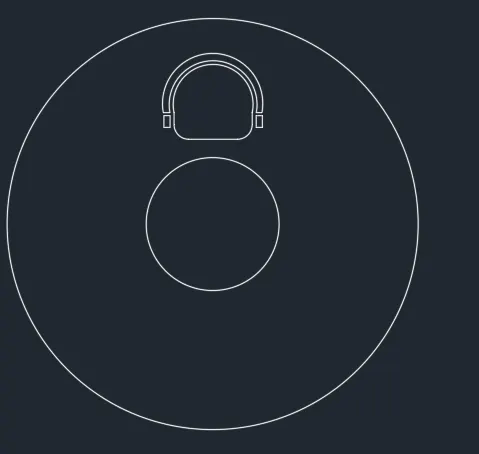
- First to draw a cricle to start the drawing.
- Next Click 'C'cricle command to draw the two circle as given radius.
- Click 'ARC'arch command to draw the 3point arch.
- And draw the line and
- Click 'F'fillet the line as a curve.
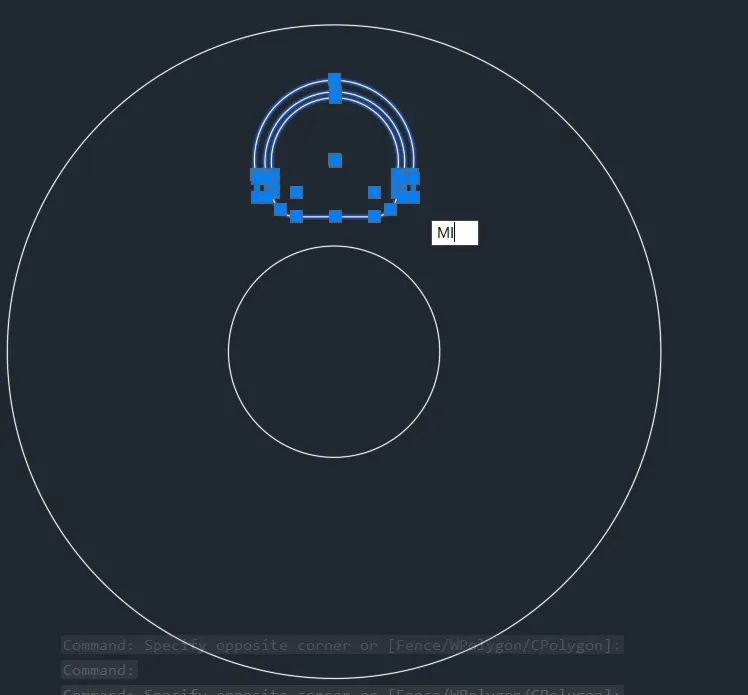
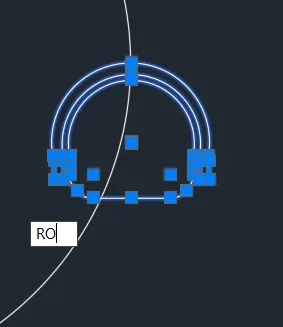
- And place the seat in Quad Quardnt specific line.
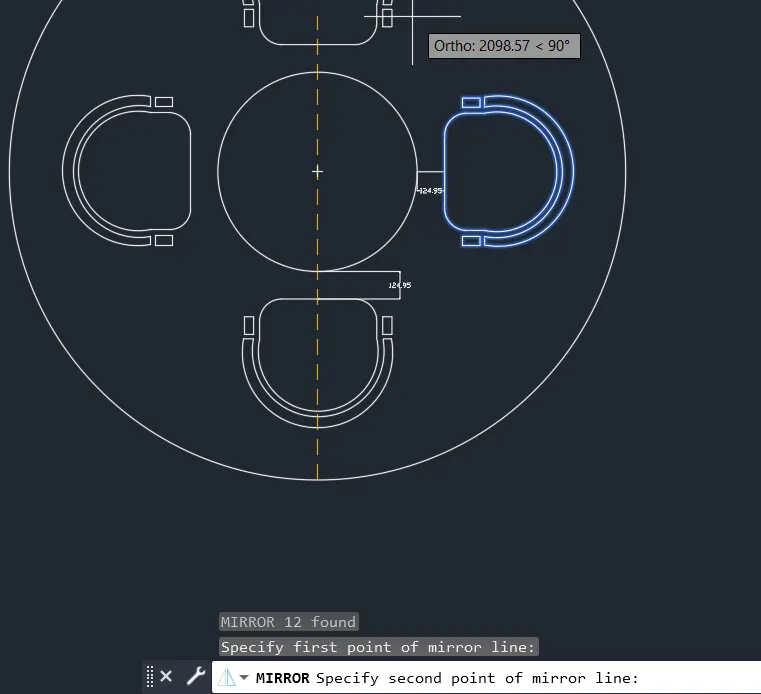
- Then Click 'MI' Mirror command to place seat in the four quardnt line as per drawing
- After complete a drawing we need show Radius of Seating Plan.
- Click "DIM RAd"command to create a radius of circle.
- And we use a Snipping Tool to take a screenshot.
- Finally Click Save as to save the picture.

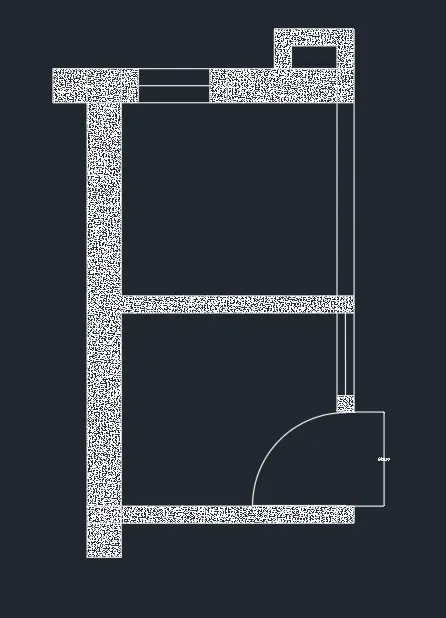
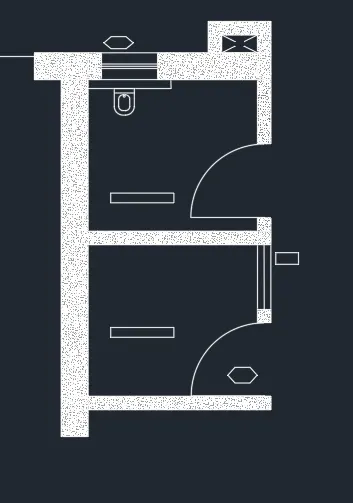
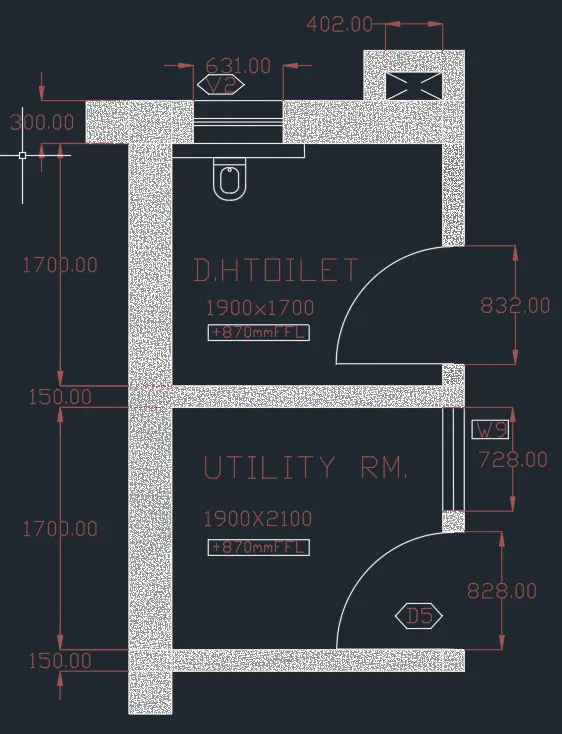
1.Toilet and Utility Layout plan:
- In this drawing we create a Toilet and Utility Layout plan.
- Now we can see the command used for this drawing as step by step.
Step:
- First we need to study the plan and get planed to draw.
- First we need start from a left hand side of the plan.
- Click 'XL'-V(Vertical Line) command to start draw.
- And 'Of' offset coomand as per plan dimension.
- First we need to create a Outer plan of drawing.
- Then offset the Room size as per Dimension given as per plan.
- Click 'TR'Trim command trime the extendend line.
- Then 'Ex'extend command to extentend line with upto second line.
- And Draw the 'DOOR' with the help of 'Cicle' command.
- And first to draw hinch .25"inch and draw over a circle.
- And draw staright line to the centre to centre of the line
- Finally trim the cricle and create a door.
- Create a Layer option to TEXT,DOOR seprately.
- Then Click "HAT"Hatch option to outer wall.
- Click "TEXT"option to create a room name as a text Layer
- After complete a drawing we need show dimension of Toilet and Utility Layout plan.
- Click "DIM"command to create a dimension.
- And we use a Snipping Tool to take a screenshot.
- Finally Click Save as to save the picture.