Drafting of various geometries using Chamfer, Fillet tool in AutoCad
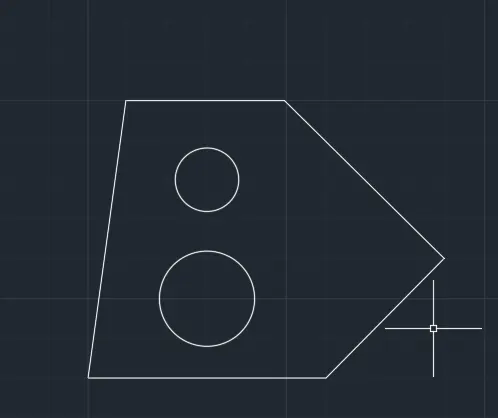
1)AIM: To create given geometry
PROCEDURE:
- Create a line using command Line
- Enter coordinates 0,0 and 3,0
- Command: _line
- Specify first point: 2.5,1.5
- Specify next point : 3
- Specify next point : 2.12 at an angle of 45
- Specify next point : 2.83 at an angle of 135
- Specify next point : 2 towards left
- Join the line with bottom line
- Using command circle, draw a circle at a distance of 1 and 2.5 from the bottom with radius of 1.2 and 0.8 respectfully.
2)
AIM: To create the geometry
PROCEDURE:
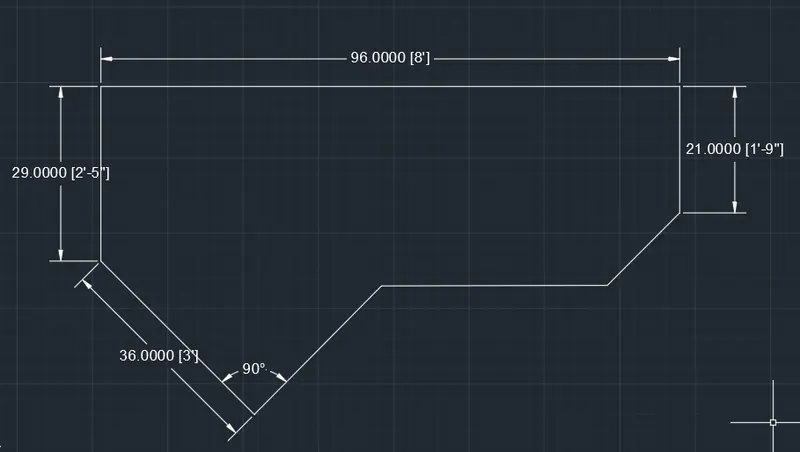
- Change the units from decimal to engineering feets and inches
- Draw a line length 2'5" upwards from a point.
- Then on the ortho mode and draw another line of length 8' horizontally
- Extend the line downwards to a distance of 1'-9"
- From the first point extend the line downwards at an angle of 45 and upwards with the same angle
- connect the two lines
Result:
3)
AIM: To create the geometry
PROCEDURE:
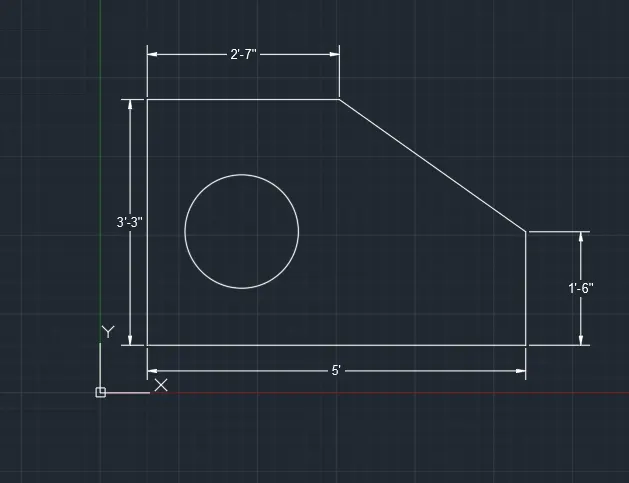
- First change the units in command UNIT and enter engineering feets and inches
- Draw a line coordinates point 10,1 using command LINE then on ortho mode and move cursor left side enter 5' then upwards 3'3" and right 2'7" and then escape
- Using line from the starting point move the cursor upwards and enter 16.0" .
- Draw off sets 1'6" vertically upwards from bottom line and then 1'3" from the left corner towards right
Result:
4)
AIM: To create gerometry
COMMANDS:
Line
PROCEDURE:
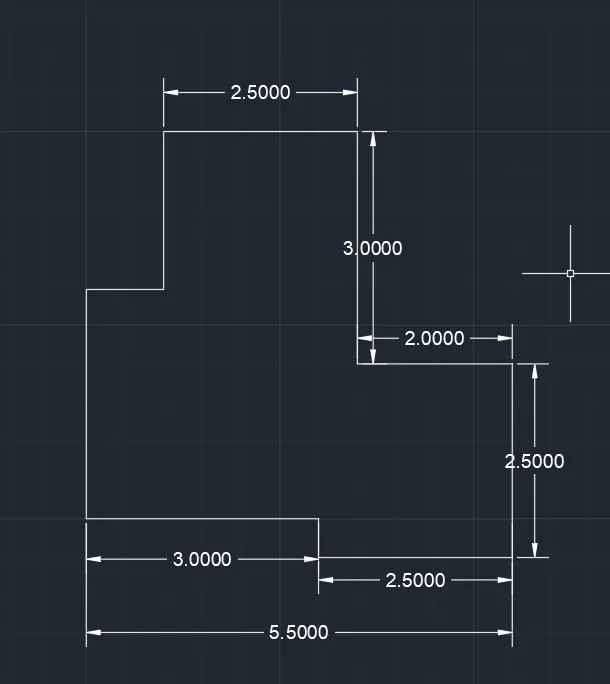
- Using command Pline and specify first point
- Switch on orthomode given coordinates extend to 3 and then 2.
- Then extend 2.5 upwards then 2 leftwards and then 3 upwards and 2.5 leftwards.
- Join the lines
Result:
5)
AIM:To create geometry
PROCEDURE:
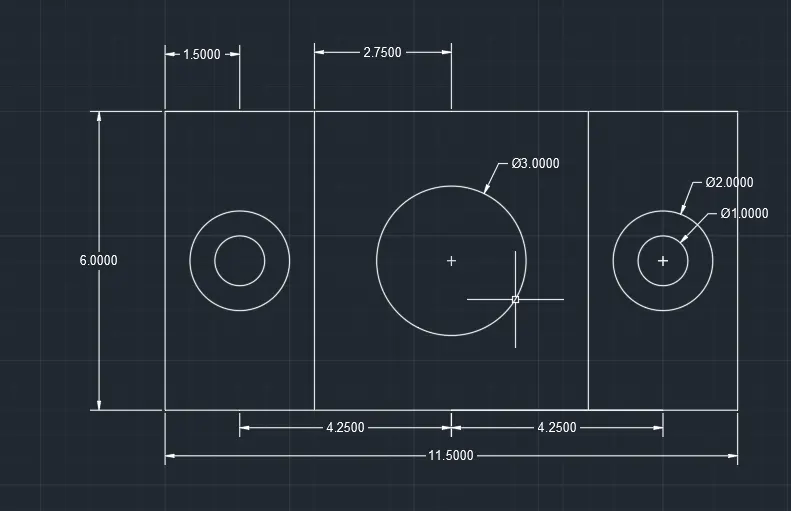
- Draw a rectangle given coordinates 5,5 and by dimensions enter length 11.5 and width 6 then explode the rectangle in different segments.
- Create offset distance 3 units and 1.5 units towards inside rectangle at bothsides and vertically 3 units upwards
- Create a circle diameter 3 units and another two circles dia 2 units and 1 unit at the intersection of offset lines on bothsides
- Erase unwanted lines
Result:
6)
AIM: To create geometry
PROCEDURE:
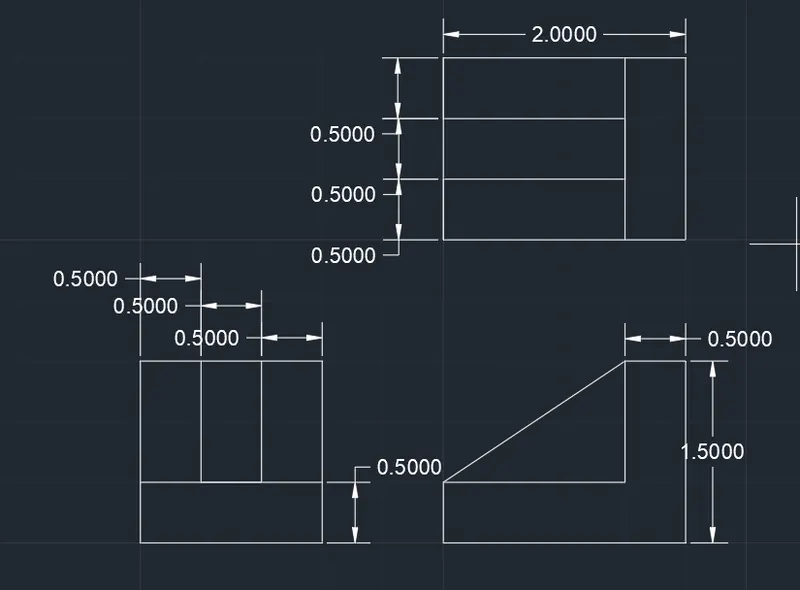
- Draw a line 2 units to right side and 1.5 vertically upwards and 2 units left side
- Then make offset right side corner of bottom line 0.5 and same vertically upwards 0.5 from bottom line 2 and trim unwanted lines
- Using command L first point towards right 2.0 and upwards 1.5 and left side 0.5 then downwards 1.0 then close
- By using ortho mode on by usingrectangle command draw a square of 1.5 x 1.5 units
- Offsets distance 0.5 from left to right side of a rectangle and trim the unwanted lines
Result:
7)
AIM: To create geometry
PROCEDURE:
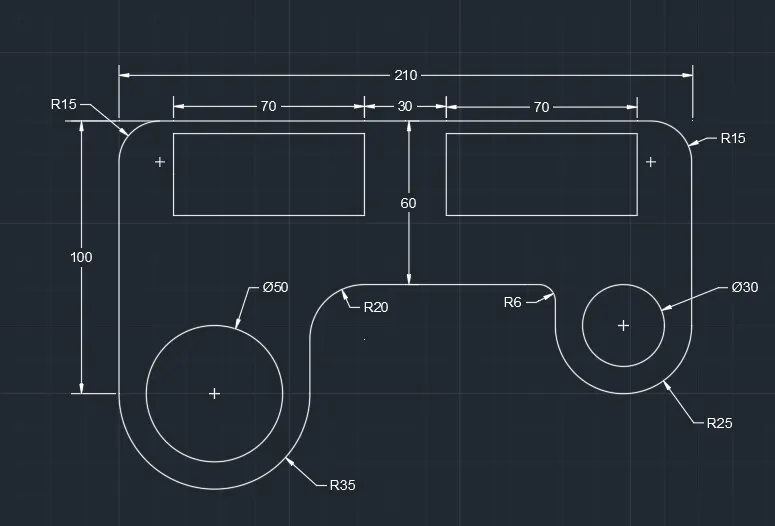
- Draw a line 100 units vertically upwards and right 210 units and vertically downwards 75 and click enter
- By using offset distance 10 units 40, 60 from top line to downwards
- Again using offset distance 20 units 90, 120, 190 from left side to right side
- In command line enter C take two poins s method bottom corner 100 first and second point 70 distance
- Draw a circle dia 50 and line first pont 35 radis of circle above the offset line and use fillet radis 20 remove unwaanted lines
- In command line enter C take two poins s method bottom corner 75 first and second point 50 distance. Draw a circle dia and fillet radius 6 line above offset
- Using fillet select objects top left corner line and radius 15 and same process at the top right corner.
Result:
8)
AIM: To create geometry
PROCEDURE:
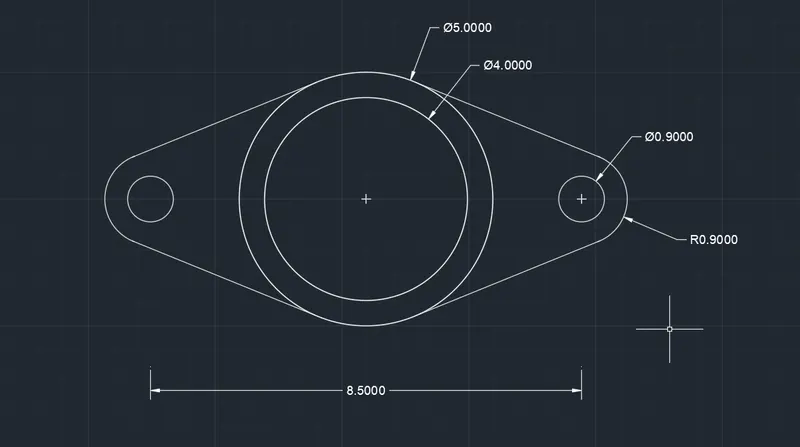
- Draw a circle with command circle dia 4 and specify the center line dia 4 and another circle 5 dia with same center
- Draw a line 4.275 from the center of a circle .
- BY using polyline with command PLINE draw a tangent to the circle of radius 0.9 first circle dia 5 in top and bottom on both sides .
- By using mirror select the two circles and tangents specify base points as a center 5 units dia and place it at the other end of the line
Result:
AIM: To create geometry
PROCEDURE:
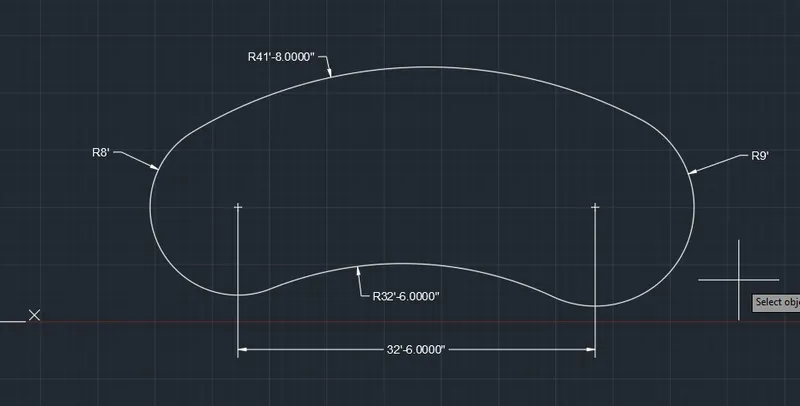
- Draw two circles of radius 8' and 9 with a distance of 8.
- To draw the bottom arc and top arc draw circle with (tan,tan and radius)
- Select the two circles as tan adn enter the radius as 32'
- Now for the upper part use radius as 41
- Trim off the remaining circle
Result:
AIM: To create gerometry
PROCEDURE:
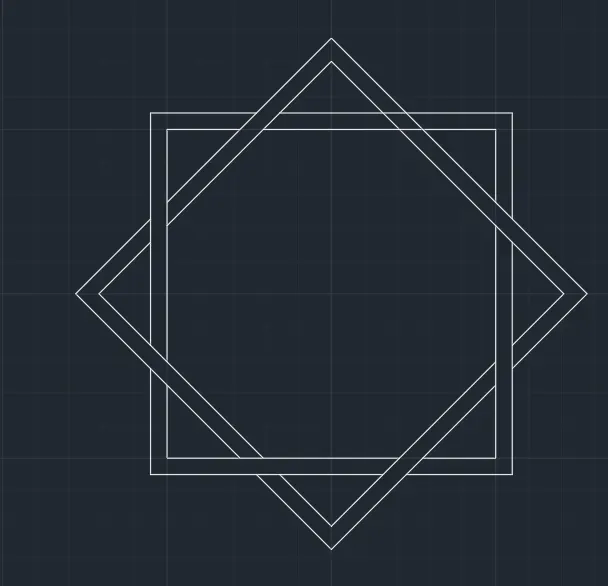
- Draw a rectangle using command RECTANG at a point in plane and dimensions length 5 breadth 5 and offsetd 0.25 inside rectangle
- Copy the square and rotate the square and select base point 45 degrees.
- Trim off the unwanted lines
Result:
11)
AIM: To create geometry
PROCEDURE:
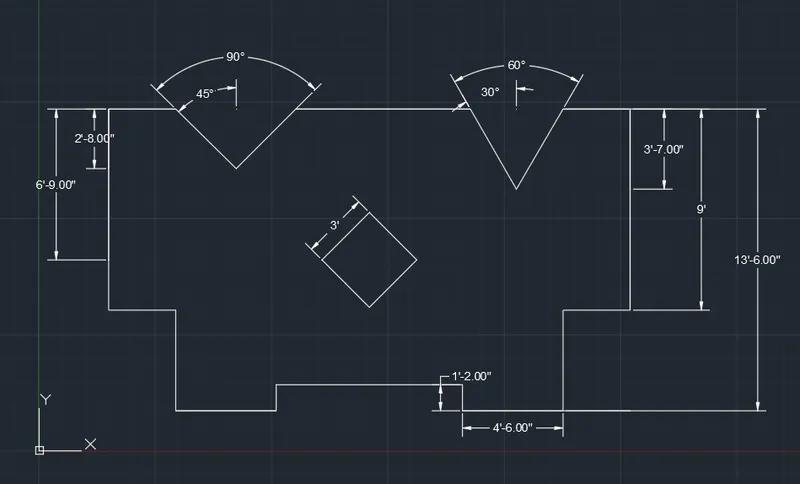
- Change the units with command UNITS from decimal to engineering feets and inches
- From a point draw 6"-9" upwards and draw 3' right.
- Extend a line to 20'-4" and extend it 13'-6".
- Extend the line with 3' left.
- Extend the line 4'-6" left then 1'-2" upwards adn then to left for 4'-6".
- From a distance of 2'-8" draw two lines at an angle of 90 between them adn join the lines with the main line.
- From a distance of 3'-7" on the right side draw two lines of 60 degree between them and join with the main line
- From a distance of 6'-9" draw a square of side 3' using command RECTANG.
- Then rotate the square with centre as base to an angle of 45 degree,
- Trim off the remaining lines.