Drafting of various geometries using Chamfer, Fillet tool in AutoCad
Drafting of various geometries using Chamfer, Fillet tool in AutoCad
C1
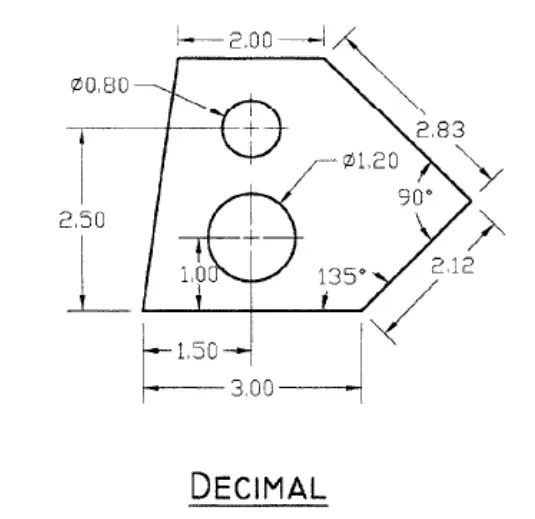
AIM: To draw given drawing using AutoCad
PROCEDURE:
- In the command prompt type units and select decimal unit
- Take polyline. Command is PL
- Specify start point as 1,1
- Then type @3<0
- Next, type @2.12<45
- Next, type @2.83<135
- Next, type @2<180. Close the command
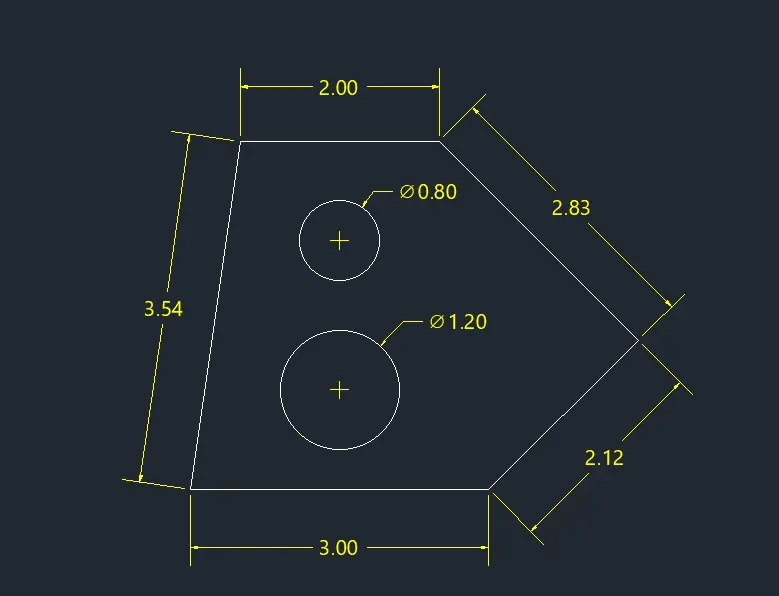
- Now to draw circle, make sure to select endpoint and midpoint from object snap
- Select the midpoint of line with dimension 3
- Then type @1<90
- In menu bar click circle>centre, diameter
- Now keep the cursor on end point of f previous line which is taken as centre of circle
- Type diameter as 1.20
- Delete 1<90 line
- Now select midpoint of line with dimension 3
- Type @2.50<90
- Take circle>centre, diameter
- Keep the cursor on the endpoint of previous line which was taken as circle
- Type diameter as 0.80
- Delete @2.50<90 line.
RESULT:
C2
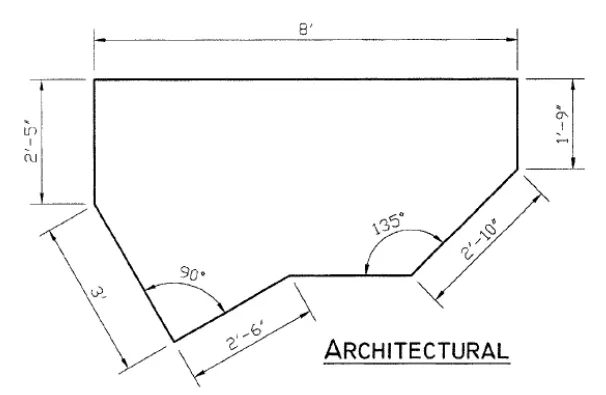
AIM: To draw given drawing using AutoCad.
PROCEDURE:
- Type Units and select Architectural with a precision of 0'-0"
- Take line command and select a point and type @8'<0
- Then type, @1'-9"<270
- Next @2'-10"<225
- Now from the 2'-10" line draw another line at an angle of 135 deg
- Give a distance of 2'-2.7"
- Type @2'-7.8"<45 keepin as reference line
- Then @3'<90
- Exit out of reference and type @2'-5.0"<90
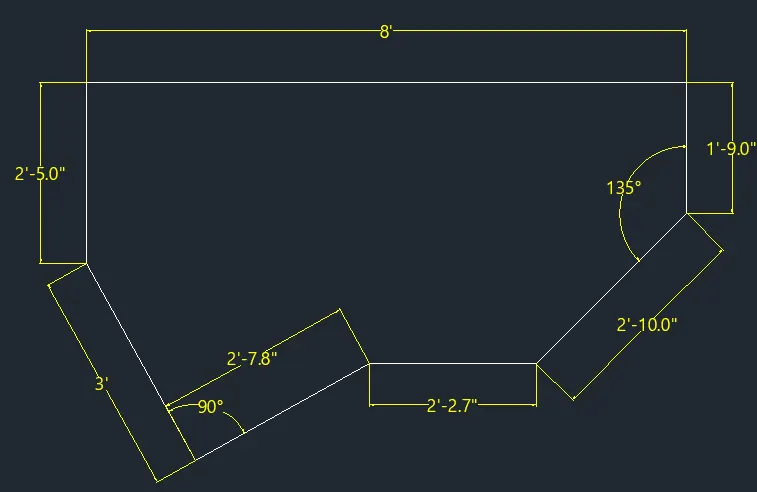
- The required drawing is done.
RESULT:
C3
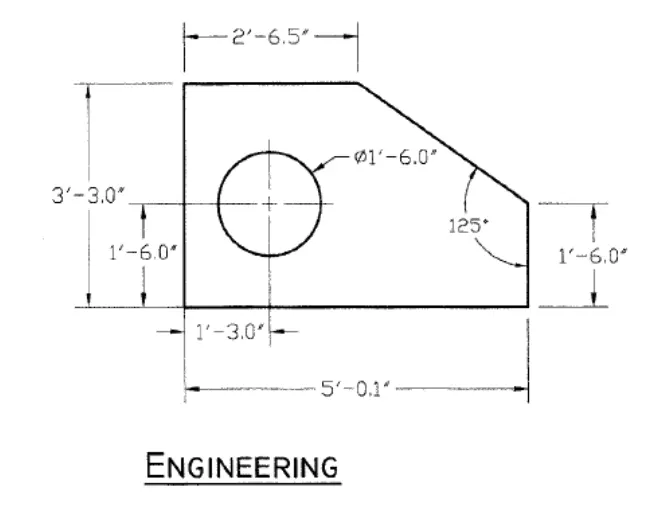
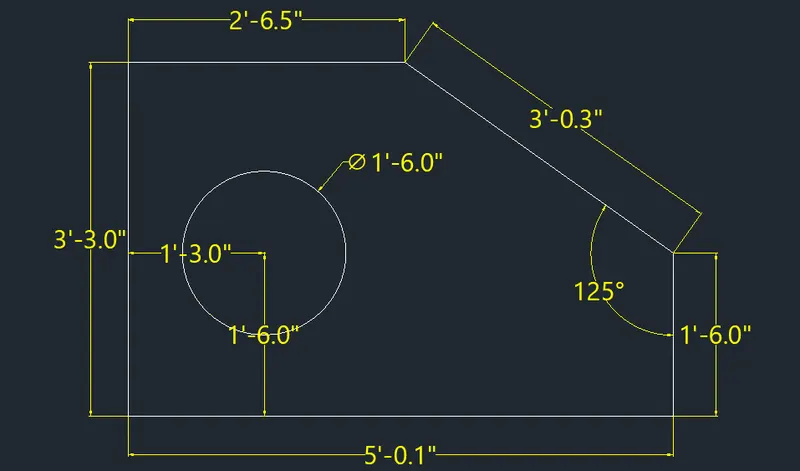
AIM: To draw given diagram using AutoCad.
PROCEDURE:
- Type Units and select engineering with precision as 0'-0"
- Take line command and type distance 5'-0.1"
- Next type 3'-3.0"
- Next type 2'-6.5 and enter
- Type line and distance 1'-6"
- Join the gap using command at an angle of 125
- Take line command and type offset
- Specify offset distance as 1'-6"( select 5'-10" line and offset it)
- Take the cursor and click on intersection point of the two lines, therefore it is the centre of the circle needed
- In menu bar click on circle> centre, diameter
- Centre is the intersection point, diameter 1'-6".
RESULT:
C4
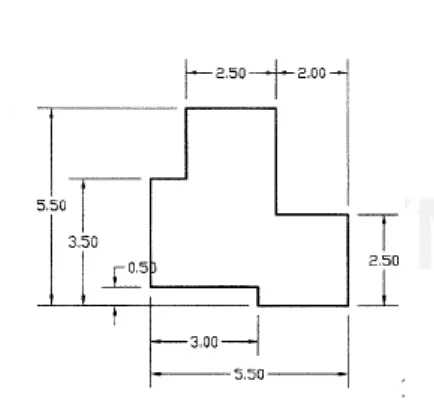
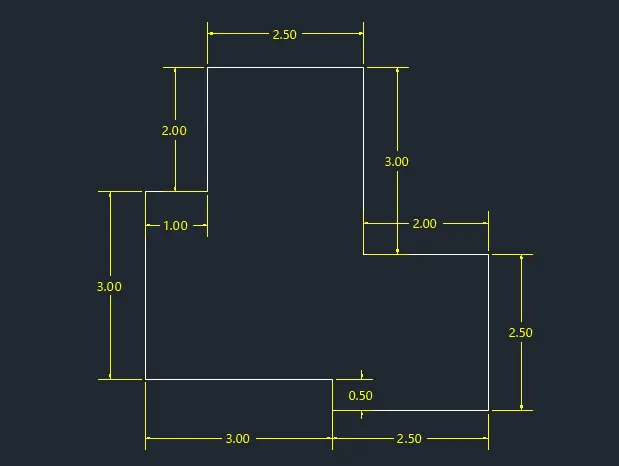
AIM: To draw the given diagram using AutoCad
PROCEDURE:
- Type units and select decimal with precision of 0.0
- Type PL for polyline and specify a point
- Type distance 3.0
- Next, type distance 0.5
- Next, type distance 2.5
- Next, type distance 2.5
- Next, type distance 2.0
- Next, type distance 2.5
- Next, type distance 1.0
- Click on close in command prompt
RESULT:
C5
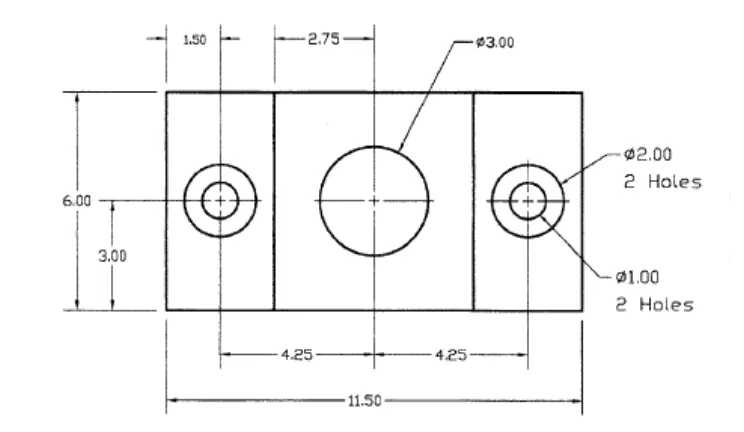
AIM: To draw the given diagram using AutoCad.
PROCEDURE:
- Type units and select decimal with precision with 0.0
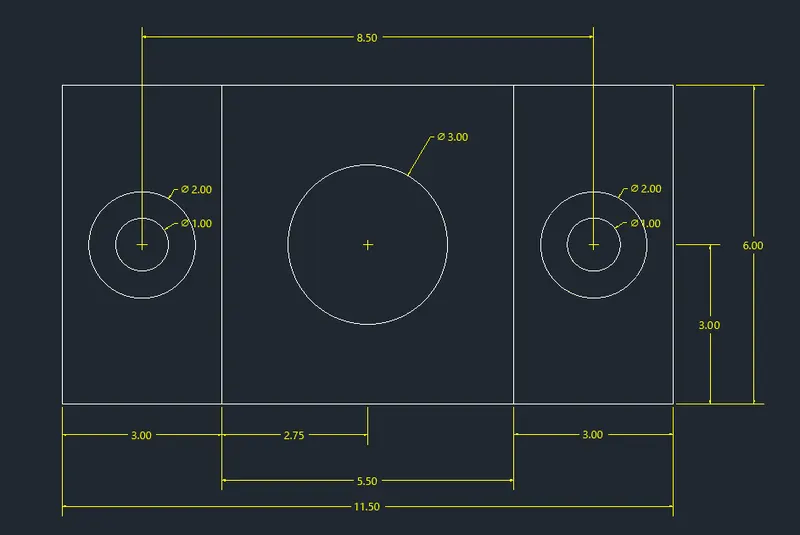
- Take rectangle command and give dimensions as 11.50 and 6.00
- Take offset command and provide offset distance of 3.00 and draw an offset from 6.00 line on both opposite sides
- Draw a line from the midpoint of 6.00 line perpendicularly at a distance of 1.5
- Repeat the same on the opposite 6.00 line
- Take circle command of diameter and centre point as end of 1.5 line draw two concentric circles of 2.00 and 1.00 diameters.
- Same to be done on the other side
- Then trim of 1.5 lines on both sides
- Now take midpoint of 11.50 base line and draw a line perpendicularly to the other side
- Take circle command of diameter 3.00 by keeping midpoint of perpendicular line and draw the circle.
RESULT:
C6
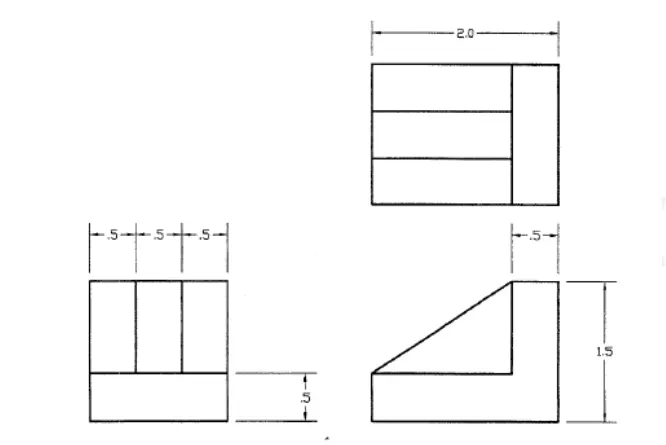
AIM: To draw the given drawing using AutoCad.
PROCEDURE:
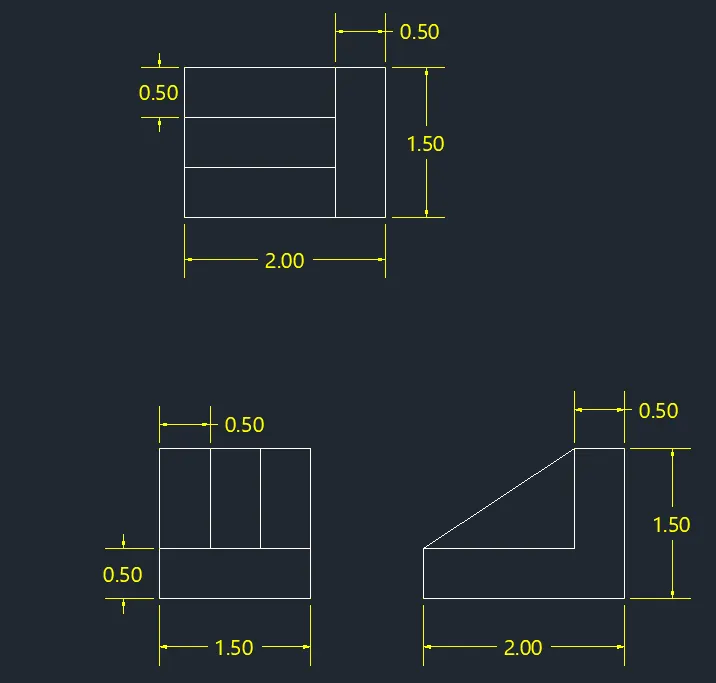
- Type Units and select decimal with precision 0.0
- First, Rectangle at the right top
- Select line command specify a point
- Keep ortho ON and type @2.00<0
- Next type @1.50<270
- Then @2.00<180 and close
- Take offset command and provide an offset of 0.50
- Draw the offset from right side of polygon inside
- Then place the offsets of 1.50 by taking multiple, on 2.0 line.
- Now for the drawing in the left. Select the whole drawing which is drawn and copy it to a desired place.
- Then by keeping ortho ON rotate the diagram to get the desired drawing
- For the diagram in right bottom
- Take line command and specify first point
- Specify next point as @2<0
- Next point as @0.5<90
- Next point as @1.5<0
- Next point as @1<90 and close
- Draw a diagonal as given to complete the diagram.
RESULT:
C7
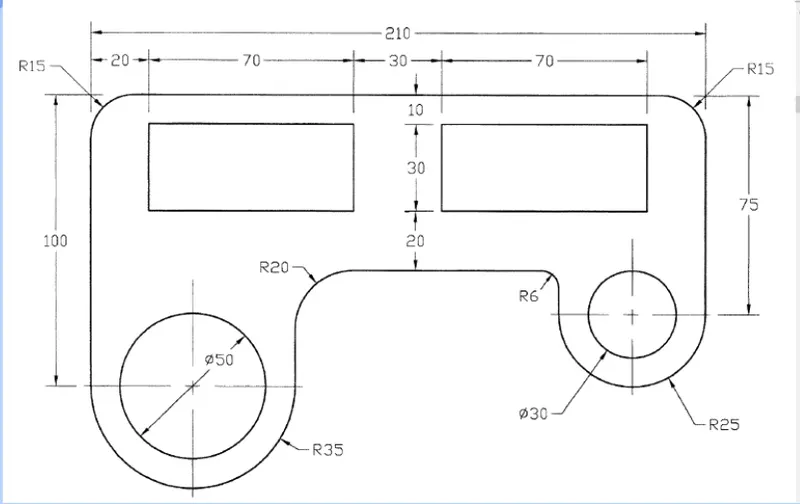
AIM: To draw the given diagram using AutoCad.
PROCEDURE:
- Type units and select decimal with precision of 0.0
- Take line command and specify a point
- Type distance as 100
- Next 200
- Then type 75
- Type fillet and radius as 15.0
- Select 100 line and 210 line also select 210 and 75 line
- From the end point of 100 draw a horizontal line of 70
- From menu bar click circle > centre, radius
- Center is midpoint of the previous line and radius is 35
- From menu bar click circle > centre, diameter
- The center is previous circle of radius 35 and diameter is 50
- From the end point of line 70 draw a vertical line of 40
- From the end point of 75 draw a horizontal line of 50
- In the many bar click > centre, radius
- Centre is midpoint of the previous line and radius is 25
- From the menu bar click circle > centre, diameter
- Centre is midpoint of previous circle with radius 25 and diameter 30
- From the end point of line 50 draw a vertical line of 15
- Close the gap with help of the line
- In the command prompt type fillet> radius> 20
- Select the two lines to get curve
- In the command prompt give fillet radius as 6
- Select the two lines to get the curve
- At a distance of 20 from the left top corner and 10 from the top( specify starting point)
- From that point with the help of the rectangular command draw a rectangle with dimensions of 70 and 30
- Offset the rectangle at a distance of 30 with the help of offset command.
RESULT:
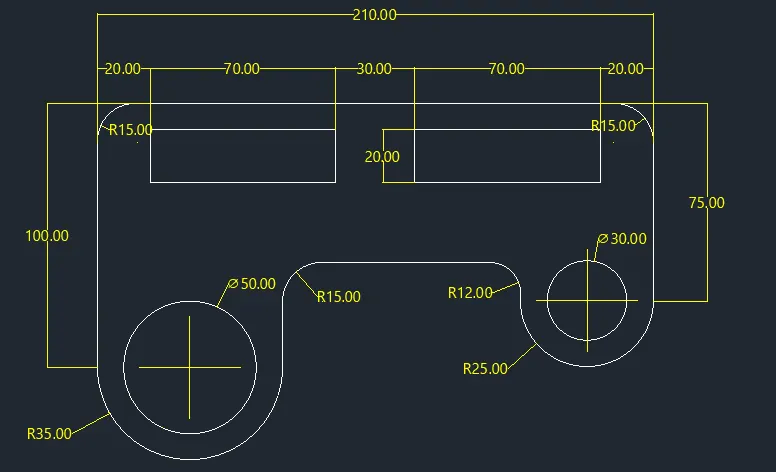
C8
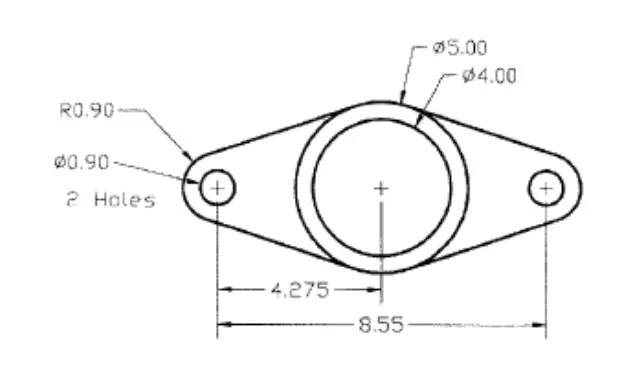
AIM: To draw given diagram using AutoCad.
PROCEDURE:
- Type units and select decimal with precision of 0.000
- Take line command and distance as 8.550
- From menu bar take circle> centre, diameter
- Center is the end point of line 8.550 and diameter is 0.90
- Again take circle and center as end point of line 8.550 and radius 0.90
- Take circle, center ,diameter and center is end point of line 8.550 and diameter is 0.90
- Take circle , centre, diameter and center is the end point of line 8.550 and radius is 0.90
- In menu bar take circle, center, diameter
- Centre is the midpoint of line 8.550 and diameter is 50
- In menu bar take circle and center as the midpoint of line 8.550 and diameter is 40
- Join the tangents of the outer circle with helpof lines and trim the extras
RESULT:
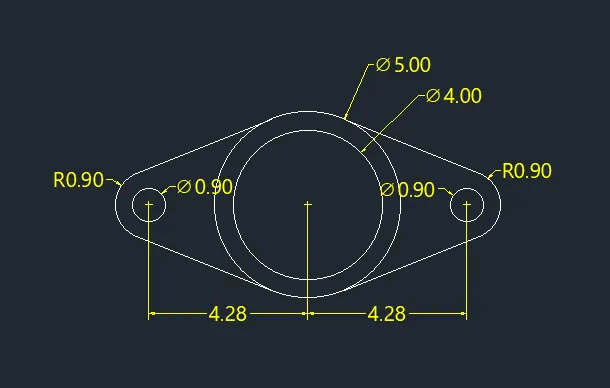
C9
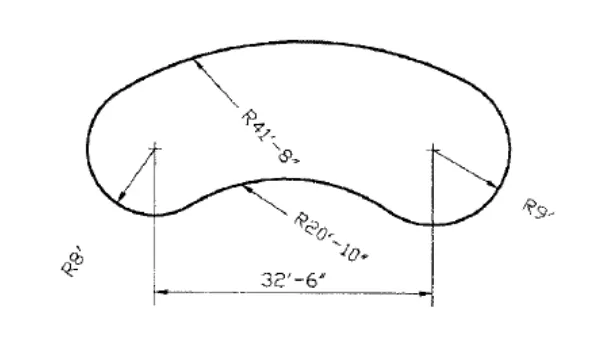
AIM: To draw given diagram using AutoCad.
PROCEDURE:
- Type units and select decimal with precision 0.0
- Take line command and specify distance as 32'-6"
- From menu bar take circle , centre, diameter
- Centre is end point of line 32'-6" and diameter is 8'
- Again take circle and centre is end point of line 32'-6" and diameter is 9'
- Now take circle with centre at end point of line 32'-6" and diameter is 32'-6"(LS)
- Now take circle with centre at end point of line 32'-6" and diameter is 32'-6"(LS)
- Point where the two circles intersect draw a circle of radius 32'-6"
- The arc is formed now trim the extra
- Agian take circle with center as end point of line 32'-6" and diameter 33'-8"
- Agian take circle with center as end point of line 32'-6" and diameter 32'-8"
- Point where the two circles intersect draw a circle of radius 41'-8"
- The arc is formed now trim the extras.
RESULT:
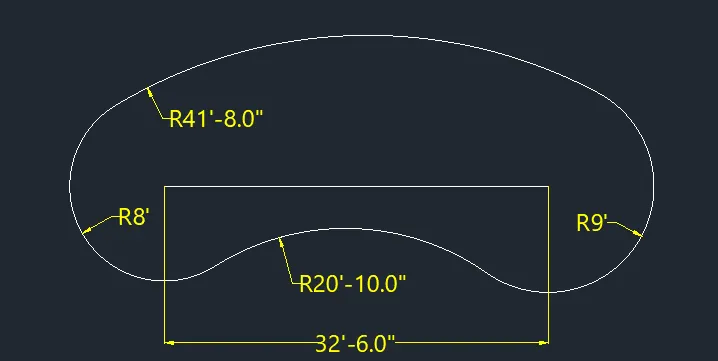
C10
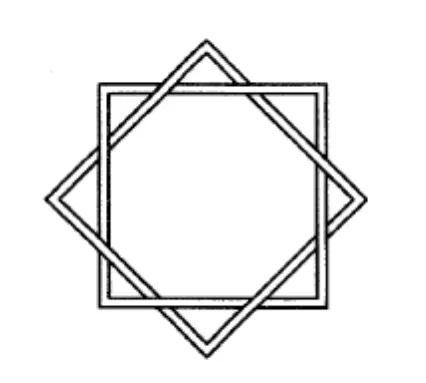
AIM: To draw the given diagram using AutoCad.
PROCEDURE:
- Type units and select decimal with precision of 0.0
- Take polygon command with dimensions 7,7
- Offset the polygon and rotate it to diamond shape
- Using offset command offset polygon and diamond
- Using trim command delete the unwanted lines to get the given diagram.
RESULT:

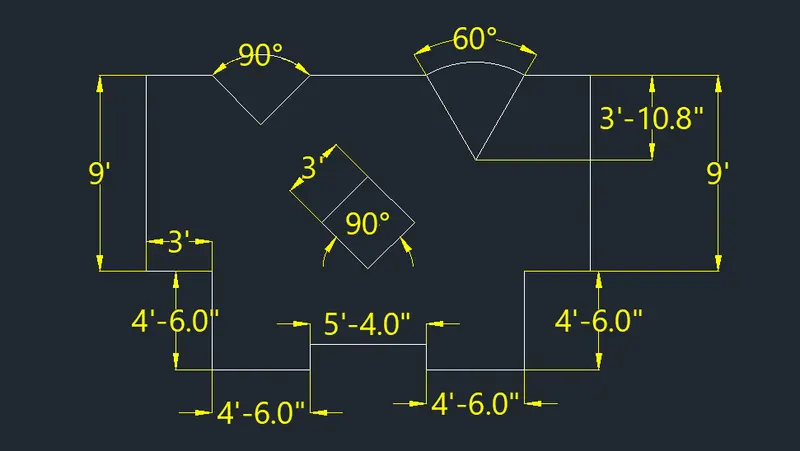
C11
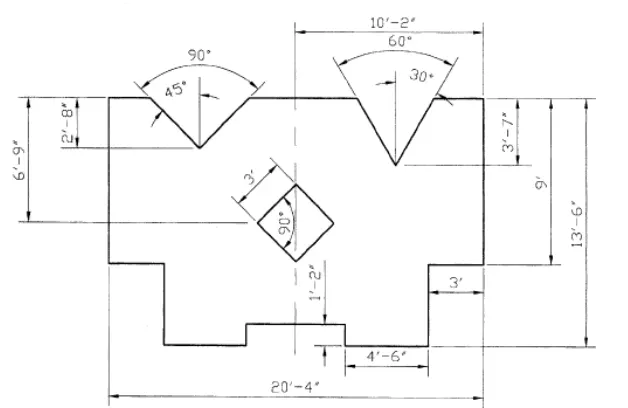
AIM: To draw the given polygon using AutoCad
PROCEDURE:
- Type units and select engineering with precision 0.0
- Type line and distance as 20'-4">9'>3'>4'6">1'2">5'4">1'2">4'6"> close
- Take offset distance of 3' from the corner and 3'7" from top with offset command
- With the line command draw a V and polar coordinates must be 30,60,90,120
- Take offset command od 10'2" from corner and 6'10" from top with offset command
- Keeping the intersection point ass centre draw a diamond with radius 3 and angle 90
RESULT:
THANK YOU