Drafting of various geometries using Chamfer, Fillet tool in AutoCad
TASK 1:
Question 1:
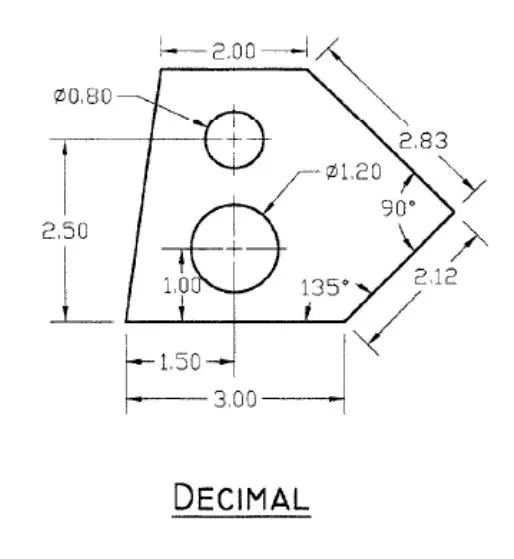
AIM:
To draw the given Drawing with the given units.
PROCEDURE:
- Go to START MENU, select AutoCAD 2023
- Click on START DRAWING .DWG File
- In the Command line type in: STARTUP [ENTER]
- Enter new value of startup: 1
- Go to Application Menu and select New
- Next select the 'Decimal unit system from the 'Advanced Setup' option.
- Select the units as Decimal.
- Set the limits by entering LIMITS in the Command tab. The lower-left corner is specified as 0,0, and the upper-right corner is specified as 100,100.
Commands used:
- Line command,
- Dimlinear command,
- Text command,
- Circle command.
STEP 1:
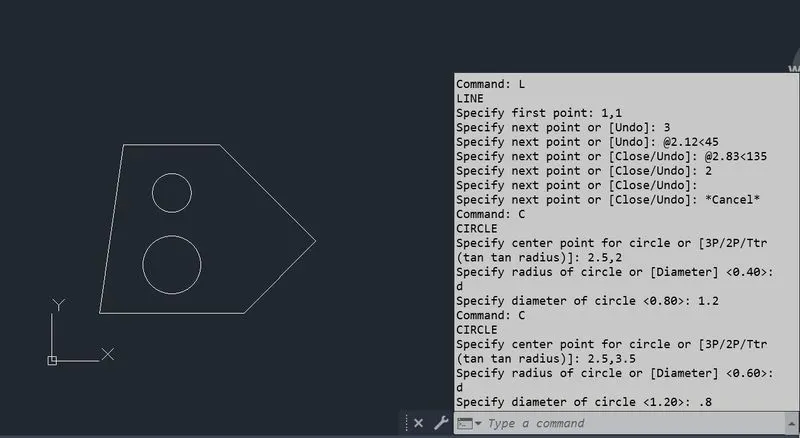
STEP 2:
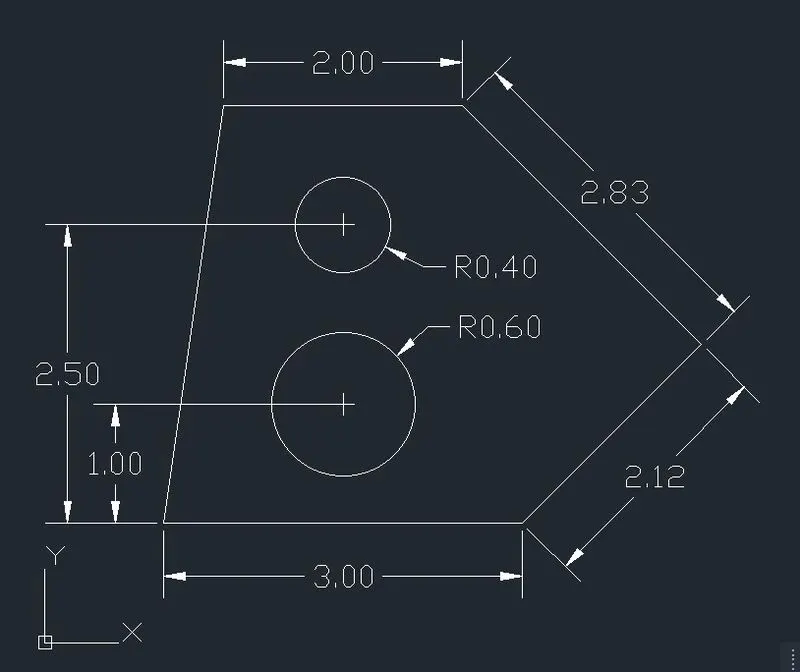
TASK 2:
Question 2:
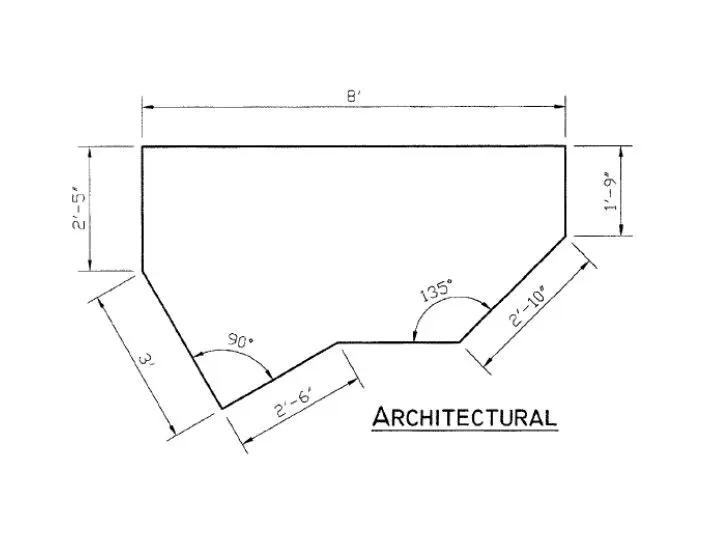
AIM:
To draw the given Drawing with the given units.
PROCEDURE:
- Go to START MENU, select AutoCAD 2023
- Click on START DRAWING .DWG File
- In the Command line type in: STARTUP [ENTER]
- Enter new value of startup: 1
- Go to Application Menu and select New
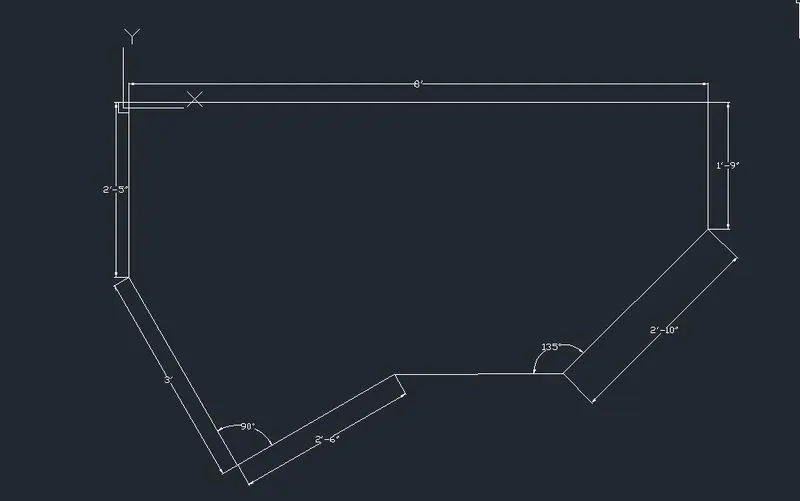
- Next select the 'Architectural' unit system from the 'Advanced Setup' option.
- Set the limits by entering LIMITS in the Command tab. The lower-left corner is specified as 0,0, and the upper-right corner is specified as 100,100.
Commands used:
- Line command,
- Dimlinear command,
- Text command,
- Circle command.
STEP 1:
TASK 3:
Question: 3
AIM:
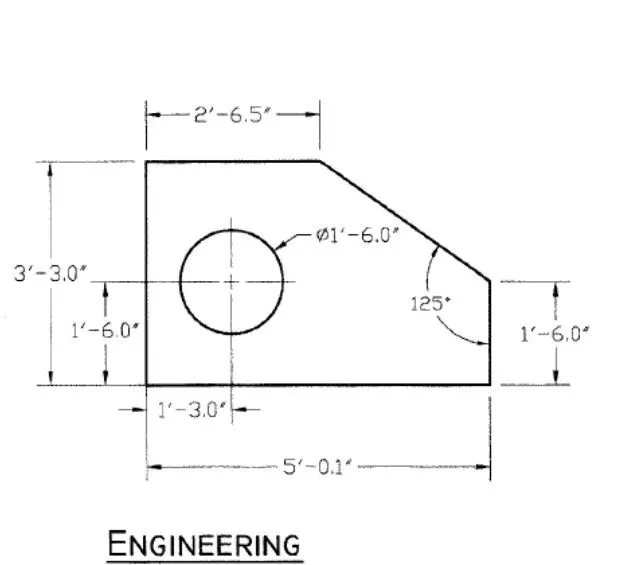
To draw the given Drawing with the given units.
PROCEDURE:
- Go to START MENU, select AutoCAD 2023
- Click on START DRAWING .DWG File
- In the Command line type in: STARTUP [ENTER]
- Enter new value of startup: 1
- Go to Application Menu and select New
- Next select the 'Engineering unit system from the 'Advanced Setup' option.
- Set the limits by entering LIMITS in the Command tab. The lower-left corner is specified as 0,0, and the upper-right corner is specified as 100,100.
Commands used:
- Line command,
- Dimlinear command,
- Text command,
- Circle command.
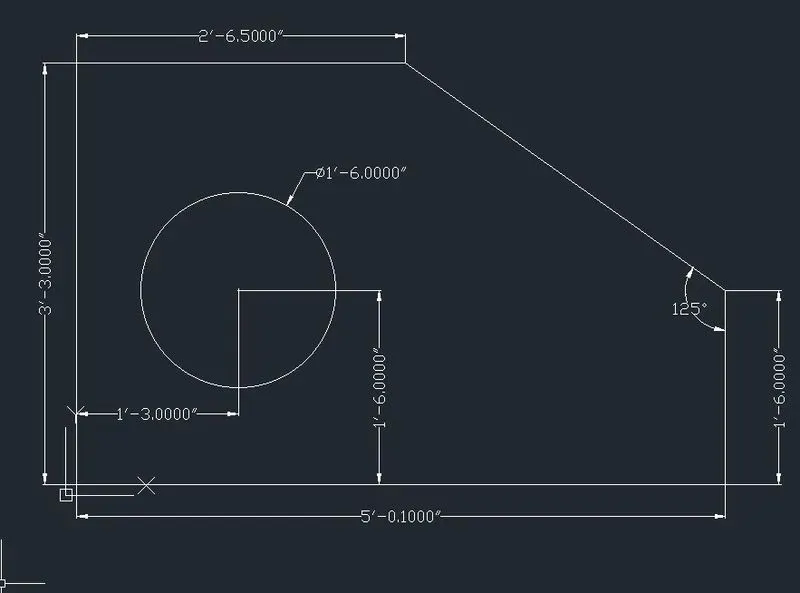
STEP 1:
TASK 4:
Question 4:
AIM:
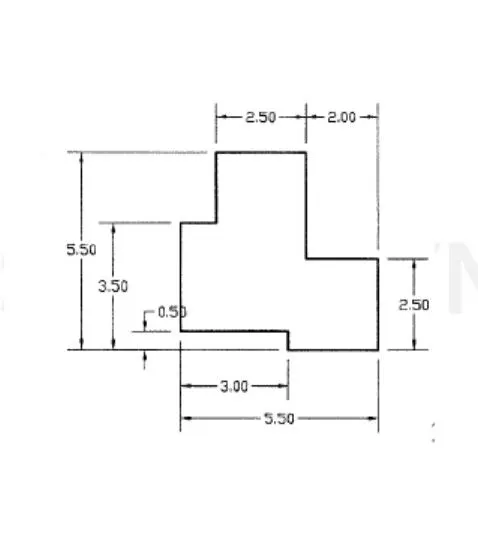
To draw the given Drawing with the given units.
PROCEDURE:
- Go to START MENU, select AutoCAD 2023
- Click on START DRAWING .DWG File
- In the Command line type in: STARTUP [ENTER]
- Enter new value of startup: 1
- Go to Application Menu and select New
- Next select the 'Decimal unit system from the 'Advanced Setup' option.
- Set the limits by entering LIMITS in the Command tab. The lower-left corner is specified as 0,0, and the upper-right corner is specified as 100,100.
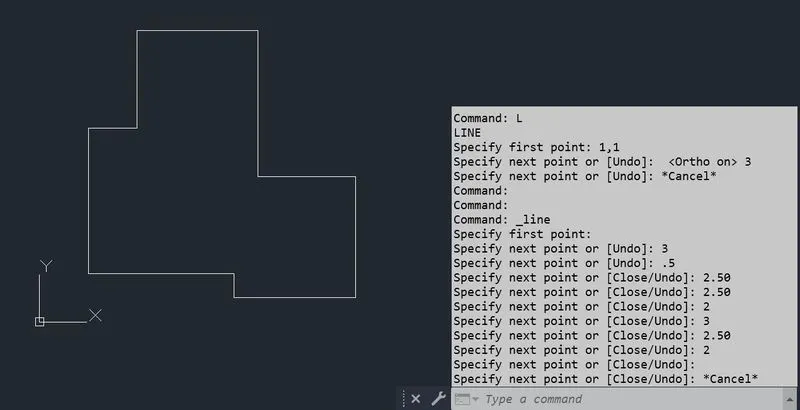
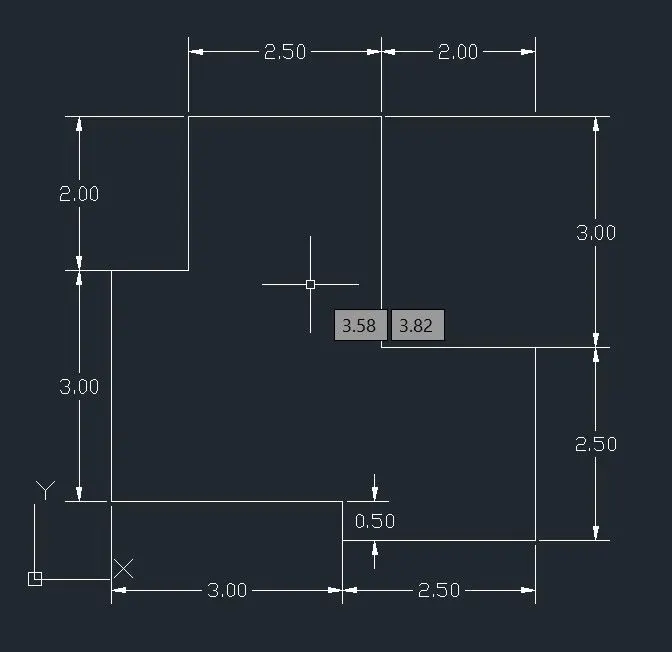
Commands used:
- Line command,
- Dimlinear command,
- Text command,
- Circle command.
STEP 1:
STEP 2:
TASK 5:
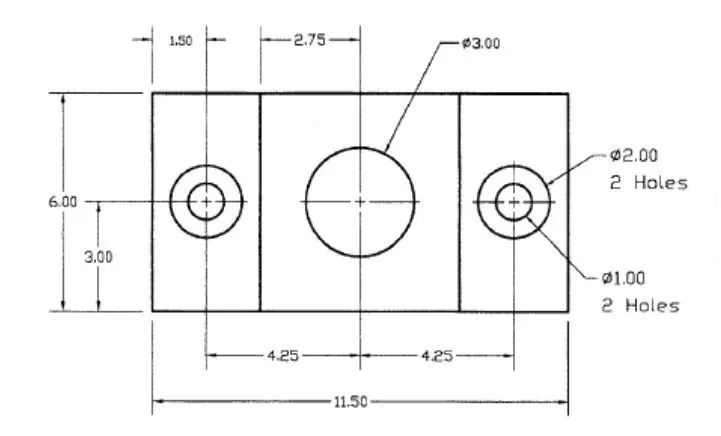
Question 5:
AIM:
To draw the given Drawing with the given units.
PROCEDURE:
- Go to START MENU, select AutoCAD 2023
- Click on START DRAWING .DWG File
- In the Command line type in: STARTUP [ENTER]
- Enter new value of startup: 1
- Go to Application Menu and select New
- Next select the 'Decimal unit system from the 'Advanced Setup' option.
- Set the limits by entering LIMITS in the Command tab. The lower-left corner is specified as 0,0, and the upper-right corner is specified as 100,100.
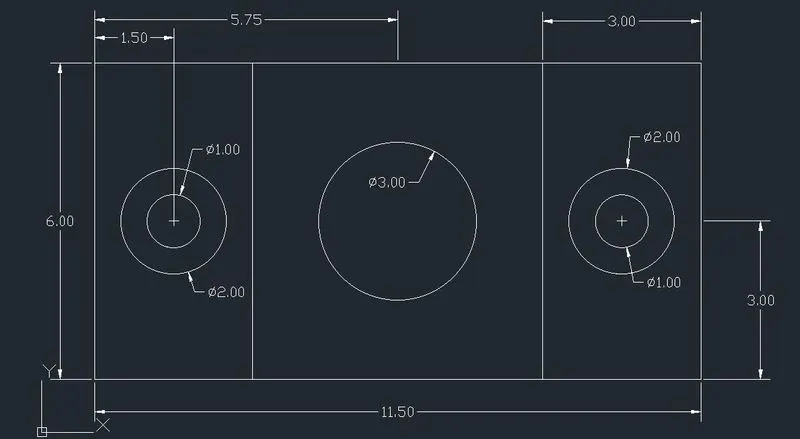
Commands used:
- Line command,
- Dimlinear command,
- Text command,
- Circle command.
STEP : 1
TASK 6:
Question 6:
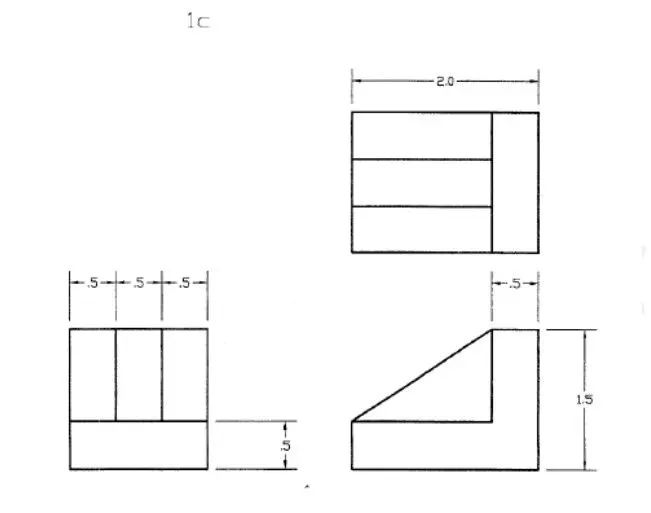
AIM:
To draw the given Drawing with the given units.
PROCEDURE:
- Go to START MENU, select AutoCAD 2023
- Click on START DRAWING .DWG File
- In the Command line type in: STARTUP [ENTER]
- Enter new value of startup: 1
- Go to Application Menu and select New
- Next select the 'Decimal unit system from the 'Advanced Setup' option.
- Set the limits by entering LIMITS in the Command tab. The lower-left corner is specified as 0,0, and the upper-right corner is specified as 100,100.
Commands used:
- Line command,
- Dimlinear command,
- Text command.
STEP 1:
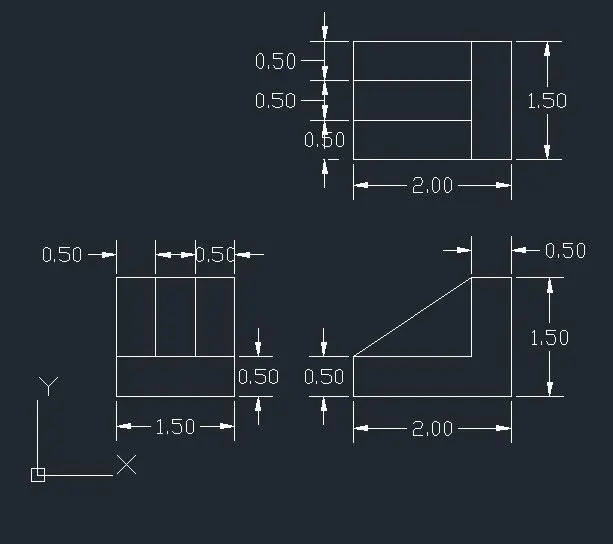
TASK: 7
Question 7:
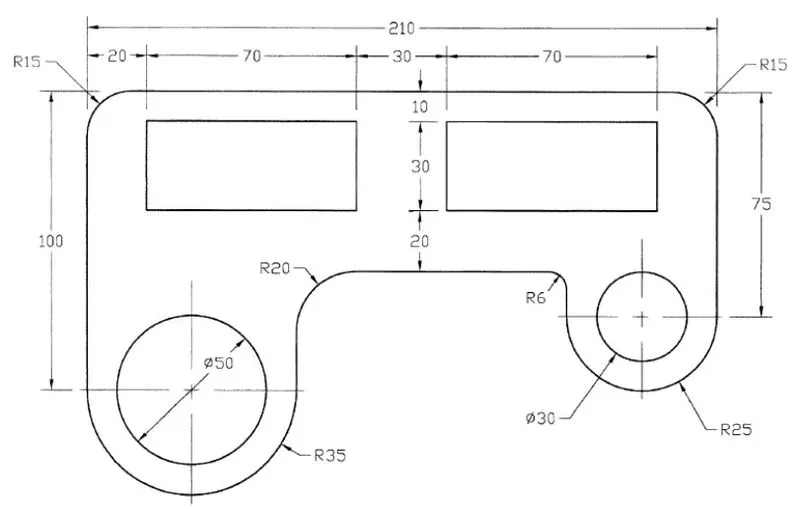
AIM:
To draw the given Drawing with the given units.
PROCEDURE:
- Go to START MENU, select AutoCAD 2023
- Click on START DRAWING .DWG File
- In the Command line type in: STARTUP [ENTER]
- Enter new value of startup: 1
- Go to Application Menu and select New
- Next select the 'Decimal unit system from the 'Advanced Setup' option.
- Set the limits by entering LIMITS in the Command tab. The lower-left corner is specified as 0,0, and the upper-right corner is specified as 100,100.
Commands used:
- Line command,
- Dimlinear command,
- Text command,
- Circle command.
STEP 1:
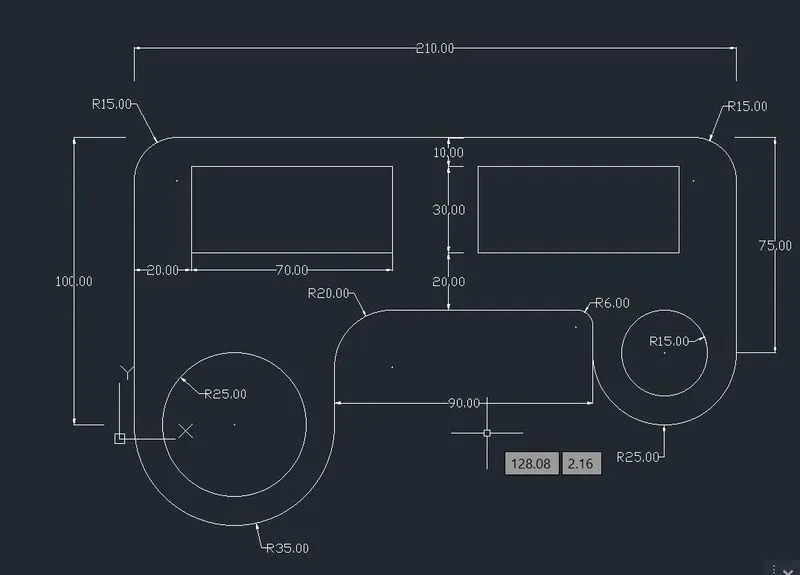
TASK 8:
Question 8:
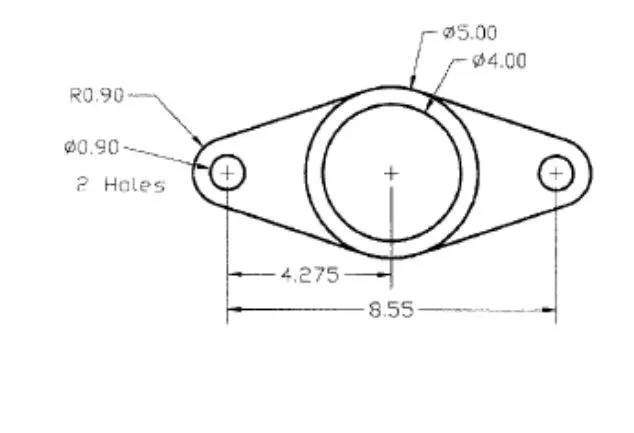
AIM:
To draw the given Drawing with the given units.
PROCEDURE:
- Go to START MENU, select AutoCAD 2023
- Click on START DRAWING .DWG File
- In the Command line type in: STARTUP [ENTER]
- Enter new value of startup: 1
- Go to Application Menu and select New
- Next select the 'Decimal unit system from the 'Advanced Setup' option.
- Set the limits by entering LIMITS in the Command tab. The lower-left corner is specified as 0,0, and the upper-right corner is specified as 100,100.
Commands used:
- Line command,
- Dimlinear command,
- Text command,
- Circle command.
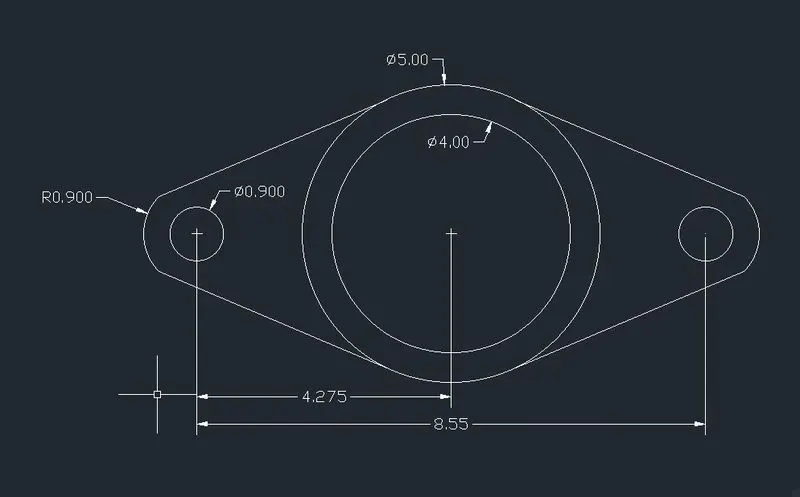
STEP 1:
TASK 9:
Questions 9:
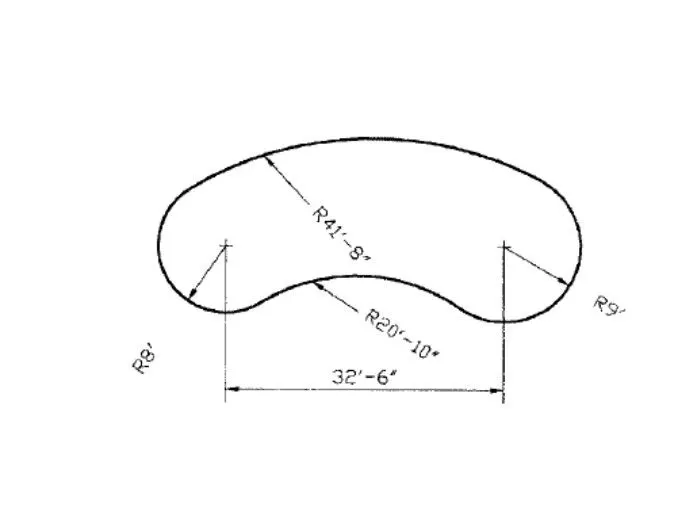
AIM:
To draw the given Drawing with the given units.
PROCEDURE:
- Go to START MENU, select AutoCAD 2023
- Click on START DRAWING .DWG File
- In the Command line type in: STARTUP [ENTER]
- Enter new value of startup: 1
- Go to Application Menu and select New
- Next select the 'Engineering' unit system from the 'Advanced Setup' option.
- Set the limits by entering LIMITS in the Command tab. The lower-left corner is specified as 0,0, and the upper-right corner is specified as 100,100.
Commands used:
- Line command,
- Dimlinear command,
- Text command,
- Circle command.
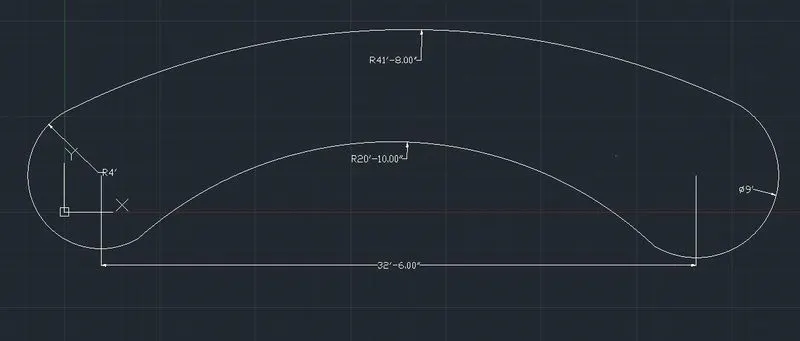
STEP 1:
TASK 10:
Question 10:
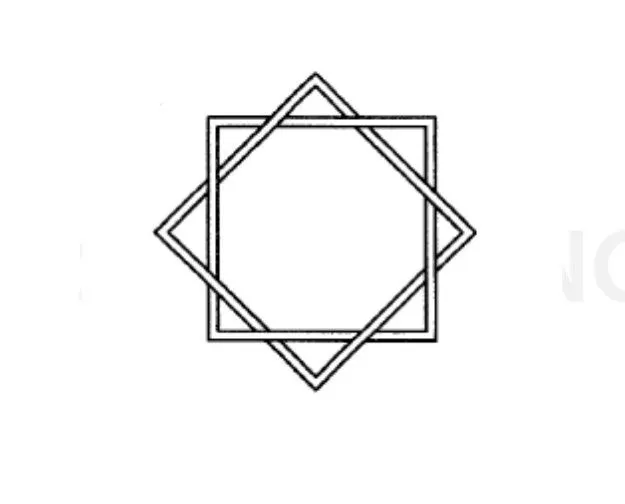
AIM:
To draw the given Drawing with the given units.
PROCEDURE:
- Go to START MENU, select AutoCAD 2023
- Click on START DRAWING .DWG File
- In the Command line type in: STARTUP [ENTER]
- Enter new value of startup: 1
- Go to Application Menu and select New
- Next select the 'Decimal unit system from the 'Advanced Setup' option.
- Set the limits by entering LIMITS in the Command tab. The lower-left corner is specified as 0,0, and the upper-right corner is specified as 100,100.
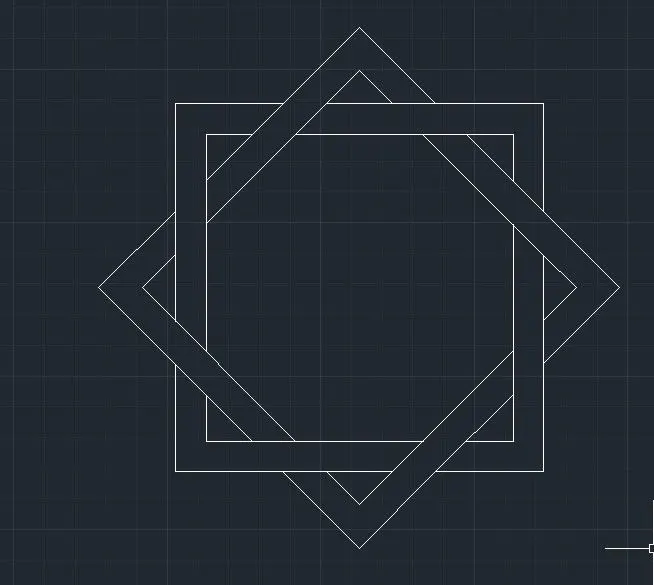
Note: The Specific Drawing is out of dimensions.
Commands used:
- Line command,
- Dimlinear command,
- Text command.
STEP 1:
TASK 11:
Question 11:
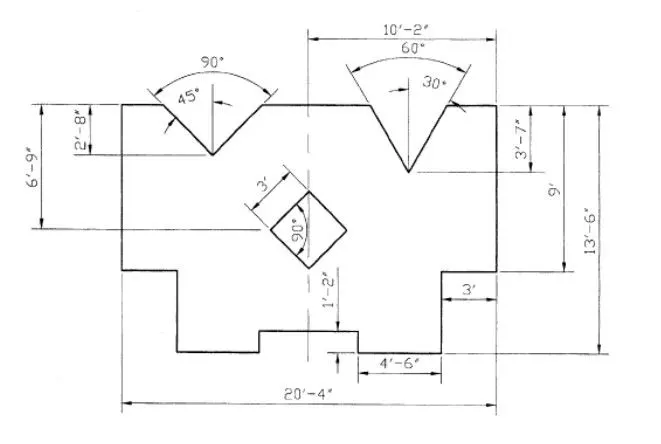
AIM:
To draw the given Drawing with the given units.
PROCEDURE:
- Go to START MENU, select AutoCAD 2023
- Click on START DRAWING .DWG File
- In the Command line type in: STARTUP [ENTER]
- Enter new value of startup: 1
- Go to Application Menu and select New
- Next select the 'Architectural' unit system from the 'Advanced Setup' option.
- Set the limits by entering LIMITS in the Command tab. The lower-left corner is specified as 0,0, and the upper-right corner is specified as 100,100.
Commands used:
- Line command,
- Dimlinear command,
- Text command.
STEP 1:
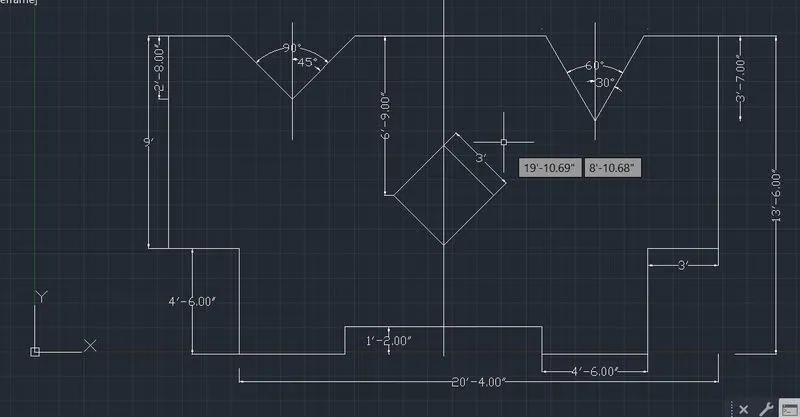
Thus the Challenge 3 have been completed.