Drafting of various geometries using Chamfer, Fillet tool in AutoCad
AIM: Drafting of various geometries using Chamfer, Fillet tool in AutoCad
Cammand used:
- Chamfer
- Fillet
- Offset
- Rotate
- Copy
- Erase
PROCEDURE:
Drawing 1:
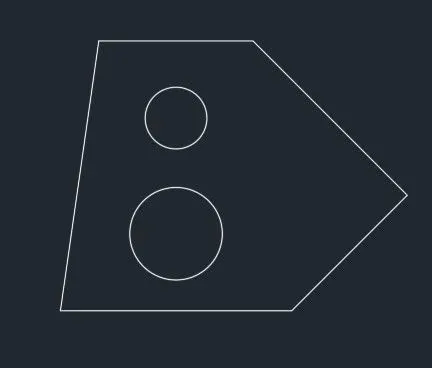
- Open new file and set decimal and precision to 0.00
- choose the line cammand specify the point 3 and enter
- specify the next point @2.12<45,@2.83<-45,2 and close
- choose offset cammand specify the distance 1 and 2 and specify the next point half of the distance to draw a line 1.5
- To draw circle of diameter 1.2 and 0.8
Drawing 2:
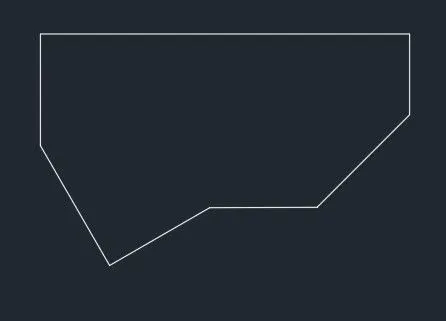
- Select architectural units and polar track is on
- choose the line cammand specify the distance @2'10"<45 ",@1'9"<90,@8'<180,@2'5"<270,@3'<45,@2'6"<45 and close the point
Drawing 3:
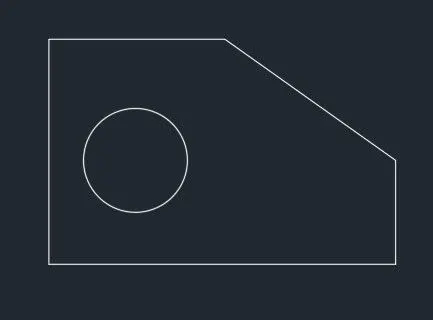
- open the new file and set the engineering and precision of 0.00
- choose the line cammand specify the distance 2'6.5" and specifify the direction
- specify the next point 3'3" and specify the direction
- simularly 5'0.1",1'6" and close the point
- select the offset cammmand specify the distance 1'3" and 1'6" and draw a circle and remove the external lines
Drawing 4:
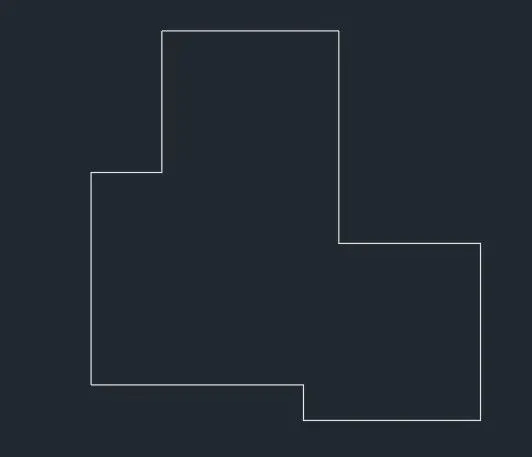
- select the new file and choose the decimal point 0.00
- choose the line cammand specify the distance 3.00 specify the direction
- specify the next point 0.50 specify the direction simularly, 2.50,2.50,2.00,2.50,2.00,1.00 and close the point.
Drawing 5:
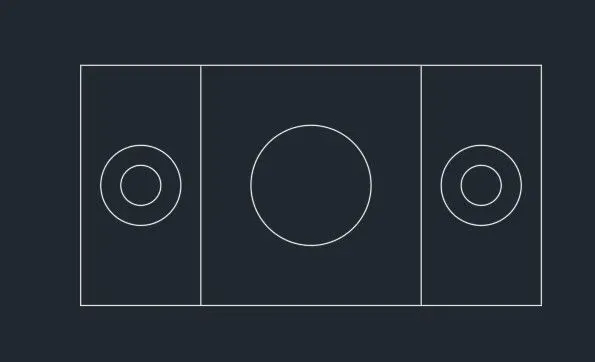
- select new page and select decimal units of precision 0.00
- choose the line cammand specify the distance 11.50 and specify the direction simularly,6.00,11.50 and close the point
- select the offset cammand specift the distance 1.50specify the direction and enter silularly 1.5,2.75,2.75,1.5
- select the offset distance 3.00 and specify the direction and trim the external points
Drawing 6:
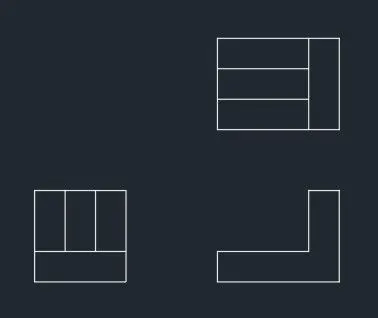
- Select the new page and decimal units of precision 0.0
- choose the line cammand specify the distance 1.5and specify the direction
- Select the offst cammand specify the distance 0.5 and 1.5 simularly vertical direction specify the distance 0.5,0.5,0.5 specify the direction
- choose the line cammand specify the distance 2 and specify the direction simularly 1.5
- select offset cammand specify the distance 0.5 specify the direction and join the points and close its
- choose the line cammand specify the distance 2 and specify the direction select the offset specify the diistance 2 and specify the direction 0.5,1.5
- select the line cammand join th line and select offset specify the distance 1.5 specify the direction
Drawing 7:
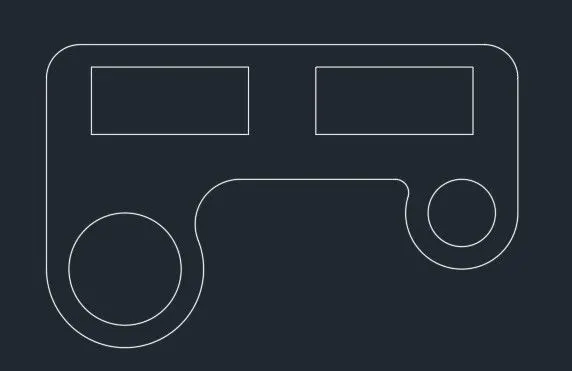
- Choose the lline cammand specify the distance 210 specify the direction and 1.00 in vertical direction offsest specify the distance 20,70,30,70, and specify the direction
- simularly in horizental direction offset distance 10,30,20 and choose the fillet cammand specify the radius 15 and trim the external lines
- from left side bottom point choose the line cammand of distance 35 and dra a circle of radius 35 and diameter 50 and fillet of radius 20 and enter
- From right side bottom point choose the line cammand specify the distance 25 and draw a circle of radius 25 and diameter 30 and fillet of radius 6 and trim the external lines
Drawing 8:
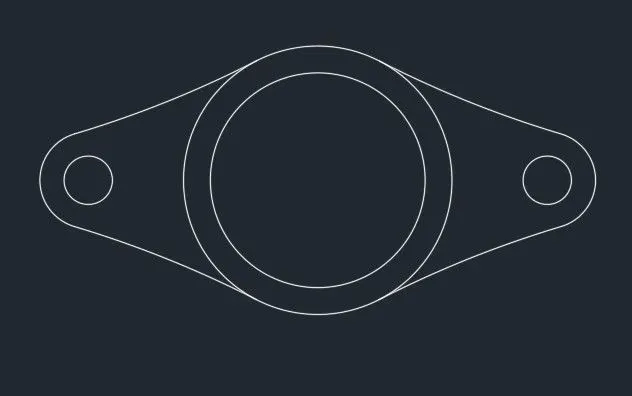
- choose the line cammand specify the distance 8.55 and from first draw a two circle of radius 0.9 and diameter 0.9
- Choose the end point draw a circle of 0.9 radius and 0.9 diameter
- from mid point of line draw a two circle of radius 4,5 and aelect the arc and join the lines
Drawing 9:
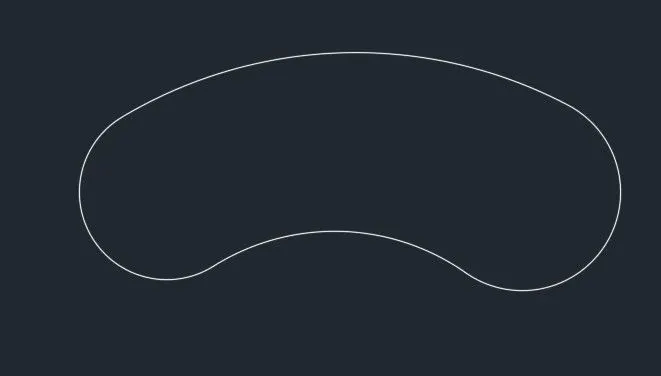
- choose the line cammand specify the distance 32'10" and draw a circle at first point and end point of radius 8',9'
- select the fillect cammand select two circle and specify the radius 20'10" and enter
- select the tan tan ardius cammand select the two circle and specify the radius 41'8" and trim the external line
Drawing 10:
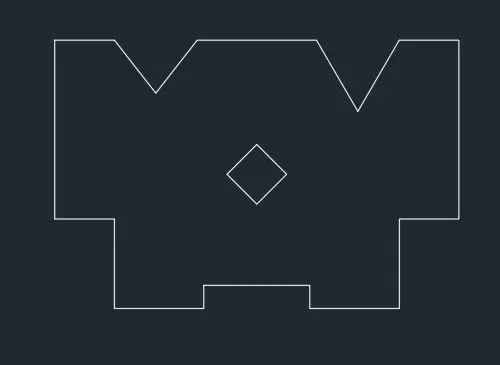
- choose the line cammand specify the distance 9'and specify the direction simularly 3',3'3",4'6",1'2",4'6",3'3",3',9'
- choose the offset distance 10'2" and 6'9',2'8",3'7" and specify the direction
- draw rectangle 3'*3' mid point of drawing and ratate 45 degree angle
- From left and right side top point offset distance 5'1" specify the direction
- From both side top draw a line at adistance 3' and join the line and trim the external lines
Drawing 11:
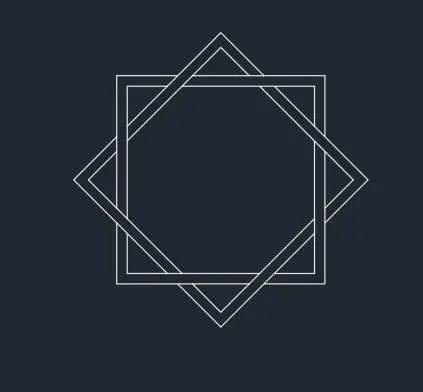
- Select the rectangular cammand specify the distance 10.0 by 10.0
- select copy the drawing and choose the base point specify the certain distance
- select the drawing rotate at 45 degree and move the drawing select the middle point and paste it in middle point
- Trim the external lines
Result:The given drawing have been using autocad