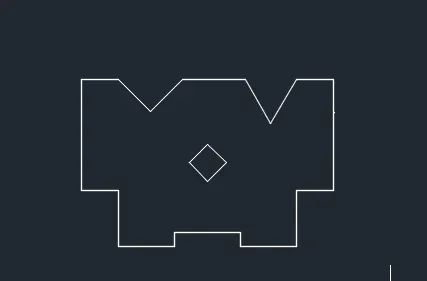
Drafting of various geometries using Chamfer, Fillet tool in AutoCad
Aim: to create given drawings using autocad applications and mention the steps used .
Procedure:
for figure 1:
select drawing unit decimal.
give command pline.
switch on polar tracking and restrict cursors to 45,90,135 angles.select any first point give next point 2 in the 0 direction.then give next point 2.83 in the 315 direction then give next point 2.12 in the 225 direction then give next point 3 in the 180 direction then close.
then command object snap turn on midpoint. select midpoint from below line and give distance 1 draw aciecle of radius 0.6 from that point . select midpoint from below line again and give distance 2.5 and draw a circle from that point of radius 0.4.
for figure 2:
select drawing unit architectural.
give command pline.
select polar tracking and restrict cursors to 90,180,270.then select a point in the plane and move the cursor in upward direction and put distance 2'-5". then move cursor in right direction and put distance 8'.then move the cursor in down direction in downward direction and put distance 1'-9". then select polar tracking cursor restriction to 45,90,135 .... .and move in left downward direction and put distance 2'-10" then cancel command . turn object snap on and select end point .
select starting point of the drawing and restrict cursor on polar tracking in 30,60,90.... . and move cursor in right downward direction and give distance 3'.and then move cursor in right direction and give distance 2'-6" .then close.
for figure 3:
select drawing unit engineering.
select any point on the screen. select polar tracking and restrict cursors to 90,180,270... . then move the cursor in the left direction and put distance 2'-6.5". then move the cursor in the down direction and put distance 3'-3.0".then move the cursor in the right direction and put distance 5'-0.1".then move the cursor in the up direction and put distance 1'-6.0". then close.
put object snapping on and select nearest and put the line command and in move the cursor in the down line in put nearest distance 1'-3" and again move the cursor in up direction and put distance 1'-6" and from that point give circle command and draw acircle of diameter 1'-6". erase the line in which the circle is drawn.
for figure 4:
select orthomode on .
give command pline. move the cursor in left direction and give distance 2.50 then move cursor in up direction and give distance 0.5,then move cursor in left direction and give distance 3, then move cursor in up direction and give distance 3, then move cursor in right direction and give distance 1 then move cursor in up direction and give distance 2, then move cursor in right direction and give distance 2.5, then move cursor in down direction and give distance 3, then move cursor in right direction and give distance 2 and then close.
for figure 5:
give command rectangle. selct any point and draw a rectangle specify other corner@(3,6).
turn on object snap and select endpoint ,midpoint,perpendicular and centre.
then again give command rectangle. selct lower right end point of the previous rectangle and specify other corner@(2.75,6).
now select the perpendicular of midpoints of the first rectangle and draw two circles from it of radius 1 and 0.5.
then select the midpoint of the right breadth of other rectangle and draw a circle from it of radius 1.5. trim the semi circle outside line and then trim the line in which circle is drawn.
use mirror command select the endpoint in the down right corner of the drawing and select the other point endpoint in the up right corner of the drawing.
figure 6:
(1)orthomode on.
object snapping on select nearest and endpoint.
Command: _rectang
Specify first corner point or [Chamfer/Elevation/Fillet/Thickness/Width]: any point in the plane.
Specify other corner point or [Area/Dimensions/Rotation]: @.5,1.5
Command: _copy
Select objects: 1 found
copy it twice in the endpoint on the right base.
then,
Command: l
LINE
Specify first point: .5 units from object snapping nearest.
Specify next point or [Undo]: @ 1.5,0
Command: _trim (trim the unwanted line inside the second rectangle).
(2)Command: REC
RECTANG
Specify first corner point or [Chamfer/Elevation/Fillet/Thickness/Width]:
Specify other corner point or [Area/Dimensions/Rotation]: @2,0.5
Command: _copy 1 found
copy it twice in the endpoint on the right base.
then,
Command: l
LINE
Specify first point: .5 (using nearest of object snapping)
Specify next point or [Undo]: @0, -1.5.
Command: _trim (trim the unwanted line inside the second rectangle).
(3)Command: _rectang
Specify other corner point or [Area/Dimensions/Rotation]: @0.5,-1.5
Command: _rectang
Specify other corner point or [Area/Dimensions/Rotation]: @-2,0.5
Command: l
LINE
Specify first point: (at the left top endpoint of first rectangle)
Specify next point or [Undo]: (at the left top endpoint of second rectangle )
Command: _trim (trim the unwanted line inside the second rectangle).
figure 7:
orthomode on
Command: l
LINE
Specify first point: any point
Specify next point or [Undo]: 100
Specify next point or [Undo]: 210
Specify next point or [Close/Undo]: 75
Specify next point or [Close/Undo]: 50
Specify next point or [Close/Undo]: 15
Specify next point or [Close/Undo]: *Cancel*
Command: l
LINE
Specify first point:
Specify next point or [Undo]: 70
Specify next point or [Undo]: 40
Specify next point or [Close/Undo]: c
object snapping on . select nearest and perpendicular
Command: rect
specify first corner point : the perpendicular of nearest 20 in x axis and 10 in y axis.
Specify other corner point or [Area/Dimensions/Rotation]: @70,-30
Command: _copy 1 found
Specify base point or [Displacement/mOde] : select the bottom left corner.
Specify second point or [Array] : @100,0
Specify second point or [Array/Exit/Undo] :
Command: _fillet
Current settings: Mode = TRIM, Radius = 20.0000
Command: _fillet
Current settings: Mode = TRIM, Radius = 15.0000
Command: _fillet
Current settings: Mode = TRIM, Radius = 15.0000
Command: _fillet
Current settings: Mode = TRIM, Radius = 6.0000
Command: _arc
Specify start point of arc or [Center]: (bottom left corner of figure)
Specify second point of arc or [Center/End]: _e
Specify end point of arc:
Specify center point of arc (hold Ctrl to switch direction) or [Angle/Direction/Radius]: _r
Specify radius of arc (hold Ctrl to switch direction): 35
Command: _arc
Specify start point of arc or [Center]:
Specify second point of arc or [Center/End]: _e
Specify end point of arc:
Specify center point of arc (hold Ctrl to switch direction) or [Angle/Direction/Radius]: _r
Specify radius of arc (hold Ctrl to switch direction): 25
Command: e
ERASE 1 found (extra line or chord of the arc)
Command:
Command: e
ERASE 1 found (extra line or chord of the arc).
figure 8:
Command: c
CIRCLE
Specify center point for circle or [3P/2P/Ttr (tan tan radius)]: (any point)
Specify radius of circle or [Diameter]: D
Specify diameter of circle: 4
Command: c
CIRCLE
Specify center point for circle or [3P/2P/Ttr (tan tan radius)]: <Osnap off> <Osnap on>
Specify radius of circle or [Diameter] <2.0000>: D
Specify diameter of circle <4.0000>: 5
Command: l
LINE
Specify first point: <Osnap off> <Osnap on>
Specify next point or [Undo]: 4.275
Specify next point or [Undo]: *Cancel*
Command: c
CIRCLE
Specify center point for circle or [3P/2P/Ttr (tan tan radius)]: (end point of line)
Specify radius of circle or [Diameter] <2.5000>: D
Specify diameter of circle <5.0000>: 0.9
Command: c
CIRCLE
Specify center point for circle or [3P/2P/Ttr (tan tan radius)]: (end point of line)
Specify radius of circle or [Diameter] <0.4500>: 0.9
Command: l
LINE
Specify first point: (point on the big outer circle on up side) with tangency of object snapping
Specify next point or [Undo]: <Ortho off> (point on the small outer circle on up side) with tangency of object snapping
Specify next point or [Undo]: *Cancel*
Command: l
LINE
Specify first point: (point on the big outer circle on down side) with tangency of object snapping
Specify next point or [Undo]: (point on the big small circle on down side)with tangency of object snapping
Specify next point or [Undo]: *Cancel*
Command: _mirror 5 found (the line on the outer circle)
Specify first point of mirror line:
Specify second point of mirror line: on the right side of the drawing.
Erase source objects? [Yes/No] <No>: N
Command: e
ERASE 2 found (the line between circles)
Command: _trim
Command: *Cancel*
figure9:
Command: l
LINE
Specify first point:
Specify next point or [Undo]: 32'-6"
Specify next point or [Undo]: *Cancel*
Command: C
CIRCLE
Specify center point for circle or [3P/2P/Ttr (tan tan radius)]:
Specify radius of circle or [Diameter] <41'-8">: 9'
Command: c
CIRCLE
Specify center point for circle or [3P/2P/Ttr (tan tan radius)]:
Specify radius of circle or [Diameter] <9'-0">: 8'
Command: c
CIRCLE
Specify center point for circle or [3P/2P/Ttr (tan tan radius)]:
Specify radius of circle or [Diameter] <8'-0">: *Cancel*
Command: c
CIRCLE
Specify center point for circle or [3P/2P/Ttr (tan tan radius)]: T
Specify point on object for first tangent of circle:
Specify point on object for second tangent of circle:
Specify radius of circle <8'-0">: 20'-10"
Command: C
CIRCLE
Specify center point for circle or [3P/2P/Ttr (tan tan radius)]: T
Specify point on object for first tangent of circle:
Specify point on object for second tangent of circle:
Specify radius of circle <20'-10">: 41'-8"
Command:
Command:
Command: _trim
Current settings: Projection=UCS, Edge=None, Mode=Quick
Select object to trim or shift-select to extend or
[cuTting edges/Crossing/mOde/Project/eRase]:
*Cancel*.
figure10:
command:_polygon Enter number of sides <4>: 4
Specify center of polygon or [Edge]: (any point)
Enter an option [Inscribed in circle/Circumscribed about circle] <I>: C
Specify radius of circle: <Ortho on> (any unit)
Command: OFFSET
Current settings: Erase source=No Layer=Source OFFSETGAPTYPE=0
Specify offset distance or [Through/Erase/Layer] <0.2000>: T
Select object to offset or [Exit/Undo] <Exit>:
Specify through point or [Exit/Multiple/Undo] <Exit>:
Select object to offset or [Exit/Undo] <Exit>: press enter
select both the polygons .
Command: _mirror 2 found
Specify first point of mirror line: (the centre of the polygon using object snapping)
Specify second point of mirror line: (move cursor to slight left)
Command: _trim (trim the unwanted part as per the drawing).
figure 11:
Command: <Ortho on>
Command: l
LINE
Specify first point:
Specify next point or [Undo]: 20'-4"
Specify next point or [Undo]: 9'
Specify next point or [Close/Undo]: 3'
Specify next point or [Close/Undo]: 4'-6"
Specify next point or [Close/Undo]: 4'-6"
Specify next point or [Close/Undo]: 1'-2"
Specify next point or [Close/Undo]: 5'-4"
Specify next point or [Close/Undo]: 1'-2"
Specify next point or [Close/Undo]: 4'-6"
Specify next point or [Close/Undo]: 4'-6"
Specify next point or [Close/Undo]: 3'
Specify next point or [Close/Undo]: c.
object snapping on with nearest node midpoint and endpoint selected.
Command: PO
POINT
Specify a point: 6'-9" ( from the midpoint of above line in down direction.)
Command: _polygon Enter number of sides <4>: 4
Specify center of polygon or [Edge]:
Enter an option [Inscribed in circle/Circumscribed about circle] <I>: C
Specify radius of circle: 1.5'.
select thepolygoon
Command: _rotate
Specify base point: (center of the polygon)
Specify rotation angle or [Copy/Reference] <0>: 45
Command: l
LINE
Specify first point: 3'-7" (from right top of the figure)
Specify next point or [Undo]: (draw a straight line with ortho on to the left)
Specify next point or [Undo]: *Cancel*
Command: l
line
Specify first point: 3'
polar tracking with angles 30,60,90 0n
Specify next point or [Undo]: (on the line of distance 3'-7")
Specify next point or [Undo]: (on the top line)
Specify next point or [Close/Undo]: *Cancel*
Command:
Command: e
ERASE 1 found the line on distance (3'-7").
Command: l
LINE
Specify first point: 2'-8" (from left top of the figure)
Specify next point or [Undo]: (draw a straight line with ortho on to the right)
Specify next point or [Undo]: *Cancel*
Command: l
line
Specify first point: 3'
polar tracking with angles 45,90,135 0n
Specify next point or [Undo]: (on the line of distance 2'-8")
Specify next point or [Undo]: (on the top line)
Specify next point or [Close/Undo]: *Cancel*
Command:
Command: e
ERASE 1 found the line on distance (2'-8").
Command: trim (trim the unwanted parts in the figure.)
Result:
figure 1:
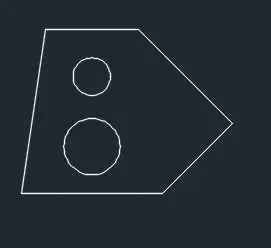
figure2;
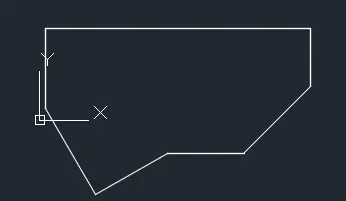
figure 3:
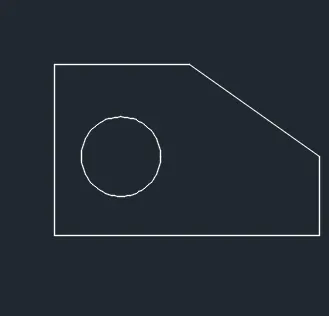
figure 4:
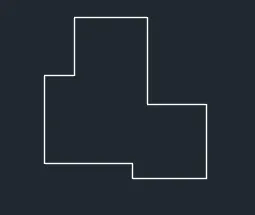
figure 5:
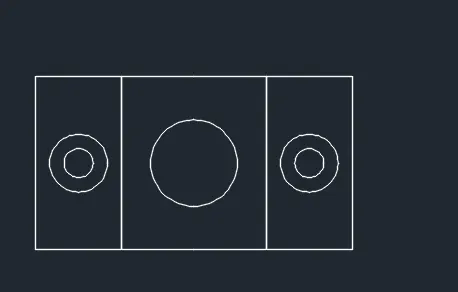
figure 6:
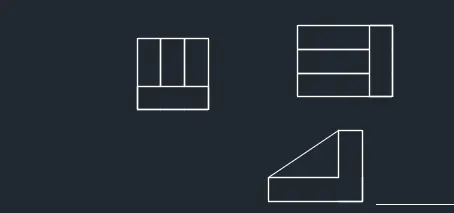
figure 7:
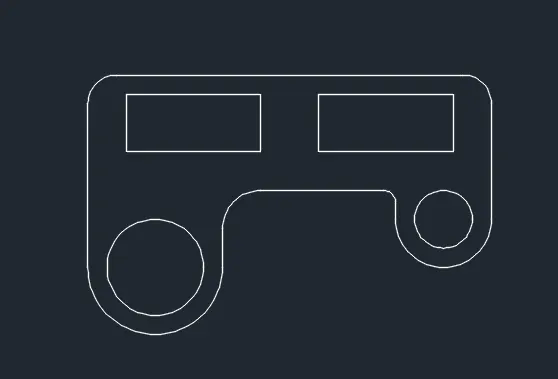
figure 8:
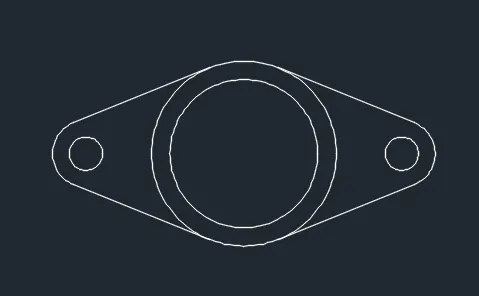
figure 9:
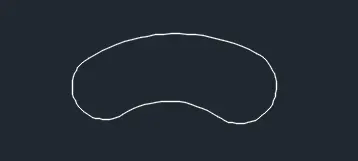
figure 10:
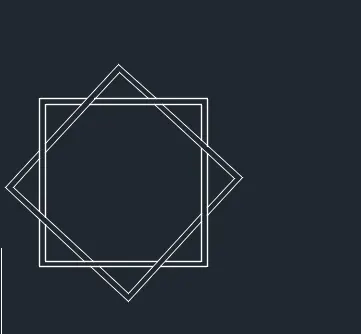
figure 11: