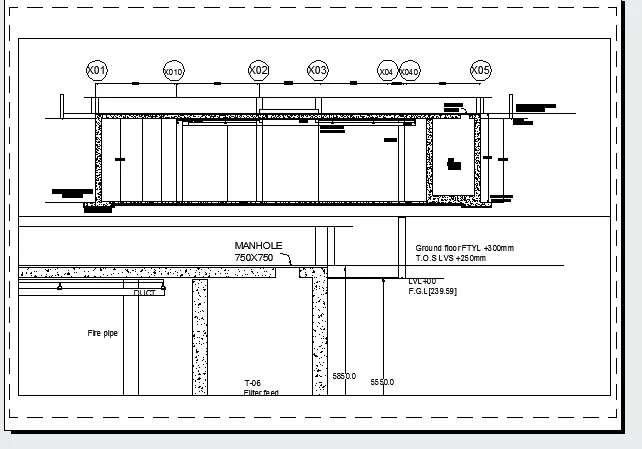
Creation of Multiple viewports, Scaling the drawing and setting in Template in AutoCad
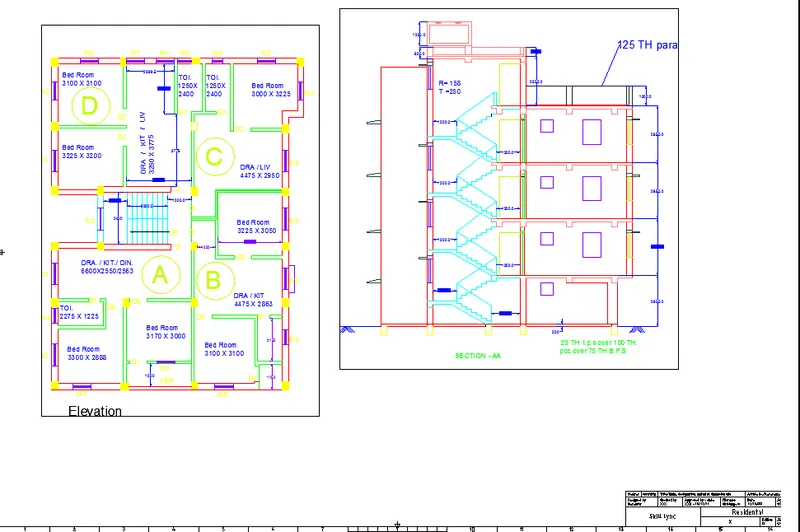
AIM : Creating a layout of the Plan and Section A of the project in Challenges 7, using the template Tutorial-mArch.dwt in a scale as given . Using the MV command to create the viewport Also, use ATTEDIT command to edit the information in the title block. Use A1 size for the layout. Take a plot.
INTRODUCTION : Layout , mv command , ms model space , ps paper space , page setup, plot.
PROCEDURE :
Step : 1
opeaning the cad file of challenge 7 plan amd section elevation
Step 2:
command layout and go to page set up settings and set up the page to ISO A3 593x420 and select monocrome in plot style pen table
Step 3: command mv multy view and set to polygon and drag the rectangle
Step 4: Right click on the layout command and layout from the Template and select tutorial-mArch.dwt
Step 5: Command ATTEDEIT and edit the Attribute in the Template block
Step 6: command plot
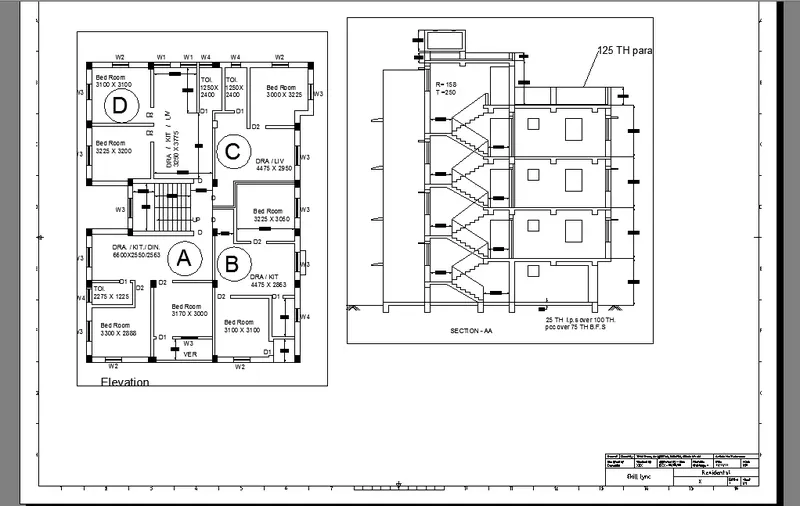
AIM : Creating a layout of the Plan and Section A of the project in Challenges 7, using the template Tutorial-mArch.dwt in a scale as given . Using the MV command to create the viewport Also, use ATTEDIT command to edit the information in the title block. Use A1 size for the layout. Take a plot.
INTRODUCTION : Layout , mv command , ms model space , ps paper space , page setup, plot.
PROCEDURE :
Step : 1
opeaning the cad file of challenge 7 plan amd section elevation
Step 2:
command layout and go to page set up settings and set up the page to ISO A3 593x420 and select monocrome in plot style pen table
Step 3: command mv multy view and select to 4 layer
Step 4: Right click on the layout command and layout from the Template and select tutorial-mArch.dwt
Step 5: Command ATTEDEIT and edit the Attribute in the Template block
Step 6: command plot
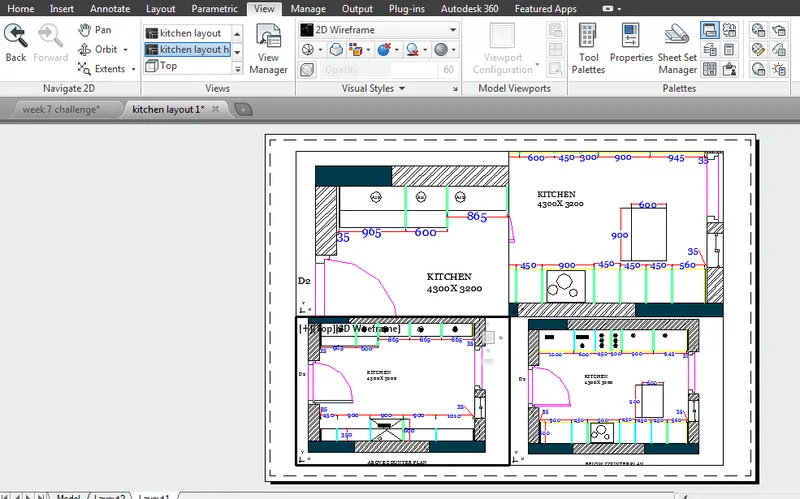
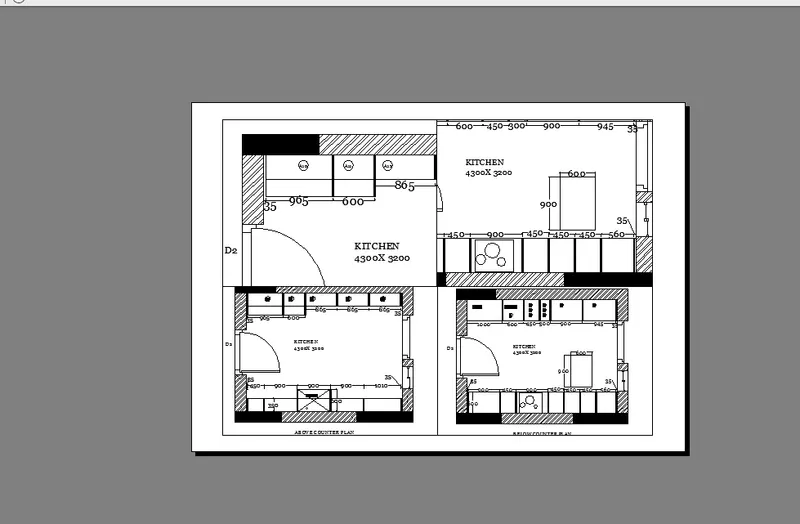
AIM : Creating a layout of the Plan and Section A of the project in Challenges 9, using the template Tutorial-mArch.dwt in a scale as given . Using the MV command to create the viewport Also, use ATTEDIT command to edit the information in the title block. Use A1 size for the layout. Take a plot.
INTRODUCTION : Layout , mv command , ms model space , ps paper space , page setup, plot.
PROCEDURE :
Step : 1
opeaning the cad file of challenge 9 plan amd section elevation
Step 2:
command layout and go to page set up settings and set up the page to ISO A3 593x420 and select monocrome in plot style pen table
Step 3: command mv multy view and select to 2 layer
Step 4: command plot