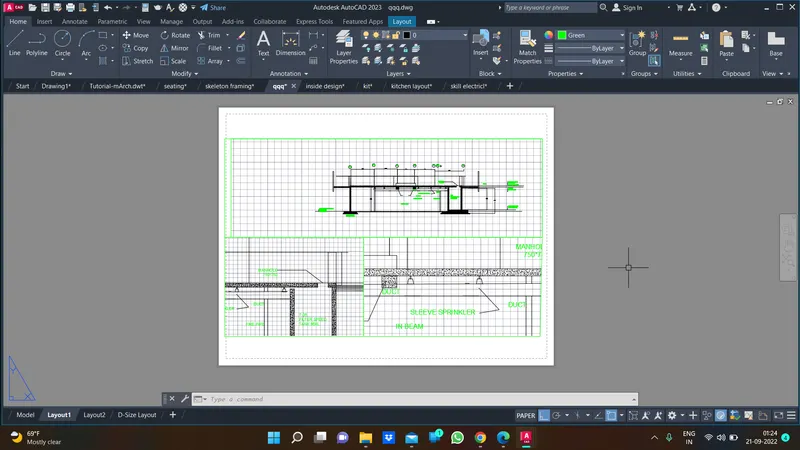
Creation of Multiple viewports, Scaling the drawing and setting in Template in AutoCad
aim:
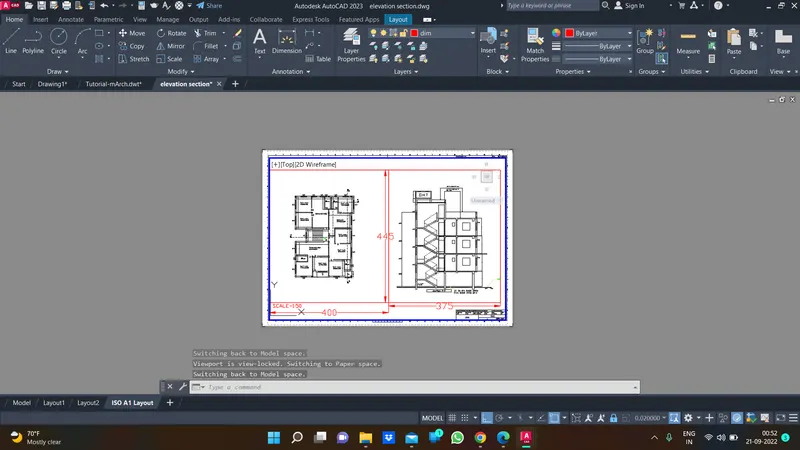
Create a layout of the Plan and Section A of the project in Challenges 7, using the template Tutorial-mArch.dwt in a scale as given in the Figure. Use the MV command to create the viewport of the size as shown in Figure. Also, use ATTEDIT command to edit the information in the title block. Use A1 size for the layout. Take a plot.
tools were used :
viewports
attedit
layout
ms
ps
mview
scale etc....
procedure :
once we complete the drawing we need to set the layout and print the particular drawing
need to set the scale create the mv command to show the drawing in the layout
ms to the model space means the drawing is opened
ps papper space the we could see the layout paper
atlat put the scale and drew
result:
AIM:
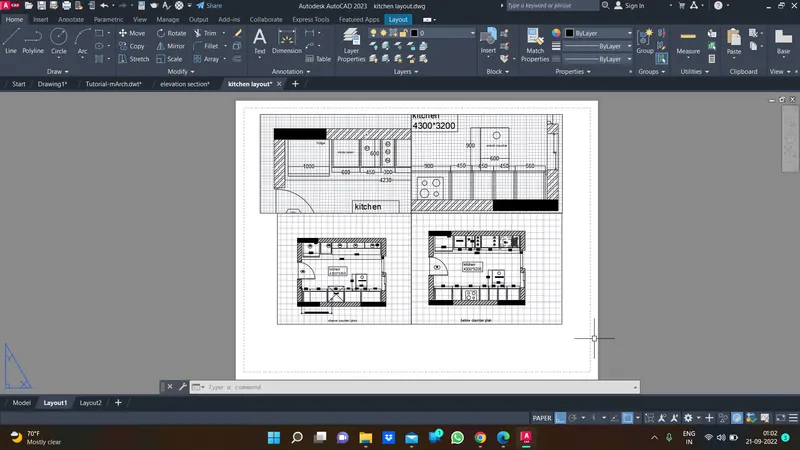
Create a layout of the Kitchen drawn in Challenge 9 as shown in Figure. Use the scale as shown in the Figure. Use A4 Size page for the layout. Take a plot.
tools were used :
viewports
attedit
layout
ms
ps
mview
scale etc....
procedure :
same procedure has done before has been done here
result:
AIM:
. Create a layout of the section created in Challenges 9.
Use scale as mentioned in the Figure. Use MV command create multiple viewports. Take a plot.
tools were used :
viewports
attedit
layout
ms
ps
mview
scale etc....
procedure :
take the old chalenge drawing and
create the rec and click mv command to create the mp
multi view ports has created and finally
result :