Creation of geometries by Coordinate system methods using AutoCad
AIM
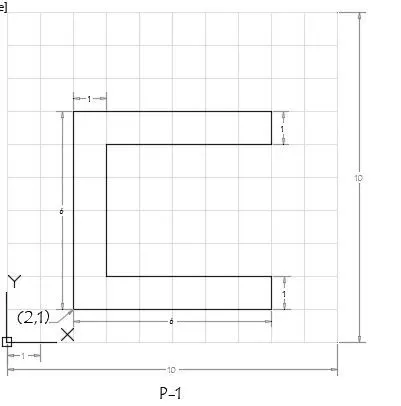
To create the geometry of the figure given below
INTRODUCTION
We can use different methods to draw geometries in AUTOCAD
They are
Absolute coordinates method
Relative rectangular coordinates method
Relative polar coordinates method
Direct distance entry method
PROCEDURE
P1
Absolute coordinates method
Step 1: Use line command to draw line
Step 2: Enter Point 1 = (2,1)
Step 3: Enter Point 2 = (8,1)
Step 4: Enter Point 3 = (8,2)
Step 5: Enter Point 4 = (3,2)
Step 6:Enter Point 5 = (3,6)
Step 7:Enter Point 6 = (8,6)
Step 8:Enter Point 7 = (8,7)
Step 9:Enter Point 8 = (2,7)
Step10:Enter the close command
Relative rectangular coordinates method
Step 1: Use line command to draw line
Step 2: Enter Point 1 = (2,1)
Step 3: Enter Point 2 = (@6,0)
Step 4: Enter Point 3 =(@0,1)
Step 5: Enter Point 4 =(@-5,0)
Step 6:Enter Point 5 = (@0,4)
Step 7:Enter Point 6 =(@5,0)
Step 8:Enter Point 7 = (@0,1)
Step 9:Enter Point 8 =(@-6,0)
Step10:Enter the close command
Relative polar coordinates method
Step 1: Use line command to draw line
Step 2: Enter Point 1 = (2,1)
Step 3: Enter Point 2 = (@6<0)
Step 4: Enter Point 3 =(@1<90)
Step 5: Enter Point 4 =(@5<180)
Step 6:Enter Point 5 = (@4<90)
Step 7:Enter Point 6 =(@5<0)
Step 8:Enter Point 7 =(@1<90)
Step 9:Enter Point 8 =(@6<180)
Step10:Enter the close command
Direct distance entry method
Step 1: Use line command to draw line
Step 2: Enter Point 1 = (2,1)
Step 3: Enter Point 2 = 6 (cursor facing right)
Step 4: Enter Point 3 =1 ( cursor facing upwards )
Step 5: Enter Point 4 =5 ( cursor facing left)
Step 6:Enter Point 5 = 4 ( cursor facing upwards )
Step 7:Enter Point 6 =5 ( cursor facing right)
Step 8:Enter Point 7 = 1( cursor facing upwards )
Step 9:Enter Point 8 =6 (cursor facing left )
Step10:Enter the close command
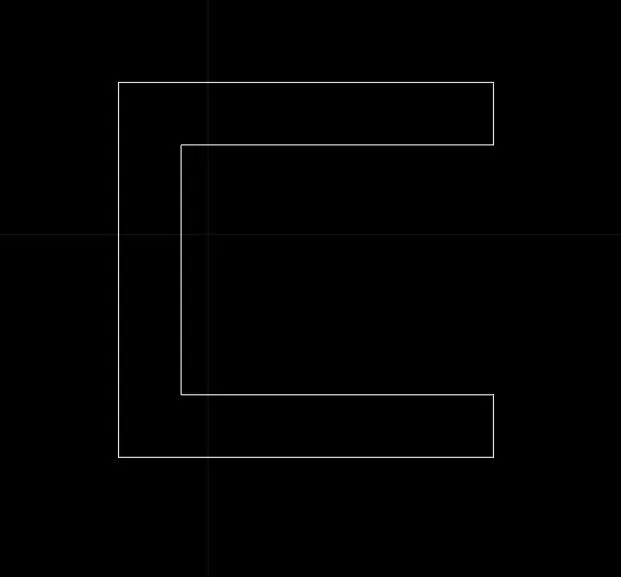
RESULT
AIM
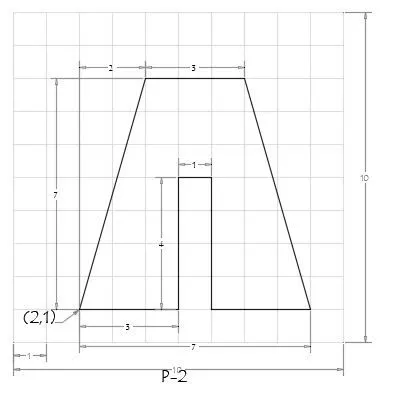
To create the geometry of the figure given below
INTRODUCTION
We can use different methods to draw geometries in AUTOCAD
They are
Absolute coordinates method
Relative rectangular coordinates method
Relative polar coordinates method
Direct distance entry method
PROCEDURE
P2
Absolute coordinates method
Step 1: Use line command to draw line
Step 2: Enter Point 1 = (2,1)
Step 3: Enter Point 2 = (5,1)
Step 4: Enter Point 3 = (5,5)
Step 5: Enter Point 4 = (6,5)
Step 6:Enter Point 5 = (6,1)
Step 7:Enter Point 6 = (9,1)
Step 8:Enter Point 7 = (7,8)
Step 9:Enter Point 8 = (4,8)
Step10:Enter the close command
Relative rectangular coordinates method
Step 1: Use line command to draw line
Step 2: Enter Point 1 = (2,1)
Step 3: Enter Point 2 = (@3,0)
Step 4: Enter Point 3 =(@0,4)
Step 5: Enter Point 4 =(@1,0)
Step 6:Enter Point 5 = (@0,-4)
Step 7:Enter Point 6 =(@3,0)
Step 8:Enter Point 7 =(@-2,7)
Step 9:Enter Point 8 =(@-3,0)
Step10:Enter the close command
Relative polar coordinates method
Step 1: Use line command to draw line
Step 2: Enter Point 1 = (2,1)
Step 3: Enter Point 2 = (@3<0)
Step 4: Enter Point 3 =(@4<90)
Step 5: Enter Point 4 =(@1<0)
Step 6:Enter Point 5 = (@4<270)
Step 7:Enter Point 6 =(@3<0)
Step 8:Enter Point 7 =(@7<106)
Step 9:Enter Point 8 =(@3<180)
Step10:Enter the close command
Direct distance entry method
Step 1: Use line command to draw line
Step 2: Enter Point 1 = (2,1)
Step 3: Enter Point 2 = 3(cursor facing right)
Step 4: Enter Point 3 =4 ( cursor facing upwards )
Step 5: Enter Point 4 =1( cursor facing right)
Step 6:Enter Point 5 = 4 ( cursor facing downwards )
Step 7:Enter Point 6 =3 ( cursor facing right)
Step 8:Enter Point 7 = 7( angle 106 )
Step 9:Enter Point 8 =3 (cursor facing left )
Step10:Enter the close command
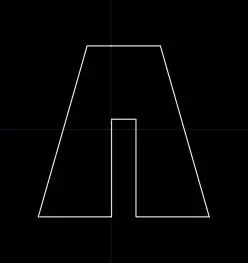
RESULT
AIM
To create the geometry of the figure given below
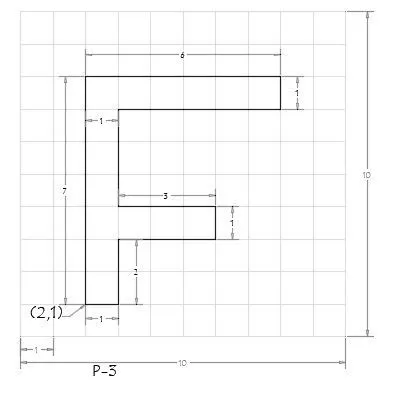
INTRODUCTION
Here we are using
Absolute coordinates method
PROCEDURE
P3
Absolute coordinates method
Step 1: Use line command to draw line
Step 2: Enter Point 1 = (2,1)
Step 3: Enter Point 2 = (3,1)
Step 4: Enter Point 3 = (3,3)
Step 5: Enter Point 4 = (6,3)
Step 6:Enter Point 5 = (6,4)
Step 7:Enter Point 6 = (3,4)
Step 8:Enter Point 7 = (3,7)
Step 9:Enter Point 8 = (8,7)
Step10:Enter Point 9 =(8,8)
Step11:Enter Point 10 =(2,8)
Step12:Enter the close command
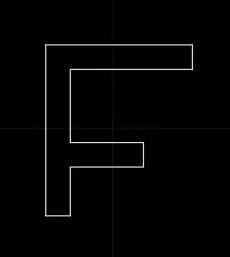
RESULT
AIM
To create the geometry of the figure given below
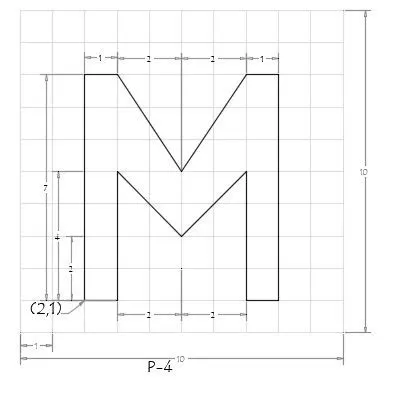
INTRODUCTION
Here we are using
Absolute coordinates method
PROCEDURE
P4
Absolute coordinates method
Step 1: Use line command to draw line
Step 2: Enter Point 1 = (2,1)
Step 3: Enter Point 2 = (3,1)
Step 4: Enter Point 3 = (3,5)
Step 5: Enter Point 4 = (5,3)
Step 6:Enter Point 5 = (7,5)
Step 7:Enter Point 6 = (7,1)
Step 8:Enter Point 7 = (8,1)
Step 9:Enter Point 8 = (8,8)
Step10:Enter Point 9 =(7,8)
Step11:Enter Point 10 =(5,5)
Step12:Enter Point 11 =(3,8)
Step13:Enter Point 12 =(2,8)
Step14:Enter the close command
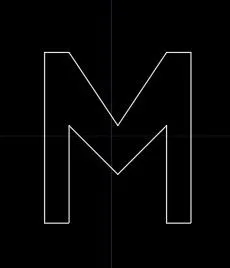
RESULT
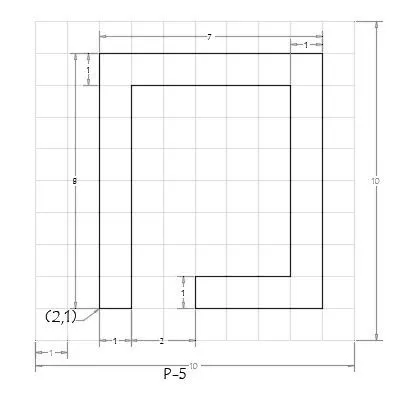
AIM
To create the geometry of the figure given below
INTRODUCTION
Here we are using
Absolute coordinates method
PROCEDURE
P5
Absolute coordinates method
Step 1: Use line command to draw line
Step 2: Enter Point 1 = (2,1)
Step 3: Enter Point 2 = (3,1)
Step 4: Enter Point 3 = (3,7)
Step 5: Enter Point 4 = (8,7)
Step 6:Enter Point 5 = (8,6)
Step 7:Enter Point 6 = (5,2)
Step 8:Enter Point 7 = (5,1)
Step 9:Enter Point 8 = (9,1)
Step10:Enter Point 9 =(9,9)
Step11:Enter Point 10 =(2,9)
Step12:Enter the close command
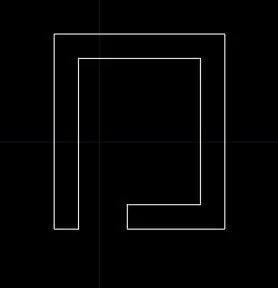
RESULT
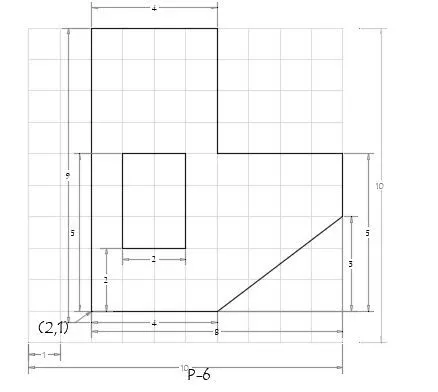
AIM
To create the geometry of the figure given below
INTRODUCTION
Here we are using
Absolute coordinates method
PROCEDURE
P6
Absolute coordinates method
Step 1: Use line command to draw line
Step 2: Enter Point 1 = (2,1)
Step 3: Enter Point 2 = (6,1)
Step 4: Enter Point 3 = (10,4)
Step 5: Enter Point 4 = (10,6)
Step 6:Enter Point 5 = (6,6)
Step 7:Enter Point 6 = (6,10)
Step 8:Enter Point 7 = (2,10)
Step 9:Enter the close command
For inner rectangle
Step10:Enter Point 1 =(3,3)
Step11:Enter Point 2=(5,3)
Step12:Enter Point 3 =(5,6)
Step13:Enter Point 4 =(3,6)
Step14:Enter the close command
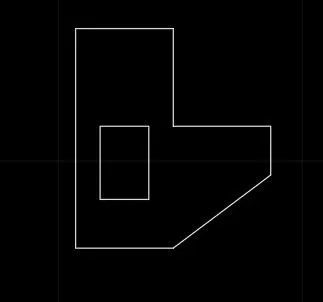
RESULT
AIM
To create the geometry of the figure given below
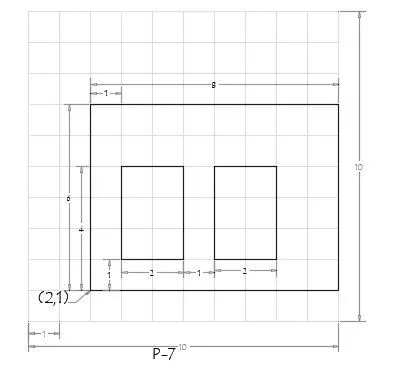
INTRODUCTION
Here we are using
Absolute coordinates method
PROCEDURE
P7
Absolute coordinates method
Step 1: Use line command to draw line
Step 2: Enter Point 1 = (2,1)
Step 3: Enter Point 2 = (10,1)
Step 4: Enter Point 3 = (10,7)
Step 5: Enter Point 4 = (2,7)
Step 6:Enter the close command
For inner rectangle 1
Step 7:Enter Point 1= (3,2)
Step 8:Enter Point 2 = (5,2)
Step9:Enter Point 3 =(5,5)
Step10:Enter Point 4 =(3,6)
Step11:Enter the close command
For inner rectangle 2
Step12:Enter Point 1 =(3,3)
Step13:Enter Point 2=(5,3)
Step14:Enter Point 3 =(5,6)
Step15:Enter Point 4 =(5,3)
Step16:Enter the close command
RESULT
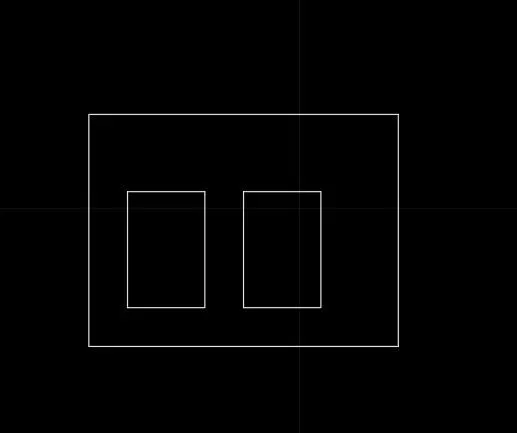
AIM
To create the geometry of the figure given below
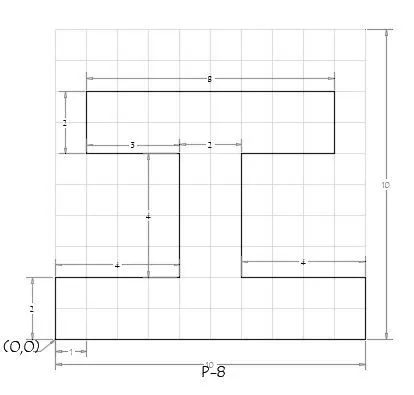
INTRODUCTION
Here we are using
Absolute coordinates method
PROCEDURE
P8
Absolute coordinates method
Step 1: Use line command to draw line
Step 2: Enter Point 1 = (0,0)
Step 3: Enter Point 2 = (10,0)
Step 4: Enter Point 3 = (10,2)
Step 5: Enter Point 4 = (6,2)
Step 6:Enter Point 5 = (6,6)
Step 7:Enter Point 6 = (9,6)
Step 8:Enter Point 7 = (9,8)
Step 9:Enter Point 8 = (1,8)
Step10:Enter Point 9 =(1,6)
Step11:Enter Point 10 =(4,6)
Step12:Enter Point 11 =(4,2)
Step13:Enter Point 12 =(0,2)
Step14:Enter the close command
RESULT
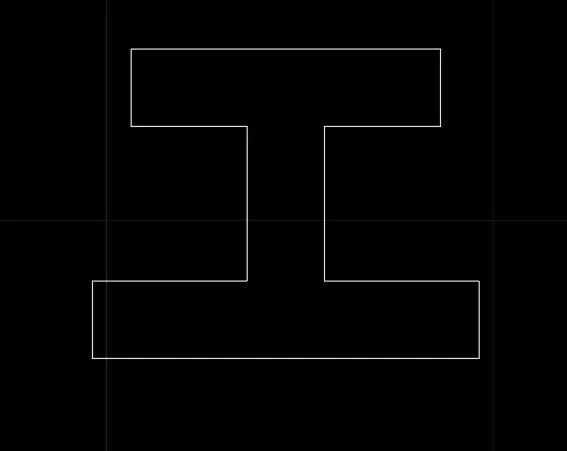
AIM
To create the geometry of the figure given below
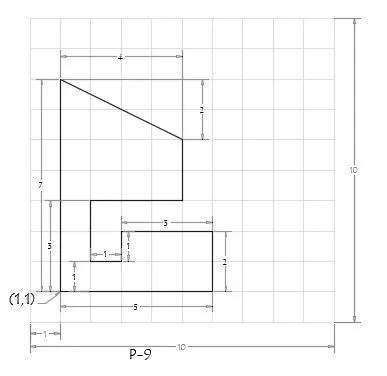
INTRODUCTION
Here we are using
Absolute coordinates method
PROCEDURE
P9
Absolute coordinates method
Step 1: Use line command to draw line
Step 2: Enter Point 1 = (1,1)
Step 3: Enter Point 2 = (6,1)
Step 4: Enter Point 3 = (6,3)
Step 5: Enter Point 4 = (3,3)
Step 6:Enter Point 5 = (2,2)
Step 7:Enter Point 6 = (2,4)
Step 8:Enter Point 7 = (5,4)
Step 9:Enter Point 8 = (5,6)
Step10:Enter Point 9 =(1,8)
Step11:Enter the close command
RESULT
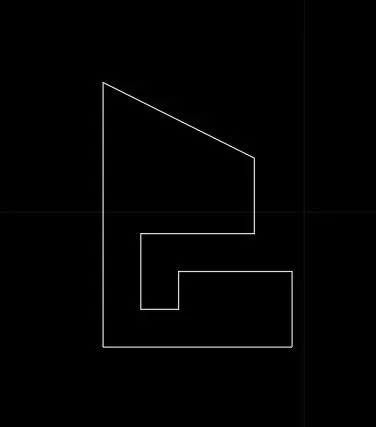
AIM
To create the geometry of the figure given below
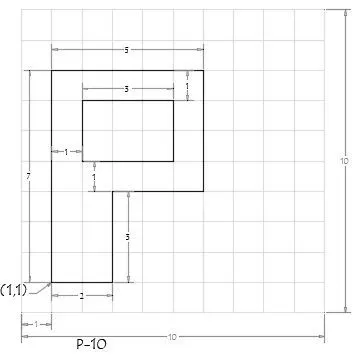
INTRODUCTION
Here we are using
Absolute coordinates method
PROCEDURE
P10
Absolute coordinates method
Step 1: Use line command to draw line
Step 2: Enter Point 1 = (1,1)
Step 3: Enter Point 2 = (3,1)
Step 4: Enter Point 3 = (3,4)
Step 5: Enter Point 4 = (6,4)
Step 6: Enter Point 5 = (6,8)
Step 7: Enter Point 6 = (1,8)
Step 8:Enter the close command
For inner rectangle 1
Step 9:Enter Point 1= (2,5)
Step 10:Enter Point 2 = (5,5)
Step11:Enter Point 3 =(5,7)
Step12:Enter Point 4 =(2,7)
Step13:Enter the close command
RESULT
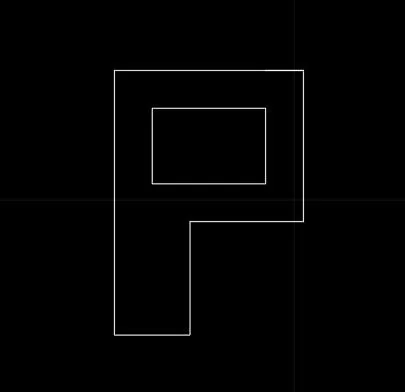
AIM
To draw profile and the trusses using any coordinate system method
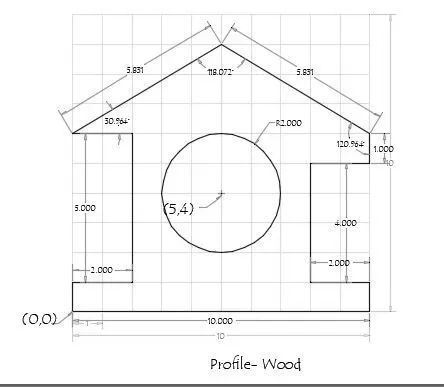
INTRODUCTION
Here we are using
Relative polar coordinates method
PROCEDURE
Relative polar coordinates method
Step 1: Use line command to draw line
Step 2: Enter Point 1 = (0,0)
Step 3: Enter Point 2 = (@10,<0)
Step 4: Enter Point 3 = (@1,<90)
Step 5: Enter Point 4 = (@2,<180)
Step 6: Enter Point 5 = (@4,<90)
Step 7: Enter Point 6 = (@2,<0)
Step 8:Enter Point 7= (@1,<90)
Step 9:Enter Point 8= (@5.831,<149)
Step10:Enter Point 9 = (@5.831,<210)
Step11:Enter Point 10 =(@2,<0)
Step12:Enter Point 11 =(@5,<270)
Step13:Enter Point 12=(@2,<180)
Step14:Enter the close command
For inner circle
Step15:Enter the circle command
Step16:Enter first point (5,4)
Step17:Enter radius 2
RESULT
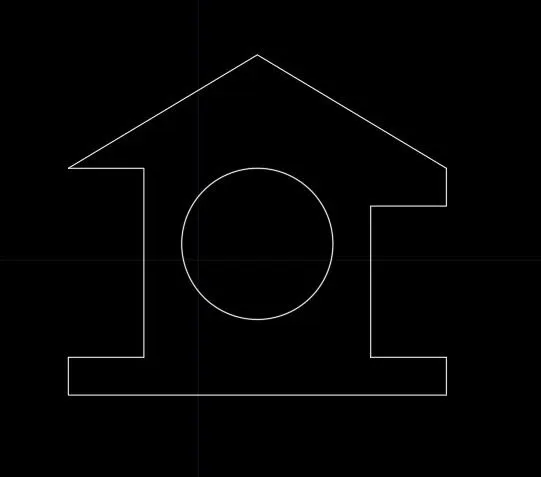
AIM
To draw profile and the trusses using any coordinate system method
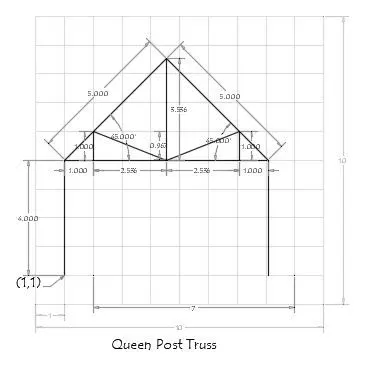
INTRODUCTION
Here we are using
Relative polar coordinates method
PROCEDURE
Relative polar coordinates method
Step 1: Use line command to draw line
Step 2: Enter point 1 = (1,1)
Step 3: Enter Point 2 = (@4<90)
Step 4: Enter Point 3 = (@7.072,<0)
Step 5: Enter Point 4 = (@4,<270)
Enter esc button
Enter line command
Step 6: Enter Point 5 = (2,5)
Step 7: Enter Point 6 = (@1<90)
Step 8: Enter Point 7 = @2.736<338)
Step 9:Enter Point 8 =(@2.736,<22)
Step 10:Enter Point 9= (@1<270)
Enter esc button
Enter line command
Step11:Enter Point 10=(1,5)
Step12:Enter Point 11(@5<40)
Step13: Enter Point 12(@5<315)
RESULT
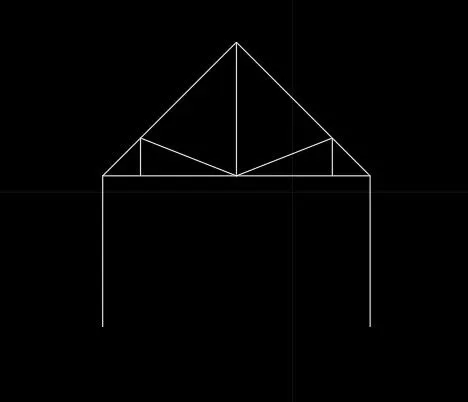
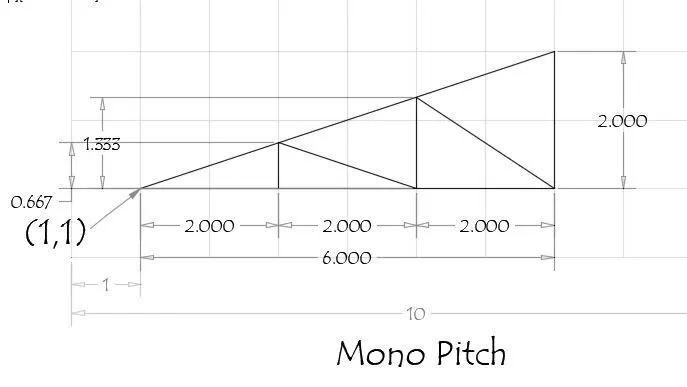
AIM
To draw profile and the trusses using any coordinate system method
INTRODUCTION
Here we are using
Relative polar coordinates method
PROCEDURE
Relative polar coordinates method
Step 1: Use line command to draw line
Step 2: Enter point 1 = (1,1)
Step 3: Enter Point 2 = (@6<0)
Step 4: Enter Point 3 = (@2<90)
Step 5: Enter close command
Enter line command
Step 6: Enter Point 4 = (3,1)
Step 7: Enter Point 5 =(@.667<90)
Step 8:Enter Point 6 =(@2,<342)
Step 9:Enter Point 7= (@1.33<90)
Step10:Enter Point 8 = (@2,<326)
RESULT
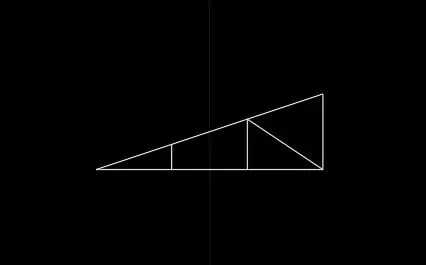
RESULT
Differnt methods for drawnig geometries in AUTOCAD is studied
We can use any method for drawing according to the dimensions given