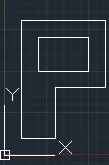
Creation of geometries by Coordinate system methods using AutoCad
1 to draw a c chape in autocad
2 open autocad
3 select the line option
4 slect the 1 st point 2,1
5 mark the next point 0,6
6 mark the x cordinate 6,0
7 mark the y cordinte like -1
8 mark the negative x axis -5
9 marks the negative y axis -5
10 result the dragram will be drawn
aim to draw the given diagram
1 open autocad
2 select the 1 st point 2,1
3 enter the x direction 3,0
4 enter the y direction 0, 4
5 enter the x direction 1,0
6 ennter the y direcion 0,-
7 draw the upper line with breath 3
8 result
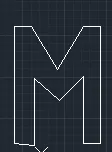
3 to draw a m shape in autocad
1open autocad
2 enter the firt cordinate 2,1
3 enter the height y = 7
4 enter the next point 1 in x direction
enter next oint 2,-2
6 enter the nexxt point 2,2
7 enter x = 1
8 by placing curser down enter y = -7
9 result
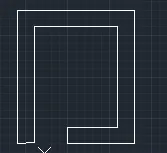
4 th aim draw a sqqare od thikness one
2 enter the starting point 2,1
3 enter the height of the draing 8
4 enter the next point x reath = 7
5 enter the negative y value y == -1
6 enter the negative x value by keepin the curser in that direction
7 place the curser in the desired direction and enter its values
8 result
aim to draw two rectangles inside one resctangle
1 enter the 1st points of the rectanle 2,1
2 nd enter the height of the rectangle 6
3 enter the wridth of the rectangle
4 the 1 st rectangle is made
5 enter the point to staer 2nd rectangle
6 enter the value of its breadth
7 heighht of small rectangle is 3
result
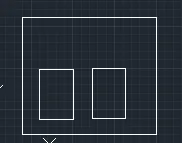
aim to make a i section
1 open a new tab
2 select line fromthe ribbon
3 select the 1st point 2 ,1
4 give the height of the section by keeping it inpositive y direction
5 give the x cordinate by keeping the curser in +x direction
6 give the - y direction its co ordinate -2
7 now give the curser -x direction and type its value
8 result 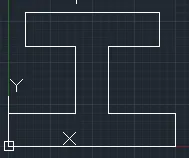
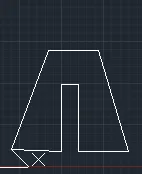
aim to draw a given diagram
1 select the line option
2 select the starting point
3 enter its value 1,1
4 enter the height of the section y= 7
5 now enter the 2,-2 to create a slant line
6 then keep the curser in negative x direction and give its vale
7 -x value is given -4
8 SAME PROCESS is repeted by keeping the curser in required direction
9 reault 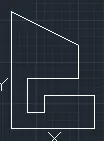 elect line
aim to draw a letter p in autocad
1 open autocad
2 select line option
3 enter the y cordinatw 0,7
4 then enter the x cordinate 5
5 enter allthe ponts which are mentiond
6 the outer p layer is defined now
7 select a point 2,7 to staart a rectangle
8 select rec enter
9 dive l =3
10 b = 2 result