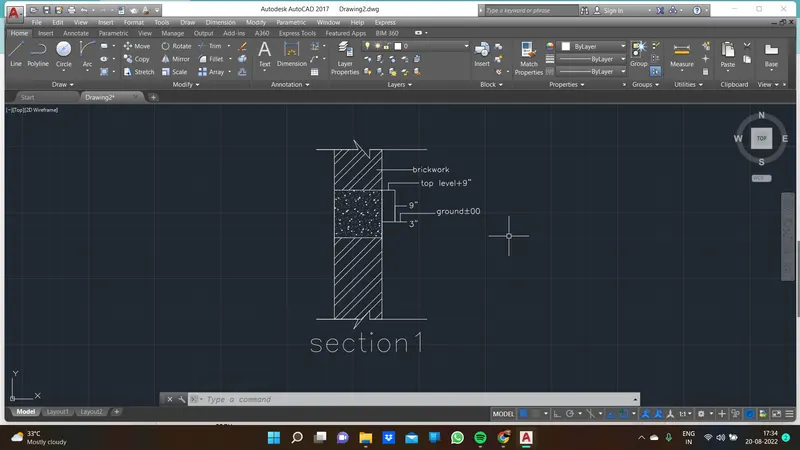
Creation of Column Schedule and Drawing Template using AutoCad
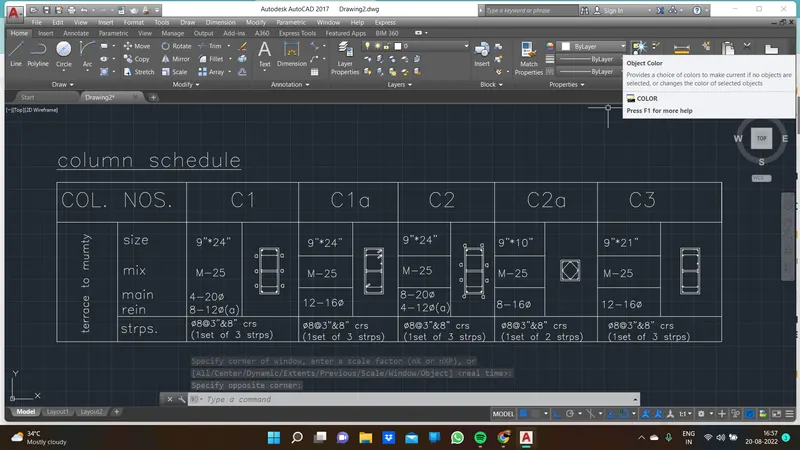
1. Create a column schedule as shown in the figure.
Note: Create a column schedule with the help of lines. Also, insert text with the help of Dtext command or Single Line text.
Hint: Use font name: romans.shx; Height: 8”, Justify: Left
aim:
Create a column schedule as shown in the figure.
tools were used :
line
copy
offset
trim
circle in dia
mirror
m text
procedure:
draw the table using line tool
m text is used to show the words
trim the unknow or overlap lines
circle dia is used for show the bars
copy the object and edited whatever we want for quick work and mirror also helps
atlast table is drew
result:
2.aim:
Create a window schedule as shown in the figures:
Window Schedule:
tools used
table
table style
mtext
copy
scale
procedure:
table is used
table style 5 columns 6rows are given to the table
text are used in the specify boxes
otherwise table edit text has use
scale is used for make the object either big or small
result: 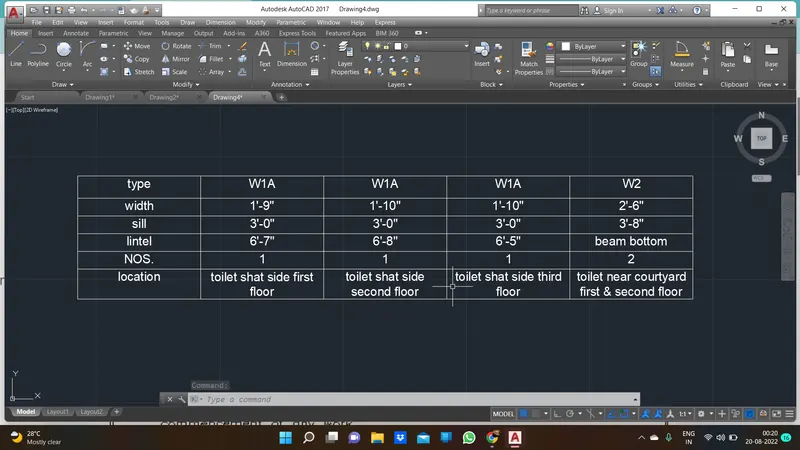
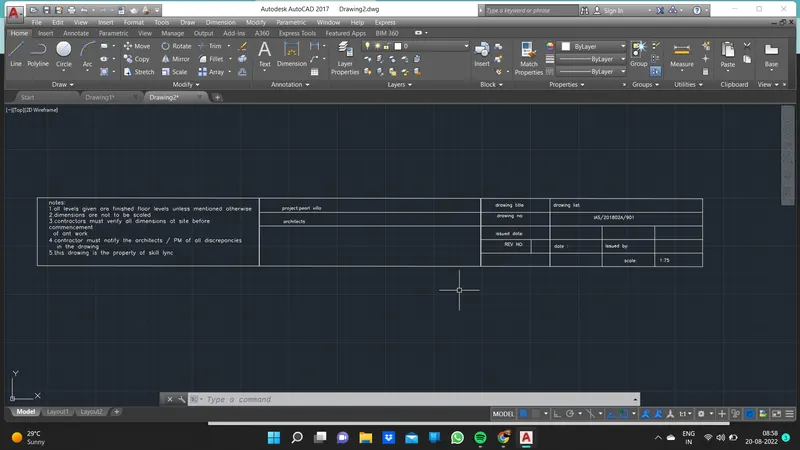
3. Create the drawing template
aim:
Create the drawing template
tools
mtext
line
procedure:
mtext is used to make the letters
draw line for make the tables
f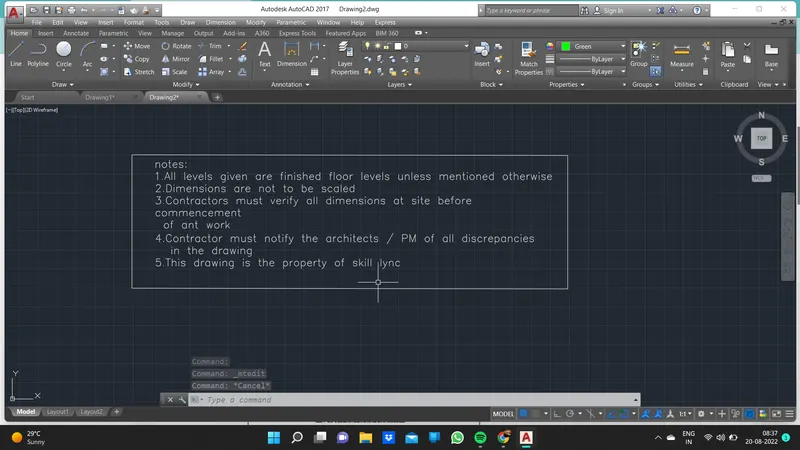
4.aim:
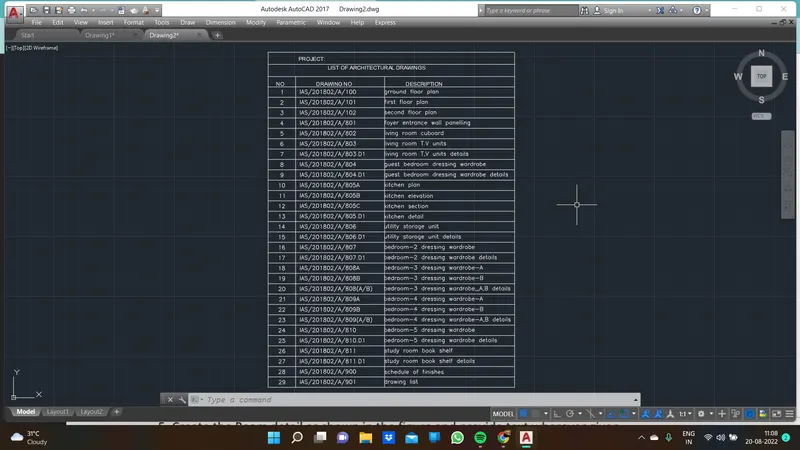
Create the list of drawing schedule as shown in the figure.
tools used
table
mtext
table style
procedure:
make the table what we want
make the head ,data ,tiltle as per we want
insert the text in each box
make the table
result:
5.Create the Beam detail as shown in the figure and provide text wherever given.
aim:
Create the Beam detail as shown in the figure and provide text wherever given.
tools used:
line
mtext
hatch is put in the beam(ar conc)
procedure:
make a wall along with beam (1 ' beam)
text is used to show the brick