Creation of Column Schedule and Drawing Template using AutoCad
Practice 1
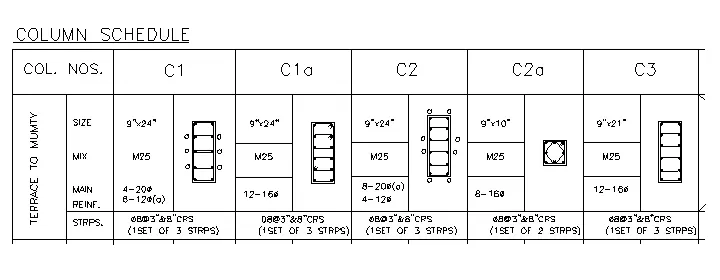
Aim:
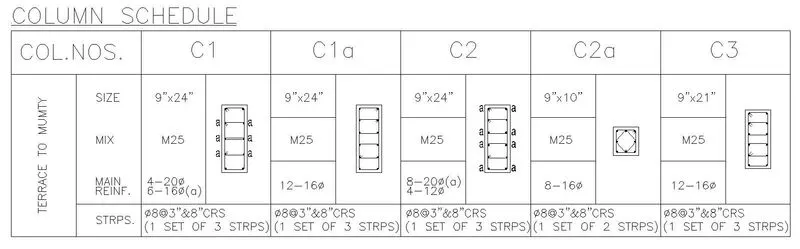
Create a column schedule as shown in the figure.
Procedure:
- Step 1-
- Enter DTEXT Command and write COLUMN SCHEDULE.

- Step 2-
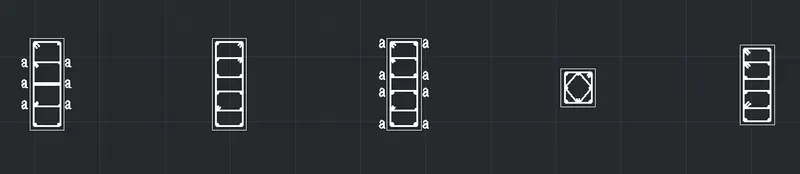
- Draw all the column sections given in the Figure above.
- Use Commands :
- Line
- Circle
- Hatch
- offset
- Line Properties Edit
- Step 3-
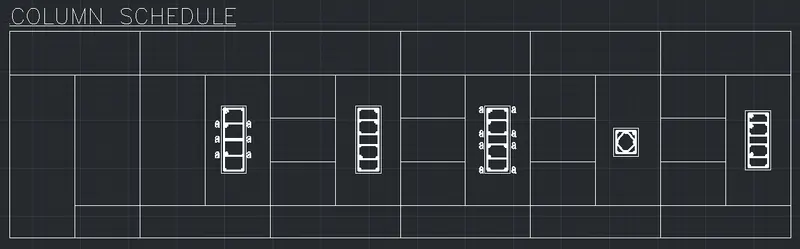
- Now Draw the table with the help of line command.
- Step 4-
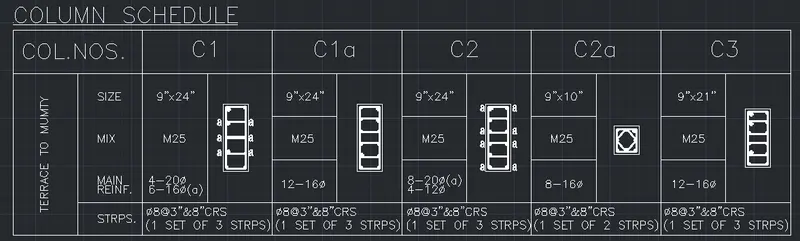
- Enter the data given in figure with DTEXT Command.
Result:
Practice 2

Aim:
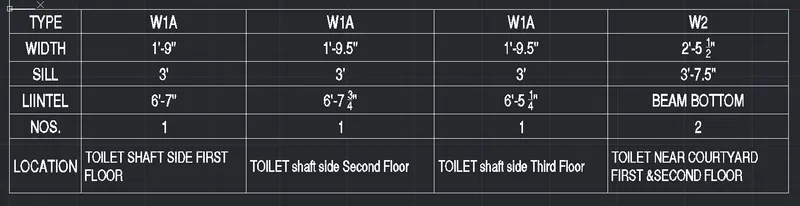
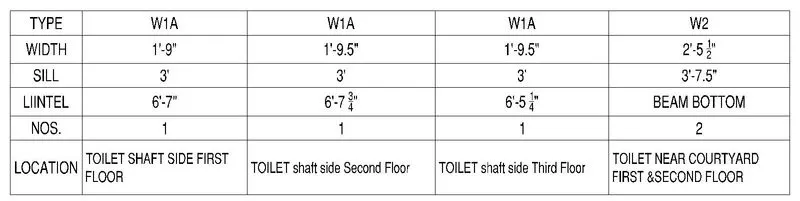
Create a window schedule as shown in the figures.
Procedure:
- Step 1-
- Enter Table command and draw the table. (as per the given figure)
- Command used :
- Table
- 5 - Columns , 6 - Rows.
- Step 2-
- Enter Given data in the table.
Result:
Practice 3


Aim:
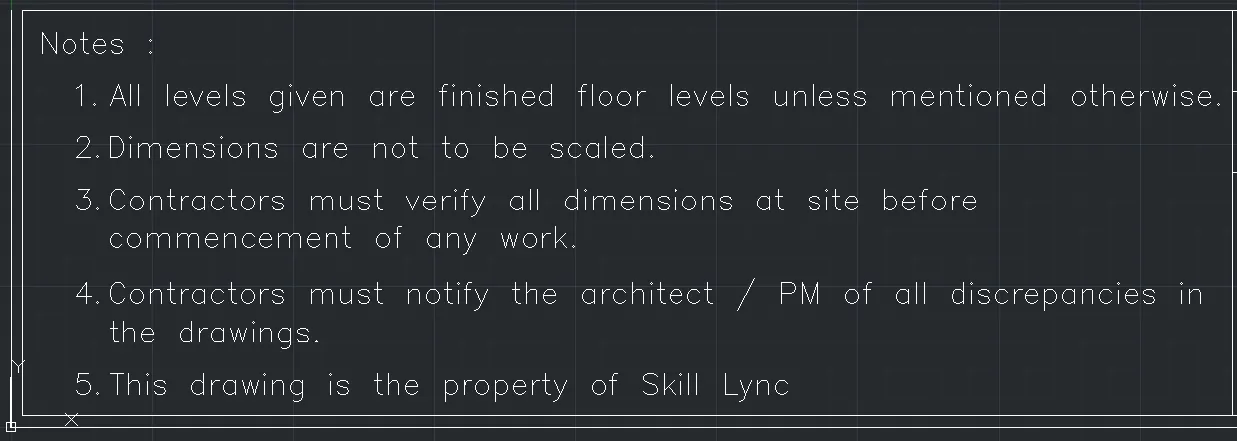
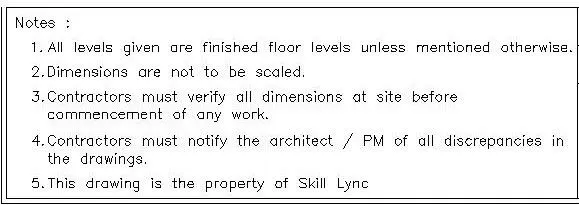
Create the drawing template as shown in the figure.
Procedure:
- Step 1-
- Draw the table. (as per the given figure)
- Command used:
- Line
- Offset

- Step 2-
- Write the notes and the given data in the figure.
- Command Used:
- Mtext

Result:

Practice 4
Aim:
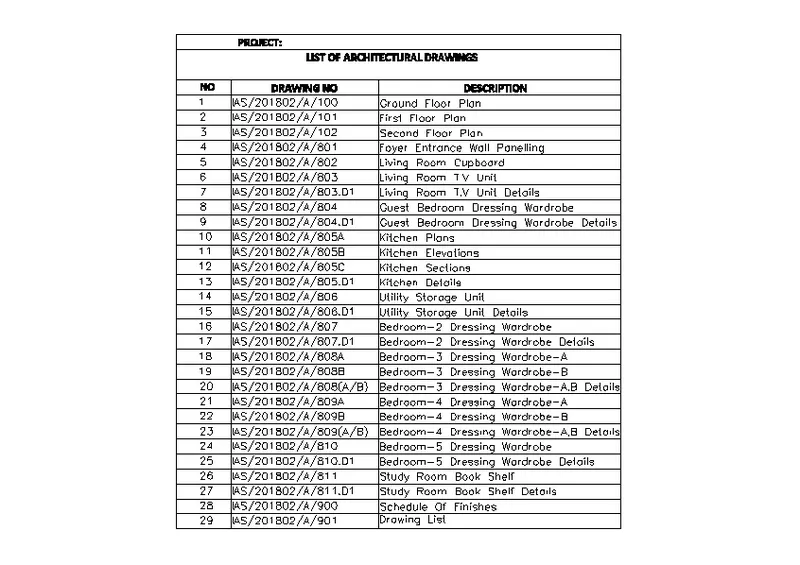
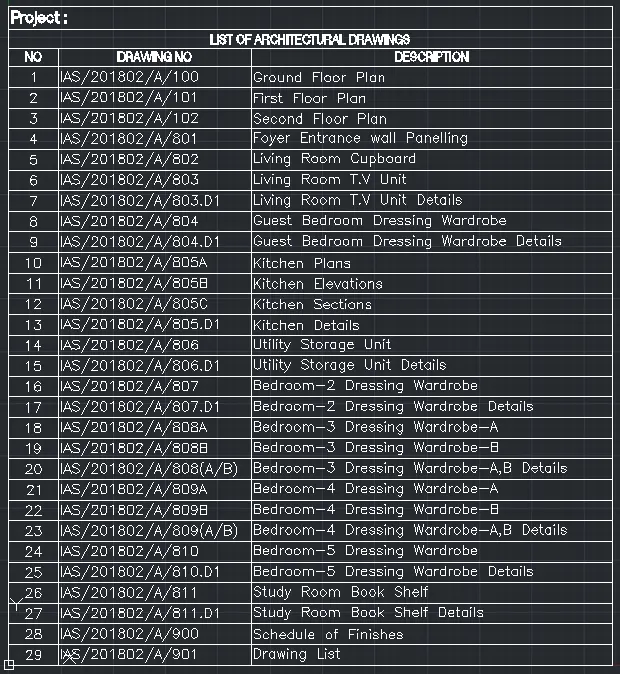
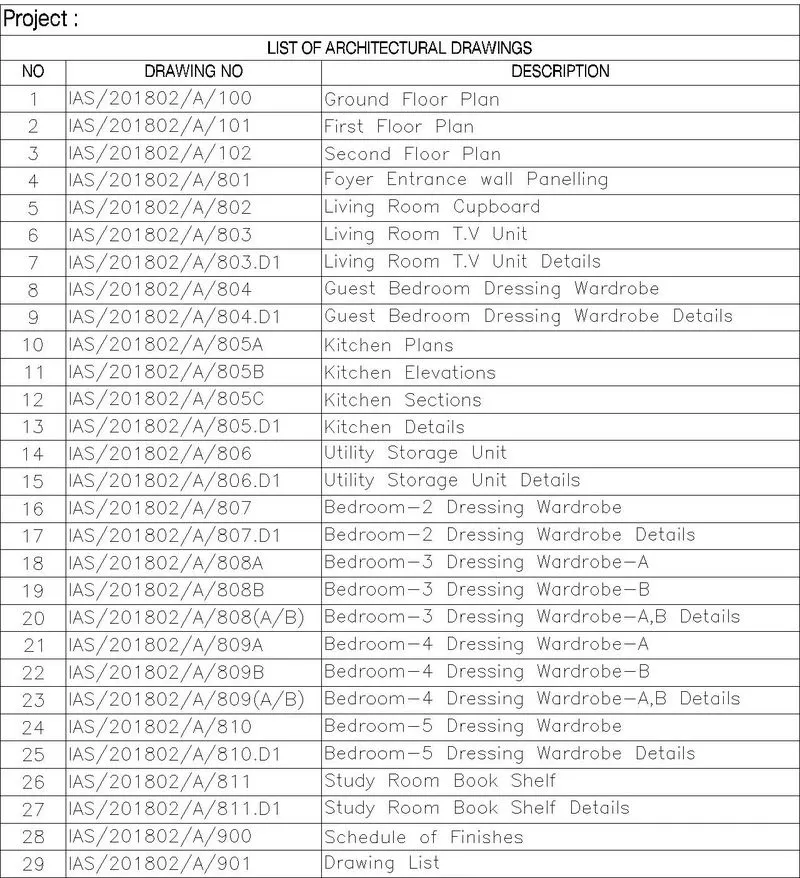
Create a window schedule as shown in the figures.
Procedure:
- Step 1-
- Enter Table command and draw the table. (as per the given figure)
- Command used :
- Table
- 3 - Columns , 32 - Rows.

- Step 2-
- Enter the data given in the figure.
Result:
Practice 5
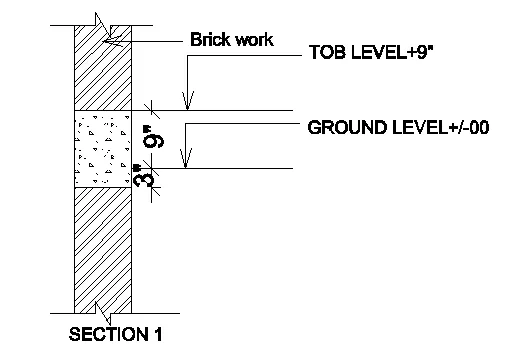
Aim:
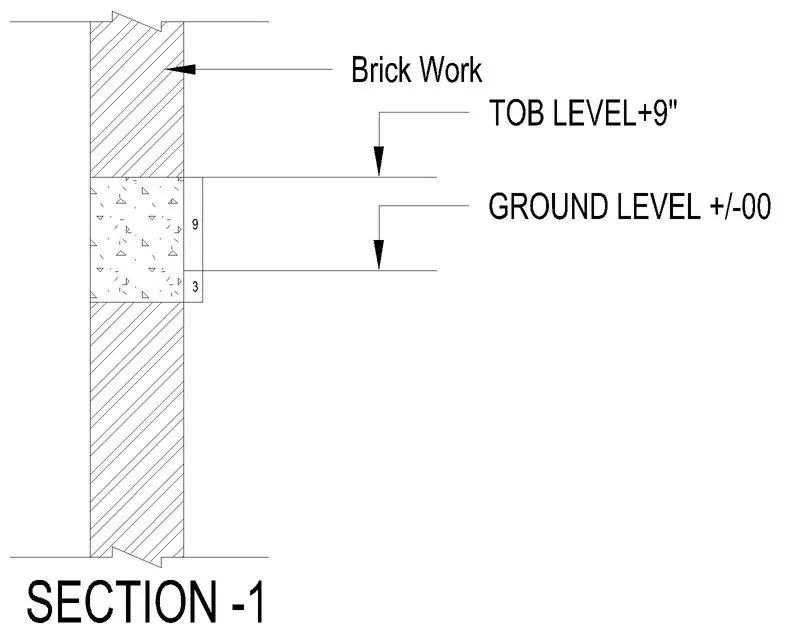
Create the Beam detail as shown in the figure and provide text wherever given.
Procedure:
- Step 1-
- Draw the given section.
- Use Commands:
- Line
- Offset
- Hatch
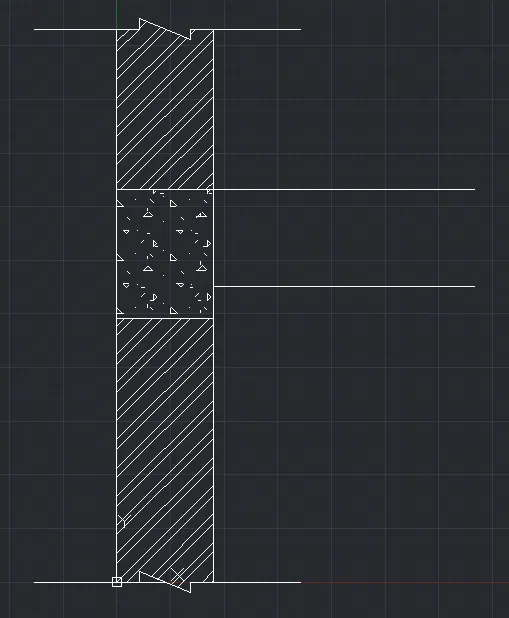
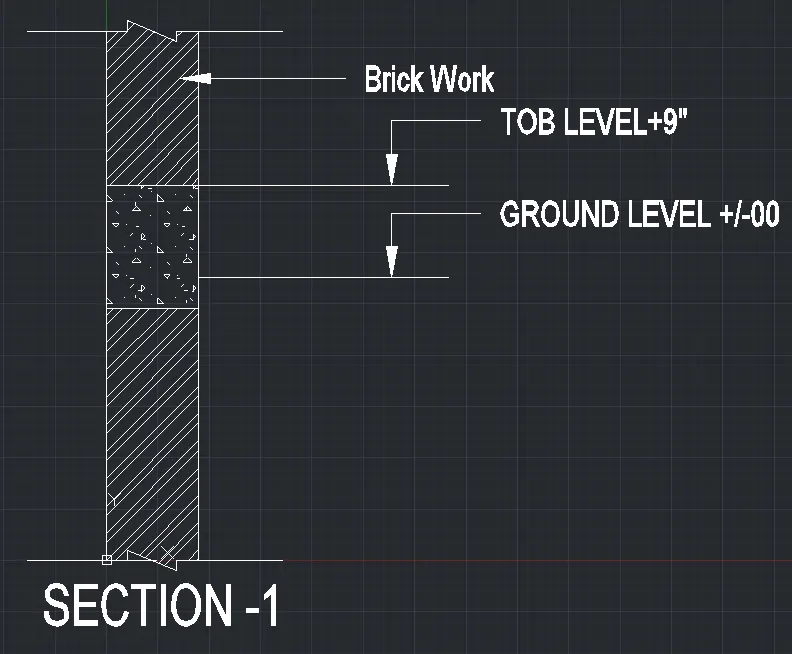
- Step 2-
- Annotate the details as given in the figure
- Command used:
- DTLANNOMLEADERADD
- Mtext
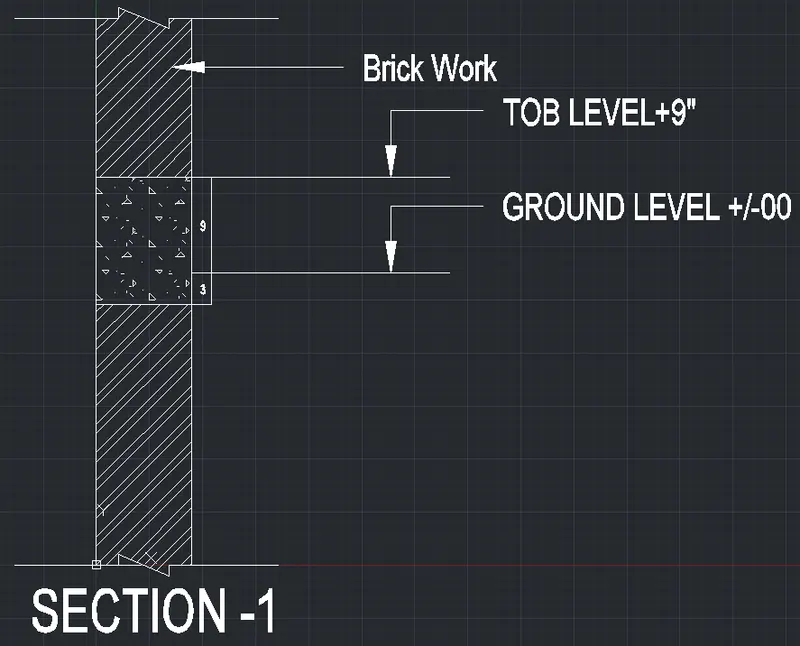
- Step 3-
- Now Annotate the Dimension as per the given figure.
Result:
*************Hence all Figures has been drawn successfully.***************