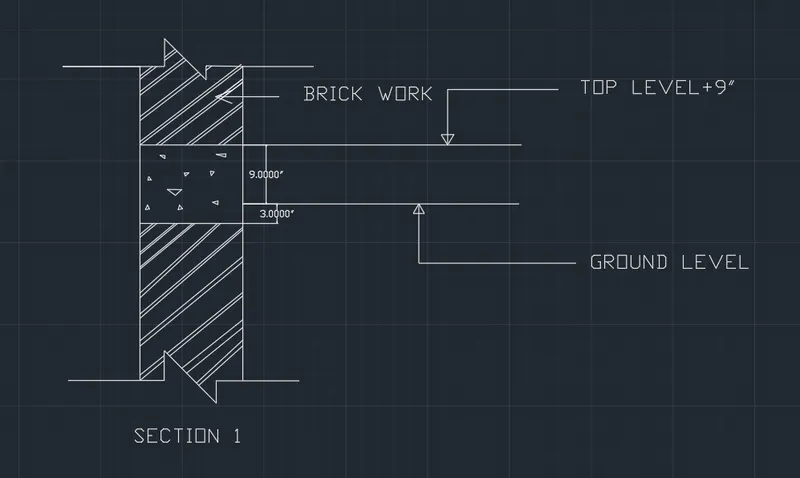
Creation of Column Schedule and Drawing Template using AutoCad
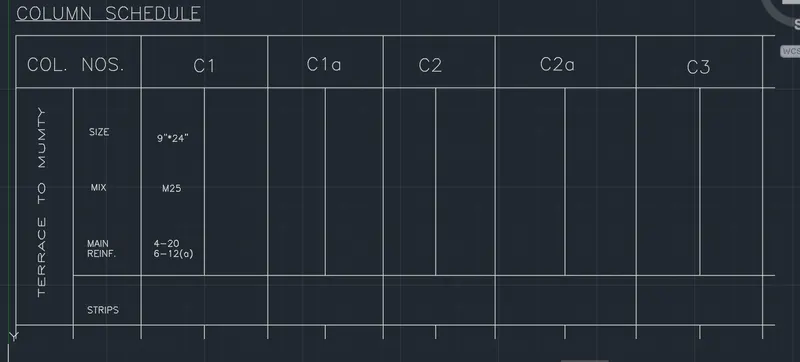
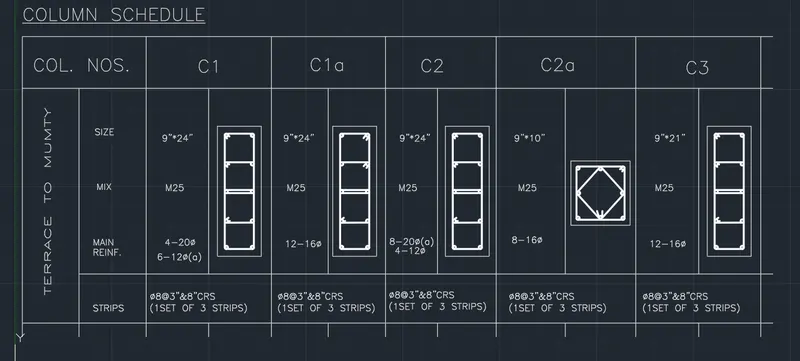
ANS 1)
Aim: Create a Column Schedule in AutoCAD.
Procedure:
Select "Line" tool from the draw panel or type line in command prompt and press enter.
Specify the first point in the command prompt and press enter.
By using line tool draw a table as per requirement.
Again by using single line text or type DT in command prompt and press enter.
By DT command write all the texts and press enter.
Now type all the text and click somewhere on the screen and press esc to finish.
Ans 2)
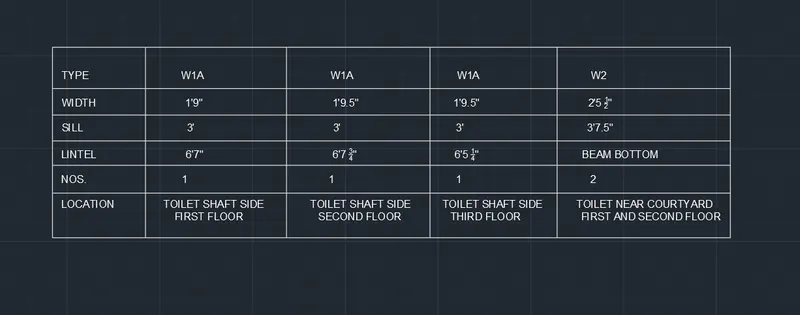
Aim: Create a WINDOW SCHEDULEin AutoCAD.
Procedure:
Select "Line" tool from the draw panel or type line in command prompt and press enter.
Specify the first point in the command prompt and press enter.
Draw a box and press enter.
Type DT in command prompt and press enter.
Now type all the text and click somewhere on the screen and press esc to finish.
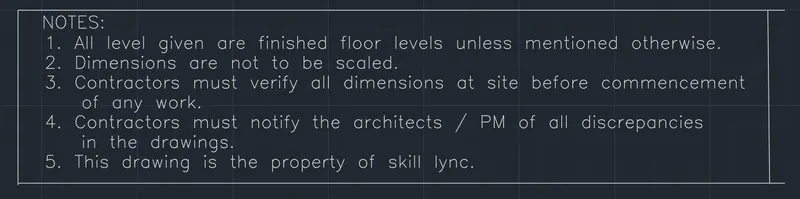
Ans 3)
Aim: Create a drawing template in AutoCAD.
Procedure:
Select "Line" tool from the draw panel or type line in command prompt and press enter.
Specify the first point in the command prompt and press enter.
Draw a box and press enter.
Type DT in command prompt and press enter.
Now type all the text and click somewhere on the screen and press esc to finish.

Ans 4)
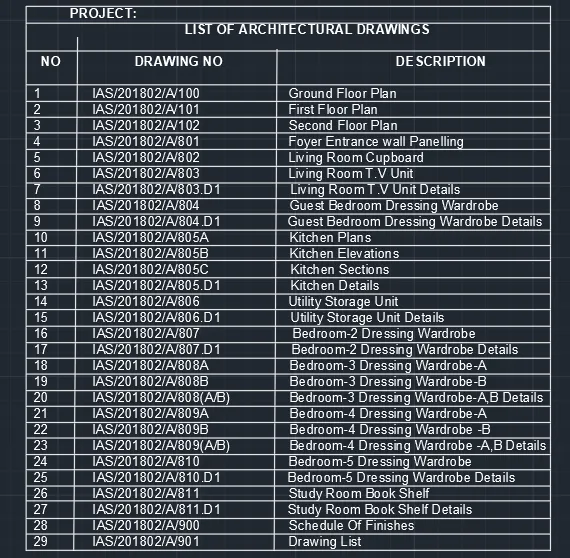
Aim: Create a drawing schedule in AutoCAD.
Procedure:
Select "Line" tool from the draw panel or type line in command prompt and press enter.
Specify the first point in the command prompt and press enter.
Draw a box and press enter.
Type MTEXT or MT in command prompt and press enter.
Now type all the text and click somewhere on the screen and press esc to finish.
Ans 5)
Aim: Create a Beam Detail Section in AutoCAD.
Procedure:
Select "Line" tool from the draw panel or type line in command prompt and press enter.
Specify the first point in the command prompt and press enter.
Draw a box and press enter.
Type TEXT or DT in command prompt and press enter.
Now type all the text and click somewhere on the screen and press esc to finish.