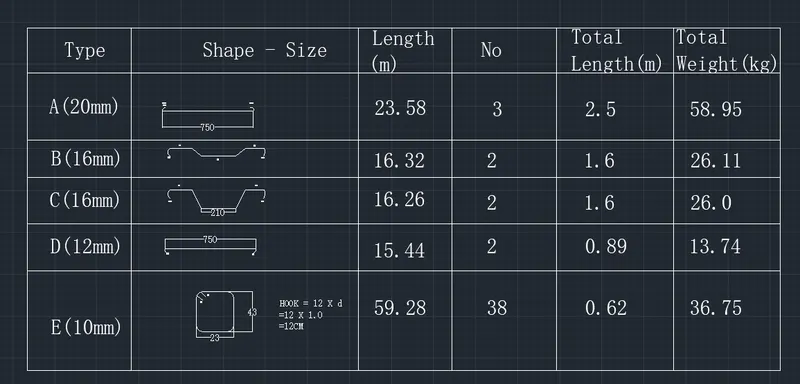
Creating Bar Bending schedule, Different Door types, and Creation of standard drawing templates using AutoCad
1.Create the templates as shown in figures.Take the size of the title block as per industry standards or tou can assume it as per the size of the paper Use text and attribtes wherever required After creating
The title block you need to save it as a block with name: Custom1_ title block and Custom2_titleblock respectively
AIM:
To create Custom1_ titleblock and Custom2_titleblock Using Attributes and block Comman d from Autocad software
PROCEDURE:
Step 1 (Custom1_tittleblock)
- In the command prompt type L to draw the lines
- In ribbon tab > Annotate>Mtline (to draft the text)
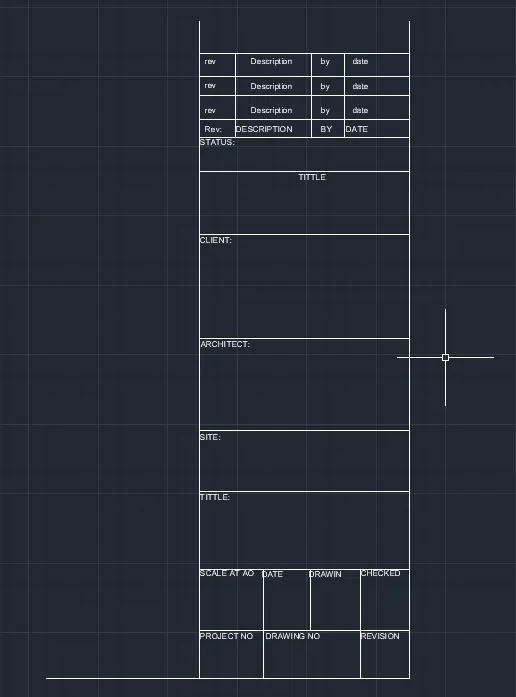
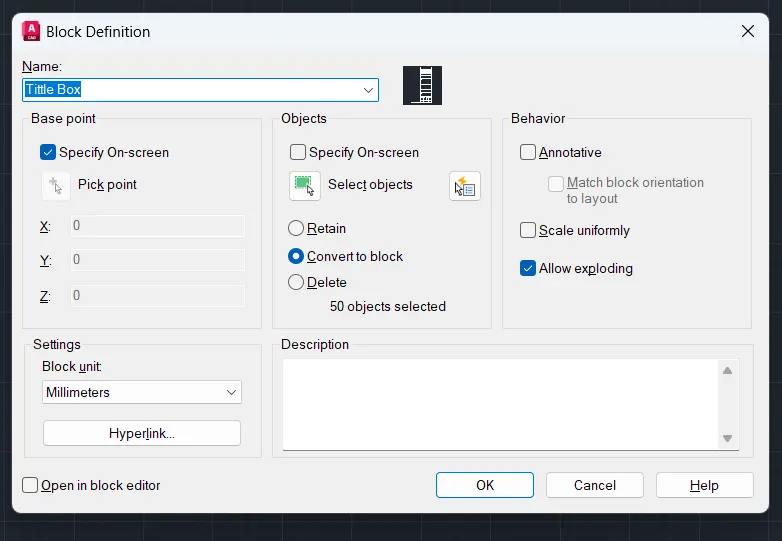
- In the ribbon bar > block > create block and name it custom1_ titleblock. Therefore the block is Created
STEP 2 ( custom2_ tittleblock)
- In the command prompt type L to draw the lines
- In ribbon tab> Annotate> Mtline(to draft the text)
- Go to properties tab to change the colour
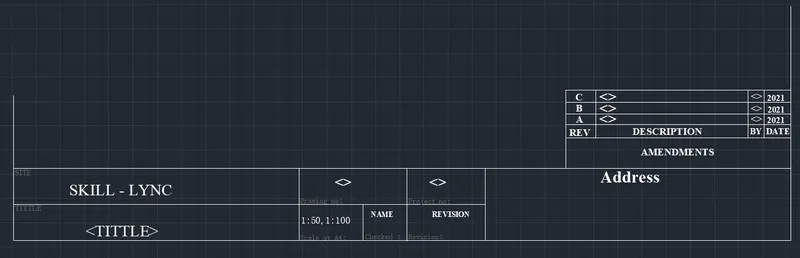
- In the riibon bar > block > create block and name it custom2_ titleblock.Therefore the block is created
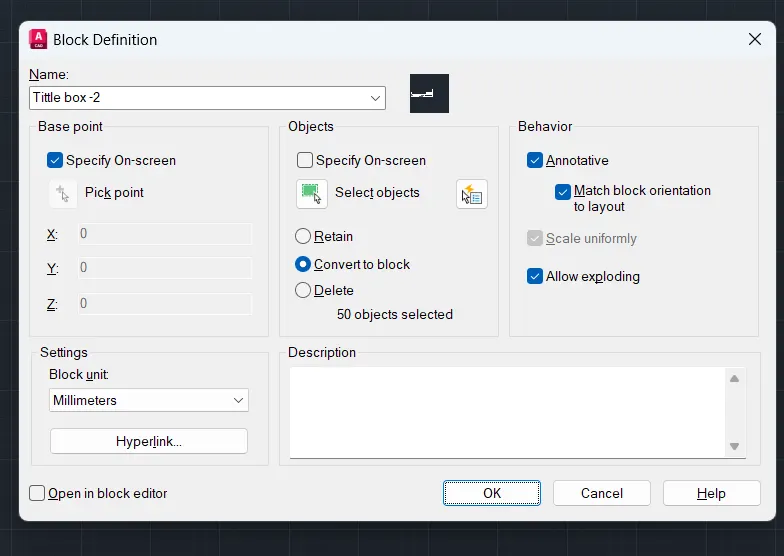
2. AIM:
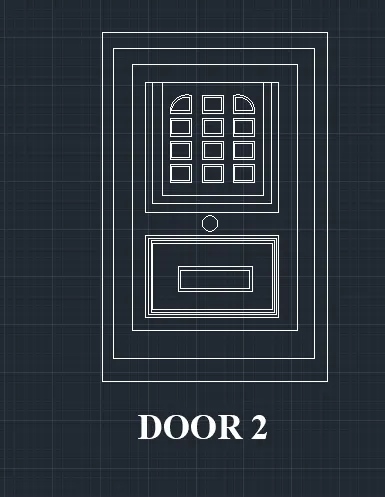
To create the doors type for warehouse and to also create the block of this door type after creating them using Autocad
PROCEDURE:
- In the command prompt type the unit>mm
- In the command prompt type the limax>100,100
- In the command prompt type the limits>0,0
Step2:
- In the command prompt type l do draft the lines
- In the command prompt type rec to draft the boxes or rectangle
- In the command prompt type fillet to get the curve edges
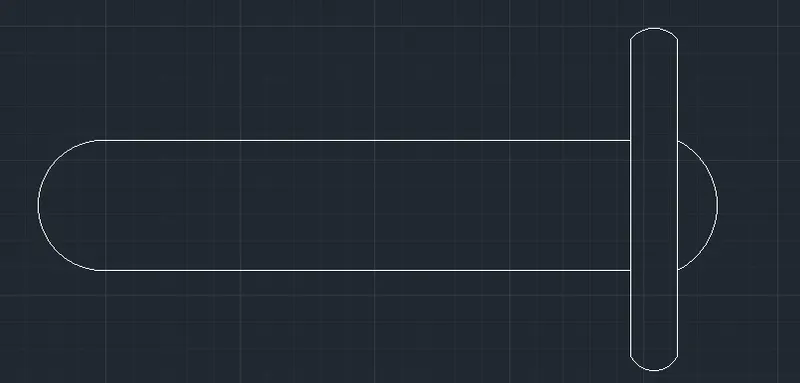
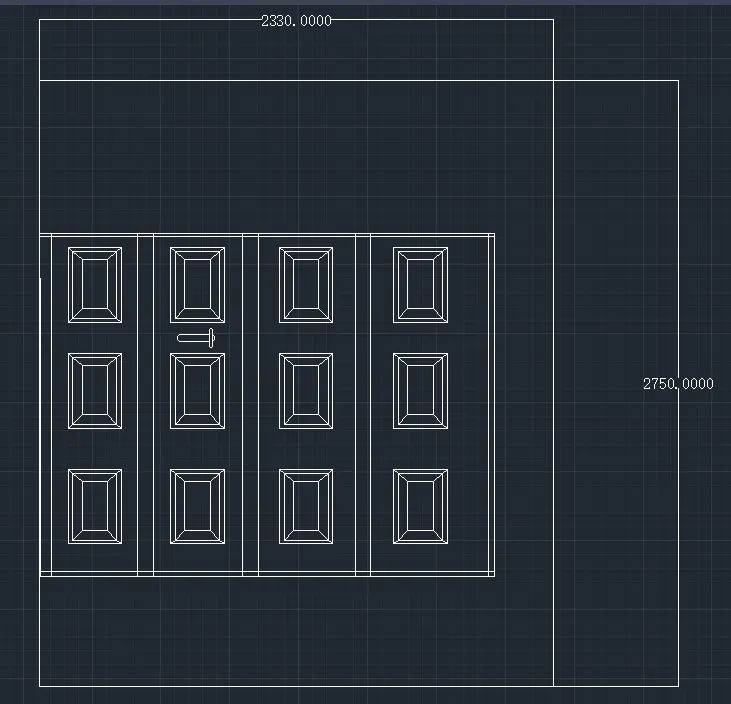
- In the ribbon bar > dimensions ( to give the dimensions of the door)
- In the ribbon bar > annotation > text ( to give the text for the door)
- In the ribbon bar > block > create block ( to create the door block)
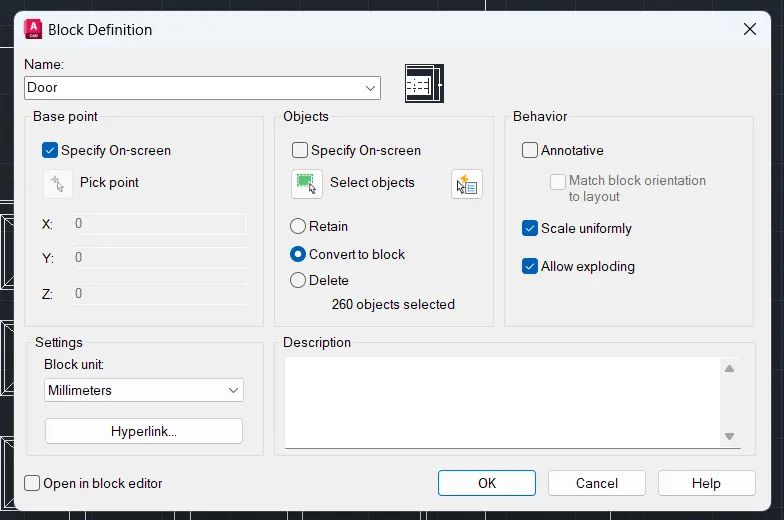
STEP 3:
- In the command prompt type l to draft the lines
- In the command promt type rec to draf the boxes or rectsngle
- In the command prompt type fillrt to get the curve edges
- In the ribbon bar > dimensions ( to give the dimensions of the door)
- In the ribbon bar > annotation > text ( to give the text for the door)
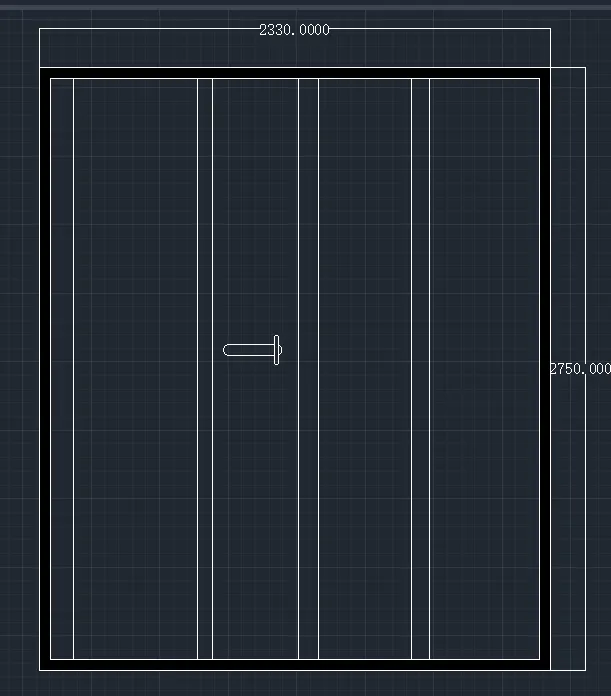
- In the ribbon bar > block > create block ( to create the door block)
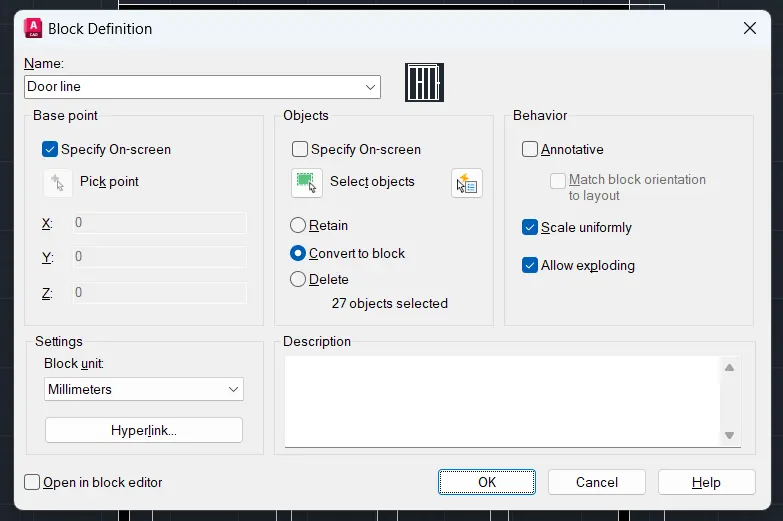
3) AIM:
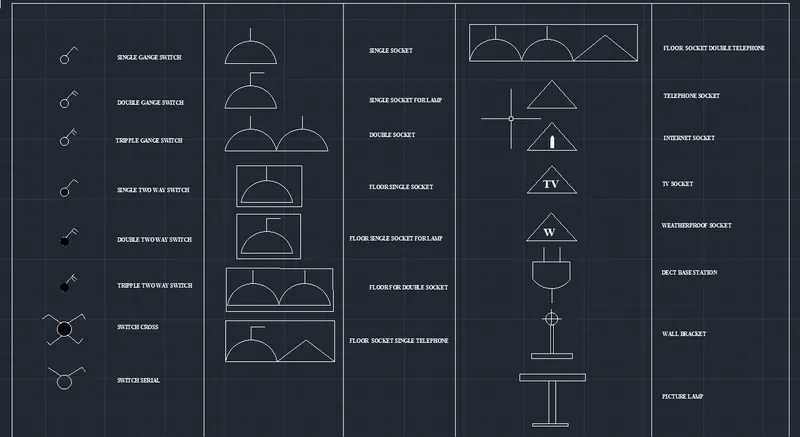
To create each symbol as a block with the name and then arrange them in the legend
PROCUDER:
- In the command prompt type v to get the circle
- In the ribbon bar > annotation > Multiline text
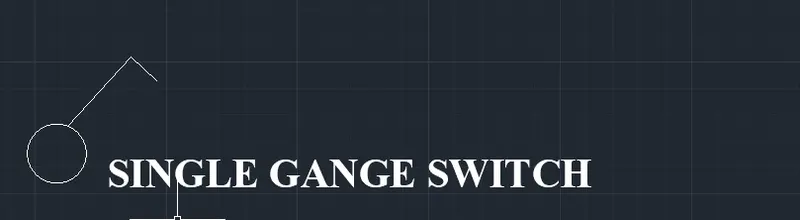
- In the ribbon bar > block> block edit
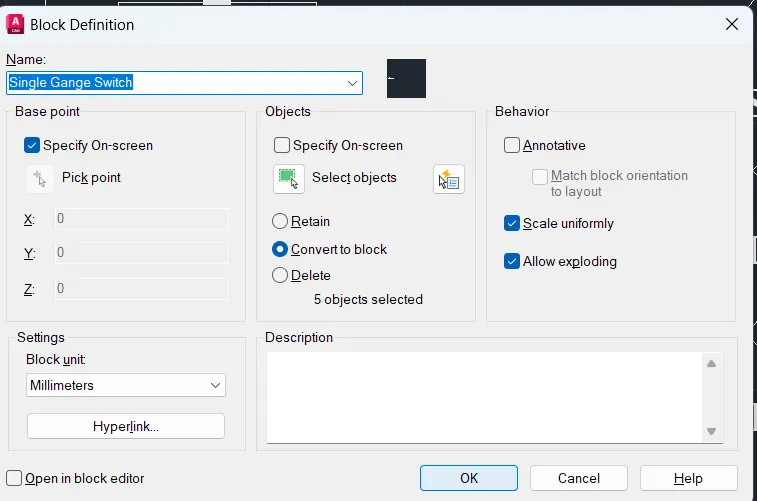
- Same command and procedure are followed for all the symblos


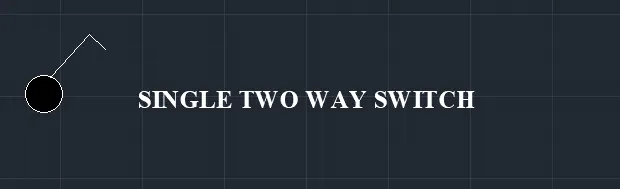
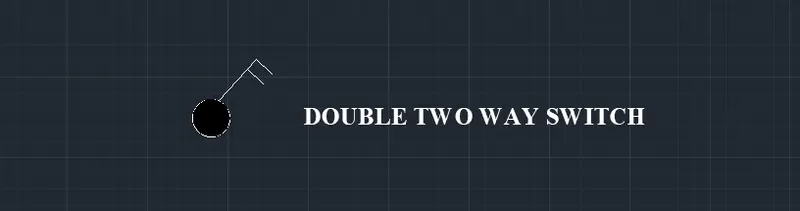
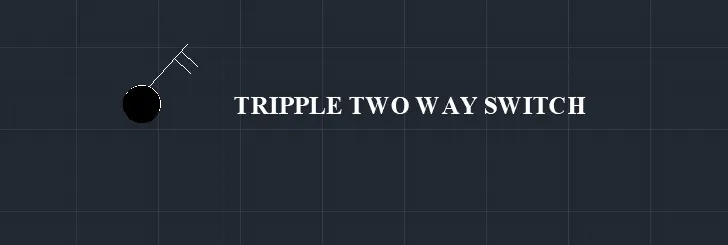
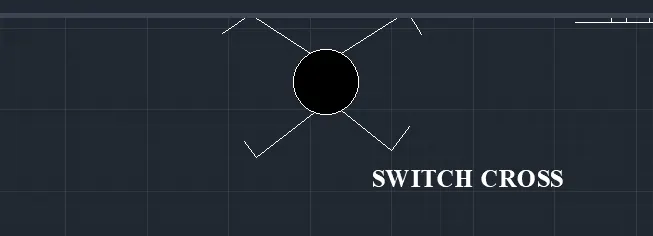
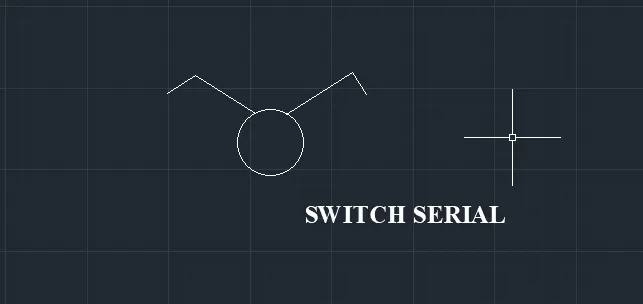
- In the command prompt type l to draw the lines
- In the command prompt type arc to draw the arc
- In the command prompt type Mtext
- In the ribbon bar > block> create block
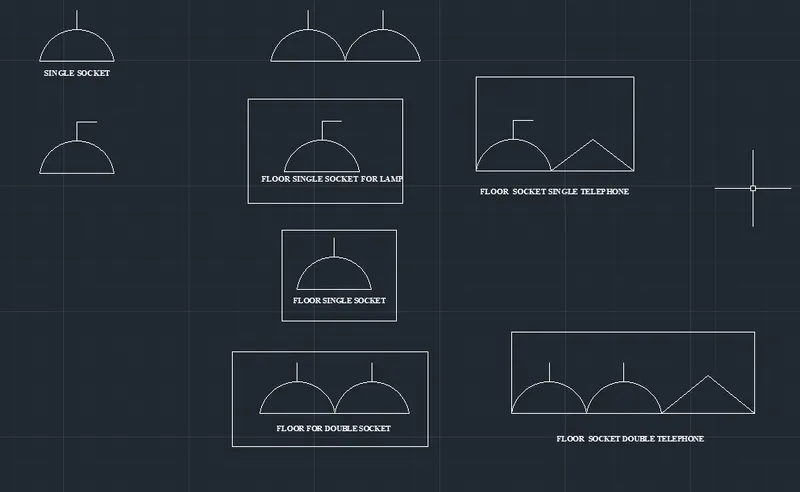
- In the command prompt type l to draw the lines
- In the command prompt type Mtext
- In the ribbon bar > block> create block
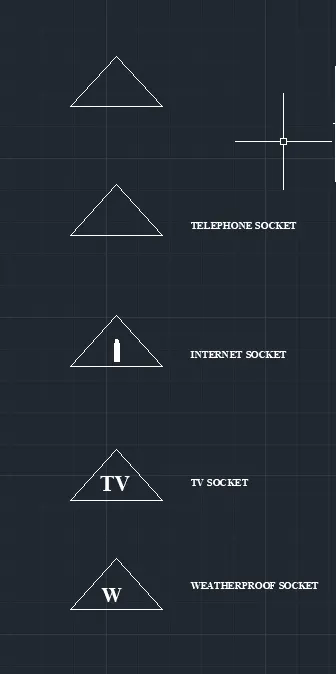
- In the command prompt type l to draw the lines
- In the command prompt type fillet to get the curves
- In the command prompt type Mtext
- In the ribbon bar > Block > create block
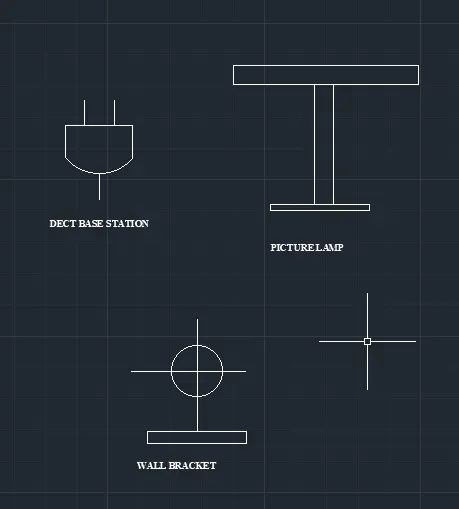
- In the command prompt type l to inset the blocks
FINAL RESULT:
4)
AIM:
To Create the door type for residential building as a Block
PROCUDER:
Step : 1
- In the command prompt type units> engineering > inches
- In the command prompt type limits >0,0 limax>100,100
- In the command prompt type zoom > a
Step : 2
- In the command prompt type l to draw the lines
- In the command prompt type B to create a block
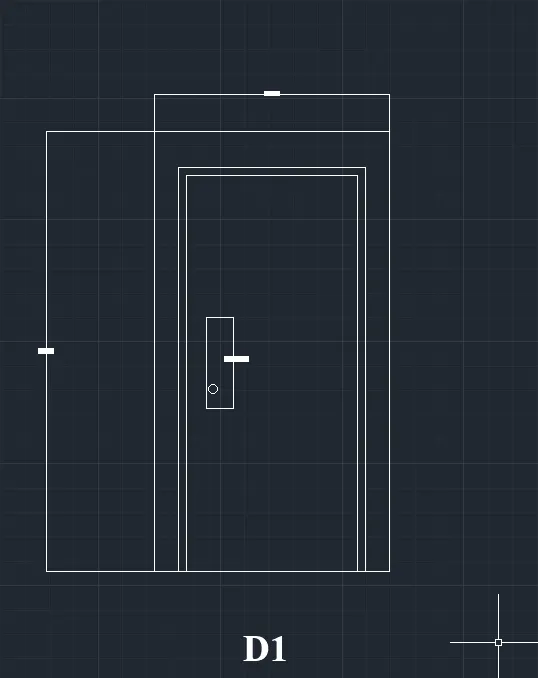
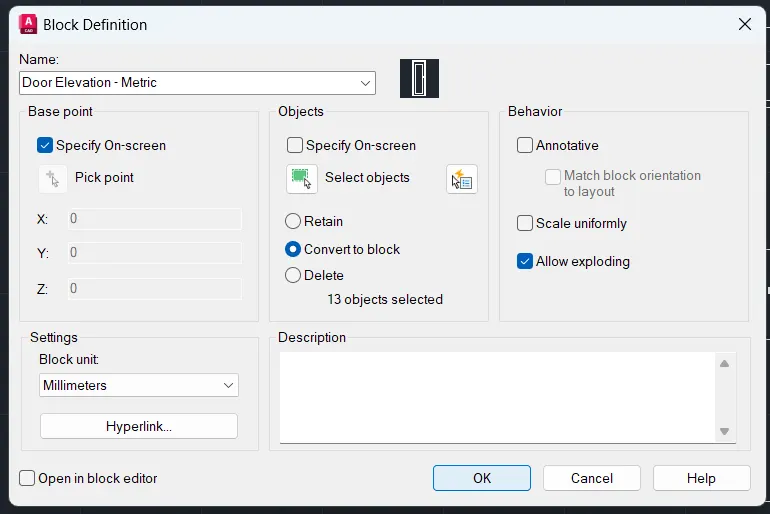
- In the command prompt type ATT > name of the block is save as type ( PLAIN SINGLE DOOR)
- The same command and procedures are used for the rest of the doors
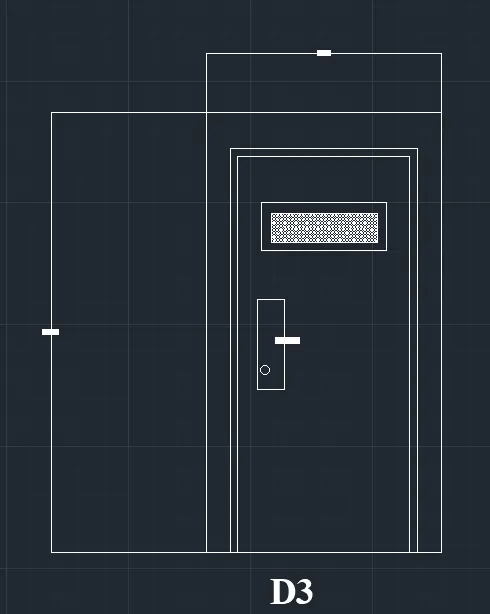
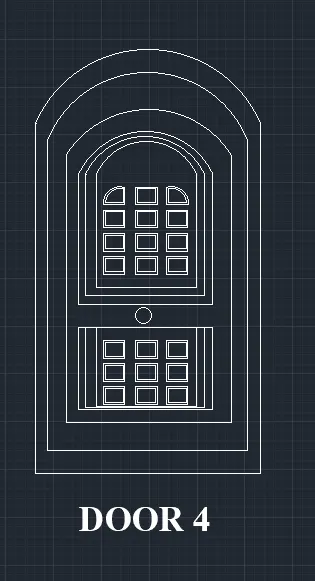
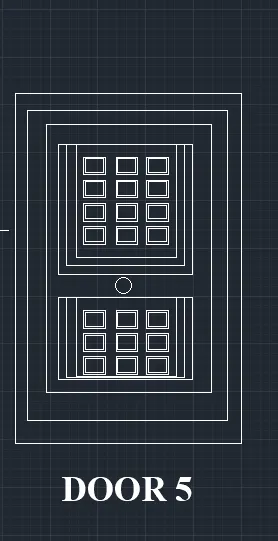
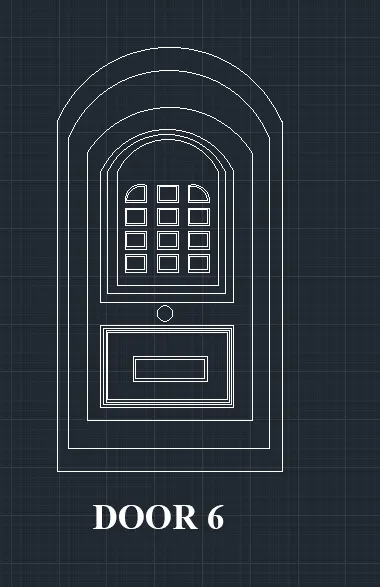
5)
AIM:
To Create each shape as ablock and insert them on the table as give in the picture
PROCEDURE:
STEP 1:
- In the command prompt type unit > decimal > meters
- In the command prompt type limits>0,0
- In the command prompt type limax>100,100
STEP 2:
- In command prompt type l to draw the derired lines
- In the command prompt type pl draw the desired arc, copy lines
- In command prompt type mt to give annotation and text
- In command promt type B to Create the block
- In the command prompt type l to insert the created in the block
- In the command prompt type table to inset the table