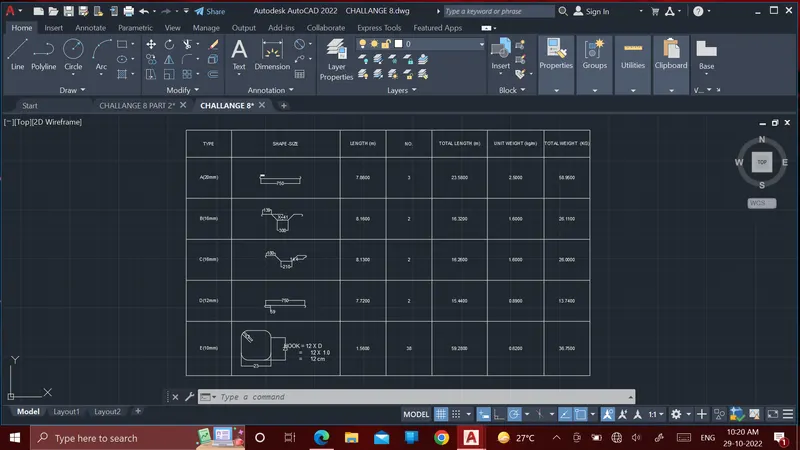
Creating Bar Bending schedule, Different Door types, and Creation of standard drawing templates using AutoCad
AIM: To create a template.
Introduction: We can use the text command in auto cad by following some simple steps and use it for mentioning our important data in our drawing.
procedure:
- select the single line text and take any random point
- then select the hight & angle and write the letter
- then select the table command and draw the table
- select row & column number
- then select some of the table boxes and marge it to complete the table which is shown in the figure
- after that write the information which is given in the figure
- after that make four diagram and place it with the help of move command
- after that select some of the table boxes and Alignment the letter in middle center and complete the figure
Result:
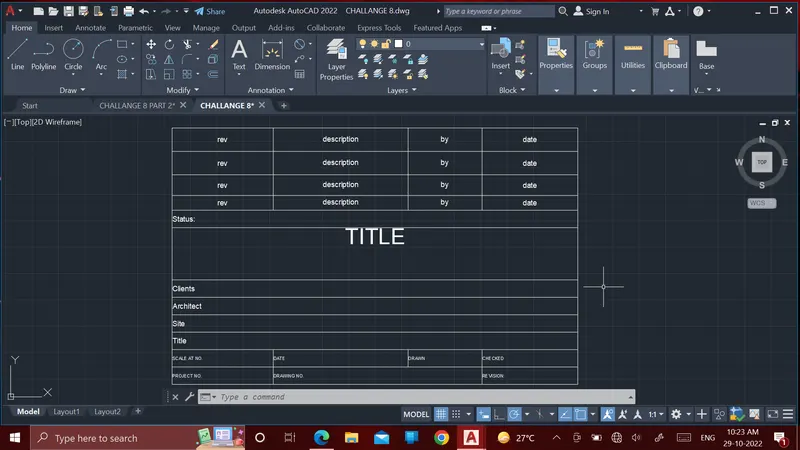
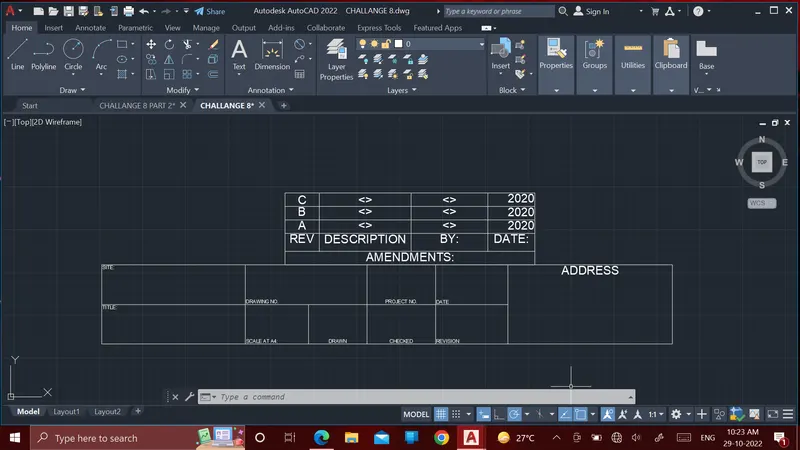
AIM: To create the doors type for warehouse
Introduction: The AutoCAD Command line is like a combined control panel and index of all AutoCAD commands you run – and have run – on your drawing.
procedure:
- the use line command to complete the figure
- then use the offset command to make the walls
- use extend command to join the lines
- then use trim command to remove the extra line
- then use the muti text command to write the text to complete the figure
- then use the dimension command and set the dimension limits to give the dimension to the figure
- after create the block from the given figure
- first take the pick point then select the object
- after that convert it into the block
- double click the box in the table to write the text or insert the block
Result:
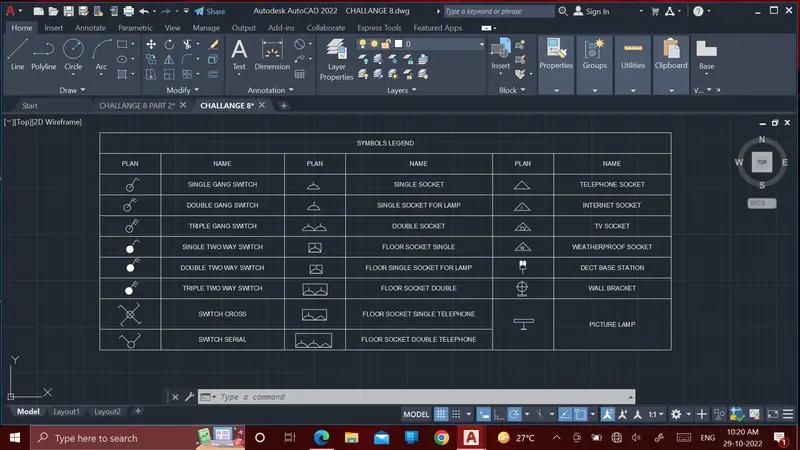
AIM: To create each symbol as a block with the name given in the legend.
Introduction: We can use the text command in auto cad by following some simple steps and use it for mentioning our important data in our drawing.
procedure:
- select the single line text and take any random point
- then select the hight & angle and write the letter
- then select the table command and draw the table
- select row & column number
- then select some of the table boxes and marge it to complete the table which is shown in the figure
- after that write the information which is given in the figure
- after that make four diagram and place it with the help of move command
- after that select some of the table boxes and Alignment the letter in middle center and complete the figure
- after create the block from the given figure
- first take the pick point then select the object
- after that convert it into the block
- double click the box in the table to write the text or insert the block
Result:
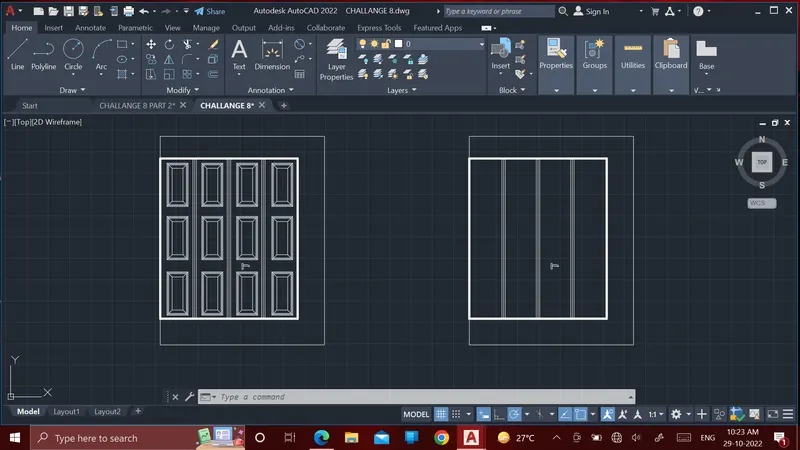
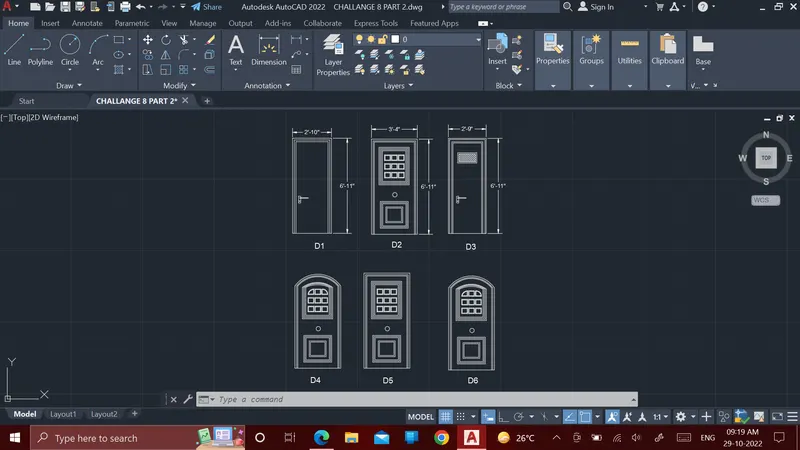
AIM: To create the door type for residential building as a block.
Introduction: The AutoCAD Command line is like a combined control panel and index of all AutoCAD commands you run – and have run – on your drawing.
procedure:
- the use line command to complete the figure
- then use the offset command to make the walls
- use extend command to join the lines
- then use trim command to remove the extra line
- then use the muti text command to write the text to complete the figure
- then use the dimension command and set the dimension limits to give the dimension to the figure
- after create the block
- first take the pick point then select the object
- after that convert it into the block
Result:
AIM: To create the block and insert them on the table.
Introduction: We can use the text command in auto cad by following some simple steps and use it for mentioning our important data in our drawing.
procedure:
- select the single line text and take any random point
- then select the hight & angle and write the letter
- then select the table command and draw the table
- select row & column number
- then select some of the table boxes and marge it to complete the table which is shown in the figure
- after that write the information which is given in the figure
- after that make four diagram and place it with the help of move command
- after that select some of the table boxes and Alignment the letter in middle center and complete the figure
- after create the block from the given figure
- first take the pick point then select the object
- after that convert it into the block
- double click the box in the table to write the text or insert the block
Result: