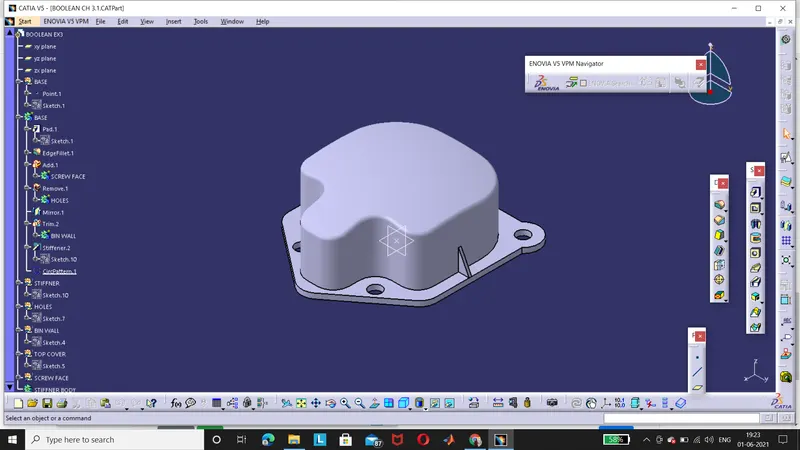
creating a 3D or Part body in Part workbench and to use BOOLEAN operations
AIM: To create a 3D or Part body in Part workbench and to use BOOLEAN operations to create final solid body using Catia V5 Software
PROCEDURE FOR CREATING A SKETCH :
- Open Catia V5 software and go to File-New-Part (Select: Create a geometrical set)
- Create a point at the centre axis with co-ordinates X=0, Y=0 & Z=0.
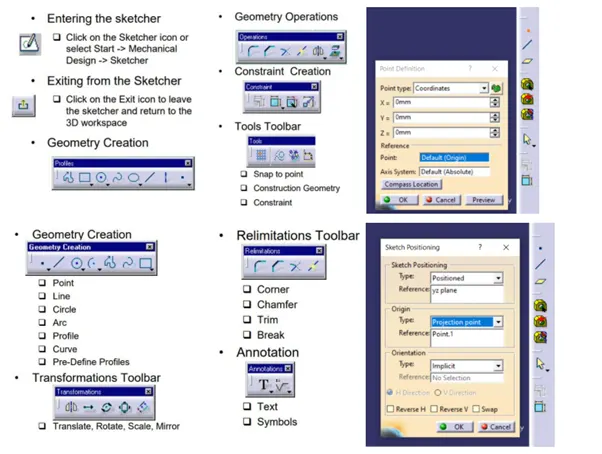
- Go to Toolbar-Insert-Sketcher -Positioned sketch.
- In Sketcher Positioning select YZ-plane and in projecting point select centre point of the origin.
- Sketch the geometry with Profile toolbar.
- Profile Toolbar: The commands located in this toolbar allows you to create simple geometries (rectangle, circle, line etc.) and more complex geometries (profile, spline etc.)
- Operation Toolbar: Once a profile is created, it can be modified using commands such as trim, mirror, chamfer etc.
- Constraint Toolbar: Profiles may be constrained with dimensional (distances, angles, radius, tangents etc.)
- Check for sketch solving status it must be iso-constrained.
- Now check for Sketch Analysis. There should be no warning and any sign of errors.
- The specification Tree is displayed on the left side of the screen while you are working.
- Provides access to the history of how a part was constructed and shows the product structure.
- Product entities can be selected from the specification tree or in the geometry area.
- Parts can be modified by selecting them from the Specification Tree.
- Solid parts are stored in the Part Body branch of the Part Tree.
- Save the 2D sketch by going to File-Save As with appropriate name.
NAVIGATION CONTROL IN CATIA:
- Click wheel and move mouse to PAN
- Click wheel and Right and move mouse to rotate.
- Click Wheel and right Release right and move mouse to Zoom.
BOOLEAN OPERATION FEATURES IN CATIA: -
ASSEMBLE
The Assemble command basically works considering the polarity of the solid bodies. Polarity of solid bodies can be said that whenever a new body is created using material formation like pad, shaft and rib or multi-section solid, then that body can be considered as positive polar body. Pocket, groove, slot and remove multi-section solid is considered as negative polar body.
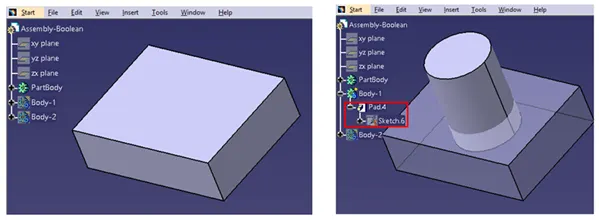
A part body is created as a rectangular block and Body-1 as a solid cylinder as shown below. Consider this Body-1 as positive polar body as it is created using pad command and intersects with part body. Now if we use Assemble Boolean operation, then this cylinder will join the rectangular part body and will act as a single body.
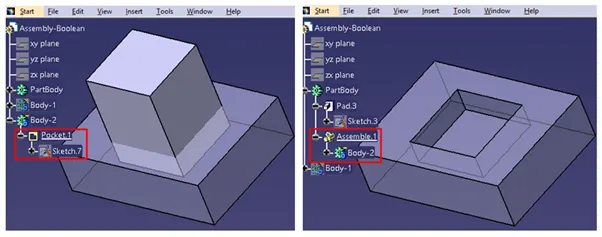
Now again Body-2 is being created as a rectangular block and is considered as negative polar body because pocket command is used. Whenever Body-2 is assembled with rectangular part body, it will go for material removal in intersected area due to the selection of negative polar body.
ADD
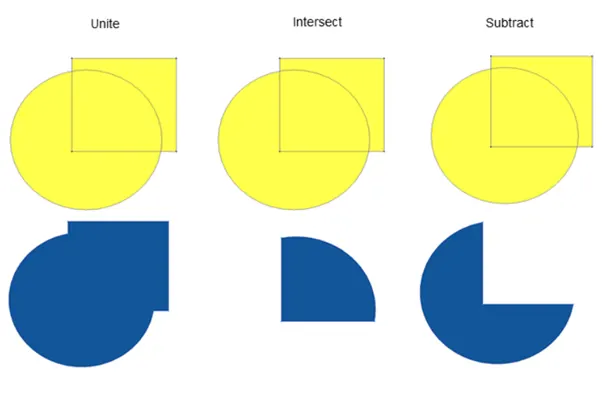
Add operation removes only the intersected portion between two bodies so that both parts act as a single body irrespective of the polarity of the bodies. Here, the bodies may be with positive polarity or negative polarity or a combination of both.
REMOVE
Remove operation removes the selected body first and then is merged with the second body irrespective of the polarity of the bodies.
INTERSECT
To derive a single body from two different bodies, Intersect Boolean operation is used. Basically, the intersected portion is the output which is displayed as a single body. There is no effect of polar bodies here.
UNION TRIM
Unwanted material can be removed from any two bodies by using Union Trim operation which results in a single desired body.
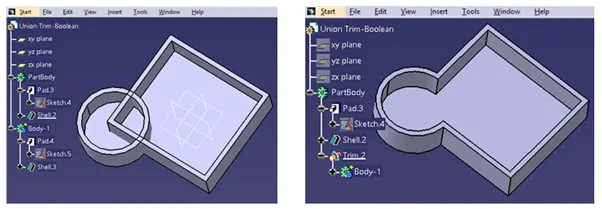
FIG:-