Creating 3D Isometric view of various structural elements in AutoCAD
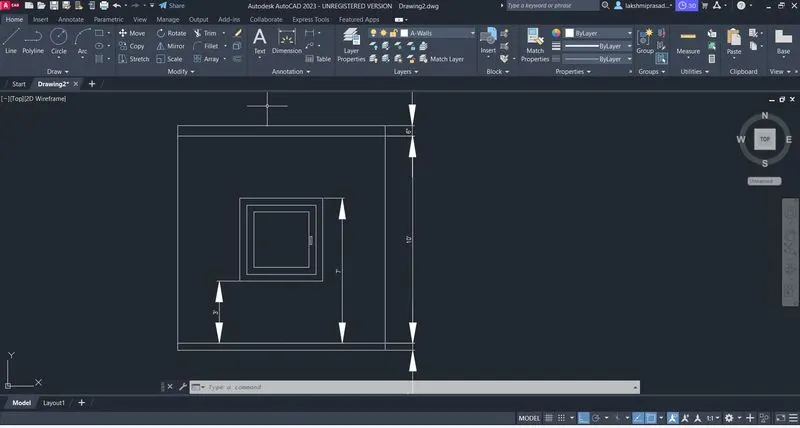
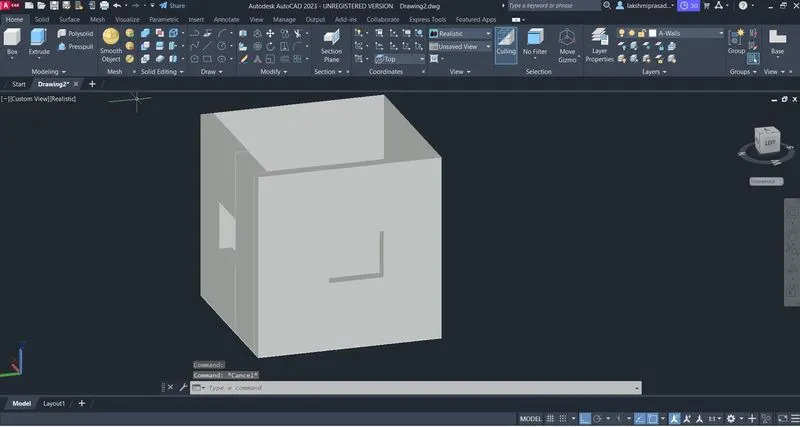
1. Create a 3D Isometric View of the building with plan and elevation given.
Procedure: open auto cad 3d.
set -top view.
set units to enginerring and inches.
select liits 0'0' and 100',100'.
now use rec command to draw rec of size 10'9" x10'9"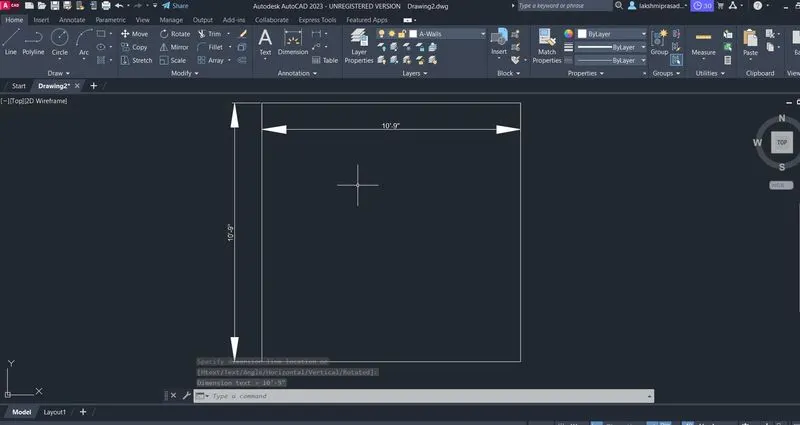
make 9" offset inside the rec as shown 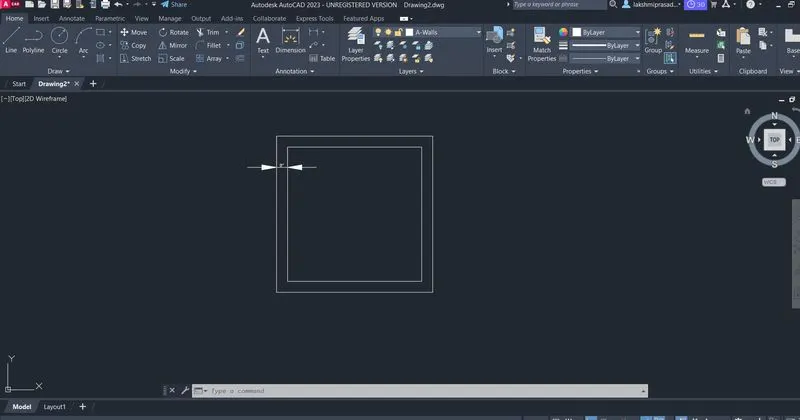
now trim both the lines and extend the line to outer rec .
now draw window as shown below.
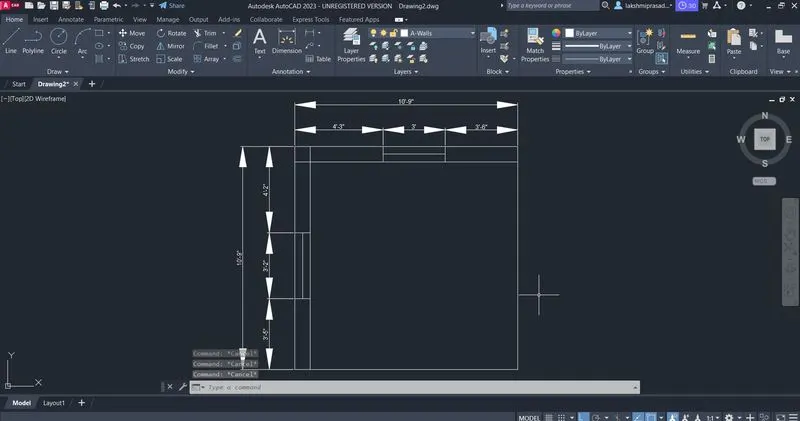
now by using 3d face command make 3d face to wall.
now extrude the walls and move windows up as dimensions.
now select any wallface and modify the window and give dimensions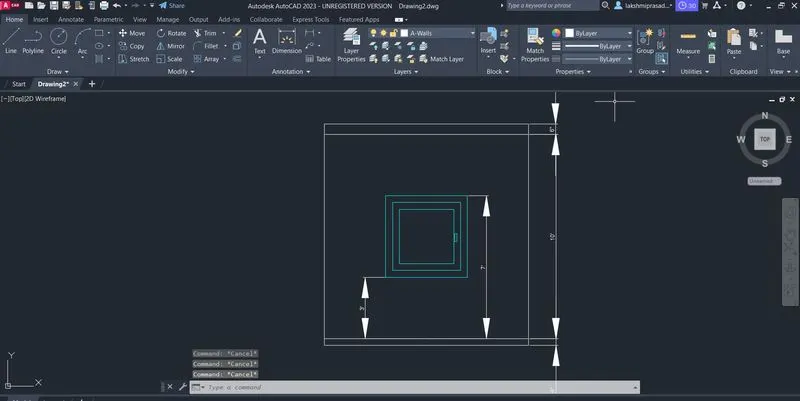
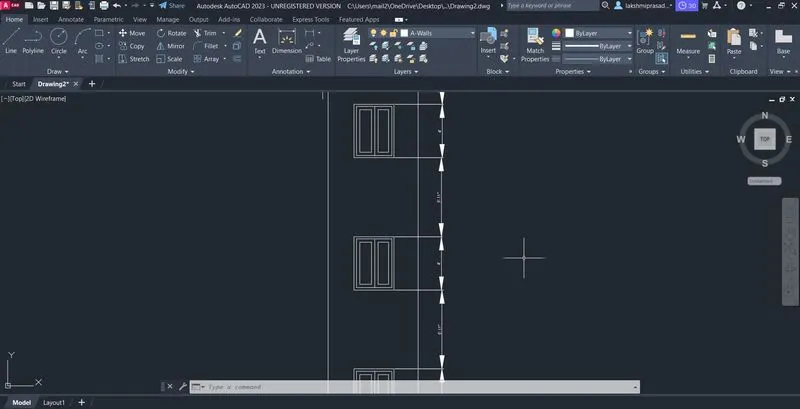
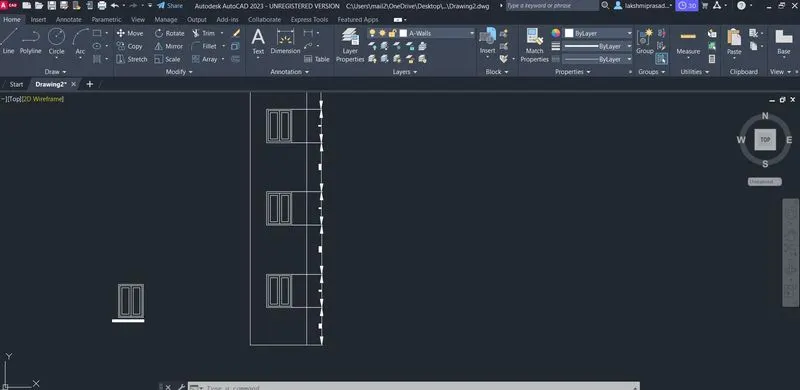
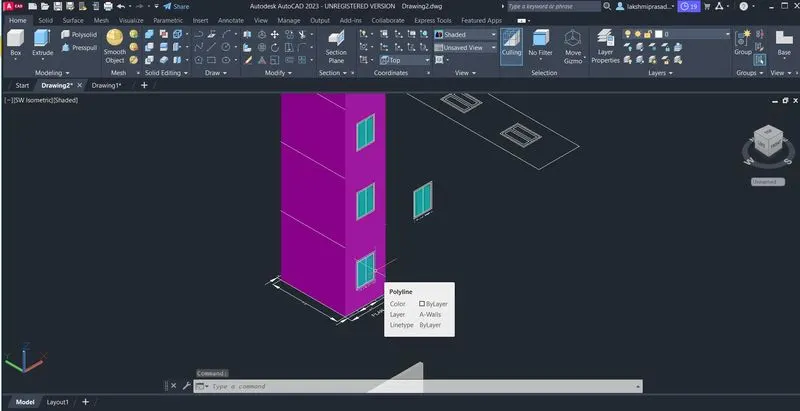
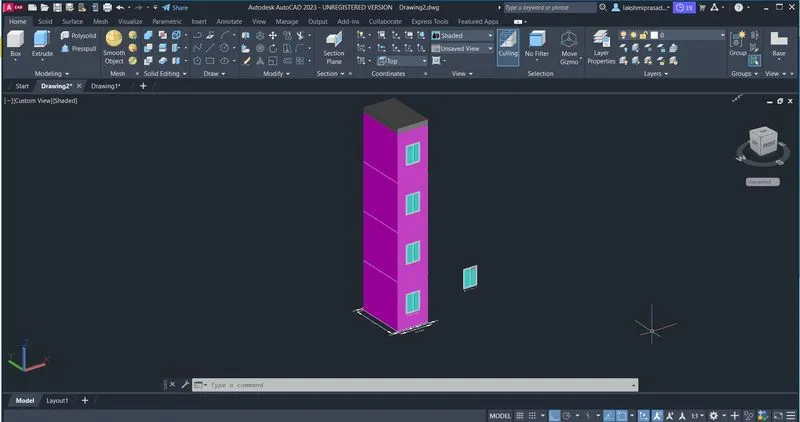
2.. Create the 3D View of the Building Façade as given in the plan and elevation. Also, see the detail of the window.
Procedure: open auto cad 3d.
set -top view.
set units to enginerring and inches.
select liits 0'0' and 100',100'.
now use rec command to draw rec of size 10'9" x6'9".
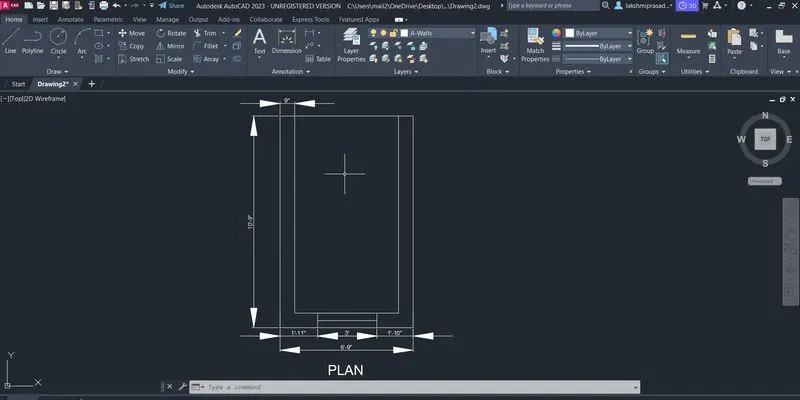
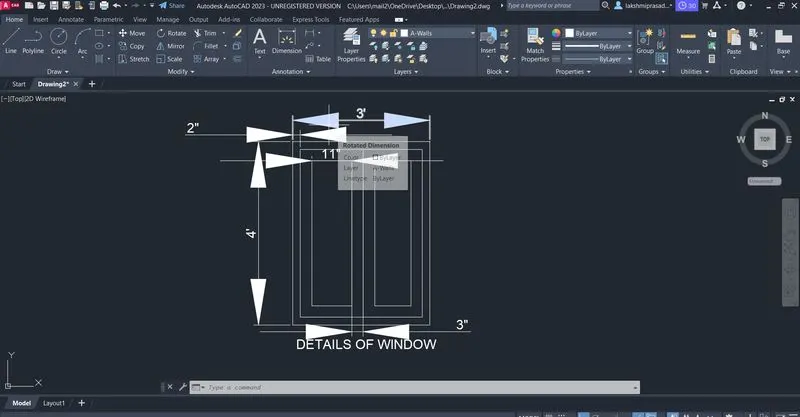
Now extrude the paln as shownand keep it in a front view and place this window drawn at given height as shown.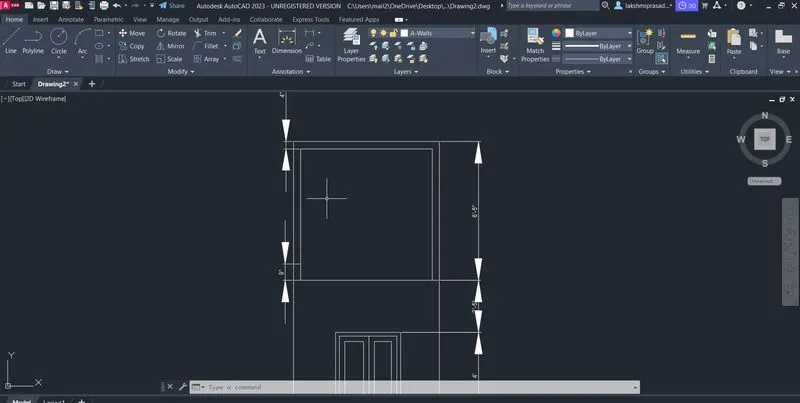
Aim: To create the isometric 3d vieew of a stair with railing.
rocedure: open auto cad 3d.
set -top view.
set units to enginerring and inches.
select liits 0'0' and 100',100'.
now use line command and draw a line of 12' vertically.
now make a 3' offset for 12'line
now join two vertical lines at the bottom with a horizontal line.
now make a 9offset line at 1' distance between each line.
now make a 9offset and make offset distance to 3' and draw an offset.
now give dimensions as shown.
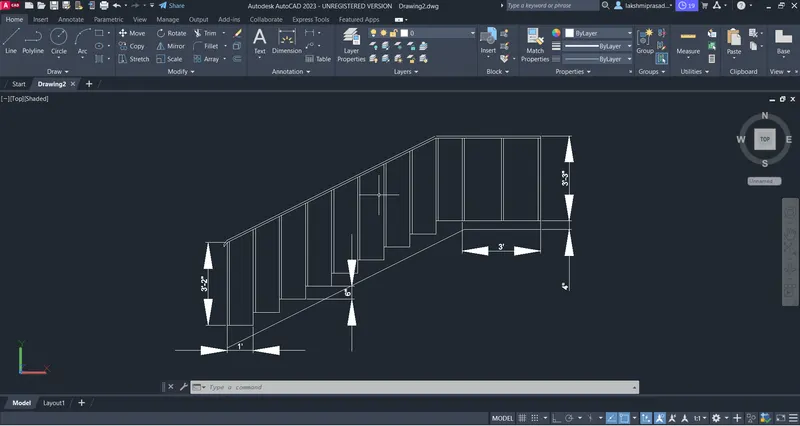
now by using line command draw the side elevation and give the dimensin as shown.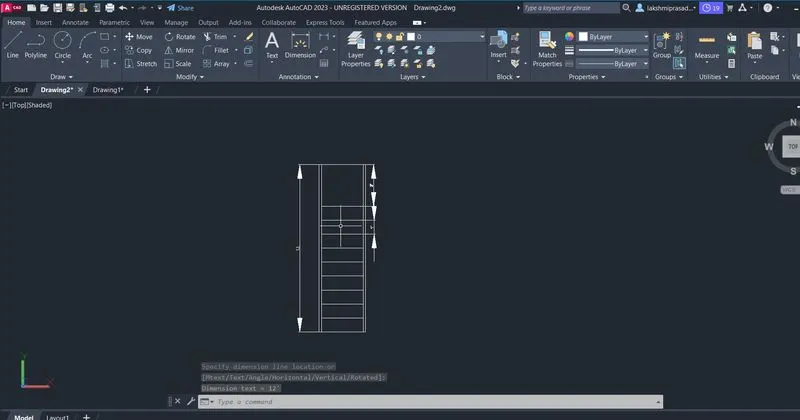
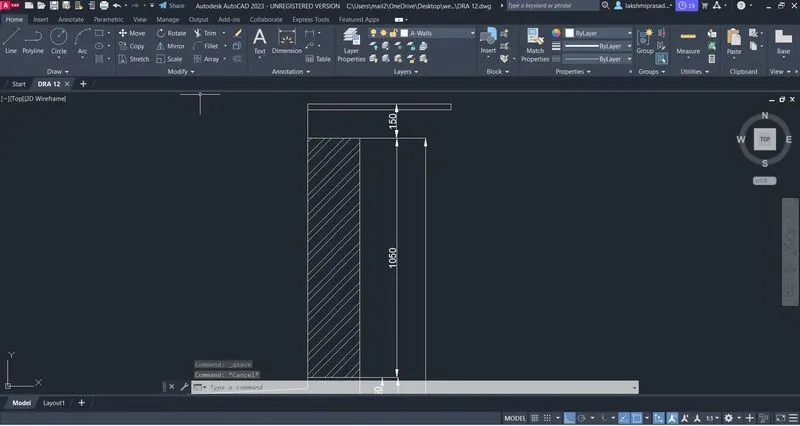
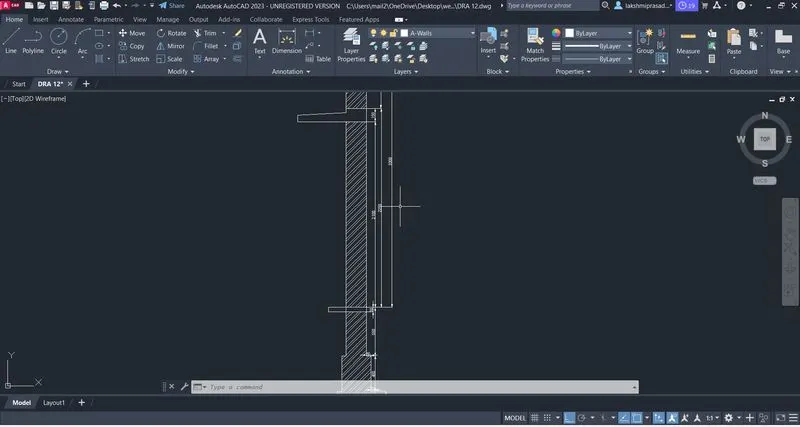
AIM: To create the 3d view of wall with spread footing:
procedure: open auto cad 3d.
set top view.
set units to decimal and mm.
set limits as 0,0 and 100,100.
now use line command and draw a line of 7500 vertically.
make an offset of 670mm
now join two vertical lines in up and down using the horizontal lines.
now make 3300mm offset for horizontal lines in top & bottom.
now make offset for vertcal lines as required.
now draw a door as shown.
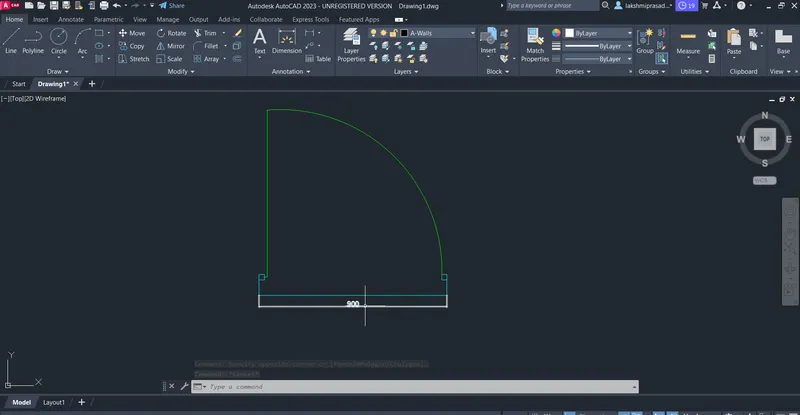
now place the doors in the walls as shown.
now hatch the walls as req in dimension.
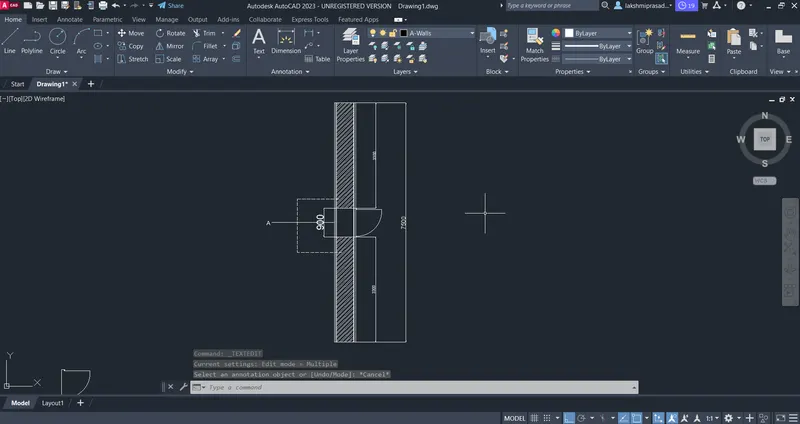
this is the top view.
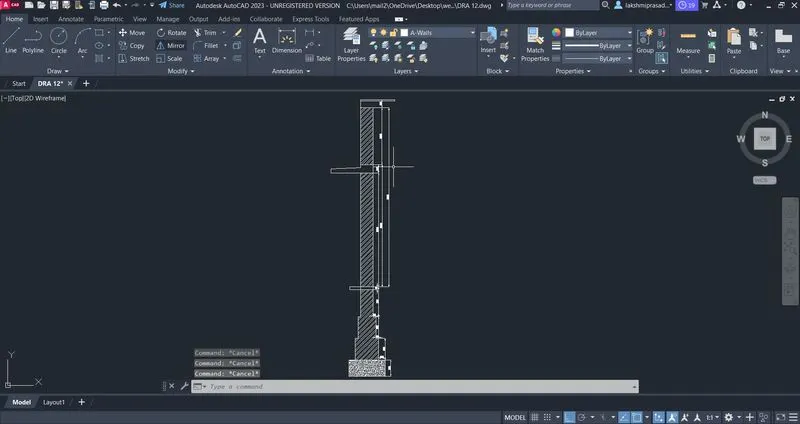
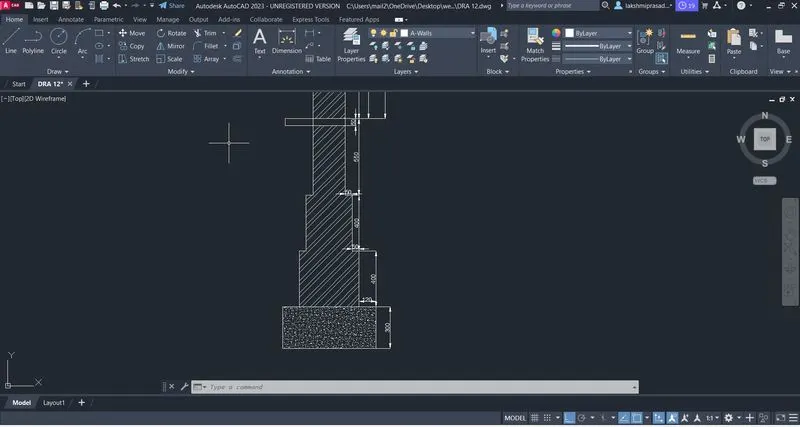
now we are drafting the section of wall footing.
now by using line command and rec command the section of wall footing drawn.
now give hatching whereever required.
now give dimnsions.