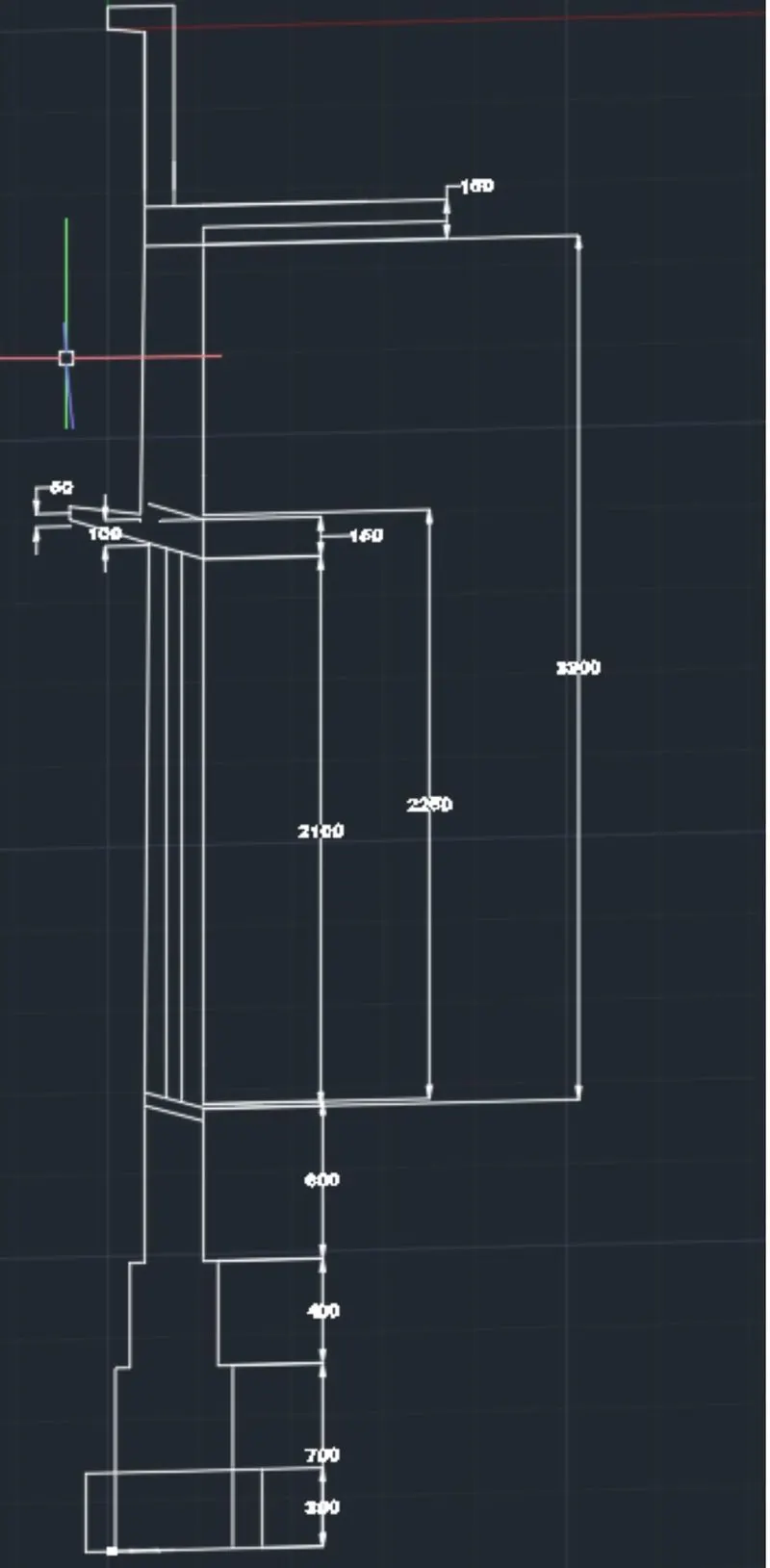
Creating 3D Isometric view of various structural elements in AutoCAD
CREATING 3D ISOMETRIC VIEW OF VARIOUS STRUCTURAL ELEMENTS IN AUTOCAD.
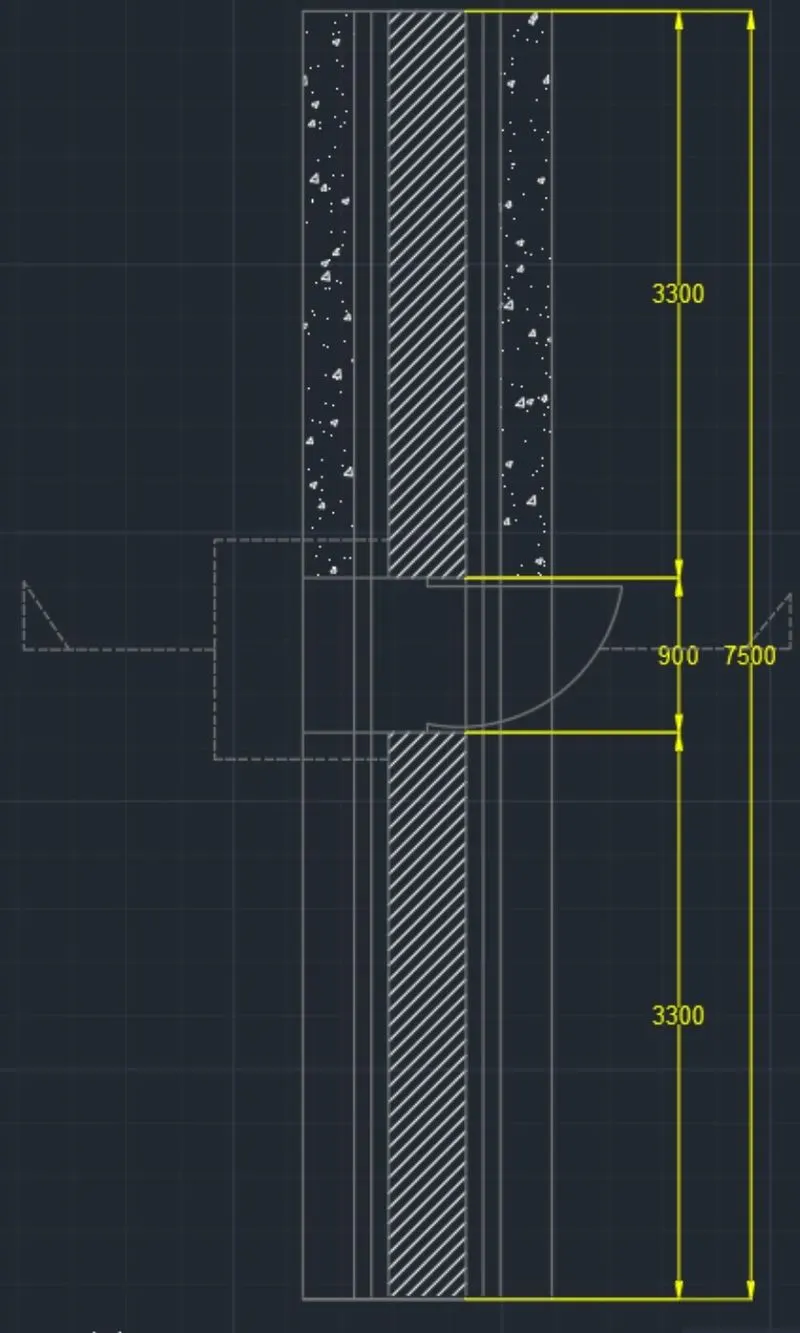
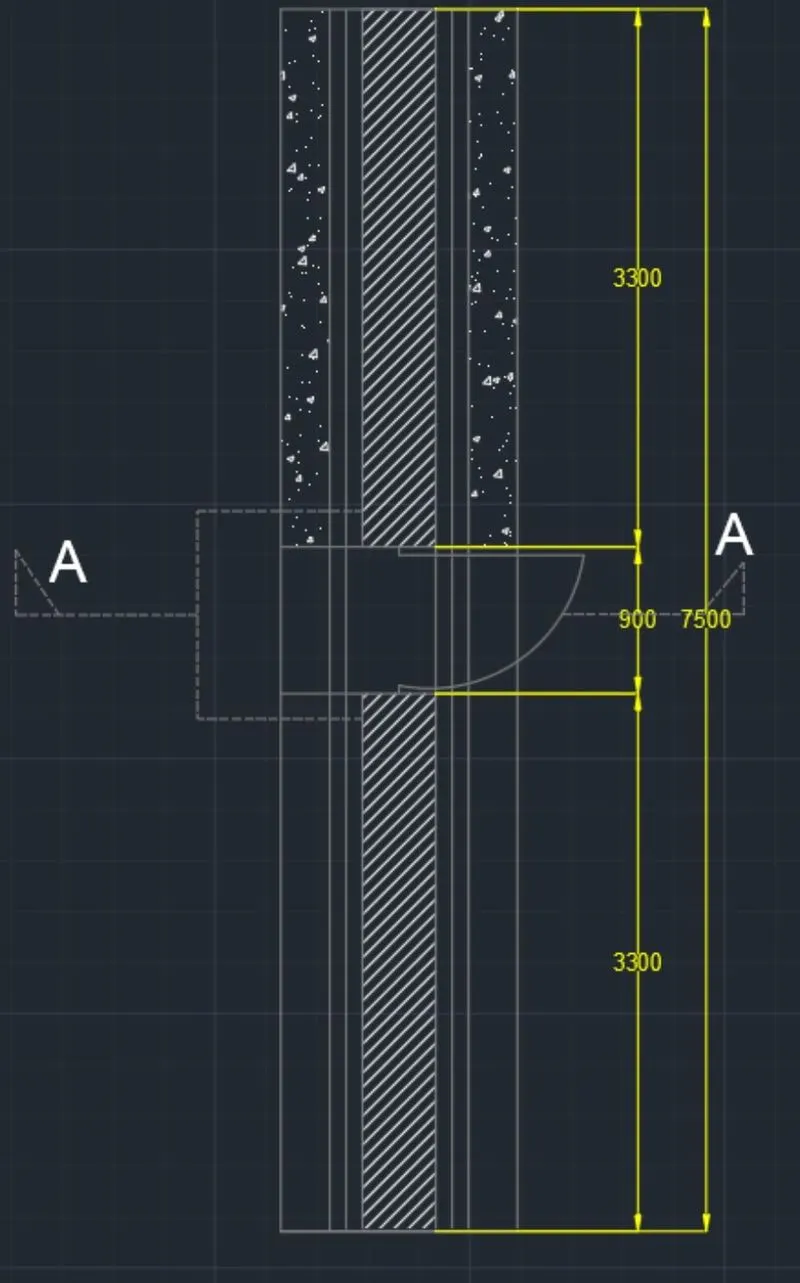
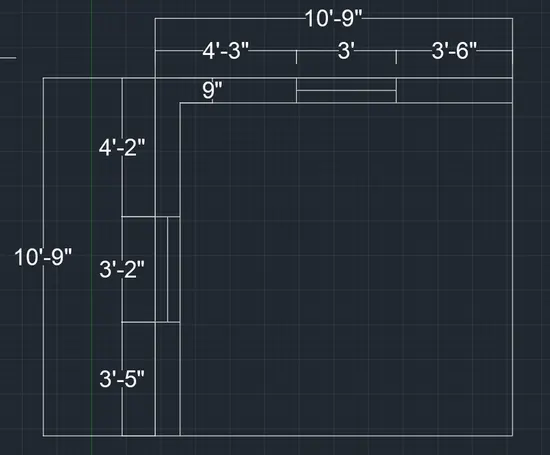
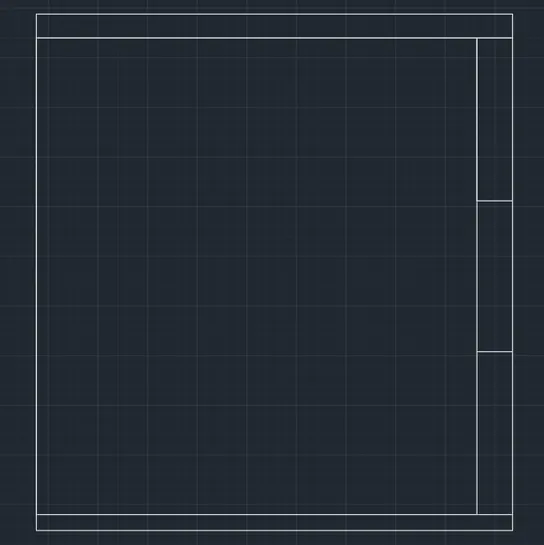
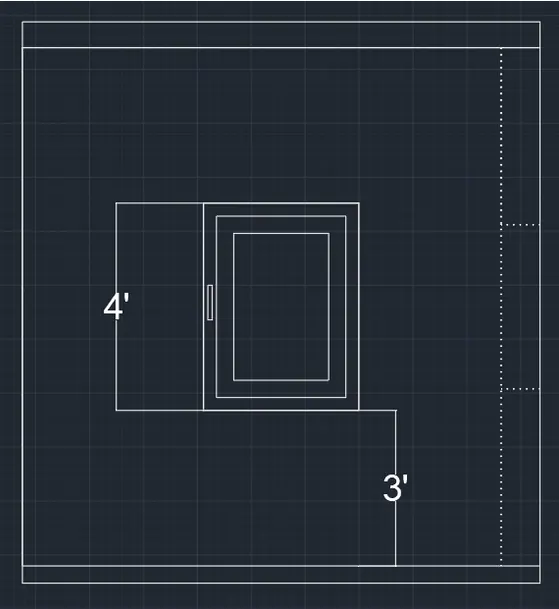
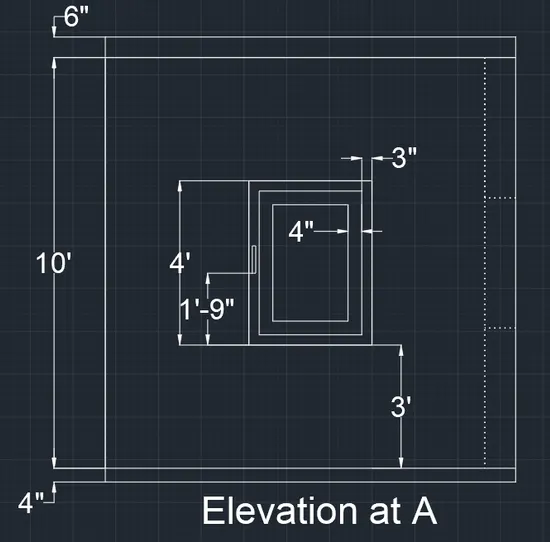
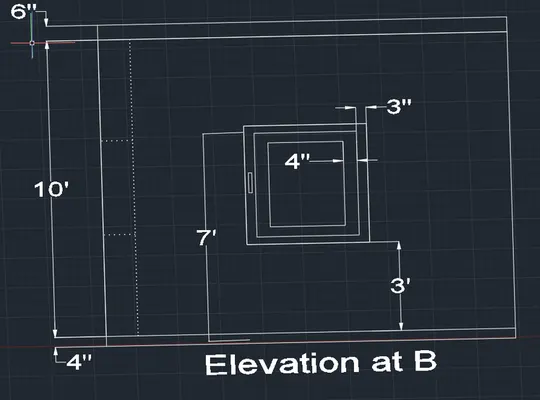
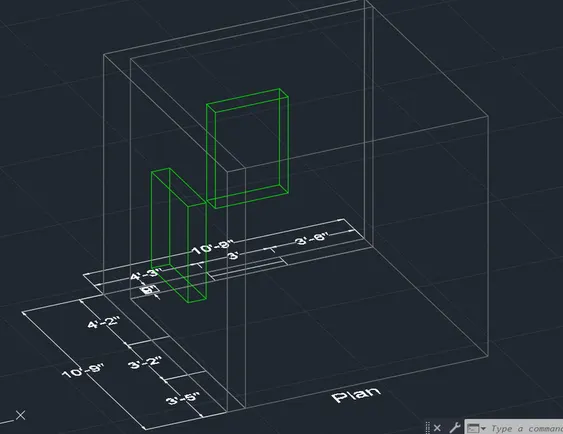
1.AIM: Create a 3D Isometric View of the building with plan and elevation using given figure.
PROCEDURE: Creation of 3D model includes following steps:
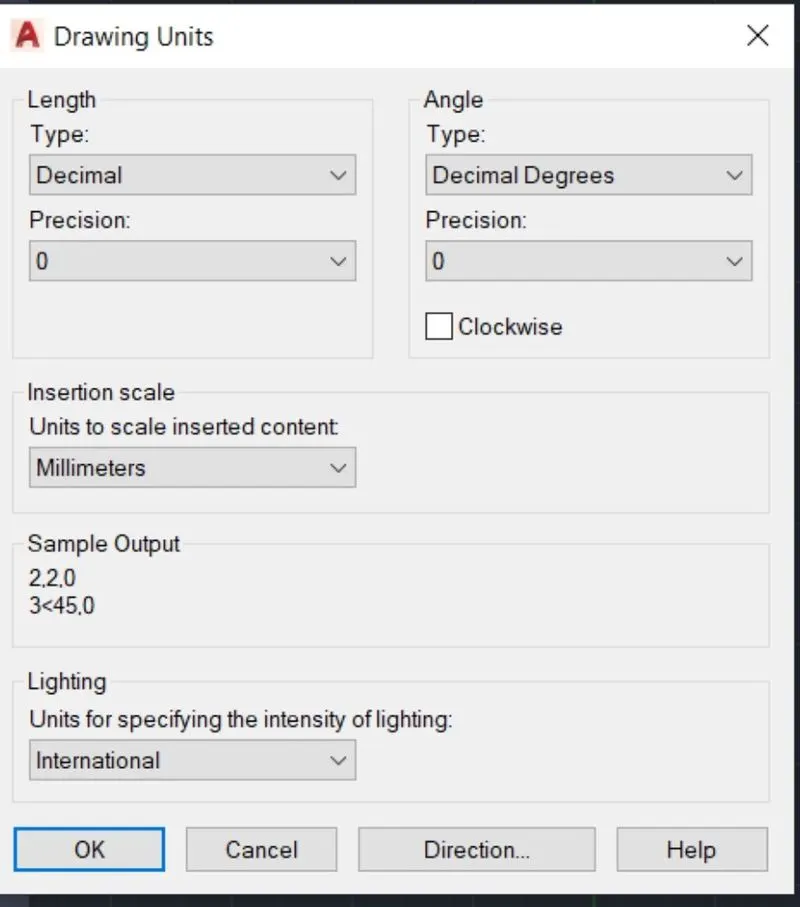
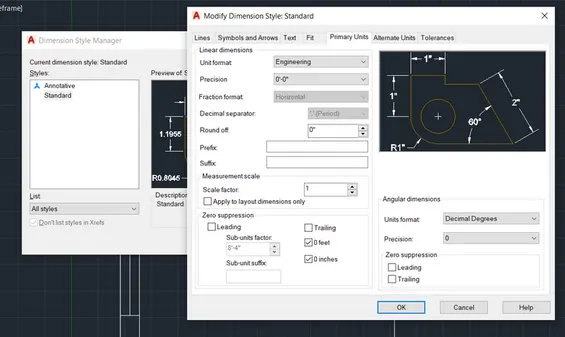
- First click 'UNITS' to change the given units in plan.
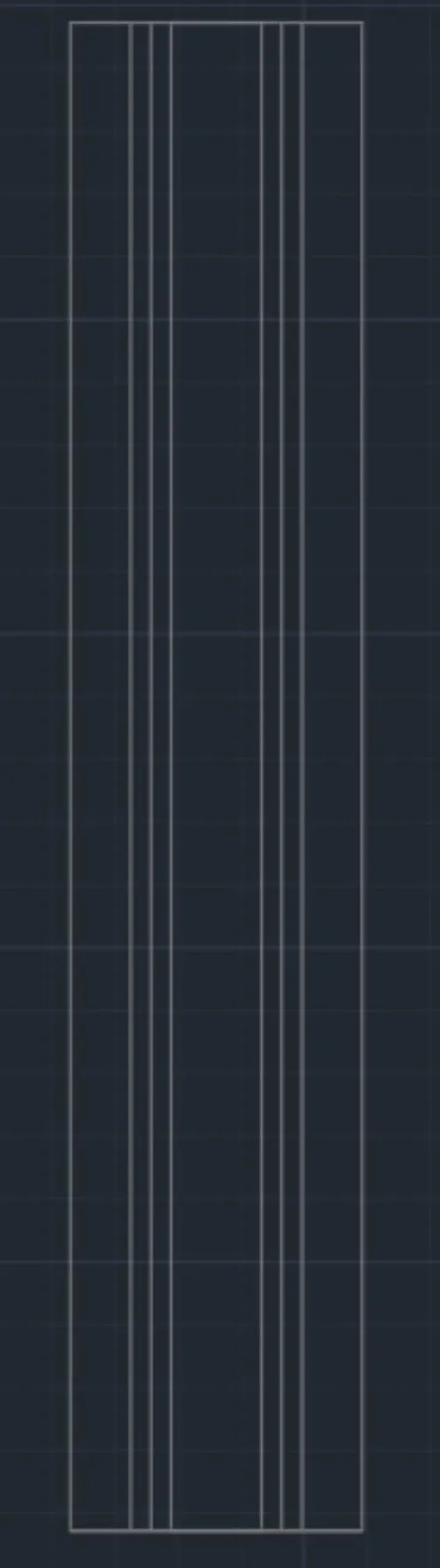
- Then click 'REC' rectangle command to start the plan.
- Then create the window opening as per given dimenssion.
- Now set offset the line by using 'OFF' command.
- Then 'DIM' command is used to show the dimenssion of paln.
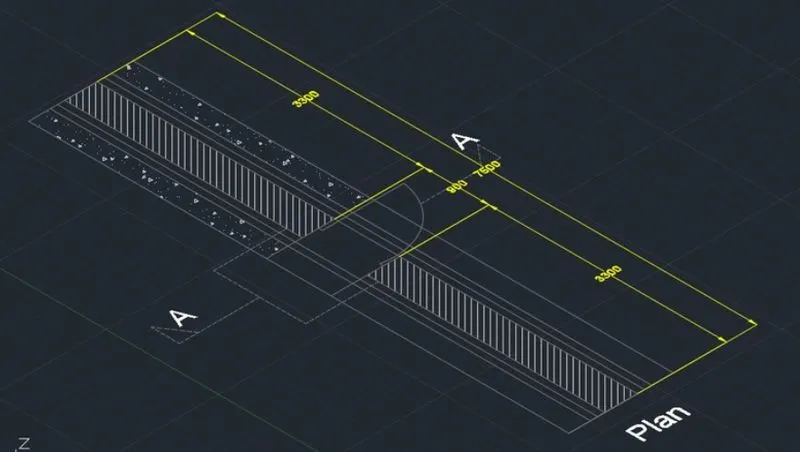
- After this click to view the plan in isometric view.then create the elevation along AA, BB of the plan.
- Elevation is created in the isometric view in Z Axis.
- Once both ELevation AA and BB is done and do dimenssioning of element.
- After finishing the drawing click 'SAVE' to save the drawing.
- Finally using the 'SNIPPING TOOL' take a screenshot of the drawing and save it for later.
RESULT: 3D MODEL OF GIVEN STRUCTURAL ELEMENT IS DRAFTED AND FIGURE OF MODEL IS SHOWN IN BELOW ATTACHED PICTURE.
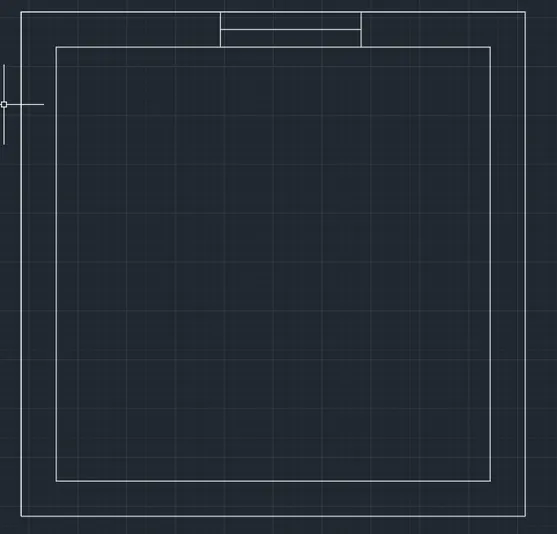
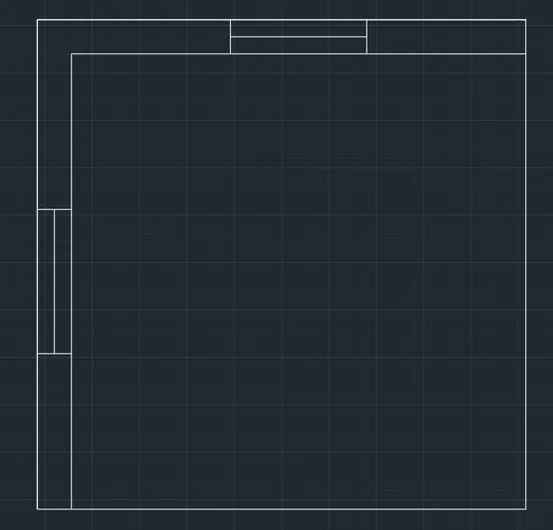
2.AIM: Create a 3D View of the building Facade as plan and elevation given figure.
PROCEDURE: Creation of 3D model includes following steps:
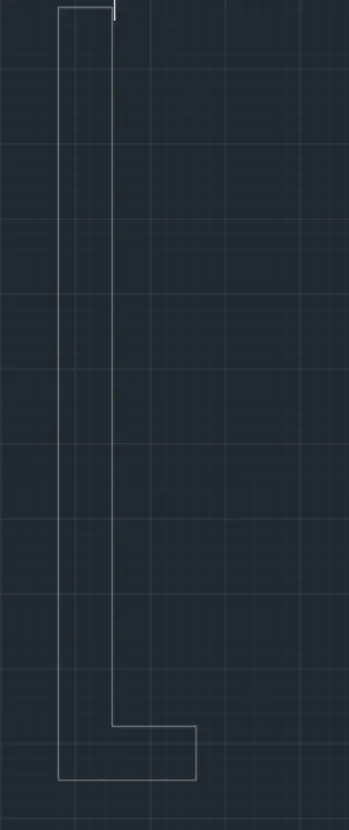
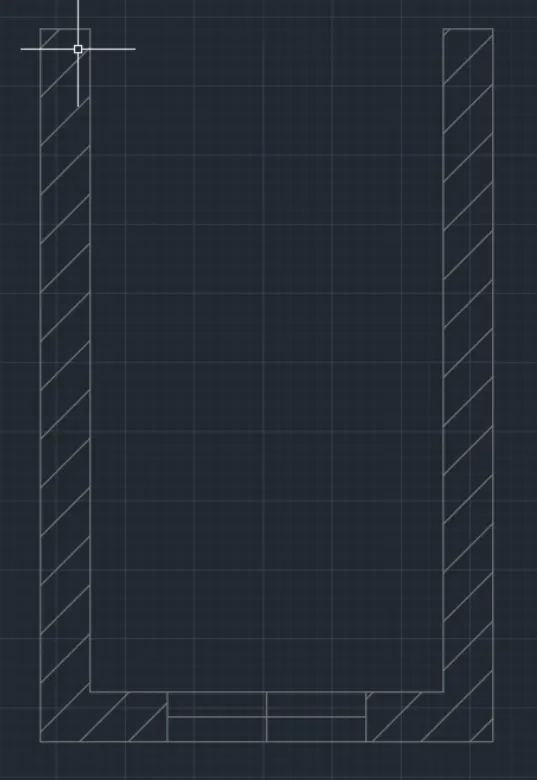
- Create the 2D & 3D view of the wall section plan and elevation view.
- First click 'UNITS' to change the given units in plan.
- Click 'L' line to draw the wall.
- Then create a 3D view in Z Axis of wall plan.
- Then draw the elevation of the wall as per given drawing figure.
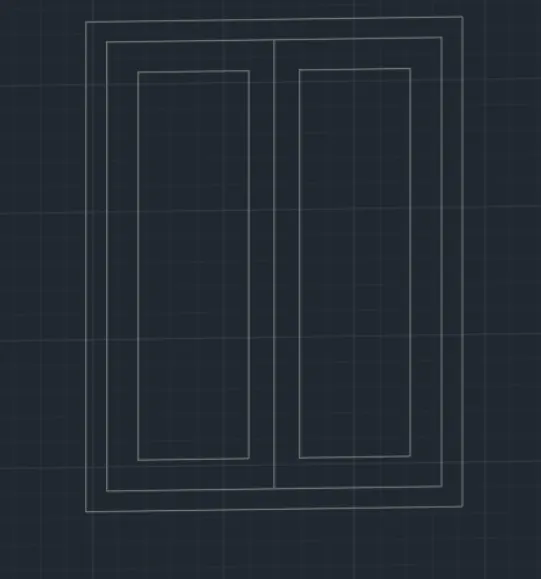
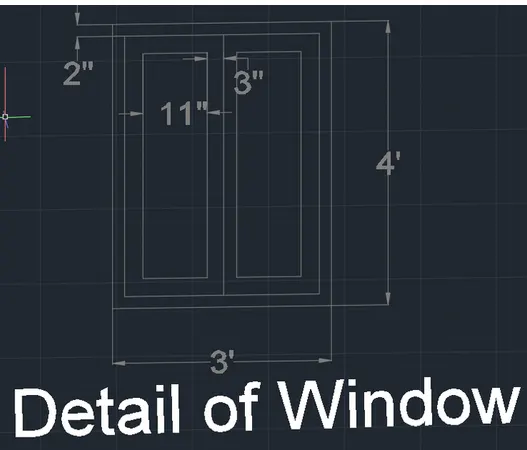
- Then draw the window drawing using line 'L' and rectangle'REC' commands.
- Click 'UCS' command to mention the diemnssion and click the correct axis to draw.
- Then 'DIMLINER' command is used to show the dimenssion of paln.
- After finishing the drawing click 'SAVE' to save the drawing.
- Finally using the 'SNIPPING TOOL' take a screenshot of the drawing and save it for later.
RESULT: 3D MODEL OF GIVEN STRUCTURAL ELEMENT IS DRAFTED AND FIGURE OF MODEL IS SHOWN IN BELOW ATTACHED PICTURE.
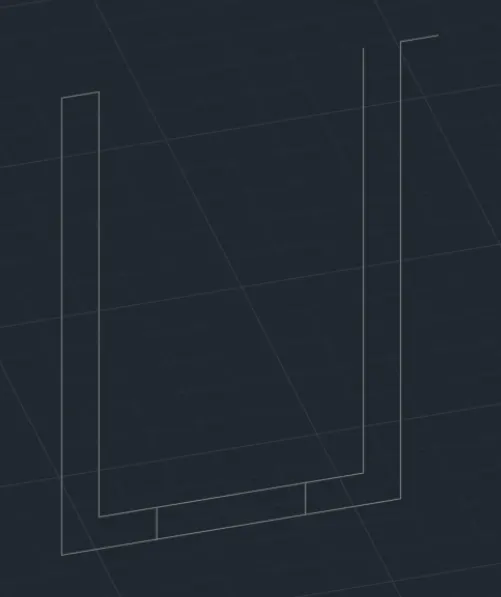
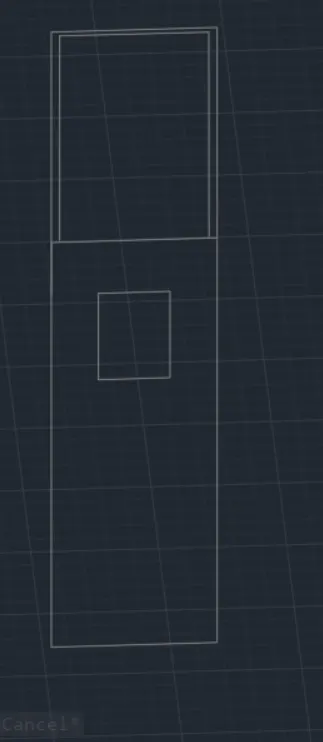
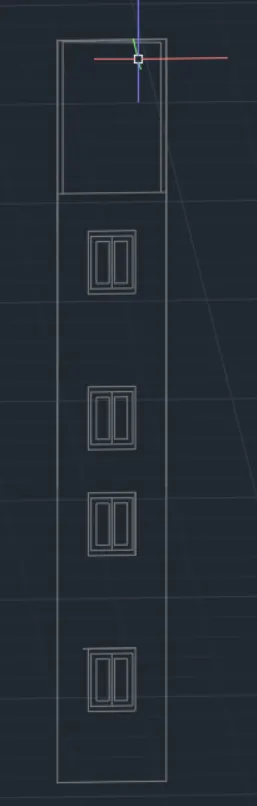
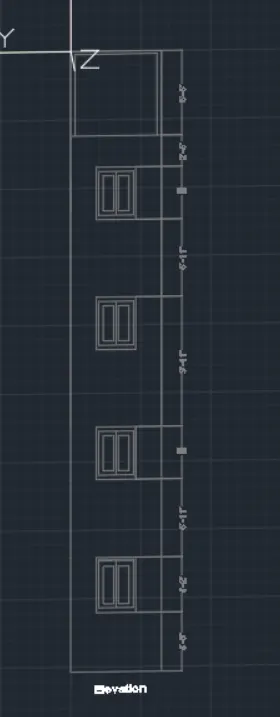
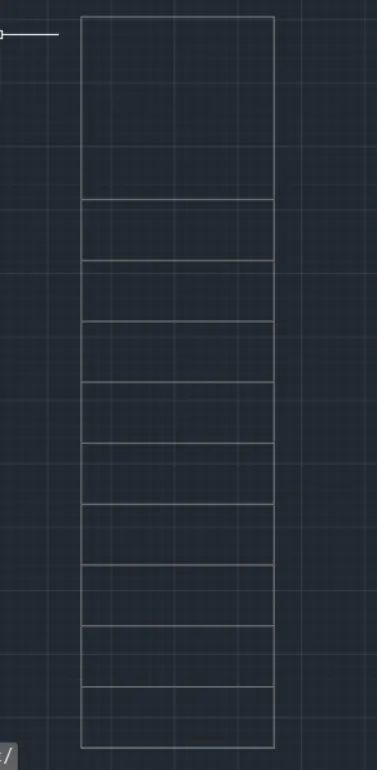
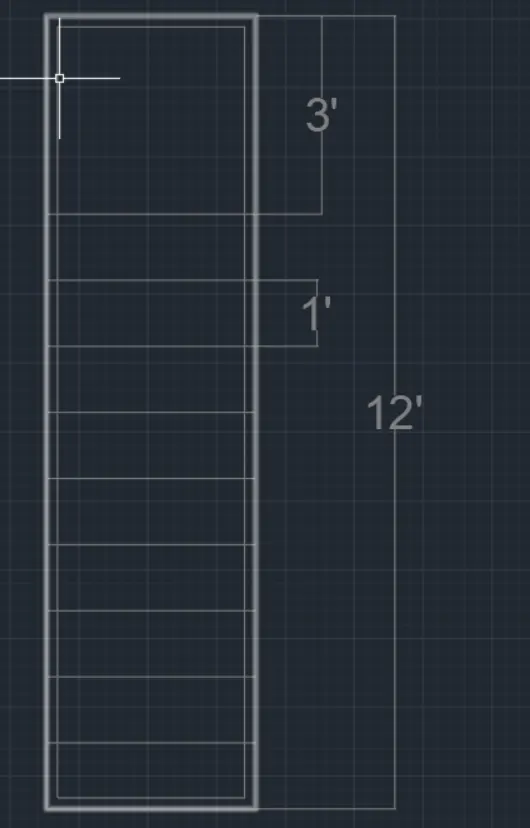
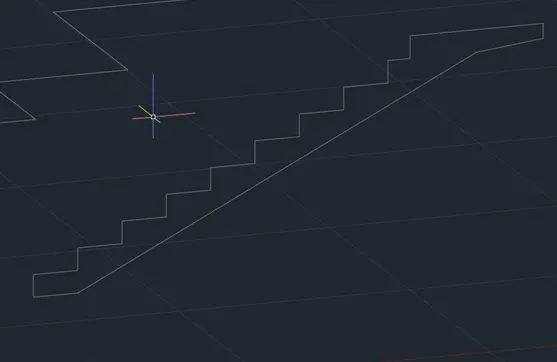
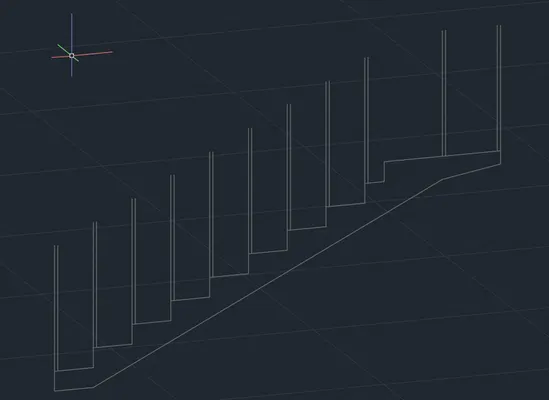
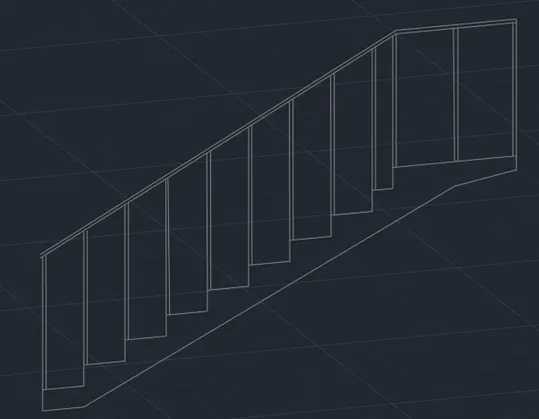
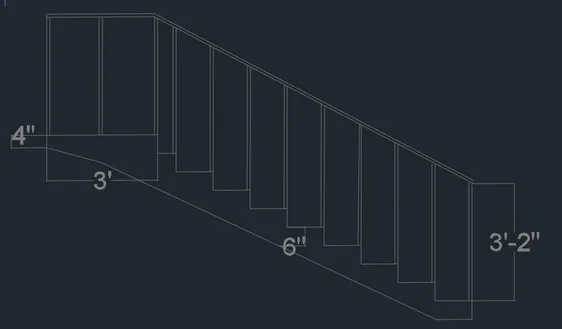
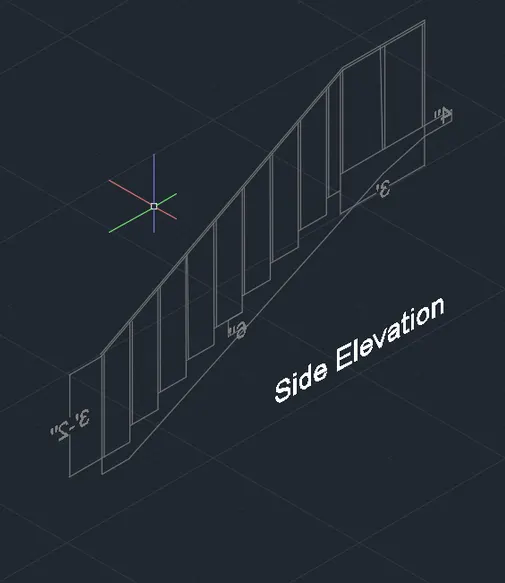
3.AIM: Create a 3D View of the Stair with railing as plan and elevation given figure.
PROCEDURE: Creation of 3D model includes following steps:
- Create the 3D view of the staircase with railing given plan and elevation view.
- First click 'UNITS' to change the given units in plan.
- Click 'L' line and 'REC' rectangle command to draw the stairs.
- Then create a 3D view in Z Axis of stairs plan.
- Then draw the elevation of the stairs as per given drawing figure.
- Draw the elevation in Y and Z axis as per given diemession.
- Then create the handrail with steps using line command.
- Click 'UCS' command to mention the diemnssion and click the correct axis to draw.
- Then 'DIMLINER' command is used to show the dimenssion of paln.
- After finishing the drawing click 'SAVE' to save the drawing.
- Finally using the 'SNIPPING TOOL' take a screenshot of the drawing and save it for later.
RESULT: 3D MODEL OF GIVEN STRUCTURAL ELEMENT IS DRAFTED AND FIGURE OF MODEL IS SHOWN IN BELOW ATTACHED PICTURE.
4.AIM: Create a 3D View of the Stair with railing as plan and elevation given figure.
PROCEDURE: Creation of 3D model includes following steps:
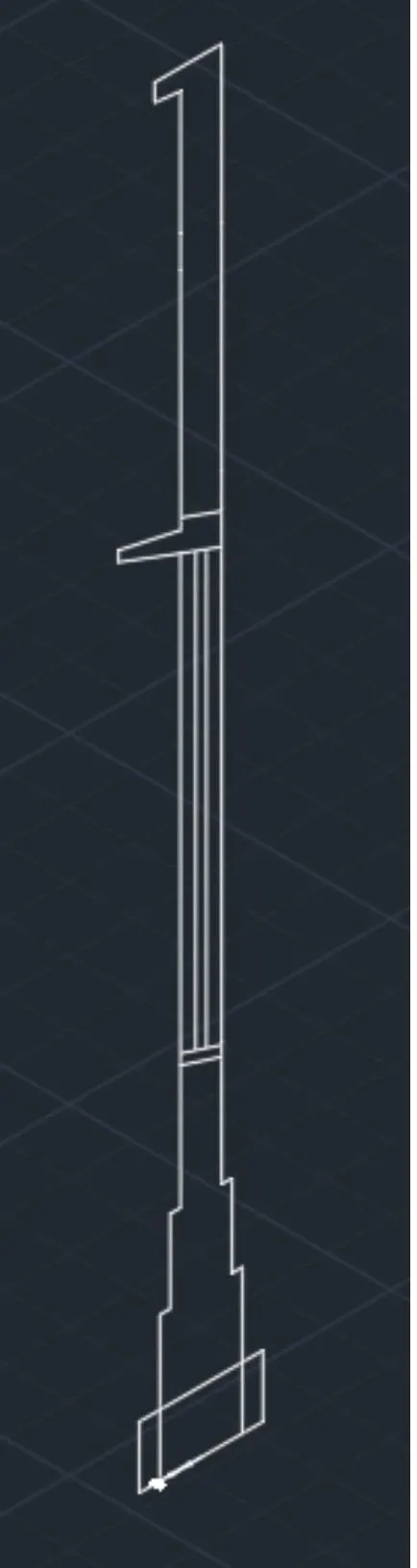
- Create the 3D view of the wall with spread footing given plan and elevation view.
- First click 'UNITS' to change the given units in plan.
- Click 'L' line and 'REC' rectangle command to draw the footing.
- Then create a 3D view in Z Axis of wall plan.
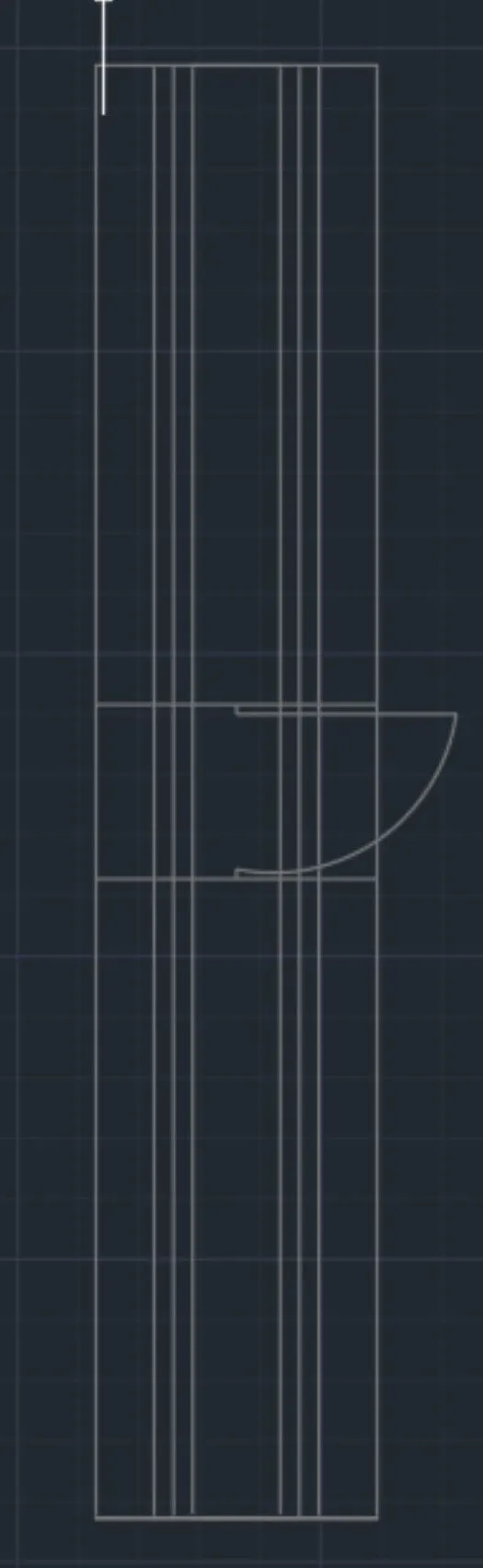
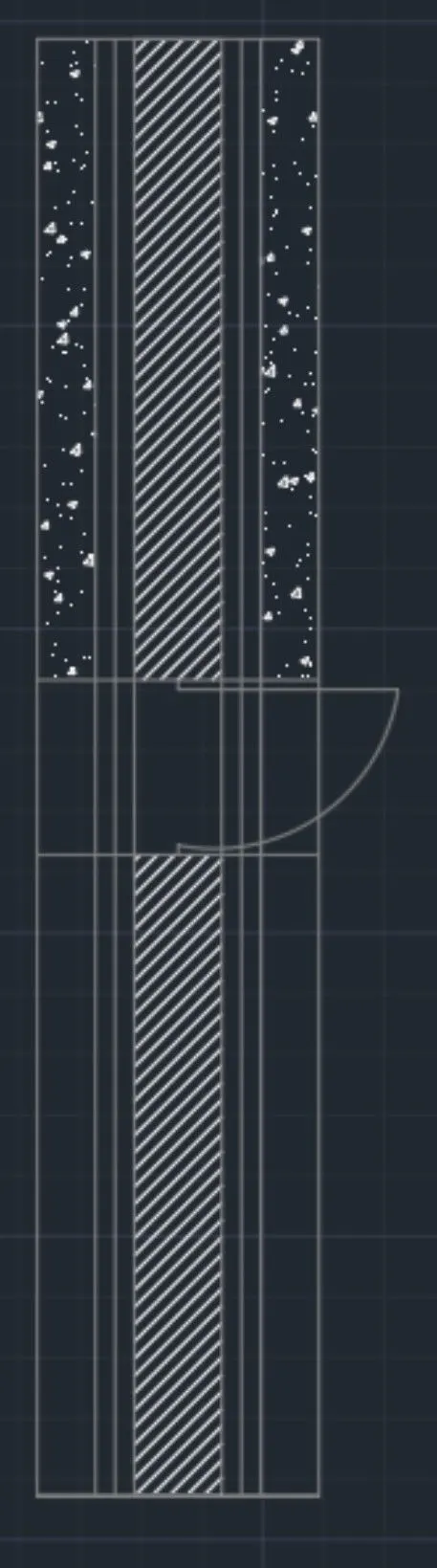
- Then create the door for the wall using line command.
- Click 'CIRCLE' command to create the door opening.
- Then create the wall spread footing as per given diemession.
- Then create the wall footing using line command.
- Then Click 'HAT' to hatch the section portion.
- Click 'UCS' command to mention the diemnssion and click the correct axis to draw.
- Then 'DIMLINER' command is used to show the dimenssion of paln.
- After finishing the drawing click 'SAVE' to save the drawing.
- Finally using the 'SNIPPING TOOL' take a screenshot of the drawing and save it for later.
RESULT: 3D MODEL OF GIVEN STRUCTURAL ELEMENT IS DRAFTED AND FIGURE OF MODEL IS SHOWN IN BELOW ATTACHED PICTURE.