Creating a Floor plan, Footing detail and Isometric view using AutoCad
AIM : To Create the plan , footing details and isometric view by using AUTOCAD.
PROCEDURE:
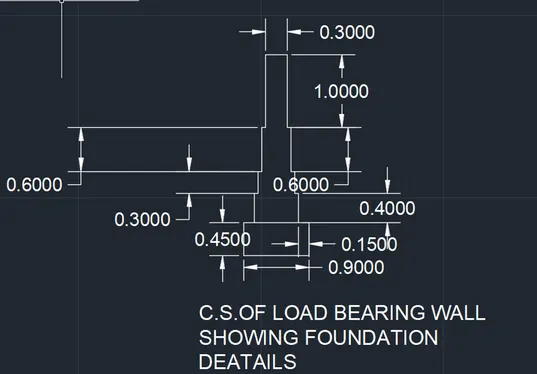
Q-1: CROSSECTION OF FOUNDATION FOR LOAD BEARING WALL.
- In this drwaing we create a C/S of foundation details for load bearing wall.
- Now we can see the command used for this drawing as step by step.
Steps:
- First check the dimension as we start before line.
- Next start with a L line command.
- Draw a line as per dimension.
- After completing the drawing we need to show dimensions of footing.
- Click " DIM " command to create a dimension.
- And once dimension and naming is done using " TEXT " command then using snipping tool take a screenshots of drwaing in autocad.
- finally click save as to save picture.
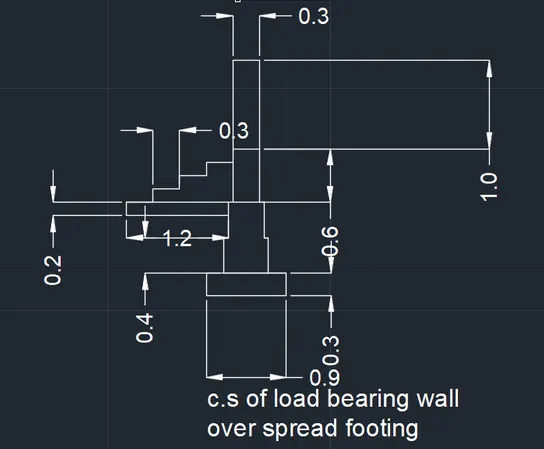
Q-2: CROSSECTION OF FOUNDATION FOR LOAD BEARING WALL OVER SPREAD FOOTING :
- In this drwaing we create a C/S of foundation details for load bearing wall over spread footing.
- Now we can see the command used for this drawing as step by step.
Steps:
- First check the dimension as we start before line.
- Next start with a L line command.
- Draw a line as per dimension.
- After completing the drawing we need to show dimensions of footing.
- Click " DIM " command to create a dimension.
- And once dimension and naming is done using " TEXT " command then using snipping tool take a screenshots of drwaing in autocad.
- finally click save as to save picture.
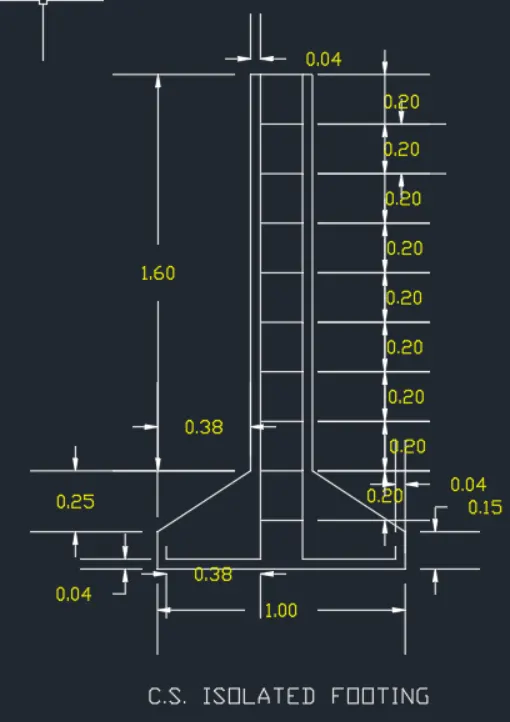
Q-3: CROSSECTION OF ISOLATED FOOTING :
- In this drwaing we create a C/S of isolated footing.
- Now we can see the command used for this drawing as step by step.
Steps:
- First check the dimension as we start before line.
- Next start with a L line command.
- Draw a line as per dimension.
- Here we use F8 for othomode command to draw inclined line.
- For stirups/ rings we use " ARRAY " option to multiple line to draw in row.
- After completing the drawing we need to show dimensions of footing.
- Click " DIM " command to create a dimension.
- And once dimension and naming is done using ' TEXT ' then using snipping tool take a screenshots of drwaing in autocad.
- finally click save as to save picture.
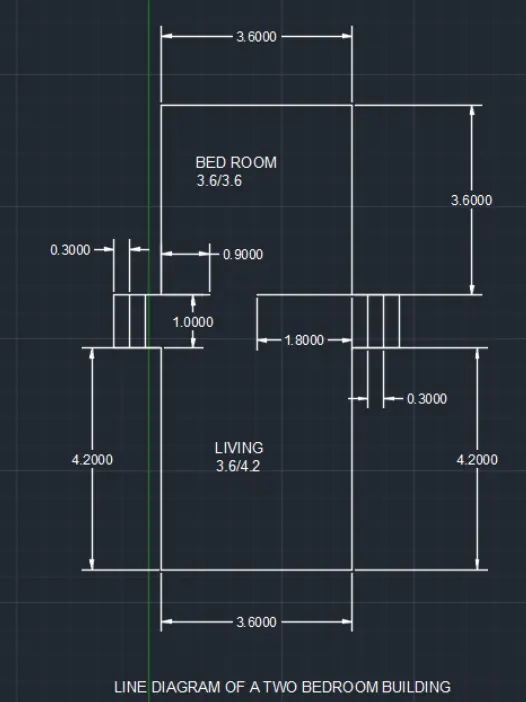
Q-4: LINE DIAGRAM OF TWO BEDROOM BUILDING :
- In this drwaing we create a line diagram of two bedroom building.
- Now we can see the command used for this drawing as step by step.
Steps:
- First check the dimension as we start before line.
- Next start with a L line command.
- Draw a line as per dimension.
- Using text command mention the rooms name.
- Using mirror command to mirror the object to the ooposite side.
- Here we use F8 for othomode command to draw inclined line.
- For stirups/ rings we use " ARRAY " option to multiple line to draw in row.
- After completing the drawing we need to show dimensions building objects.
- Click " DIM " command to create a dimension.
- Use " CONTINOUS DIMENSION " & " MATCH PROPERTIES " for same alignement of dimension , for text height, width at same values.
- And once dimension and naming is done then using snipping tool take a screenshots of drwaing in autocad.
- finally click save as to save picture.
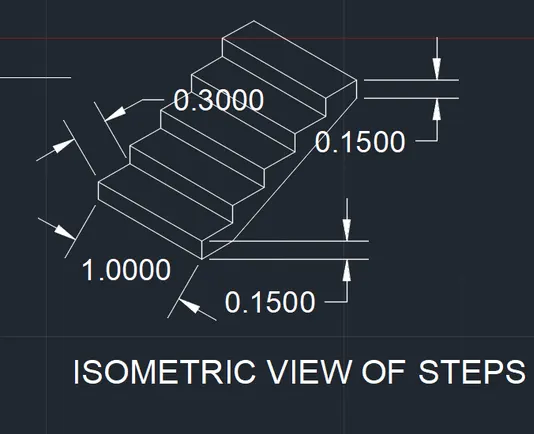
Q-5: ISOMETRIC VEIW OF STEPS :
- In this drwaing we create a Isometric Veiw of Steps.
- Now we can see the command used for this drawing as step by step.
Steps:
- First check the dimension as we start before line.
- Click on ISOMETRIC DRAFTING to create a isometric veiw.
- Next start with a L line command.
- Draw a line as per dimension.
- In Isometrc veiw we have 3 option to draw namely Isometric Right , Isometric Left , Isometric Top used for draw lines.
- Isometric right goes in right,top and straight.
- Isometric left goes in left,top and straight.
- Isometric Top goes on top, left, right.
- After completing the drawing we need to show dimensions of objects.
- Click " DIM " command to create a dimension.
- And once dimension and naming is done using ' TEXT ' then using snipping tool take a screenshots of drwaing in autocad.
- finally click save as to save picture.
Q-6: ISOMETRIC VEIW OF GABLE WALL :
- In this drwaing we create a Isometric view of Gable wall.
- Now we can see the command used for this drawing as step by step.
Steps:
- First check the dimension as we start before line.
- Click on ISOMETRIC DRAFTING to create a Gable wall.
- Next start with a L line command.
- Draw a line as per dimension.
- In Isometrc veiw we have 3 option to draw namely Isometric Right , Isometric Left , Isometric Top used for draw lines.
- Isometric right goes in right,top and straight.
- Isometric left goes in left,top and straight.
- Isometric Top goes on top, left, right.
- After completing the drawing we need to show dimensions of objects.
- Click " DIM " command to create a dimension.
- And once dimension and naming is done using ' TEXT ' then using snipping tool take a screenshots of drwaing in autocad.
- finally click save as to save picture.
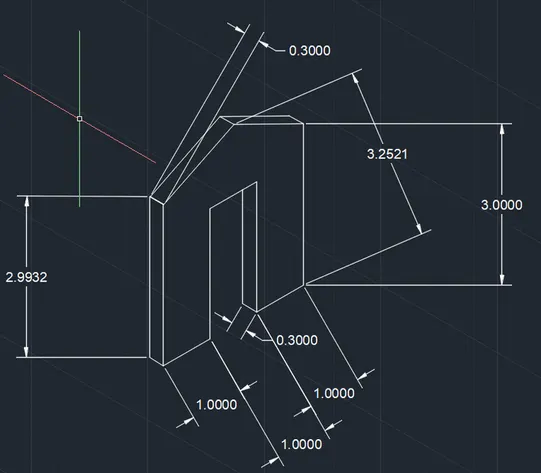
RESULT : Isometric Views of given objects are shown in above figures.