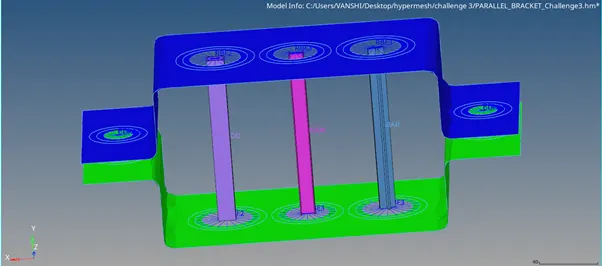
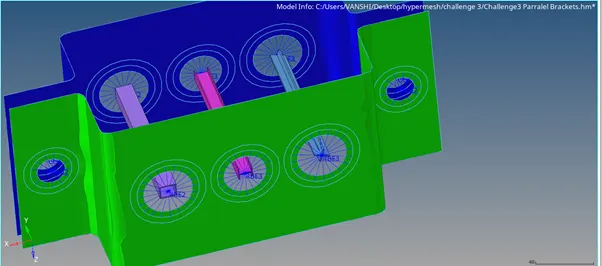
Creating 1D elements on Bracket with Hyperbeam
OBJECTIVE:
To create 1D elements on the following component with given cross-section and DOF
- Rod element:- with only translational DOF and RBE2 link
Cross-Section: BOX- Dimension a= 12 mm
dimension b=10 mm
Thickness t= 0.75 mm
- Beam element:- with all DOF and RBE3 link
Cross-Section: I Section- Dimension a= 8 mm
Dimension b= 10 mm
Dimension c= 8.5 mm
Thickness t1= 0.75 mm
Thickness t2= .6 mm
Thickness t3= .6 mm
- Bar element:- with only x and y DOFs With RBE3 link
Cross-section: CROSS section- Dimension DIM1= 5 mm
Thickness DIM2= 1.2 mm
Dimension DIM3= 10 mm
Thickness DIM4= 1.2mm
- & e. apply the massof magnitude 10 with RBE2 link
- Join the two components with Spring elements
PROCEDURE:
1.Import the geometry in hyperworks (file type .IGES).
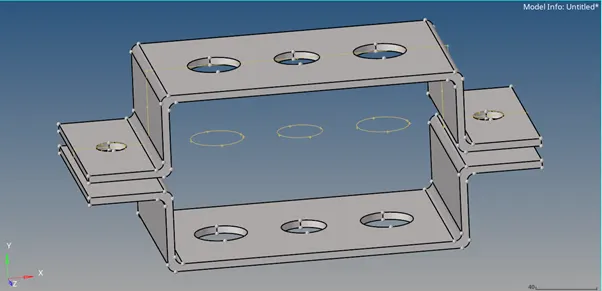
2. Create two mid surfaces of each bracket from Geometry Tab >Mid Surfaces and create.
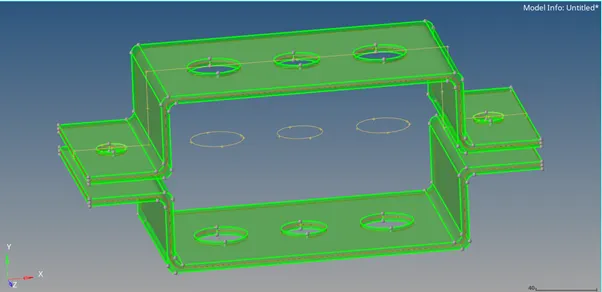
3. Delete all the solid part from the graphic window for better visualization of mid surfaces.
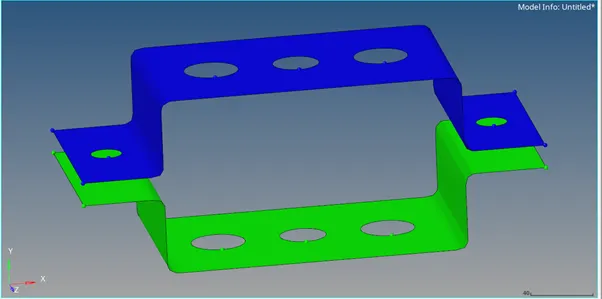
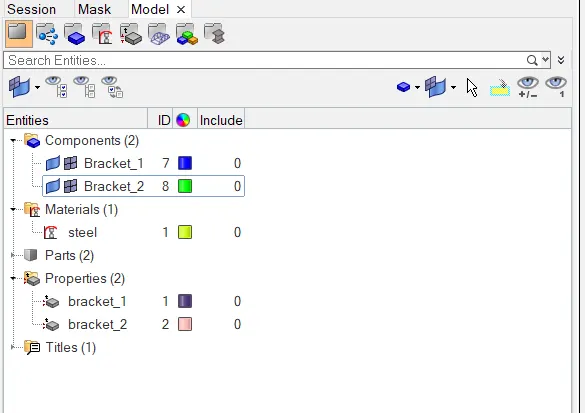
4. Create the material (I created Steel) and property for each bracket. Assign the material to both the property and property to the respective.
brackets.
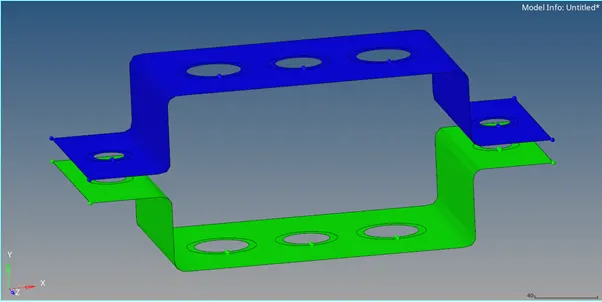
5. Create the Washer Split on each hole with an offset radius of 5 units for achieving a fine and accurate mesh.
6. Create a mesh 2D > automesh. Take element size as 7 and mixed mesh type.
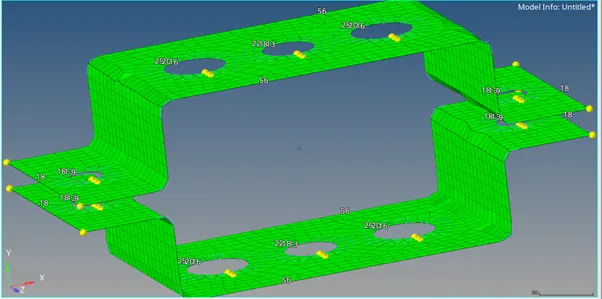
7. Refine the mesh around the washer splits and hide the mid surface. Show only mesh.
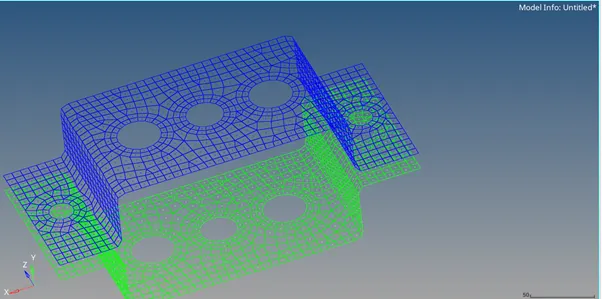
8. Create RBE2 and RBE3 elements as per the details given the objective.
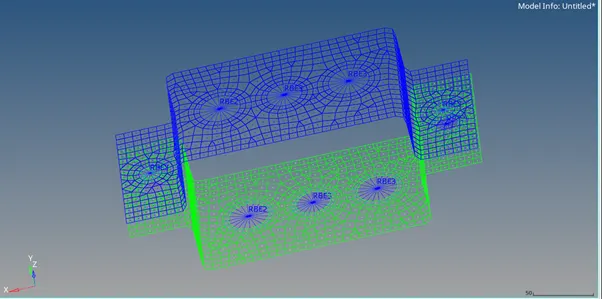
9. Go to 1D Hyperbeam and create:
- Rod element:- with cross-section: BOX
Dimension a= 12 mm
Dimension b=10 mm
Thickness t= 0.75 mm
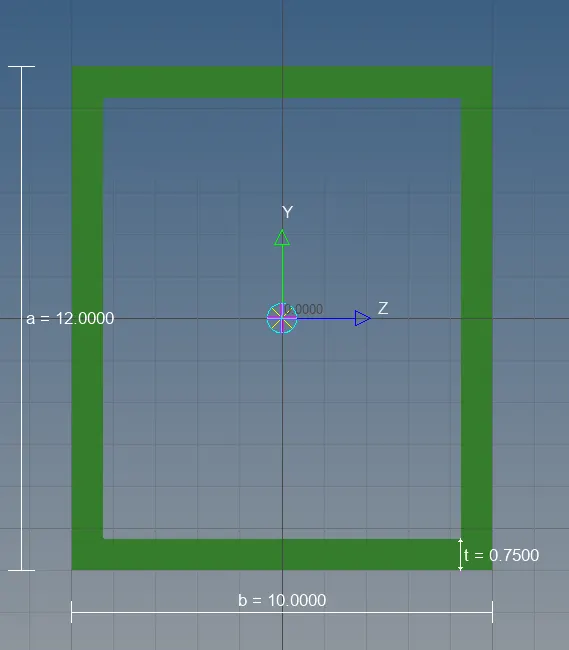
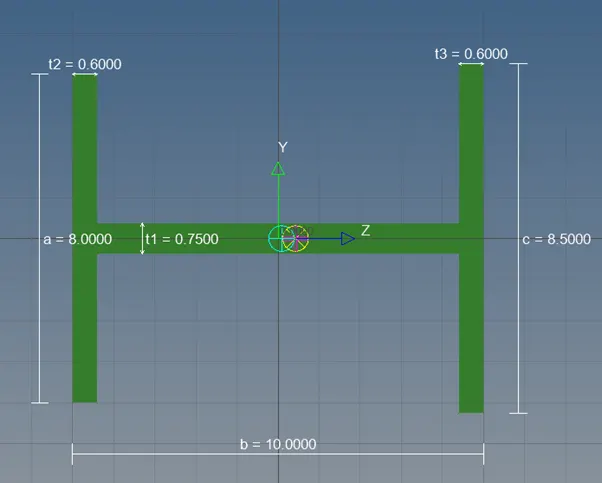
2.Beam element:- with cross-section: ISection-
Dimension a= 8 mm
Dimension b= 10 mm
Dimension c= 8.5 mm
Thickness t1= 0.75 mm
Thickness t2= .6 mm
Thickness t3= .6 mm
3. Bar element:- with cross-section: CROSSsection-
Dimension DIM1= 5 mm
Thickness DIM2= 1.2 mm
Dimension DIM3= 10 mm
Thickness DIM4= 1.2mm
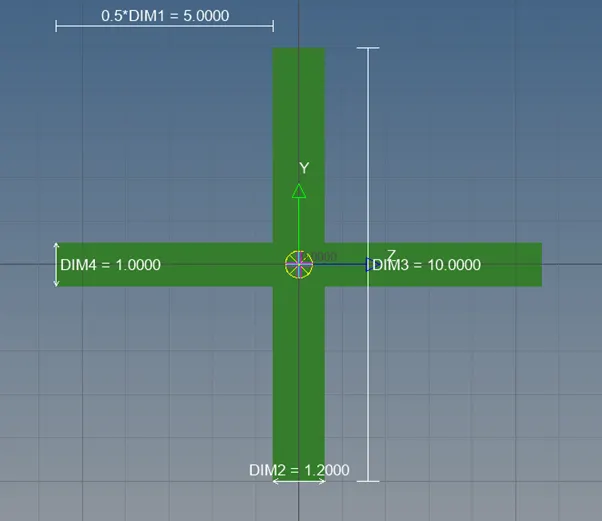
10. Create different elements like Bar, Beam, Rod Spring as per the given data in objective.
Also create components: Bar, Beam, Rod, Spring.
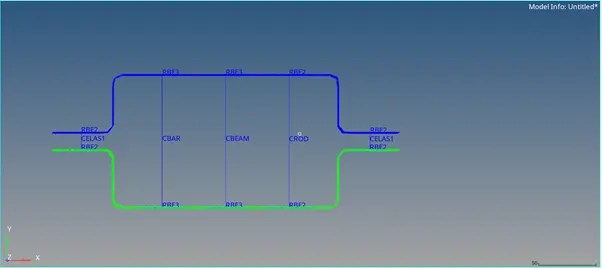
- From the organize tool / bar/beam assign the property and element type to components and add hyperbeam.
After changing the representation from 1D traditional to 1D detailed Element representation.
Also create mass with magnitude 10 with element type as CMASS1 (I created with CONM2).
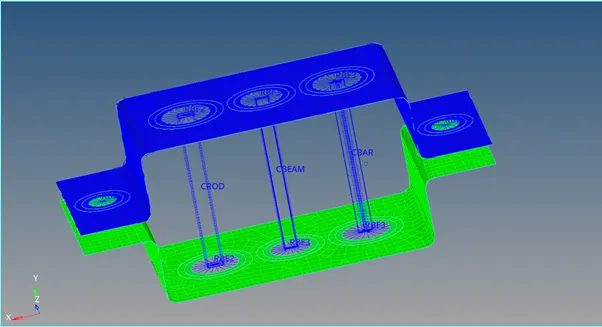
- Change the view from wireframe elements to Transparent elements for better understanding. And unhide the surface.
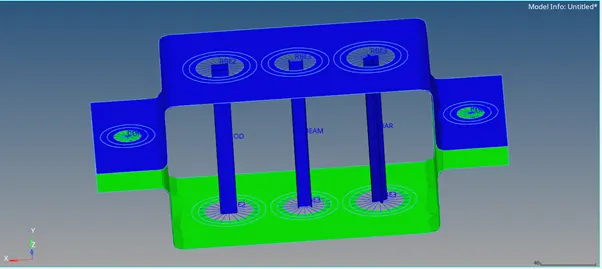
RESULT:
Update the property and color of bar, beam and rod from components. The final model will look as below.