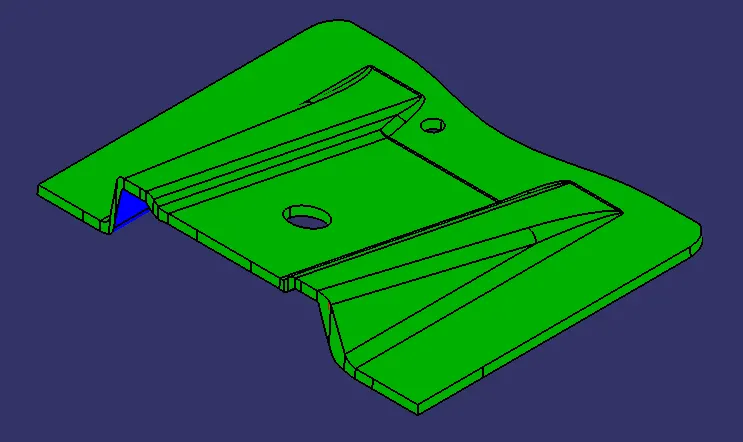
Base Bracket Design
OBJECTIVE: To create the Base-Bracket's Plastic Component using the Class A Surface that is provided.
Firstly, we have to create the required Tooling-Axis for the given Class A Surface while meeting the requirements of the necessary Draft Angle & then perform the Draft-Analysis Operation on the Class A Surface itself.
After that, we have to create the required Class B & Class C Surfaces using which we have to create the Final Plastic Component and perform Draft Analysis on it as well.
MAIN REPORT:
Types of Surfaces and their importance for an Automotive Plastic Designer:
- Class A Surface: Class A is an aesthetic surface with the highest quality finish. Most Class A Surfaces for an Automotive Component are made using 'Autodesk-Alias' based on the final Concept-Sketch. All Class A surfaces should have 'Curvature-Continuity' which means the continuity between the surfaces should share the same boundary. It is taken as a reference by the Automotive Plastic Designer to create 'Class B' and 'Class C' Surfaces.
- Class B Surface: The Class B Surface resides below the Class A Surface at a certain thickness. It is created using Engineering Principles that consist of all the necessary features such as Ribs, Bosses, Snaps, etc. This surface isn't visible to the observer from the outside.
- Class C Surface: The Class C Surface is the surface created between the Class A and Class B surface to join them with each other.
Now, we will begin by checking the State of Connectivity for the Class A Surface and ensure that there are no gaps between the surfaces as all the surfaces should be joined well together with each other and shouldn't consist of any discontinuities between them.
Our Class A Surface:
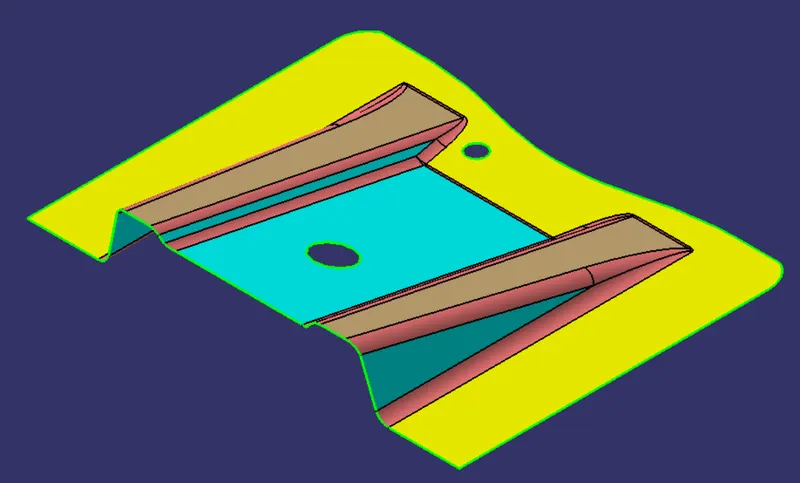
There are two methods to inspect the State of Connectivity for the Class A Surface:
1. Using the 'Join' Command' from the 'Operations-Toolbar':
First, we'll click on 'Join Command' and select our Class A Surface. Then, we have to ensure that the 'Check Connexity' option is marked as shown in the images below. It will check for any gaps that may be present between our surfaces. we'll click on the 'Preview' button and if it doesn't show any 'Connexity Error' on our surface then it means our surface is well-connected and there are no discontinuities between it.
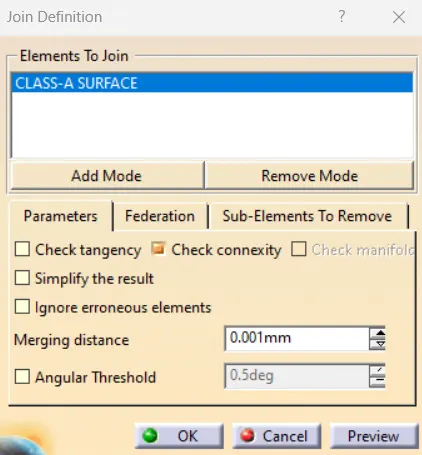
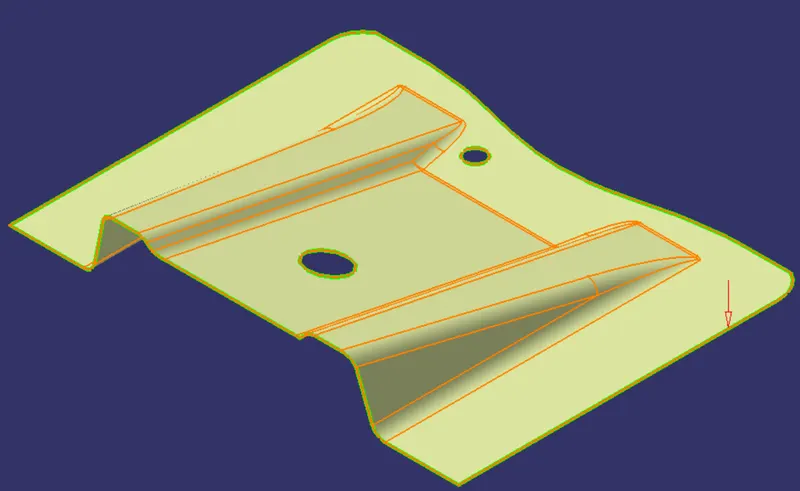
In our case, there are no 'Connexity Errors' for the given Class A Surface.
In case there is a 'Connexity Error', we can fix it by increasing the 'Merging-Distance' and then performing a join operation between those surfaces.
2. Using the 'Boundary' Command' from the 'Operations-Toolbar':
In this case, we have to click on the 'Boundary' command and then select the Class-A Surface. After that, we'll click on the 'Preview' button to highlight all the boundaries that are on the Class-A surface and check if there are any internal boundaries other than the boundaries of the holes.
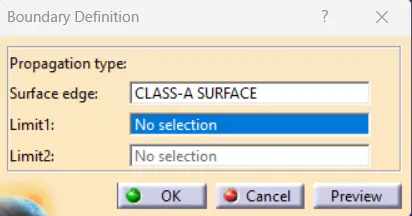
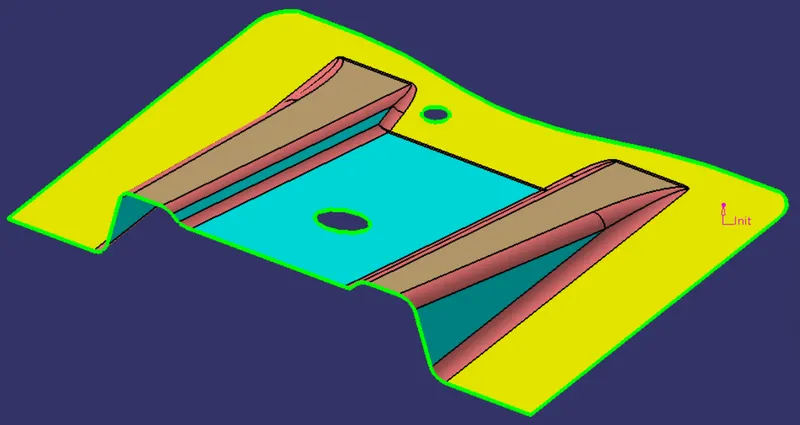
In our case, there are three boundaries present on the Class-A Surface one of which is the Outer-Boundary, and two of which are the boundaries for respective holes present on the surface hence we can conclude that all the surfaces are well connected.
CREATION OF THE TOOLING AXIS :
At first, we'll create a point at the center of the hole to place an Axis-System there for our reference.
We'll create a point using the Point Type of 'Circle/Sphere/ Ellipse Center' from the 'Point-Definition' Dialog Box.
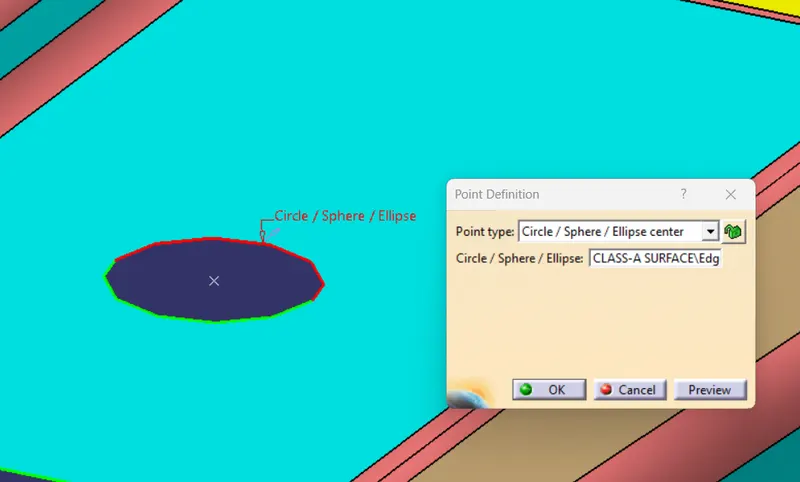
After that, we'll place the Axis System over it while ensuring that the 'Current' option is not marked.
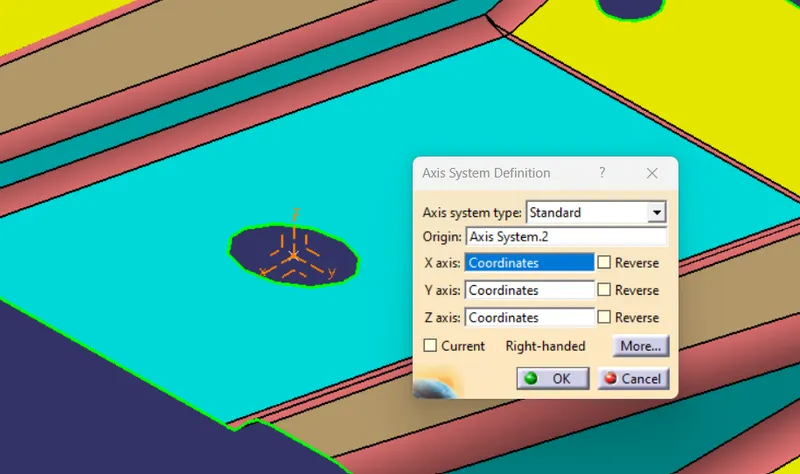
Now, we have to preview the Class A Surface from various planes to inspect and analyze if it is suitable to be selected as the Tooling Axis.
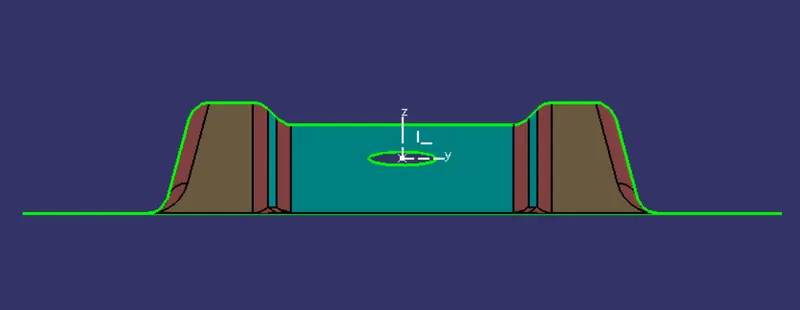
1. When viewing from the ZY-Plane, only one hole is visible to us and if we take X-Axis as the direction of the Tooling-Axis then we have to use a Side-Core which will result in increasing the expense to manufacture the required part.
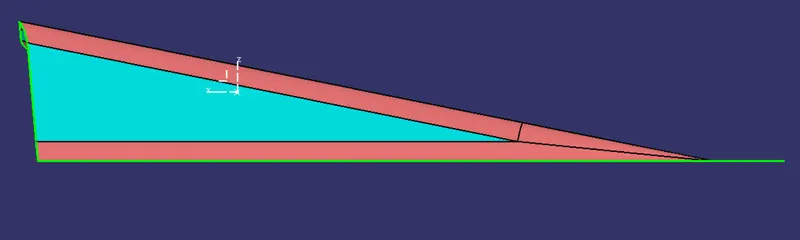
2. When viewing from the ZX-Plane, none of the holes are visible as well as the 'Slot-Region' in the Middle Section is not visible hence Tooling Axis cannot be created in the Y-Axis.
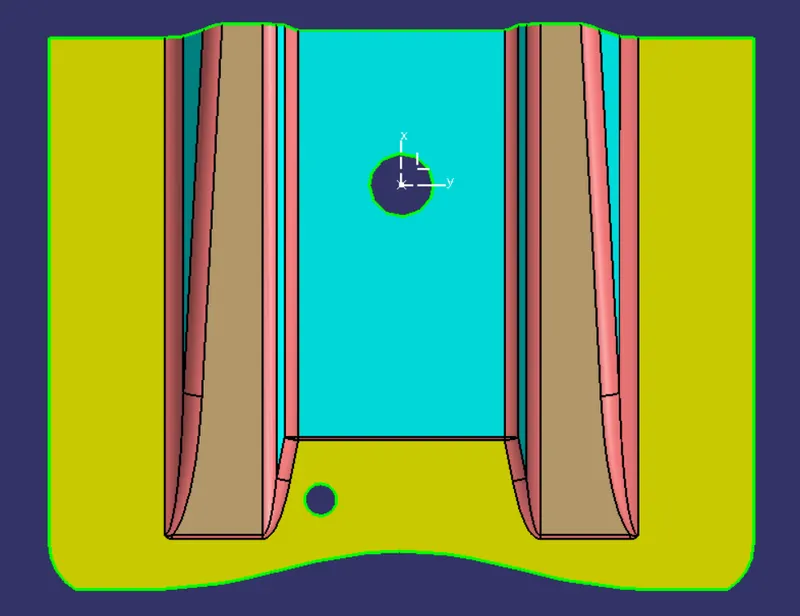
3. When viewing from the XY-Plane, both holes are visible as well as the Flat-Length Surface, and hence if we create the Tooling Axis along the Z-direction it will allow us to avoid the use of Side-Core and as result will bring down the cost for manufacturing each part.
Now, when we're viewing the Class A Surface from the ZX-Plane while assuming our Direction of Draft-Angle is along the Z-direction, we can conclude that none of the surfaces will be problematic while tooling along this plane.
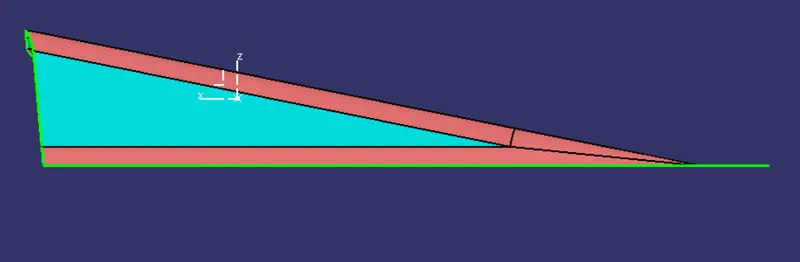
Although, When viewing the Class A Surface from the ZY-Plane we are not entirely sure if every surface will be cleared for drafting along the Direction of the Draft Angle. We have to ensure that none of the faces are completely parallel along the respective Tooling-Axis.
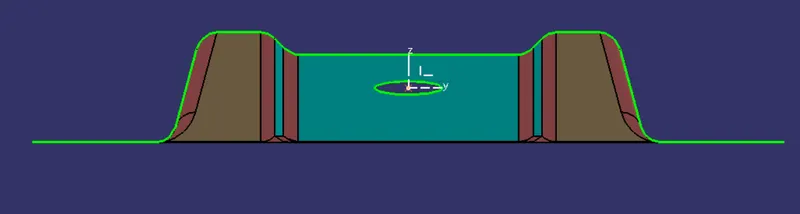
If we have a hole in our Class A Surface or a larger flat surface than the Main Tooling-Axis is generally created W.R.T that hole or surface as otherwise if we don't consider or Main Tooling-Axis along the direction then we have to implement the use of Side-Core to build that hole which will eventually result in increasing the overall manufacturing cost of that component.
To verify this, we're going to create a 'Dummy Tooling-Axis' along the Z-direction that is created from the center point of the hole in the Middle-Section that will be used eventually to create an Intersection for Class A Surface along the Dummy Tooling-Axis.
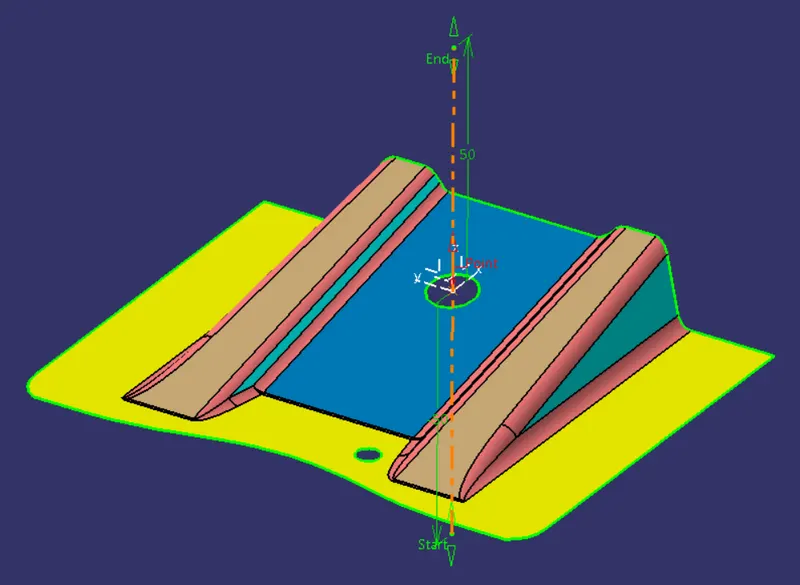
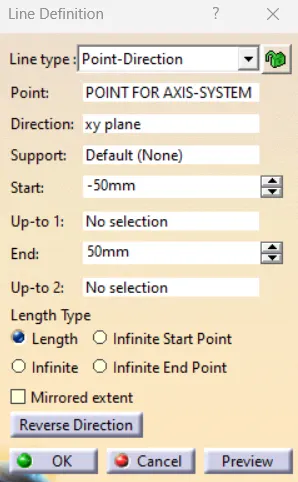
Next, we will perform Draft Analysis on the Class A Surface itself:
Before starting with a Draft Analysis Operation, we will go to the 'Customize View Parameters' option under the 'View Toolbar'. Then we will enter the 'Customize View Mode' where we will go under the 'Mesh' option and select 'Material' and press 'OK'.
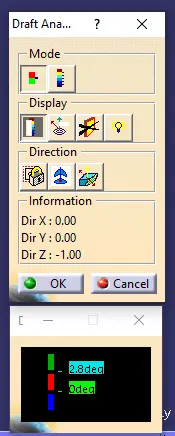
To start the Draft Analysis in the 'Generative Surface Design' Workbench, we will go to 'Insert' and then look for the option called 'Analysis'. Once found, we will go under that and click on 'Feature Draft Analysis. This will open the 'Draft Analysis' Dialogue box. There, we will ensure that under 'Mode' we have selected 'Quick Analysis', under 'Display' we will select 'Show or Hide the Color Scale' and then select '3 Degrees' as the permissible draft angle. Then, under 'Direction' we will choose the icon with the symbol of the compass on it which stands for 'Use the Compass to define the new current draft direction'.
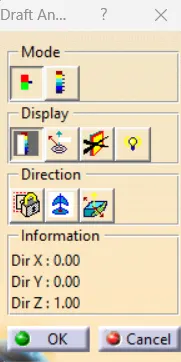
As soon as we click on the last option, our compass will move from its initial position and then we will have to zoom out and find the compass as shown below:
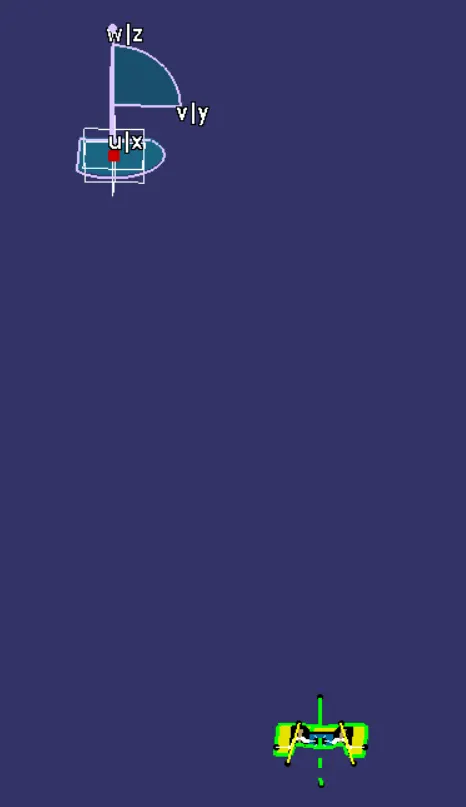
Once we find it, we will click on the red dot and drag it toward our Class A Surface and temporarily place it anywhere on the surface. Once we have placed it on our Class A Surface, we will zoom in on the Class A Surface and click on the Red Dot of the Compass again to place it onto our Main Tooling Axis along which our Draft-Angles are made.
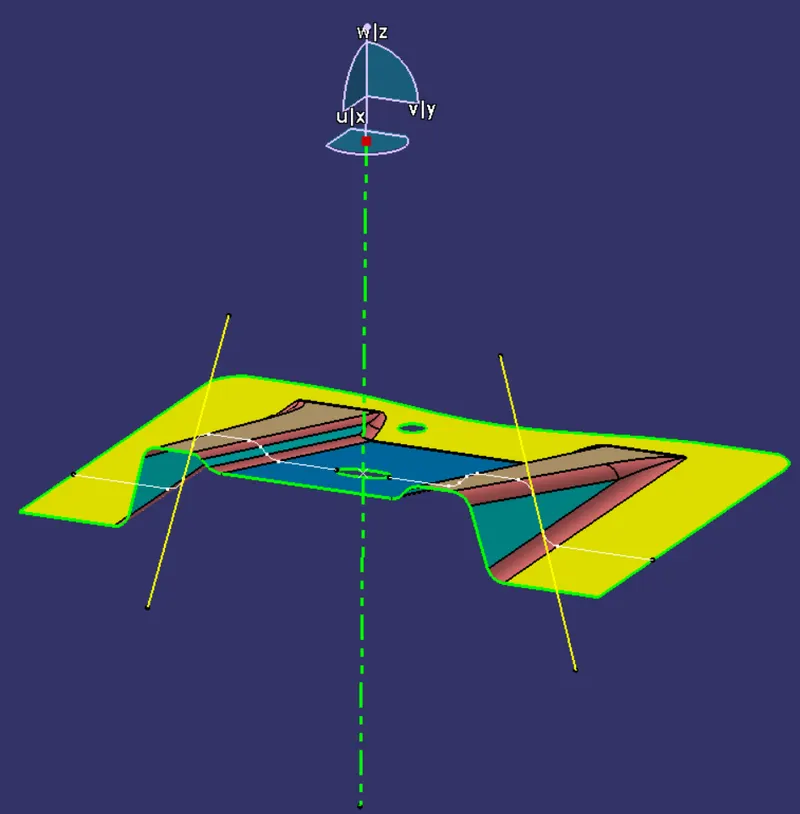
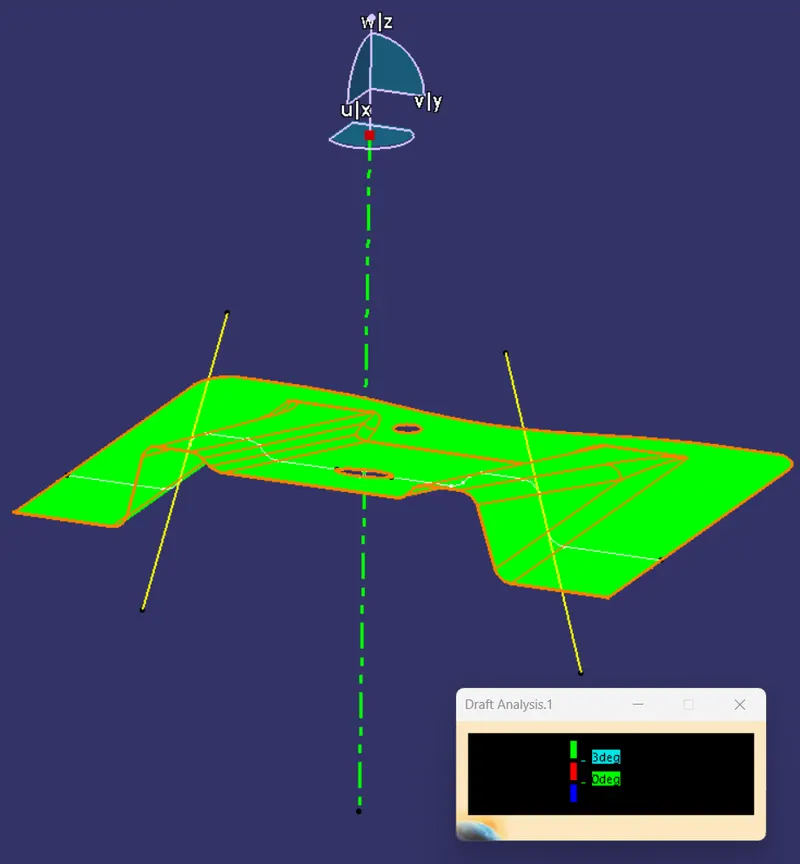
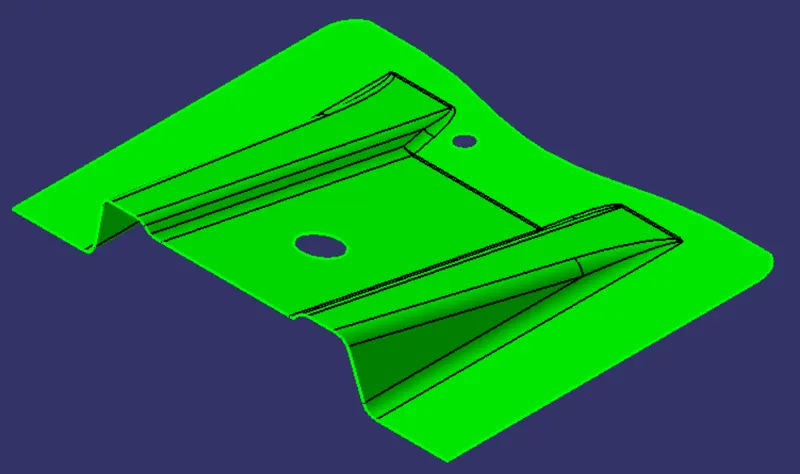
Then, we will click anywhere on the Class A Surface and this will result in Class A Surface, turning entirely into 'Green Colour' as our 'Permissible Draft-Angle Limit' was previously stated up to '3-degrees' which means that anything lower than this value will not be shown in Green-Colour but rather it will be shown in Blue-Colour or Red-Colour if the value is lower than 3-degrees or lower than 0-degrees respectively.
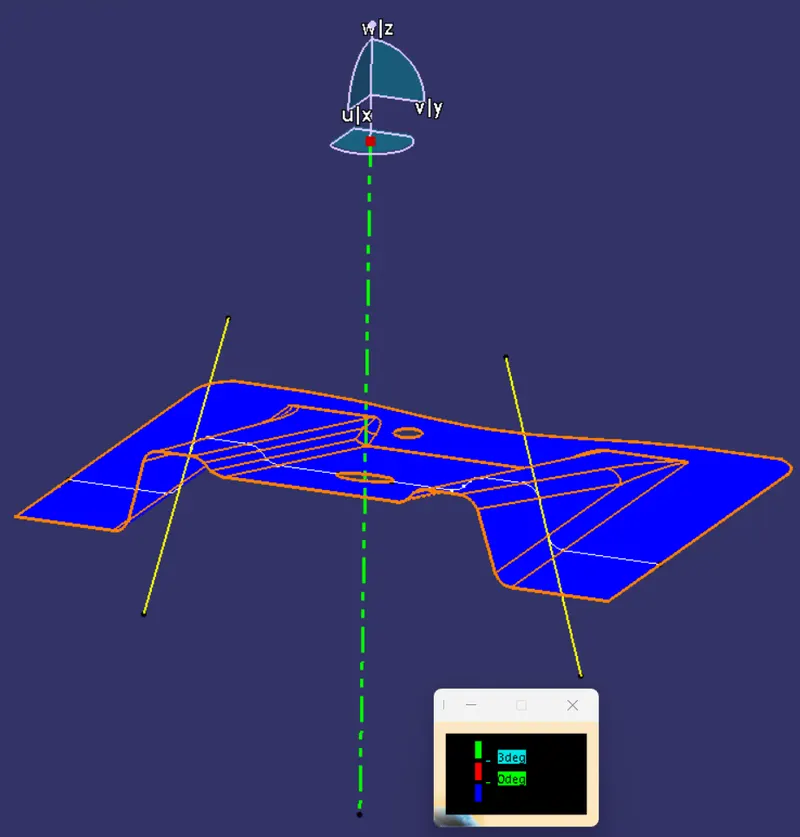
Now, under 'Direction' if we click the option 'Inverse the Draft-Direction' then our whole Class-A Surface will turn to Blue-Colour as it will switch from the Cavity to the Core-side. For the Class A Surface, the above surface is known as the 'Cavity-Side', and the surface that is below the compass is referred to as the 'Core-Side'. We can see the change in the image below:
Under 'Display' if we click on 'Analysis under the Running-Point' and drag our mouse along various faces on the Class A Surface, we will be able to view the Draft-Angles for each face.
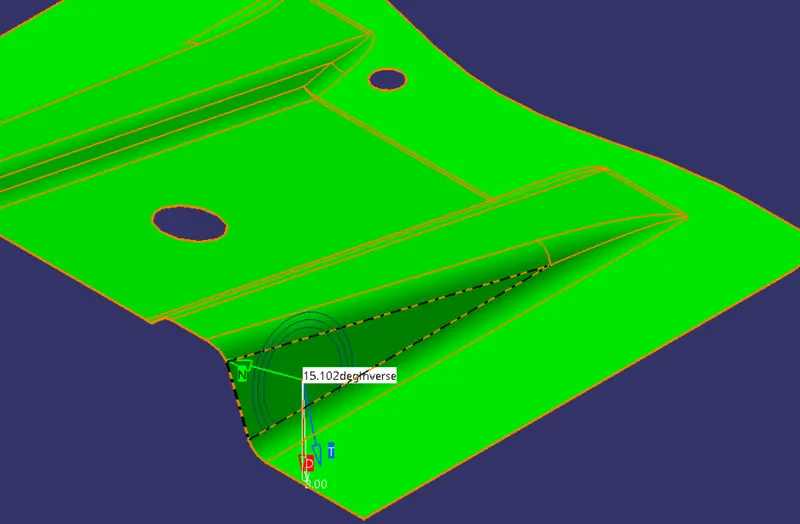
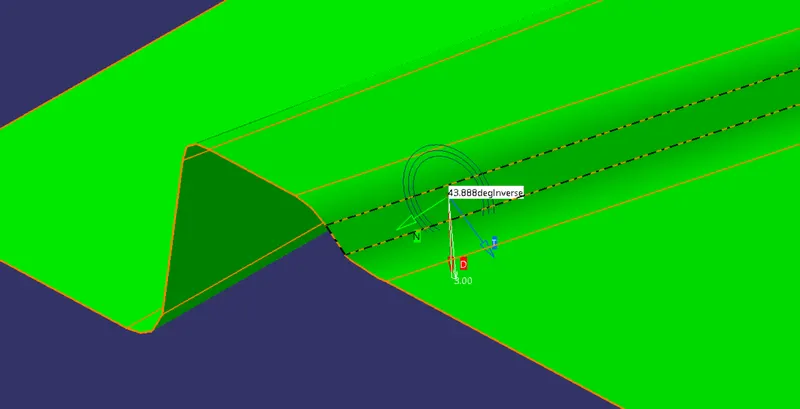
Resulting Surface after finishing the Draft Analysis on the Class A Surface:
Now, we will start creating the Class B Surface:
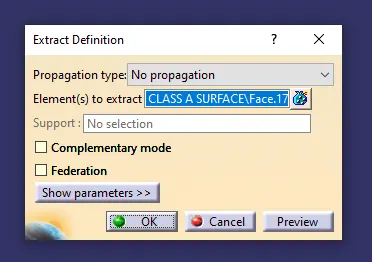
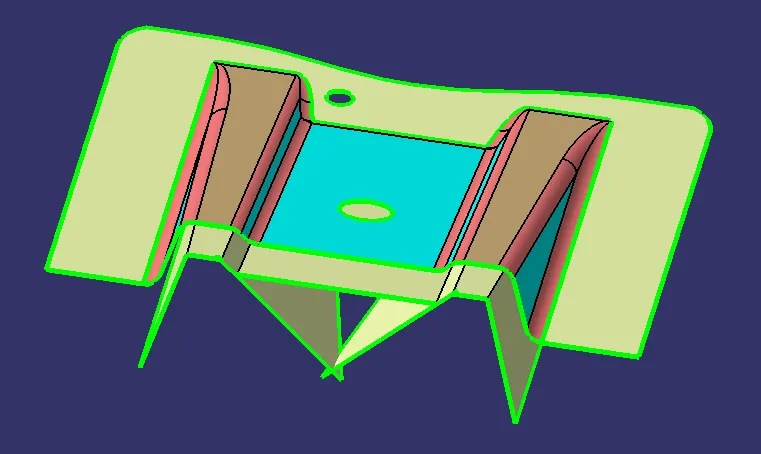
We'll start by extracting the required surfaces from the Class A Surface using the 'Extract' command from the 'Operations Toolbar'.
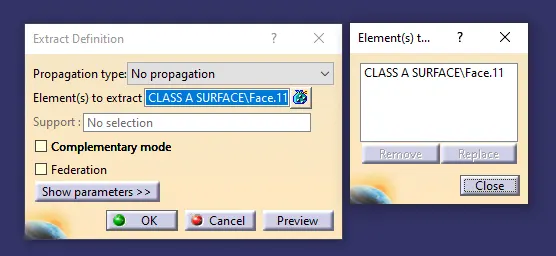
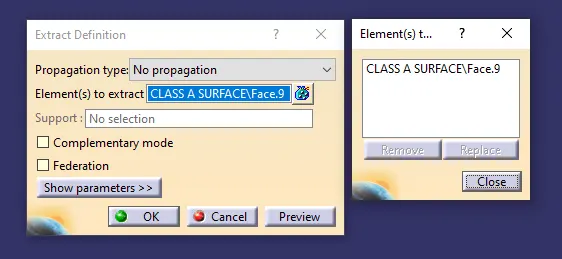
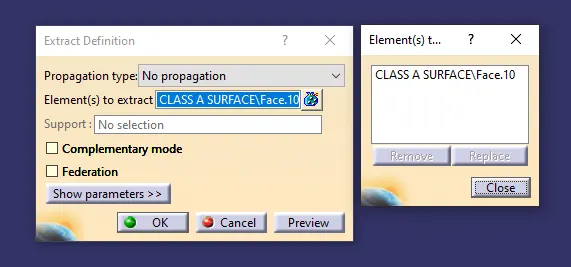
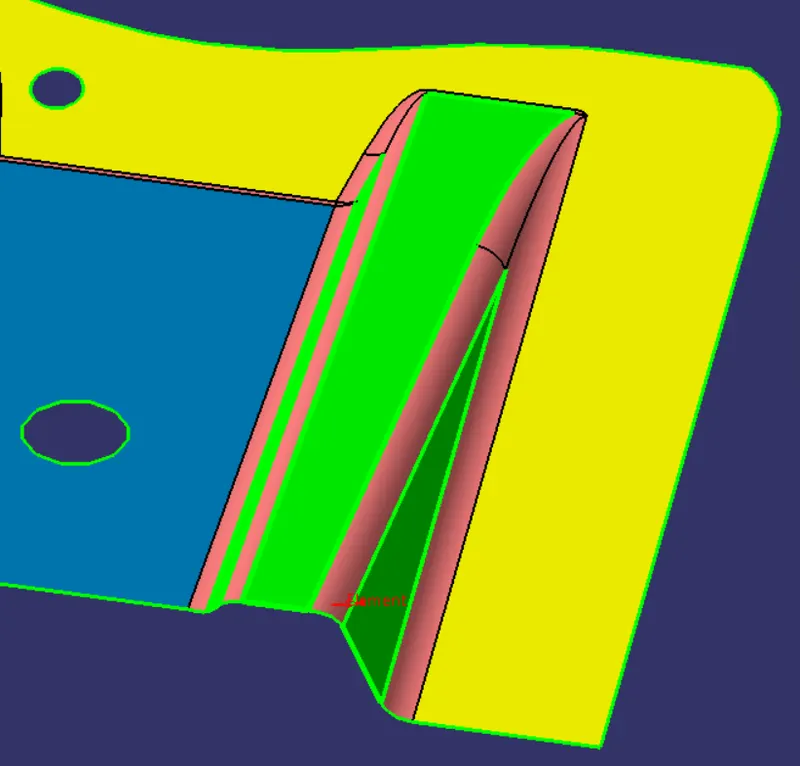
We'll end up with these surfaces.
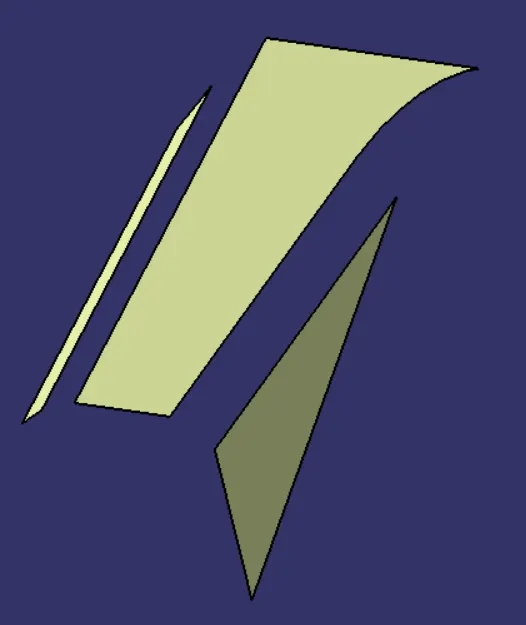
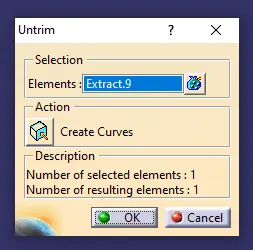
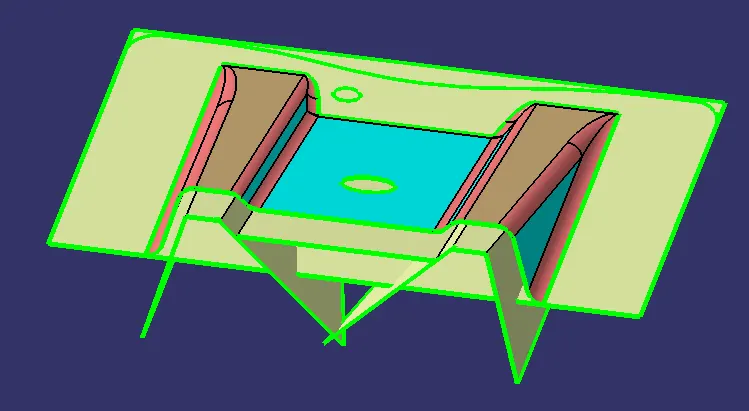
Next, we'll Untrim each of these surfaces individually using the 'Untrim' command from the Operations Toolbar as shown below:
The result after 'Untrim' Operations:
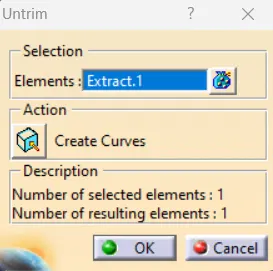
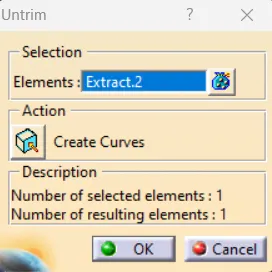
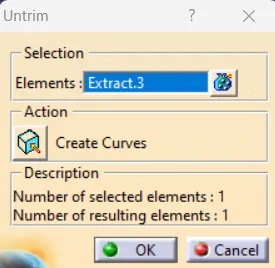
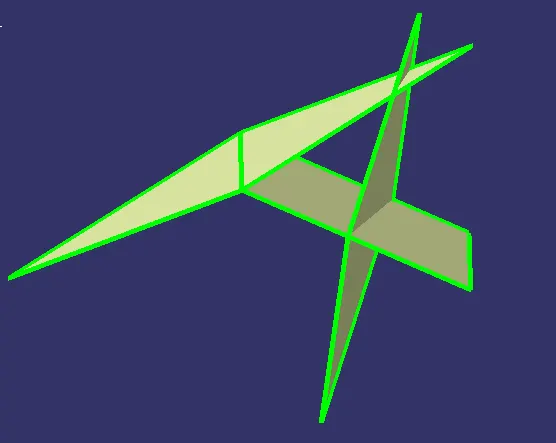
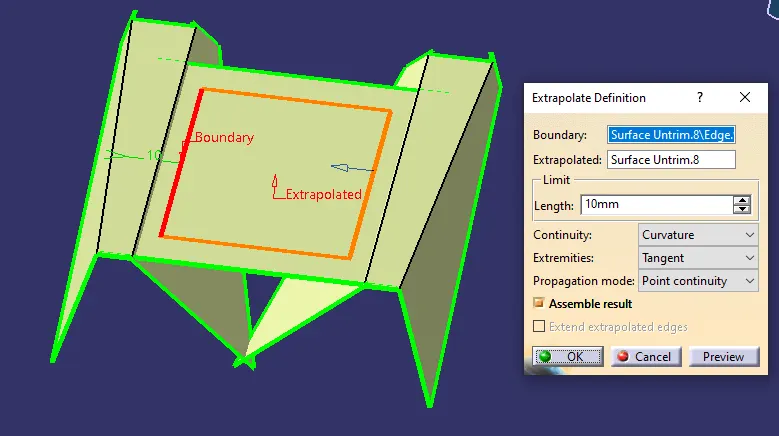
After that, we'll Extrapolate each of these Untrimmed Surfaces using 'Curvature' as the 'Continuity' and 'No-Propagation' as the 'Propagation Mode'.
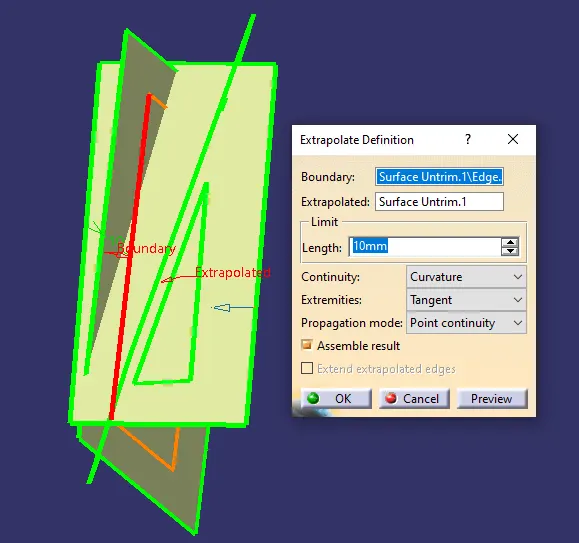
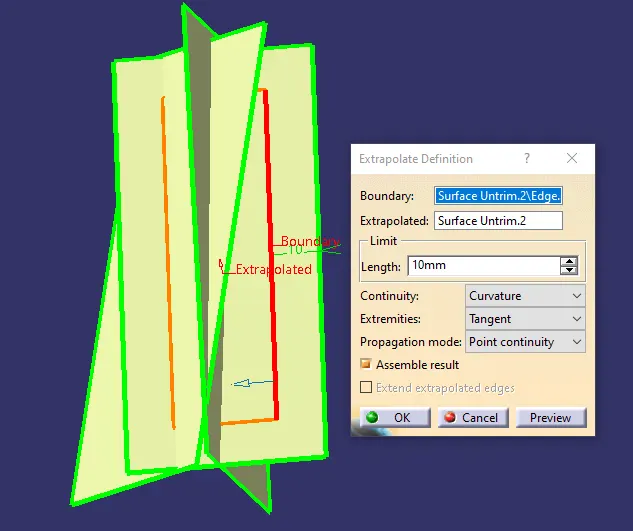
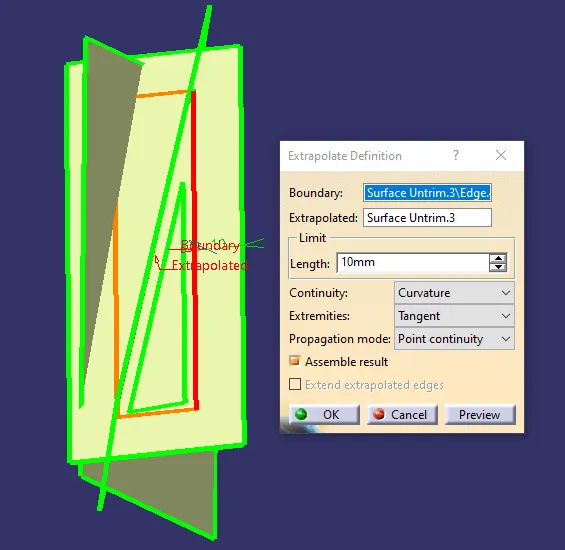
The result after using 'Extrapolate Operation' on all three of the individual Untrimmed Surfaces:
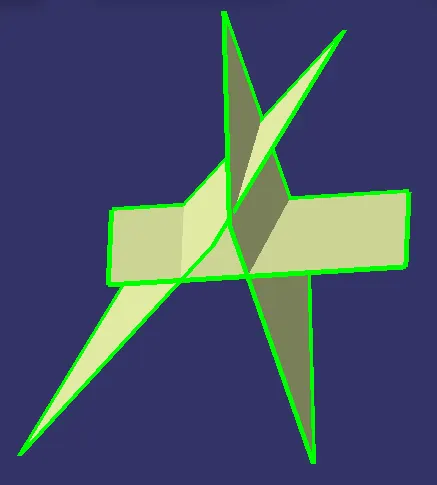
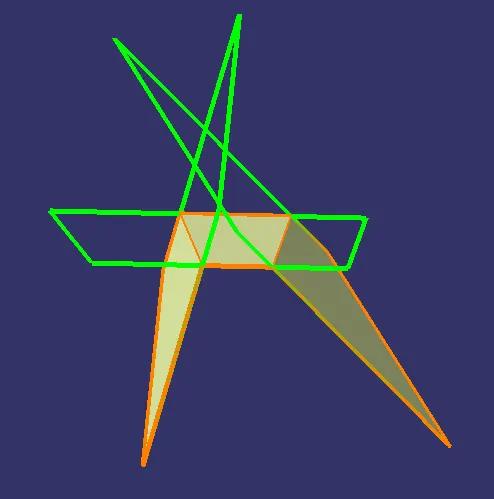
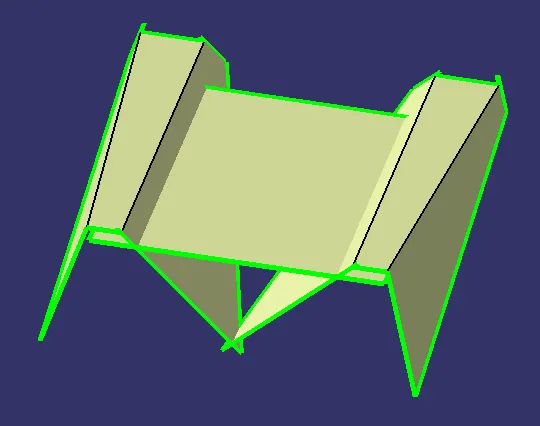
Now, we'll trim these surfaces to obtain the desired geometry to create the Rib Section:
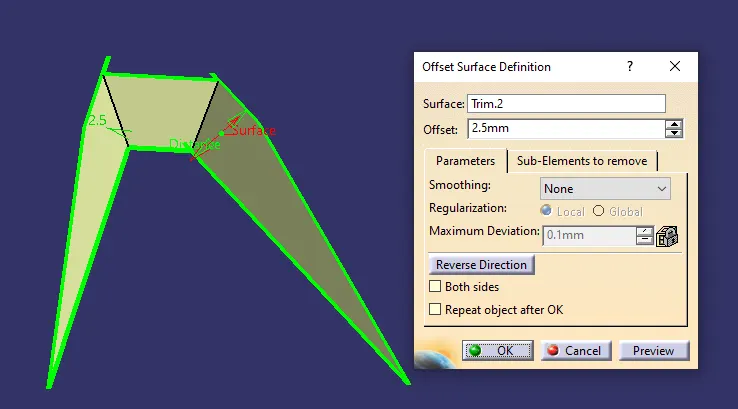
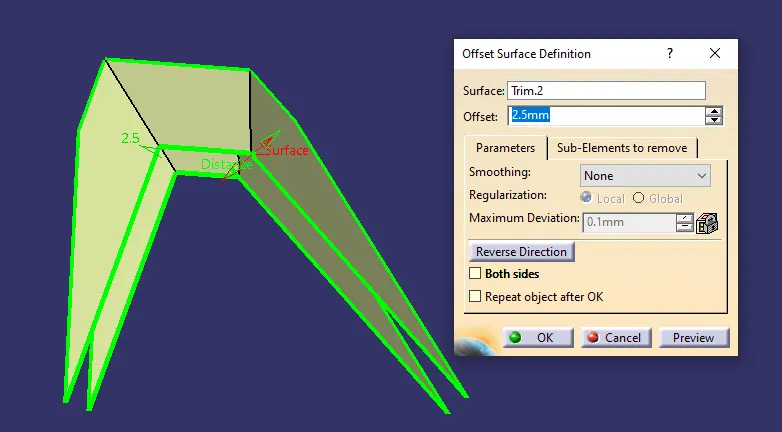
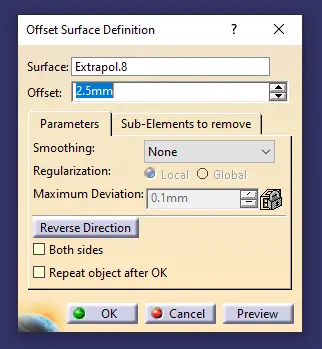
Now, we'll offset the obtained geometry by 2.5mm as that is the desired thickness for the component.
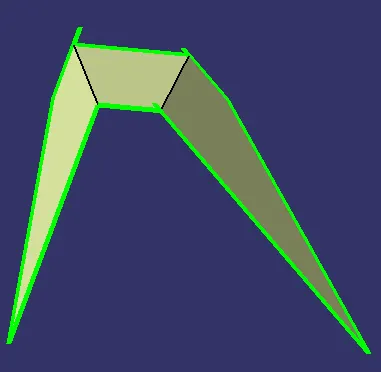
Now, Whatever we did to obtain the required geometry for the First Rib, We're going to repeat those steps to create the Second Rib.
The result after repeating those steps to create the Second Rib:
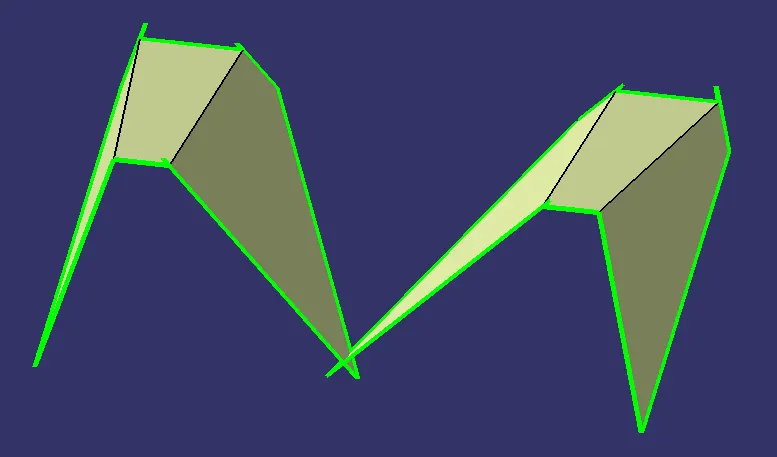
After that, we'll create the Middle Surface:
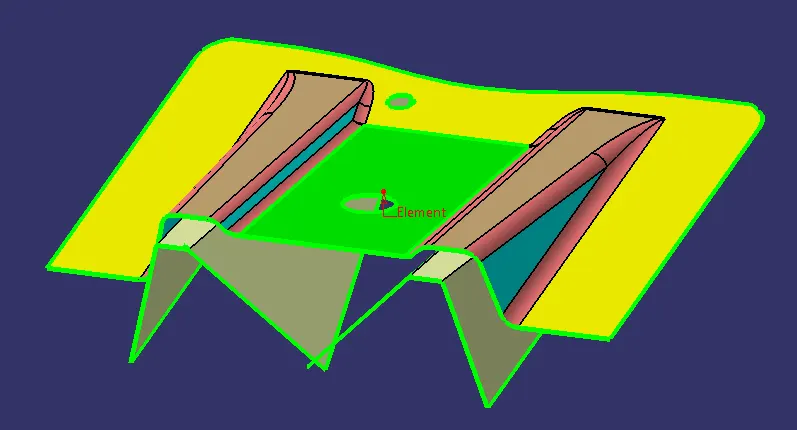
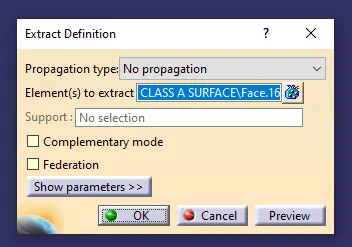
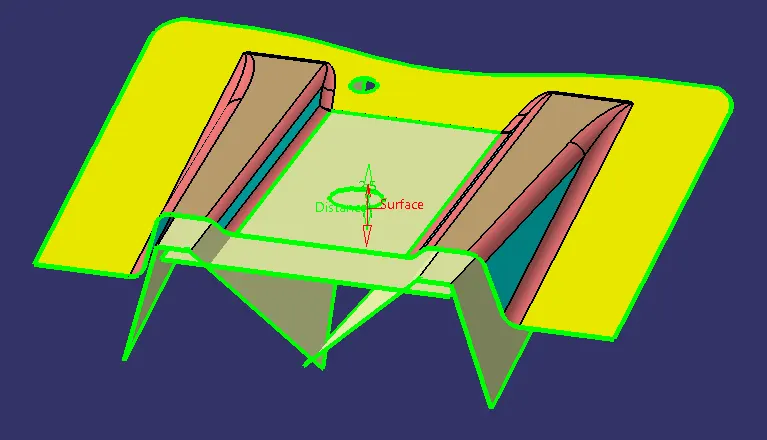
At last, we'll create the Base Section:
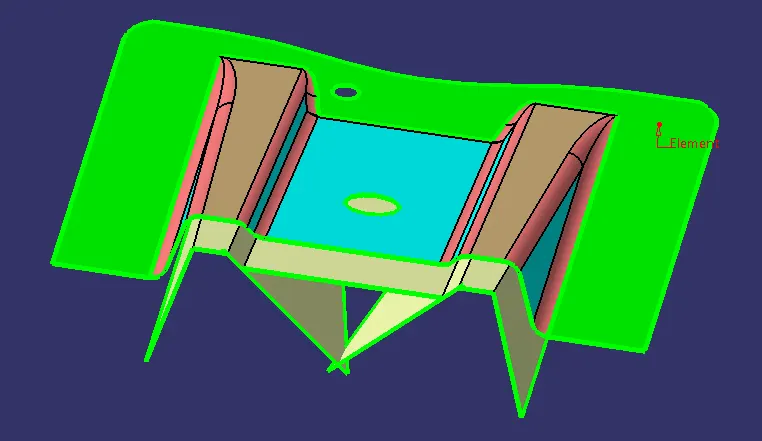
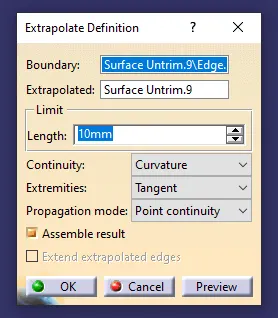
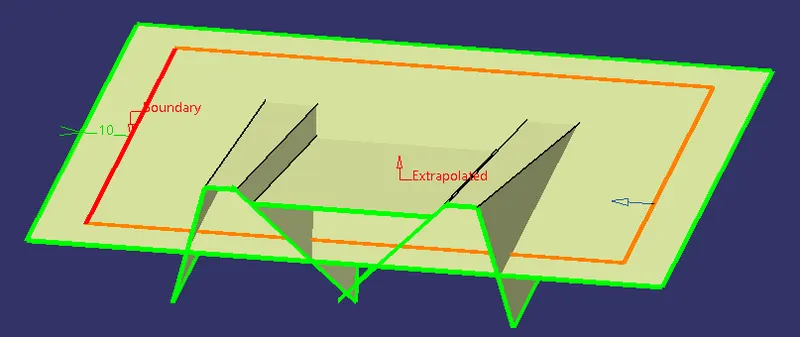
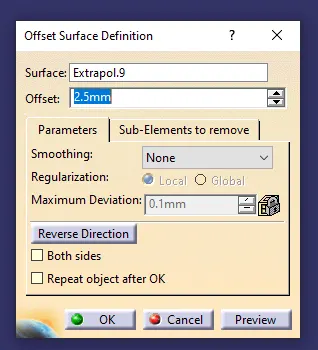
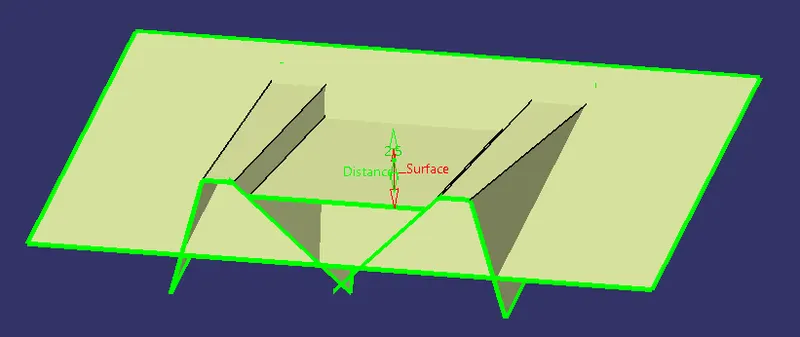
In the end, we'll create the Final Trim-Surface:
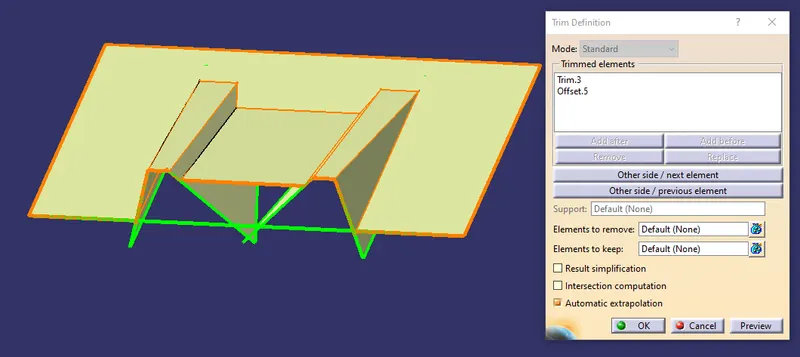
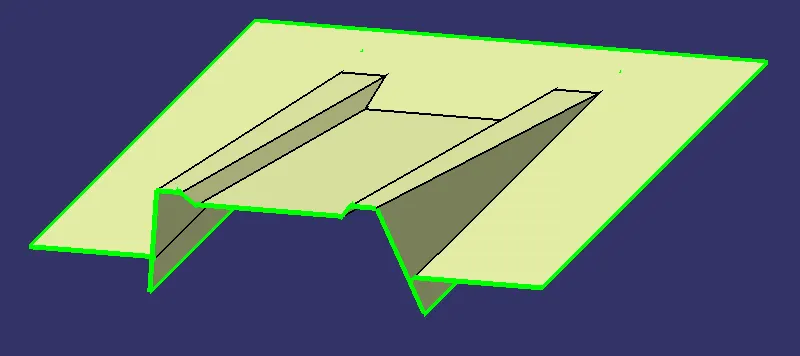
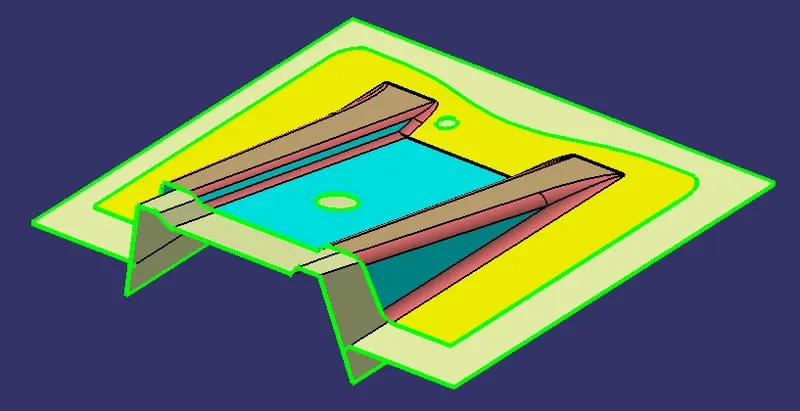
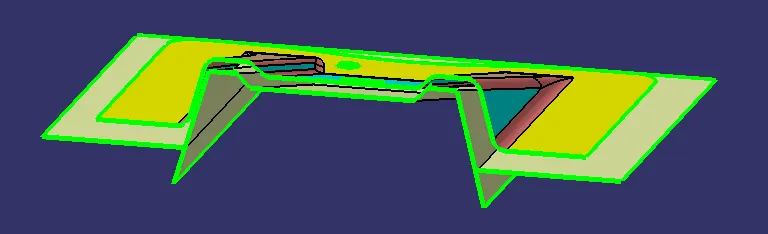
CLASS A & CLASS B SURFACES OVER EACH OTHER WITH AN OFFSET OF 2.5MM BETWEEN THEM:
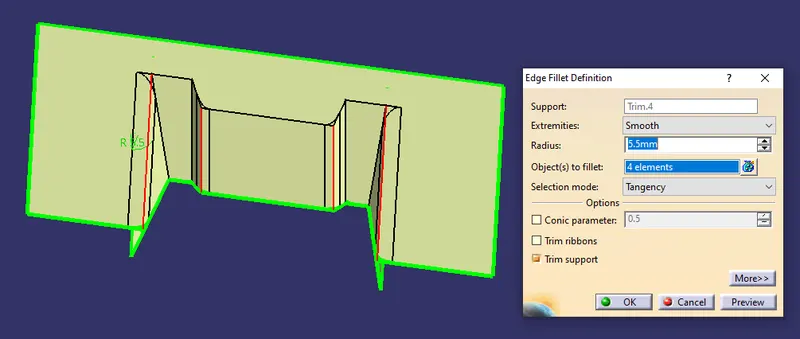
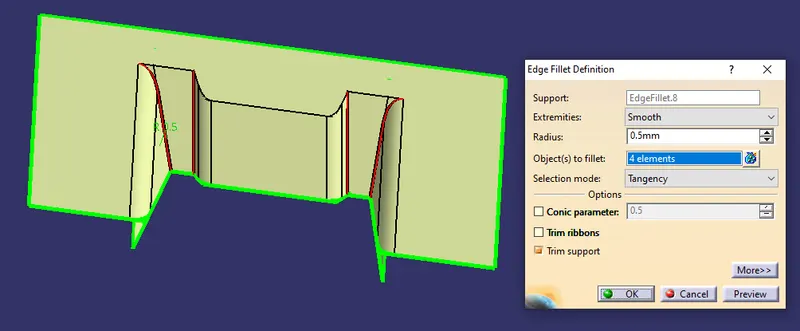
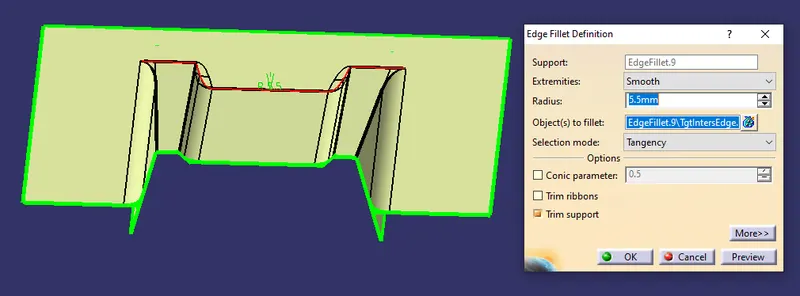
Now, it's time to apply fillets on the Class B Surface. Applying fillets on such offset surfaces is interdependent. The formula to calculate the fillet value for the surface offset towards the inside of the original surface is given:
Inside Fillet Value = Original Edge's Fillet Value + Thickness of the Component
This is for a surface that resides towards the inside of the original surface. If we want to calculate the value of Fillet for the surface that is offset towards the outside or before the original surface then the formula for that can be given as:
Outside Fillet Value = Original Edge's Fillet Value - Thickness of the Component
We will measure the radius for the fillet in the Class A Surface using 'Measure Item' from the 'Measure Toolbar'.
GIVING ALL FILLETS:
Finally, we are going to create the Class C Surface:
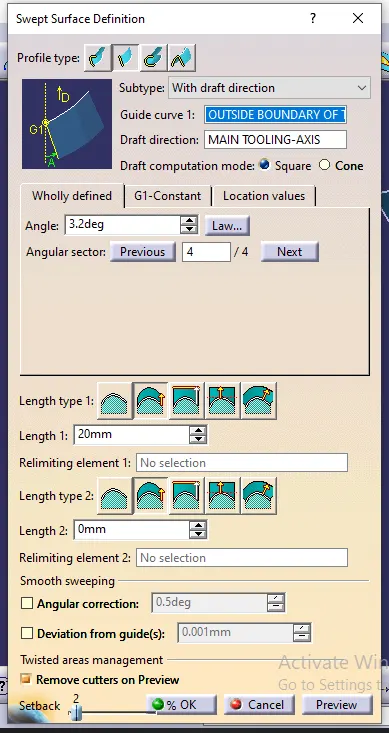
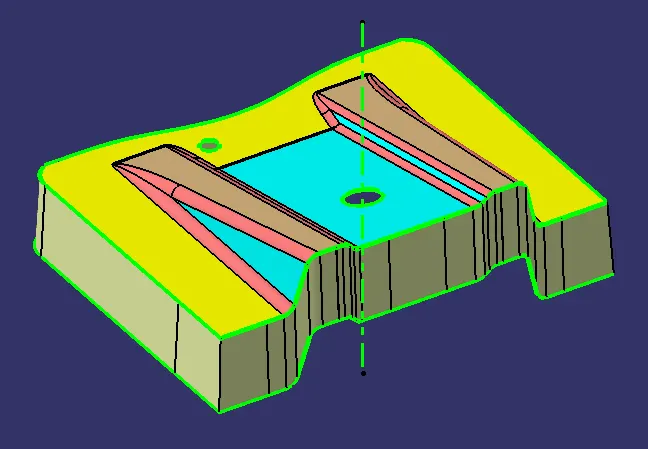
We're going to use the Class A Surface to create the Class C Surface. First, we'll use the Boundary Command with limits to create the boundary that we'll use to create the C Surface using the Sweep Command using Draft Direction as shown below:
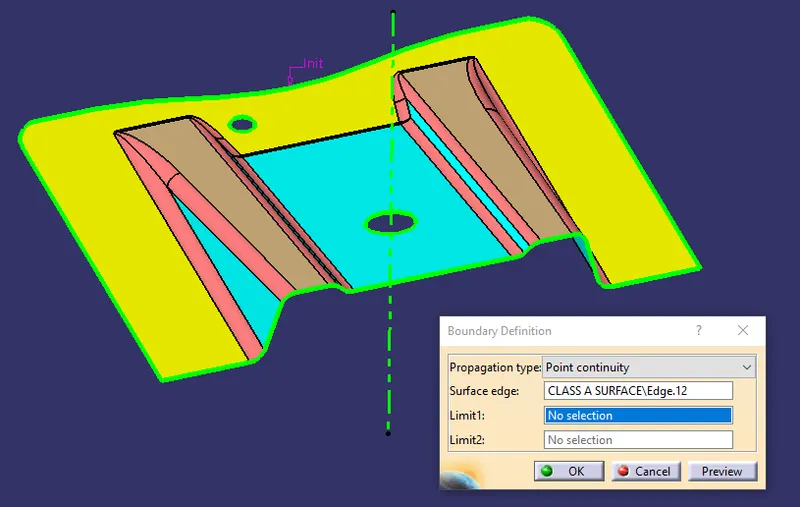
After that, we'll go to 'Sweep' under the 'Surfaces' Toolbar which will open the 'Swept Surface Definition' Dialogue Box.
Now, Under the 'Profile Type', we'll go to 'Line' and choose our 'Subtype' as 'With Draft Direction'. we'll select the
Boundary of the Class A Surface as our 'Guide Curve' & 'Main Tooling-Axis' as our 'Draft Direction'.
The Draft Angle is limited to 3.2-Degrees and the 4th Angular Sector is chosen to sweep along.
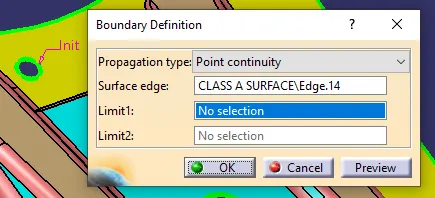
Before finalizing our results, we still have to work on the holes:
We'll create boundaries for both holes under the Class C Geometrical Set.
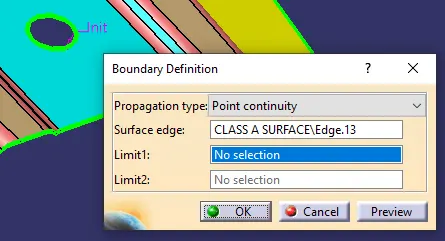
Then, we'll go to 'Sweep' under the 'Surfaces' Toolbar and perform the Sweep-Operation on both holes in a similar fashion as before while creating the Class C Surface.
Sweep Result for the Holes:
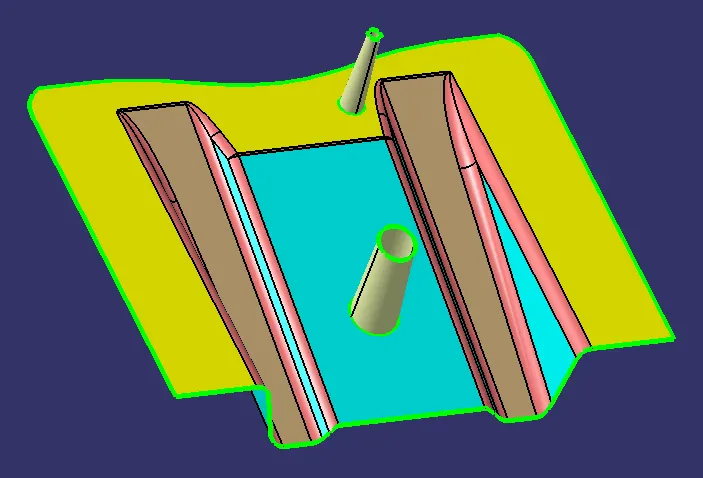
Now, we'll Join the Class A Surface and Class C Surface together along with the Sweep Surfaces of the respective hole by the 'Join' command.
JOINING CLASS A AND CLASS C SURFACES:
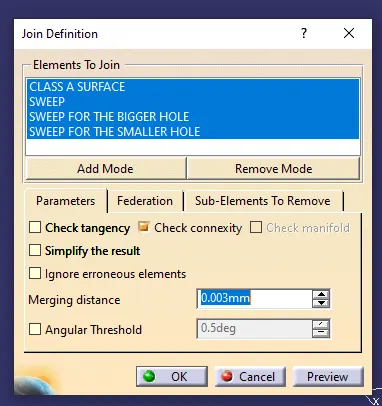
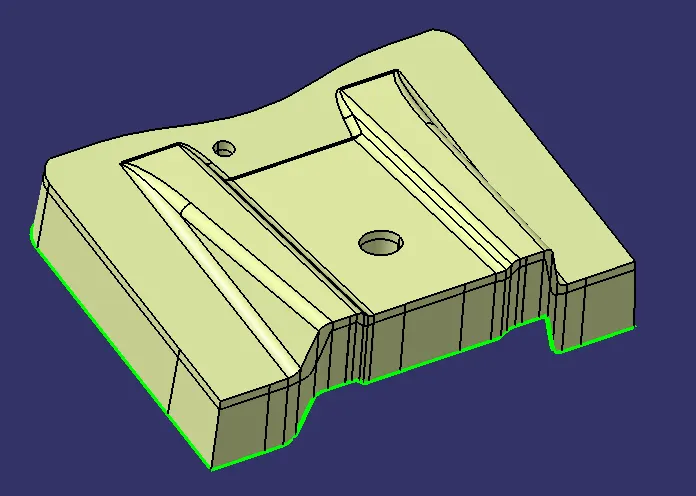
Hence, it is evident from the above images that there are no gaps or discontinuities present inside the final surface.
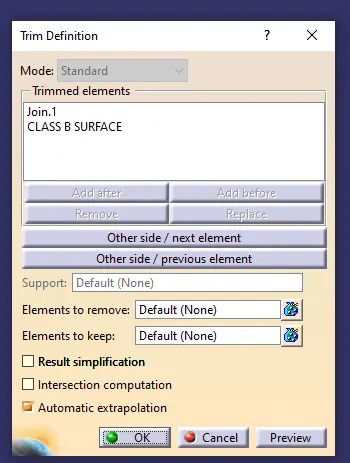
FINAL TRIM OPERATION:
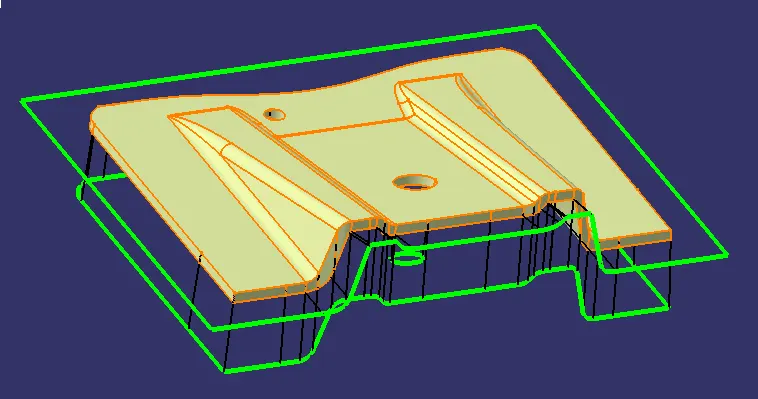
FINAL TRIMMED SURFACE:
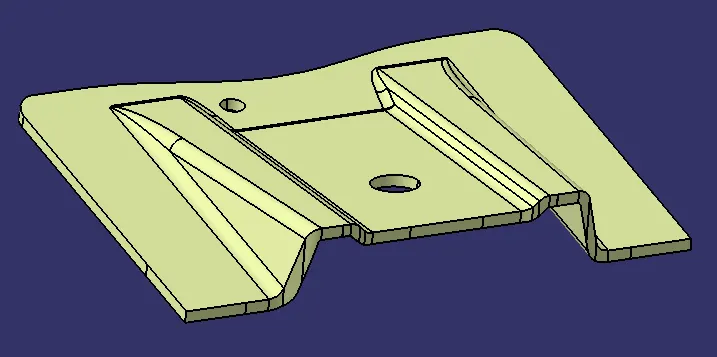
Now, If we try to place a boundary over this surface then it won't let that happen as it is a closed surface.
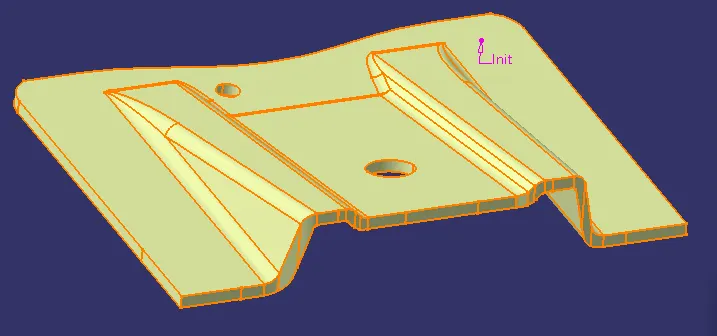
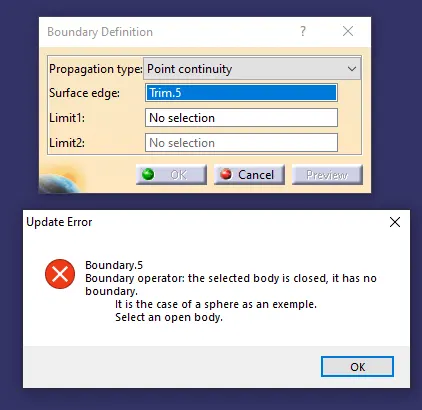
Now, we'll go to the 'Part-Workbench' to use the 'Closed Surface' command from the Surface-Based Features’ Toolbar to create a Closed Body.
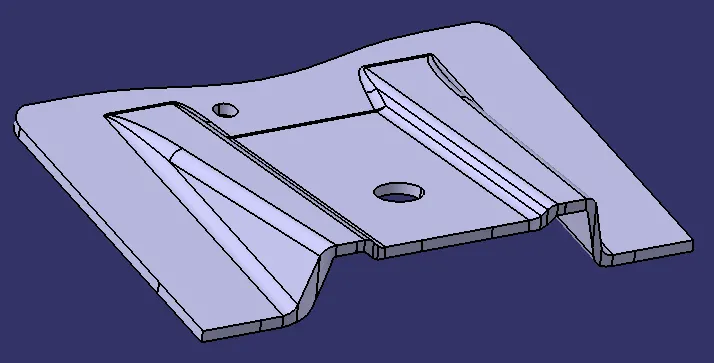
Now, we'll perform the Draft Analysis of the Final Part in the Part Workbench:
We'll click on the 'Draft Analysis' under the 'Analysis' Toolbar in the Part Workbench.
Then, we'll click on the Compass Symbol under 'Direction' which stands for 'Use the Compass to define the new current draft direction'.
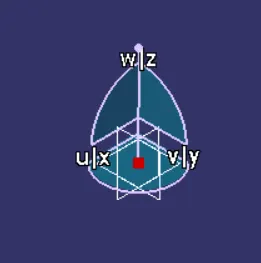
We'll drag the Compass and move it anywhere on the part temporarily. After that, we'll zoom in on the part and adjust the Compass along the Main Tooling-Axis.
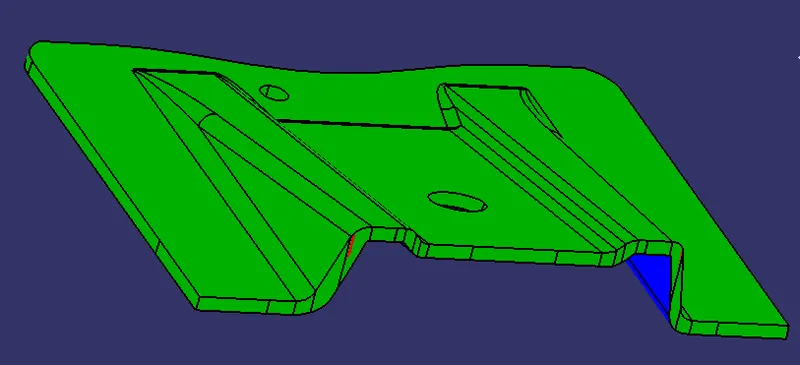
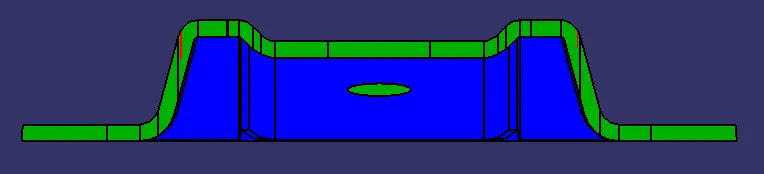
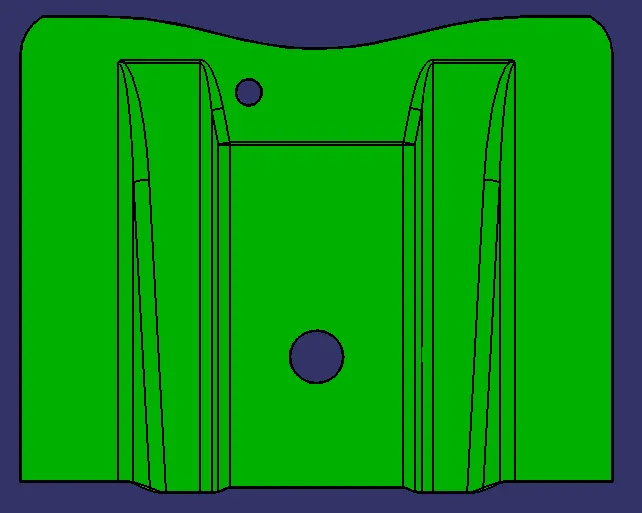
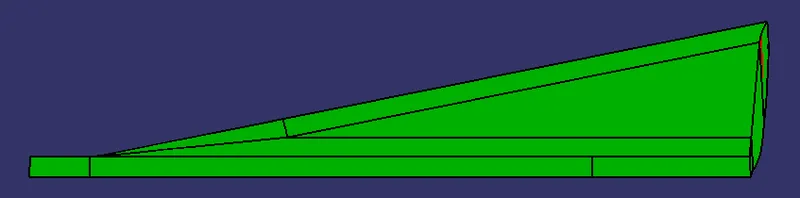
Then, we'll select 'Show or Hide the Color Scale' under 'Display' and define our Draft-Angle as 2.8 Degrees. After that, we'll click the surface of the Final Part the results of which are shown below:
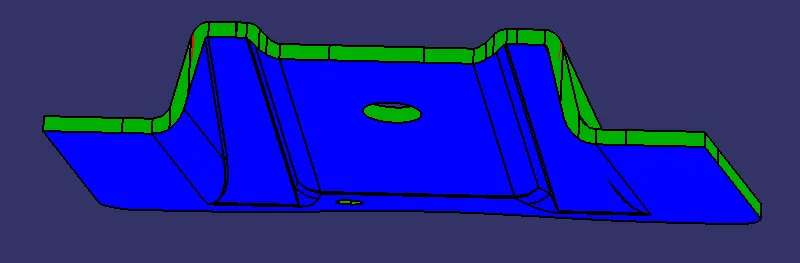
VIEW AFTER INVERSING THE DRAFT DIRECTION:
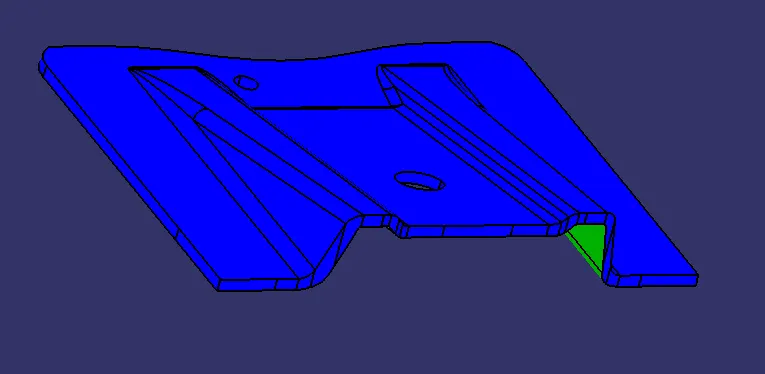
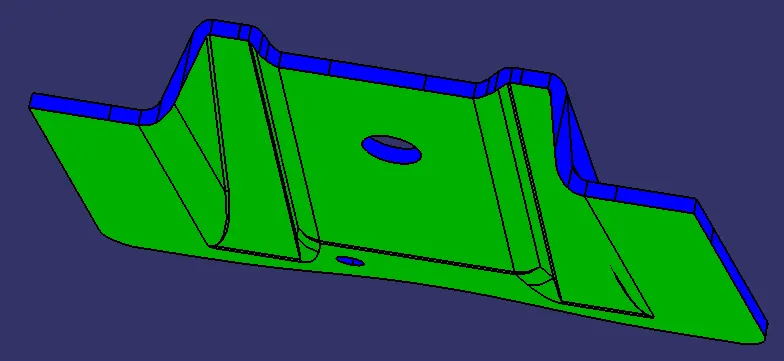
It is evident from the above images that the Draft Analysis is successful and the Final Closed Surface Part is feasible to manufacture.
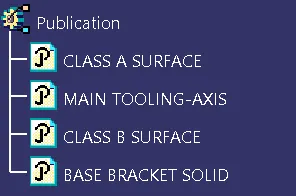
Publishing the Main Tooling-Axis, Class A, Class B & Base Bracket Soid:
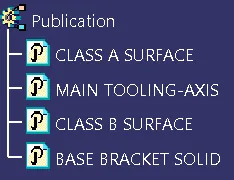
Tree Structures:
1. CLASS A SURFACE:
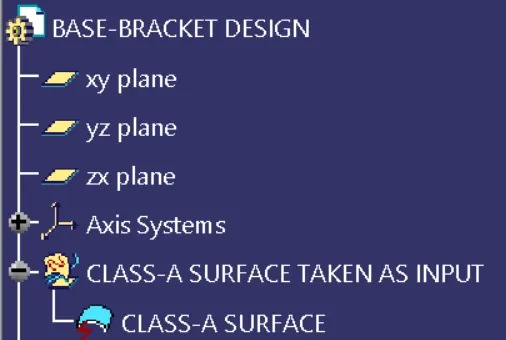
2. MAIN TOOLING AXIS:
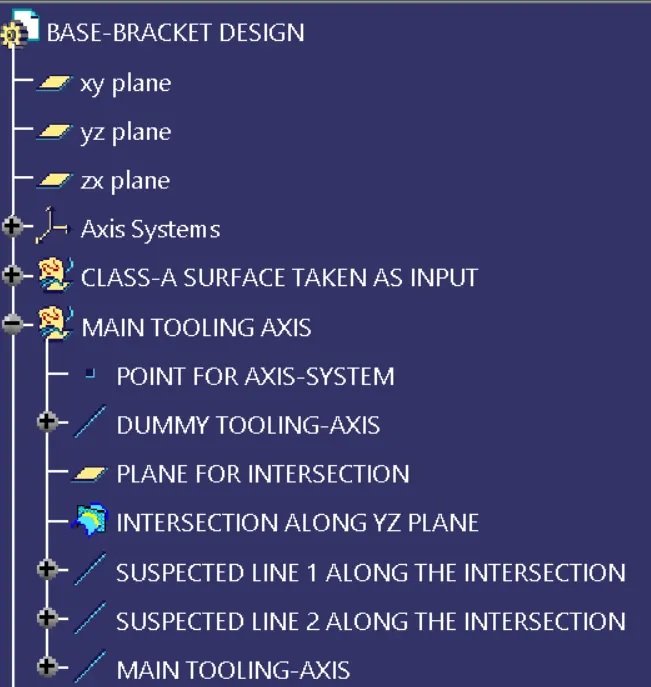
3. RIB ONE FOR CLASS B SURACE UNDER BASE BRACKET DESIGN:
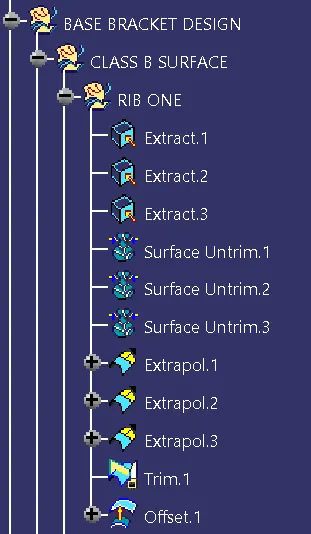
4. RIB TWO FOR CLASS B SURACE UNDER BASE BRACKET DESIGN:
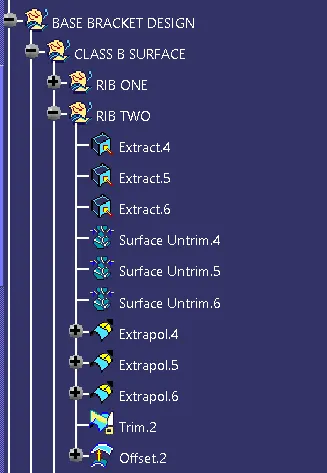
5. MIDDLE SURFACE FOR CLASS B SURFACE:
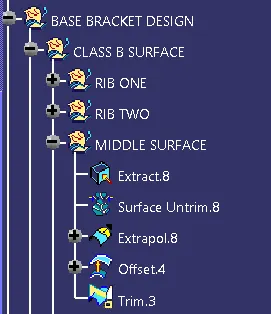
6. BASE AND FILLETS FOR CLASS B SURFACE:
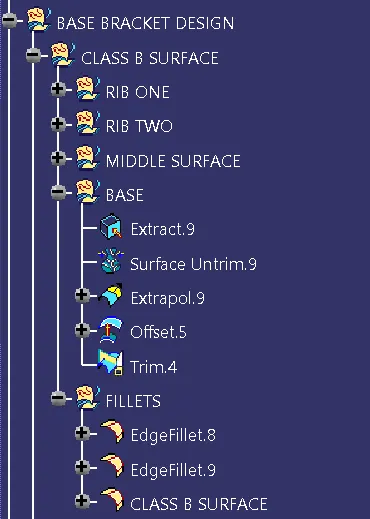
7. CLASS C SURFACE:
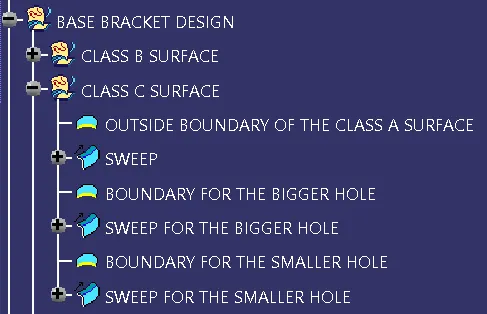
8. JOIN CLASS A + C AND FINALTRIM FOR BASE BRACKET DESIGN:
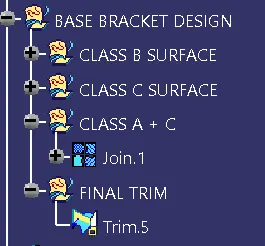
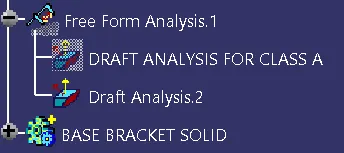
9. BRACE BRACKET SOLID AND DRAFT ANALYSIS:
10. PUBLICATION:
3D VIEWS OF THE FINAL PART WITH PROPER COLOR CODE OF THE DRAFT ANGLE IN VARIOUS ORIENTATIONS:
1. FRONT VIEW:
2. TOP VIEW:
3. SIDE VIEW:
4. ISOMETRIC VIEW: