Assignment 7-Side Pole Crash Simulation Challenge
Aim:
To perform Crash test for Car frontal BIW structure using Hypermesh and Radioss.
Objective:
Neon side crash -BIW
- Check unit system and either follow [Mg mm s] or [Kg mm ms].
- Create appropriate interface ,friction 0.2 and recommended parameters.
- Make sure of no penetration and intersections.
- Create rigid wall with friction 0.1 as per referance model.
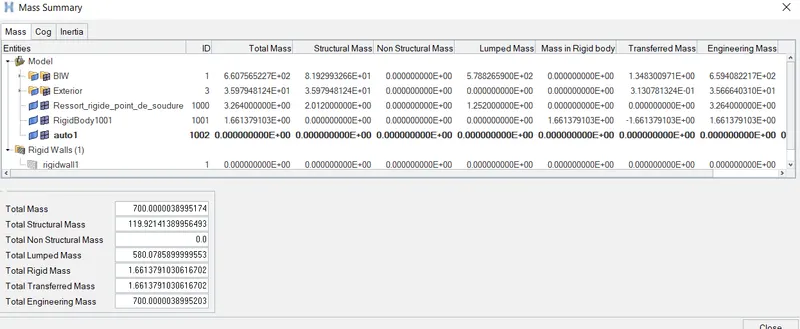
- Compare the model weight with the referance model and use added masses to reach target weight 700kg while getting CG about the required range.
- Initial velocity as shown in picture.
- Use model checker to ensure good quality.
- Timestep :0.5 to 0.1 microseconds.
- Run 80ms.
Output requests:
- Sectional force in the cross member.
- Intrusion at B pillar,hinge pillar and fuel tank region.Provide recommendation on what can help to reduce Fuel tank intrusion.
- Peak velocity of inner node of the door.
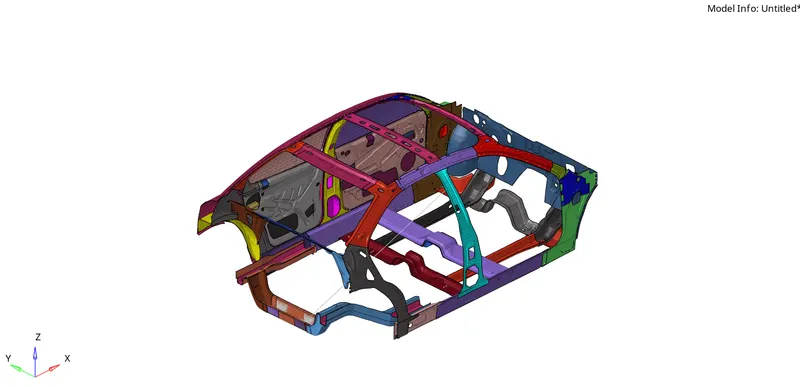
Procedure
- By looking into the starter file: Open 000.rad file, at the begining the units will be displayed.
2. In hypermesh: Open the 000.rad file in hypermesh, navigate to model browser and then in cards there will be a begin card. By clicking on the card units will be displayed

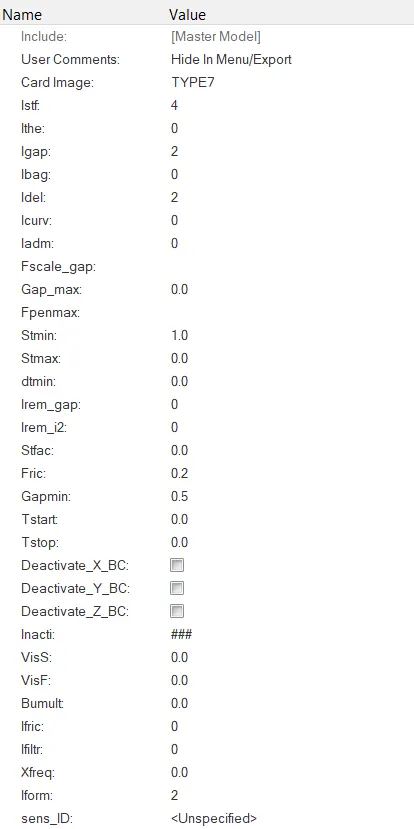
Create appropriate interface ,friction O.2 and recommended parameters:
- To create the interafce, go to solver browser >> right click and select inter >> type 7.
Checking for Penetrations and Intesections:
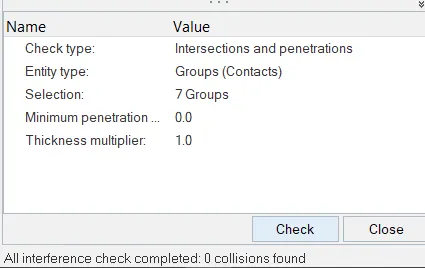
- After providing the interface, we need to check for penetrations. To check this, go to Tools >> Penetration check >> select the group >> check
- There are no penetrations and intersections are found. So we can move onto the next step.
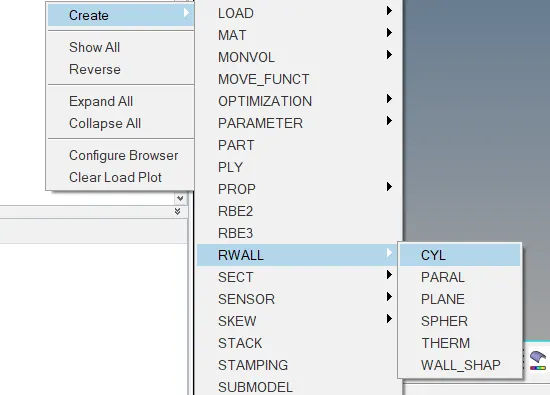
Create rigid wall with friction 0.1:
- To create a Rigid wall, go to solver browser >> right click » Plane. Give the appropriate X,Y and Z and select Rwall : coo-ordinates, friction as O.2 and Search distance as 1000 to create the Rigid wall.
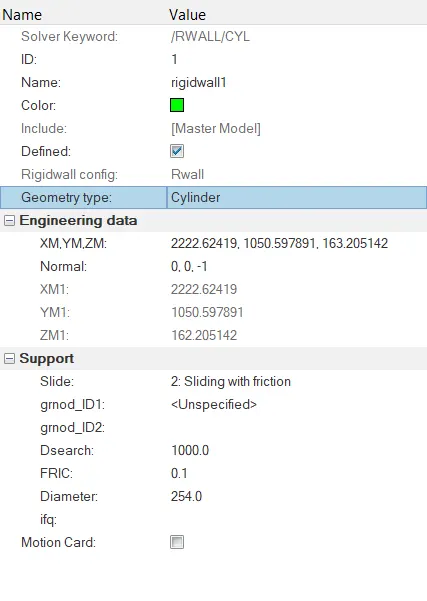
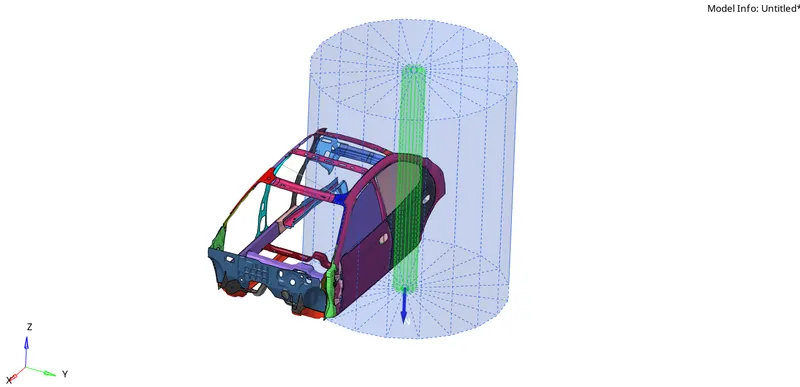
Adding masses to reach target weight 700kg while getting CG about the required range:
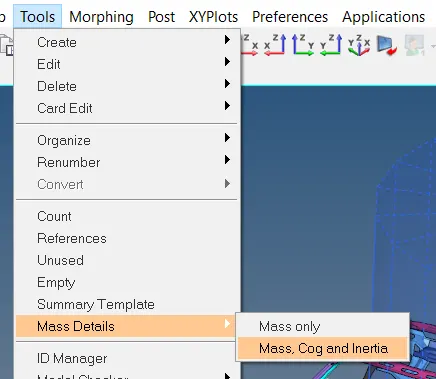
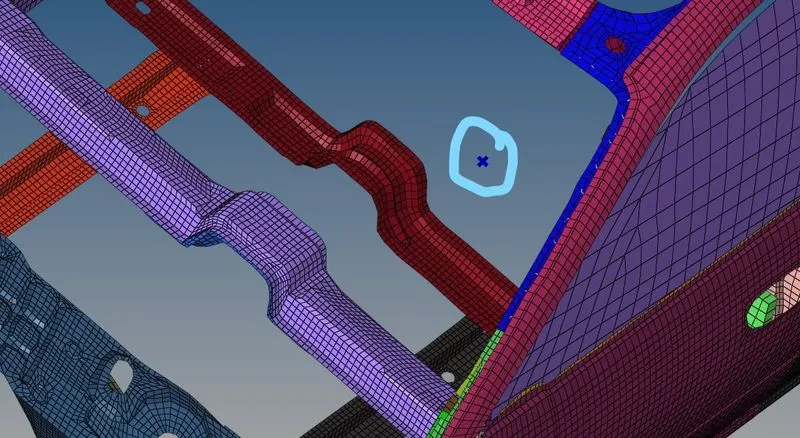
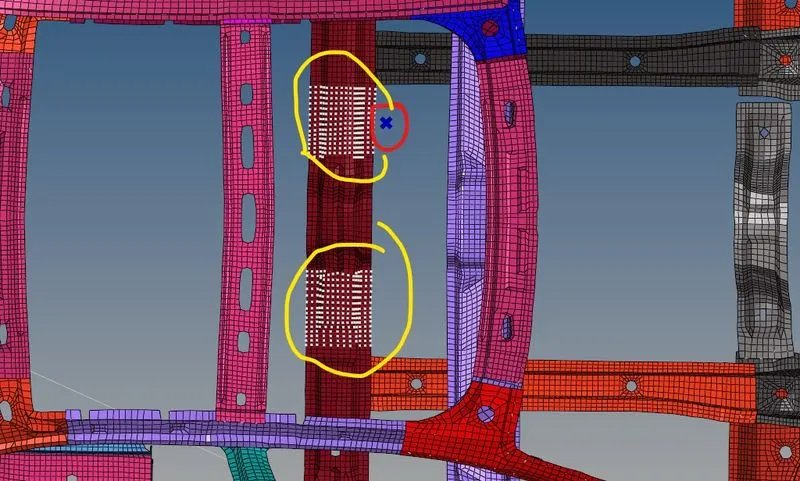
- To check the mass and COG, go to tools >> mass details >> mass, cog and inertia. Now by clicking on the COG we can get the co-ordinates of the COG. Create a node using the co-ordinate values.
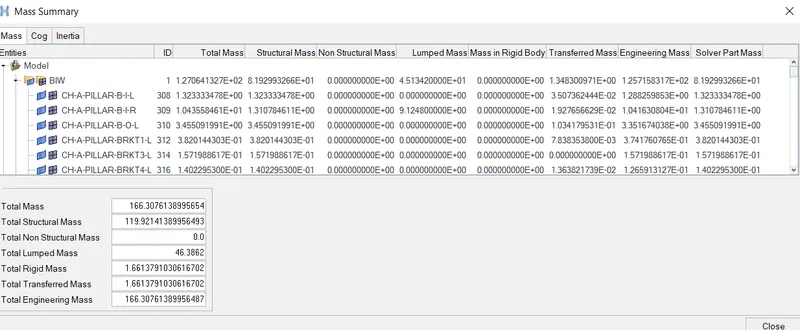
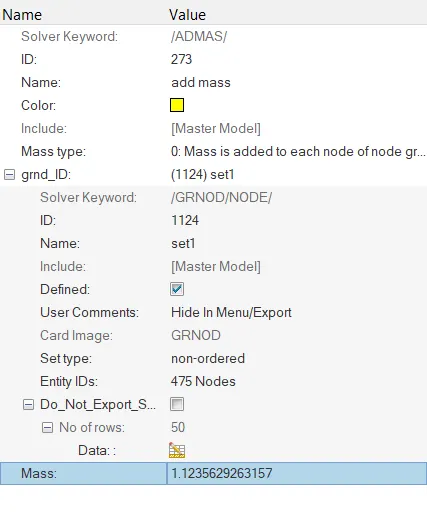
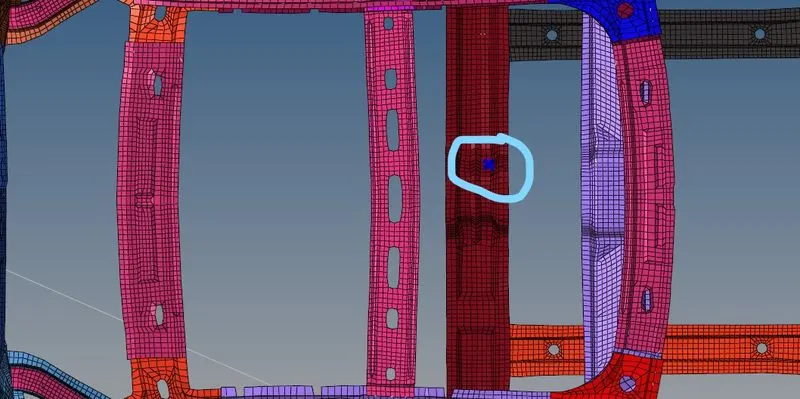
• The COG is not at the correct location, so to change the COG to the correct location mass need to be added. To add mass, right click in the solver browser >> create >> admass > right click on grnode select the nodes >> assign the mass
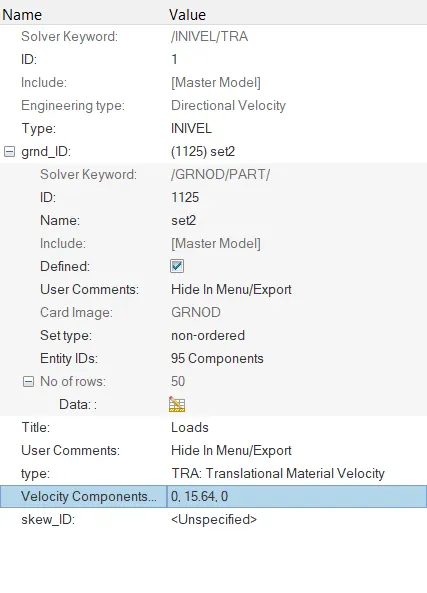
Assigning Initial velocity 35 mph:
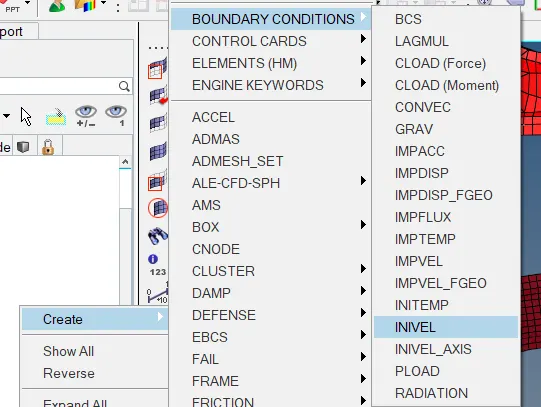
• To assign Initial velocity to the model, right click in solver browser >» boundary conditions » Invel
Assigning Time-step to 0.5 ms and run to 80ms.
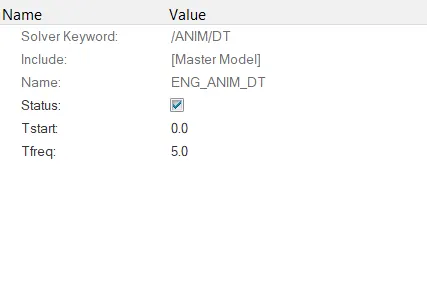
- To assign the time step, go to model browser >> cards >> ENG_AMIT_DT > Tfreq = 5.
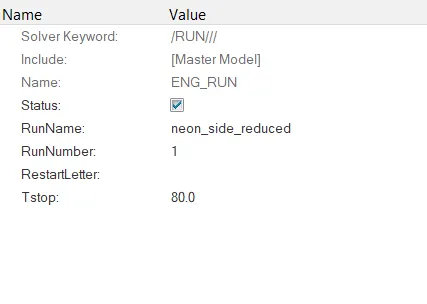
- To assign the run time, go to model browser >> cards > ENG_RUN > Tstop = 80.
Output requests:
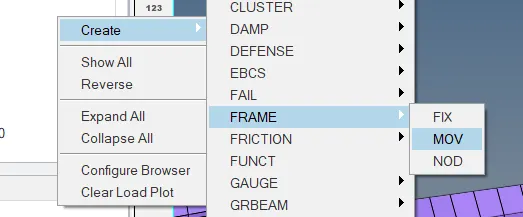
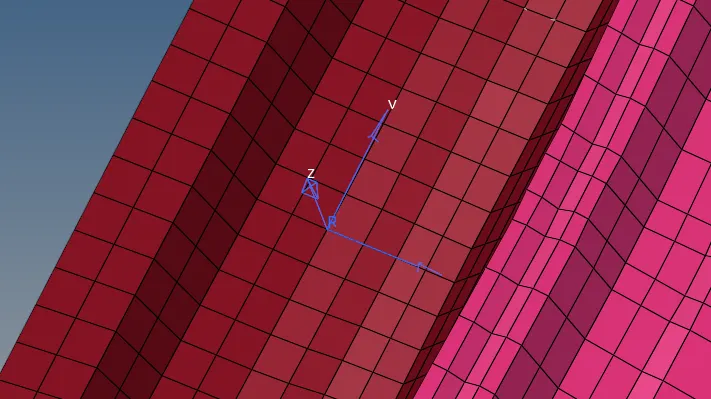
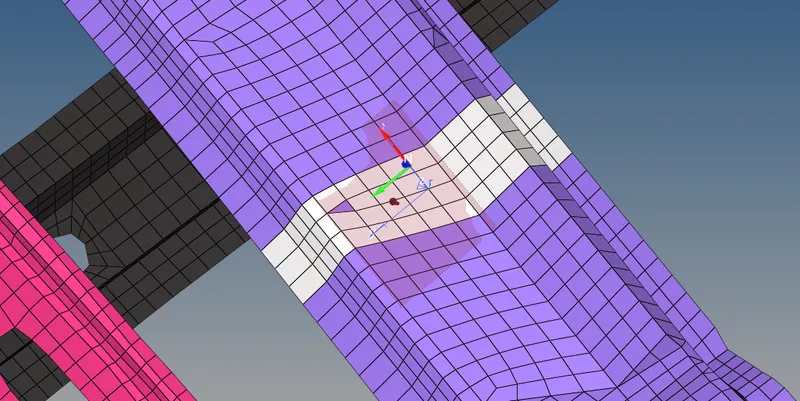
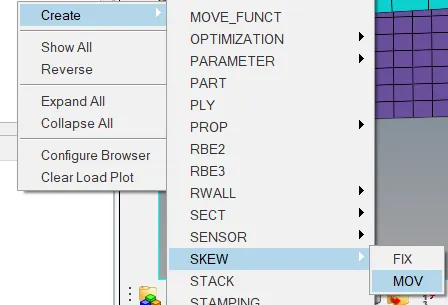
Before creating a section, a frame should be created at the indicated node and the frame is assigned to the section. To create a frame, right click in solver browser >> create >> frame >> MOV >> select the origin >> x-axis >> xy plane >> create. After creating the frame, section can be created.
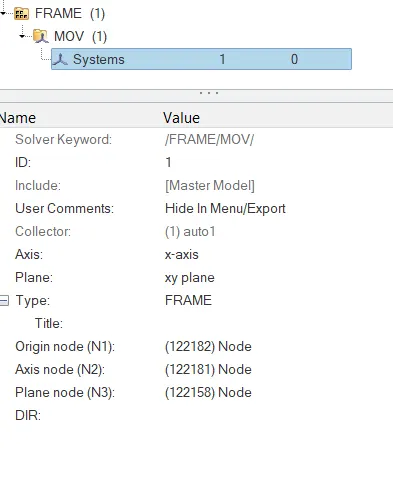
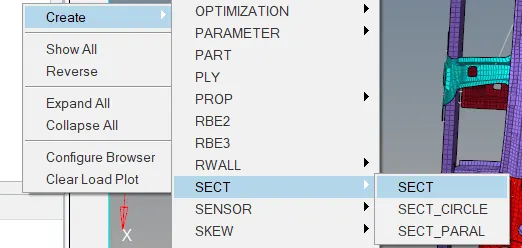
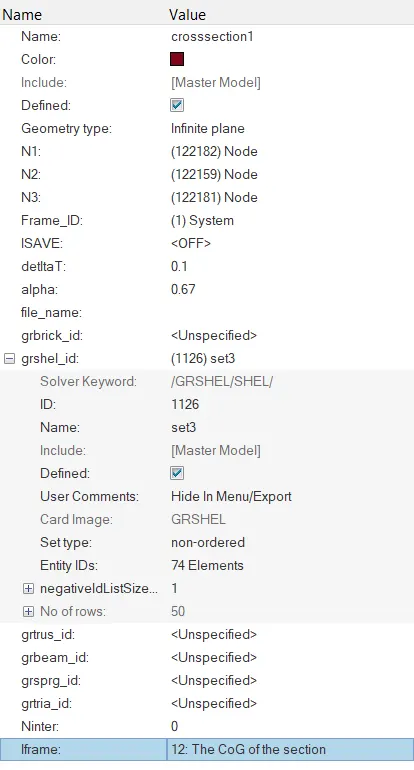
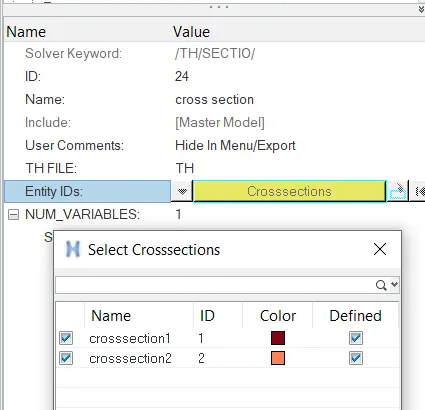
- Sectional force at a node :To create a section, right click in solver browser >> create >> SECT >> SECT. The N1, N2 and N3 values should be equal the origin, x-axis and xy plane nodes of the frame and remaining properties are assigned as shown in the figure below.
Intrusion at B pillar,hinge pillar and fuel tank region.Provide recommendation on what can help to reduce Fuel tank intrusion
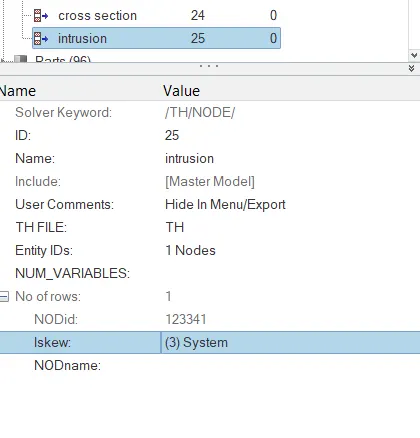
Intrusion is created to check the displacement occured due to collosion. To create an intrusion, right click on solver browser >> TH >> NODE >> select the node >> create the skew by right clicking on it.
PEAK VELOCITY:
Right click on tab area in model browser.
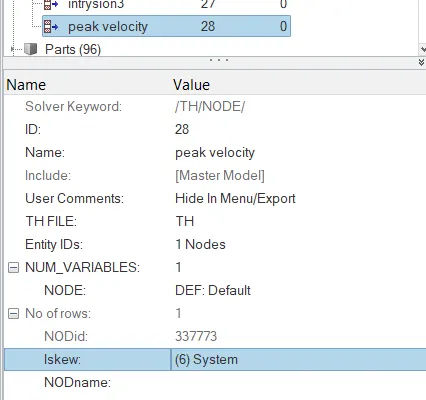
- Create a "Moving Skew", a new card is created.
- Select the nodes for the axis.
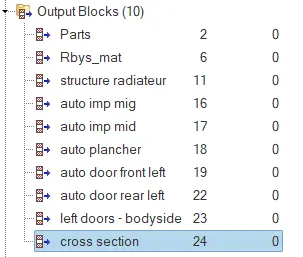
- In Model browser, create a new Output block and rename it.
- Select the node on the inner door and also skew system.
- A new Output block card is created.
- Now the model is ready to run the simulation. To run the simulation, go to analysis >> radioss > select the path to save the files >> radioss.
Results and discussion:
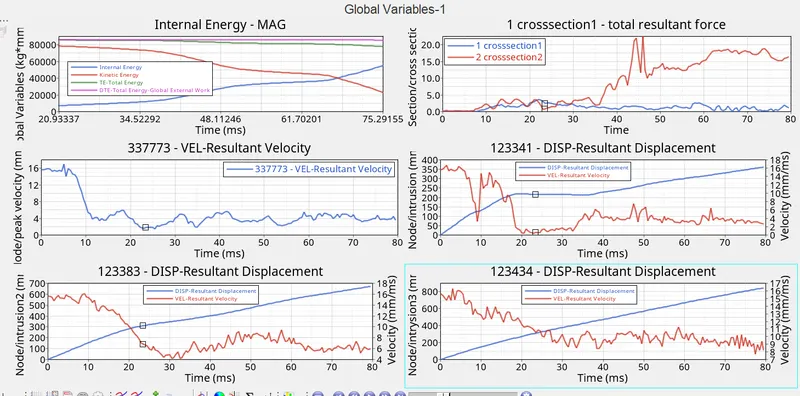
- Now open the 000.out file to check the energy and mass error. The energy error should be in between -15% to 5% and mass error should be in between O% to 5%.
- Now open the Hypergraph and open the TO1 file to check the forces vs time graphs.
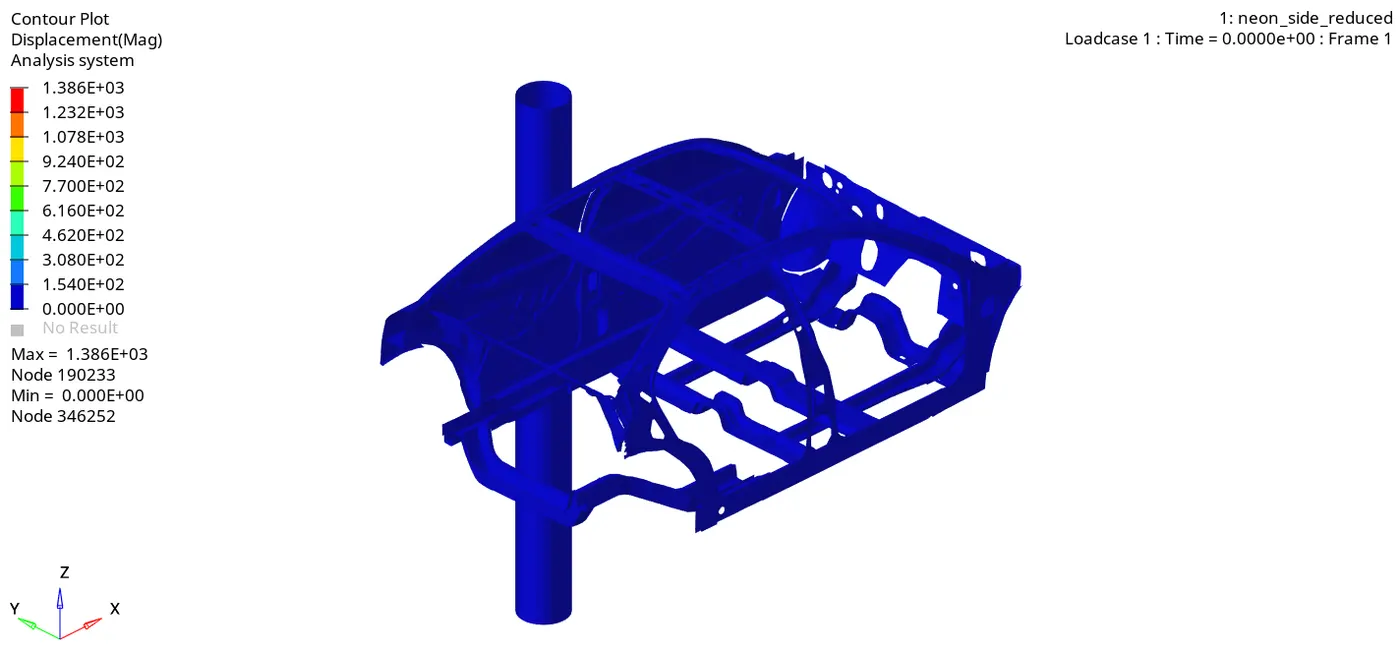
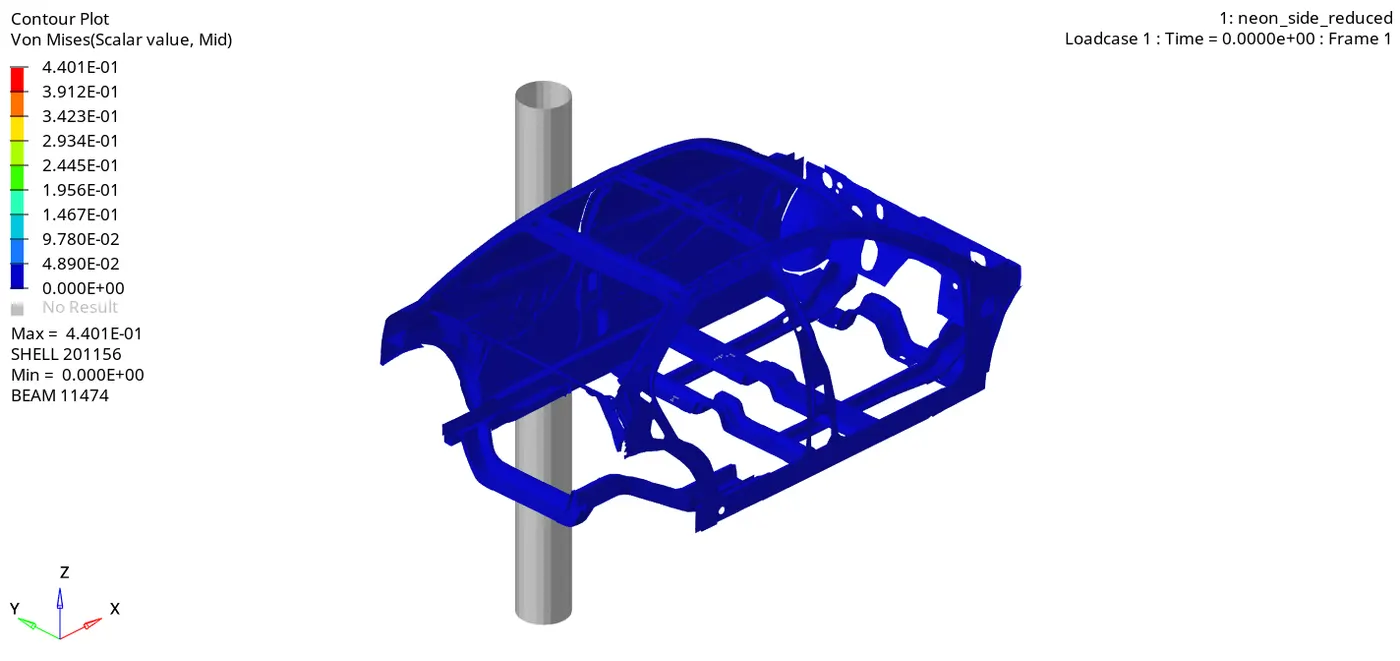
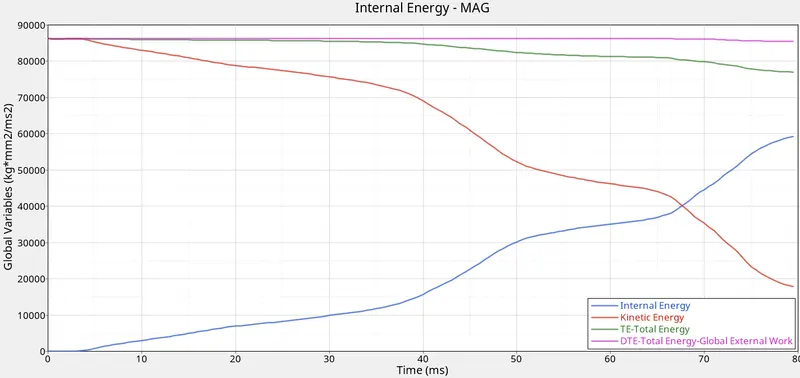
• Total energy is slowly decreases
• Internal Energy is gradually increasing and kinetic energy decreases gradually
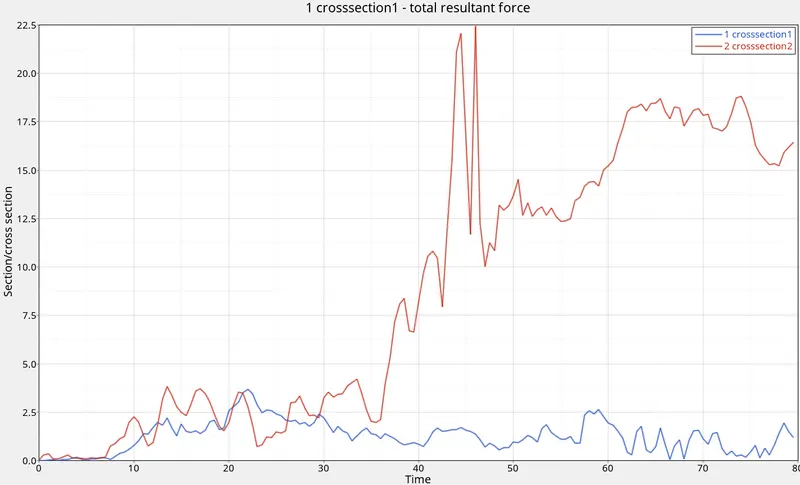
Where see that the resultant force in cross section is increasing.
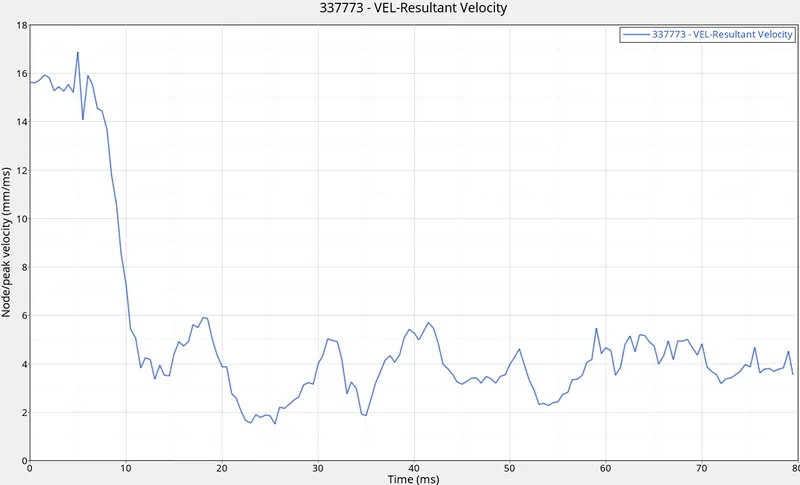
In peak velocity starting velocity is high after that decreases
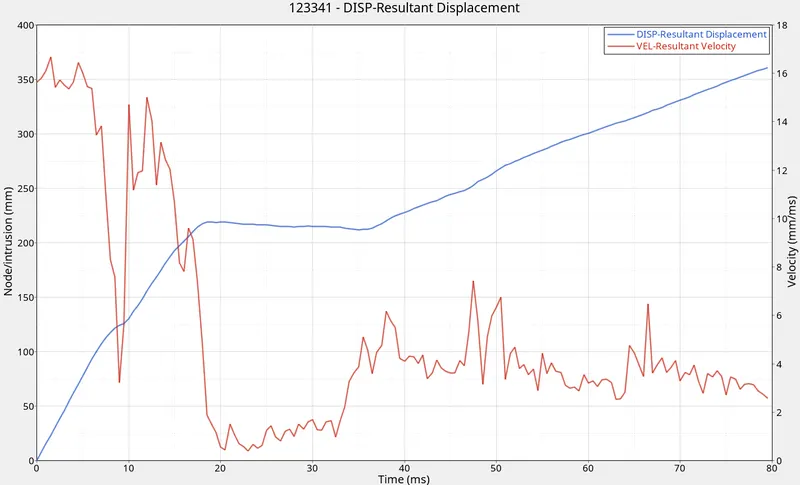
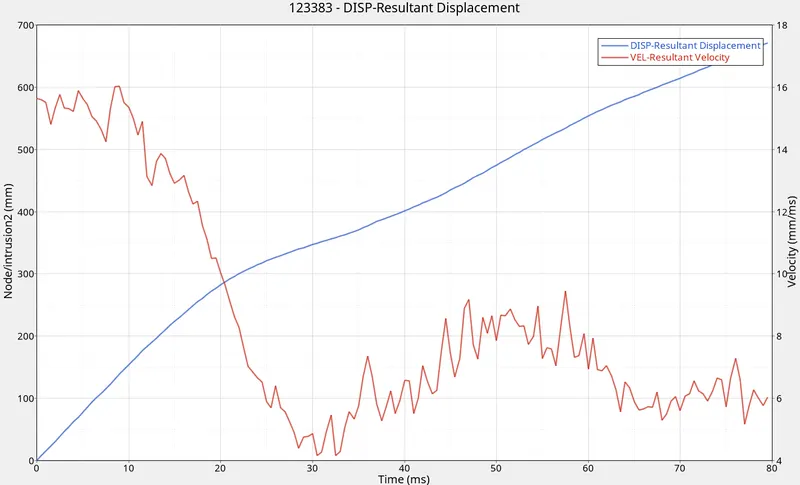
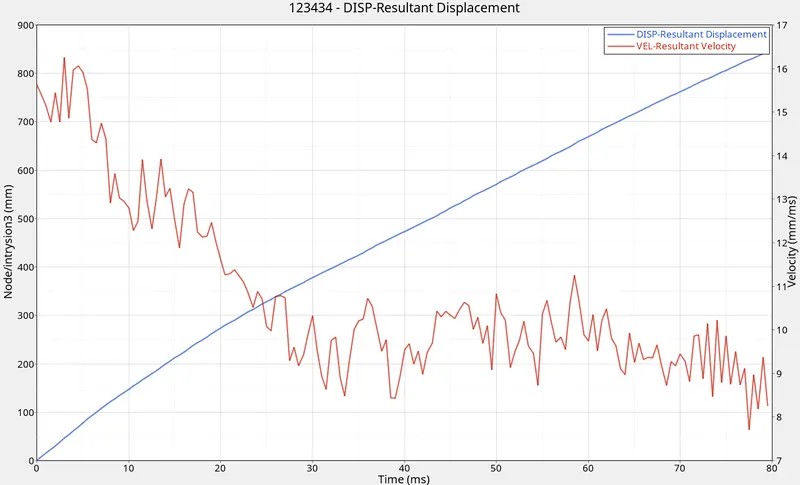
- The Intrutions of hinge pillar, B pillar and fuel tank are increasing gradually.
DRIVE :-
https://drive.google.com/file/d/1MnSkCe66uOxXWy-AvAUh77jJ2uewy3-M/view?usp=drivesdk