Assignment 4-RADIOSS Material Laws Challenge
RADIOSS MATERIAL LAWS CHALLENGE
Aim: To run analysis on the model and observe the elements behaviour by changing material properties in the material card.
Given Model:
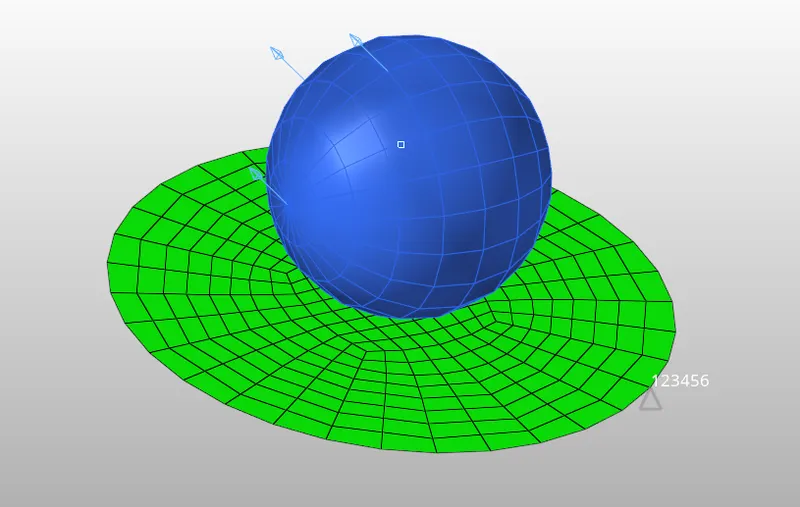
Procedure:
Case 1: Law2_epsmax_failure.
- Import the strater file using the import solver deck option.
- Now go to the model, edit the properties as recommended. Material properties are to be changed as per the case 1 recommendation. Also assign the Ifail_so value as "1" in failure card and run the analysis.
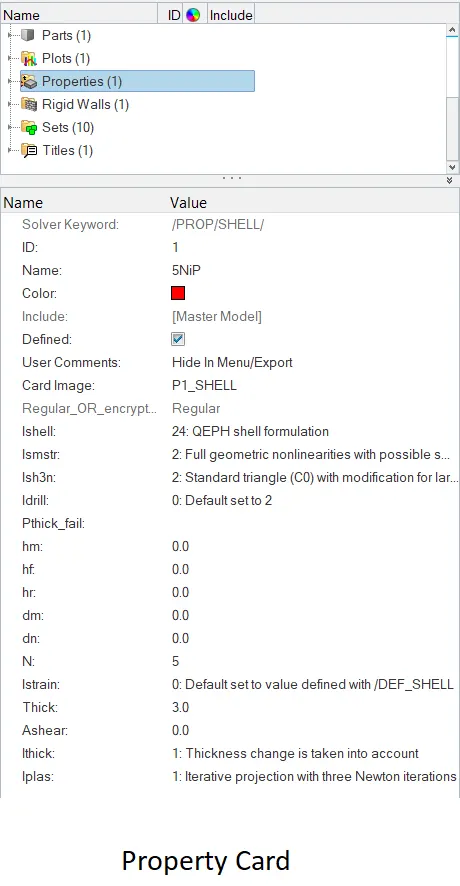
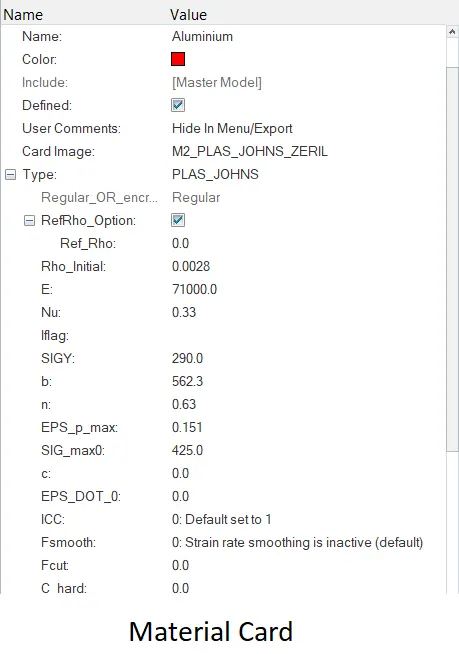
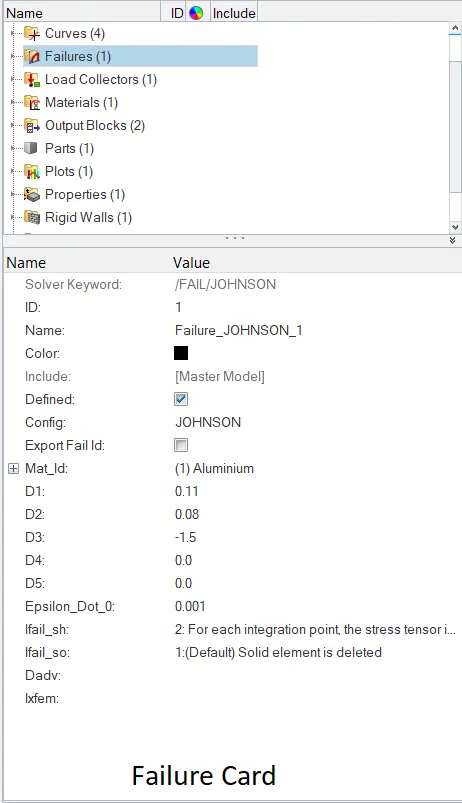
- After running simulation, energy error and mass error need to be verified. The energy error needs to be in the range between -15% to +5%. The energy error value near to 0 represents a good model.
- After the end of simulation open 000.outfile to check the energy error and mass error.
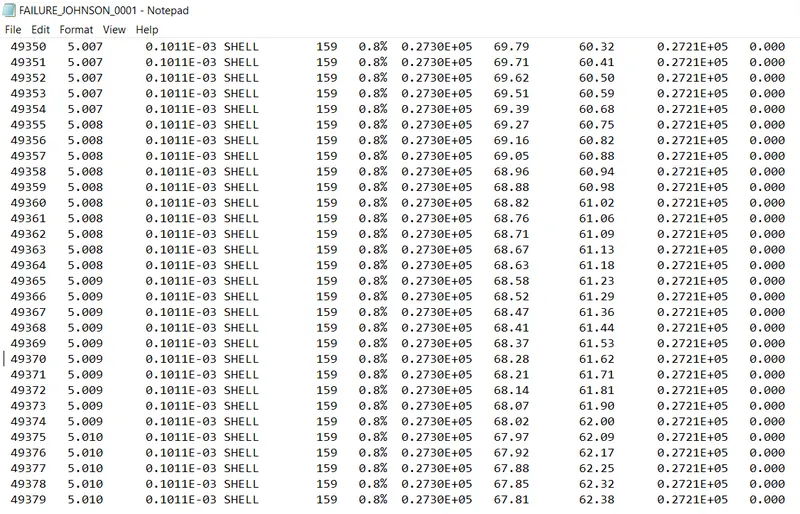
- In this simulation the energy error is near to 0.8% which is acceptable and mass error is 0.
- Now open hyperview and open the h3d file to visualize the contour plots for displacements and von mises stress.
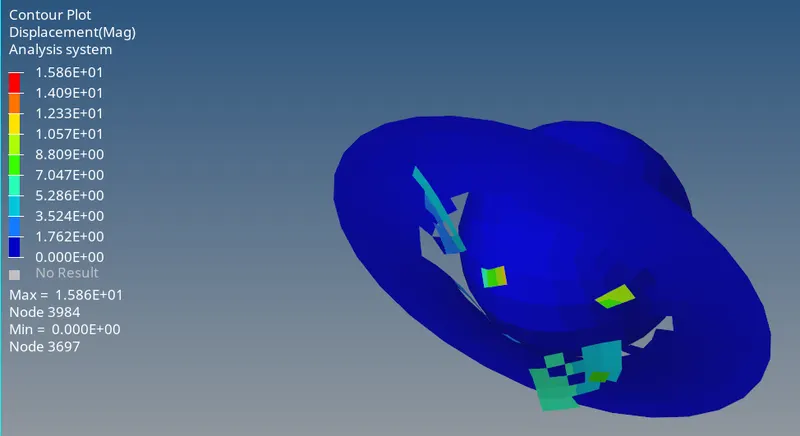
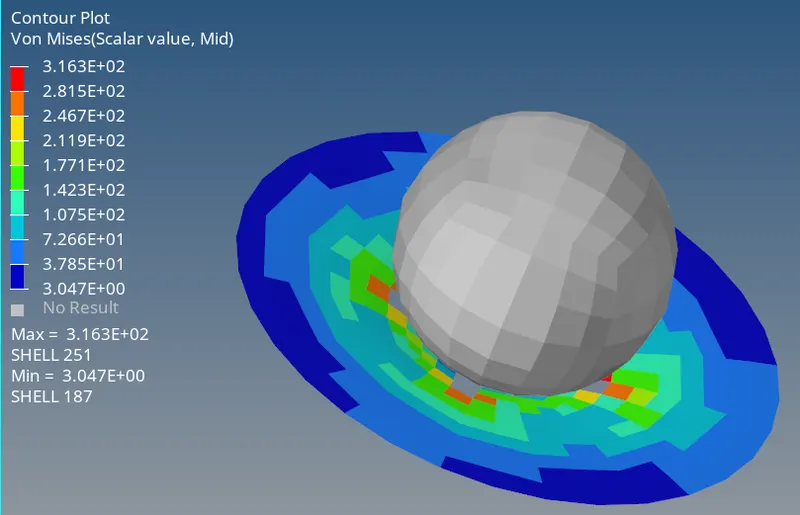
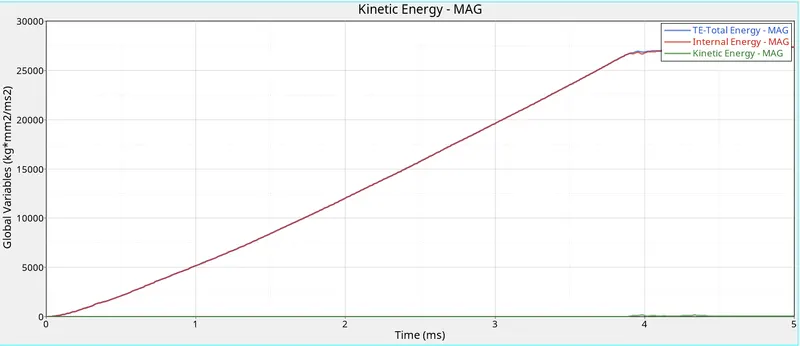
- Now open the hypergraph 2D and open the T01 file to plot the graph between energy vs time and rigid wall forces vs time.
Graph 1: Energy vs Time
Graph 2: Rigid wall forces vs Time
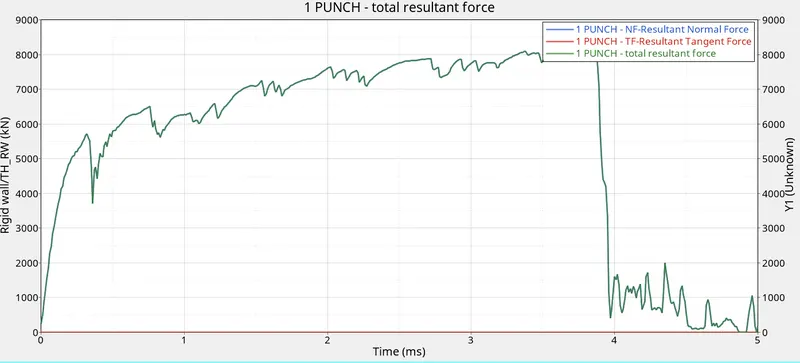
Case 2: Law2_epsmax_crack.
- Import the strater file using the import solver deck option.
- Now go to the model, edit the properties as recommended. Material properties are to be changed as per the case 2 recommendation. Now Change Ifail_so to (0) default, Dadv to 1 and Ixfem to 1.
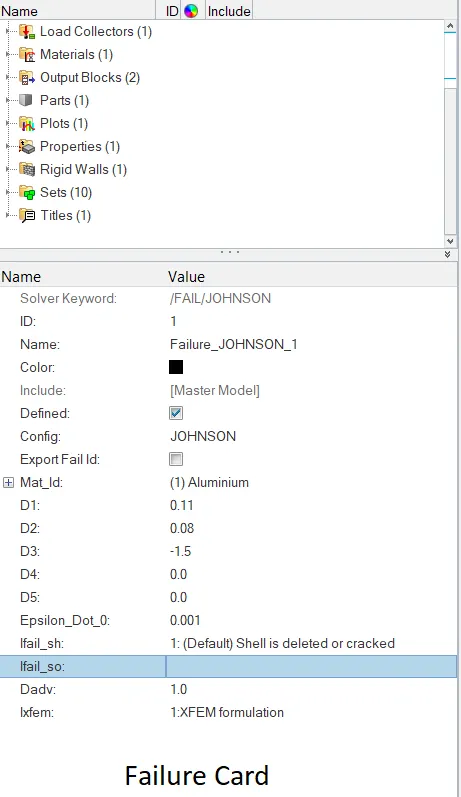
- After assigning the property card to the component run the analysis.
- After the simulation the energy error and mass error need to be verified just like the previous case.
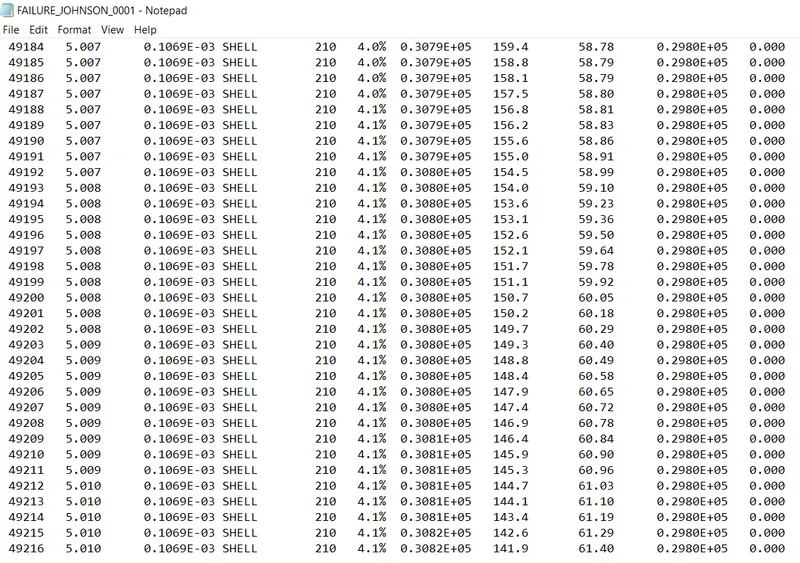
- The energy error is 4.1% which is acceptable and mass error still remins zero.
- Now open hyperview and open the h3d file to visualize the contour plots for displacements and von mises stress.
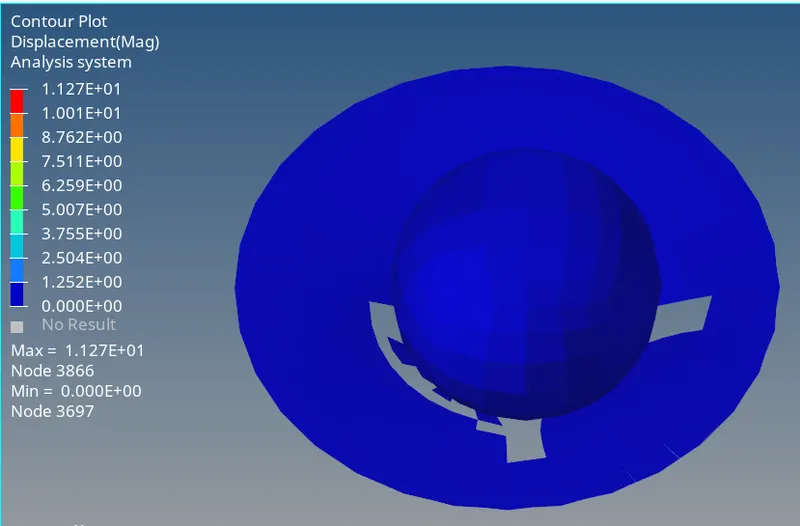
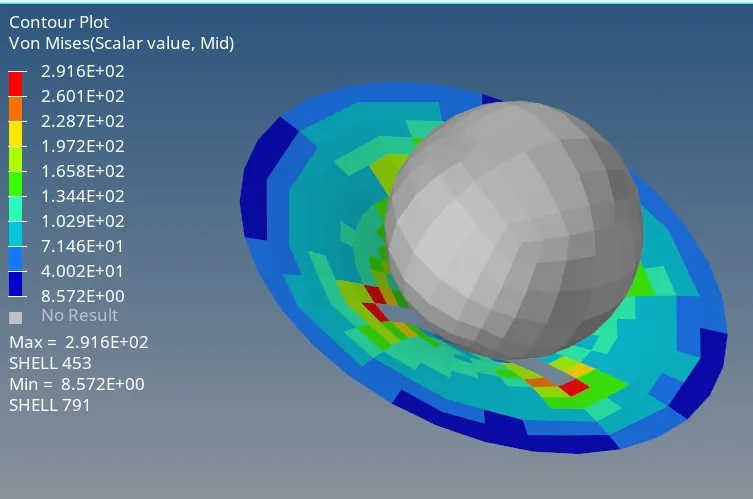
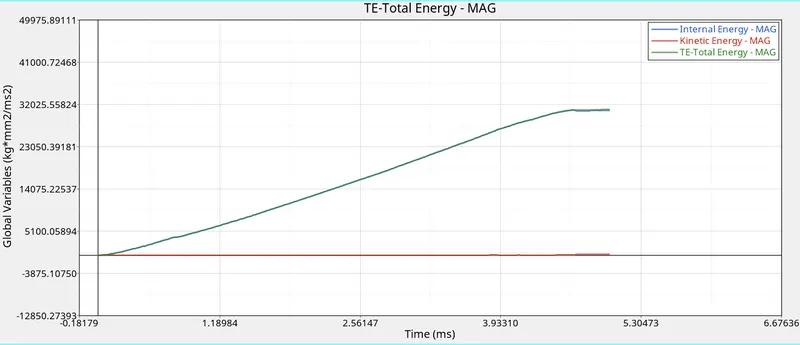
- Now open the hypergraph 2D and open the T01 file to plot the graph between energy vs time and rigid wall forces vs time.
Graph 1: Energy vs Time
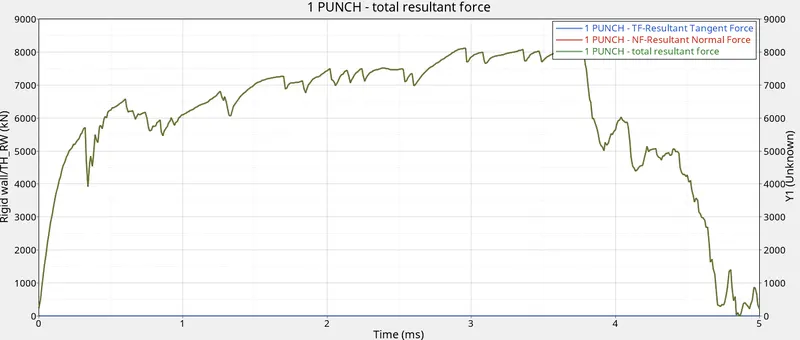
Graph 2: Rigid wall forces vs Time
Case 3: Law2_epsmax_nofail.
- Import the strater file using the import solver deck option.
- Now go to the model, edit the properties as recommended. Material properties are to be changed as per the case 3 recommendation. In this case delete the failure card to observe the element behaviour.
- After assigning the property and material to the component, run the simulation.
- After the simulation the energy error and mass error need to be verified just like the previous case.
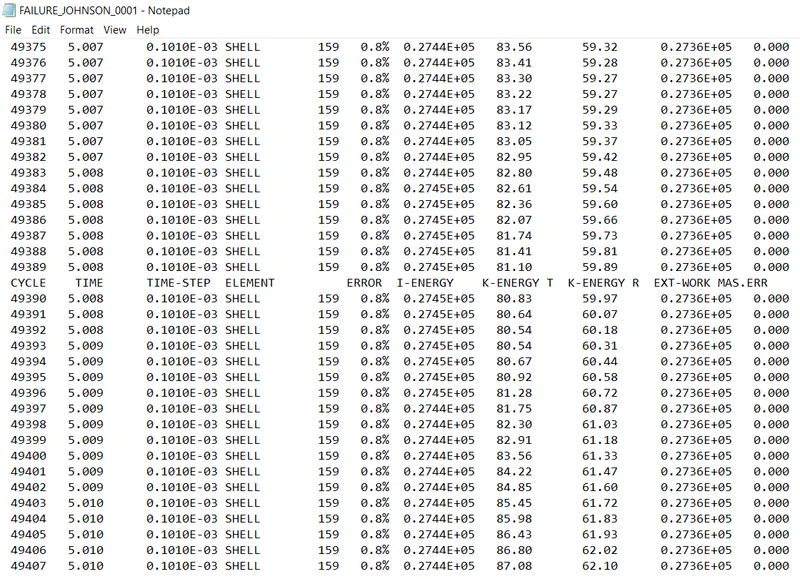
- The energy error is 0.8% which is a good result and mass error still remians zero.
- Now open hyperview and open the h3d file to visualize the contour plots for displacements and von mises stress.
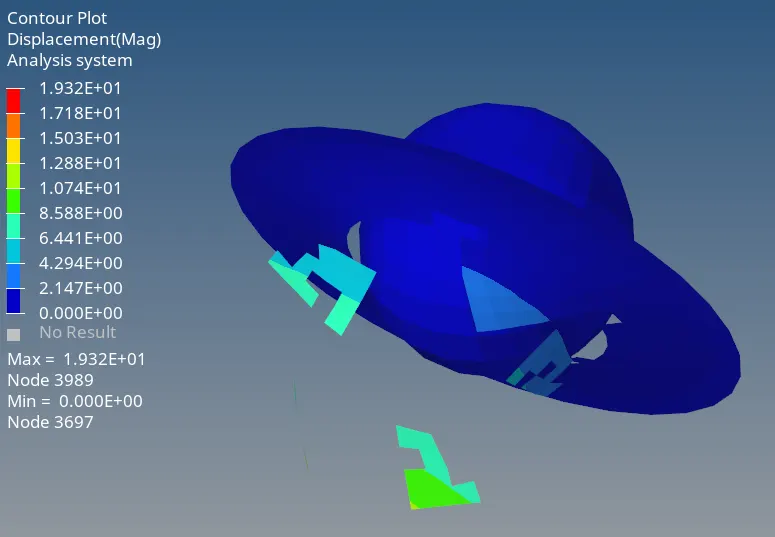
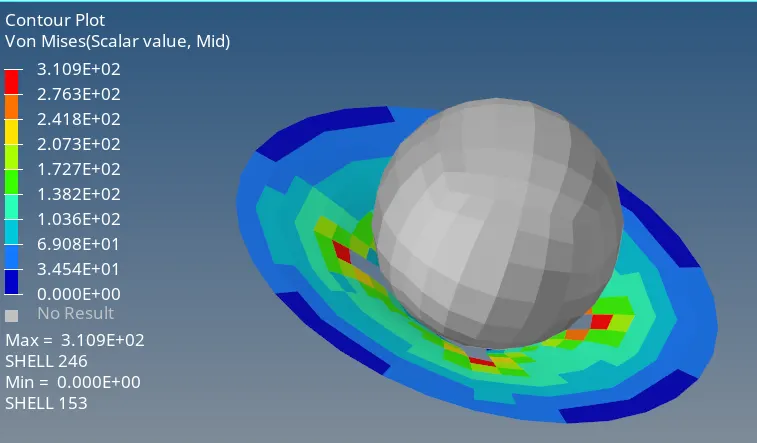
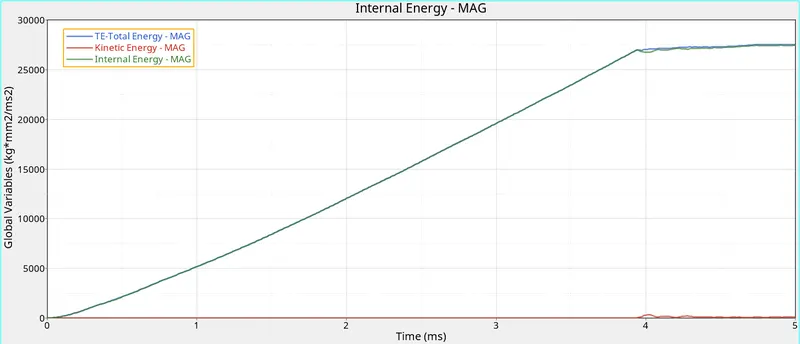
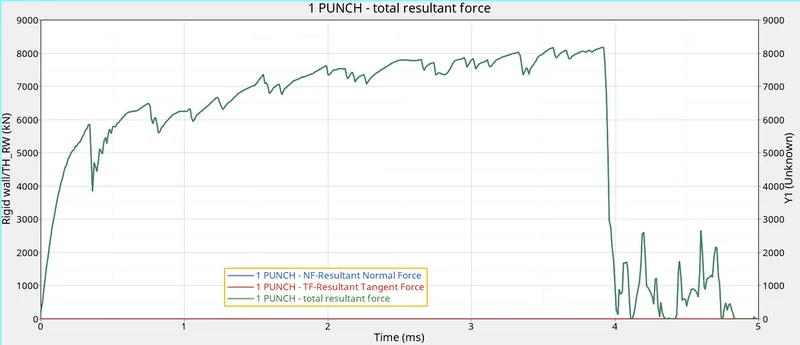
- Now open the hypergraph 2D and open the T01 file to plot the graph between energy vs time and rigid wall forces vs time.
Graph 1: Energy vs Time
Graph 2: Rigid wall forces vs Time
Case 4: Law 2.
- Import the strater file using the import solver deck option.
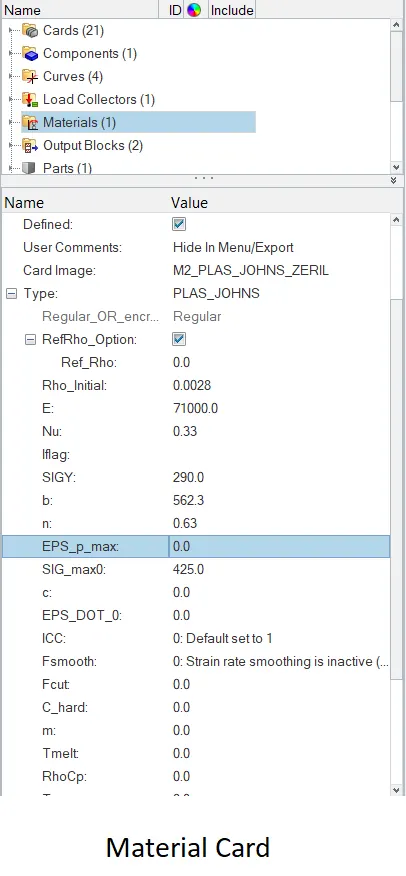
- Now go to the model, edit the properties as recommended. Material properties are to be changed as per the case 4 recommendation and eps_max value is changed to 0. There is no failure card in this case.
- After assigning the property and material to the component, run the simulation.
- After the simulation the energy error and mass error need to be verified just like the previous case.
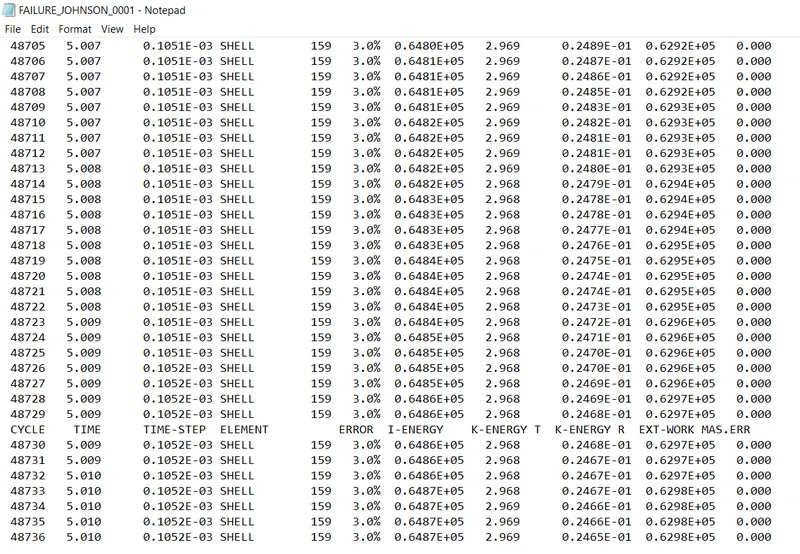
- The energy error is 3.0% which is acceptable and mass error still remins zero.
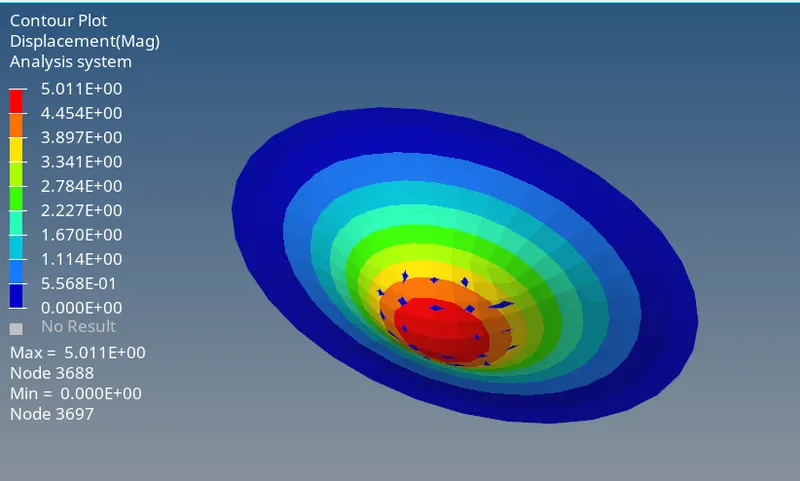
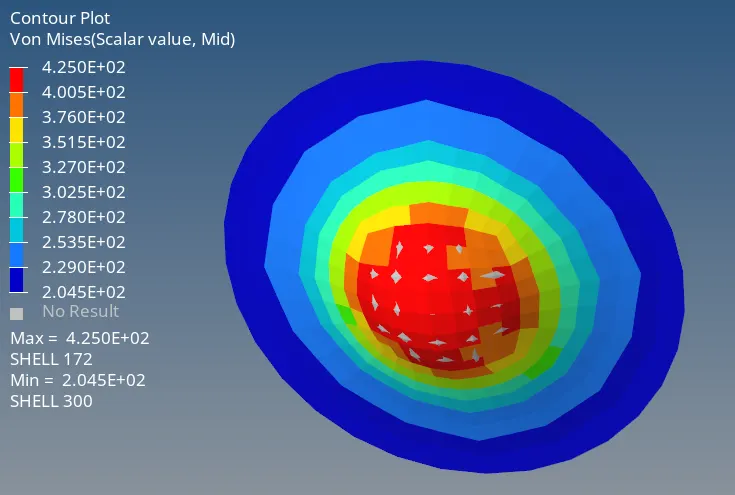
- Now open hyperview and open the h3d file to visualize the contour plots for displacements and von mises stress.
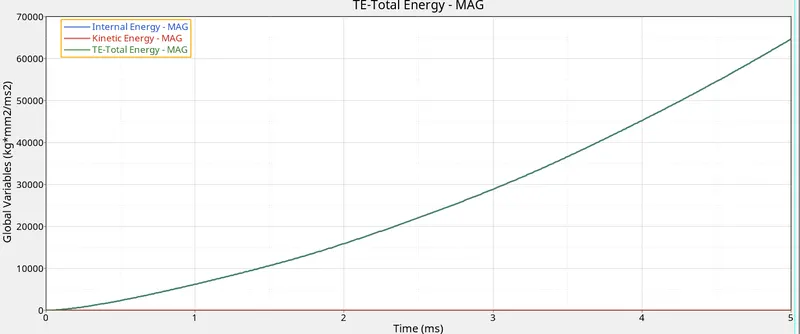
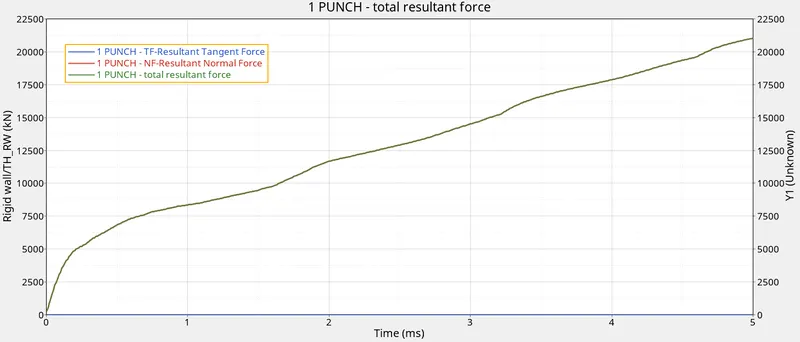
- Now open the hypergraph 2D and open the T01 file to plot the graph between energy vs time and rigid wall forces vs time.
Graph 1: Energy vs Time
Graph 2: Rigid wall forces vs Time
Case 5: Law1_Elastic.
- Import the strater file using the import solver deck option.
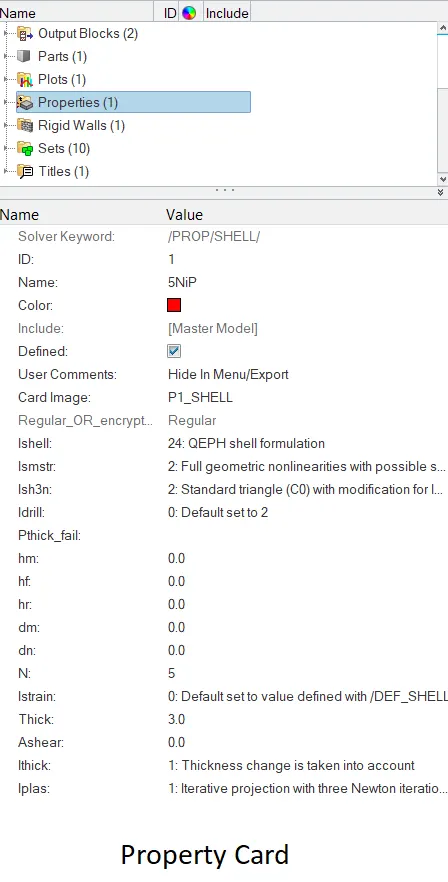
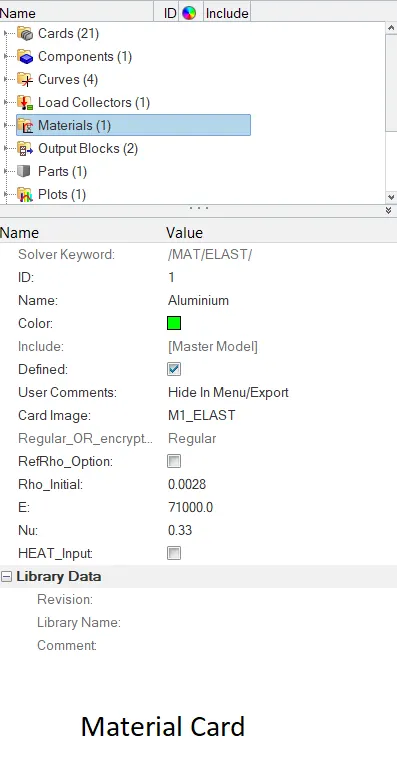
- Now go to the model, edit the properties as recommended. New material card is created using Law1 Nu, E, density values.
- After assigning the property and material to the component, run the simulation.
- After the simulation the energy error and mass error need to be verified.
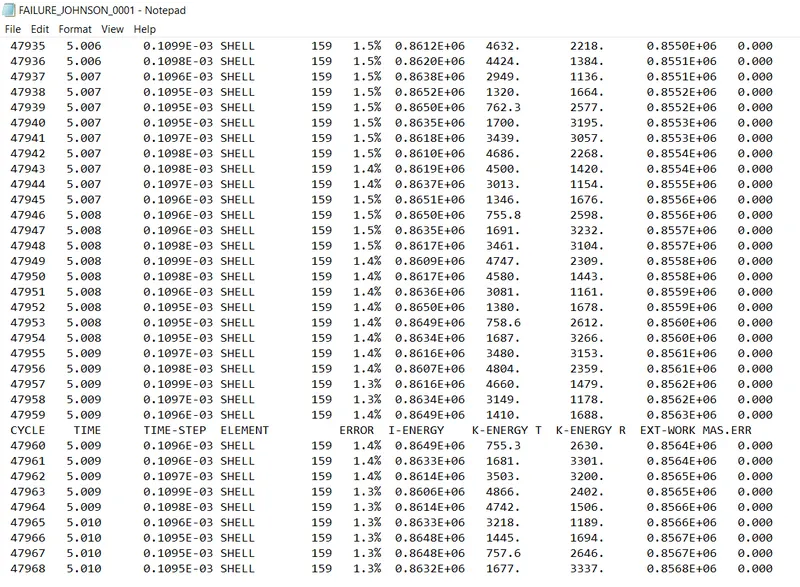
- The energy error is 1.3% which is acceptable and mass error still remins zero.
- Now open hyperview and open the h3d file to visualize the contour plots for displacements and von mises stress.
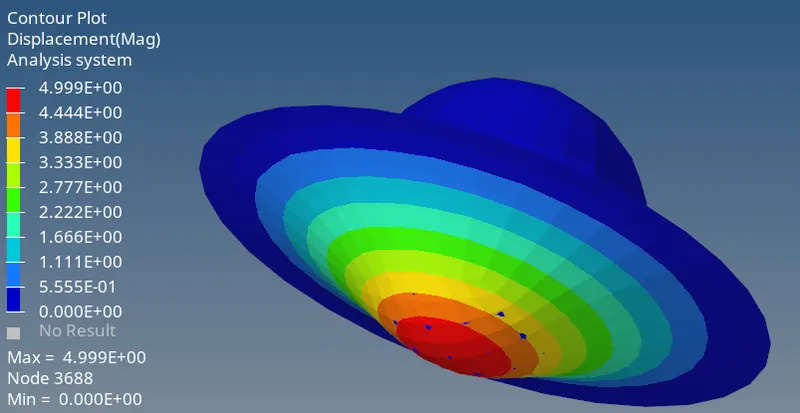
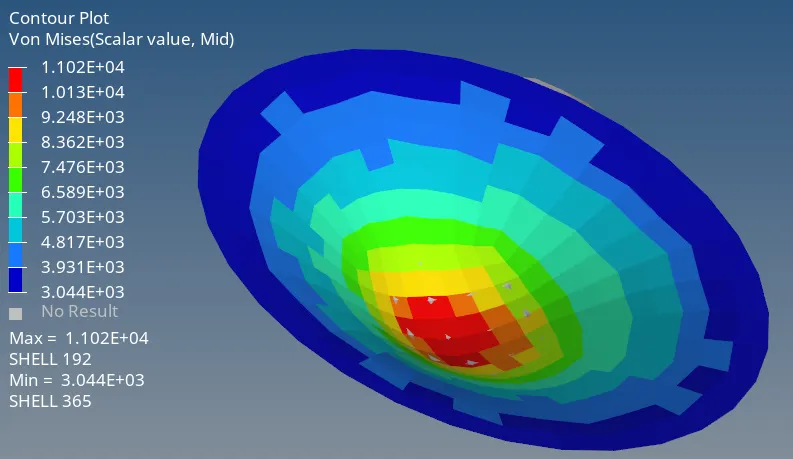
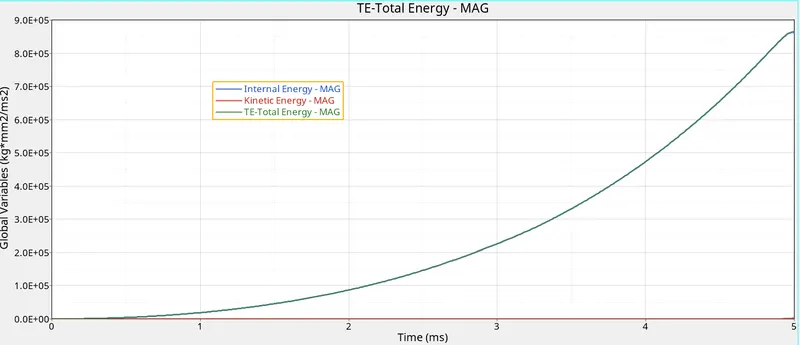
- Now open the hypergraph 2D and open the T01 file to plot the graph between energy vs time and rigid wall forces vs time.
Graph 1: Energy vs Time
Graph 2: Rigid wall forces vs Time
Case 6: Law 36.
- Import the strater file using the import solver deck option.
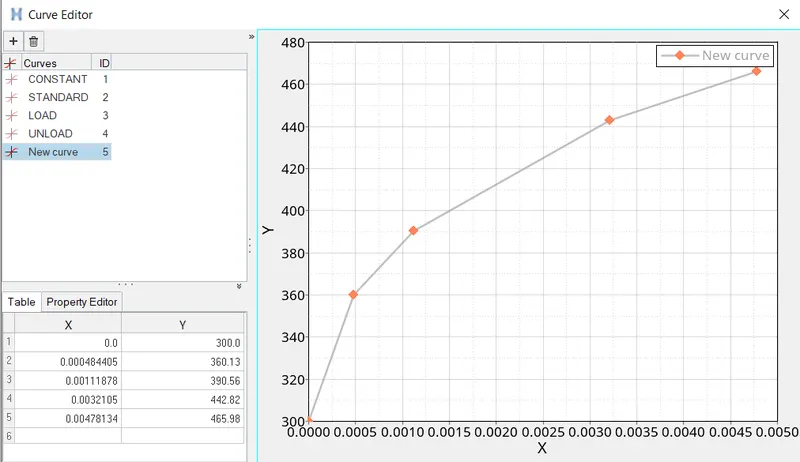
- Now go to the model, edit the properties as recommended. Material card is edited as per the values given. For Number of functions value 1 is given. New curve is created using the x any y values.
- After assigning the property and material to the component, run the simulation.
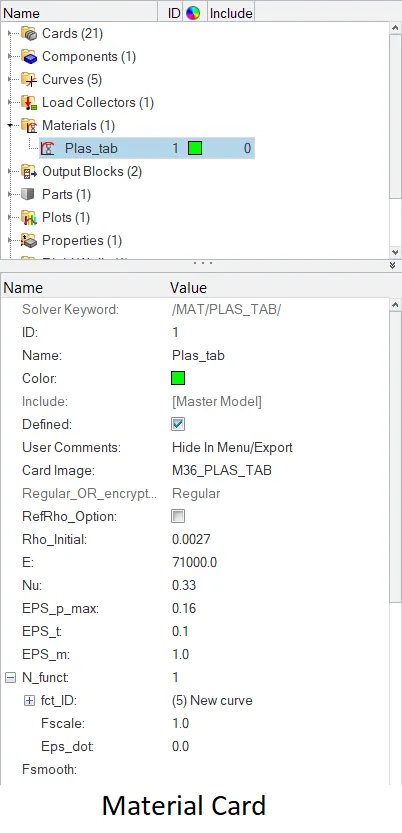
- After the simulation the energy error and mass error need to be verified.
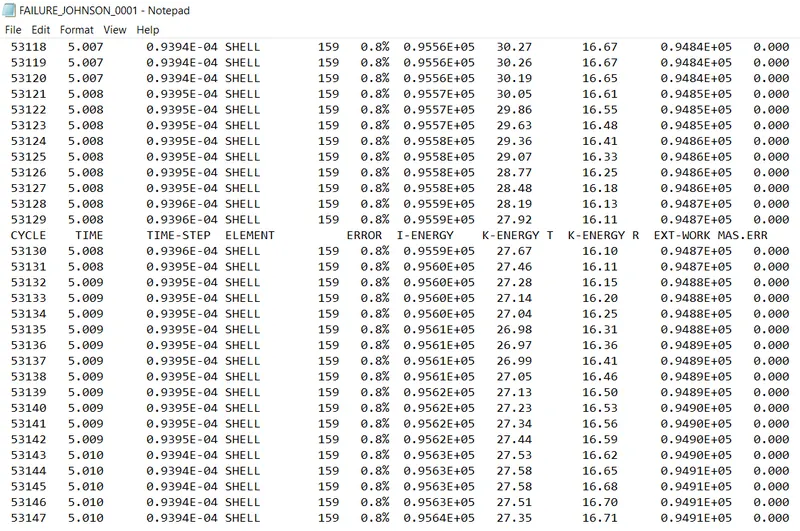
- The energy error is 0.8% which is acceptable and mass error still remins zero.
- Now open hyperview and open the h3d file to visualize the contour plots for displacements and von mises stress.
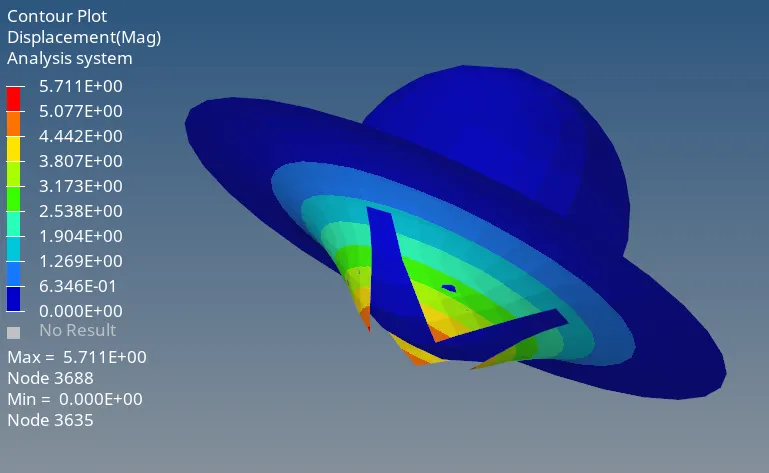
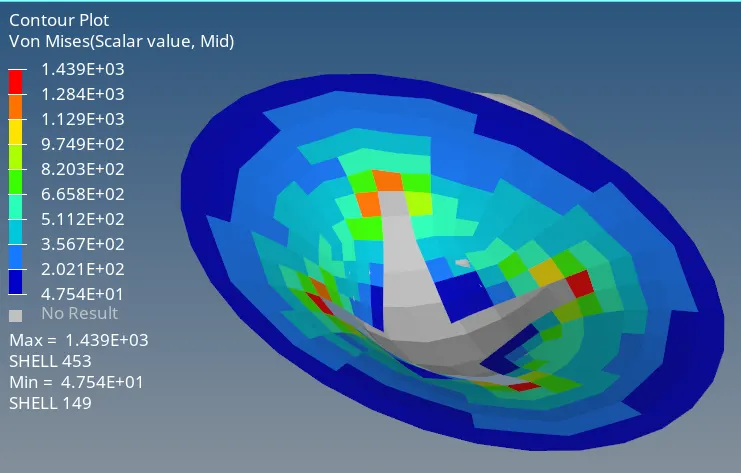
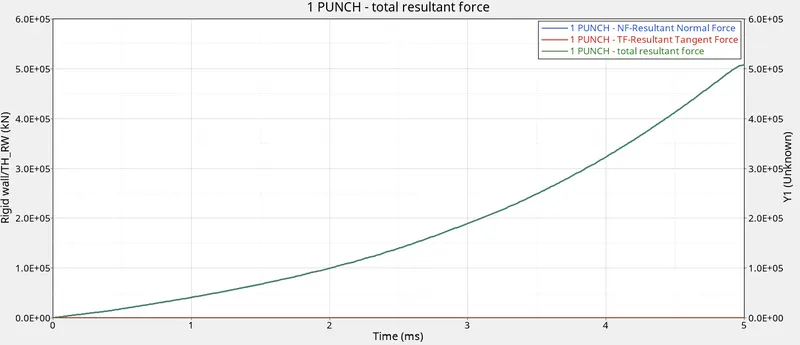
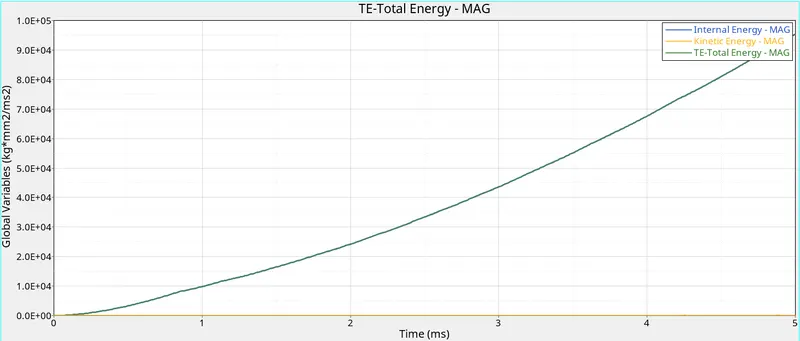
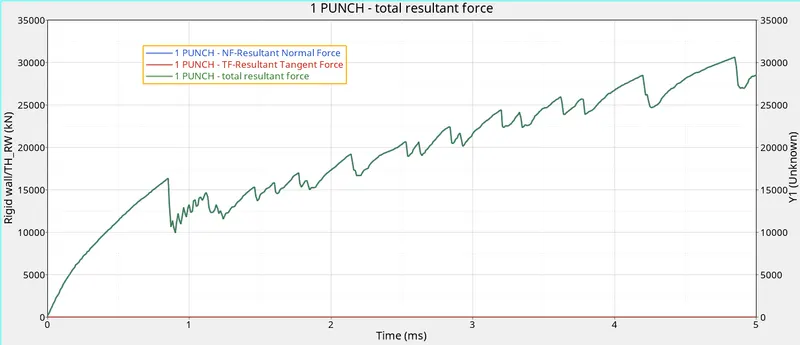
- Now open the hypergraph 2D and open the T01 file to plot the graph between energy vs time and rigid wall forces vs time.
Graph 1: Energy vs Time
Graph 2: Rigid wall forces vs Time
Case 7: Plas_tab_law27.
- Import the "law27" strater file using the import solver deck option.
- Now go to the model, edit the properties as recommended. Material card as be edited as per the Case 7 recommendation.
- After assigning the property and material to the component, run the simulation.
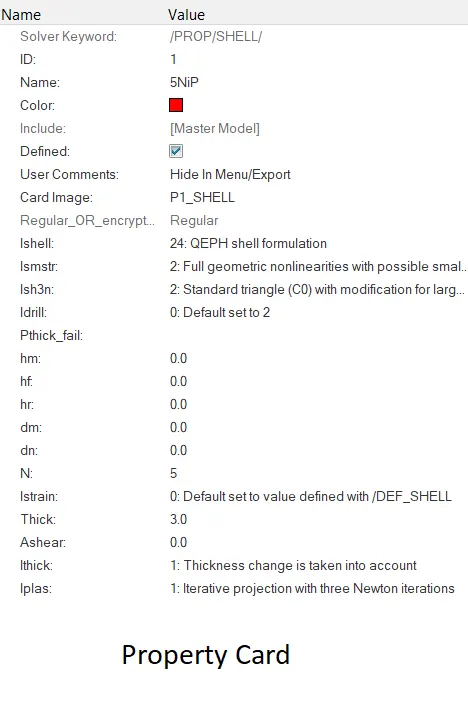
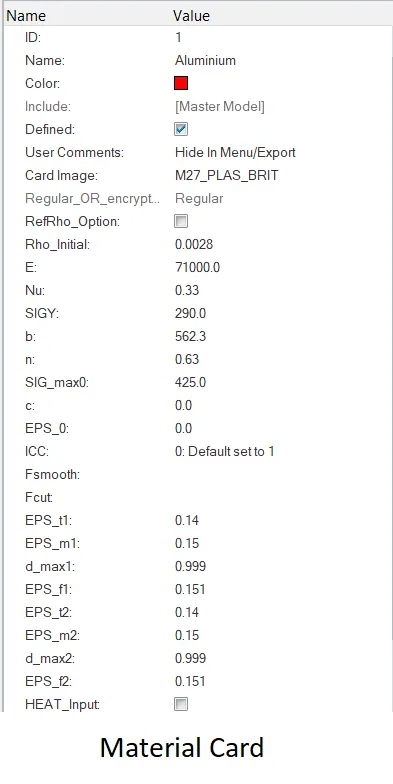
- After the simulation the energy error and mass error need to be verified.
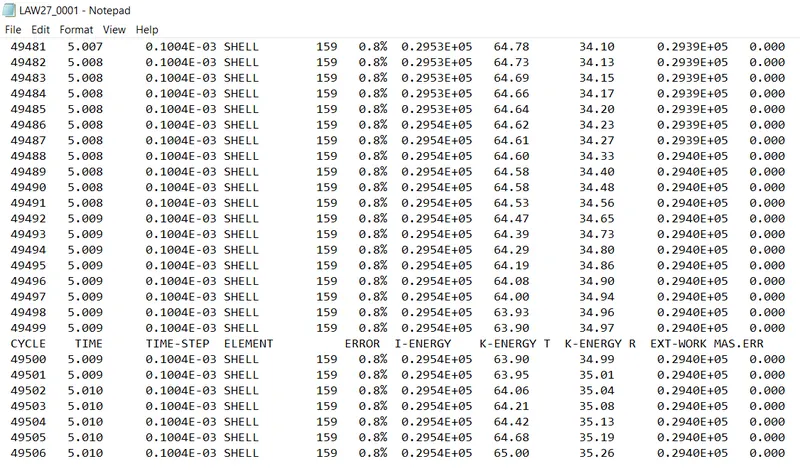
- The energy error is 0.8% which is acceptable and mass error still remins zero.
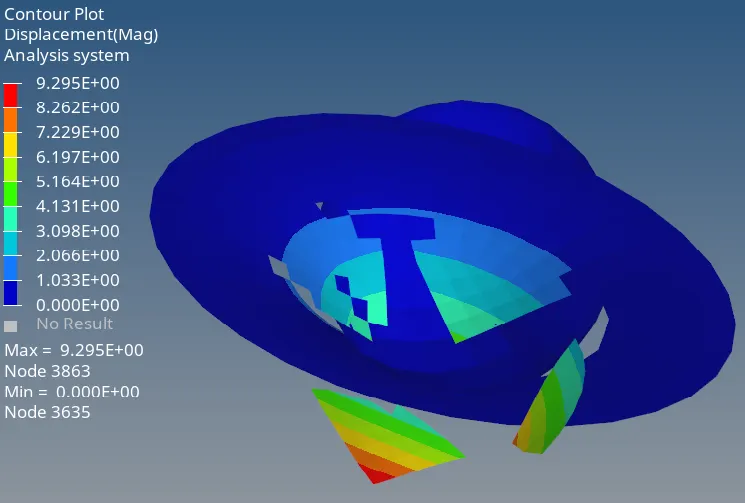
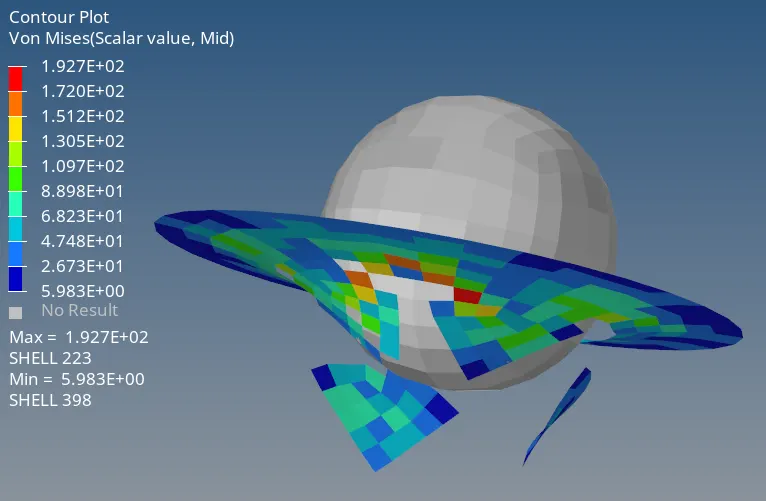
- Now open hyperview and open the h3d file to visualize the contour plots for displacements and von mises stress.
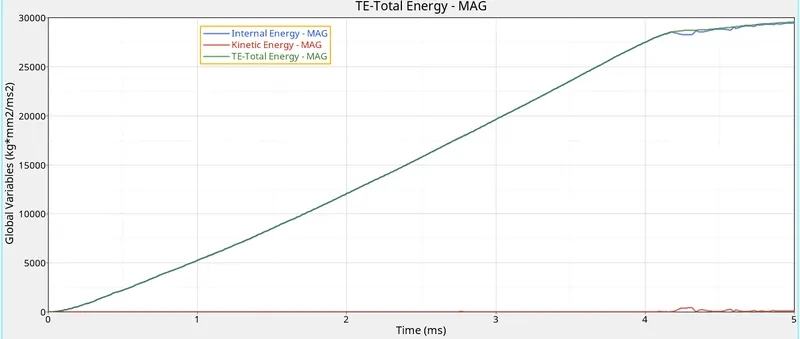
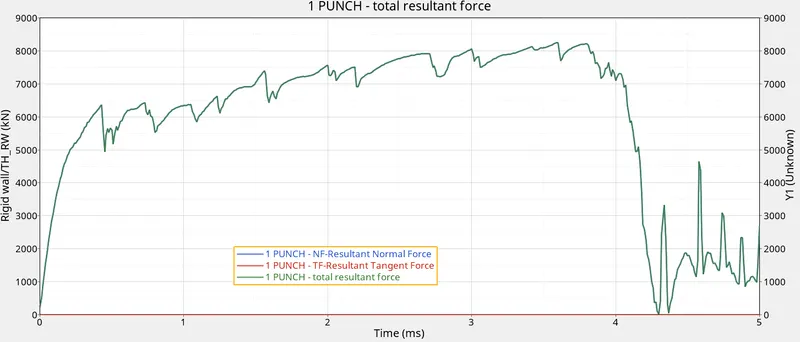
- Now open the hypergraph 2D and open the T01 file to plot the graph between energy vs time and rigid wall forces vs time.
Graph 1: Energy vs Time
Graph 2: Rigid wall forces vs Time
Comparing No of Cycles, Energy error and Mass error:
| Case | No of Cycles | Energy Error | Mass Error |
| 1. | 49379 | 0.8 | 0.0 |
| 2. | 49216 | 4.1 | 0.0 |
| 3. | 49407 | 0.8 | 0.0 |
| 4. | 48736 | 3.0 | 0.0 |
| 5. | 47968 | 1.3 | 0.0 |
| 6. | 53147 | 0.8 | 0.0 |
| 7. | 49506 | 0.8 | 0.0 |
- Case 6 has the maximum number of cycles and Case 5 has less number of cycles.
- Mass error is 0 in all the cases.
Animation Observation:
| Case | Element Behaviour |
| 1. | Elements Deleted |
| 2. | Few deleted and few Cracked |
| 3. | Elements deleted |
| 4. | Show elastic behaviour |
| 5. | Show elastic behaviour |
| 6. | Cracked linearlly |
| 7. | Deleted linearly |
Energy Plot Observation:
- Total energy is almost equal to internal energy in all cases.
- Kinetic energy is zero in all cases.
- The energy is linearly increasing in 1,2 and 3 cases and linearly with slope in 4,5,6 and 7 cases.
Conclusion:
Analysis has been done on the model and element behaviour changes has been observed by changing material properties in the material card.