Assignment 4-RADIOSS Material Laws Challenge
AIM:Run the given model with given material properties and then compare the results.
Perform the simulation as per the cases given below.
Case 1
- Import the FAILURE_JOHNSON_0000.rad file and run the model as it is. Give the title name as Law2_epsmax_failure.
Case 2
- Import the case 1 rad file, named “Law2_epsmax_failure” and perform the simulation with failure plastic strain (EPS_p_max) and fail_Johson card enabled.
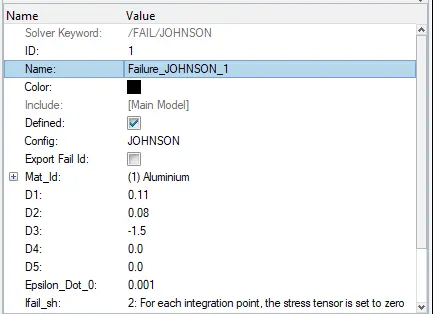
- Changes to be made in /FAIL/JOHNSON card:
- ifail_sh= 1
- Dadv= 1
- Ixfem= 1
- Use the recommended values for the property card.
- Give the title name as Law2_epsmax_crack.
Case 3
- Import the case 2 rad file, named “Law2_epsmax_crack” and perform the simulation by removing the fail_Johnson failure card. Give the title name as Law2_epsmax_nofail.
Case 4
- Import the case 3 rad file, named “Law2_epsmax_nofail” and perform the simulation by removing both the failure plastic strain (EPS_p_max) and the fail_Jhonson failure card.
Case 5
- Import the case 4 rad file and perform the simulation by changing the material card to Law 1. Keep the same value for rho, E, and nu values.
Case 6
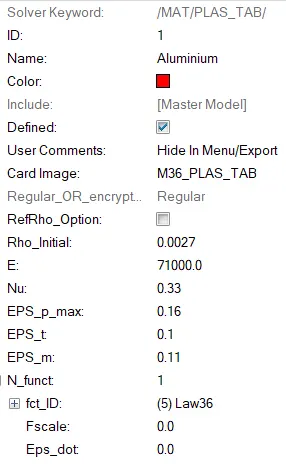
- Import the case 1 rad file, named “Law2_epsmax_failure” and perform the simulation with the law 36 material card. Refer to the video titled "Materials 7" for further information.
Case 7
- Open the Law27_0000.rad file and perform the simulation with the law 27 material card. Use the recommended shell properties.
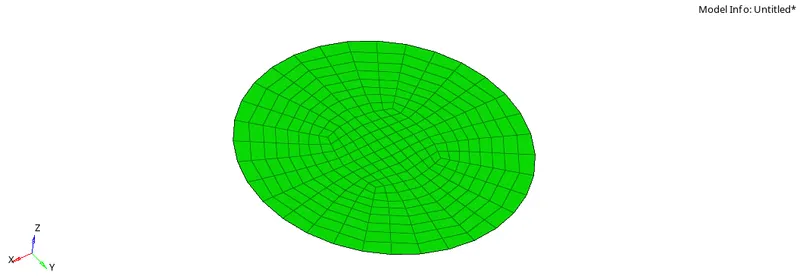
MODEL:
PROCEDURE:
Case 1
- Import the FAILURE_JOHNSON_0000.rad file and run the model as it is. Give the title name as Law2_epsmax_failure.
1.Import the FAILURE_JOHNSON_0000.rad file into the hypermesh GUI.
2.In the base simulation run it with default values.
3.
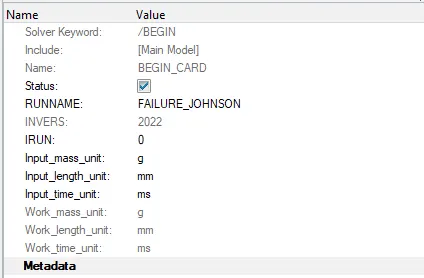
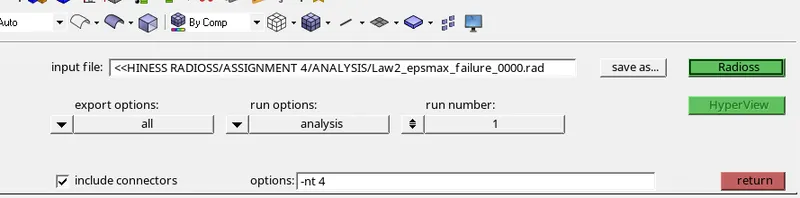
3.Go to Analysis-Radioss-save the file name as Law2_epsmax_failure_0000.rad and type -nt 4 in the text box check the connectors box and click on Radioss.
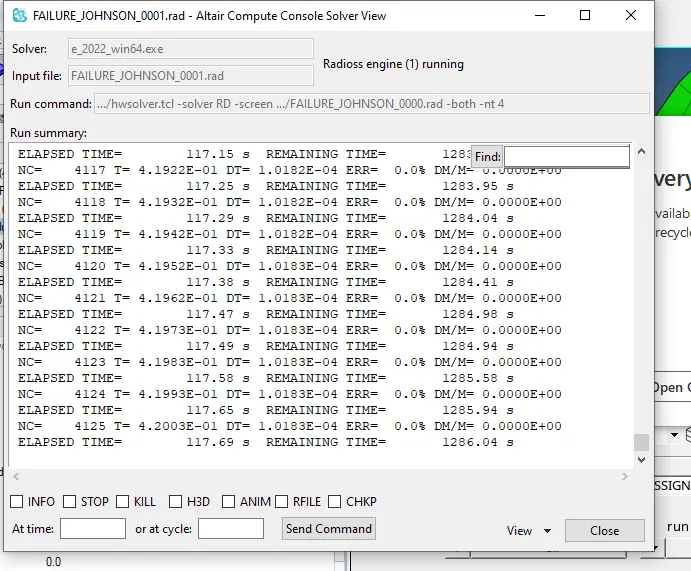
4.After the simulation is completed go to hyperview to visualize the results.
5.To view the results input the h3d file in the hyperview gui.
6.We can change it to contour and visualize the vonmises stress by changing the average method to simple.
7.
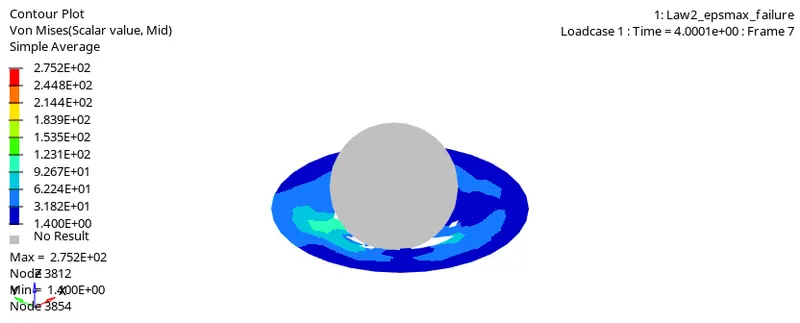
7.Next we need to carry out mass and energy error checks.To do this we need to open the .out file using any text editor.
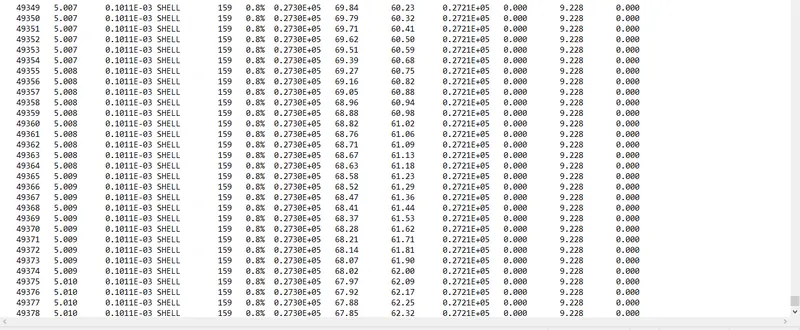
8.The energy error as seen is 0.8% and mass error is zero.
9.These are very acceptable values.
10.Next,plot the graphs and visualize and compare the results.
Case 2
- Import the case 1 rad file, named “Law2_epsmax_failure” and perform the simulation with failure plastic strain (EPS_p_max) and fail_Johson card enabled.
- Changes to be made in /FAIL/JOHNSON card:
- ifail_sh= 1
- Dadv= 1
- Ixfem= 1
- Use the recommended values for the property card.
- Give the title name as Law2_epsmax_crack.
1.Change the values of ifail_sh= 1 Dadv= 1 Ixfem= 1
2.ifail_sh= 1 indicates that the shell element failure can be occured in two ways.It can either be deleted or in some cases cracking may occur.
3. Ixfem= 1 ,In this we can choose the element to delete or crack,As we chose that Ixfem=1,we chose the element to crack not delete.
4. Dadv= It gets activated when the element Ixfem=1, we take Dadv=1,It tells that how much the element will break into small pieces,if it goes beyond the limit it will break.
5.Go to Analysis-Radioss-save the file name as Law2_epsmax_crack_0000.rad and type -nt 4 in the text box check the connectors box and click on Radioss.
6. After the simulation is completed go to hyperview to visualize the results.
7.To view the results input the h3d file in the hyperview gui.
8 .We can change it to contour and visualize the vonmises stress by changing the average method to simple.
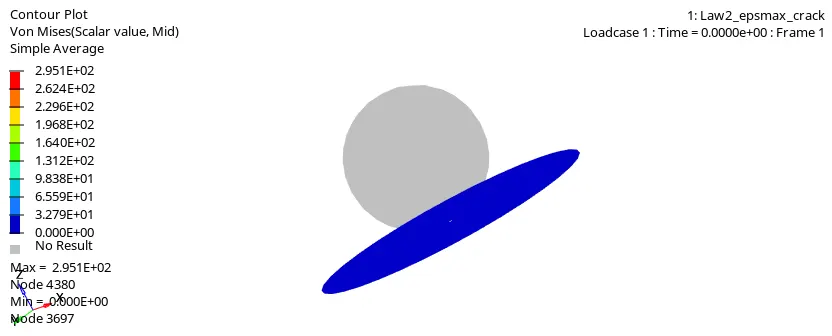
9. Next we need to carry out mass and energy error checks.To do this we need to open the .out file using any text editor.
10. The energy error as seen is 4.1% and mass error is zero.
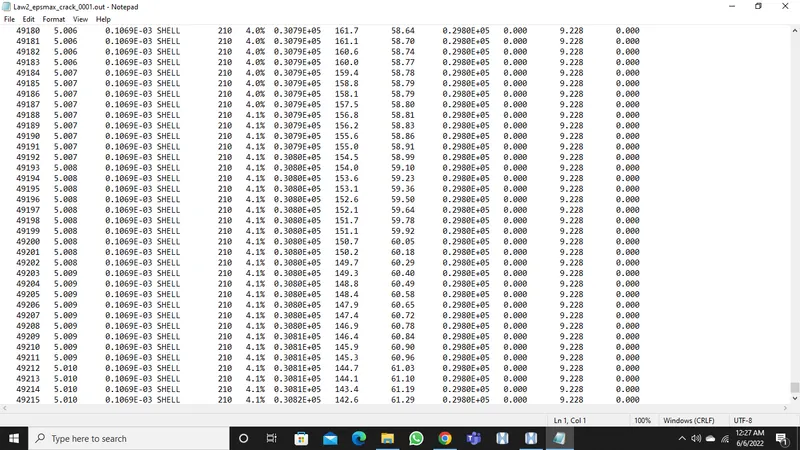
11.These are acceptable values.
12. Next,plot the graphs and visualize and compare the results.
Case 3
- Import the case 2 rad file, named “Law2_epsmax_crack” and perform the simulation by removing the fail_Johnson failure card. Give the title name as Law2_epsmax_nofail.
1.Import the case 2 rad file, named “Law2_epsmax_crack” and perform the simulation by removing the fail_Johnson failure card.
2.Go to failures-failure_johnson_1 and delete the cad.
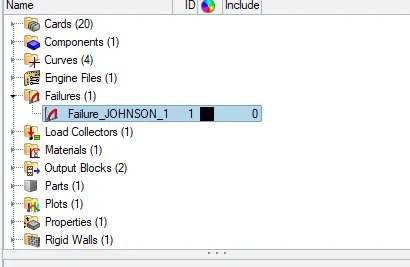
3.Go to Analysis-Radioss-save the file name as Law2_epsmax_nofail_0000.rad and type -nt 4 in the text box check the connectors box and click on Radioss.
4. After the simulation is completed go to hyperview to visualize the results.
5.To view the results input the h3d file in the hyperview gui.
6 .We can change it to contour and visualize the vonmises stress by changing the average method to simple.
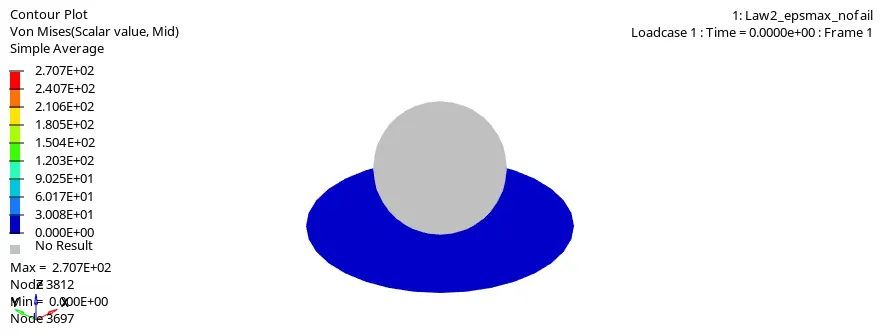
7. Next we need to carry out mass and energy error checks.To do this we need to open the .out file using any text editor.
8. The energy error as seen is 0.8% and mass error is zero.
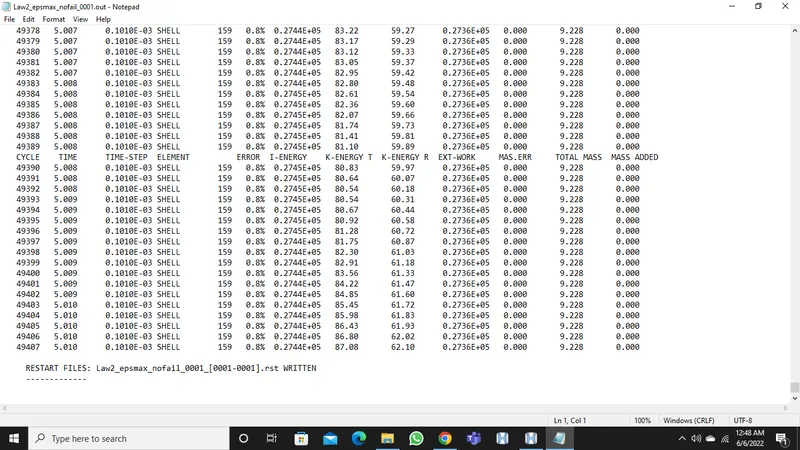
9. These are acceptable values.
10. Next,plot the graphs and visualize and compare the results.
Case 4
- Import the case 3 rad file, named “Law2_epsmax_nofail” and perform the simulation by removing both the failure plastic strain (EPS_p_max) and the fail_Jhonson failure card.
1.Import the case 2 rad file, named “Law2_epsmax_nofail” and perform the simulation by removing the failure plastic strain (EPS_p_max) and the fail_Jhonson failure card.
2.Go to materials tab-aluminium and make the failure plastic strain (EPS_p_max) value as 0
3.Go to Analysis-Radioss-save the file name as Law2_0000.rad and type -nt 4 in the text box check the connectors box and click on Radioss.
4. After the simulation is completed go to hyperview to visualize the results.
5.To view the results input the h3d file in the hyperview gui.
6 .We can change it to contour and visualize the vonmises stress by changing the average method to simple.
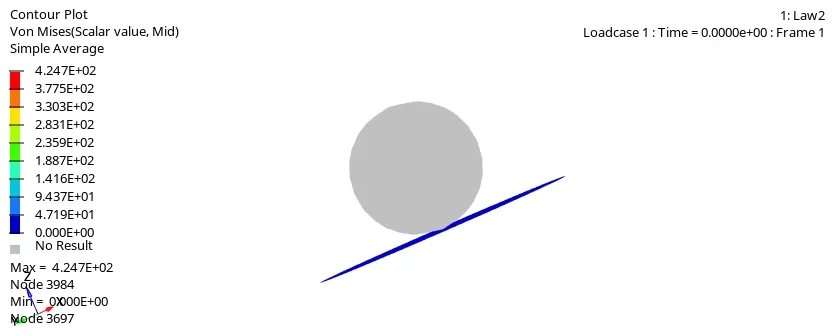
7. Next we need to carry out mass and energy error checks.To do this we need to open the .out file using any text editor.
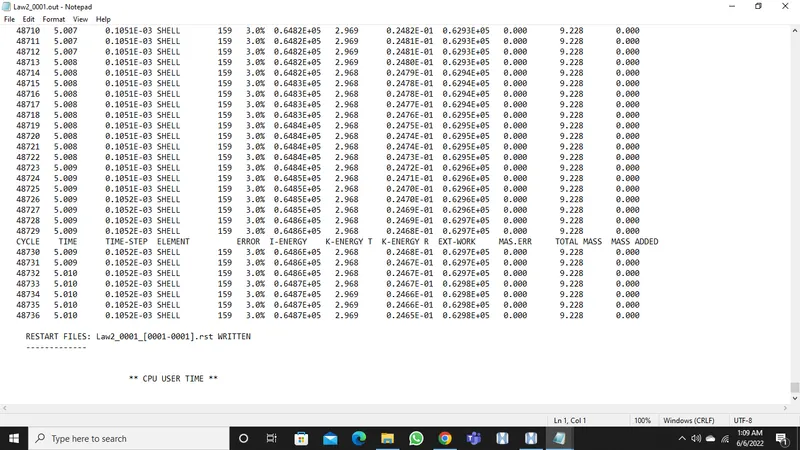
8. The energy error as seen is 3% and mass error is zero.
9. These are acceptable values.
10. Next,plot the graphs and visualize and compare the results.
Case 5
- Import the case 4 rad file and perform the simulation by changing the material card to Law 1. Keep the same value for rho, E, and nu values.
1.Import the case 4 rad file, named “Law2_0000.rad” and perform the simulation bychanging the material card to Law 1.
2.Go to materials tab-aluminium and change the card image to M1_PLAST and Also set Rho,E and Nu values as 0.0028,71000.00 and 0.33.
3.Go to Analysis-Radioss-save the file name as Law1_0000.rad and type -nt 4 in the text box check the connectors box and click on Radioss.
4. After the simulation is completed go to hyperview to visualize the results.
5.To view the results input the h3d file in the hyperview gui.
6 .We can change it to contour and visualize the vonmises stress by changing the average method to simple.
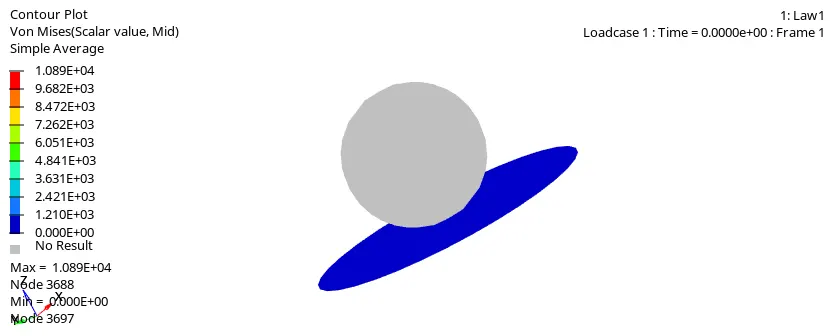
7. Next we need to carry out mass and energy error checks.To do this we need to open the .out file using any text editor.
8. The energy error as seen is 1.3% and mass error is zero.
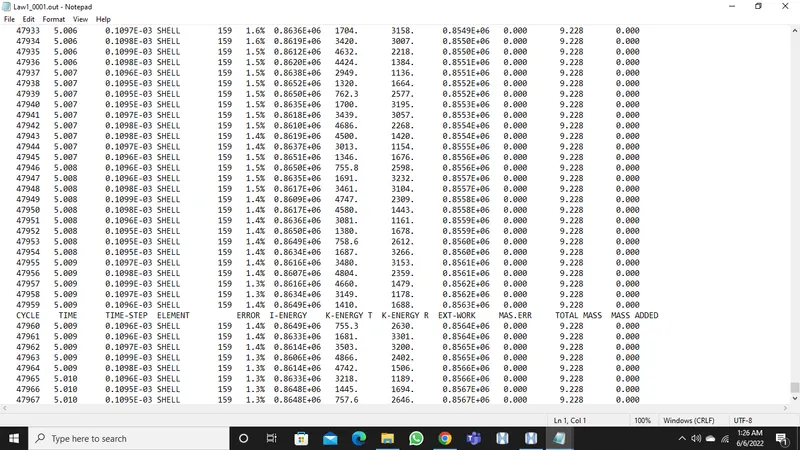
9. These are acceptable values.
10. Next,plot the graphs and visualize and compare the results.
CASE6:
- Import the case 1 rad file, named “Law2_epsmax_failure” and perform the simulation with the law 36 material card. Refer to the video titled "Materials 7" for further information.
1. Import the case 1 rad file, named “Law2_epsmax_failure” and perform the simulation bychanging the material card to Law 36.
2.Go to materials tab-aluminium and change the card image to M36_PLAST_TAB and Also set Rho,E,Nu,EPS_p-max values as 0.0028,71000.00, 0.33 and 0.16
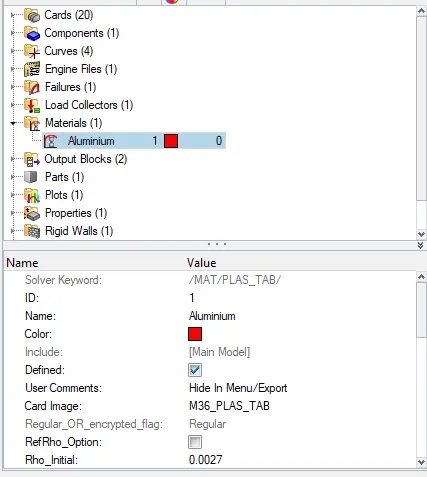
3.Go to Analysis-Radioss-save the file name as Law36_0000.rad and type -nt 4 in the text box check the connectors box and click on Radioss.
4. After the simulation is completed go to hyperview to visualize the results.
5.To view the results input the h3d file in the hyperview gui.
6 .We can change it to contour and visualize the vonmises stress by changing the average method to simple.
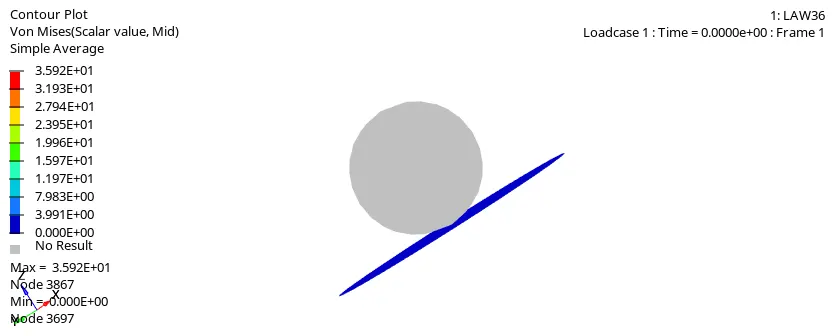
7. Next we need to carry out mass and energy error checks.To do this we need to open the .out file using any text editor.
8. The energy error as seen is 1.3% and mass error is zero.
9. These are acceptable values.
10. Next,plot the graphs and visualize and compare the results.
Case 7
- Open the Law27_0000.rad file and perform the simulation with the law 27 material card. Use the recommended shell properties.
1. Import the Law27_0000.rad file and perform the simulation with the law 27 material card. Use the recommended shell properties.
2.Go to materials tab-aluminium and change the card image to M27_PLAS_BRIT and set recommended properties.
3.Go to Analysis-Radioss-save the file name as Law1_0000.rad and type -nt 4 in the text box check the connectors box and click on Radioss.
4. After the simulation is completed go to hyperview to visualize the results.
5.To view the results input the h3d file in the hyperview gui.
6 .We can change it to contour and visualize the vonmises stress by changing the average method to simple.
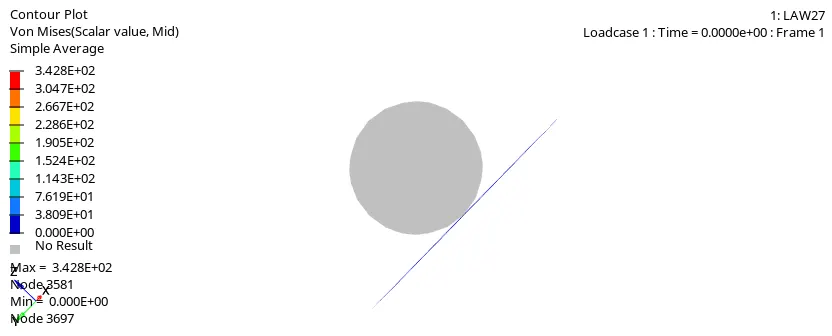
7. Next we need to carry out mass and energy error checks.To do this we need to open the .out file using any text editor.
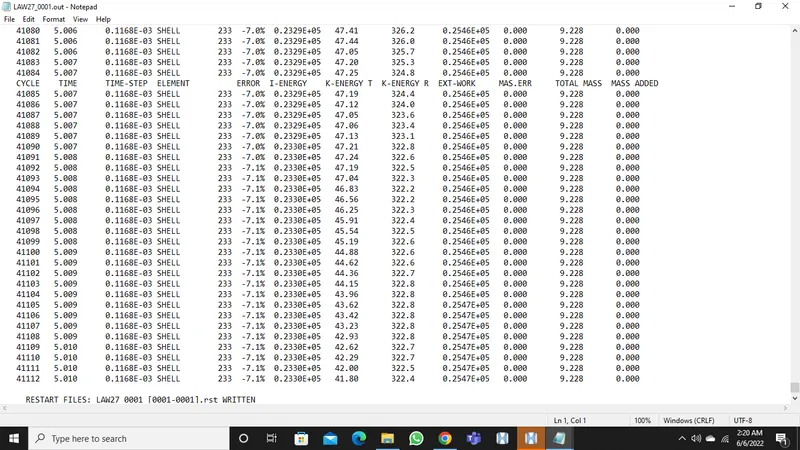
8. The energy error as seen is -7.1% and mass error is zero.
9. These are acceptable values.
10. Next,plot the graphs and visualize and compare the results.
GRAPHS AND OBSERVATIONS:
CASE1
CASE2
CASE3
CASE4
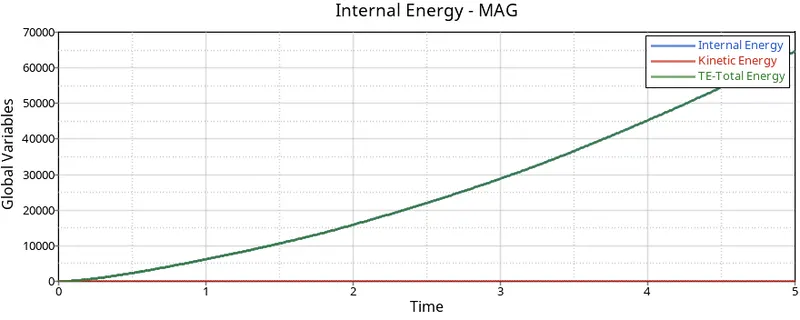
CASE5
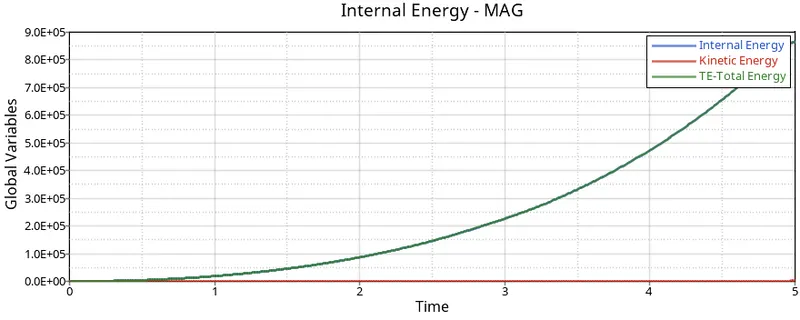
CASE6
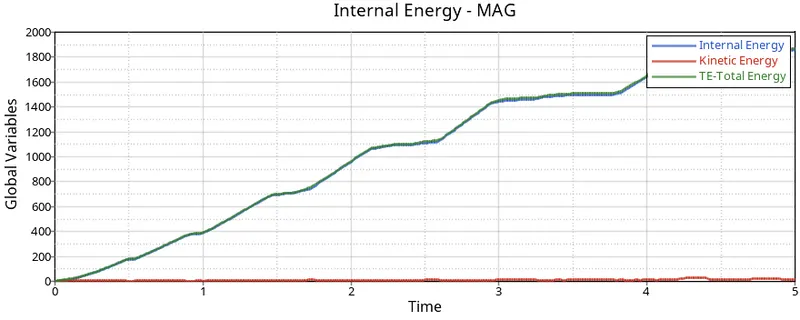
CASE7
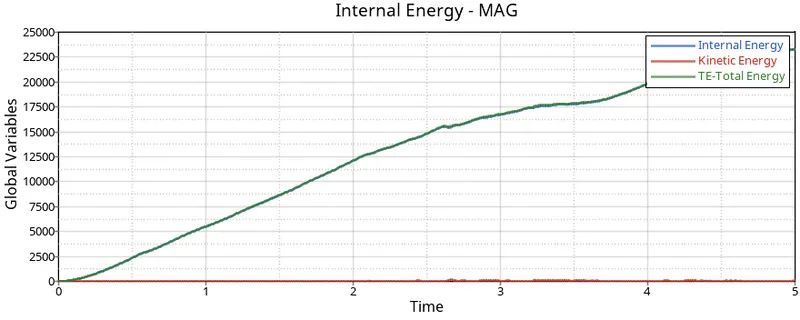
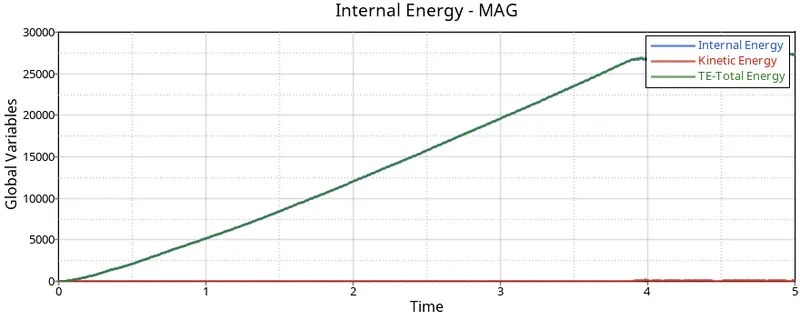
CASE1:In this we can see that there is no hourglass energy produced and internal energy increases as time increases.
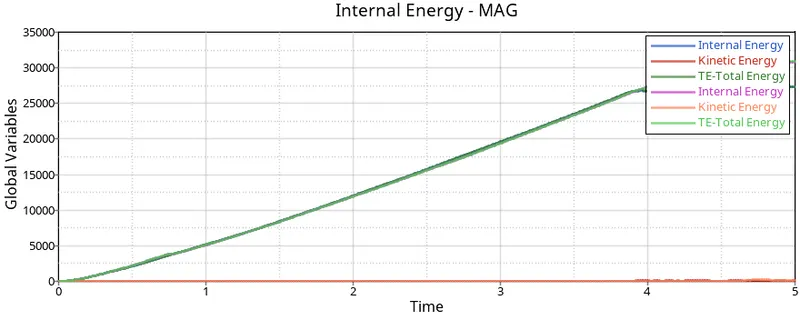
CASE2:In this case the stress induced is higher than the previous simulation.That is why cracks can be seen.
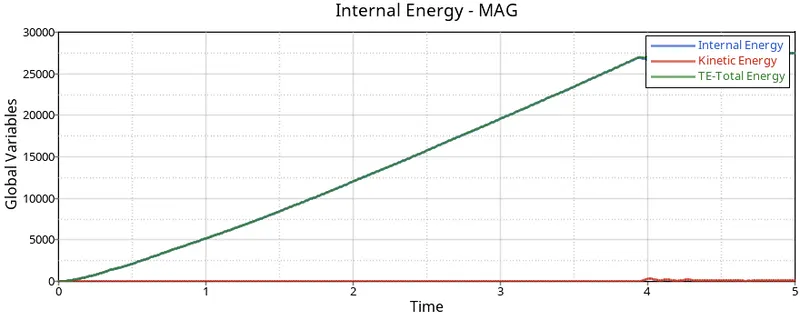
CASE3:There is no cracks on the screen.
CASE4:In this we can see that there is no hourglass energy produced and internal energy increases as time increases.
CASE5:we can see that there is no hourglass energy produced and internal energy increases as time increases.