Assignment 3
AIM:
Perform the Structural Analysis on the given Model and Compare the results of base Simulation and by changing or improving the shell Element properties.
PROCEDURE:
CASE:1
*Run the Base simulation without any change in the element properties.
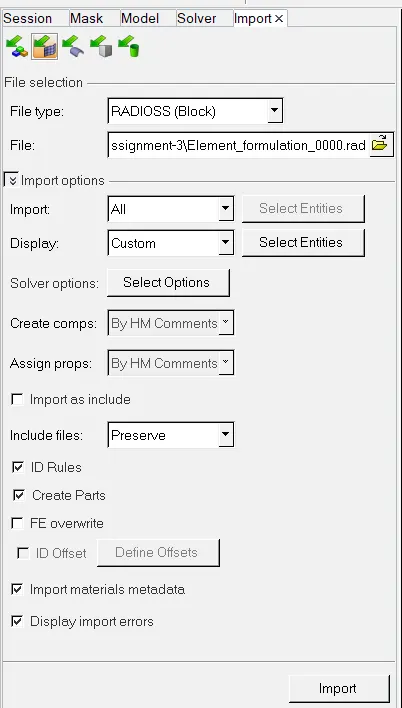
*Import the Cross beam Starter file in radioss by, Selecting File>Import>Slover deck >Filename_0000.rad
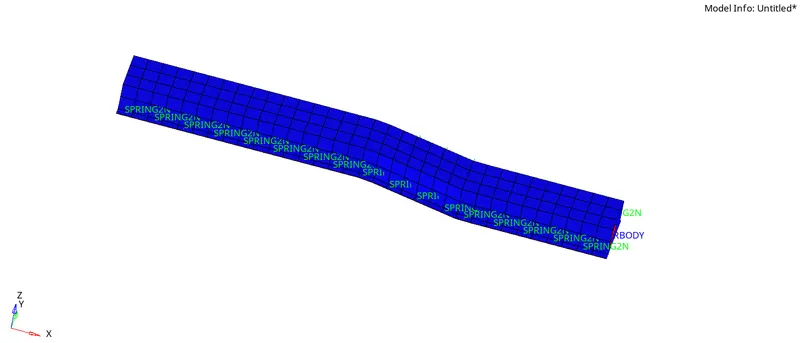
*After importing we can see the model in Hypermesh GUI either in wire frame or shaded elements.
*Open the slover browser to change the engine keywords by selecting View > Browser > Hypermesh > slover.
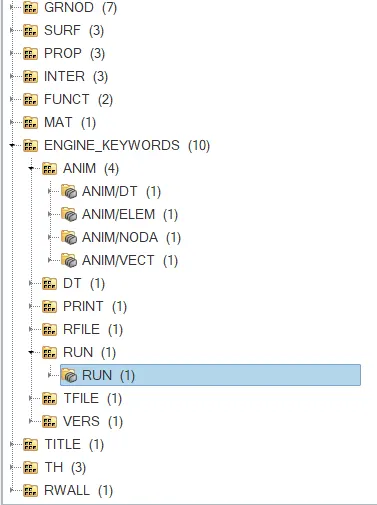
*Using the crash beam file change the run time to 55 ms.
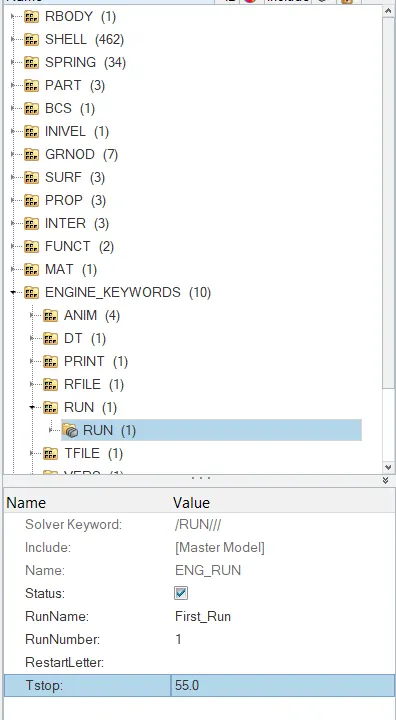
*Tstop is the time run time of the simulation i.e after 55 Millsecound the simulation get stoped.
*Change the number of animation steps during simulation to a minimum of 25 and maximum of 60.
*Select Engine_keywords > ANIM > ANIM/DT.
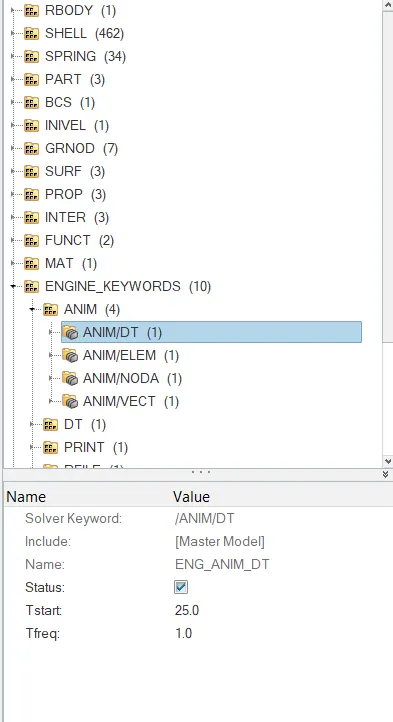
*Tstart is the time to start making animation file i.e( here at 25 th millisecound animation file get started ).
*Tfreq is the time interval between two animation files. In this challenge we can get upto 30 animation files.
*Run the base simulation without any modification to element properties.
*Run the simulation by, selecting the Analysis> Radioss.


*Save the file name as _0000.rad format and tick the check box at bottom left in the above image to make sure all the connections are also involved in the analysis.
* Enter the -nt 4 in option box to make analysis faster to reduce computational time. The value 4 tell that number of cores involved in the process.
HyperWorks Slover View:
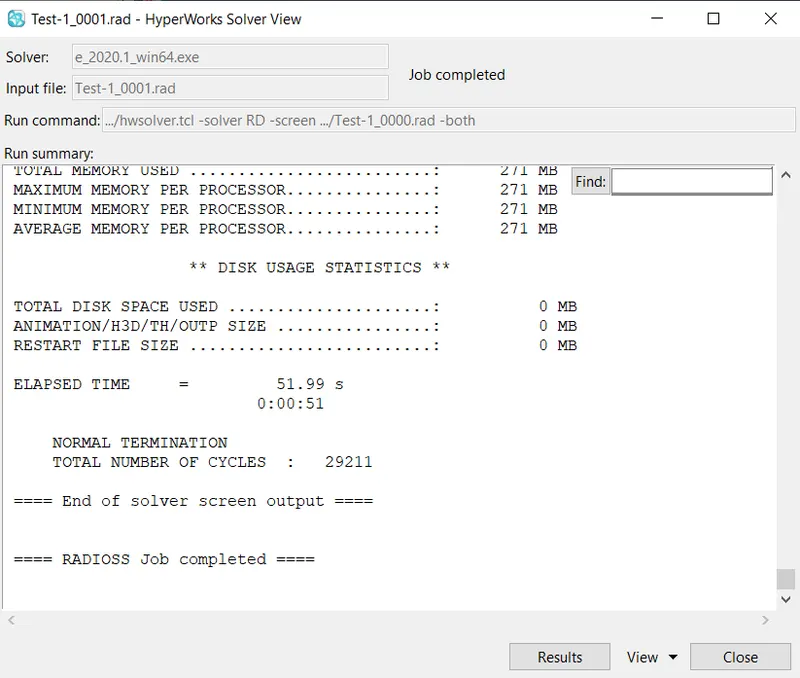
*It gives the information regarding the errors, warnings, time taken to complete the simulation i.e (Elapsed time ) and number of cycles completed in the analysis.
HYPERVIEW :
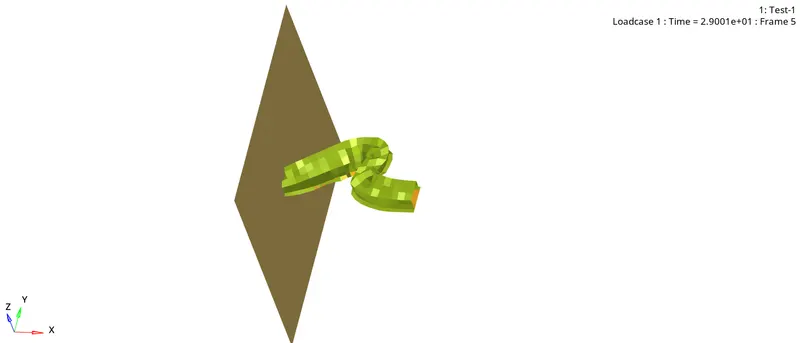
*In order to check the animation of the model open Hyperview as shown in below image.

*Open file-name.h3d file in hyperview and apply it will shows the model in GUI area.
* To Plot rigid wall forces, internal energy, hourglass energy, contact energy, total energy of the simulations Open the HYPERGRAPH 2D.
*Select the file-name.T01 file to plot the graphs in Hypergraph 2D.
*Select the units which are involved in the analysis.
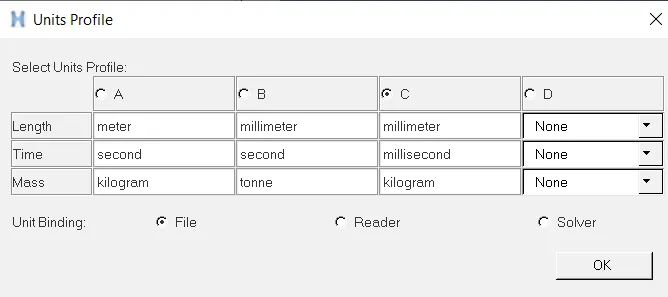
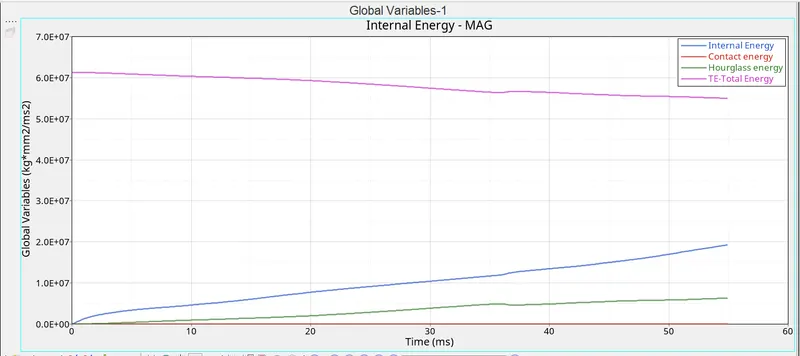
*Select the Gobal Variables to plot the Contact energy,Internal energy, Hourglass energy, Total energy and select MAG fianlly apply.

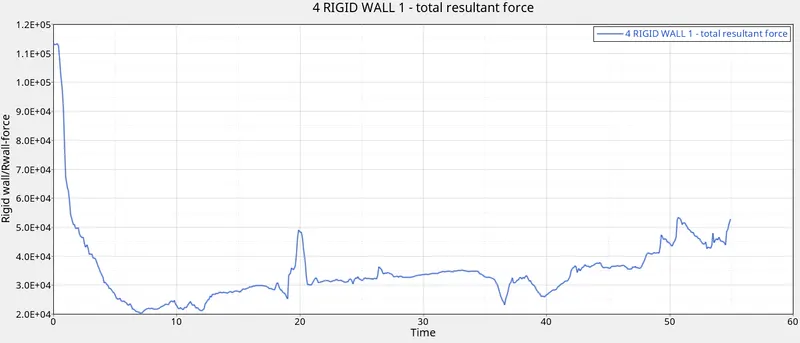
*Select the rigidwall forces > Total resultant force apply.

CASE 2:
*Import the model same as the previous case
*After importing we can see the model in Hypermesh GUI either in wire frame or shaded elements.
*Open the slover browser to change the engine keywords by selecting View > Browser > Hypermesh > slover.
*Using the crash beam file change the run time to 55 ms.
*Tstop is the time run time of the simulation i.e after 55 Millsecound the simulation get stoped.
*Change the number of animation steps during simulation to a minimum of 25 and maximum of 60.
*Select Engine_keywords > ANIM > ANIM/DT.
*Tstart is the time to start making animation file i.e( here at 25 th millisecound animation file get started ).
*Tfreq is the time interval between two animation files. In this challenge we can get upto 30 animation files.
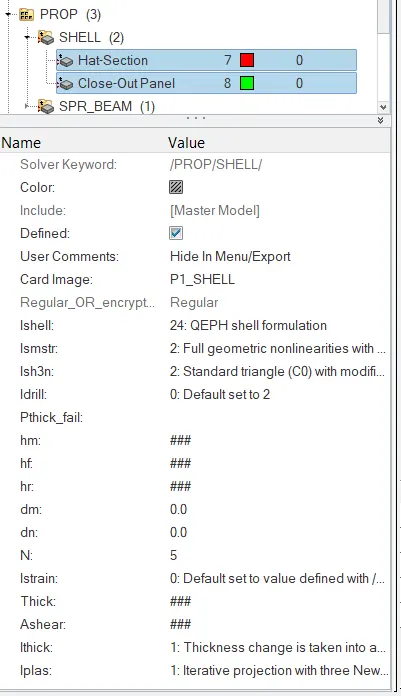
*modifiy the element properties by, Selecting the Properties in the slover deck as mentioned below table.
|
Ishell =24 |
QEPH 4 nodes shells are best combination of cost and accuracy. |
|
Ismstr=2 |
Full geometric nonlinearities (default)with possible small strain formulation activation in RADIOSS Engine. |
|
Ish3n=2 |
Standard 3 noded shell (C0)with modification for large rotation(default) |
| N=5 | Number of integration points set to 5 for accuracy bending. |
|
Ithick=1 |
Thickness change is taken into account for accuracy. |
|
Iplas=1 |
Iterative plasticity for good accuracy. |
*Select the Properties> shell > hat-section & close-out Panel. Modify Ishell, Ismstr, Ish3n, N, Ithick, Iplas as shown in below figure.
*Run the simulation by, selecting the Analysis> Radioss.
*Save the file name as _0000.rad format and tick the check box at bottom left in the above image to make sure all the connections are also involved in the analysis.
* Enter the -nt 4 in option box to make analysis faster to reduce computational time. The value 4 tell that number of cores involved in the process.
HyperWorks Slover View:
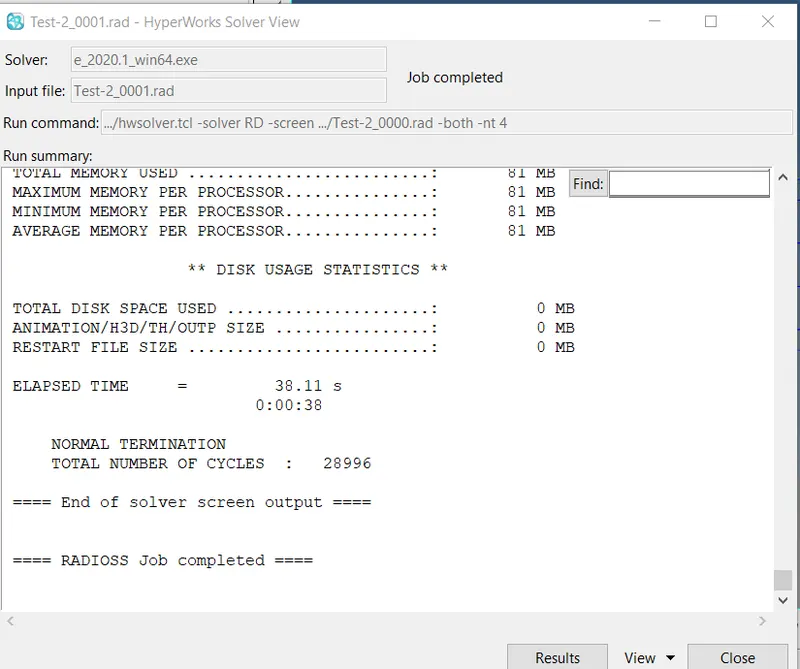
*It gives the information regarding the errors, warnings, time taken to complete the simulation i.e (Elapsed time ) and number of cycles completed in the analysis.
HYPERVIEW :
*In order to check the animation of the model open Hyperview as shown in below image.
*Open file-name.h3d file in hyperview and apply it will shows the model in GUI area.
* To Plot rigid wall forces, internal energy, hourglass energy, contact energy, total energy of the simulations Open the HYPERGRAPH 2D.
*Select the file-name.T01 file to plot the graphs in Hypergraph 2D.
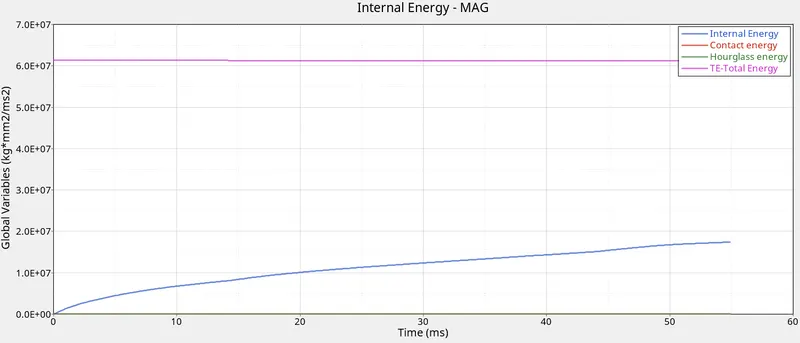
*Select the Gobal Variables to plot the Contact energy,Internal energy, Hourglass energy, Total energy and select MAG fianlly apply.
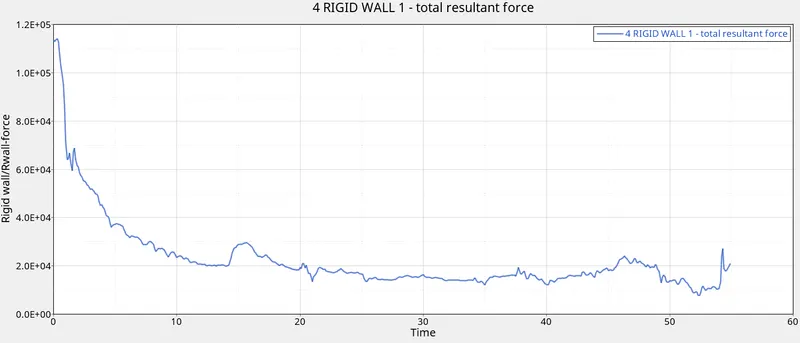
*Select the rigidwall forces > Total resultant force apply.
RESULTS:
*Base simulation result
*Modified element properties result
COMPARING THE RESULTS:
*Comparing both the results QEPH elements gave more accurate results than the case 1 results during loading and unloading conditions.
*Even hourglass deformation also reduced in QEPH elements.
*Hourglass energy is completely removed in case 2, therefore the Energy error in case 1 is -10.3% and in Case 2 is -0.1%.