Comparison of Rail with different parameters.
AIM:-
To open and run two radioss files and explain the comparison between them.
SOFTWARE:-
Hyperworks.
Hyperview.
Hypergraph
PROCEDURE:-
Set the user profile to RADIOSS.
CASE-1
Firstly, import the file using a solver deck.
After the model is imported goto > model tab > cards > ENG_ANIM_DT.
Change the number of animation steps during simulation to a minimum of 25.
Similarly change the run time to 55 ms.
After the changes are made, run the base simulation.
Goto > Analysis > Radioss.
Now change the save file directory, enter the option value as “-nt 4” and check on the include connectors.
A tab will open and run the simulation which shows all the processes done in it.
After the simulation is completed close the file.
To check the animation goto > hyperview > select the .h3d file > click on apply.
To plot a graph in order to show the Plot rigid wall forces, internal energy, hourglass energy, contact energy, total energy of the simulations.
Goto > Hypergraphs 2D > upload .T01 file from the case 1 Folder.
Select global variables > Internal energy, hourglass energy, contact energy, total energy > Select MAG > apply.
Similarly plot rigid wall forces by selecting rigid forces.
After plotting the graph a unit profile tab opens and sets it as per given unit.
Save the file.
CASE-2
Firstly, import the file using a solver deck.
After the model is imported goto > model tab > cards > ENG_ANIM_DT.
Change the number of animation steps during simulation to a minimum of 25.
Similarly change the run time to 55 ms.
Change the properties as per given
Goto model bar > select properties > change the values.
Ishell =24 - QEPH 4 nodes shells are the best combination of cost and accuracy.
Ismstr =2 - Full geometric nonlinearities (default)with possible small strain formulation activation in RADIOSS Engine.
Ish3n=2 - Standard 3 noded shell (C0)with modification for large rotation(default)
N=5 - Number of integration points set to 5 for accuracy bending.
Ithick=1 - Thickness change is taken into account for accuracy.
Iplas=1 - Iterative plasticity for good accuracy.
After the changes are made, run the base simulation.
Goto > Analysis > Radioss.
Now change the save file directory, enter the option value as “-nt 4” and check on the include connectors.
A tab will open and run the simulation which shows all the processes done in it.
After the simulation is completed close the file.
To check the animation goto > hyperview > select the .h3d file > click on apply.
To plot a graph in order to show the Plot rigid wall forces, internal energy, hourglass energy, contact energy, total energy of the simulations.
Goto > Hypergraphs 2D > upload .T01 file from the case 1 Folder.
Select global variables > Internal energy, hourglass energy, contact energy, total energy > Select MAG > apply.
Similarly plot rigid wall forces by selecting rigid forces.
After plotting the graph a unit profile tab opens and sets it as per given unit.
Save the file.
CASE 1 & CASE 2 COMPARISON
CASE 1
CASE 2
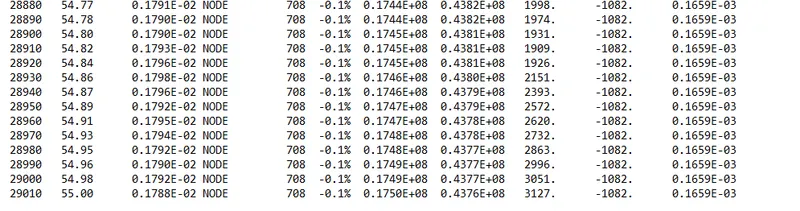
Energy error and Mass error in case 1

Energy error and Mass error in case 2
EXPLANATION:-
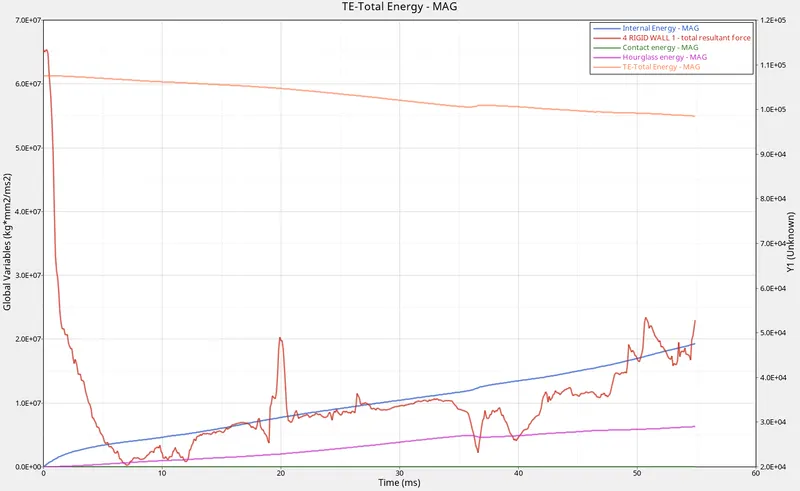
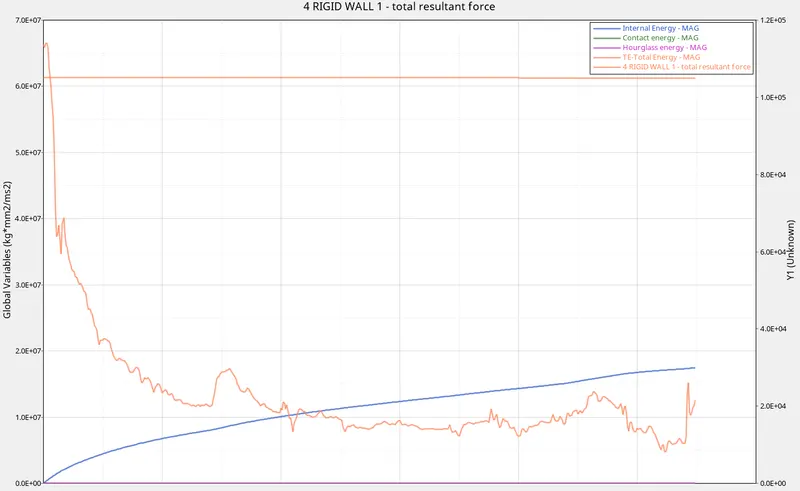
While comparing case 1 with case 2 we can see a certain change in the internal energy, hourglass effect, contact energy, total energy and rigid wall force.
As per the values added to case 1 we change the engine run time and number of animation steps and run the base simulation without changing the default value of the property.
Which will affect the model while analyzing as it selects the default values.In case 2 with the same engine run time and number of animation steps we change the properties such as Ishell, Ismstr, Ish3n, N, Ithick and Iplast.
Ishell:- It is an element formulation for 4 noded shell. As we enter the value as 24 to QEPH 4 nodes shell are best cost and accuracy.
Ismstr:- It is an element formulation of small or large strains. As we enter the value 2 to Full geometric nonlinearities (default)with possible small strain formulation activation in RADIOSS Engine.
Ish3n:- It is an element formulation for 3 noded element. As we enter the value 2 to Standard 3 noded shell (C0)with modification for large rotation(default).
N:- Number of integration points set to 5 for accuracy bending.
Ithick:- To determine if the thickness must remain constant or it does have to vary. As we enter the value 1 to Thickness change is taken into account for accuracy.
Iplast:- It used for calculating post yeild strain. as we enter the value 1 Iterative plasticity for good accuracy.
Which has modified the model elements changes the simulation as well as the energy forces on the model.
Hourglass Effect:- When the elements in a model deforms but the strain energy is not computed for the deformation then it results in the hourglass deformation.
The hourglass deformation is seen in case 2 due to change in the model properties as there is no hourglass deformation in case 1.
It represents that the property value can change the deformation in the cases.
RESULTS:-
The model has been run with two different values, simulated and compared.