Assignment 2-RADIOSS Engine File Editing & 3D Meshing Challenge
Assignment 2-RADIOSS Engine File Editing & 3D Meshing Challenge
OBJECTIVE:
1.To calculate the speed of sound through steel and the critical time step for given length
2.To edit the radios engine file with the critical time step and the frequency at which output plots are generated, for 20 steps
3.To 3D mesh the housing assembly in Hypermesh using a tetramesh with a target element size of 5mm and tet collapse of 0.15.
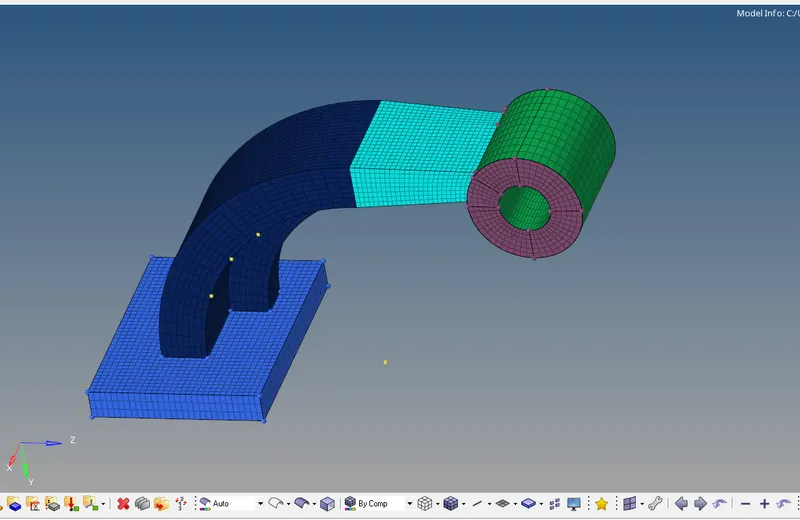
4.To 3D mesh the arm bracket assembly in Hypermesh using a Hex mesh and target element size of 10 mm.
1) Calculate the speed of sound in steel rail
Sol: Formula for "Speed of sound" `c=sqrt (E/P)` from the given 0000.rad file we can get the material properties of steel rail.
From the above image we can see the value of E=210000 Mpa(N/mm^2) `rho`=0.0078 g/mm^3,
now using the above mentioned formula, we can substitute the values and get the speed of light i.e,
`c=sqrt( 21000/0.0078`)
=5188.75 m/s.
2) Calculate time taken for shock wave to cross the rail of 1000mm
Formula for time taken t=l/c
t=1/5188.75
3) Time for sound to travel length of rail is = 0.1927ms
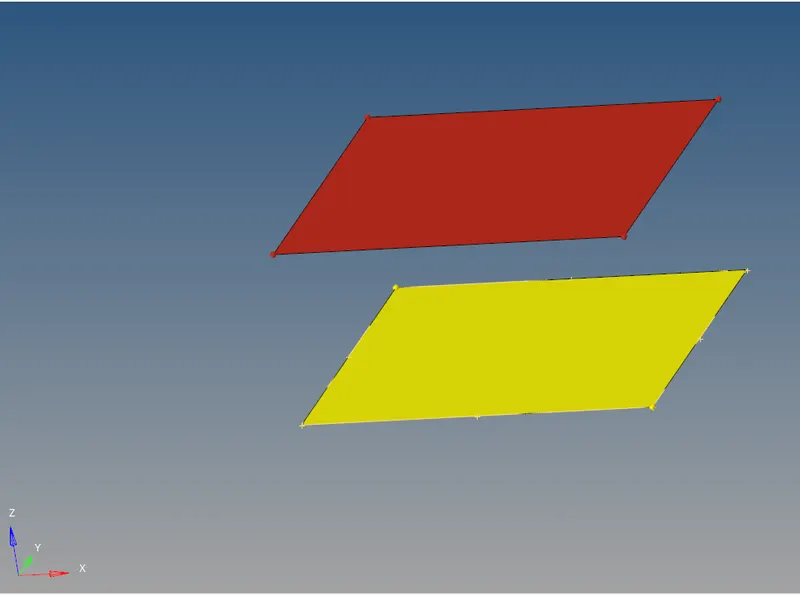
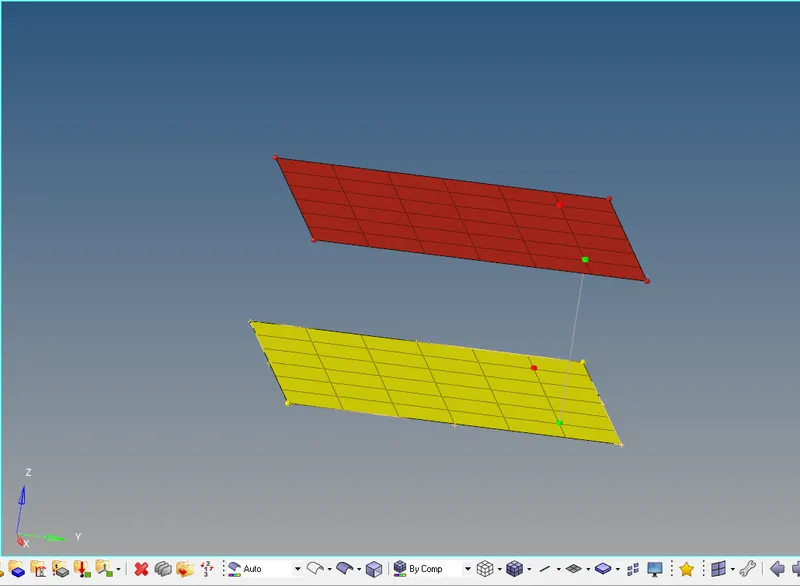
1D MESH AND CONNECTIVITY
3.3D Mesh >>Cover Housing>> Tetramesh
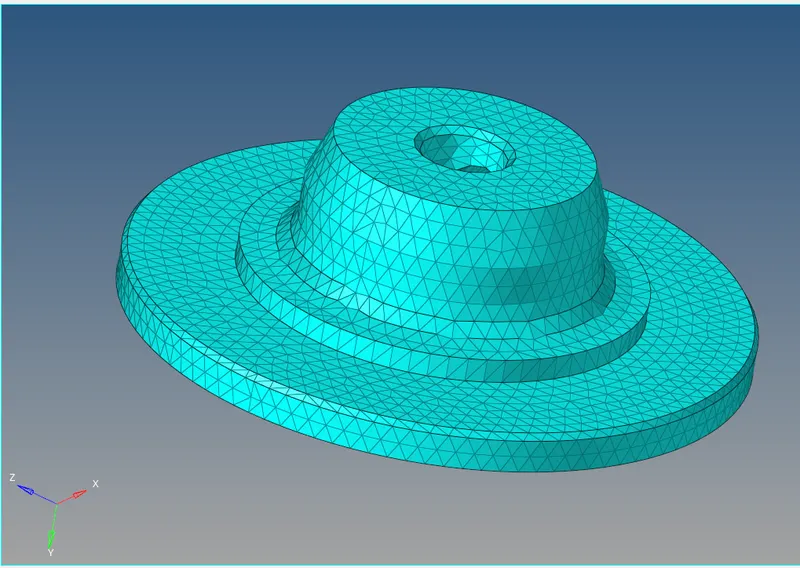
The housing assembly has two components cover and hub as can be seen in the image below.
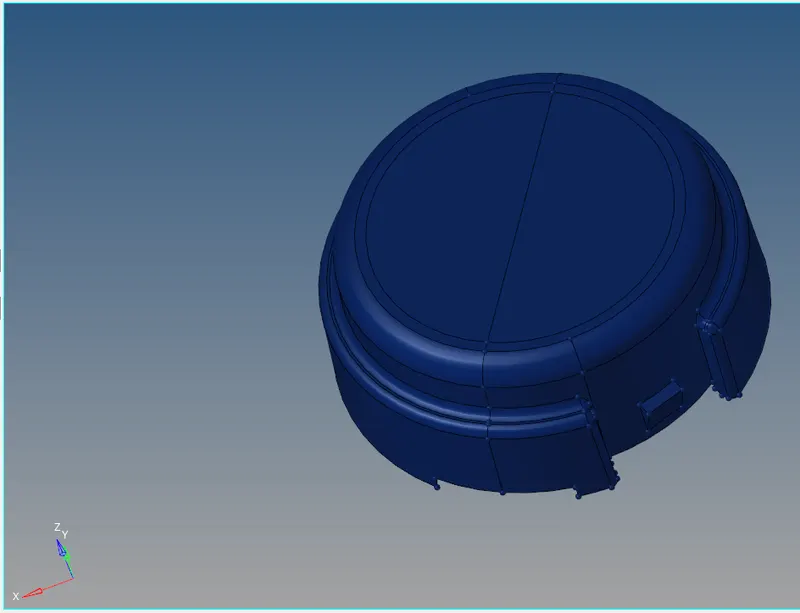
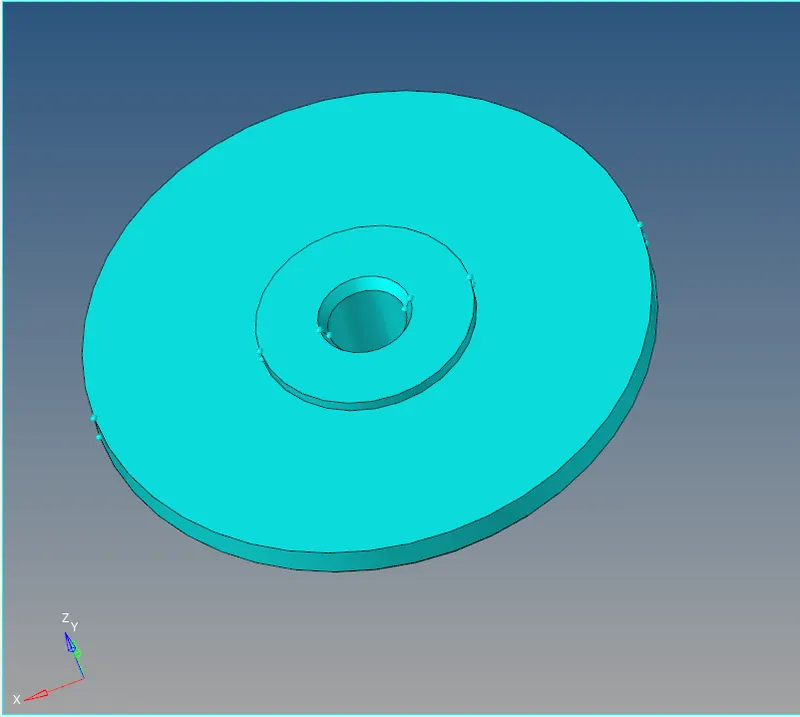
both the components have to be meshed separately using a volume tetramesh
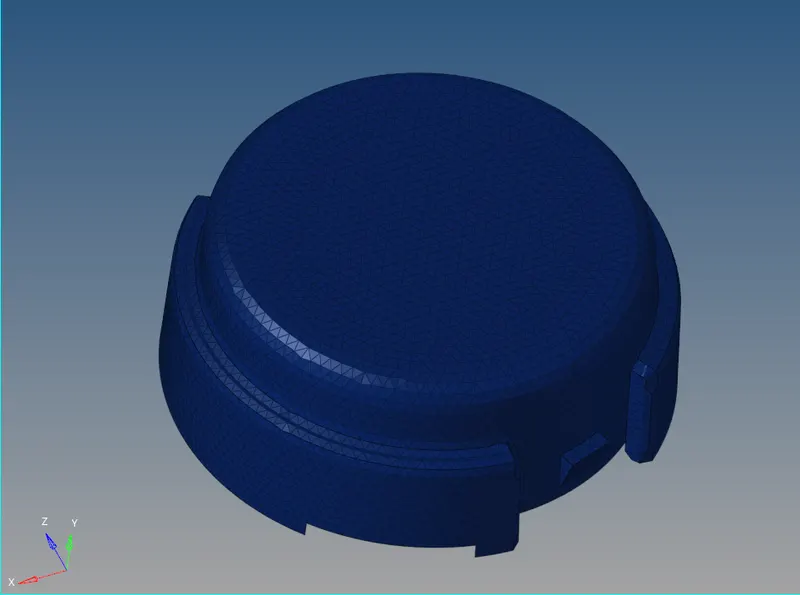
Cover
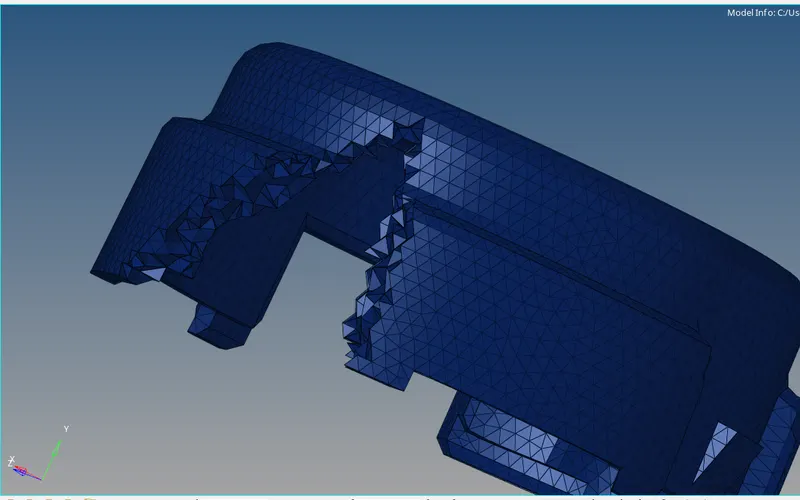
cover is meshed using a volume tetra mesh with an element size of 5mm and tet collapse is set to 0.15.
Once meshing is been done component will appear as below
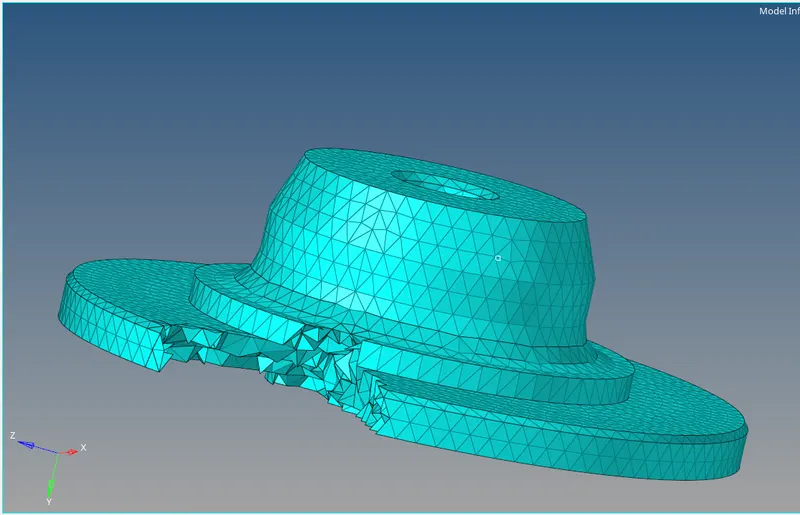
4.Hexa Meshing of Arm Bracket
Provided arm bracket have four different regions which required to be hexa meshed accordingly, first one of it is base.
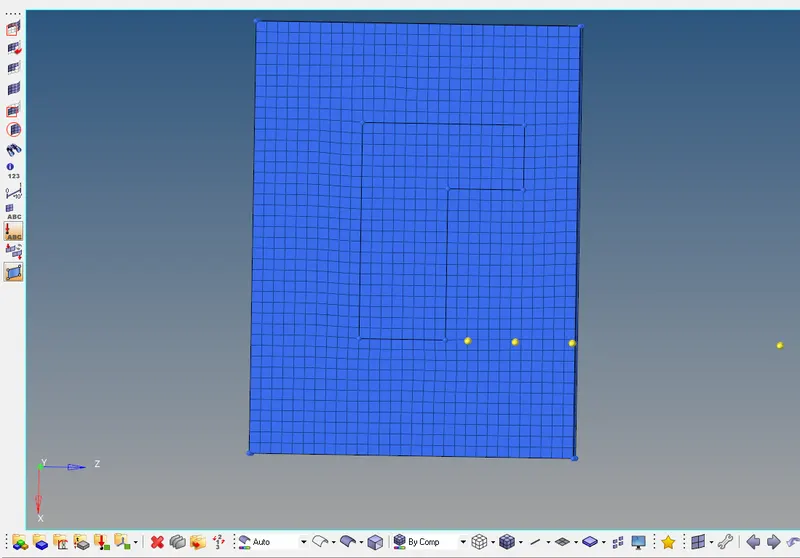
- To start with it we have to isolate it from rest of the component. which can be done by using mask command available in tool sub-panel, once it is been isolated as shown above. we can move toward further processes
- use automesh command available in 2D panel
- If there are trias available in mesh we have to remove them by using DRAG option available in 2D>>quality index >> clean up tools >>drag tria element which will allow us to move the trias and remove them in opposite trias
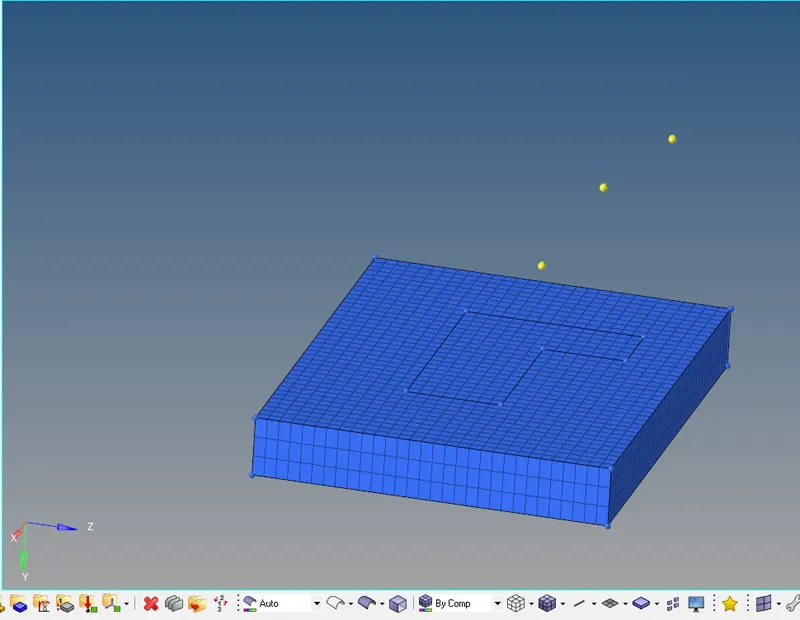
- Moving forward we have to mesh curve portion for which we have to hide all hexa element in base and only keeping surface mesh elements'
- And use spin command in 3D to extract this mesh, in this command we need to select 2d elements from base, need a centre of curvature which can be created by three-point distance command select axis passing through centre of curvature and give the angle upto which it has to extract mesh and on spin column entre how many number of layers are required and then finally click spin -/+ to extract it
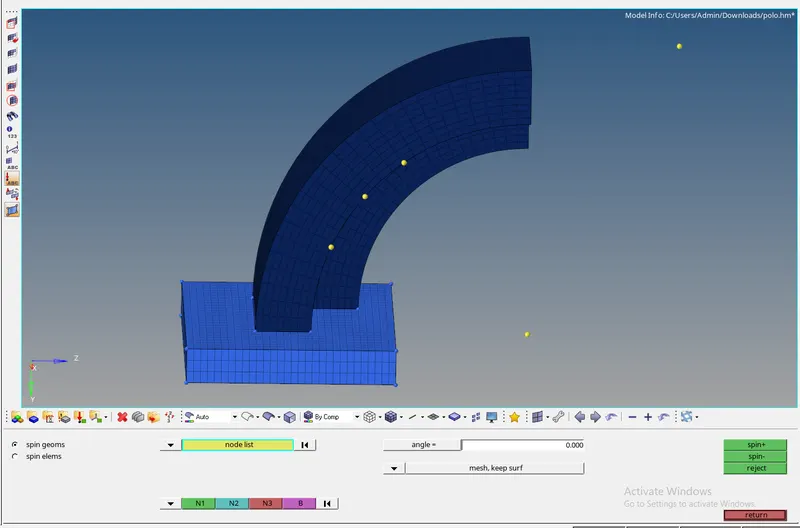
- After curve portion is been meshed next portion of this bracket is straight tapper which should be meshed with Linear Solid in 3D panel for this we require face component of previously meshed curve portion this can be done with faces sub-panel available in tools panel.
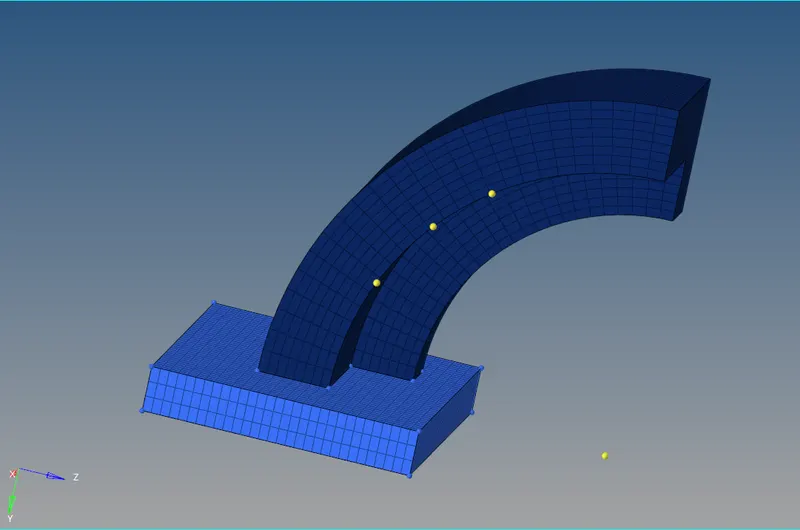
- Select the component and click find faces it will create the face for this component
- Mesh the opposite side of this portion with equal number of rows and column
- Once faces for mesh is been generated we can move to linear solid command wherein we need to select surface elements of the opposite sides of tapered component, specify position of three nodes at exact position on both side of mesh which helps mesh to get align and enter how many number of layers we require.
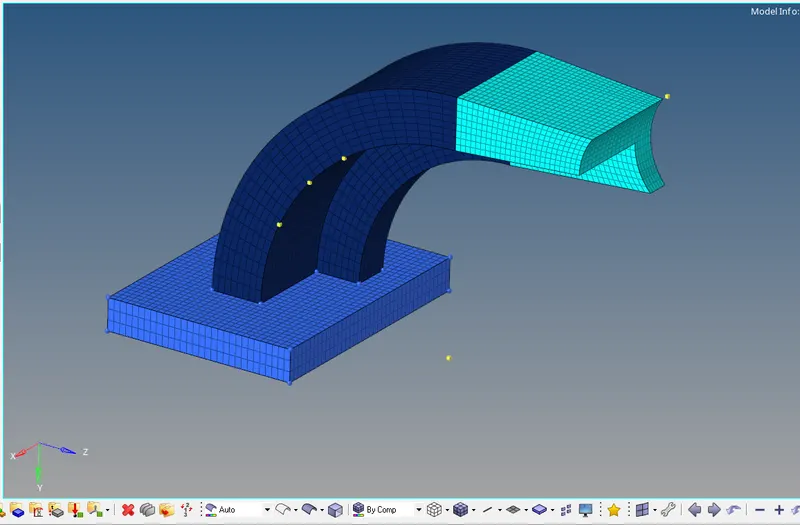
- Once each input is entered click on solid which will create solid elements accordingly
- Finally moving to cylinder Bose we have to mesh one of its surface
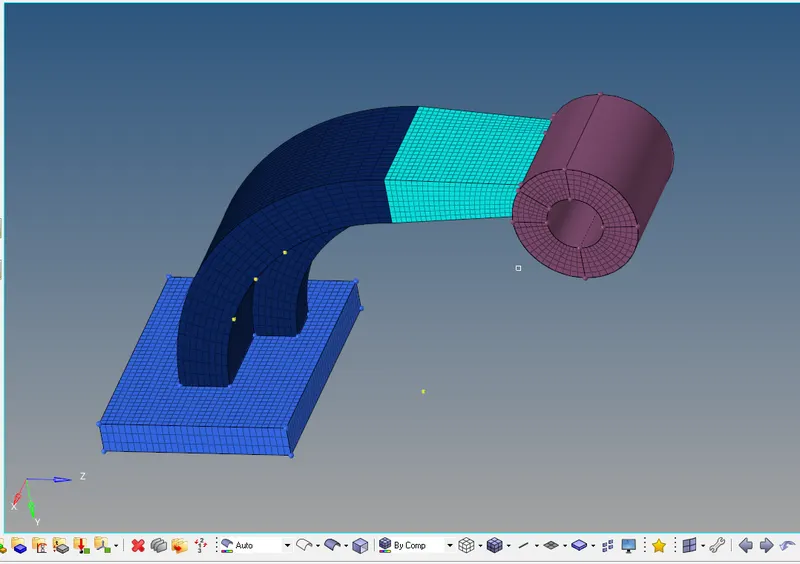
- After this we will go for Solid Map in which we have to enter elements to drag ,destination surface that is opposite surface ,along the geometry should be mixed which allow us to select reference nodes and lines etc. ,and element size in along size
- Once every input is selected correctly, mesh of the Bose will appear as below